Chats
Chats Calendar
 Meetings
 Contacts
 Mail
Mail Docs
Docs Drive
Drive AI Table
 AI Minutes
 Attendance
 Approval
 YiDA
YiDA Admin Console
Open Chats
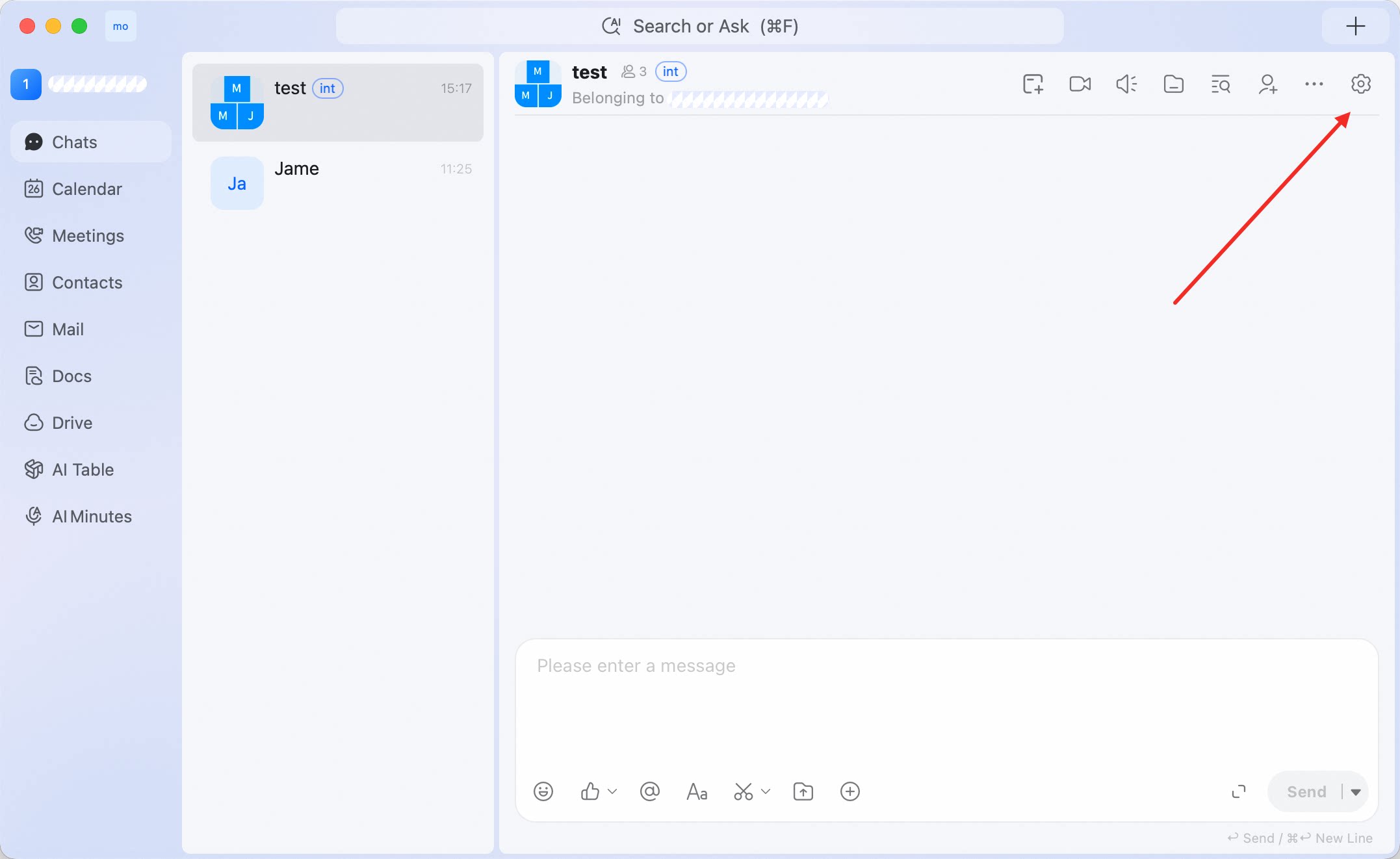
In DingTalk desktop app, click Chats in the left sidebar. Your conversation list shows recent direct messages and group chats, including unread indicators and the latest message preview. Use the search bar at the top of the window when you need to find people, groups, chat records, documents, reports, tags, functions, or departments.Start a direct message
Use a direct message for a private one-on-one conversation.- Click the search bar at the top of DingTalk desktop app.
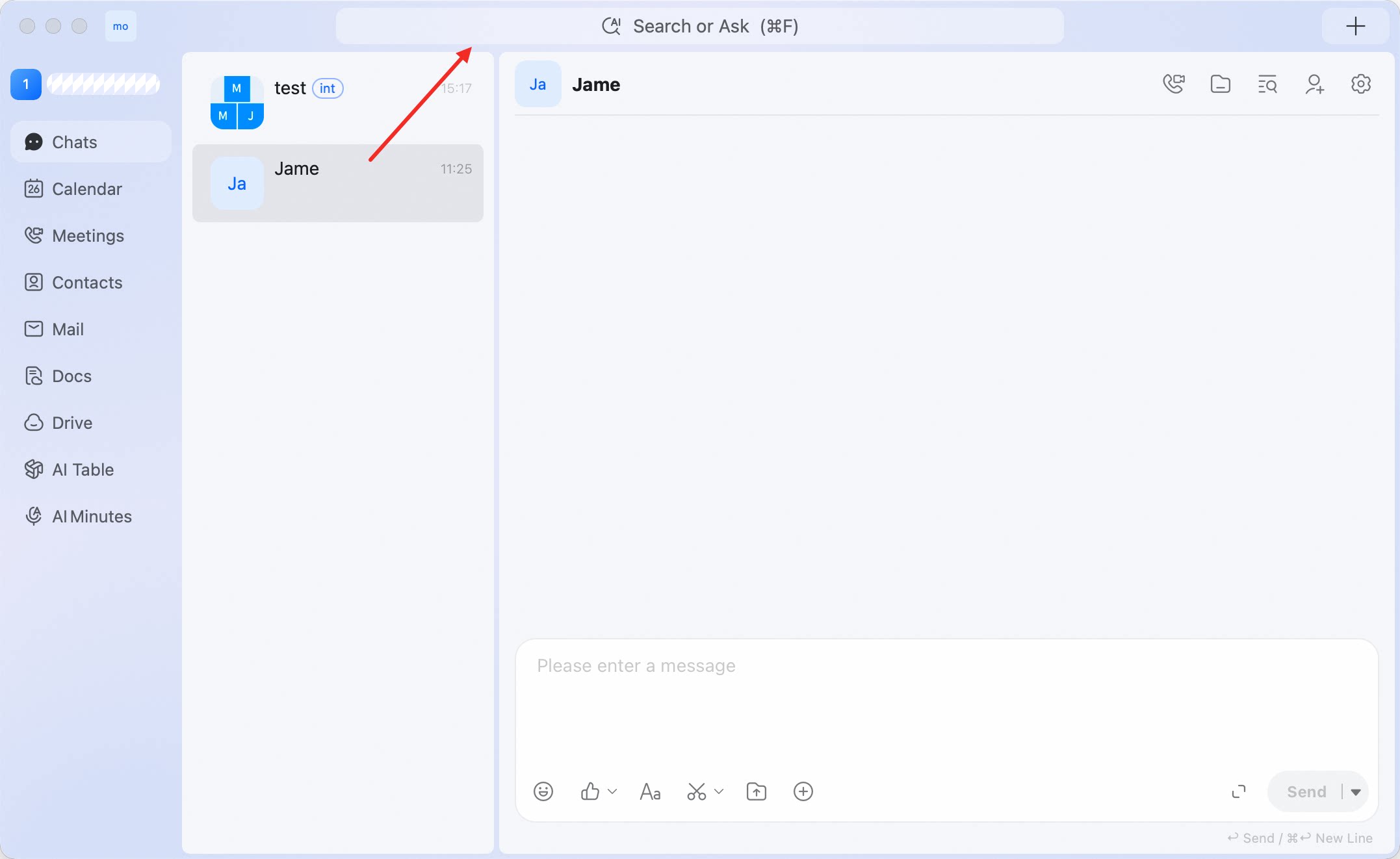
- Enter the person’s name.
- Select the person from the search results.
- Type your message in the input box.
- Press Enter or click Send.
Create a group chat
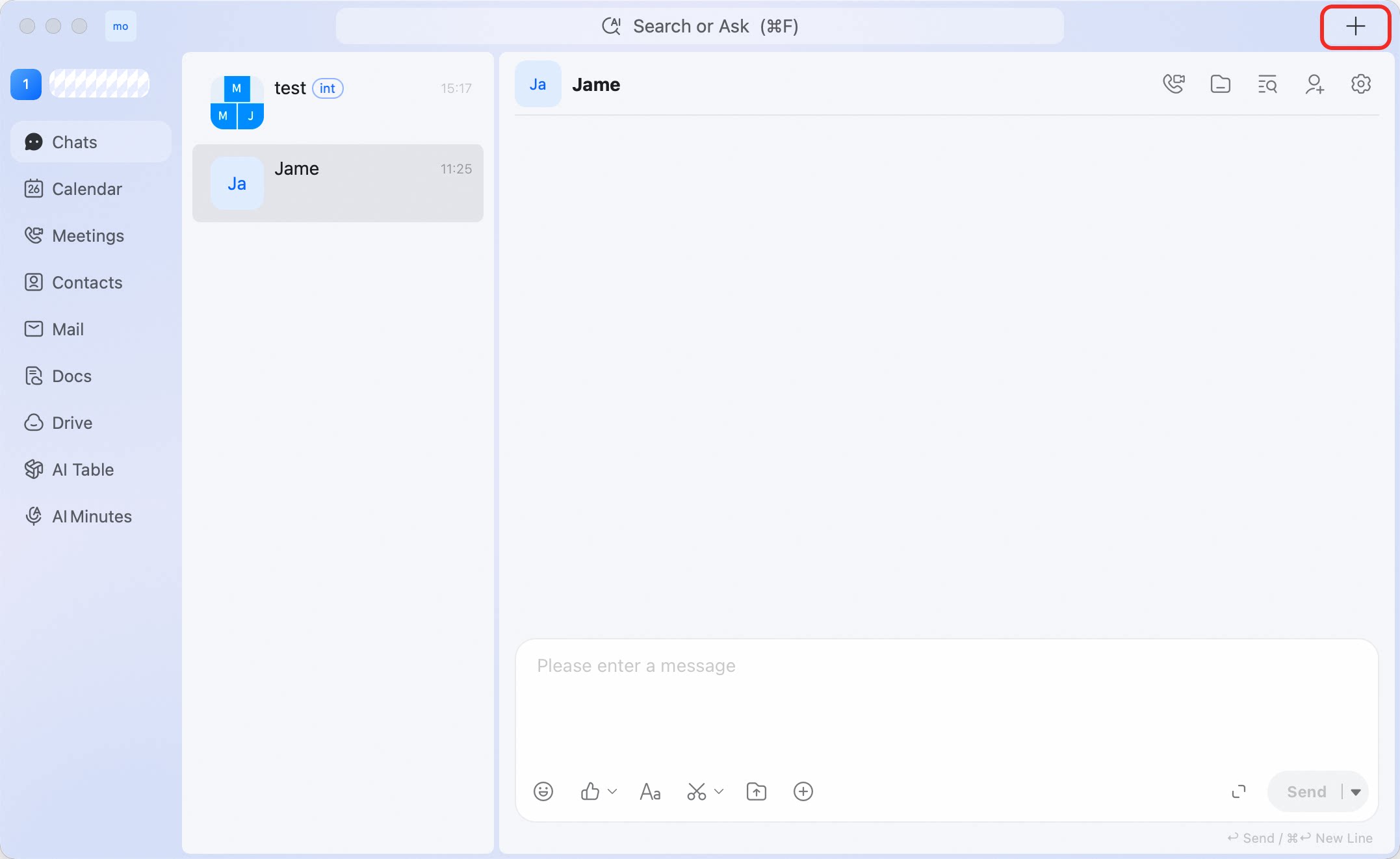
Use a group chat when multiple people need to discuss the same topic or project.- Click + in the upper-right corner of DingTalk desktop app.
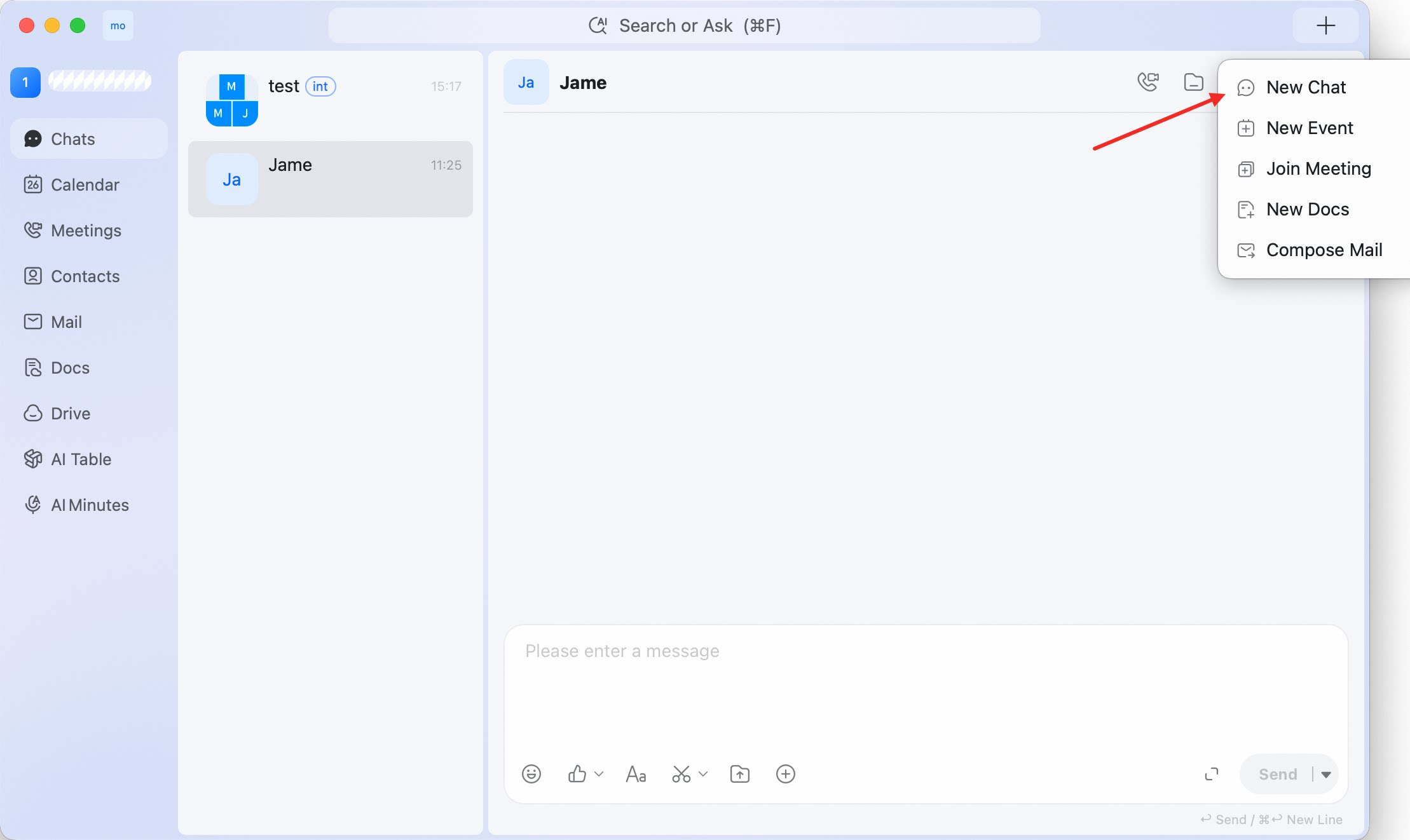
- Select New Chat.
- In Select Contact, search for people or choose from Friends, Organization, Groups, or Import.
- Select the people you want to add.
- Click Confirm.
Send and format messages
Use the message composer at the bottom of a conversation to write and send messages.Start a video conference
When a chat discussion needs a live conversation, open a conversation, click + in the message composer, then select Video Conference. In a group chat, you can also use the video meeting icon in the upper-right corner of the conversation.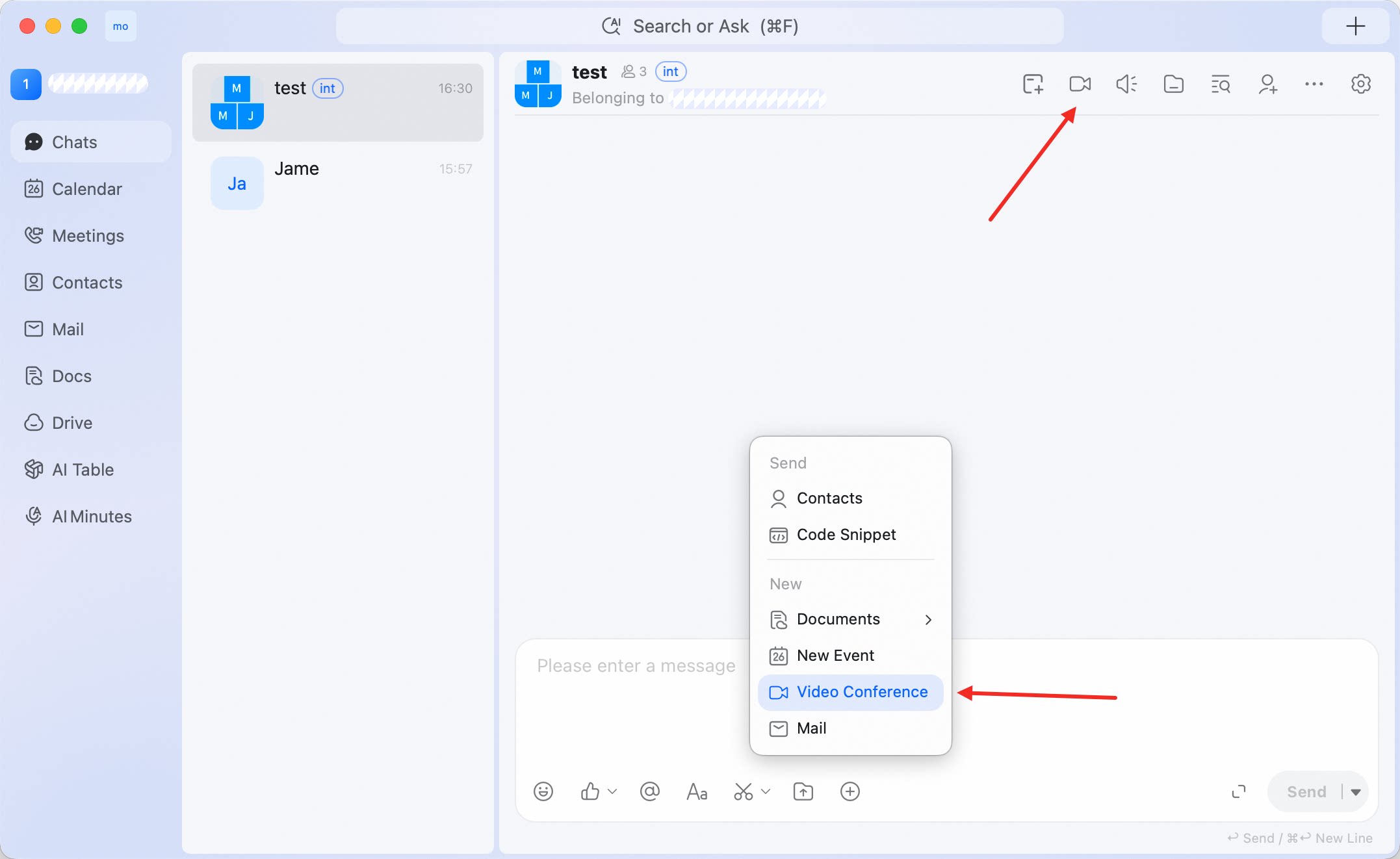
Search messages and files
To search within a conversation, open the conversation and click the search icon in the upper-right corner. Chat Records opens by default. Enter a keyword, then use Filter to narrow the results if needed. To browse shared files, open a conversation and click the file/folder icon in the upper-right corner.Manage a conversation
Right-click a conversation in the conversation list to manage how it appears and notifies you.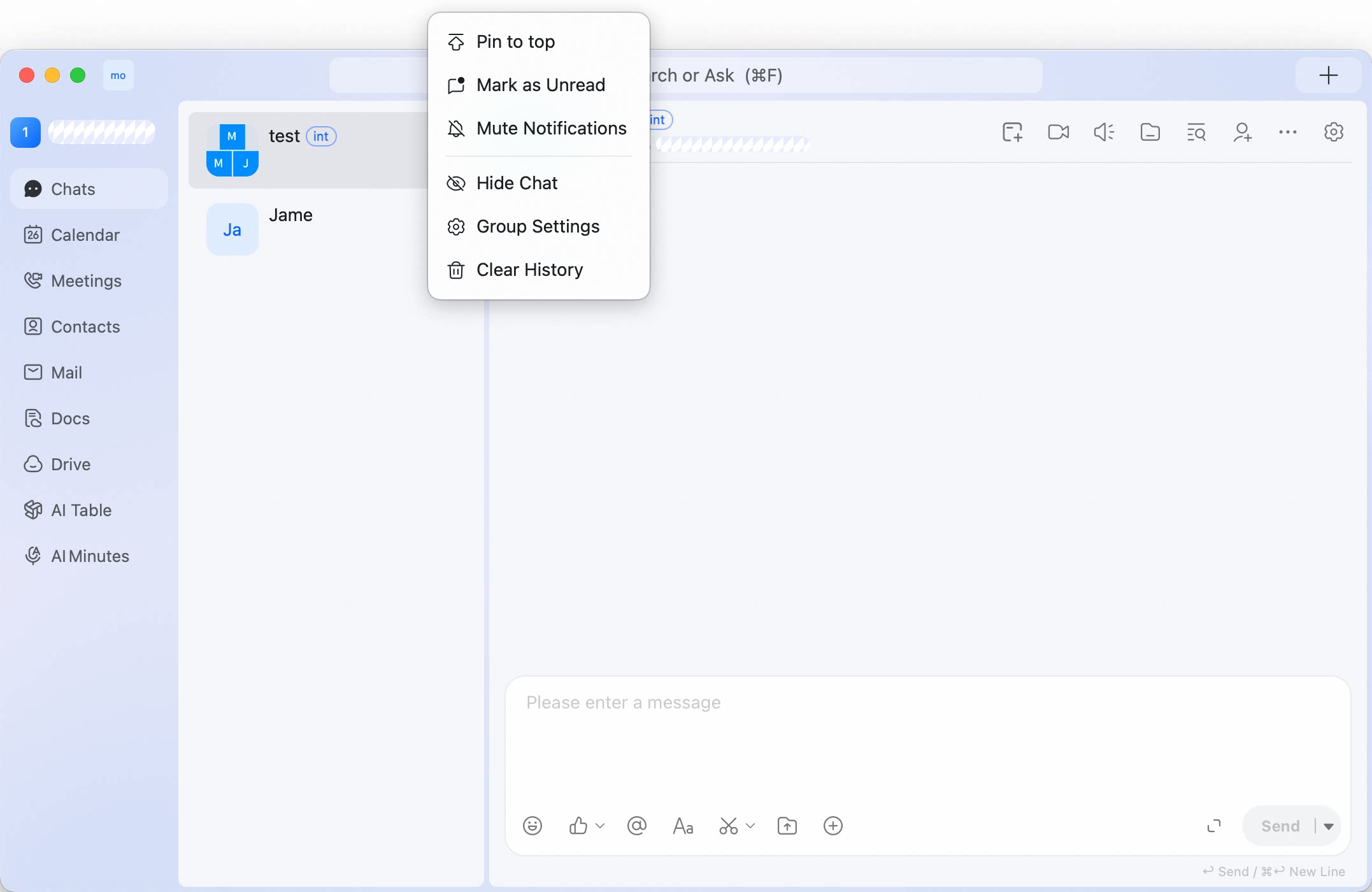
Open group settings
Open a group conversation and click the gear icon in the upper-right corner. From Group Settings, you can view members, open Notice, use Group Invitation, update My Nickname in Group, turn on Mute Notifications, open Group Management, clear messages, or Quit the group.