

 Chats
Chats Calendar
 Meetings
 Contacts
 Mail
Mail Docs
Docs Drive
Drive AI Table
 AI Minutes
 Attendance
 Approval
 YiDA
YiDA Admin Console
Search across DingTalk
- Click the search bar at the top of the DingTalk window.
- Enter a keyword.
- Review results by category.
- Select a result to open it.
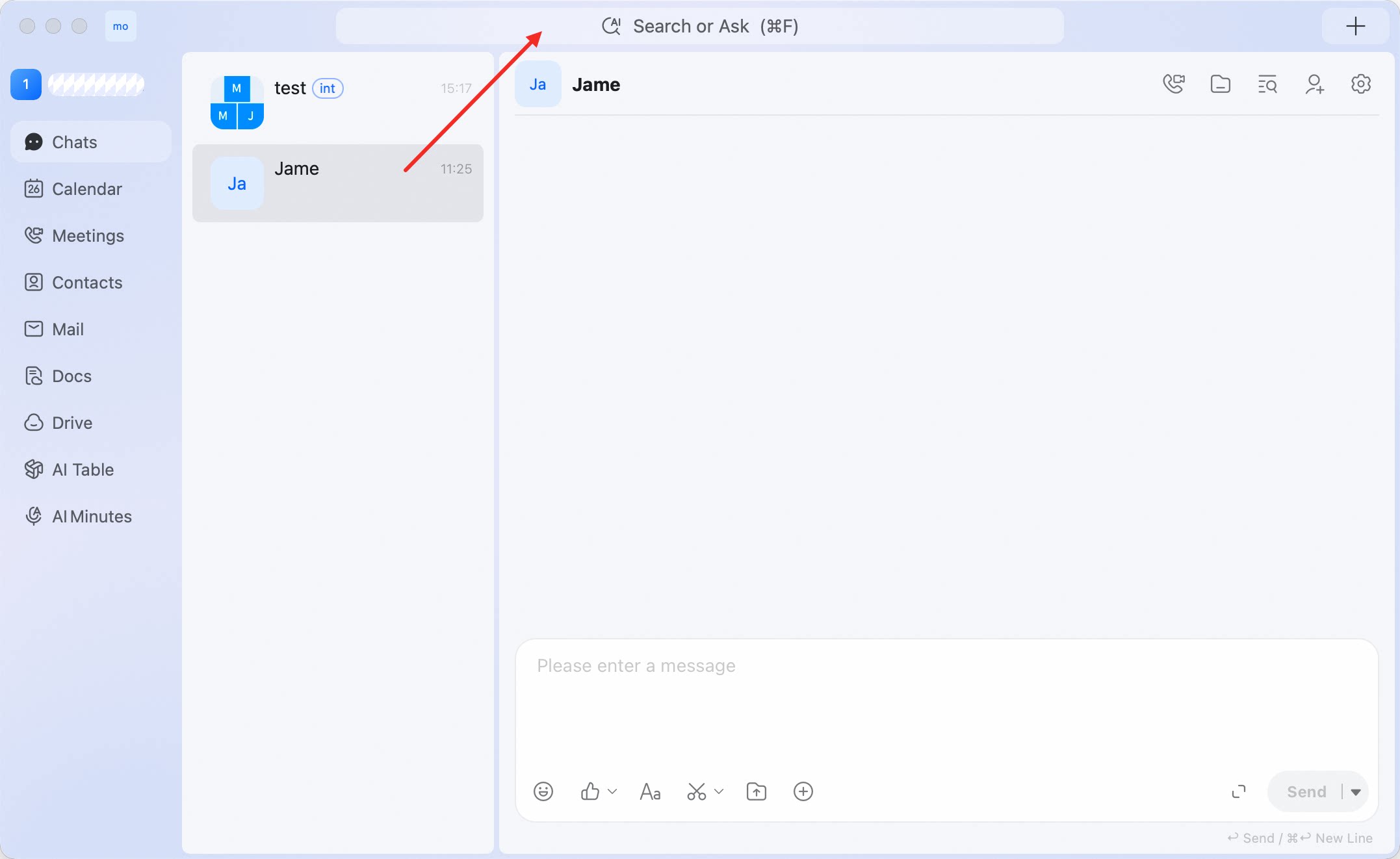
Search within a conversation
Use in-chat search when you already know which conversation contains the message.- Open the conversation.
- Click the search icon in the upper-right corner.
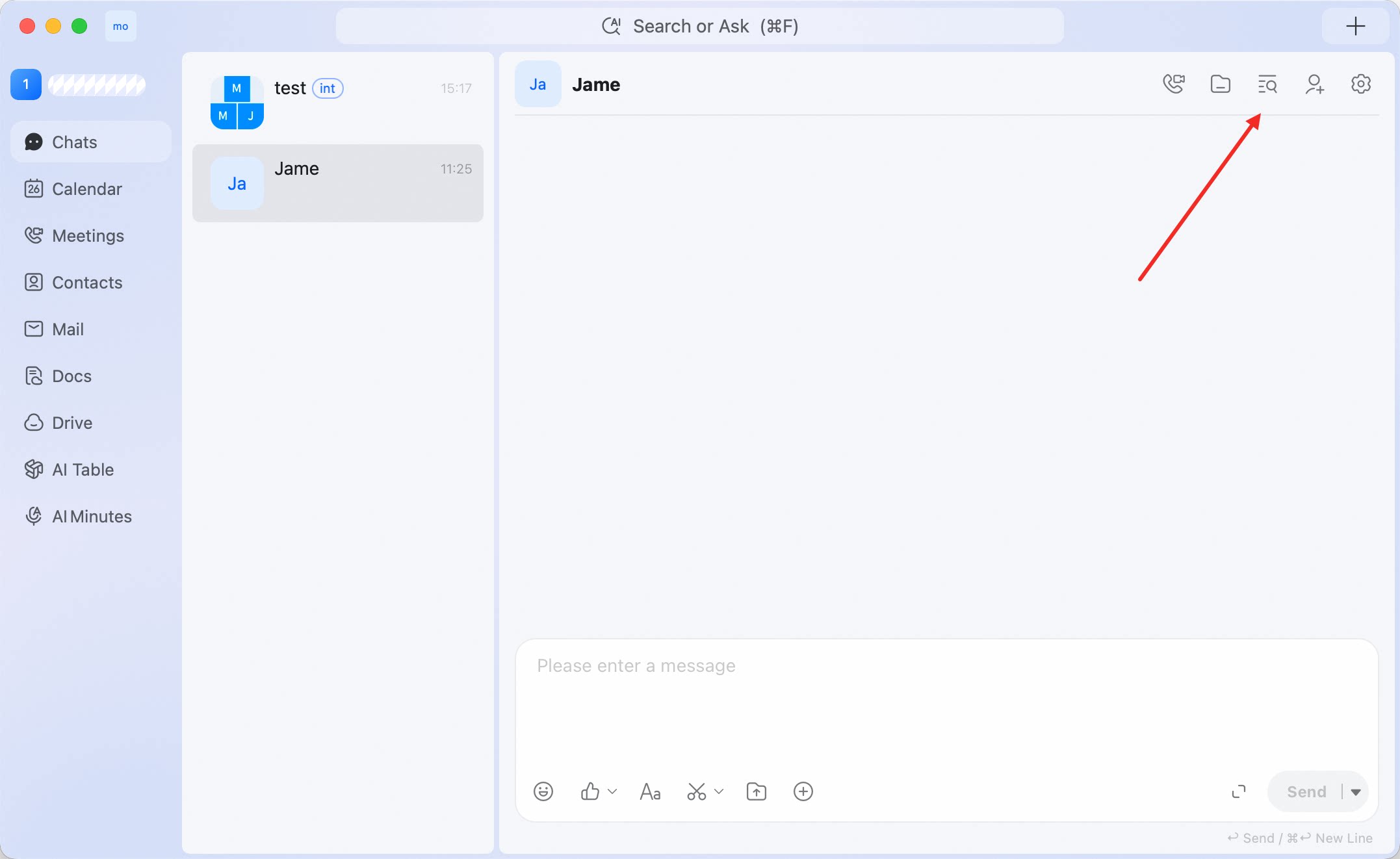
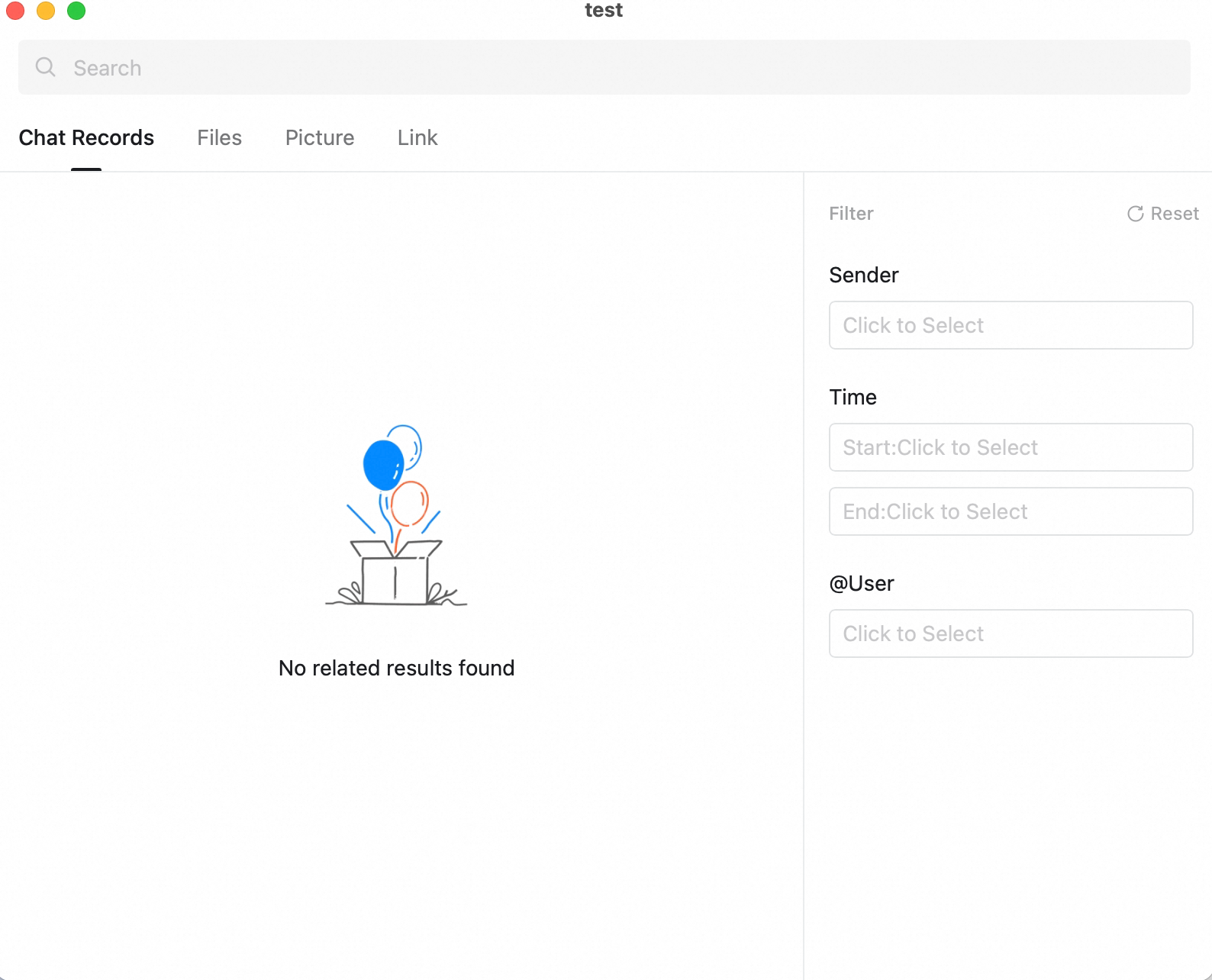
- Keep Chat Records selected.
- Enter a keyword.
- Use Filter to narrow the results. Use Reset to clear filters.
Browse files in a conversation
Open a conversation and click the file/folder icon in the upper-right corner. Use this view when you want to find files shared in the conversation rather than searching message text.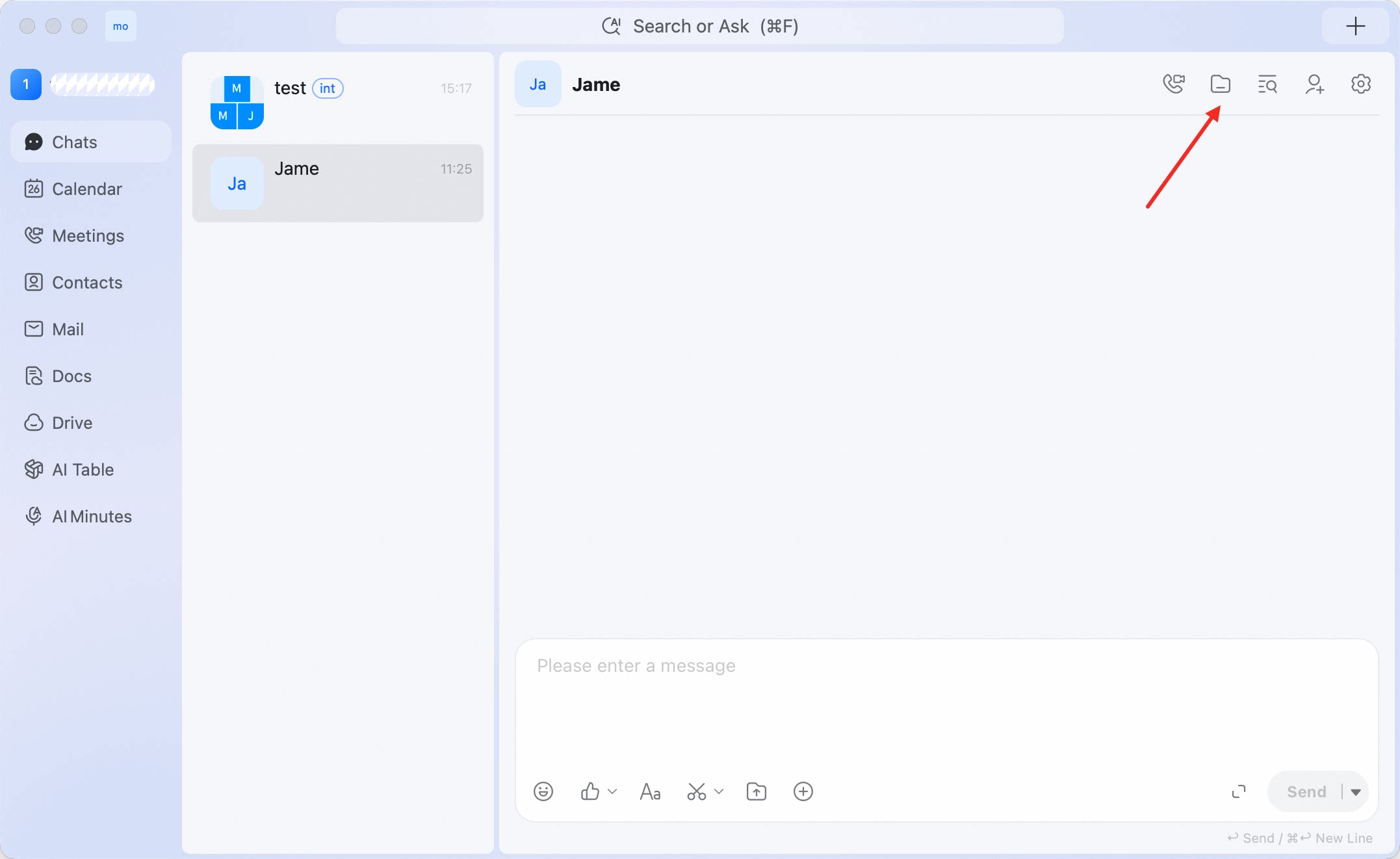
Tips for better search results
- Use specific keywords, such as a person’s name, project name, or document title.
- Use in-chat search when you know which conversation contains the message.
- Use the file/folder icon when you are looking for shared files rather than text messages.