The message composer includes shortcuts for sending files and starting related work from a conversation. Use these shortcuts when you want to share materials, create an event, add a code snippet, or open other tools without leaving the chat. Composer shortcuts help you turn a conversation into an action without switching to another module first.

Send files from a conversation

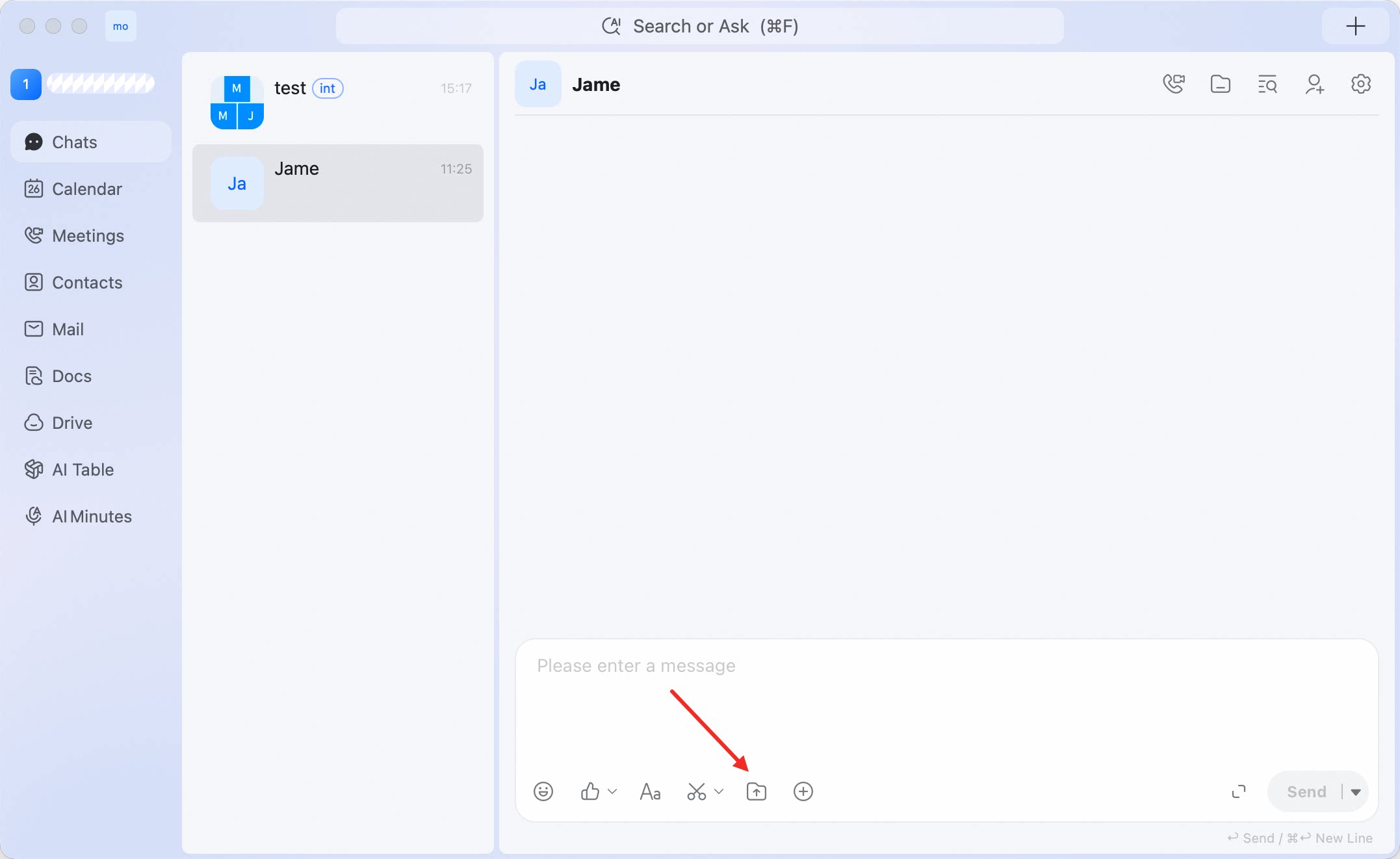
  1. Open a conversation.
  2. Click the upload icon in the message composer. image.png
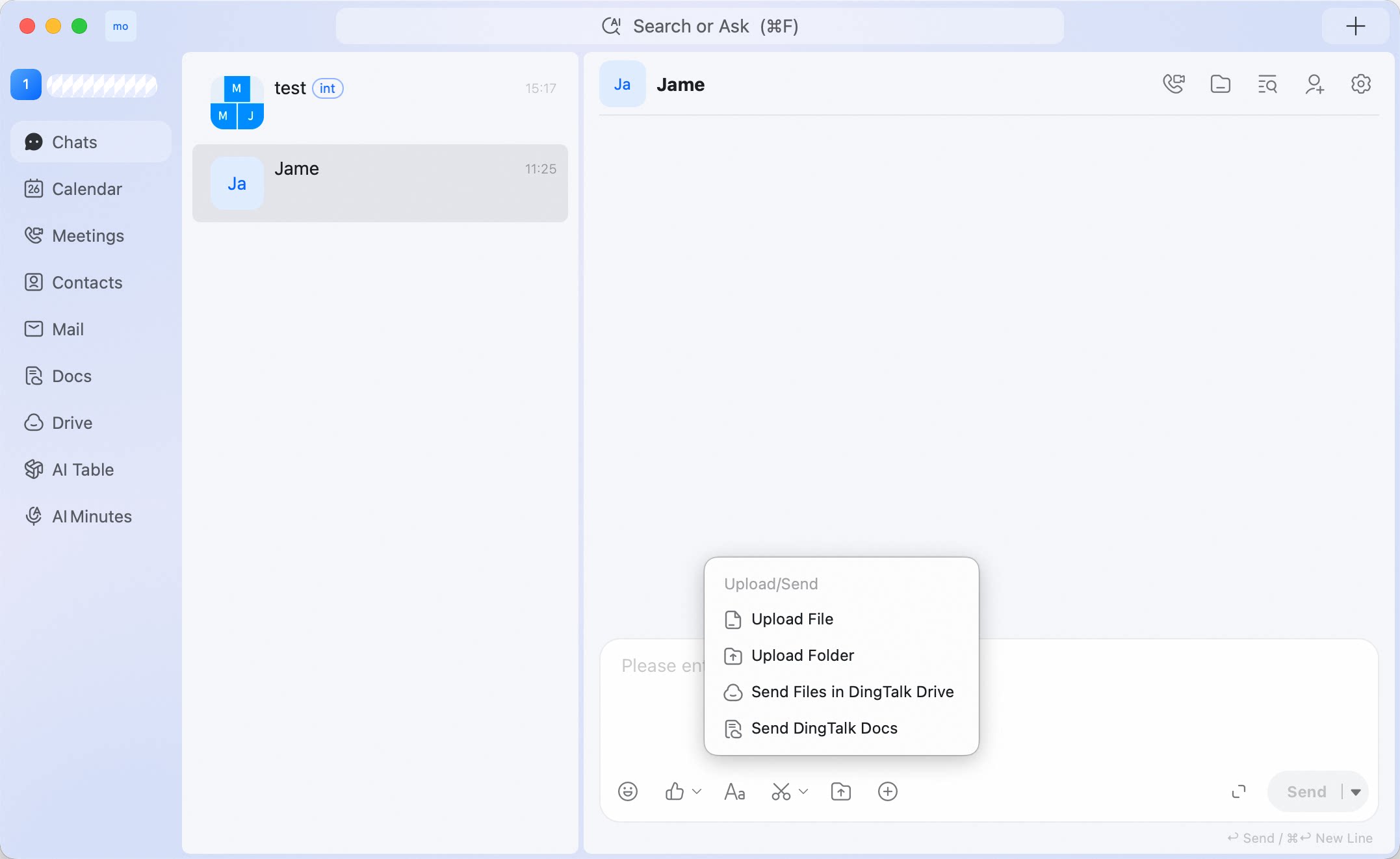
  3. Select one of the following options:
    • Upload File
    • Upload Folder
    • Send Files in DingTalk Drive
    • Send DingTalk Docs
    image.png
  4. Complete the file or document selection.
Use Upload File for a local file on your computer. Use Upload Folder when you need to send an entire folder. Use Send Files in DingTalk Drive or Send DingTalk Docs when the material is already stored in DingTalk. Images and videos on your computer can be sent as local files through Upload File.

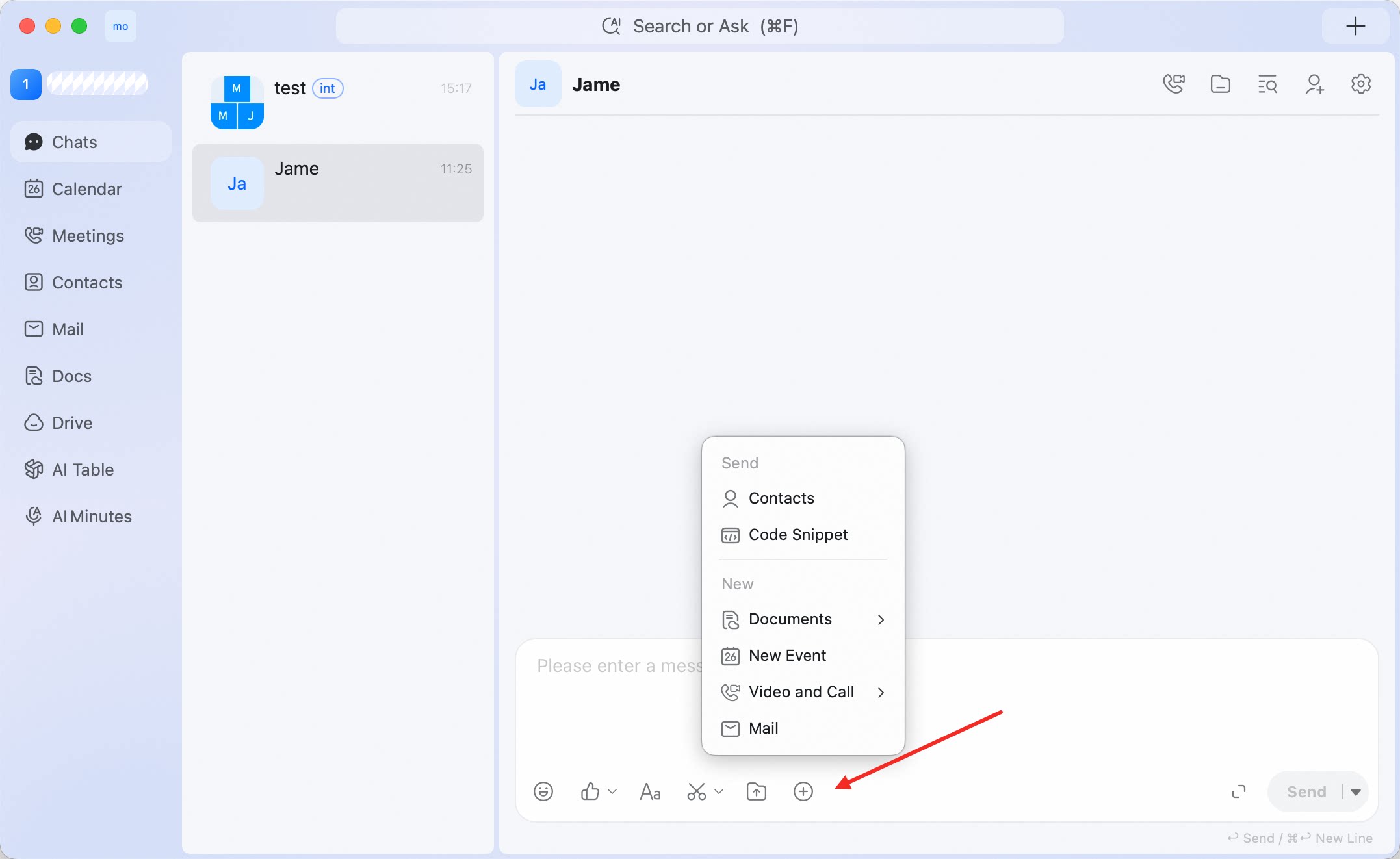
Open composer shortcuts

  1. Open a conversation.
  2. Click + in the message composer.
  3. Select the shortcut you want to use.
The menu includes Contacts, Code snippet, DingTalk documentation, New Event, Video Conference, and Mail.

Shortcut examples

ShortcutUse it when
ContactsYou need to share or select a contact from the conversation.
Code snippetYou want to send code in a structured format.
DingTalk documentationYou want to work with DingTalk documentation from the chat.
New EventYou want to create an event related to the discussion.
Video ConferenceYou want to move the conversation into a live meeting.
MailYou want to start a mail-related flow from the conversation.
image.png

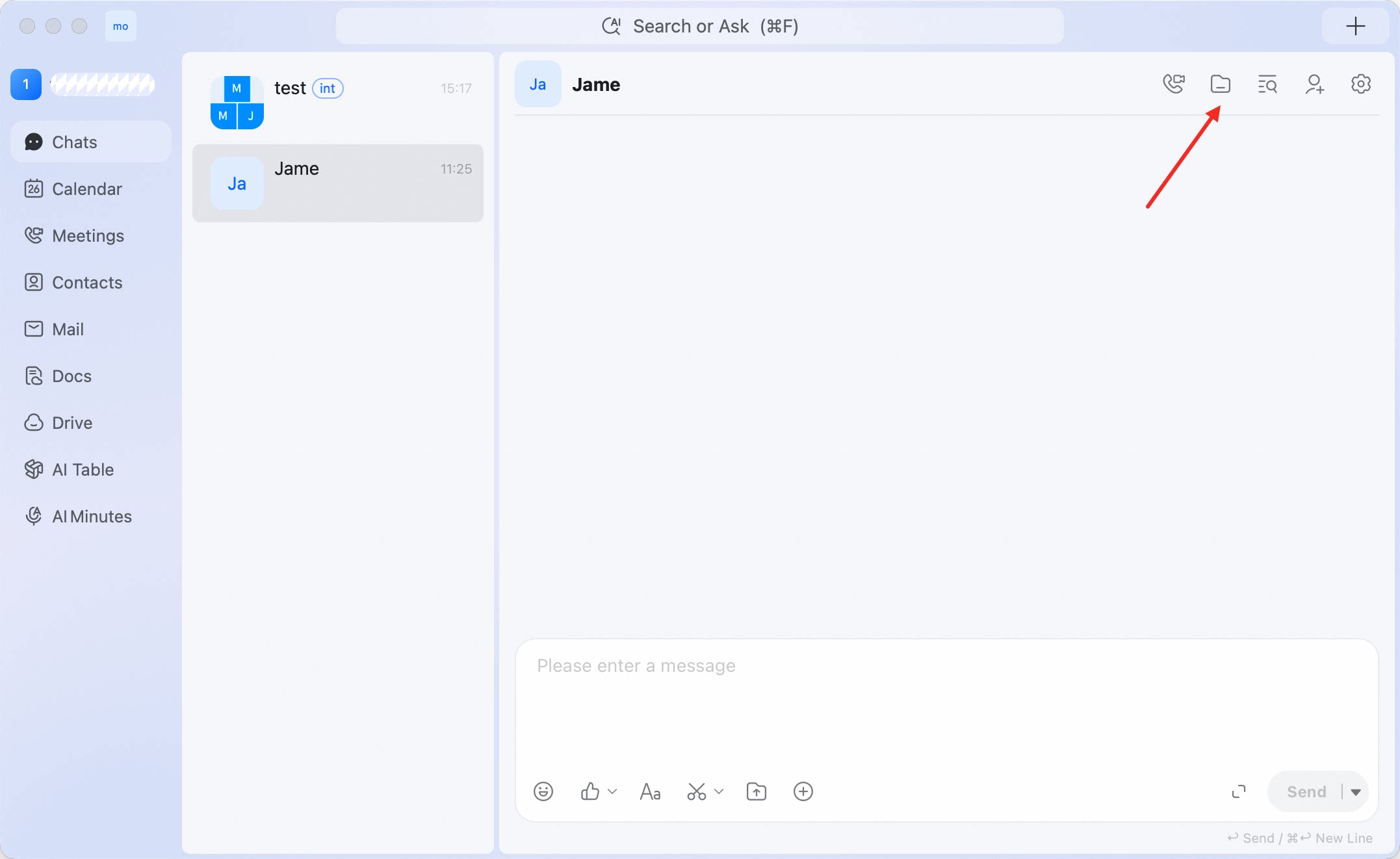
Browse files in a conversation

Open a conversation and click the file/folder icon in the upper-right corner. This opens the files shared in the conversation, so you can find shared materials without scrolling through the message history. Use the file view when you need to find shared materials without searching through chat messages. image.png