Quickstart guide for DingTalk Attendance admins. Covers the core configuration entries and steps for full-scenario attendance, leave, and overtime management, and helps admins set up organization attendance quickly.
DingTalk Attendance is a professional, intelligent attendance management tool. It delivers full-scenario solutions across attendance, leave, and overtime, helping organizations improve attendance management efficiency.DingTalk Attendance lets organizations customize employee attendance, leave, and overtime rules in the Admin Console. Employees must clock in and submit overtime requests in DingTalk Attendance according to the rules set by the organization, and the system records attendance data automatically.
There are two ways to access the Attendance Admin Console:
1
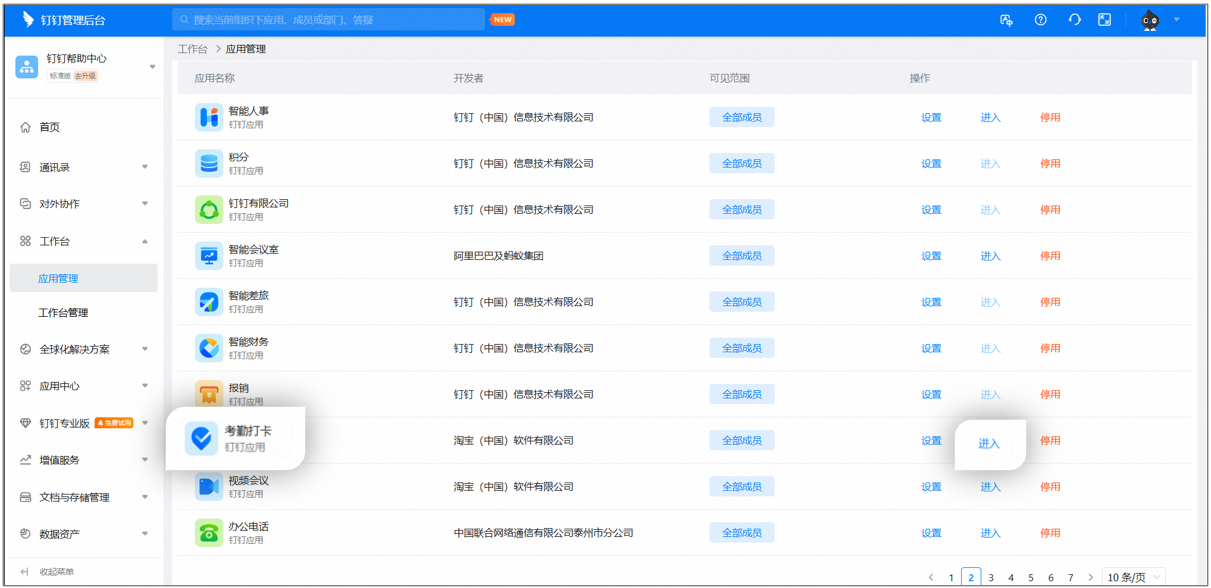
Go to Admin Console > Workbench > App Management, find the Attendance app (or search for Attendance in the search box at the top of the DingTalk Admin Console), and click Enter to open the app admin console.
Example: Opening the Attendance Admin Console
2
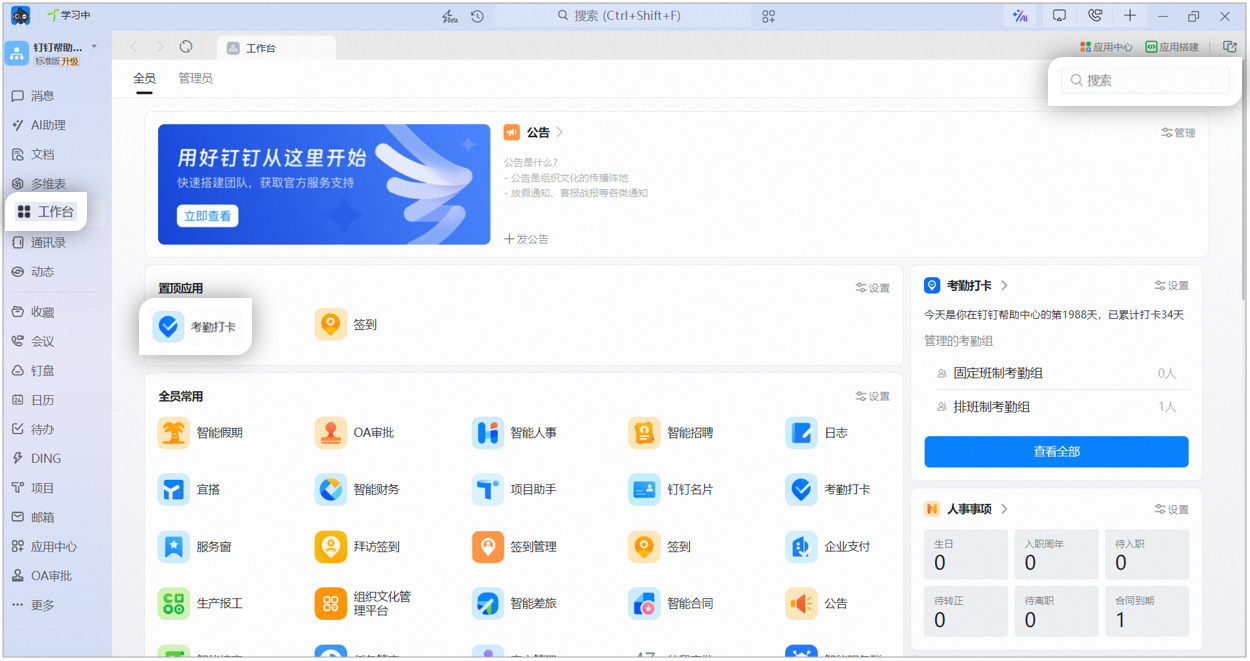
Open DingTalk on desktop, then find the Attendance app on the Workbench (or search for Attendance in the search box in the upper right corner) to open the Attendance admin console.
Example: Steps to open the Attendance admin console
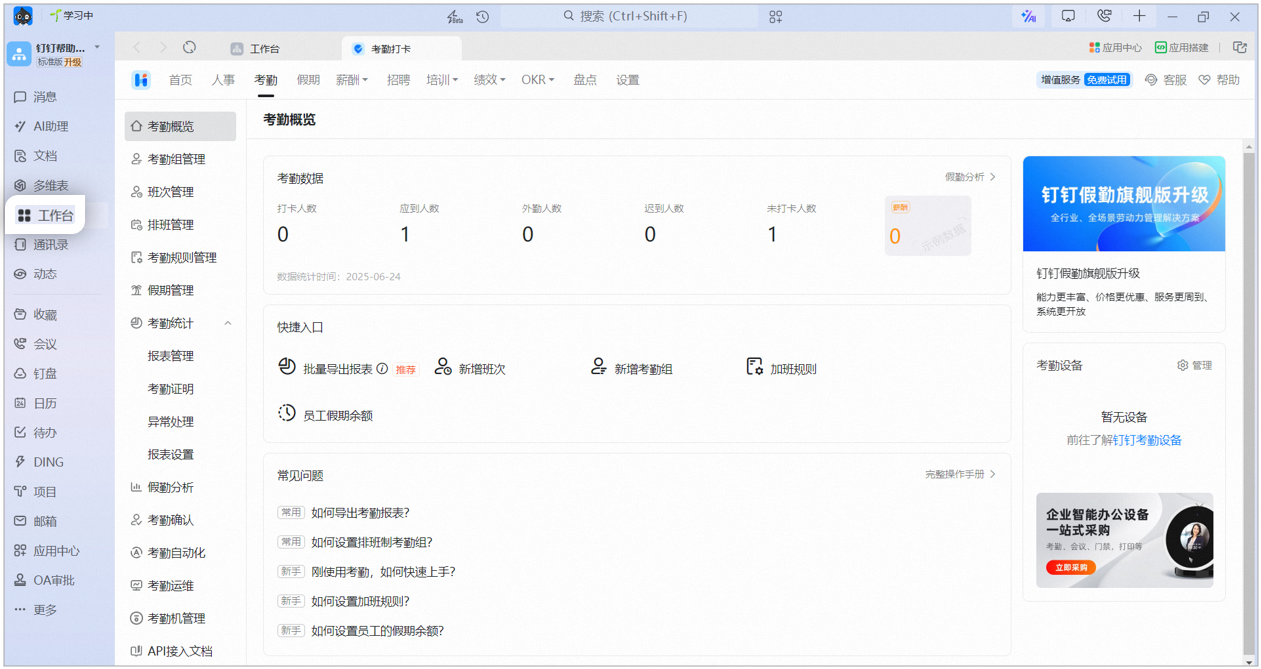
⚠️ Notes:After you open the Attendance admin console, you will see the interface below. (Note: The interface may vary slightly based on your admin permissions.)
Example: Attendance admin console page
Attendance Overview: View the number of employees who clocked in, along with quick entries to key attendance settings.
Attendance Group Management: Create attendance groups and configure their members, attendance types, and clock-in methods.
Shift Management: Add shifts, set shift times, and configure flexible clock-in.
Scheduling Management: Edit schedules for shift-based attendance groups.
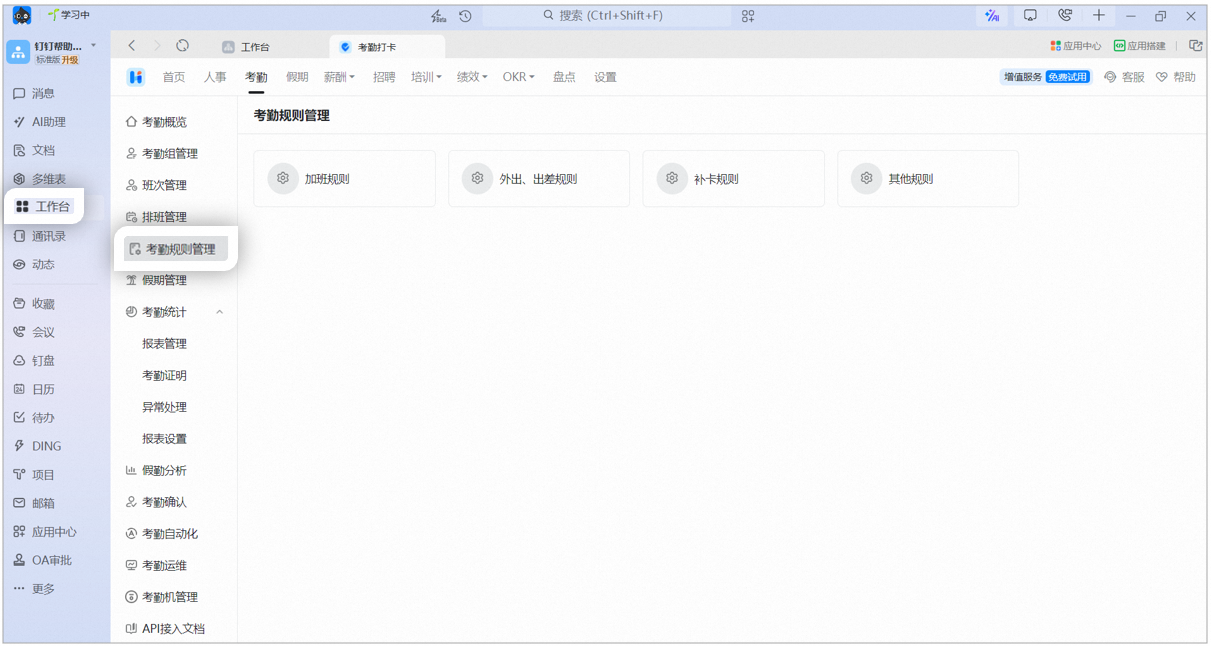
Attendance Rules Management: Configure overtime rules, business trip rules, makeup clock-in rules, and other rules.
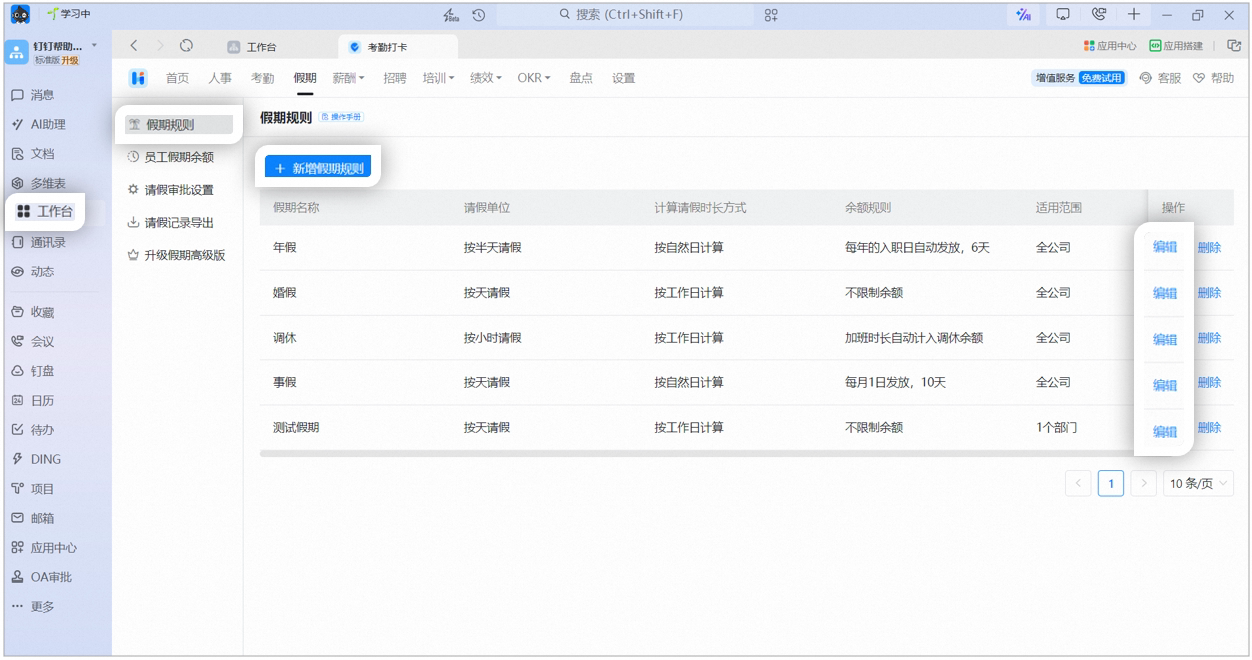
Leave Management: Configure leave grant rules and adjust employee leave balances.
Attendance Statistics: View and export employee attendance data, and manage attendance reports.
Attendance Analytics: View employee clock-in status, such as clock-in count, attendance rate, and leave count.
Attendance Confirmation: Upload Excel attendance sheets and send them to employees for confirmation.
Attendance Automation: Connect attendance data with different apps to automate workflows.
Attendance Operations: Set contact points for admins or supervisors when employees cannot clock in, are unscheduled, or have questions about attendance statistics.
Time Clock Management: Add or manage Time Clocks bound to the organization, edit device names, and view SN codes.
Attendance covers shift management, attendance group management, attendance rules management, leave management, and data management. Follow the 5 steps below to get started with attendance management quickly.
DingTalk Attendance lets admins set shifts, that is, define clock-in and clock-out times and clock-in rules within a day. Once configured, shifts can be used in attendance groups.
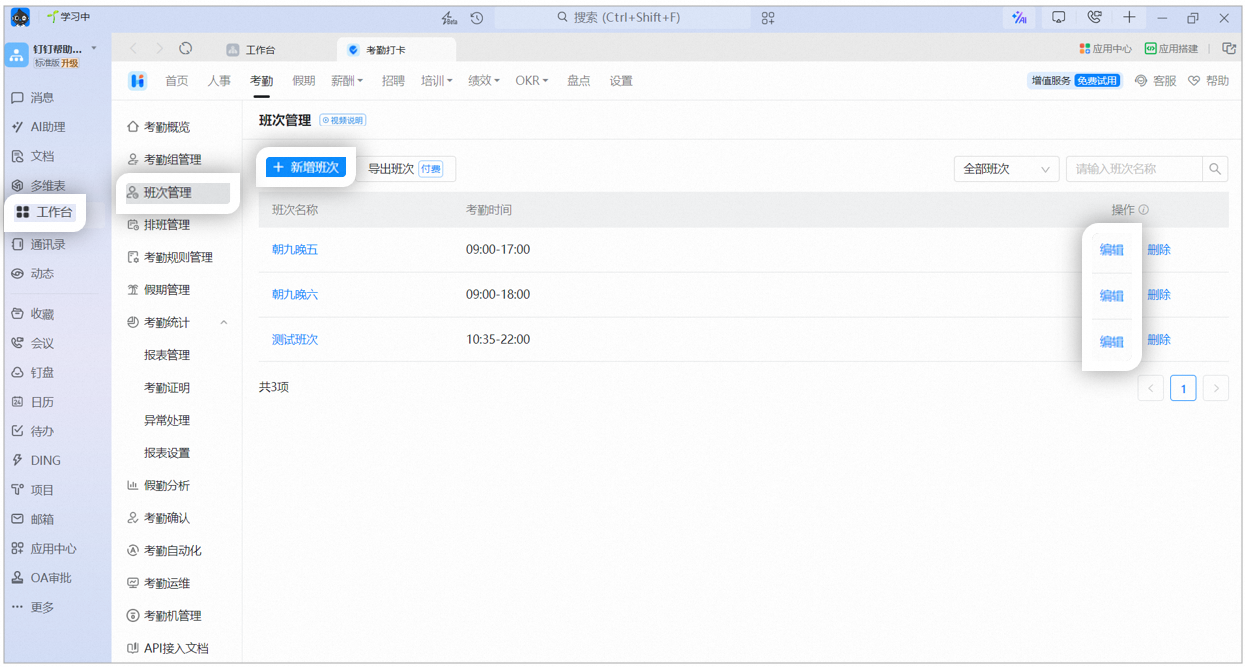
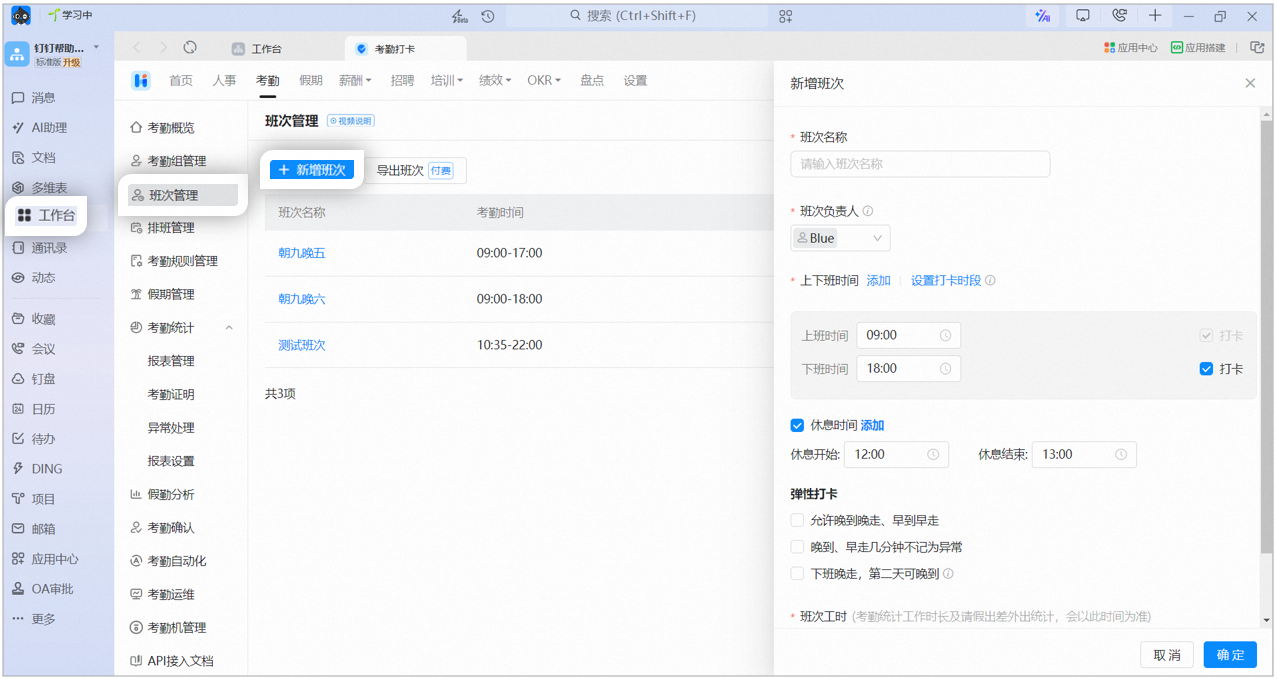
Open DingTalk on desktop > Workbench > Attendance > Shift Management, then click Add Shift to create a new shift. (If your organization already has shifts, click Edit to open the modification page.)⚠️ Notes:The shift owner can delete and modify their own shifts. By default, the shift owner is the shift creator. You can add other admins to co-manage the shift.
Shift owner: The shift owner can delete and modify their own shifts. By default, the shift owner is the shift creator. You can add other admins to co-manage the shift.
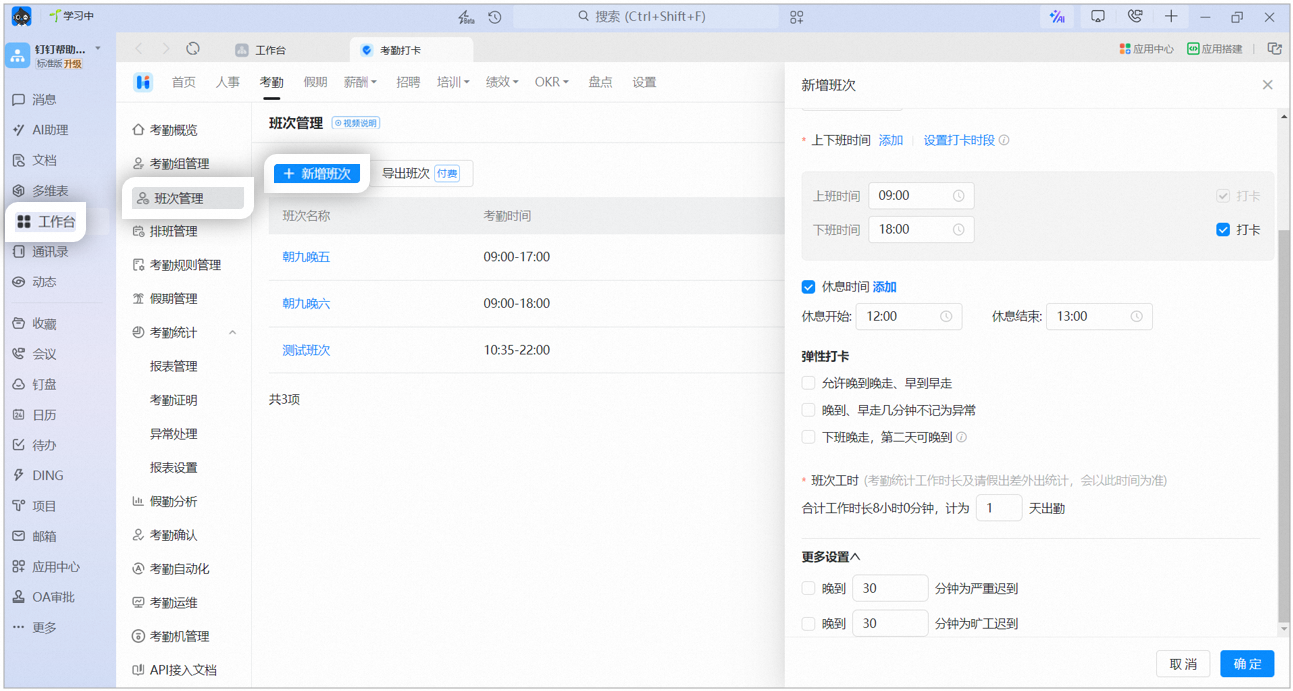
Set clock-in period: Clock-ins outside the clock-in period are not counted as attendance.
Late departure allows late arrival next day: If an employee leaves late after work on the first day, they can arrive late on the second day. Only supported for fixed shift attendance with in-office clock-in.
Shift working hours: Attendance statistics for working hours, leave, business trip, and field records are based on this time.
Set basic information: Set the shift name and owner.
Set the shift’s attendance times. You can set multiple clock-in/clock-out sessions or a single clock-in/clock-out session with a clock-in period. Clock-ins outside the clock-in period are not counted as attendance.
Example: Setting shift attendance times
Configure flexible clock-in.
Flexibility type
Description
Allow late arrival with late departure, and early arrival with early departure
Late arrival allows late departure, and early arrival allows early departure. This feature is not supported for shifts with 4 clock-ins per day.
Late arrival or early departure within a certain number of minutes is not marked as an error
Set how many minutes of late arrival or early departure are not counted as late arrival or early leave.
Late departure allows late arrival next day
If an employee leaves late after work on the first day, they can arrive late on the second day.
Set the number of minutes of late arrival that count as severe late arrival or absenteeism-level late arrival.
Example: Setting minutes threshold for late arrival
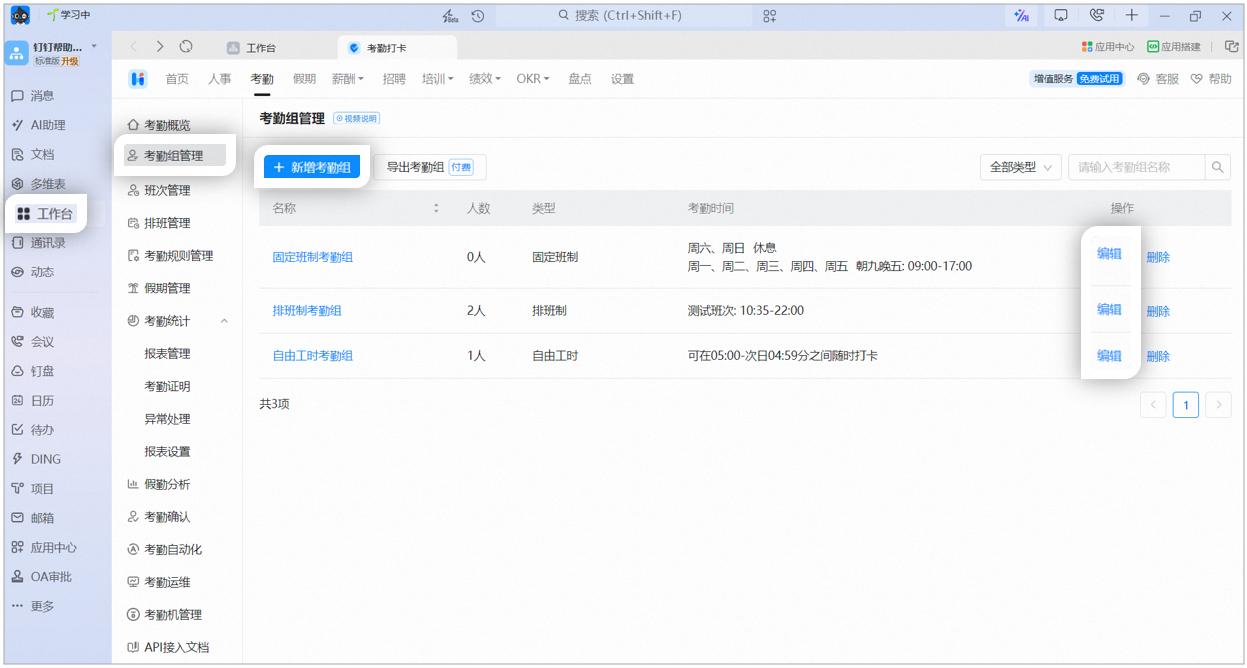
Open DingTalk on desktop > Workbench > Attendance > Attendance Group Management, then click Add Attendance Group to create a new attendance group. (If your organization already has attendance groups, click Edit to open the modification page.)
Example: Steps to add or modify an attendance group
Set basic information: Set the attendance group name, owner, and participants.
Set the attendance type: DingTalk Attendance provides 4 attendance types. Select and configure as needed, then select the work shifts.
Attendance type
Description
Applicable scope
Fixed shift attendance
Set fixed clock-in and clock-out times. Employees clock in and out at fixed times.
For example, public institutions, manufacturing, and finance with fixed office hours.
Shift-based attendance
Schedule shifts for each employee. Employees clock in and out based on their scheduled shifts.
For example, rotation systems in factories and stores.
Flexible shift attendance
No fixed clock-in and clock-out times. Employees clock in freely within a time range.
For example, flexible employment such as temporary and part-time workers.
Set the clock-in method: DingTalk Attendance provides 4 clock-in methods. Select and configure as needed.
Clock-in method
Description
Applicable scope
Location-based clock-in
Set a geographic location range. Employees clock in after arriving at the specified location.
Has a fixed work location.
Wi-Fi clock-in
Set specified Wi-Fi networks. Employees clock in after connecting to the specified Wi-Fi.
Has fixed office Wi-Fi.
Time Clock clock-in
Set up a DingTalk Time Clock. Employees clock in via the Time Clock.
Has a fixed work location with a Time Clock installed.
Zhidian Bluetooth clock-in
Employees clock in after connecting to the Time Clock’s Bluetooth within the set Bluetooth range.
Has a fixed work location with a smart Bluetooth Time Clock installed.
Learn more about the differences between the 4 clock-in methods (location, Wi-Fi, Zhidian Bluetooth, Time Clock).
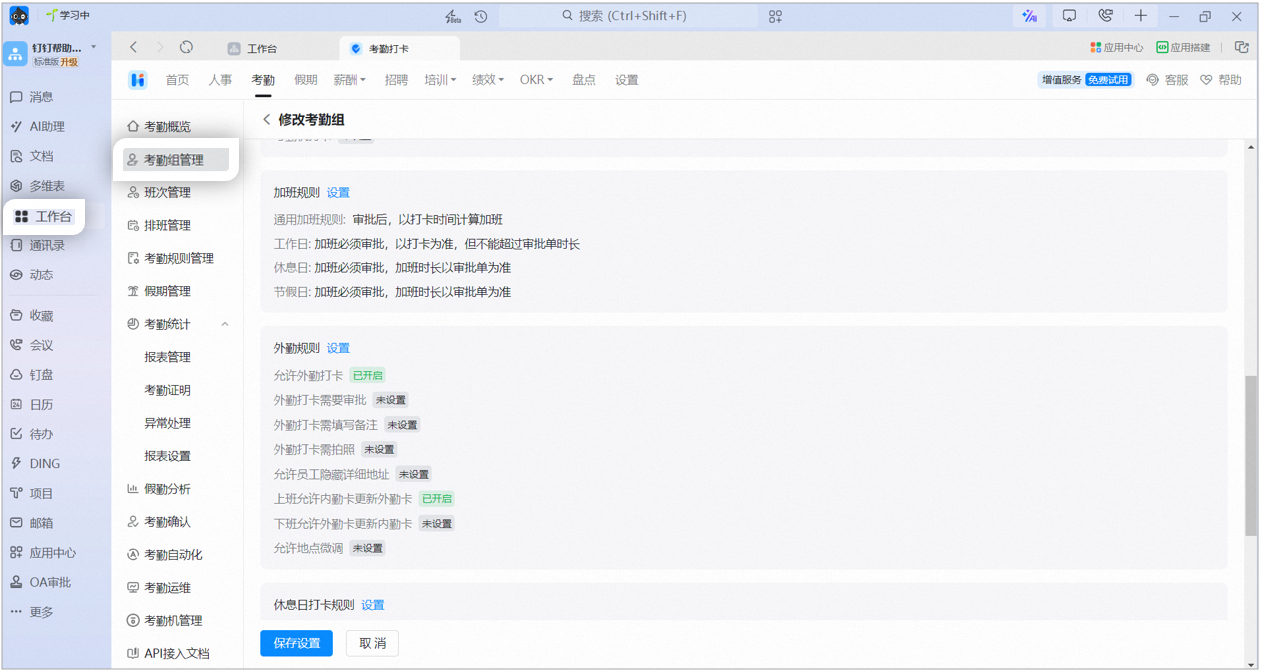
More attendance settings: Configure additional attendance rules for the attendance group, including overtime rules, field clock-in, holiday clock-in, makeup clock-in rules, photo clock-in, and facial recognition clock-in rules.
DingTalk Attendance also provides management capabilities for overtime, makeup clock-in, field, business trip, and other rules, so you can easily manage a wide range of rules within your organization.Open DingTalk on desktop > Workbench > Attendance > Attendance Rules Management, then click the rule you want to configure.
Rule name
Description
Overtime rules
Set the overtime rule name, applicable attendance group scope, overtime calculation method, and more.
Field and business trip rules
Set the field and business trip rule name, applicable scope, clock-in rules, and clock-in time range.
Makeup clock-in rules
Set the rule name, applicable scope, number of makeup clock-ins, makeup clock-in time limit, and makeup clock-in type.
Other rules
Set the attendance Allowlist, clock-in required when starting or ending leave, half-day duration definition, clock-in rules outside the attendance group, and whether to allow photo approval clock-in.
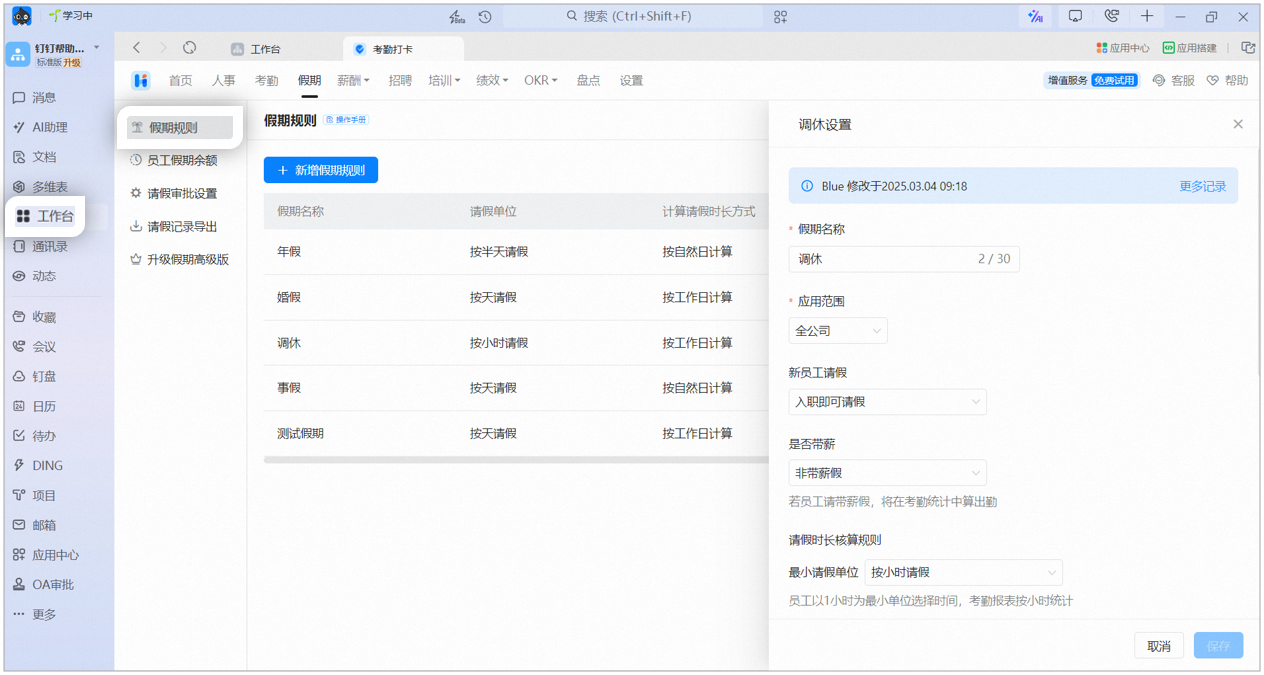
Open DingTalk on desktop > Workbench > Attendance > Leave Management. DingTalk Attendance provides templates for annual leave, personal leave, compensatory leave, and more. Click Edit to modify and use them, or click Add Leave Rule to create a new leave type.
Basic information: Set the leave name, owner, applicable scope, and other content.
Edit grant rules: When the leave is quota-based, set the grant rules as well, including the grant cycle and grant amount. (Unlimited leave does not require this step.)
Limit leave usage duration: Set whether to allow extension after leave expires, the duration that can be retained after expiration, and reminders before leave expires.
⚠️ Notes:
Whether paid: If an employee takes paid leave, it counts as attendance in attendance statistics.
Minimum leave unit: If leave is taken by the hour, employees select time in units of 1 hour, and attendance reports are calculated by the hour.
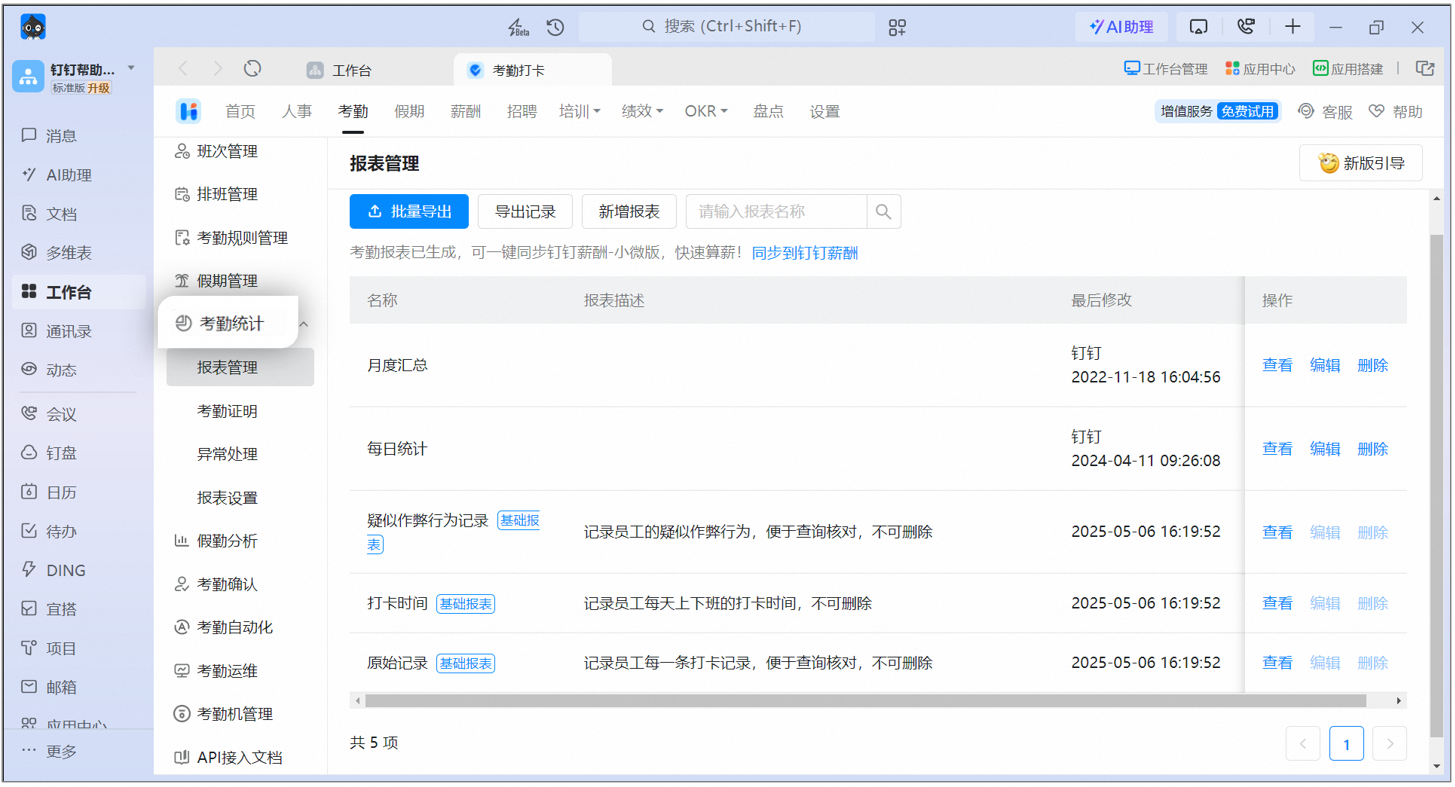
DingTalk Attendance records employee attendance data automatically, and you can view and manage it easily in the Attendance admin console.Attendance Statistics: Open DingTalk on desktop > Workbench > Attendance > Attendance Statistics to view and export employee attendance data. If an employee’s clock-in result is incorrect, manually edit the error result.
Example: Viewing and exporting attendance reports page
Was this page helpful?
{"docsConfig":{"theme":"mint","$schema":"https://mintlify.com/docs.json","name":"DingTalk Help Center","description":"Official help center for DingTalk International — guides, API references, and tutorials.","colors":{"primary":"#0066ff","light":"#3385ff","dark":"#0052cc"},"logo":{"light":"https://help.dingtalk.io/logo/light.svg","dark":"https://help.dingtalk.io/logo/dark.svg","href":"/"},"favicon":"https://mintcdn.com/dingtalk-8c0f98e2/-gG_zvv6IXkTItYa/favicon.ico?fit=max\u0026auto=format\u0026n=-gG_zvv6IXkTItYa\u0026q=85\u0026s=0379048afba937f1ccd8e3a3d7ff252e","appearance":{"default":"system"},"background":{"decoration":"gradient"},"search":{"prompt":""},"seo":{"metatags":{"canonical":"https://help.dingtalk.io","og:type":"website","og:locale":"en_US","og:site_name":"DingTalk Help Center","twitter:card":"summary_large_image","dingtalk:title":"DingTalk 帮助中心","dingtalk:description":"DingTalk 帮助中心 — 指南、API 文档与教程","dingtalk:img":"https://img.alicdn.com/imgextra/i2/O1CN01YT67eU1F0F4n6LlTN_!!6000000000424-2-tps-1024-1024.png","google-site-verification":"4EgfuXkL4_HIpxdhr5IMYiZJoq7XTFARPiv2wALnH0c"},"indexing":"navigable"},"styling":{"codeblocks":{"theme":{"light":"github-light","dark":"github-dark"}},"latex":true},"integrations":{"ga4":{"measurementId":"G-5H09N9EW47"}},"errors":{"404":{"redirect":false}},"contextual":{"options":["copy"],"display":"header"},"navigation":{"languages":[{"language":"en","banner":{"content":"**Announcement:** DingTalk plans for international customers are changing beginning October 21, 2026. [Learn more](/announcements/international-plan-changes-2026)","dismissible":true,"type":"info"},"footer":{"socials":{"x":"https://x.com/DingTalkJapan","instagram":"https://www.instagram.com/dingtalkjapan","linkedin":"https://www.linkedin.com/company/dingtalk"}},"navbar":{"primary":{"type":"button","label":"Download","href":"https://www.dingtalk.io/download/"}},"href":"im/chats-overview"},{"language":"zh","banner":{"content":"**公告**:DingTalk 国际组织商业版本将于 2026 年 10 月 21 日起调整。[查看详情](/zh/announcements/international-plan-changes-2026)","dismissible":true,"type":"info"},"footer":{"socials":{"x":"https://x.com/DingTalkJapan","instagram":"https://www.instagram.com/dingtalkjapan","linkedin":"https://www.linkedin.com/company/dingtalk"}},"navbar":{"primary":{"type":"button","label":"下载","href":"https://www.dingtalk.io/zh/download/"}},"href":"zh/im/chats-overview"},{"language":"ja","banner":{"content":"**お知らせ**:2026年10月21日より、DingTalkグローバル版のプランを改定します。[詳細を見る](/ja/announcements/international-plan-changes-2026)","dismissible":true,"type":"info"},"footer":{"socials":{"x":"https://x.com/DingTalkJapan","instagram":"https://www.instagram.com/dingtalkjapan","linkedin":"https://www.linkedin.com/company/dingtalk"}},"navbar":{"primary":{"type":"button","label":"ダウンロード","href":"https://www.dingtalk.co.jp/download/"}},"href":"ja/im/chats-overview"},{"language":"id","banner":{"content":"**Pengumuman:** Paket DingTalk untuk pelanggan internasional akan berubah mulai 21 Oktober 2026. [Selengkapnya (bahasa Inggris)](/announcements/international-plan-changes-2026)","dismissible":true,"type":"info"},"footer":{"socials":{"x":"https://x.com/DingTalkJapan","instagram":"https://www.instagram.com/dingtalkjapan","linkedin":"https://www.linkedin.com/company/dingtalk"}},"navbar":{"primary":{"type":"button","label":"Unduh","href":"https://www.dingtalk.io/download/"}},"href":"id/im/chats-overview"},{"language":"uz","banner":{"content":"**Pengumuman:** Pelan DingTalk untuk pelanggan antarabangsa akan berubah mulai 21 Oktober 2026. [Ketahui lanjut (bahasa Inggeris)](/announcements/international-plan-changes-2026)","dismissible":true,"type":"info"},"footer":{"socials":{"x":"https://x.com/DingTalkJapan","instagram":"https://www.instagram.com/dingtalkjapan","linkedin":"https://www.linkedin.com/company/dingtalk"}},"navbar":{"primary":{"type":"button","label":"Muat turun","href":"https://www.dingtalk.io/download/"}},"href":"ms/im/chats-overview"}]}},"deployment":{"deploymentMetadataValue":{"subdomain":"dingtalk-8c0f98e2","hasAudioNarration":false,"actualSubdomain":"dingtalk-8c0f98e2","customDomains":["help.dingtalk.io"],"gitSource":{"type":"github","owner":"fuxun2008","repo":"dingtalk-docs","deployBranch":"main","contentDirectory":"","isPrivate":true,"mountPath":"","label":""},"chroma":{"liveDeploymentHistoryId":"6ae0635ddc8e261a8bb5a83f","collectionId":"7732ee56-7e24-4173-b91a-eaa9c9b7dfcd","schemaVersion":"v3","latestBuiltDeploymentHistoryId":"6ae0635ddc8e261a8bb5a83f"},"feedback":{"thumbs":true},"entitlements":{"AI_CHAT":{"status":"DISABLED"}},"buildId":"6aed6ab16ef5b3d55c3e841a","clientVersion":"0.0.4074","searchFilterCounts":[{"language":"en","tag":"Help Docs","count":1175},{"language":"id","tag":"Pusat Bantuan","count":1175},{"language":"ja","tag":"ヘルプドキュメント","count":1175},{"language":"uz","tag":"Pusat Bantuan","count":1175},{"language":"zh","tag":"帮助文档","count":1175},{"language":"en","tag":"Developer Docs","count":577},{"language":"id","tag":"Platform Terbuka","count":577},{"language":"ja","tag":"開発ドキュメント","count":577},{"language":"uz","tag":"Platform Terbuka","count":577},{"language":"zh","tag":"开发文档","count":577},{"language":"en","tag":"YiDA","count":568},{"language":"id","tag":"YiDA","count":568},{"language":"ja","tag":"YiDA","count":568},{"language":"uz","tag":"YiDA","count":568},{"language":"zh","tag":"宜搭","count":568},{"language":"en","tag":"Server API","count":476},{"language":"id","tag":"Server API","count":476},{"language":"ja","tag":"サーバー API","count":476},{"language":"uz","tag":"Server API","count":476},{"language":"zh","tag":"服务端 API","count":476},{"language":"en","tag":"Form Management","count":231},{"language":"id","tag":"Manajemen Formulir","count":231},{"language":"ja","tag":"フォーム管理","count":231},{"language":"uz","tag":"Pengurusan Borang","count":231},{"language":"zh","tag":"表单管理","count":231},{"language":"id","tag":"Dokumen","count":205},{"language":"ja","tag":"ドキュメント","count":205},{"language":"uz","tag":"Dokumen","count":205},{"language":"zh","tag":"文档","count":205},{"language":"en","tag":"Docs","count":180},{"language":"en","tag":"Form Design","count":166},{"language":"id","tag":"Desain Formulir","count":166},{"language":"ja","tag":"フォーム設計","count":166},{"language":"uz","tag":"Reka Bentuk Borang","count":166},{"language":"zh","tag":"表单设计","count":166},{"language":"en","tag":"AI Table","count":161},{"language":"id","tag":"AI Table","count":161},{"language":"uz","tag":"AI Table","count":161},{"language":"zh","tag":"AI 表格","count":161},{"language":"en","tag":"Docs \u0026 files","count":146},{"language":"id","tag":"Dokumen \u0026 file","count":146},{"language":"ja","tag":"Docs とファイル","count":146},{"language":"uz","tag":"Dokumen \u0026 Fail","count":146},{"language":"zh","tag":"文档/文件","count":146},{"language":"ja","tag":"AI テーブル","count":144},{"language":"en","tag":"Attendance","count":143},{"language":"id","tag":"Absensi","count":143},{"language":"ja","tag":"勤怠","count":143},{"language":"uz","tag":"Kehadiran","count":143},{"language":"zh","tag":"考勤","count":143}],"searchSettings":{"maxResults":15}},"assistantConfig":{"enableAskAiButton":false,"enableStarterQuestions":false,"enableContextualStarterQuestions":false,"enableAskAiSearchBar":true},"basePath":"","hasChatPermissions":false,"hasWebMcpPermissions":false,"toggles":[{"name":"kill-isr","enabled":true,"variant":{"name":"disabled","enabled":false,"feature_enabled":true},"impressionData":false},{"name":"agent-mintlify-slack","enabled":true,"variant":{"name":"disabled","enabled":false,"feature_enabled":true},"impressionData":false},{"name":"agent-integrations-settings","enabled":true,"variant":{"name":"disabled","enabled":false,"feature_enabled":true},"impressionData":false},{"name":"rbac-expansion","enabled":true,"variant":{"name":"disabled","enabled":false,"feature_enabled":true},"impressionData":false},{"name":"automations-pr-grouping","enabled":true,"variant":{"name":"disabled","enabled":false,"feature_enabled":true},"impressionData":false},{"name":"custom-prefix","enabled":true,"variant":{"name":"disabled","enabled":false,"feature_enabled":true},"impressionData":false},{"name":"analytics-v7","enabled":true,"variant":{"name":"disabled","enabled":false,"feature_enabled":true},"impressionData":false},{"name":"user-flows-analytics","enabled":true,"variant":{"name":"disabled","enabled":false,"feature_enabled":true},"impressionData":false},{"name":"no-publish-flow","enabled":true,"variant":{"name":"disabled","enabled":false,"feature_enabled":true},"impressionData":false},{"name":"workos-onboarding","enabled":true,"variant":{"name":"disabled","enabled":false,"feature_enabled":true},"impressionData":false},{"name":"llms-txt-v2","enabled":true,"variant":{"name":"disabled","enabled":false,"feature_enabled":true},"impressionData":false},{"name":"snapshot-serving-live","enabled":true,"variant":{"name":"disabled","enabled":false,"feature_enabled":true},"impressionData":false},{"name":"stripTemperatureMiddleware","enabled":true,"variant":{"name":"disabled","enabled":false,"feature_enabled":true},"impressionData":false},{"name":"support-platform-pylon-zendesk","enabled":true,"variant":{"name":"disabled","enabled":false,"feature_enabled":true},"impressionData":false},{"name":"snapshot-serving","enabled":true,"variant":{"name":"disabled","enabled":false,"feature_enabled":true},"impressionData":false},{"name":"instant-rollback","enabled":true,"variant":{"name":"disabled","enabled":false,"feature_enabled":true},"impressionData":false},{"name":"granular-notifications-server","enabled":true,"variant":{"name":"disabled","enabled":false,"feature_enabled":true},"impressionData":false},{"name":"granular-notifications","enabled":true,"variant":{"name":"disabled","enabled":false,"feature_enabled":true},"impressionData":false},{"name":"automations-fable","enabled":true,"variant":{"name":"disabled","enabled":false,"feature_enabled":true},"impressionData":false},{"name":"fixed-ai-action-pricing","enabled":true,"variant":{"name":"disabled","enabled":false,"feature_enabled":true},"impressionData":false},{"name":"automation-resolve-merge-conflict","enabled":true,"variant":{"name":"disabled","enabled":false,"feature_enabled":true},"impressionData":false},{"name":"scoped-publishing","enabled":true,"variant":{"name":"disabled","enabled":false,"feature_enabled":true},"impressionData":false},{"name":"mintql","enabled":true,"variant":{"name":"disabled","enabled":false,"feature_enabled":true},"impressionData":false},{"name":"page-level-analytics","enabled":true,"variant":{"name":"disabled","enabled":false,"feature_enabled":true},"impressionData":false},{"name":"editor-version-history-v2","enabled":true,"variant":{"name":"disabled","enabled":false,"feature_enabled":true},"impressionData":false},{"name":"billing-page-v2","enabled":true,"variant":{"name":"disabled","enabled":false,"feature_enabled":true},"impressionData":false},{"name":"full-page-search","enabled":true,"variant":{"name":"disabled","enabled":false,"feature_enabled":true},"impressionData":false},{"name":"workspace-projects","enabled":true,"variant":{"name":"disabled","enabled":false,"feature_enabled":true},"impressionData":false},{"name":"assistant-v5","enabled":true,"variant":{"name":"disabled","enabled":false,"feature_enabled":true},"impressionData":false},{"name":"fork-pr-previews","enabled":true,"variant":{"name":"disabled","enabled":false,"feature_enabled":true},"impressionData":false},{"name":"revalidation-jwt","enabled":true,"variant":{"name":"disabled","enabled":false,"feature_enabled":true},"impressionData":false},{"name":"vite-origin","enabled":true,"variant":{"name":"disabled","enabled":false,"feature_enabled":true},"impressionData":false},{"name":"workos-sso-scim","enabled":true,"variant":{"name":"disabled","enabled":false,"feature_enabled":true},"impressionData":false},{"name":"hobby-abuse-scan","enabled":true,"variant":{"name":"disabled","enabled":false,"feature_enabled":true},"impressionData":false},{"name":"dashboard-inbox","enabled":true,"variant":{"name":"disabled","enabled":false,"feature_enabled":true},"impressionData":false},{"name":"workos-signup","enabled":true,"variant":{"name":"disabled","enabled":false,"feature_enabled":true},"impressionData":false},{"name":"turbopuffer-dual-write","enabled":true,"variant":{"name":"disabled","enabled":false,"feature_enabled":true},"impressionData":false},{"name":"workos-enabled","enabled":true,"variant":{"name":"disabled","enabled":false,"feature_enabled":true},"impressionData":false},{"name":"approve-review-flow","enabled":true,"variant":{"name":"disabled","enabled":false,"feature_enabled":true},"impressionData":false},{"name":"sso-setup-deadline-banner","enabled":true,"variant":{"name":"disabled","enabled":false,"feature_enabled":true},"impressionData":false},{"name":"turbopuffer-serve","enabled":true,"variant":{"name":"disabled","enabled":false,"feature_enabled":true},"impressionData":false},{"name":"live-agents","enabled":true,"variant":{"name":"disabled","enabled":false,"feature_enabled":true},"impressionData":false},{"name":"comment-mode","enabled":true,"variant":{"name":"disabled","enabled":false,"feature_enabled":true},"impressionData":false}],"googleFontsInlined":false},"customCss":[{"filePath":"custom.css","content":".prose table,main table{border-collapse:separate!important;border-spacing:0;width:100%;margin:1.25rem 0;font-size:14px;line-height:1.6;border:1px solid rgb(229, 231, 235);border-radius:8px;overflow:hidden}.prose table th,main table th{min-width:5em}html.dark .prose table,html.dark main table{border-color:rgb(55, 65, 81)}.prose table thead,main table thead{background-color:rgb(249, 250, 251)}html.dark .prose table thead,html.dark main table thead{background-color:rgba(31, 41, 55, 0.6)}.prose table th,main table th{padding:12px 16px!important;font-weight:600!important;text-align:left!important;color:rgb(17, 24, 39)!important;border-bottom:1px solid rgb(229, 231, 235)!important}html.dark .prose table th,html.dark main table th{color:rgb(243, 244, 246)!important;border-bottom-color:rgb(55, 65, 81)!important}.prose table:not(:has(thead))>tr:first-child,main table:not(:has(thead))>tr:first-child{background-color:rgb(249, 250, 251)}html.dark .prose table:not(:has(thead))>tr:first-child,html.dark main table:not(:has(thead))>tr:first-child{background-color:rgba(31, 41, 55, 0.6)}.prose table td,main table td{padding:10px 16px!important;vertical-align:top;border-bottom:1px solid rgb(243, 244, 246)!important}html.dark .prose table td,html.dark main table td{border-bottom-color:rgba(55, 65, 81, 0.4)!important}.prose table td:first-child,main table td:first-child{padding-inline-start:16px!important;font-weight:500;color:rgb(31, 41, 55)}html.dark .prose table td:first-child,html.dark main table td:first-child{color:rgb(229, 231, 235)}.prose table tbody tr:last-child td,main table tbody tr:last-child td,.prose table>tr:last-child td,main table>tr:last-child td{border-bottom:0!important}.prose table tbody tr:nth-child(even),main table tbody tr:nth-child(even),.prose table:not(:has(thead))>tr:nth-child(even),main table:not(:has(thead))>tr:nth-child(even){background-color:rgba(249, 250, 251, 0.5)}html.dark .prose table tbody tr:nth-child(even),html.dark main table tbody tr:nth-child(even),html.dark .prose table:not(:has(thead))>tr:nth-child(even),html.dark main table:not(:has(thead))>tr:nth-child(even){background-color:rgba(31, 41, 55, 0.25)}.prose table tbody tr:hover,main table tbody tr:hover,.prose table>tr:hover,main table>tr:hover{background-color:rgba(0, 102, 255, 0.05)}html.dark .prose table tbody tr:hover,html.dark main table tbody tr:hover,html.dark .prose table>tr:hover,html.dark main table>tr:hover{background-color:rgba(0, 102, 255, 0.1)}.prose table code,main table code{font-size:0.875em;padding:1px 6px;border-radius:4px}.prose img,main article img{max-height:80vh;max-width:100%;width:auto;height:auto;object-fit:contain;display:block;margin-left:auto;margin-right:auto;border-radius:8px;box-shadow:0 1px 3px rgba(0, 0, 0, 0.08)}html.dark .prose img,html.dark main article img{box-shadow:0 1px 3px rgba(0, 0, 0, 0.4)}@media (max-width: 640px){.prose img,main article img{max-height:none;border-radius:6px}}.prose img.inline-icon,main article img.inline-icon{display:inline-block;width:auto;height:auto;max-height:1.5em;margin:0 3px;vertical-align:text-bottom;border-radius:3px;box-shadow:none}img[src*=\"/logo/icons/\"]{background-color:currentColor!important;-webkit-mask-repeat:no-repeat;mask-repeat:no-repeat;-webkit-mask-position:center;mask-position:center;-webkit-mask-size:contain;mask-size:contain}img[src*=\"/logo/icons/im.svg\"]{-webkit-mask-image:url(/logo/icons/im-glyph.svg);mask-image:url(/logo/icons/im-glyph.svg)}img[src*=\"/logo/icons/cal.svg\"]{-webkit-mask-image:url(/logo/icons/cal-glyph.svg);mask-image:url(/logo/icons/cal-glyph.svg)}img[src*=\"/logo/icons/av.svg\"]{-webkit-mask-image:url(/logo/icons/av-glyph.svg);mask-image:url(/logo/icons/av-glyph.svg)}img[src*=\"/logo/icons/contact.svg\"]{-webkit-mask-image:url(/logo/icons/contact-glyph.svg);mask-image:url(/logo/icons/contact-glyph.svg)}img[src*=\"/logo/icons/mail.svg\"]{-webkit-mask-image:url(/logo/icons/mail-glyph.svg);mask-image:url(/logo/icons/mail-glyph.svg)}img[src*=\"/logo/icons/doc.svg\"]{-webkit-mask-image:url(/logo/icons/doc-glyph.svg);mask-image:url(/logo/icons/doc-glyph.svg)}img[src*=\"/logo/icons/drive.svg\"]{-webkit-mask-image:url(/logo/icons/drive-glyph.svg);mask-image:url(/logo/icons/drive-glyph.svg)}img[src*=\"/logo/icons/table.svg\"]{-webkit-mask-image:url(/logo/icons/table-glyph.svg);mask-image:url(/logo/icons/table-glyph.svg)}img[src*=\"/logo/icons/notes.svg\"]{-webkit-mask-image:url(/logo/icons/notes-glyph.svg);mask-image:url(/logo/icons/notes-glyph.svg)}img[src*=\"/logo/icons/yida.svg\"]{-webkit-mask-image:url(/logo/icons/yida-glyph.svg);mask-image:url(/logo/icons/yida-glyph.svg)}img[src*=\"/logo/icons/att.svg\"]{-webkit-mask-image:url(/logo/icons/att-glyph.svg);mask-image:url(/logo/icons/att-glyph.svg)}img[src*=\"/logo/icons/appr.svg\"]{-webkit-mask-image:url(/logo/icons/appr-glyph.svg);mask-image:url(/logo/icons/appr-glyph.svg)}[data-component-part=\"products-selector-trigger\"]>span{max-width:none!important;overflow:visible!important;text-overflow:clip!important;-webkit-line-clamp:unset!important;display:block!important;white-space:nowrap!important}[data-component-part=\"products-selector-trigger\"]{overflow:visible!important}.nav-tabs-item{white-space:nowrap!important;flex-shrink:0!important}.nav-tabs{flex-wrap:nowrap;overflow:hidden}html.dt-nav-ready .nav-tabs{overflow:visible}#navbar div.flex-1.justify-end{flex-grow:0!important}.dt-more-tab{position:relative;display:inline-flex;align-items:center;gap:6px;height:100%;cursor:pointer;background:none;border:0;padding:0;white-space:nowrap;flex-shrink:0}.dt-more-tab .dt-more-caret{width:12px;height:12px;transition:transform 0.2s ease}.dt-more-tab:hover .dt-more-caret,.dt-more-tab:focus-within .dt-more-caret,.dt-more-tab[aria-expanded=\"true\"] .dt-more-caret{transform:rotate(180deg)}.dt-more-tab.dt-more-active{color:var(--primary, #0066ff)!important}html.dark .dt-more-tab.dt-more-active{color:var(--primary-light, #4d94ff)!important}.dt-more-panel{position:absolute;top:calc(100% + 6px);right:0;z-index:60;min-width:208px;padding:6px;display:none;flex-direction:column;gap:2px;background:#ffffff;border:1px solid rgba(23, 26, 29, 0.1);border-radius:12px;box-shadow:0 12px 32px rgba(23, 26, 29, 0.16), 0 2px 8px rgba(23, 26, 29, 0.08)}html.dark .dt-more-panel{background:#1b1e24;border-color:rgba(255, 255, 255, 0.12);box-shadow:0 12px 32px rgba(0, 0, 0, 0.6), 0 2px 8px rgba(0, 0, 0, 0.4)}.dt-more-panel::before{content:\"\";position:absolute;left:0;right:0;top:-10px;height:10px}.dt-more-tab:hover .dt-more-panel,.dt-more-tab:focus-within .dt-more-panel,.dt-more-panel:hover,.dt-more-tab[aria-expanded=\"true\"] .dt-more-panel{display:flex}.dt-more-panel .dt-more-item{display:flex;align-items:center;gap:10px;padding:8px 10px;border-radius:8px;font-size:14px;font-weight:500;color:var(--gray-700, #374151);white-space:nowrap;text-decoration:none}html.dark .dt-more-panel .dt-more-item{color:rgba(255, 255, 255, 0.75)}.dt-more-panel .dt-more-item:hover{background:rgba(0, 102, 255, 0.08)}.dt-more-panel .dt-more-item.dt-more-item-active{color:var(--primary, #0066ff);background:rgba(0, 102, 255, 0.1)}.dt-more-panel .dt-more-item img{width:18px;height:18px;flex:none}img[src*=\"/logo/icons/dev.svg\"]{-webkit-mask-image:url(/logo/icons/dev-glyph.svg);mask-image:url(/logo/icons/dev-glyph.svg)}img[src*=\"/logo/icons/oa.svg\"]{-webkit-mask-image:url(/logo/icons/oa-glyph.svg);mask-image:url(/logo/icons/oa-glyph.svg)}html.dt-embed #navbar,html.dt-embed #sidebar,html.dt-embed #table-of-contents,html.dt-embed footer{display:none!important}html.dt-embed :where(div):has(>#content-area){padding-top:2.5rem!important}@font-face{font-family:\"DT Yu Gothic\";src:local(\"Yu Gothic Medium\"), local(\"YuGothic Medium\");font-weight:100 500}@font-face{font-family:\"DT Yu Gothic\";src:local(\"Yu Gothic Bold\"), local(\"YuGothic Bold\");font-weight:600 900}html[lang=\"ja\"]{--dt-font-ja: Inter, \"Hiragino Sans\", \"Hiragino Kaku Gothic ProN\", \"DT Yu Gothic\", \"Yu Gothic\", YuGothic, sans-serif}html[lang=\"ja\"] body,html[lang=\"ja\"] :is(h1,h2,h3,h4,h5,h6){font-family:var(--dt-font-ja)}html[lang=\"ja\"] .dt-home{--cjk: var(--dt-font-ja)}#content-area:has(.dt-hide-page-desc) #header>div.prose{display:none}"},{"filePath":"style.css","content":".dt-home{--blue: #0066ff;--blue-deep: #0052cc;--blue-soft: #eaf2ff;--blue-tint: #f4f8ff;--ink: #0d1421;--ink-2: #3d4757;--ink-3: #7a8595;--line: #e9edf3;--line-2: #f0f3f8;--bg: #ffffff;--bg-soft: #f7f9fc;--surface: #ffffff;--surface-glass: rgba(255, 255, 255, 0.82);--eyebrow-bg: #ffffff;--logo-url: url(/logo/dark.svg);--dot-pattern: rgba(13, 20, 33, 0.045);--hero-scrim: radial-gradient(660px 420px at 50% 42%, rgba(247, 249, 252, 0.62), rgba(247, 249, 252, 0.18) 54%, rgba(247, 249, 252, 0) 78%);--hero-tint-1: rgba(0, 102, 255, 0.10);--hero-tint-2: rgba(58, 147, 255, 0.08);--hero-tint-3: rgba(150, 120, 255, 0.06);--radius: 18px;--shadow-sm: 0 1px 2px rgba(13, 20, 33, 0.04), 0 4px 16px rgba(13, 20, 33, 0.04);--shadow-md: 0 8px 30px rgba(13, 20, 33, 0.08);--shadow-blue: 0 12px 40px rgba(0, 102, 255, 0.18);--cjk: \"PingFang SC\", \"Hiragino Sans GB\", \"Microsoft YaHei\", sans-serif;color:var(--ink);background:var(--bg);line-height:1.6;font-family:var(--cjk)}.dt-home *,.dt-home *::before,.dt-home *::after{box-sizing:border-box}.dt-home a{color:inherit;text-decoration:none}.dt-home img,.dt-home svg{display:block}html[data-page-mode=\"custom\"] #navbar{display:none!important}html[data-page-mode=\"custom\"] :where(div):has(>#content-area){padding-top:0!important}html:has(.dt-home),html:has(.dt-home) body{scrollbar-width:none;-ms-overflow-style:none}html:has(.dt-home)::-webkit-scrollbar,html:has(.dt-home) body::-webkit-scrollbar{width:0;height:0;display:none}.dt-home-header{position:sticky;top:0;z-index:50;background:var(--surface-glass);backdrop-filter:saturate(180%) blur(18px);-webkit-backdrop-filter:saturate(180%) blur(18px);border-bottom:1px solid var(--line-2)}.dt-home-nav{max-width:1180px;margin:0 auto;padding:0 28px;height:66px;display:flex;align-items:center;gap:32px}.dt-home .dt-home-brand{display:flex;align-items:center;gap:10px;font-weight:700;letter-spacing:-0.01em;text-decoration:none}.dt-home-brand-logo{display:block;width:95px;height:32px;background:var(--logo-url) no-repeat left center;background-size:contain}.dt-home-brand-sub{color:var(--ink-3);font-weight:500;font-size:13px;border-left:1px solid var(--line);padding-left:11px;margin-left:2px}.dt-home-nav-links{display:flex;gap:28px;margin-left:8px}.dt-home .dt-home-nav-links a{font-size:14.5px;color:var(--ink-2);font-weight:500;transition:color 0.2s;text-decoration:none}.dt-home .dt-home-nav-links a:hover{color:var(--blue)}.dt-home-nav-right{margin-left:auto;display:flex;align-items:center;gap:14px}.dt-home-lang{position:relative}.dt-home-lang-btn{display:flex;align-items:center;gap:6px;font-size:13.5px;color:var(--ink-2);font-weight:600;border:1px solid var(--line);border-radius:99px;padding:7px 11px 7px 13px;cursor:pointer;transition:0.2s;background:var(--surface);font-family:inherit}.dt-home-lang-btn:hover{border-color:var(--blue);color:var(--blue)}.dt-home-lang-label{white-space:nowrap}.dt-home-lang-btn svg{width:15px;height:15px}.dt-home-lang-chev{width:13px!important;height:13px!important;transition:transform 0.2s;opacity:0.7}.dt-home-lang-open .dt-home-lang-btn{border-color:var(--blue);color:var(--blue)}.dt-home-lang-open .dt-home-lang-chev{transform:rotate(180deg)}.dt-home-lang-list{position:absolute;top:calc(100% + 8px);right:0;min-width:176px;background:var(--surface);border:1px solid var(--line);border-radius:13px;box-shadow:var(--shadow-md);padding:6px;list-style:none;margin:0;opacity:0;visibility:hidden;transform:translateY(-6px);transition:0.18s;z-index:60}.dt-home-lang-open .dt-home-lang-list{opacity:1;visibility:visible;transform:none}.dt-home-lang-list li{display:flex;align-items:center;justify-content:space-between;gap:10px;font-size:14px;color:var(--ink-2);font-weight:500;padding:9px 12px;border-radius:9px;cursor:pointer;transition:0.15s;white-space:nowrap}.dt-home-lang-list li:hover{background:var(--blue-tint);color:var(--blue)}.dt-home-lang-list li[aria-selected=\"true\"]{color:var(--blue);font-weight:600;background:var(--blue-soft)}.dt-home-lang-list li[aria-selected=\"true\"]::after{content:\"\\2713\";font-size:12px}.dt-home-navmenu{position:relative;display:none}.dt-home-nav-burger{display:flex;align-items:center;justify-content:center;width:38px;height:38px;border:1px solid var(--line);border-radius:11px;background:var(--surface);color:var(--ink-2);cursor:pointer;transition:0.2s;padding:0}.dt-home-nav-burger:hover{border-color:var(--blue);color:var(--blue)}.dt-home-nav-burger svg{width:22px;height:22px}.dt-home-navmenu-open .dt-home-nav-burger{border-color:var(--blue);color:var(--blue)}.dt-home-nav-panel{position:absolute;top:calc(100% + 8px);right:0;min-width:196px;background:var(--surface);border:1px solid var(--line);border-radius:13px;box-shadow:var(--shadow-md);padding:8px;display:flex;flex-direction:column;gap:2px;opacity:0;visibility:hidden;transform:translateY(-6px);transition:0.18s;z-index:60}.dt-home-navmenu-open .dt-home-nav-panel{opacity:1;visibility:visible;transform:none}.dt-home .dt-home-nav-panel a{font-size:14.5px;color:var(--ink-2);font-weight:500;padding:11px 12px;border-radius:9px;transition:0.15s;text-decoration:none}.dt-home .dt-home-nav-panel a:hover{background:var(--blue-tint);color:var(--blue)}.dt-home .dt-home-nav-panel-cta{margin-top:6px;text-align:center;background:var(--blue);color:#fff!important;font-weight:600;box-shadow:0 4px 14px rgba(0, 102, 255, 0.28)}.dt-home .dt-home-nav-panel-cta:hover{background:var(--blue-deep)}.dt-home .dt-home-btn-primary{background:var(--blue);color:#fff;font-weight:600;font-size:14px;padding:9px 18px;border-radius:99px;transition:0.2s;box-shadow:0 4px 14px rgba(0, 102, 255, 0.28);text-decoration:none}.dt-home .dt-home-btn-primary:hover{background:var(--blue-deep);transform:translateY(-1px)}.dt-home-hero{position:relative;padding:92px 28px 76px;text-align:center;background:radial-gradient(900px 380px at 50% -8%, var(--hero-tint-1), transparent 60%),\n radial-gradient(560px 300px at 12% 18%, var(--hero-tint-2), transparent 60%),\n radial-gradient(560px 300px at 88% 12%, var(--hero-tint-3), transparent 60%);overflow:hidden}.dt-home-hero::before{content:\"\";position:absolute;inset:0;pointer-events:none;z-index:1;background-image:radial-gradient(var(--dot-pattern) 1px, transparent 1px);background-size:26px 26px;-webkit-mask-image:radial-gradient(620px 360px at 50% 30%, #000 0%, transparent 75%);mask-image:radial-gradient(620px 360px at 50% 30%, #000 0%, transparent 75%)}.dt-home-hero-bg{position:absolute;inset:0;z-index:0;overflow:hidden}.dt-home-particle-canvas{position:absolute;inset:0;width:100%;height:100%;display:block}.dt-home-hero-scrim{position:absolute;inset:0;z-index:2;pointer-events:none;background:var(--hero-scrim)}.dt-home-hero-inner{position:relative;z-index:3;max-width:760px;margin:0 auto}.dt-home-eyebrow{display:inline-flex;align-items:center;gap:7px;font-size:13px;font-weight:600;color:var(--blue);background:var(--eyebrow-bg);border:1px solid var(--blue-soft);box-shadow:var(--shadow-sm);padding:6px 14px;border-radius:99px;margin-bottom:24px}.dt-home-eyebrow-dot{width:6px;height:6px;border-radius:50%;background:#22c55e;box-shadow:0 0 0 4px rgba(34, 197, 94, 0.15)}.dt-home-notice{max-width:100%;padding:4px 14px 4px 4px;color:var(--ink-2);font-weight:500;text-decoration:none;transition:border-color 0.2s, box-shadow 0.2s, transform 0.2s}.dt-home-notice:hover{border-color:var(--blue);box-shadow:var(--shadow-blue);transform:translateY(-1px)}.dt-home-notice:focus-visible{outline:2px solid var(--blue);outline-offset:3px}.dt-home-notice-label{flex:none;padding:2px 10px;border-radius:99px;background:var(--blue);color:#fff;font-weight:600}.dt-home-notice-text{min-width:0;overflow:hidden;text-overflow:ellipsis;white-space:nowrap}.dt-home-notice-arrow{flex:none;color:var(--blue);transition:transform 0.2s}.dt-home-notice:hover .dt-home-notice-arrow{transform:translateX(3px)}.dt-home-hero-title{font-weight:700;letter-spacing:-0.02em;font-size:clamp(30px, 5vw, 46px);line-height:1.14;color:var(--ink);margin:0}.dt-home-hero-sub{margin:16px auto 0;font-size:17px;color:var(--ink-2);max-width:100%}.dt-home-search{margin:36px auto 0;max-width:620px;position:relative;z-index:30}.dt-home-search-box{display:flex;align-items:center;gap:12px;background:var(--surface);border:1.5px solid var(--line);border-radius:99px;padding:8px 8px 8px 22px;box-shadow:var(--shadow-md);transition:0.25s;cursor:text}.dt-home-search-box:focus-within{border-color:var(--blue);box-shadow:var(--shadow-blue)}.dt-home-search-ic{width:20px;height:20px;color:var(--ink-3);flex:none}.dt-home-search-box input{flex:1;min-width:0;border:none;outline:none;font-family:var(--cjk);font-size:16px;color:var(--ink);background:transparent}.dt-home-search-box input::placeholder{color:var(--ink-3)}.dt-home-search-go{background:var(--blue);color:#fff;border:none;cursor:pointer;font-family:var(--cjk);font-weight:600;font-size:15px;padding:11px 24px;border-radius:99px;transition:0.2s;flex:none;display:inline-flex;align-items:center;justify-content:center;gap:6px}.dt-home-search-go kbd{font-family:ui-monospace, SFMono-Regular, Menlo, monospace;font-size:11.5px;font-weight:600;color:rgba(255, 255, 255, 0.82);background:rgba(255, 255, 255, 0.16);border:1px solid rgba(255, 255, 255, 0.28);border-radius:5px;padding:2px 6px;letter-spacing:0.02em;user-select:none;line-height:1}.dt-home-search-go:hover{background:var(--blue-deep)}.dt-home-hot{margin-top:18px;display:flex;flex-wrap:nowrap;gap:8px;position:relative;left:50%;transform:translateX(-50%);z-index:1;justify-content:center;align-items:center;width:max-content;max-width:calc(100vw - 56px)}.dt-home-hot-label{font-size:13.5px;color:var(--ink-3);font-weight:500;margin-right:2px;flex:none}.dt-home .dt-home-hot a{font-size:13.5px;color:var(--ink-2);background:var(--surface);border:1px solid var(--line);padding:6px 13px;border-radius:99px;transition:0.2s;font-weight:500;white-space:nowrap;flex:none;text-decoration:none}.dt-home .dt-home-hot a:hover{color:var(--blue);border-color:var(--blue);background:var(--blue-tint)}.dt-home-wrap{max-width:1180px;margin:0 auto;padding:0 28px}.dt-home-block{padding-top:64px;padding-bottom:64px}.dt-home-popular .dt-home-block{padding-top:88px;padding-bottom:88px}.dt-home-sec-head{display:flex;align-items:flex-end;justify-content:space-between;margin-bottom:30px;gap:20px;flex-wrap:wrap}.dt-home-sec-head h2{font-weight:700;font-size:25px;letter-spacing:-0.01em;margin:0}.dt-home-sec-head p{font-size:14.5px;color:var(--ink-3);margin:6px 0 0}.dt-home .dt-home-more{font-size:14px;font-weight:600;color:var(--blue);display:inline-flex;align-items:center}.dt-home .dt-home-more:hover{color:var(--blue-deep)}.dt-home-grid{display:grid;grid-template-columns:repeat(3, 1fr);gap:18px}.dt-home-card{display:block;background:var(--surface);border:1px solid var(--line);border-radius:var(--radius);padding:26px 24px;transition:0.28s cubic-bezier(0.2, 0.7, 0.2, 1);position:relative;overflow:hidden}.dt-home-card::after{content:\"\";position:absolute;inset:0;border-radius:var(--radius);background:linear-gradient(135deg, rgba(0, 102, 255, 0.05), transparent 55%);opacity:0;transition:0.28s}.dt-home-card:hover{border-color:transparent;box-shadow:var(--shadow-md);transform:translateY(-4px)}.dt-home-card:hover::after{opacity:1}.dt-home-card-ico{width:46px;height:46px;border-radius:13px;background:var(--blue-soft);color:var(--blue);display:grid;place-items:center;margin-bottom:16px;transition:0.28s}.dt-home-card-ico svg{width:23px;height:23px}.dt-home-card:hover .dt-home-card-ico{background:var(--blue);color:#fff;transform:scale(1.06) rotate(-3deg)}.dt-home-card h3{font-size:17.5px;font-weight:600;letter-spacing:-0.01em;margin:0}.dt-home-card-desc{font-size:13.5px;color:var(--ink-3);margin:7px 0 0;min-height:38px}.dt-home-card-topics{margin-top:14px;display:flex;flex-direction:column;gap:8px}.dt-home-card-topics span{font-size:13.5px;color:var(--ink-2);display:flex;align-items:center;gap:7px;font-weight:500}.dt-home-card-topics span::before{content:\"\";width:4px;height:4px;border-radius:50%;background:var(--blue);opacity:0.5;flex:none}.dt-home-card-count{position:absolute;top:24px;right:24px;font-size:12.5px;color:var(--ink-3);font-weight:600}.dt-home-popular{background:var(--bg-soft);border-top:1px solid var(--line-2);border-bottom:1px solid var(--line-2)}.dt-home-art-grid{display:grid;grid-template-columns:repeat(3, minmax(0, 1fr));gap:14px}.dt-home-art{display:flex;align-items:center;gap:16px;background:var(--surface);border:1px solid var(--line);border-radius:14px;padding:18px 20px;transition:0.22s;min-width:0}.dt-home-art:hover{border-color:var(--blue);box-shadow:var(--shadow-sm);transform:translateX(4px)}.dt-home-art-num{font-weight:700;font-size:18px;color:var(--blue);width:26px;flex:none;text-align:center}.dt-home-art-info{flex:1;min-width:0}.dt-home-art-info h4{font-size:15px;font-weight:600;letter-spacing:-0.01em;white-space:nowrap;overflow:hidden;text-overflow:ellipsis;margin:0}.dt-home-art-tag{font-size:12.5px;color:var(--ink-3);margin-top:3px;display:block}.dt-home-art-arr{width:18px;height:18px;color:var(--ink-3);flex:none;transition:0.22s}.dt-home-art:hover .dt-home-art-arr{color:var(--blue);transform:translateX(3px)}.dt-home-support{background:linear-gradient(120deg, #0c2a66, #0066ff 70%);color:#fff;border-radius:26px;padding:48px 52px;display:flex;align-items:center;gap:30px;justify-content:space-between;position:relative;overflow:hidden;box-shadow:var(--shadow-blue)}.dt-home-support-txt{flex:1;min-width:0}.dt-home-support-acts{flex:none}.dt-home-support::before{content:\"\";position:absolute;right:-60px;top:-60px;width:300px;height:300px;border-radius:50%;background:radial-gradient(circle, rgba(255, 255, 255, 0.18), transparent 70%)}.dt-home-support-txt h2{font-size:26px;font-weight:700;letter-spacing:-0.01em;margin:0}.dt-home-support-txt p{font-size:15px;color:rgba(255, 255, 255, 0.82);margin:8px 0 0;max-width:440px}.dt-home-support-acts{display:flex;gap:12px;flex-wrap:wrap;position:relative}.dt-home-support-acts a{padding:12px 22px;border-radius:99px;font-weight:600;font-size:14.5px;transition:0.2s}.dt-home-support-acts a.dt-home-support-s1{background:#fff;color:var(--blue-deep)}.dt-home-support-acts a.dt-home-support-s1:hover{transform:translateY(-2px);box-shadow:0 10px 24px rgba(0, 0, 0, 0.2)}.dt-home-support-acts a.dt-home-support-s2{background:rgba(255, 255, 255, 0.14);color:#fff;border:1px solid rgba(255, 255, 255, 0.28)}.dt-home-support-acts a.dt-home-support-s2:hover{background:rgba(255, 255, 255, 0.22)}.dt-home-footer{border-top:1px solid var(--line-2);padding:54px 0 40px;margin-top:8px}.dt-home-foot{display:grid;grid-template-columns:1.4fr repeat(3, 1fr);gap:40px}.dt-home-foot-brand{display:block;width:130px;height:42px;background:var(--logo-url) no-repeat left center;background-size:contain;margin-bottom:14px}.dt-home-foot-tagline{display:block;font-size:13.5px;color:var(--ink-3);max-width:260px;margin:0}.dt-home-foot h5{font-size:13px;font-weight:700;color:var(--ink);margin:0 0 14px;letter-spacing:0.02em}.dt-home-foot ul{list-style:none;display:flex;flex-direction:column;gap:10px;padding:0;margin:0}.dt-home-foot ul a{font-size:13.5px;color:var(--ink-2);transition:0.2s}.dt-home-foot ul a:hover{color:var(--blue)}.dt-home-foot-bottom{max-width:1180px;margin:36px auto 0;padding:22px 28px 0;border-top:1px solid var(--line-2);display:flex;justify-content:space-between;flex-wrap:wrap;gap:12px;font-size:13px;color:var(--ink-3)}.dt-home-foot-bottom a{color:var(--ink-3)}@media (max-width: 900px){.dt-home-grid{grid-template-columns:repeat(2, 1fr)}.dt-home-art-grid{grid-template-columns:repeat(2, minmax(0, 1fr))}.dt-home-foot{grid-template-columns:1fr 1fr}.dt-home-nav-links{display:none}.dt-home-navmenu{display:block}.dt-home .dt-home-btn-primary{display:none}}@media (max-width: 640px){.dt-home-art-grid{grid-template-columns:minmax(0, 1fr)}.dt-home-hot{left:auto;transform:none;width:auto;max-width:100%;justify-content:flex-start;overflow-x:auto;-webkit-overflow-scrolling:touch;scrollbar-width:none;padding-bottom:2px}.dt-home-hot::-webkit-scrollbar{display:none}}@media (max-width: 560px){.dt-home-nav{gap:10px;padding:0 24px;height:60px}.dt-home-brand{font-size:17px;gap:8px}.dt-home-brand-logo{width:76px;height:26px}.dt-home-brand-sub{display:none}.dt-home-nav-right{gap:8px}.dt-home-lang-btn{padding:7px 10px;font-size:13px}.dt-home-btn-primary{padding:8px 15px;font-size:13px}}@media (max-width: 560px){.dt-home-grid{grid-template-columns:1fr}.dt-home-wrap{padding:0 24px}.dt-home-hero{padding:52px 24px 46px}.dt-home-eyebrow{font-size:12px;margin-bottom:18px}.dt-home-hero-title{font-size:28px}.dt-home-hero-sub{font-size:15px}.dt-home-search{margin-top:28px}.dt-home-search-box{padding:7px 7px 7px 18px}.dt-home-search-box input{font-size:15px}.dt-home-search-go{display:none}.dt-home-block{padding-top:46px;padding-bottom:46px}.dt-home-popular .dt-home-block{padding-top:52px;padding-bottom:52px}.dt-home-sec-head{margin-bottom:24px}.dt-home-sec-head h2{font-size:21px}.dt-home-card{padding:22px 20px}.dt-home-art{padding:16px}.dt-home-support{padding:30px 22px;flex-direction:column;align-items:flex-start;gap:20px}.dt-home-support-txt h2{font-size:21px}.dt-home-support-acts{width:100%;flex-direction:column;gap:10px}.dt-home-support-acts a{width:100%;text-align:center}.dt-home-foot{grid-template-columns:1fr 1fr;gap:26px 24px}.dt-home-foot-bottom{flex-direction:column;gap:10px;align-items:flex-start;padding:22px 24px 0}}@media (max-width: 380px){.dt-home-hero-title{font-size:25px}.dt-home-foot{grid-template-columns:1fr}}html.dark .dt-home{--ink: #e8edf5;--ink-2: #b4becf;--ink-3: #7e8a9c;--line: #25303f;--line-2: #1b232f;--bg: #0c1219;--bg-soft: #11171f;--blue-soft: rgba(0, 102, 255, 0.18);--blue-tint: rgba(0, 102, 255, 0.10);--surface: #161d27;--surface-glass: rgba(12, 18, 25, 0.78);--eyebrow-bg: #161d27;--logo-url: url(/logo/dark.svg);--dot-pattern: rgba(255, 255, 255, 0.05);--hero-scrim: radial-gradient(660px 420px at 50% 42%, rgba(12, 18, 25, 0.55), rgba(12, 18, 25, 0.20) 54%, rgba(12, 18, 25, 0) 78%);--hero-tint-1: rgba(0, 102, 255, 0.18);--hero-tint-2: rgba(58, 147, 255, 0.10);--hero-tint-3: rgba(150, 120, 255, 0.08);--shadow-sm: 0 1px 2px rgba(0, 0, 0, 0.4), 0 4px 16px rgba(0, 0, 0, 0.35);--shadow-md: 0 8px 30px rgba(0, 0, 0, 0.45);--shadow-blue: 0 12px 40px rgba(0, 102, 255, 0.32)}html.dark .dt-home .dt-home-card:hover{border-color:var(--line)}.nav-logo{height:2rem;width:6rem;object-fit:contain;object-position:left center}html.dt-404[data-page-mode=\"custom\"] #navbar{display:block!important}@media (max-width: 1023px){html.dt-404[data-page-mode=\"custom\"] :where(div):has(>#content-area){padding-top:4rem!important}}html.dt-404 #content-container>span.absolute.inset-0{height:100%!important}@media (min-height: 560px){html.dt-404 .relative.antialiased.text-gray-500{max-height:100vh;overflow:hidden}}html.dt-404 #error-description{gap:0.5rem!important}html.dt-404 #content-area div:has(>#error-title){gap:1rem!important}"}],"page":{"pagePath":"attendance/admin-quick-start","slug":"/attendance/admin-quick-start","pageMetadata":{"title":"Admin quickstart","description":"Quickstart guide for DingTalk Attendance admins. Covers the core configuration entries and steps for full-scenario attendance, leave, and overtime management, and helps admins set up organization attendance quickly.","polished":true,"href":"/attendance/admin-quick-start"},"description":{"compiledSource":"\"use strict\";\nconst {jsx: _jsx} = arguments[0];\nconst {useMDXComponents: _provideComponents} = arguments[0];\nfunction _createMdxContent(props) {\n const _components = {\n p: \"p\",\n ..._provideComponents(),\n ...props.components\n };\n return _jsx(_components.p, {\n children: \"Quickstart guide for DingTalk Attendance admins. Covers the core configuration entries and steps for full-scenario attendance, leave, and overtime management, and helps admins set up organization attendance quickly.\"\n });\n}\nfunction MDXContent(props = {}) {\n const {wrapper: MDXLayout} = {\n ..._provideComponents(),\n ...props.components\n };\n return MDXLayout ? _jsx(MDXLayout, {\n ...props,\n children: _jsx(_createMdxContent, {\n ...props\n })\n }) : _createMdxContent(props);\n}\nreturn {\n default: MDXContent\n};\n","frontmatter":{},"scope":{}},"pageType":"default","mdx":{"mdxSource":{"compiledSource":"\"use strict\";const{Fragment:_Fragment,jsx:_jsx,jsxs:_jsxs}=arguments[0];const{useMDXComponents:_provideComponents}=arguments[0];function _createMdxContent(props){const _components={a:`a`,img:`img`,li:`li`,ol:`ol`,p:`p`,strong:`strong`,tbody:`tbody`,td:`td`,th:`th`,thead:`thead`,tr:`tr`,ul:`ul`,..._provideComponents(),...props.components},{Frame,Heading,Note,Step,Steps,Table}=_components;if(!Frame)_missingMdxReference(`Frame`,true);if(!Heading)_missingMdxReference(`Heading`,true);if(!Note)_missingMdxReference(`Note`,true);if(!Step)_missingMdxReference(`Step`,true);if(!Steps)_missingMdxReference(`Steps`,true);if(!Table)_missingMdxReference(`Table`,true);return _jsxs(_Fragment,{children:[_jsx(Heading,{level:`2`,id:`1-feature-overview`,children:`1. Feature overview`}),`\n`,_jsx(_components.p,{children:`DingTalk Attendance is a professional, intelligent attendance management tool. It delivers full-scenario solutions across attendance, leave, and overtime, helping organizations improve attendance management efficiency.`}),`\n`,_jsx(_components.p,{children:`DingTalk Attendance lets organizations customize employee attendance, leave, and overtime rules in the Admin Console. Employees must clock in and submit overtime requests in DingTalk Attendance according to the rules set by the organization, and the system records attendance data automatically.`}),`\n`,_jsx(Heading,{level:`2`,id:`2-use-cases`,children:`2. Use cases`}),`\n`,_jsxs(_components.ul,{children:[`\n`,_jsxs(_components.li,{children:[`\n`,_jsx(_components.p,{children:`Daily organization attendance: Record employee clock-in and clock-out times, late arrivals, and early leaves.`}),`\n`]}),`\n`,_jsxs(_components.li,{children:[`\n`,_jsx(_components.p,{children:`Field attendance: Ideal for scenarios where employees clock in from non-fixed locations, helping organizations track team attendance.`}),`\n`]}),`\n`,_jsxs(_components.li,{children:[`\n`,_jsx(_components.p,{children:`Chain industry management: Centrally manage attendance data across multi-location stores.`}),`\n`]}),`\n`,_jsxs(_components.li,{children:[`\n`,_jsx(_components.p,{children:`Flexible scheduling: Suitable for project teams and freelancers.`}),`\n`]}),`\n`,_jsxs(_components.li,{children:[`\n`,_jsx(_components.p,{children:`Overtime management: Track overtime duration to streamline approval and compensatory leave.`}),`\n`]}),`\n`,_jsxs(_components.li,{children:[`\n`,_jsx(_components.p,{children:`Other attendance-related scenarios.`}),`\n`]}),`\n`]}),`\n`,_jsx(Heading,{level:`2`,id:`3-workflow`,children:`3. Workflow`}),`\n`,_jsx(_components.p,{children:_jsx(_components.strong,{children:`There are two ways to access the Attendance Admin Console:`})}),`\n`,_jsxs(Steps,{children:[_jsxs(Step,{children:[_jsxs(_components.p,{children:[`Go to `,_jsx(_components.a,{href:`https://oa.dingtalk.io/?lang=en_US`,children:_jsx(_components.strong,{children:`Admin Console`})}),` > Workbench > App Management, find the Attendance app (or search for Attendance in the search box at the top of the DingTalk Admin Console), and click Enter to open the app admin console.`]}),_jsx(Frame,{caption:`Example: Opening the Attendance Admin Console`,children:_jsx(_components.p,{children:_jsx(_components.img,{src:`https://img.alicdn.com/imgextra/i2/O1CN015w6b2wH9CHG2SRYl_!!6000000002988-2-tps-1211-588.png`,alt:`Entry point to the Attendance Admin Console`})})})]}),_jsxs(Step,{children:[_jsx(_components.p,{children:`Open DingTalk on desktop, then find the Attendance app on the Workbench (or search for Attendance in the search box in the upper right corner) to open the Attendance admin console.`}),_jsx(Frame,{caption:`Example: Steps to open the Attendance admin console`,children:_jsx(_components.p,{children:_jsx(_components.img,{src:`https://img.alicdn.com/imgextra/i2/O1CN01PHuUAAIiDFF2XLxX_!!6000000007095-2-tps-1250-661.png`,alt:`Steps to open the Attendance admin console from the Workbench`})})}),_jsx(_components.p,{children:_jsx(_components.strong,{children:`⚠️ Notes:`})}),_jsxs(_components.p,{children:[`After you open the `,_jsx(_components.strong,{children:`Attendance`}),` admin console, you will see the interface below. (Note: The interface may vary slightly based on your admin permissions.)`]}),_jsx(Frame,{caption:`Example: Attendance admin console page`,children:_jsx(_components.p,{children:_jsx(_components.img,{src:`https://img.alicdn.com/imgextra/i1/O1CN01p4x2shq7xAE2YjoQ_!!6000000004552-2-tps-1261-669.png`,alt:`Attendance admin console overview`})})}),_jsxs(_components.ul,{children:[`\n`,_jsxs(_components.li,{children:[`\n`,_jsxs(_components.p,{children:[_jsx(_components.strong,{children:`Attendance Overview`}),`: View the number of employees who clocked in, along with quick entries to key attendance settings.`]}),`\n`]}),`\n`,_jsxs(_components.li,{children:[`\n`,_jsxs(_components.p,{children:[_jsx(_components.strong,{children:`Attendance Group Management`}),`: Create attendance groups and configure their members, attendance types, and clock-in methods.`]}),`\n`]}),`\n`,_jsxs(_components.li,{children:[`\n`,_jsxs(_components.p,{children:[_jsx(_components.strong,{children:`Shift Management`}),`: Add shifts, set shift times, and configure flexible clock-in.`]}),`\n`]}),`\n`,_jsxs(_components.li,{children:[`\n`,_jsxs(_components.p,{children:[_jsx(_components.strong,{children:`Scheduling Management`}),`: Edit schedules for shift-based attendance groups.`]}),`\n`]}),`\n`,_jsxs(_components.li,{children:[`\n`,_jsxs(_components.p,{children:[_jsx(_components.strong,{children:`Attendance Rules Management`}),`: Configure overtime rules, business trip rules, makeup clock-in rules, and other rules.`]}),`\n`]}),`\n`,_jsxs(_components.li,{children:[`\n`,_jsxs(_components.p,{children:[_jsx(_components.strong,{children:`Leave Management`}),`: Configure leave grant rules and adjust employee leave balances.`]}),`\n`]}),`\n`,_jsxs(_components.li,{children:[`\n`,_jsxs(_components.p,{children:[_jsx(_components.strong,{children:`Attendance Statistics`}),`: View and export employee attendance data, and manage attendance reports.`]}),`\n`]}),`\n`,_jsxs(_components.li,{children:[`\n`,_jsxs(_components.p,{children:[_jsx(_components.strong,{children:`Attendance Analytics`}),`: View employee clock-in status, such as clock-in count, attendance rate, and leave count.`]}),`\n`]}),`\n`,_jsxs(_components.li,{children:[`\n`,_jsxs(_components.p,{children:[_jsx(_components.strong,{children:`Attendance Confirmation`}),`: Upload Excel attendance sheets and send them to employees for confirmation.`]}),`\n`]}),`\n`,_jsxs(_components.li,{children:[`\n`,_jsxs(_components.p,{children:[_jsx(_components.strong,{children:`Attendance Automation`}),`: Connect attendance data with different apps to automate workflows.`]}),`\n`]}),`\n`,_jsxs(_components.li,{children:[`\n`,_jsxs(_components.p,{children:[_jsx(_components.strong,{children:`Attendance Operations`}),`: Set contact points for admins or supervisors when employees cannot clock in, are unscheduled, or have questions about attendance statistics.`]}),`\n`]}),`\n`,_jsxs(_components.li,{children:[`\n`,_jsxs(_components.p,{children:[_jsx(_components.strong,{children:`Time Clock Management`}),`: Add or manage Time Clocks bound to the organization, edit device names, and view SN codes.`]}),`\n`]}),`\n`]})]})]}),`\n`,_jsx(Heading,{level:`2`,id:`4-get-started-with-attendance`,children:`4. Get started with Attendance`}),`\n`,_jsx(Note,{children:_jsx(_components.p,{children:`Attendance covers shift management, attendance group management, attendance rules management, leave management, and data management. Follow the 5 steps below to get started with attendance management quickly.`})}),`\n`,_jsx(Heading,{level:`3`,id:`shift-management`,children:`Shift management`}),`\n`,_jsx(_components.p,{children:`DingTalk Attendance lets admins set shifts, that is, define clock-in and clock-out times and clock-in rules within a day. Once configured, shifts can be used in attendance groups.`}),`\n`,_jsx(Heading,{level:`4`,id:`path`,children:`Path`}),`\n`,_jsxs(_components.p,{children:[`Open `,_jsx(_components.strong,{children:`DingTalk on desktop > Workbench > Attendance > Shift Management`}),`, then click `,_jsx(_components.strong,{children:`Add Shift`}),` to create a new shift. (If your organization already has shifts, click `,_jsx(_components.strong,{children:`Edit`}),` to open the modification page.)`]}),`\n`,_jsx(_components.p,{children:_jsx(_components.strong,{children:`⚠️ Notes:`})}),`\n`,_jsx(_components.p,{children:`The shift owner can delete and modify their own shifts. By default, the shift owner is the shift creator. You can add other admins to co-manage the shift.`}),`\n`,_jsx(Frame,{caption:`Example: Steps to add a shift`,children:_jsx(_components.p,{children:_jsx(_components.img,{src:`https://img.alicdn.com/imgextra/i3/O1CN01GUjyK2zoejI2WiwC_!!6000000006639-2-tps-1245-667.png`,alt:`Steps to add a new shift`})})}),`\n`,_jsx(Heading,{level:`4`,id:`adding-a-shift-includes-the-following`,children:`Adding a shift includes the following`}),`\n`,_jsx(_components.p,{children:_jsx(_components.strong,{children:`⚠️ Notes:`})}),`\n`,_jsxs(_components.ol,{children:[`\n`,_jsxs(_components.li,{children:[`\n`,_jsx(_components.p,{children:`Shift owner: The shift owner can delete and modify their own shifts. By default, the shift owner is the shift creator. You can add other admins to co-manage the shift.`}),`\n`]}),`\n`,_jsxs(_components.li,{children:[`\n`,_jsx(_components.p,{children:`Set clock-in period: Clock-ins outside the clock-in period are not counted as attendance.`}),`\n`]}),`\n`,_jsxs(_components.li,{children:[`\n`,_jsx(_components.p,{children:`Late departure allows late arrival next day: If an employee leaves late after work on the first day, they can arrive late on the second day. Only supported for fixed shift attendance with in-office clock-in.`}),`\n`]}),`\n`,_jsxs(_components.li,{children:[`\n`,_jsx(_components.p,{children:`Shift working hours: Attendance statistics for working hours, leave, business trip, and field records are based on this time.`}),`\n`]}),`\n`,_jsxs(_components.li,{children:[`\n`,_jsx(_components.p,{children:`Set basic information: Set the shift name and owner.`}),`\n`]}),`\n`,_jsxs(_components.li,{children:[`\n`,_jsx(_components.p,{children:`Set the shift’s attendance times. You can set multiple clock-in/clock-out sessions or a single clock-in/clock-out session with a clock-in period. Clock-ins outside the clock-in period are not counted as attendance.`}),`\n`]}),`\n`]}),`\n`,_jsx(Frame,{caption:`Example: Setting shift attendance times`,children:_jsx(_components.p,{children:_jsx(_components.img,{src:`https://img.alicdn.com/imgextra/i2/O1CN01M6GUPaF2d9G2akgm_!!6000000004216-2-tps-1277-679.png`,alt:`Setting shift attendance times`})})}),`\n`,_jsxs(_components.ol,{start:`3`,children:[`\n`,_jsx(_components.li,{children:`Configure flexible clock-in.`}),`\n`]}),`\n`,_jsxs(Table,{children:[_jsx(_components.thead,{children:_jsxs(_components.tr,{children:[_jsx(_components.th,{children:_jsx(_components.strong,{children:`Flexibility type`})}),_jsx(_components.th,{children:_jsx(_components.strong,{children:`Description`})})]})}),_jsxs(_components.tbody,{children:[_jsxs(_components.tr,{children:[_jsx(_components.td,{children:_jsx(_components.strong,{children:`Allow late arrival with late departure, and early arrival with early departure`})}),_jsx(_components.td,{children:`Late arrival allows late departure, and early arrival allows early departure. This feature is not supported for shifts with 4 clock-ins per day.`})]}),_jsxs(_components.tr,{children:[_jsx(_components.td,{children:_jsx(_components.strong,{children:`Late arrival or early departure within a certain number of minutes is not marked as an error`})}),_jsx(_components.td,{children:`Set how many minutes of late arrival or early departure are not counted as late arrival or early leave.`})]}),_jsxs(_components.tr,{children:[_jsx(_components.td,{children:_jsx(_components.strong,{children:`Late departure allows late arrival next day`})}),_jsx(_components.td,{children:`If an employee leaves late after work on the first day, they can arrive late on the second day.`})]})]})]}),`\n`,_jsxs(_components.ol,{start:`4`,children:[`\n`,_jsx(_components.li,{children:`Set the number of minutes of late arrival that count as severe late arrival or absenteeism-level late arrival.`}),`\n`]}),`\n`,_jsx(Frame,{caption:`Example: Setting minutes threshold for late arrival`,children:_jsx(_components.p,{children:_jsx(_components.img,{src:`https://img.alicdn.com/imgextra/i3/O1CN01gSKtdqMaabE2clZA_!!6000000007966-2-tps-1293-691.png`,alt:`Setting minutes threshold for late arrival`})})}),`\n`,_jsx(Heading,{level:`3`,id:`attendance-group-management`,children:`Attendance group management`}),`\n`,_jsx(_components.p,{children:`DingTalk Attendance manages attendance based on “attendance groups.” Follow the steps below to edit attendance rules.`}),`\n`,_jsx(Heading,{level:`4`,id:`path-2`,children:`Path`}),`\n`,_jsxs(_components.p,{children:[`Open `,_jsx(_components.strong,{children:`DingTalk on desktop > Workbench > Attendance > Attendance Group Management`}),`, then click `,_jsx(_components.strong,{children:`Add Attendance Group`}),` to create a new attendance group. (If your organization already has attendance groups, click `,_jsx(_components.strong,{children:`Edit`}),` to open the modification page.)`]}),`\n`,_jsx(Frame,{caption:`Example: Steps to add or modify an attendance group`,children:_jsx(_components.p,{children:_jsx(_components.img,{src:`https://img.alicdn.com/imgextra/i3/O1CN01SxOm3ar758K2WyXz_!!6000000004056-2-tps-1247-668.png`,alt:`Steps to add or modify an attendance group`})})}),`\n`,_jsx(Heading,{level:`4`,id:`editing-attendance-rules-includes-the-following`,children:`Editing attendance rules includes the following`}),`\n`,_jsxs(_components.ol,{children:[`\n`,_jsxs(_components.li,{children:[`\n`,_jsx(_components.p,{children:`Set basic information: Set the attendance group name, owner, and participants.`}),`\n`]}),`\n`,_jsxs(_components.li,{children:[`\n`,_jsx(_components.p,{children:`Set the attendance type: DingTalk Attendance provides 4 attendance types. Select and configure as needed, then select the work shifts.`}),`\n`]}),`\n`]}),`\n`,_jsxs(Table,{children:[_jsx(_components.thead,{children:_jsxs(_components.tr,{children:[_jsx(_components.th,{children:_jsx(_components.strong,{children:`Attendance type`})}),_jsx(_components.th,{children:_jsx(_components.strong,{children:`Description`})}),_jsx(_components.th,{children:_jsx(_components.strong,{children:`Applicable scope`})})]})}),_jsxs(_components.tbody,{children:[_jsxs(_components.tr,{children:[_jsx(_components.td,{children:_jsx(_components.strong,{children:`Fixed shift attendance`})}),_jsx(_components.td,{children:`Set fixed clock-in and clock-out times. Employees clock in and out at fixed times.`}),_jsx(_components.td,{children:`For example, public institutions, manufacturing, and finance with fixed office hours.`})]}),_jsxs(_components.tr,{children:[_jsx(_components.td,{children:_jsx(_components.strong,{children:`Shift-based attendance`})}),_jsx(_components.td,{children:`Schedule shifts for each employee. Employees clock in and out based on their scheduled shifts.`}),_jsx(_components.td,{children:`For example, rotation systems in factories and stores.`})]}),_jsxs(_components.tr,{children:[_jsx(_components.td,{children:_jsx(_components.strong,{children:`Flexible shift attendance`})}),_jsx(_components.td,{children:`No fixed clock-in and clock-out times. Employees clock in freely within a time range.`}),_jsx(_components.td,{children:`For example, flexible employment such as temporary and part-time workers.`})]})]})]}),`\n`,_jsxs(_components.ol,{start:`3`,children:[`\n`,_jsx(_components.li,{children:`Set the clock-in method: DingTalk Attendance provides 4 clock-in methods. Select and configure as needed.`}),`\n`]}),`\n`,_jsxs(Table,{children:[_jsx(_components.thead,{children:_jsxs(_components.tr,{children:[_jsx(_components.th,{children:_jsx(_components.strong,{children:`Clock-in method`})}),_jsx(_components.th,{children:_jsx(_components.strong,{children:`Description`})}),_jsx(_components.th,{children:_jsx(_components.strong,{children:`Applicable scope`})})]})}),_jsxs(_components.tbody,{children:[_jsxs(_components.tr,{children:[_jsx(_components.td,{children:_jsx(_components.strong,{children:`Location-based clock-in`})}),_jsx(_components.td,{children:`Set a geographic location range. Employees clock in after arriving at the specified location.`}),_jsx(_components.td,{children:`Has a fixed work location.`})]}),_jsxs(_components.tr,{children:[_jsx(_components.td,{children:_jsx(_components.strong,{children:`Wi-Fi clock-in`})}),_jsx(_components.td,{children:`Set specified Wi-Fi networks. Employees clock in after connecting to the specified Wi-Fi.`}),_jsx(_components.td,{children:`Has fixed office Wi-Fi.`})]}),_jsxs(_components.tr,{children:[_jsx(_components.td,{children:_jsx(_components.strong,{children:`Time Clock clock-in`})}),_jsx(_components.td,{children:`Set up a DingTalk Time Clock. Employees clock in via the Time Clock.`}),_jsx(_components.td,{children:`Has a fixed work location with a Time Clock installed.`})]}),_jsxs(_components.tr,{children:[_jsx(_components.td,{children:_jsx(_components.strong,{children:`Zhidian Bluetooth clock-in`})}),_jsx(_components.td,{children:`Employees clock in after connecting to the Time Clock’s Bluetooth within the set Bluetooth range.`}),_jsx(_components.td,{children:`Has a fixed work location with a smart Bluetooth Time Clock installed.`})]})]})]}),`\n`,_jsxs(_components.p,{children:[`Learn more about `,_jsx(_components.strong,{children:`the differences between the 4 clock-in methods (location, Wi-Fi, Zhidian Bluetooth, Time Clock).`})]}),`\n`,_jsxs(_components.ol,{start:`4`,children:[`\n`,_jsx(_components.li,{children:`More attendance settings: Configure additional attendance rules for the attendance group, including overtime rules, field clock-in, holiday clock-in, makeup clock-in rules, photo clock-in, and facial recognition clock-in rules.`}),`\n`]}),`\n`,_jsx(Frame,{caption:`Example: More attendance settings page`,children:_jsx(_components.p,{children:_jsx(_components.img,{src:`https://img.alicdn.com/imgextra/i2/O1CN01KhLi38ry8qF2YjoT_!!6000000001747-2-tps-1261-672.png`,alt:`More attendance settings page`})})}),`\n`,_jsx(Heading,{level:`3`,id:`attendance-rules-management`,children:`Attendance rules management`}),`\n`,_jsx(_components.p,{children:`DingTalk Attendance also provides management capabilities for overtime, makeup clock-in, field, business trip, and other rules, so you can easily manage a wide range of rules within your organization.`}),`\n`,_jsxs(_components.p,{children:[`Open `,_jsx(_components.strong,{children:`DingTalk on desktop > Workbench > Attendance > Attendance Rules Management`}),`, then click the rule you want to configure.`]}),`\n`,_jsxs(Table,{children:[_jsx(_components.thead,{children:_jsxs(_components.tr,{children:[_jsx(_components.th,{children:_jsx(_components.strong,{children:`Rule name`})}),_jsx(_components.th,{children:_jsx(_components.strong,{children:`Description`})})]})}),_jsxs(_components.tbody,{children:[_jsxs(_components.tr,{children:[_jsx(_components.td,{children:`Overtime rules`}),_jsx(_components.td,{children:`Set the overtime rule name, applicable attendance group scope, overtime calculation method, and more.`})]}),_jsxs(_components.tr,{children:[_jsx(_components.td,{children:`Field and business trip rules`}),_jsx(_components.td,{children:`Set the field and business trip rule name, applicable scope, clock-in rules, and clock-in time range.`})]}),_jsxs(_components.tr,{children:[_jsx(_components.td,{children:`Makeup clock-in rules`}),_jsx(_components.td,{children:`Set the rule name, applicable scope, number of makeup clock-ins, makeup clock-in time limit, and makeup clock-in type.`})]}),_jsxs(_components.tr,{children:[_jsx(_components.td,{children:`Other rules`}),_jsx(_components.td,{children:`Set the attendance Allowlist, clock-in required when starting or ending leave, half-day duration definition, clock-in rules outside the attendance group, and whether to allow photo approval clock-in.`})]})]})]}),`\n`,_jsx(Frame,{caption:`Example: Attendance rules management page`,children:_jsx(_components.p,{children:_jsx(_components.img,{src:`https://img.alicdn.com/imgextra/i4/O1CN01zrzxw4rU2XI2SRZh_!!6000000000990-2-tps-1211-646.png`,alt:`Attendance rules management page`})})}),`\n`,_jsx(Heading,{level:`3`,id:`leave-management`,children:`Leave management`}),`\n`,_jsx(_components.p,{children:`DingTalk Attendance also provides leave management capabilities, so you can easily manage various types of leave within your organization.`}),`\n`,_jsx(Heading,{level:`4`,id:`path-3`,children:`Path`}),`\n`,_jsxs(_components.p,{children:[`Open `,_jsx(_components.strong,{children:`DingTalk on desktop > Workbench > Attendance > Leave Management`}),`. DingTalk Attendance provides templates for annual leave, personal leave, compensatory leave, and more. Click `,_jsx(_components.strong,{children:`Edit`}),` to modify and use them, or click `,_jsx(_components.strong,{children:`Add Leave Rule`}),` to create a new leave type.`]}),`\n`,_jsx(Frame,{caption:`Example: Steps to add a leave rule`,children:_jsx(_components.p,{children:_jsx(_components.img,{src:`https://img.alicdn.com/imgextra/i2/O1CN01TaCkS1Au6sL2XbZI_!!6000000001831-2-tps-1252-660.png`,alt:`Steps to add a leave rule`})})}),`\n`,_jsx(Heading,{level:`4`,id:`editing-leave-rules-includes-the-following`,children:`Editing leave rules includes the following`}),`\n`,_jsxs(_components.ol,{children:[`\n`,_jsxs(_components.li,{children:[`\n`,_jsx(_components.p,{children:`Basic information: Set the leave name, owner, applicable scope, and other content.`}),`\n`]}),`\n`,_jsxs(_components.li,{children:[`\n`,_jsxs(_components.p,{children:[`Edit grant rules: When the leave is `,_jsx(_components.strong,{children:`quota-based`}),`, set the grant rules as well, including the grant cycle and grant amount. (Unlimited leave does not require this step.)`]}),`\n`]}),`\n`,_jsxs(_components.li,{children:[`\n`,_jsx(_components.p,{children:`Limit leave usage duration: Set whether to allow extension after leave expires, the duration that can be retained after expiration, and reminders before leave expires.`}),`\n`]}),`\n`]}),`\n`,_jsx(_components.p,{children:_jsx(_components.strong,{children:`⚠️ Notes:`})}),`\n`,_jsxs(_components.ol,{children:[`\n`,_jsxs(_components.li,{children:[`\n`,_jsx(_components.p,{children:`Whether paid: If an employee takes paid leave, it counts as attendance in attendance statistics.`}),`\n`]}),`\n`,_jsxs(_components.li,{children:[`\n`,_jsx(_components.p,{children:`Minimum leave unit: If leave is taken by the hour, employees select time in units of 1 hour, and attendance reports are calculated by the hour.`}),`\n`]}),`\n`]}),`\n`,_jsx(Frame,{caption:`Example: Setting leave rules page`,children:_jsx(_components.p,{children:_jsx(_components.img,{src:`https://img.alicdn.com/imgextra/i3/O1CN01sLVrZg3OX0L2Z7EB_!!6000000005435-2-tps-1264-675.png`,alt:`Setting leave rules page`})})}),`\n`,_jsx(Heading,{level:`3`,id:`data-management`,children:`Data management`}),`\n`,_jsx(_components.p,{children:`DingTalk Attendance records employee attendance data automatically, and you can view and manage it easily in the Attendance admin console.`}),`\n`,_jsxs(_components.p,{children:[`Attendance Statistics: Open `,_jsx(_components.strong,{children:`DingTalk on desktop > Workbench > Attendance > Attendance Statistics`}),` to view and export employee attendance data. If an employee’s clock-in result is incorrect, manually edit the error result.`]}),`\n`,_jsx(Frame,{caption:`Example: Viewing and exporting attendance reports page`,children:_jsx(_components.p,{children:_jsx(_components.img,{src:`https://img.alicdn.com/imgextra/i2/O1CN01qe4DFkHIzhE2x9wQ_!!6000000008163-2-tps-1455-787.png`,alt:`Viewing and exporting attendance reports`})})})]})}function MDXContent(props={}){const{wrapper:MDXLayout}={..._provideComponents(),...props.components};return MDXLayout?_jsx(MDXLayout,{...props,children:_jsx(_createMdxContent,{...props})}):_createMdxContent(props)}return{default:MDXContent};function _missingMdxReference(id,component){throw new Error(`Expected `+(component?`component`:`object`)+\" `\"+id+\"` to be defined: you likely forgot to import, pass, or provide it.\")}","frontmatter":{},"scope":{"codeStyling":{"theme":{"light":"github-light","dark":"github-dark"}},"config":{},"pageMetadata":{"title":"Admin quickstart","description":"Quickstart guide for DingTalk Attendance admins. Covers the core configuration entries and steps for full-scenario attendance, leave, and overtime management, and helps admins set up organization attendance quickly.","polished":true,"href":"/attendance/admin-quick-start"}}},"mdxSourceWithNoJs":null},"mdxExtracts":{"tableOfContents":[{"title":"1. Feature overview","slug":"1-feature-overview","depth":2,"children":[]},{"title":"2. Use cases","slug":"2-use-cases","depth":2,"children":[]},{"title":"3. Workflow","slug":"3-workflow","depth":2,"children":[]},{"title":"4. Get started with Attendance","slug":"4-get-started-with-attendance","depth":2,"children":[{"title":"Shift management","slug":"shift-management","depth":3,"children":[]},{"title":"Path","slug":"path","depth":4,"children":[]},{"title":"Adding a shift includes the following","slug":"adding-a-shift-includes-the-following","depth":4,"children":[]},{"title":"Attendance group management","slug":"attendance-group-management","depth":3,"children":[]},{"title":"Path","slug":"path-2","depth":4,"children":[]},{"title":"Editing attendance rules includes the following","slug":"editing-attendance-rules-includes-the-following","depth":4,"children":[]},{"title":"Attendance rules management","slug":"attendance-rules-management","depth":3,"children":[]},{"title":"Leave management","slug":"leave-management","depth":3,"children":[]},{"title":"Path","slug":"path-3","depth":4,"children":[]},{"title":"Editing leave rules includes the following","slug":"editing-leave-rules-includes-the-following","depth":4,"children":[]},{"title":"Data management","slug":"data-management","depth":3,"children":[]}]}],"codeExamples":{}},"jsLinks":["/_mintlify/custom/dingtalk-8c0f98e2/f5c3f6ab2f350c0d/custom-404.js","/_mintlify/custom/dingtalk-8c0f98e2/2315588e4406daf7/embed-mode.js","/_mintlify/custom/dingtalk-8c0f98e2/c231eb7efede7372/nav-overflow.js","/_mintlify/custom/dingtalk-8c0f98e2/83ccd86c0fac2e72/locale-label.js"],"subdomain":"dingtalk-8c0f98e2","siteName":"DingTalk Help Center","title":"Admin quickstart - DingTalk Help Center","navMaps":{"firstHrefInVersion":{},"firstHrefInLanguage":{"en":{"href":"/attendance/admin-quick-start","matchLevel":0},"zh":{"href":"/zh/attendance/admin-quick-start","matchLevel":1},"ja":{"href":"/ja/attendance/admin-quick-start","matchLevel":1},"id":{"href":"/id/attendance/admin-quick-start","matchLevel":1},"uz":{"href":"/ms/im/chats-overview","matchLevel":4}}},"lastModified":"2026-10-24T08:04:45.770Z","originalFileLocation":"attendance/admin-quick-start.mdx","locale":"en"},"headHtml":"\u003cscript data-mint-head>(function(){var d=document.documentElement,p=null;if(!p){try{p=localStorage.getItem(\"isDarkMode\")}catch(e){}if(p==='true')p='dark';else if(p==='false')p='light';if(p!=='light'\u0026\u0026p!=='dark'\u0026\u0026p!=='system')p=\"system\"}var r=p==='system'?(matchMedia(\"(prefers-color-scheme: dark)\").matches?'dark':'light'):p;d.classList.remove(r==='dark'?'light':'dark');d.classList.add(r);d.setAttribute(\"data-theme-preference\",p)})();\u003c/script>\u003cmeta data-mint-head name=\"description\" content=\"Quickstart guide for DingTalk Attendance admins. Covers the core configuration entries and steps for full-scenario attendance, leave, and overtime management, and helps admins set up organization attendance quickly.\">\u003cmeta data-mint-head name=\"application-name\" content=\"DingTalk Help Center\">\u003cmeta data-mint-head name=\"generator\" content=\"Mintlify\">\u003clink data-mint-head rel=\"icon\" type=\"image/png\" sizes=\"192x192\" href=\"/mintlify-assets/_mintlify/favicons/dingtalk-8c0f98e2/Pyy5MOYmlD5qyOij/_generated/favicon/android-chrome-192x192.png\" media=\"(prefers-color-scheme: light)\">\u003clink data-mint-head rel=\"apple-touch-icon\" type=\"image/png\" sizes=\"180x180\" href=\"/mintlify-assets/_mintlify/favicons/dingtalk-8c0f98e2/Pyy5MOYmlD5qyOij/_generated/favicon/apple-touch-icon.png\">\u003clink data-mint-head rel=\"icon\" type=\"image/png\" sizes=\"16x16\" href=\"/mintlify-assets/_mintlify/favicons/dingtalk-8c0f98e2/Pyy5MOYmlD5qyOij/_generated/favicon/favicon-16x16.png\" media=\"(prefers-color-scheme: light)\">\u003clink data-mint-head rel=\"icon\" type=\"image/png\" sizes=\"32x32\" href=\"/mintlify-assets/_mintlify/favicons/dingtalk-8c0f98e2/Pyy5MOYmlD5qyOij/_generated/favicon/favicon-32x32.png\" media=\"(prefers-color-scheme: light)\">\u003clink data-mint-head rel=\"shortcut icon\" type=\"image/x-icon\" href=\"/mintlify-assets/_mintlify/favicons/dingtalk-8c0f98e2/Pyy5MOYmlD5qyOij/_generated/favicon/favicon.ico\" media=\"(prefers-color-scheme: light)\">\u003clink data-mint-head rel=\"icon\" type=\"image/png\" sizes=\"192x192\" href=\"/mintlify-assets/_mintlify/favicons/dingtalk-8c0f98e2/Pyy5MOYmlD5qyOij/_generated/favicon-dark/android-chrome-192x192.png\" media=\"(prefers-color-scheme: dark)\">\u003clink data-mint-head rel=\"icon\" type=\"image/png\" sizes=\"16x16\" href=\"/mintlify-assets/_mintlify/favicons/dingtalk-8c0f98e2/Pyy5MOYmlD5qyOij/_generated/favicon-dark/favicon-16x16.png\" media=\"(prefers-color-scheme: dark)\">\u003clink data-mint-head rel=\"icon\" type=\"image/png\" sizes=\"32x32\" href=\"/mintlify-assets/_mintlify/favicons/dingtalk-8c0f98e2/Pyy5MOYmlD5qyOij/_generated/favicon-dark/favicon-32x32.png\" media=\"(prefers-color-scheme: dark)\">\u003clink data-mint-head rel=\"shortcut icon\" type=\"image/x-icon\" href=\"/mintlify-assets/_mintlify/favicons/dingtalk-8c0f98e2/Pyy5MOYmlD5qyOij/_generated/favicon-dark/favicon.ico\" media=\"(prefers-color-scheme: dark)\">\u003cmeta data-mint-head property=\"og:title\" content=\"Admin quickstart - DingTalk Help Center\">\u003cmeta data-mint-head property=\"og:description\" content=\"Quickstart guide for DingTalk Attendance admins. Covers the core configuration entries and steps for full-scenario attendance, leave, and overtime management, and helps admins set up organization attendance quickly.\">\u003cmeta data-mint-head property=\"og:site_name\" content=\"DingTalk Help Center\">\u003cmeta data-mint-head property=\"og:url\" content=\"https://help.dingtalk.io/attendance/admin-quick-start\">\u003cmeta data-mint-head property=\"og:type\" content=\"website\">\u003cmeta data-mint-head property=\"og:image\" content=\"https://dingtalk-8c0f98e2.mintlify.site/_mintlify/api/og/v2?division=Quick+start\u0026amp;title=Admin+quickstart\u0026amp;description=Quickstart+guide+for+DingTalk+Attendance+admins.+Covers+the+core+configuration+entries+and+steps+for+full-scenario+attendance%2C+leave%2C+and+overtime+management%2C+a\u0026amp;theme=549c54e3bdcad2461cc57535\u0026amp;signature=58467bbeeb63ec58496adedc54a9fe07beeda5a4f9f711bdda23e79bb4de58f5\">\u003cmeta data-mint-head property=\"og:image:width\" content=\"1200\">\u003cmeta data-mint-head property=\"og:image:height\" content=\"630\">\u003cmeta data-mint-head name=\"twitter:card\" content=\"summary_large_image\">\u003cmeta data-mint-head name=\"twitter:title\" content=\"Admin quickstart - DingTalk Help Center\">\u003cmeta data-mint-head name=\"twitter:description\" content=\"Quickstart guide for DingTalk Attendance admins. Covers the core configuration entries and steps for full-scenario attendance, leave, and overtime management, and helps admins set up organization attendance quickly.\">\u003cmeta data-mint-head name=\"twitter:image\" content=\"https://dingtalk-8c0f98e2.mintlify.site/_mintlify/api/og/v2?division=Quick+start\u0026amp;title=Admin+quickstart\u0026amp;description=Quickstart+guide+for+DingTalk+Attendance+admins.+Covers+the+core+configuration+entries+and+steps+for+full-scenario+attendance%2C+leave%2C+and+overtime+management%2C+a\u0026amp;theme=549c54e3bdcad2461cc57535\u0026amp;signature=58467bbeeb63ec58496adedc54a9fe07beeda5a4f9f711bdda23e79bb4de58f5\">\u003cmeta data-mint-head name=\"twitter:image:width\" content=\"1200\">\u003cmeta data-mint-head name=\"twitter:image:height\" content=\"630\">\u003cmeta data-mint-head name=\"msapplication-config\" content=\"/mintlify-assets/_mintlify/favicons/dingtalk-8c0f98e2/Pyy5MOYmlD5qyOij/_generated/favicon/browserconfig.xml\">\u003cmeta data-mint-head name=\"apple-mobile-web-app-title\" content=\"DingTalk Help Center\">\u003cmeta data-mint-head name=\"msapplication-TileColor\" content=\"#0066ff\">\u003cmeta data-mint-head name=\"og:locale\" content=\"en_US\">\u003cmeta data-mint-head name=\"dingtalk:title\" content=\"DingTalk 帮助中心\">\u003cmeta data-mint-head name=\"dingtalk:description\" content=\"DingTalk 帮助中心 — 指南、API 文档与教程\">\u003cmeta data-mint-head name=\"dingtalk:img\" content=\"https://img.alicdn.com/imgextra/i2/O1CN01YT67eU1F0F4n6LlTN_!!6000000000424-2-tps-1024-1024.png\">\u003cmeta data-mint-head name=\"google-site-verification\" content=\"4EgfuXkL4_HIpxdhr5IMYiZJoq7XTFARPiv2wALnH0c\">\u003clink data-mint-head rel=\"canonical\" href=\"https://help.dingtalk.io/attendance/admin-quick-start\">\u003clink data-mint-head rel=\"alternate\" type=\"application/xml\" href=\"/sitemap.xml\">\u003clink data-mint-head rel=\"alternate\" type=\"text/markdown\" href=\"/attendance/admin-quick-start.md\">\u003clink data-mint-head rel=\"alternate\" hreflang=\"en\" href=\"https://help.dingtalk.io/attendance/admin-quick-start\">\u003clink data-mint-head rel=\"alternate\" hreflang=\"zh\" href=\"https://help.dingtalk.io/zh/attendance/admin-quick-start\">\u003clink data-mint-head rel=\"alternate\" hreflang=\"ja\" href=\"https://help.dingtalk.io/ja/attendance/admin-quick-start\">\u003clink data-mint-head rel=\"alternate\" hreflang=\"id\" href=\"https://help.dingtalk.io/id/attendance/admin-quick-start\">\u003clink data-mint-head rel=\"alternate\" hreflang=\"x-default\" href=\"https://help.dingtalk.io/attendance/admin-quick-start\">\u003cscript data-mint-head type=\"application/ld+json\">{\"@context\":\"https://schema.org\",\"@graph\":[{\"@type\":\"Organization\",\"@id\":\"https://help.dingtalk.io/#organization\",\"name\":\"DingTalk Help Center\",\"url\":\"https://help.dingtalk.io\",\"logo\":{\"@type\":\"ImageObject\",\"url\":\"https://help.dingtalk.io/logo/light.svg\"}},{\"@type\":\"WebSite\",\"@id\":\"https://help.dingtalk.io#website\",\"name\":\"DingTalk Help Center\",\"url\":\"https://help.dingtalk.io\",\"publisher\":{\"@id\":\"https://help.dingtalk.io/#organization\"}},{\"@type\":\"WebPage\",\"@id\":\"https://help.dingtalk.io/attendance/admin-quick-start#webpage\",\"url\":\"https://help.dingtalk.io/attendance/admin-quick-start\",\"name\":\"Admin quickstart\",\"description\":\"Quickstart guide for DingTalk Attendance admins. Covers the core configuration entries and steps for full-scenario attendance, leave, and overtime management, and helps admins set up organization attendance quickly.\",\"dateModified\":\"2026-10-24T08:04:45.770Z\",\"isPartOf\":{\"@id\":\"https://help.dingtalk.io#website\"},\"breadcrumb\":{\"@id\":\"https://help.dingtalk.io/attendance/admin-quick-start#breadcrumb\"}},{\"@type\":\"BreadcrumbList\",\"@id\":\"https://help.dingtalk.io/attendance/admin-quick-start#breadcrumb\",\"itemListElement\":[{\"@type\":\"ListItem\",\"position\":1,\"name\":\"DingTalk Help Center\",\"item\":\"https://help.dingtalk.io\"},{\"@type\":\"ListItem\",\"position\":2,\"name\":\"Admin quickstart\",\"item\":\"https://help.dingtalk.io/attendance/admin-quick-start\"}]},{\"@type\":[\"Article\",\"TechArticle\"],\"@id\":\"https://help.dingtalk.io/attendance/admin-quick-start#article\",\"headline\":\"Admin quickstart\",\"name\":\"Admin quickstart\",\"description\":\"Quickstart guide for DingTalk Attendance admins. Covers the core configuration entries and steps for full-scenario attendance, leave, and overtime management, and helps admins set up organization attendance quickly.\",\"url\":\"https://help.dingtalk.io/attendance/admin-quick-start\",\"mainEntityOfPage\":{\"@id\":\"https://help.dingtalk.io/attendance/admin-quick-start#webpage\"},\"dateModified\":\"2026-10-24T08:04:45.770Z\",\"publisher\":{\"@id\":\"https://help.dingtalk.io/#organization\"},\"isPartOf\":{\"@id\":\"https://help.dingtalk.io#website\"}}]}\u003c/script>\u003cscript data-mint-head type=\"application/ld+json\">{\"@context\":\"https://schema.org\",\"@type\":\"WebSite\",\"name\":\"DingTalk Help Center\",\"creator\":{\"@type\":\"Organization\",\"name\":\"Mintlify\",\"url\":\"https://mintlify.com\"}}\u003c/script>","siteName":"DingTalk Help Center","nav":{"global":null,"languages":[{"language":"en","banner":{"content":"**Announcement:** DingTalk plans for international customers are changing beginning October 21, 2026. [Learn more](/announcements/international-plan-changes-2026)","dismissible":true,"type":"info"},"footer":{"socials":{"x":"https://x.com/DingTalkJapan","instagram":"https://www.instagram.com/dingtalkjapan","linkedin":"https://www.linkedin.com/company/dingtalk"}},"navbar":{"primary":{"type":"button","label":"Download","href":"https://www.dingtalk.io/download/"}},"products":[{"product":"Help Docs","icon":"book-open","tabs":[{"tab":"Chats","icon":"https://mintlify.s3.us-west-1.amazonaws.com/dingtalk-8c0f98e2/logo/icons/im.svg","pages":[{"title":"Chats","href":"/im/chats-overview"}]},{"tab":"Calendar","icon":"https://mintlify.s3.us-west-1.amazonaws.com/dingtalk-8c0f98e2/logo/icons/cal.svg","pages":[{"title":"Calendar","href":"/calendar/what-is-calendar"}]},{"tab":"Meetings","icon":"https://mintlify.s3.us-west-1.amazonaws.com/dingtalk-8c0f98e2/logo/icons/av.svg","pages":[{"title":"Meetings","href":"/meetings/voice-calls"}]},{"tab":"Contacts","icon":"https://mintlify.s3.us-west-1.amazonaws.com/dingtalk-8c0f98e2/logo/icons/contact.svg","pages":[{"title":"Contacts","href":"/contacts/quickly-enable-organization"}]},{"tab":"Mail","icon":"https://mintlify.s3.us-west-1.amazonaws.com/dingtalk-8c0f98e2/logo/icons/mail.svg","pages":[{"title":"Mail","href":"/mail/dingtalk-enterprise-mail"}]},{"tab":"Docs","icon":"https://mintlify.s3.us-west-1.amazonaws.com/dingtalk-8c0f98e2/logo/icons/doc.svg","pages":[{"title":"Docs","href":"/docs/getting-started"}]},{"tab":"Drive","icon":"https://mintlify.s3.us-west-1.amazonaws.com/dingtalk-8c0f98e2/logo/icons/drive.svg","pages":[{"title":"Drive","href":"/drive/what-is-dingtalk-drive"}]},{"tab":"AI Table","icon":"https://mintlify.s3.us-west-1.amazonaws.com/dingtalk-8c0f98e2/logo/icons/table.svg","pages":[{"title":"AI Table","href":"/aitable/getting-started/quick-start"}]},{"tab":"AI Minutes","icon":"https://mintlify.s3.us-west-1.amazonaws.com/dingtalk-8c0f98e2/logo/icons/notes.svg","pages":[{"title":"AI Minutes","href":"/ai-minutes/ai-minutes"}]},{"tab":"Attendance","icon":"https://mintlify.s3.us-west-1.amazonaws.com/dingtalk-8c0f98e2/logo/icons/att.svg","groups":[{"group":"Quick start","icon":"rocket","pages":[{"title":"Admin quickstart","href":"/attendance/admin-quick-start"},{"title":"Employee quickstart","description":"DingTalk Attendance employee quickstart guide: learn how to clock in per organization rules, submit attendance requests such as overtime, view personal attendance statistics, and get familiar with the Attendance app.","href":"/attendance/employee-quick-start"}]},{"group":"Product overview","icon":"circle-info","pages":[{"title":"Standard edition feature overview","href":"/attendance/standard-edition-features"}]},{"group":"Admin guide","icon":"user-gear","pages":[{"title":"Shift management","href":"/attendance/shift-management"},{"title":"Scheduling management","href":"/attendance/scheduling-management"},{"title":"Automatic shift matching","href":"/attendance/auto-shift-matching-admin"},{"title":"Set up an attendance administrator","href":"/attendance/set-attendance-admin"},{"title":"Attendance statistics notifications","href":"/attendance/statistics-notification"},{"title":"Multi-time zone attendance","href":"/attendance/multi-timezone-attendance"},{"title":"Attendance management reminders","href":"/attendance/management-reminders"},{"title":"Default message notifications","href":"/attendance/default-notifications"},{"title":"Attendance request entry","href":"/attendance/set-application-entry"},{"group":"Attendance group management","pages":[{"title":"Overview","href":"/attendance/attendance-group-overview"},{"title":"Fixed shift attendance","href":"/attendance/set-fixed-shift"},{"title":"Shift-based attendance","href":"/attendance/set-scheduling-shift"},{"title":"Alternating week schedule attendance","href":"/attendance/set-alternating-week"},{"title":"Flexible shift attendance","href":"/attendance/set-flexible-shift"},{"title":"Location-based clock-in","href":"/attendance/set-location-clock-in"},{"title":"Photo clock-in","href":"/attendance/set-photo-clock-in"},{"title":"Set up field clock-in","href":"/attendance/set-field-clock-in"},{"title":"Zhidian Bluetooth clock-in","href":"/attendance/set-bluetooth-clock-in"},{"title":"Wi-Fi clock-in","href":"/attendance/set-wifi-clock-in"},{"title":"Bulk import locations/Wi-Fi","href":"/attendance/import-location-wifi"},{"title":"Time Clock check-in","href":"/attendance/set-attendance-machine"},{"title":"Facial recognition clock-in","href":"/attendance/set-face-recognition"},{"title":"Comparison of clock-in methods","href":"/attendance/clock-in-methods-comparison"}]},{"group":"Attendance rules","pages":[{"title":"Overtime rules","href":"/attendance/overtime-rules"},{"title":"Makeup clock-in rules","href":"/attendance/makeup-clock-in-rules"},{"title":"Other rules","href":"/attendance/other-rules"}]},{"group":"Attendance statistics","pages":[{"title":"AI attendance photo error detection","href":"/attendance/ai-photo-anomaly-detection"},{"title":"Report management","href":"/attendance/report-management"},{"title":"Export attendance reports","href":"/attendance/export-attendance-report"},{"title":"Team attendance on mobile","href":"/attendance/view-team-attendance-mobile"},{"title":"Modify abnormal attendance data","href":"/attendance/modify-abnormal-data"},{"title":"Customize attendance reports","href":"/attendance/customize-report"},{"title":"Statistics field descriptions","href":"/attendance/statistics-field-guide"}]},{"group":"Leave management","pages":[{"title":"Leave management","href":"/attendance/leave-management-overview"},{"title":"Granular leave permissions","href":"/attendance/leave-permission-settings"}]}]},{"group":"Clock-in methods","icon":"clipboard-check","pages":[{"title":"Attendance clock-in verification methods","href":"/attendance/face-recognition-clock-in"},{"title":"Quick Check-in","href":"/attendance/fast-clock-in"},{"title":"Field clock-in","href":"/attendance/field-clock-in"},{"title":"AI error detection for photo check-in","href":"/attendance/photo-clock-in-ai-detection"}]},{"group":"Anti-cheating and security","icon":"user-shield","pages":[{"title":"Attendance appeals","href":"/attendance/attendance-appeal"},{"title":"Real-time alerts for employee clock-in cheating","href":"/attendance/cheating-reminder"},{"title":"Show the dedicated anti-cheating label","href":"/attendance/exclusive-badge"},{"title":"Restrict frequently used phones for attendance","href":"/attendance/phone-restrictions"},{"title":"How to turn off developer mode","href":"/attendance/disable-developer-mode"}]},{"group":"Statistics and reports","icon":"gauge","pages":[{"title":"Export cross-month and annual summary reports","href":"/attendance/export-cross-month-report"},{"title":"Personal attendance statistics notifications (daily, weekly, and monthly reports)","href":"/attendance/personal-daily-report"},{"title":"Personal attendance statistics Notifications","href":"/attendance/personal-statistics"},{"title":"Team attendance statistics notifications","href":"/attendance/team-statistics"},{"title":"Rules for clock-in details statistics","href":"/attendance/field-mandatory-clock-in"}]},{"group":"Scheduling","icon":"arrows-rotate","pages":[{"title":"Automatic shift matching","href":"/attendance/auto-shift-matching"},{"title":"Silent users","href":"/attendance/silent-user"}]},{"group":"Attendance FAQ","icon":"circle-question","pages":[{"group":"Admin FAQ","pages":[{"title":"Attendance group FAQ","href":"/attendance/attendance-group-faq"},{"title":"Scheduling FAQs","href":"/attendance/scheduling-faq"},{"title":"Shift FAQs","href":"/attendance/shift-faq"},{"title":"Statistics FAQ","href":"/attendance/statistics-faq"},{"title":"Overtime rules FAQ","href":"/attendance/overtime-faq"},{"title":"Attendance rules FAQ","href":"/attendance/rules-faq"},{"title":"FAQs on approval settings","href":"/attendance/approval-settings-faq"},{"title":"Leave FAQs","href":"/attendance/leave-faq"}]},{"group":"Employee FAQ","pages":[{"title":"Clock-in FAQ","href":"/attendance/employee-clock-in-faq"},{"title":"Approval submission FAQs","href":"/attendance/approval-submit-faq"},{"title":"View leave balance","href":"/attendance/check-leave-balance"},{"title":"Clock-in result is being calculated","href":"/attendance/blue-status-tip"},{"title":"How to fix inaccurate location","href":"/attendance/enable-gps"}]}]}]},{"tab":"Approval","icon":"https://mintlify.s3.us-west-1.amazonaws.com/dingtalk-8c0f98e2/logo/icons/appr.svg","pages":[{"title":"Approval","href":"/approval/quick-start"}]},{"tab":"YiDA","icon":"https://mintlify.s3.us-west-1.amazonaws.com/dingtalk-8c0f98e2/logo/icons/yida.svg","pages":[{"title":"YiDA","href":"/yida/intro/sbg6g2nsoxacis5y"}]},{"tab":"Admin Console","icon":"https://mintlify.s3.us-west-1.amazonaws.com/dingtalk-8c0f98e2/logo/icons/oa.svg","pages":[{"title":"Admin Console","href":"/oa"}]}]},{"product":"Developer Docs","icon":"code","pages":[{"title":"Developer Docs","href":"/open/dingstart/basic-concepts-beta"}]},{"product":"Resources","icon":"layer-group","pages":[{"title":"Resources","href":"/announcements"}]}]},{"language":"zh","banner":{"content":"**公告**:DingTalk 国际组织商业版本将于 2026 年 10 月 21 日起调整。[查看详情](/zh/announcements/international-plan-changes-2026)","dismissible":true,"type":"info"},"footer":{"socials":{"x":"https://x.com/DingTalkJapan","instagram":"https://www.instagram.com/dingtalkjapan","linkedin":"https://www.linkedin.com/company/dingtalk"}},"navbar":{"primary":{"type":"button","label":"下载","href":"https://www.dingtalk.io/zh/download/"}},"pages":[{"title":"zh","href":"/zh/attendance/admin-quick-start"}]},{"language":"ja","banner":{"content":"**お知らせ**:2026年10月21日より、DingTalkグローバル版のプランを改定します。[詳細を見る](/ja/announcements/international-plan-changes-2026)","dismissible":true,"type":"info"},"footer":{"socials":{"x":"https://x.com/DingTalkJapan","instagram":"https://www.instagram.com/dingtalkjapan","linkedin":"https://www.linkedin.com/company/dingtalk"}},"navbar":{"primary":{"type":"button","label":"ダウンロード","href":"https://www.dingtalk.co.jp/download/"}},"pages":[{"title":"ja","href":"/ja/attendance/admin-quick-start"}]},{"language":"id","banner":{"content":"**Pengumuman:** Paket DingTalk untuk pelanggan internasional akan berubah mulai 21 Oktober 2026. [Selengkapnya (bahasa Inggris)](/announcements/international-plan-changes-2026)","dismissible":true,"type":"info"},"footer":{"socials":{"x":"https://x.com/DingTalkJapan","instagram":"https://www.instagram.com/dingtalkjapan","linkedin":"https://www.linkedin.com/company/dingtalk"}},"navbar":{"primary":{"type":"button","label":"Unduh","href":"https://www.dingtalk.io/download/"}},"pages":[{"title":"id","href":"/id/attendance/admin-quick-start"}]},{"language":"uz","banner":{"content":"**Pengumuman:** Pelan DingTalk untuk pelanggan antarabangsa akan berubah mulai 21 Oktober 2026. [Ketahui lanjut (bahasa Inggeris)](/announcements/international-plan-changes-2026)","dismissible":true,"type":"info"},"footer":{"socials":{"x":"https://x.com/DingTalkJapan","instagram":"https://www.instagram.com/dingtalkjapan","linkedin":"https://www.linkedin.com/company/dingtalk"}},"navbar":{"primary":{"type":"button","label":"Muat turun","href":"https://www.dingtalk.io/download/"}},"pages":[{"title":"uz","href":"/ms/im/chats-overview"}]}]},"basePath":"","title":"Admin quickstart - DingTalk Help Center","buildId":"dpl_BLQvU86QFwq3AhPofSTw6q8dGWKm","deploymentId":"dpl_BLQvU86QFwq3AhPofSTw6q8dGWKm","dynamics":["10e4515597","07c022d89b","a74be98ba7"],"chunks":["BannerMarkdown-DcUtcwZ_.js","dist-CJ9Oly2E.js","lib-DuNMoZ05.js","lib-B8HbPgcC.js","clsx-C5EfhVm0.js","html-void-elements-mCSPHezU.js","katex-YMM-FMeD.js","marked.esm-CZWythHk.js","Frame-CK6QbnxT.js","DynamicMarkdown-BKiHAm_d.js","zoom-image-lightbox-CLQdF-Ar.js","lightbox-handle-r17bVUz3.js"]}


 Chats
Chats Calendar
 Meetings
 Contacts
 Mail
Mail Docs
Docs Drive
Drive AI Table
 AI Minutes
 Attendance
 Approval
 YiDA
YiDA Admin Console