

 Chats
Chats Calendar
 Meetings
 Contacts
 Mail
Mail Docs
Docs Drive
Drive AI Table
 AI Minutes
 Attendance
 Approval
 YiDA
YiDA Admin Console
Overview
Admins can turn message notifications on or off by default for employees, including clock-in reminders, personal daily, weekly, and monthly attendance reports, and missed clock-in reminders. These defaults apply only to employees who have not previously adjusted the related settings themselves. Once the defaults take effect, employees can still change the settings in the Attendance app.Use cases
This feature is designed for Organization Admins who want to configure default clock-in message notifications for employees.Steps
Clock-in reminders
Personal clock-in reminders
Go to DingTalk mobile app > Workbench > Attendance > Personal Settings > Clock-in Reminder to configure DING Reminder / Work Notifications / System Alarm Reminder.Notes:
- DING Reminder: sends scheduled notifications with a continuous ringtone.
- Work Notifications: sends scheduled app notifications.
- System Alarm: triggers the phone’s alarm as a reminder.
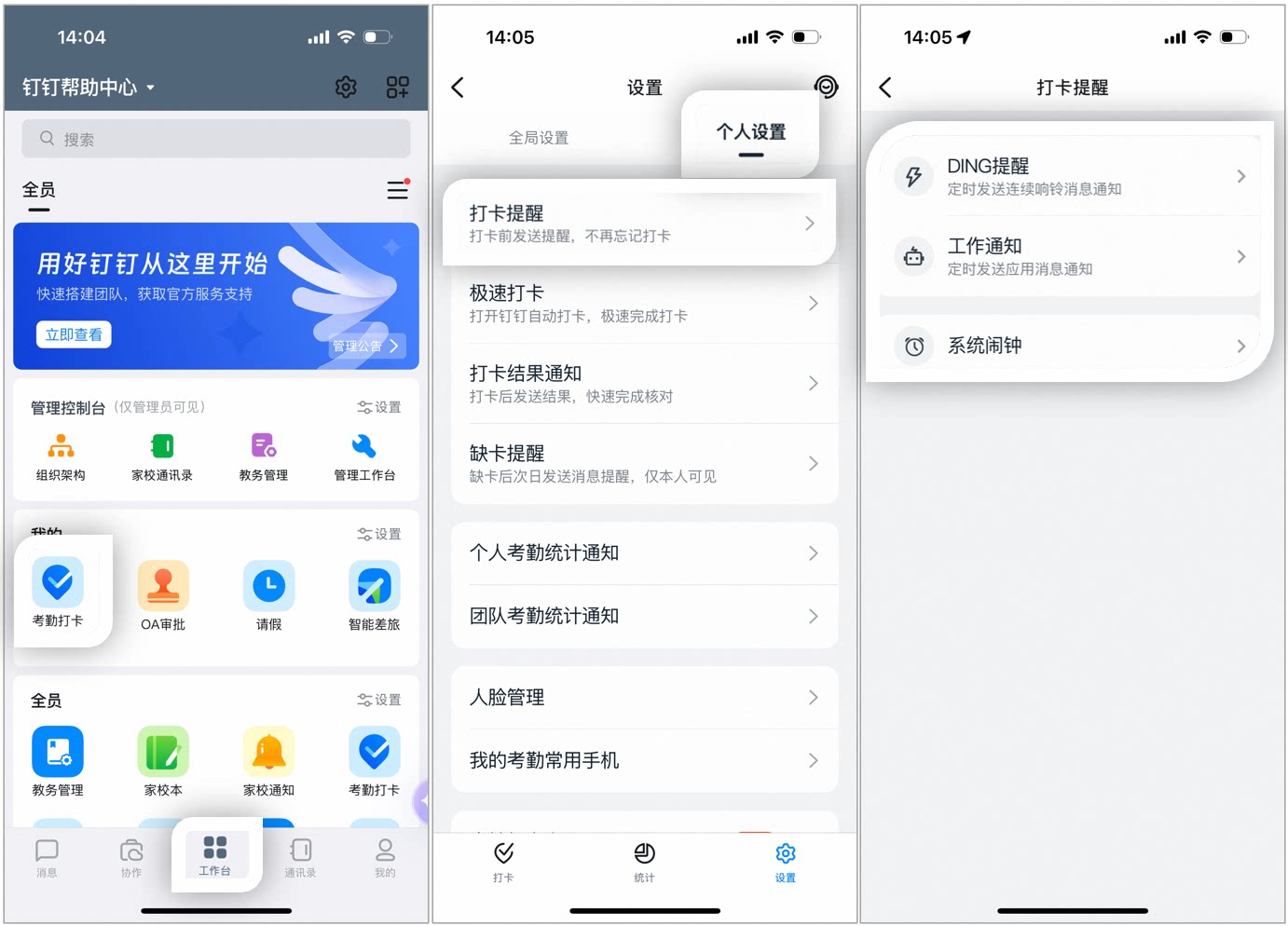
Example: enabling personal clock-in reminders
Enabling clock-in reminders as an admin
Admins with the required permissions can go to DingTalk mobile app > Workbench > Attendance > Settings > More Settings > Notification Management > Clock-in Reminders for Employees to turn the reminders On/Off.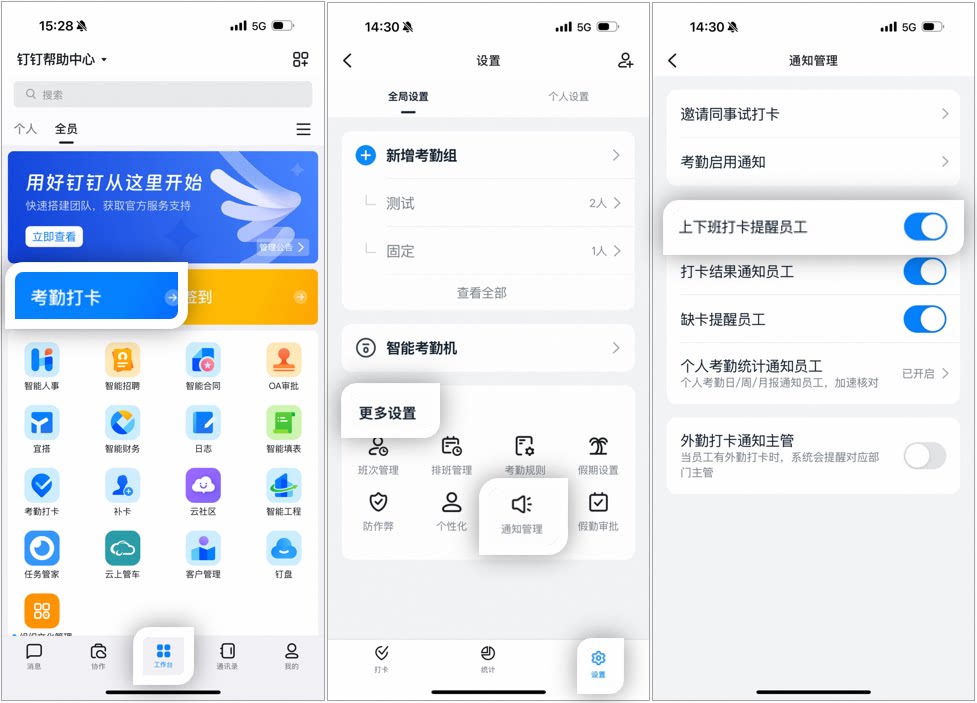
Example: enabling clock-in reminders as an admin
Personal daily, weekly, and monthly attendance reports
Admins with the required permissions can go to DingTalk mobile app > Workbench > Attendance > Settings > More Settings > Notification Management > Personal Attendance Statistics Notifications for Employees to turn personal daily, weekly, and monthly attendance reports On/Off.Notes:
- Personal daily attendance report: reminds employees to review their statistics after work each day.
- Personal weekly attendance report: reminds employees to review their statistics every Monday. It can be delivered via Work Notifications or DingTalk Mail.
- Personal monthly attendance report: reminds employees to review their statistics on the first working day of each month.
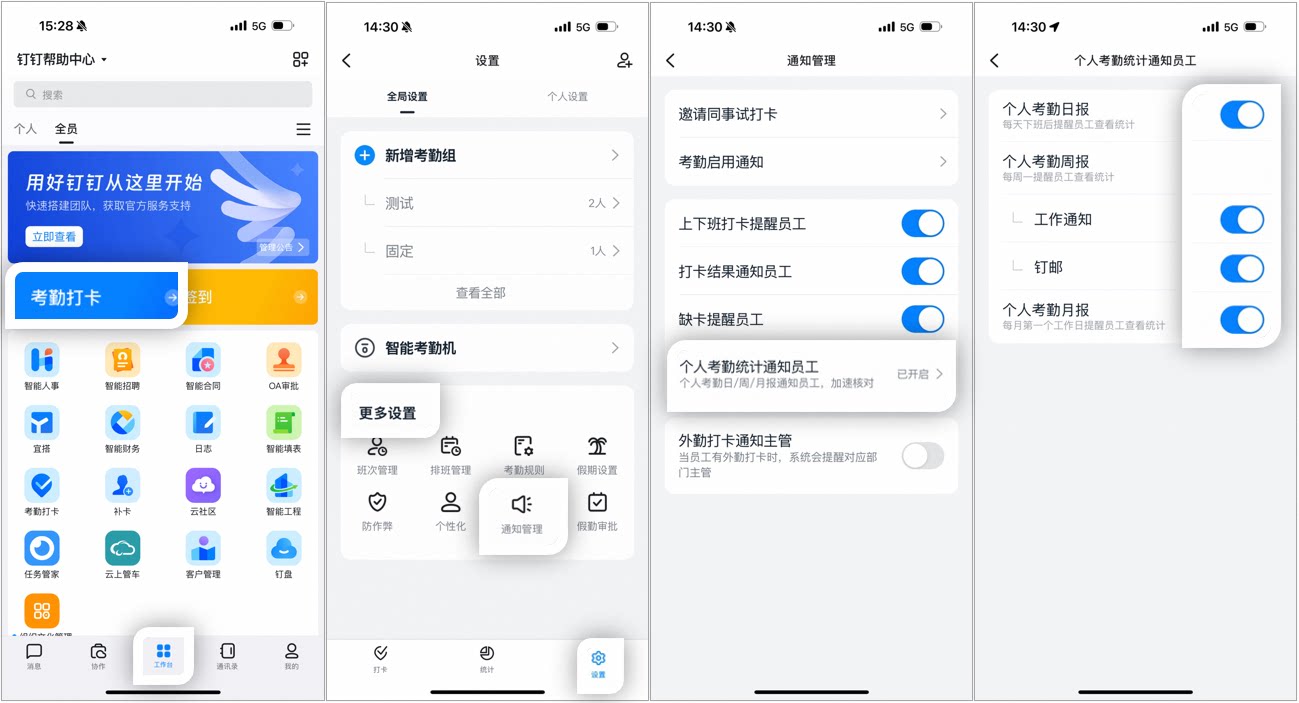
Example: enabling personal attendance statistics notifications for employees as an admin
Missed clock-in reminders
Admins with the required permissions can go to DingTalk mobile app > Workbench > Attendance > Settings > More Settings > Notification Management > Missed Clock-in Reminders for Employees to turn the reminders On/Off.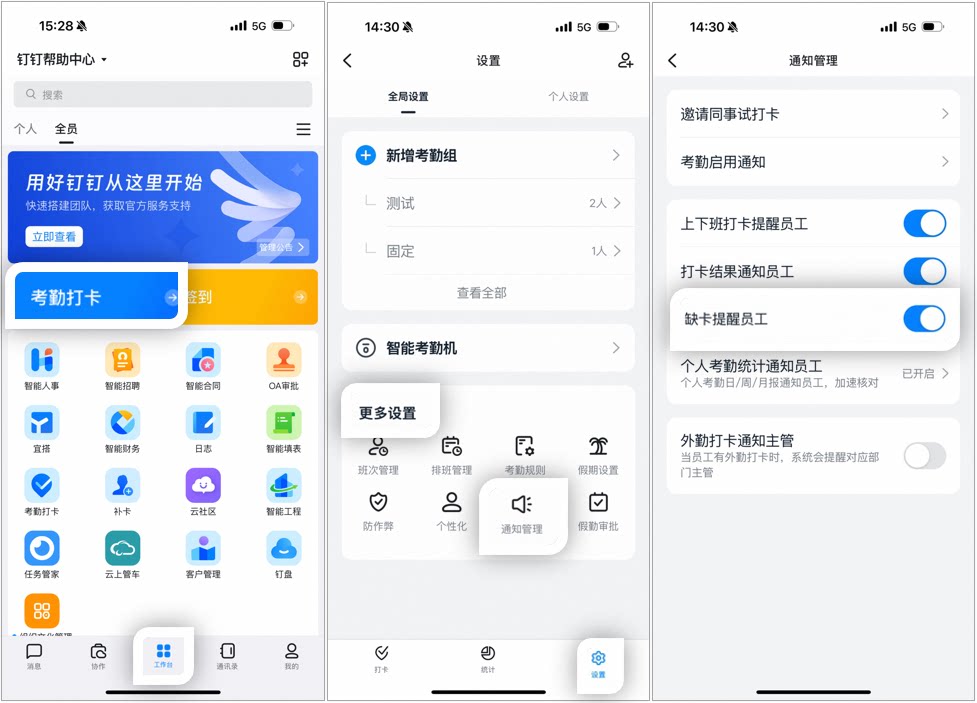
Example: enabling missed clock-in reminders for employees as an admin