Chats
Chats Calendar
 Meetings
 Contacts
 Mail
Mail Docs
Docs Drive
Drive AI Table
 AI Minutes
 Attendance
 Approval
 YiDA
YiDA Admin Console
1. Use cases
To export attendance reports for multiple months (or a full year) at once, upgrade to DingTalk Pro and use the Annual Summary feature. Example scenarios:- Export attendance data from January to June at once for a summary.
- Export the full year of 2023 attendance data at once for a summary.
- And so on.
2. How to use the annual summary report
Step 1: Create an annual summary report
1
Open the Attendance app
Open and sign in to DingTalk on desktop, select Workbench, then open the Attendance app.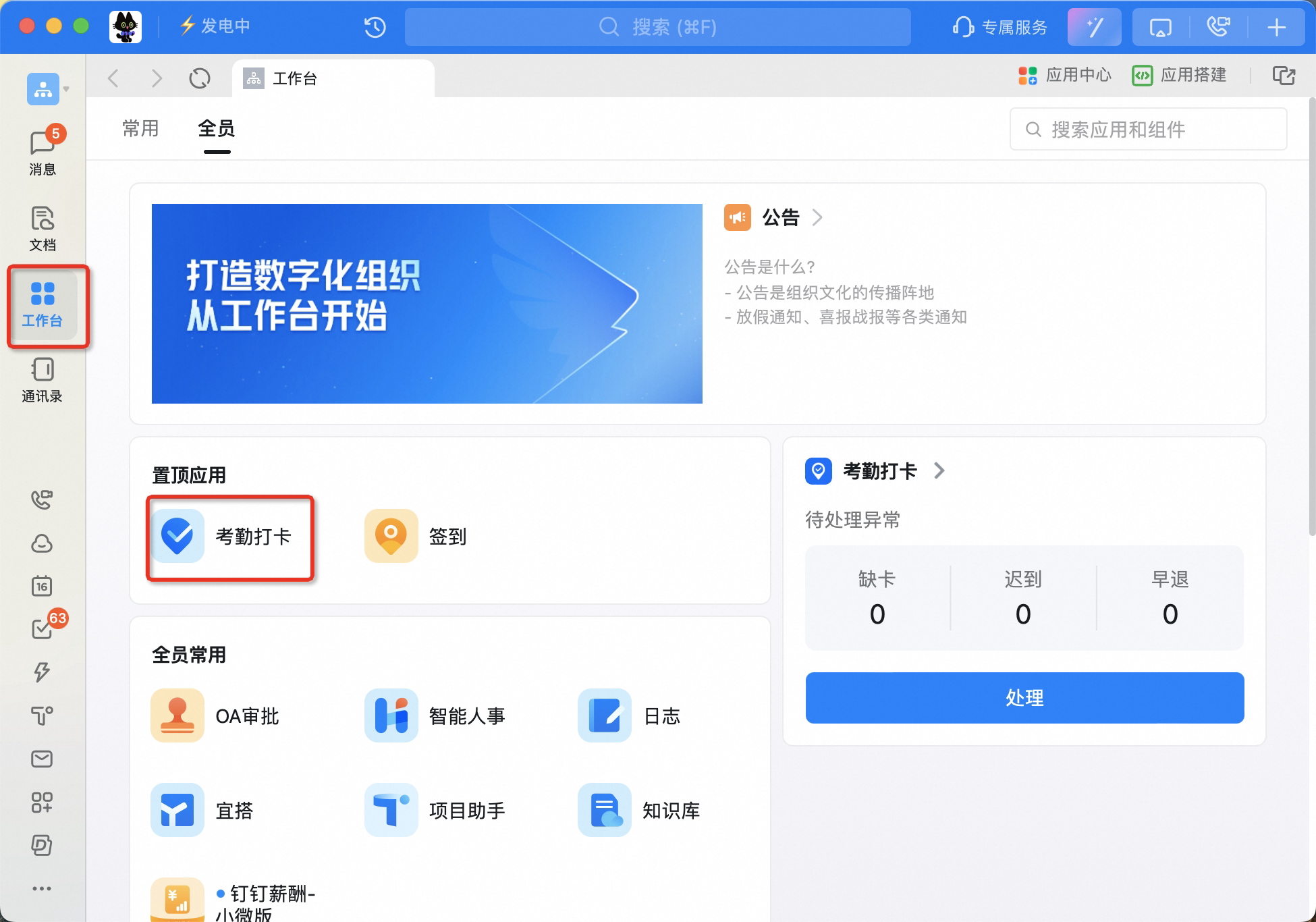
2
Select Report management
Under attendance statistics, select Report management.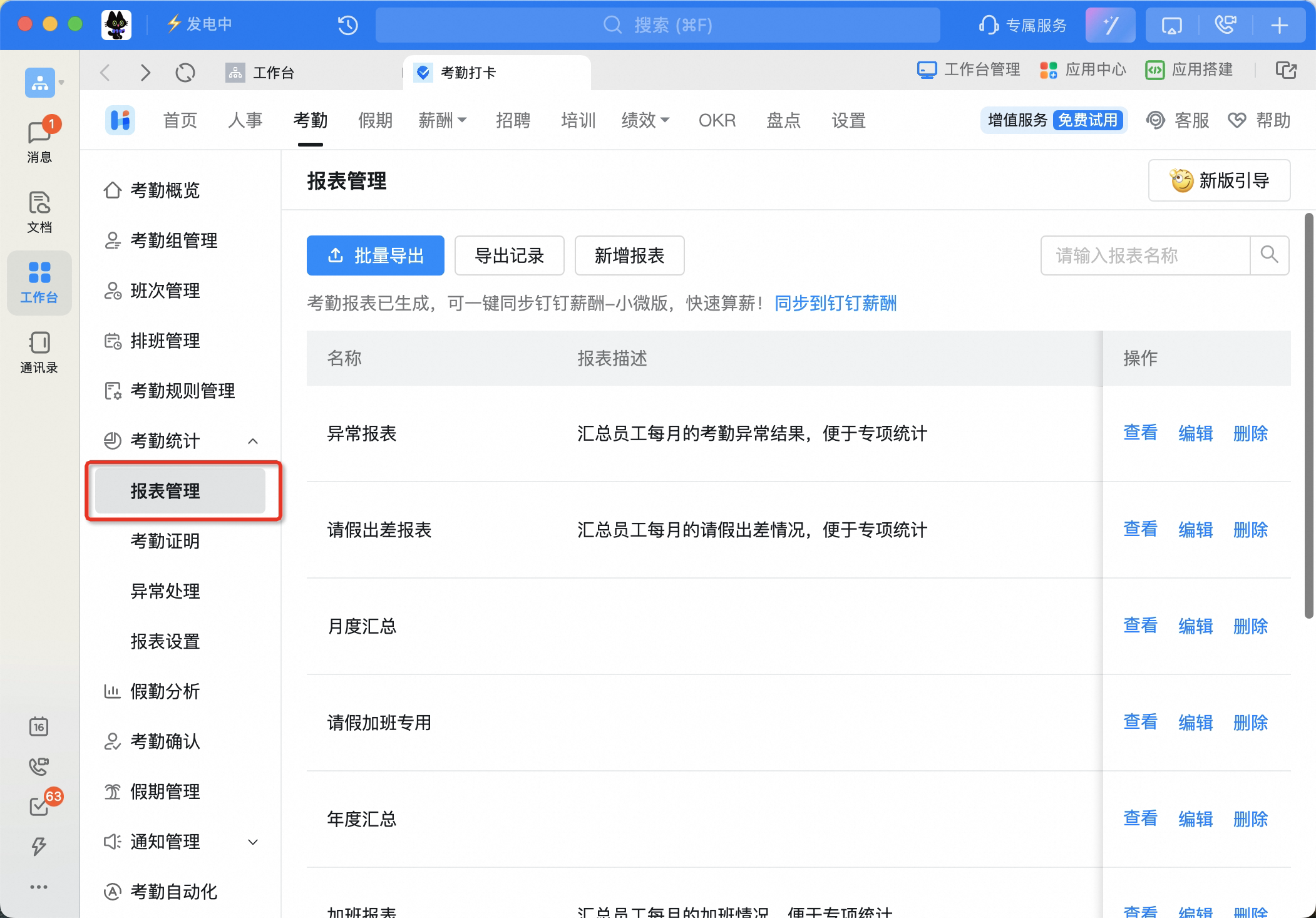
3
Create an annual summary report
Click Add report, select Annual Summary, and create an annual summary report. Standard edition users must first upgrade to DingTalk Pro.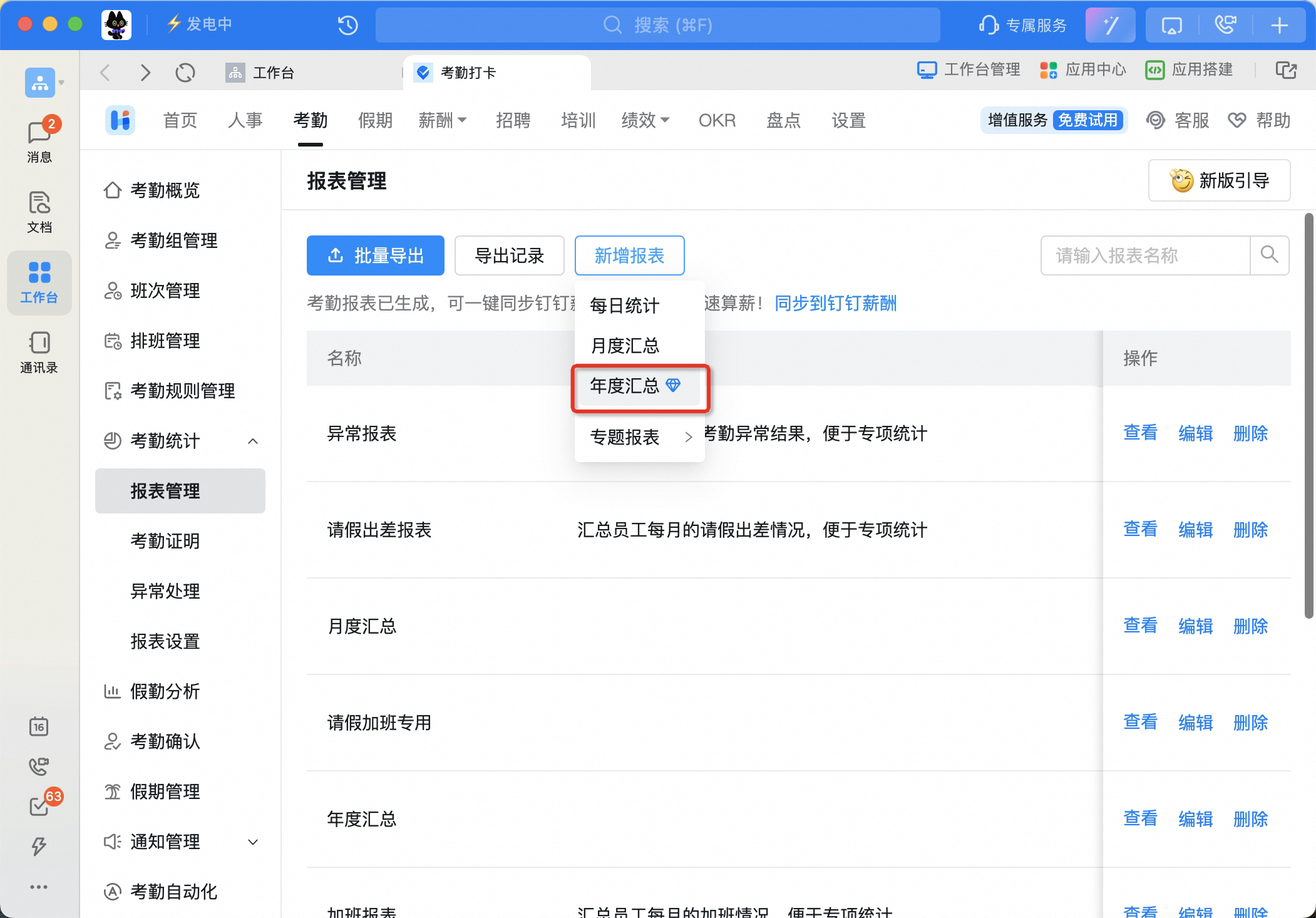
4
Add statistics columns
After creating the annual summary report, click Add column to add the data columns you want to track.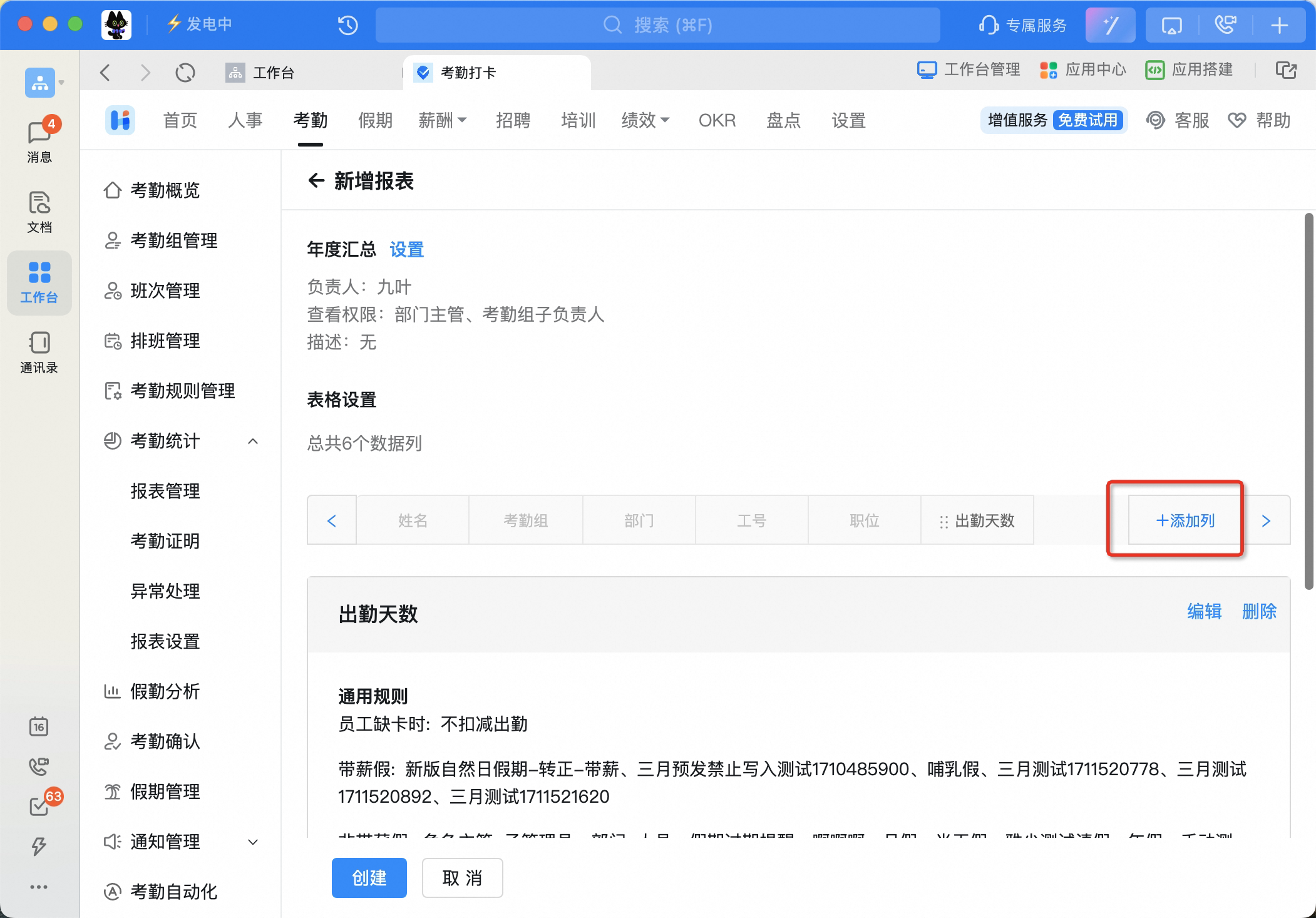
Step 2: Export the annual summary report
1
Open the report details page
Open Attendance, select Report management under attendance statistics, locate the Annual Summary report, and click View to open the report details page.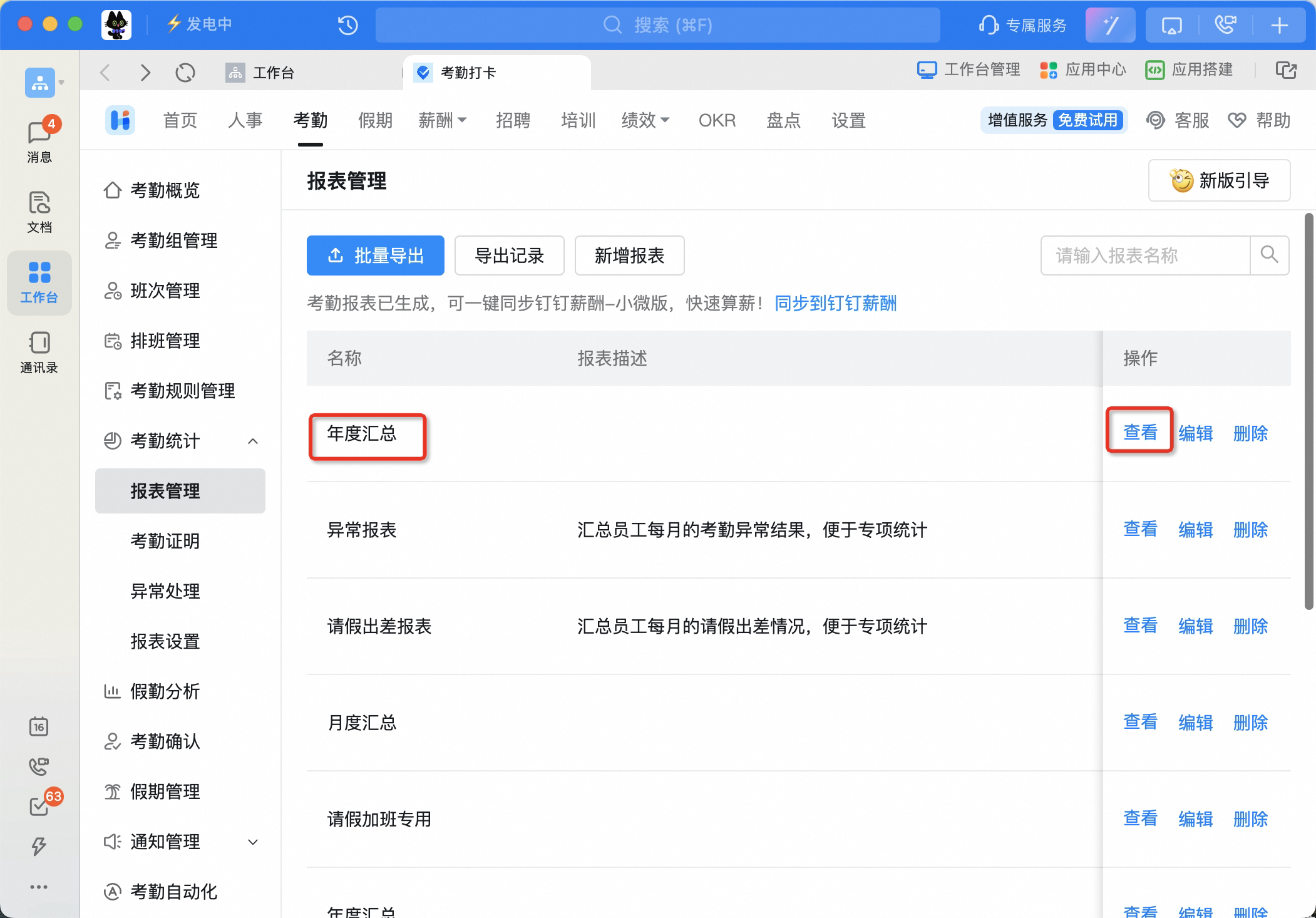
2
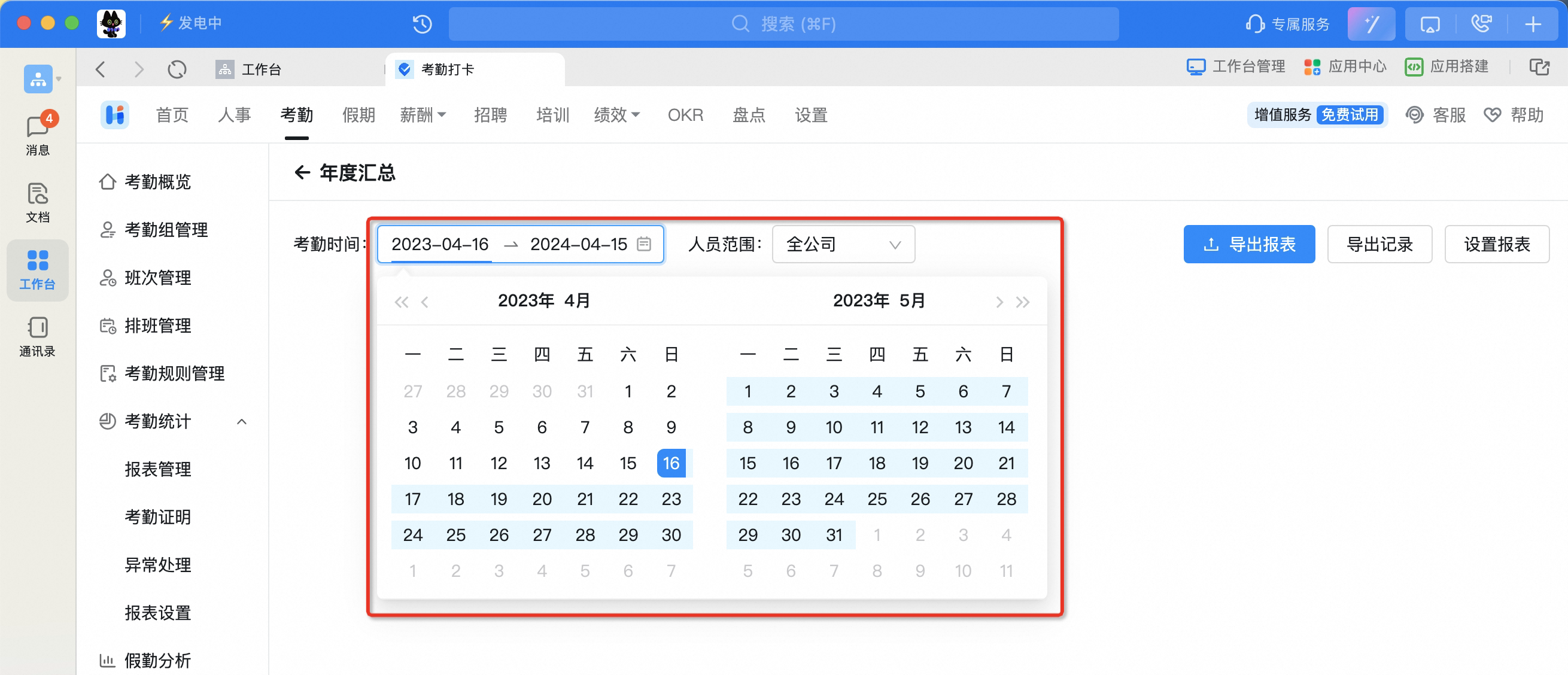
Select the span to export
Select a time span longer than one month to export, up to a maximum of 12 months.