

 Chats
Chats Calendar
 Meetings
 Contacts
 Mail
Mail Docs
Docs Drive
Drive AI Table
 AI Minutes
 Attendance
 Approval
 YiDA
YiDA Admin Console
1. Overview
In DingTalk Attendance, Admins can enable attendance report notifications to stay informed about team attendance. They can also send one-click reminders to prompt employees to clock in, effectively reducing missed clock-ins.2. Use cases
- Team attendance statistics: Help Organization Admins quickly review weekly and monthly team attendance and abnormal attendance data.
- Daily clock-in reminders: For organizations that enforce strict adherence to fixed shifts, set daily reminders before work starts and after work ends to help employees build good clock-in habits and avoid attendance issues caused by forgotten clock-ins.
3. How to use
Enable attendance group statistics reminders to stay informed about team attendance
Attendance admins, organization owners, and department managers can go to DingTalk mobile app > Workbench > Attendance > Settings > Personal Settings, enable Team attendance statistics notification, and customize the reminder time. The system pushes the team attendance report at the specified time, including overall data and abnormal data, helping Admins stay updated on team attendance.Notes:
- Daily reports are enabled by default. Weekly and monthly reports can be enabled manually.
- Team attendance statistics can be pushed through both in-app Chats and DingMail.
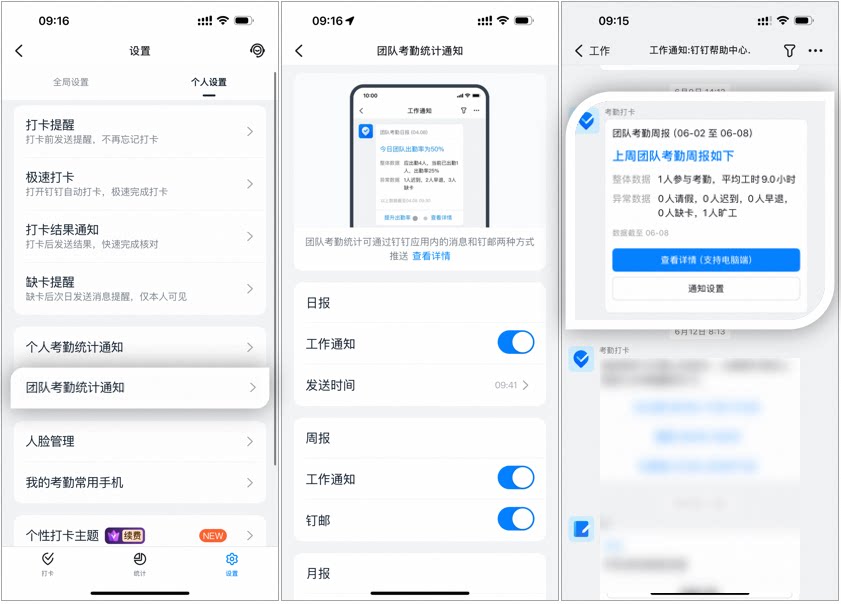
Example of enabling attendance group statistics reminders
Send one-click clock-in reminders to reduce missed clock-ins
Admins can go to DingTalk mobile app > Workbench > Attendance > Statistics > Clocked-in / Expected and send a one-click Clock-in reminder to employees who were scheduled to work that day but have not clocked in. You can customize the reminder content and choose Scheduled DING or Whisper mode, as well as In-app DING, SMS DING, or Phone DING.About “Expected but not clocked in”:Refers to employees who were scheduled to clock in that day but did not. This excludes those on all-day leave, on rest days, without a scheduled shift, or on all-day external work / business trips (when external work / business trip is set to not require clock-in).
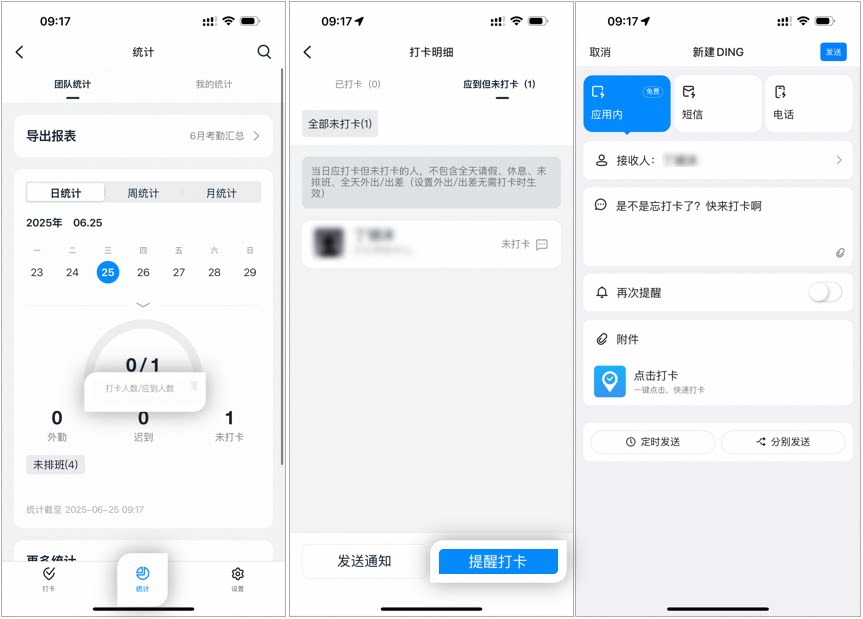
Example of the clock-in reminder page