

 Chats
Chats Calendar
 Meetings
 Contacts
 Mail
Mail Docs
Docs Drive
Drive AI Table
 AI Minutes
 Attendance
 Approval
 YiDA
YiDA Admin Console
1. Feature overview
This article explains the attendance management role system, including the permission differences and setup steps for each role, so you can flexibly configure attendance management roles.2. Use cases
A large enterprise has multiple departments (such as Marketing, R&D, and Sales), each with its own attendance requirements and management needs. The company wants to delegate attendance management permissions to each department so that daily tasks can be handled more efficiently. How to use:- Create Sub Admin roles: Create dedicated attendance administrator roles for department heads.
- Assign app scope: Assign each head’s own department as their app scope.
- Refine permissions: Configure different permissions for each department head as needed, such as whether they can modify attendance rules or approve leave requests.
- Data isolation: Ensure that each department’s attendance data is visible only to the corresponding attendance administrator, preventing information leakage.
3. Attendance management role system
Role descriptions
Permission notes
The system enforces strict permission isolation based on the management scope, mainly in the following two ways:1. Admins can only view and edit data within their management scope.For example: Xiao Jia is an attendance group administrator whose management scope is Department A, but a certain attendance group contains members from both Department A and Department B. In this case, Xiao Jia can only view Department A’s data in that attendance group and cannot view Department B’s data. Similarly, Xiao Jia can only schedule members of Department A and cannot perform actions on Department B.2. Depending on the management scope, an admin’s permissions may be limited.For example: Xiao Yi is an attendance app admin with attendance group view permission. However, when no members of a certain attendance group fall within their management scope, Xiao Yi cannot view that attendance group.
4. Procedure
Organization Admin and attendance app admin
Go to Admin Console > Security & Permissions > Manage permissions > Sub Admin and configure permissions based on your organization’s needs.Instructions:In general, to add an admin dedicated to managing the Attendance app, add them as a Sub Admin and configure their app permissions and department scope.
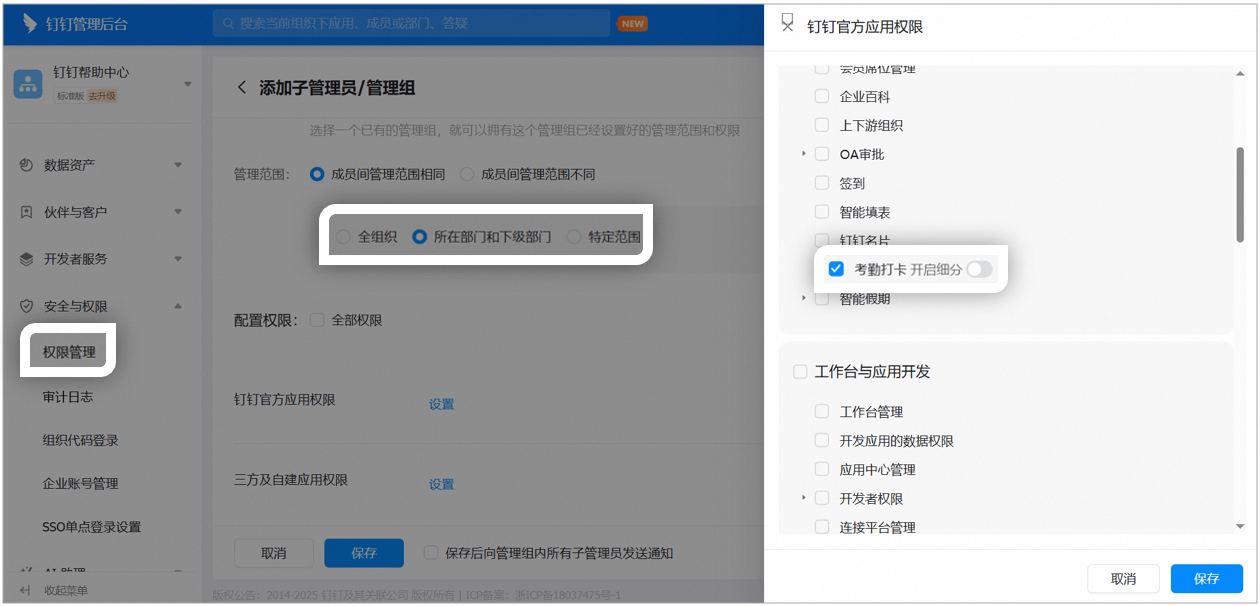
Example page for setting clock-in permissions for a Sub Admin
Set an attendance group sub-owner
To set an attendance group primary owner or sub-owner, open DingTalk desktop > Workbench > Attendance > Attendance group management > Edit, click Settings next to attendance group owner, and add or remove users in the primary owner or sub-owner field.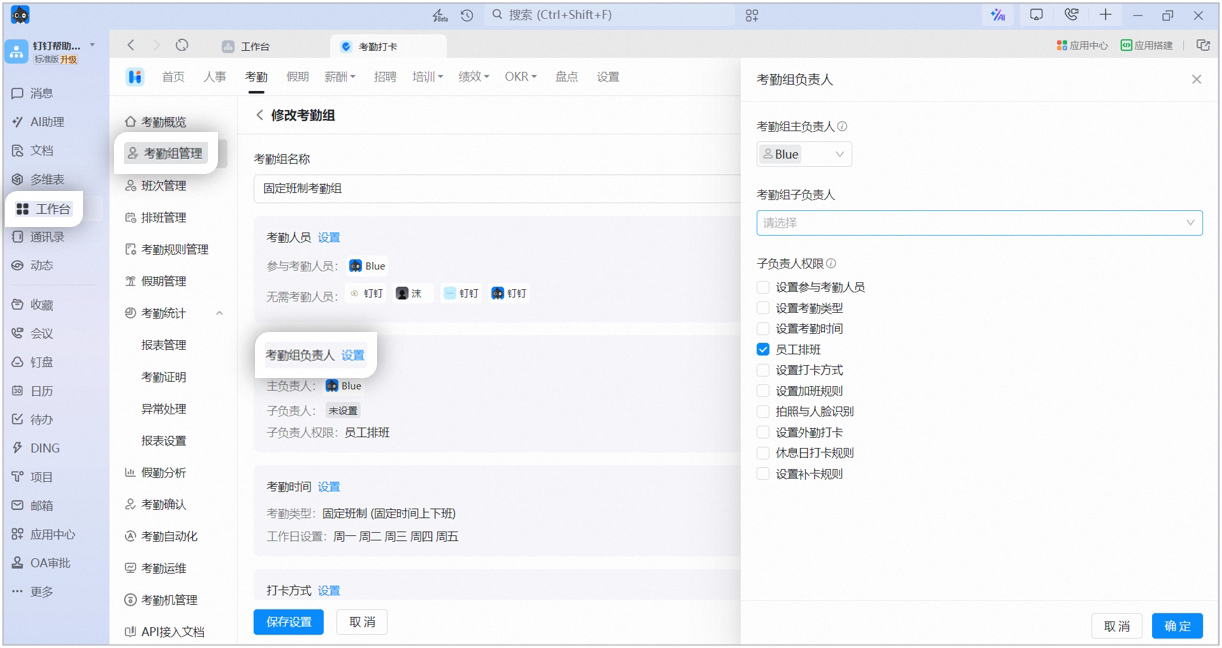
Example page for setting an attendance group sub-owner
5. FAQ
How do I view the information of my newly assigned attendance group?
How do I view the information of my newly assigned attendance group?
Members of attendance group A can open DingTalk mobile > Workbench > Attendance and tap View rules at the top to view the name and owner of the newly assigned attendance group.
How do I refine the Attendance app permissions?
How do I refine the Attendance app permissions?
You can refine permissions for the Attendance app. After setup, a Sub Admin can perform only the attendance actions granted by the assigned permissions. For settings they do not have permission for, they will be prompted to contact the admin to enable them. The Super Admin can go to Admin Console > Security & Permissions > Manage permissions > Sub Admin > Add Sub Admin/Admin, or Edit the corresponding admin group > click Edit next to DingTalk official app permissions > select Attendance > Turn on refinement > Configure, and assign the corresponding permissions.