

 Chats
Chats Calendar
 Meetings
 Contacts
 Mail
Mail Docs
Docs Drive
Drive AI Table
 AI Minutes
 Attendance
 Approval
 YiDA
YiDA Admin Console
1. Feature overview
Automatic shift matching is a brand-new, simple, and flexible attendance scheduling method. It does not require the attendance administrator to manually schedule shifts in advance. Instead, DingTalk Attendance automatically matches the closest shift based on the matching method configured by the Admin and the actual clock-in time of Organization Users. Admins can also review and edit the results as needed.2. Applicable scenarios
- The Admin has not scheduled shifts for Employees in time, or has forgotten to do so.
- You do not need to manually schedule shifts for Employees, but still need to track their attendance.
3. How to configure
Notes:
- Only shift-based attendance groups support automatic shift matching.
- Automatic shift matching applies only when no shift has been scheduled. If the Admin has already scheduled a shift, the scheduled shift for the day takes precedence.
- Mobile: Open Mobile DingTalk > Workbench > Attendance > Settings > tap the shift-based attendance group > Edit attendance group > Attendance type > select Automatic shift matching.
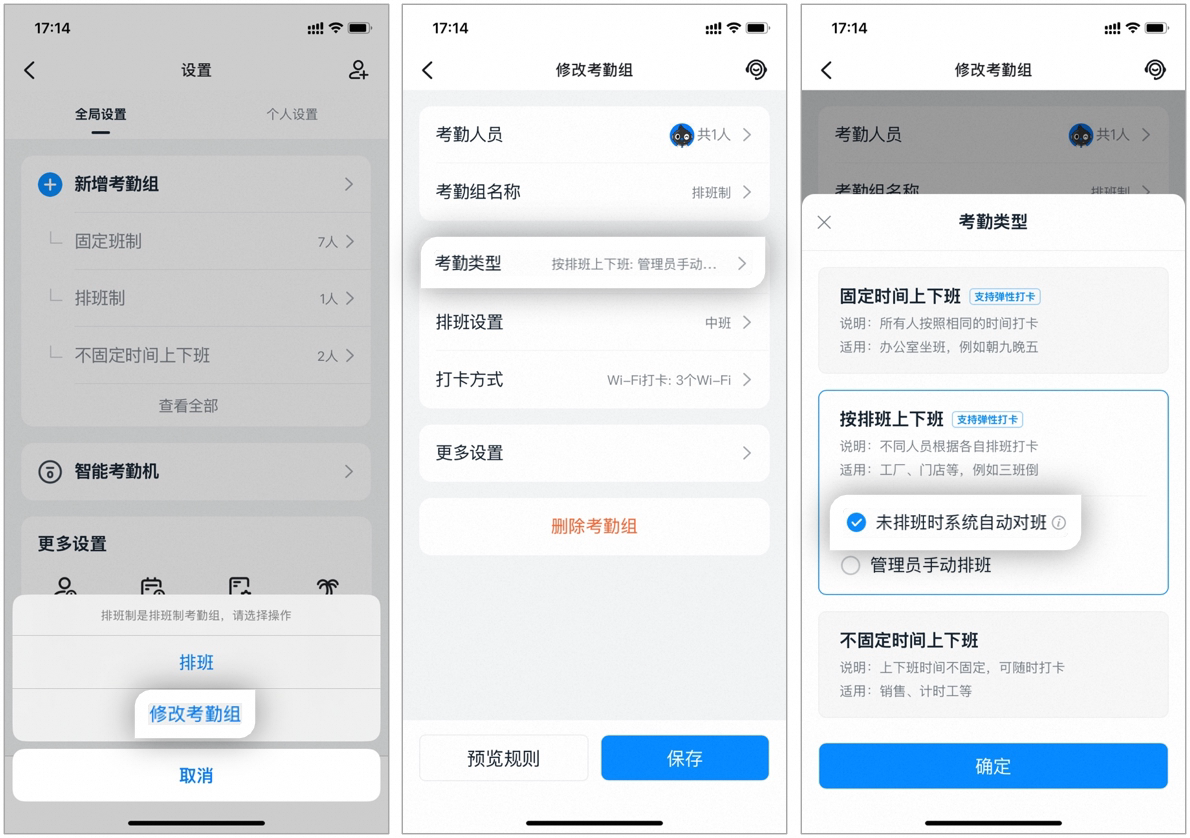
Configuring automatic shift matching on mobile
- Desktop: Open Desktop DingTalk > Workbench > Attendance > Attendance group management > select the shift-based attendance group > Edit > Attendance time Settings > select Automatic shift matching.
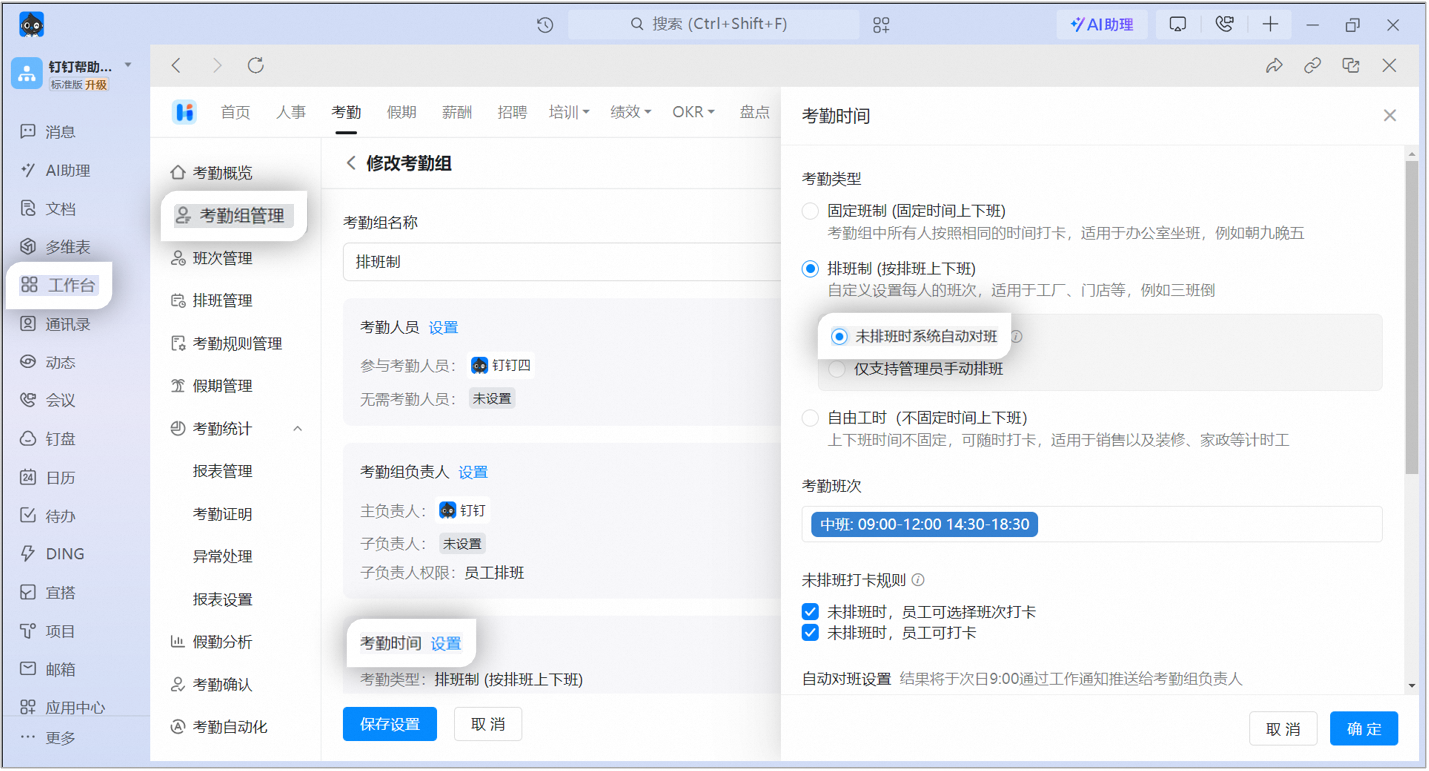
Configuring automatic shift matching on desktop
4. View or edit matching results
- Mobile: Open Mobile DingTalk > Chats page > find the Work Notifications for the corresponding Organization > locate the matching Date to view or edit the automatically matched shift.
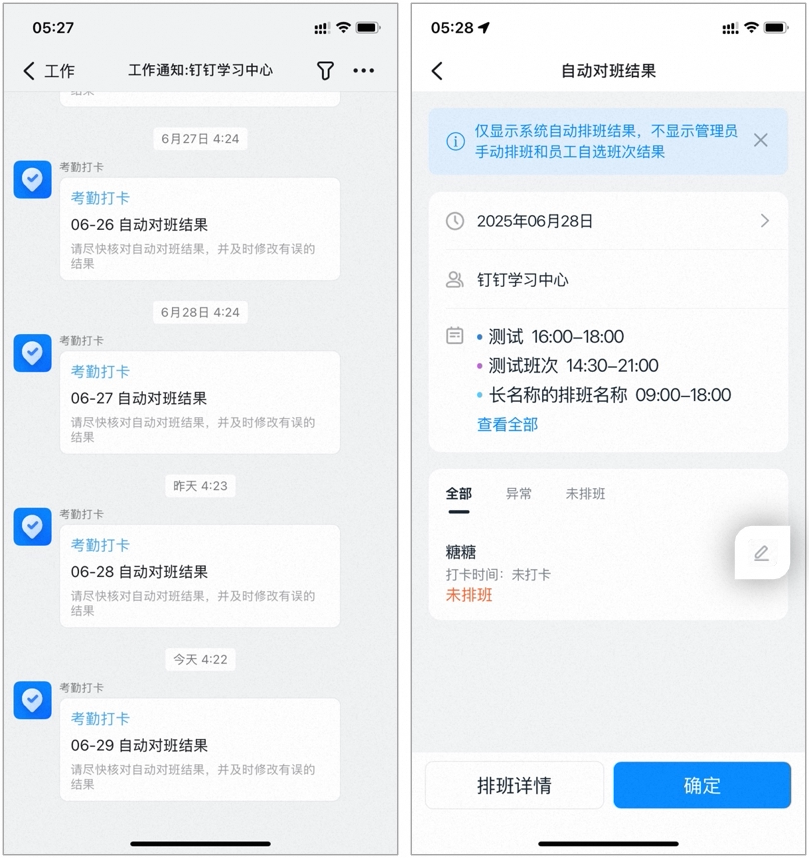
Viewing or editing matching results on mobile
Notes:Only results from automatic shift matching are displayed. Shifts manually scheduled by the Admin and shifts selected by Employees are not shown.
- Desktop: Open Desktop DingTalk > Workbench > Attendance > Scheduling management > select the corresponding attendance group > Shift matching to view results, or click the pencil icon next to the Organization User to edit the shift.
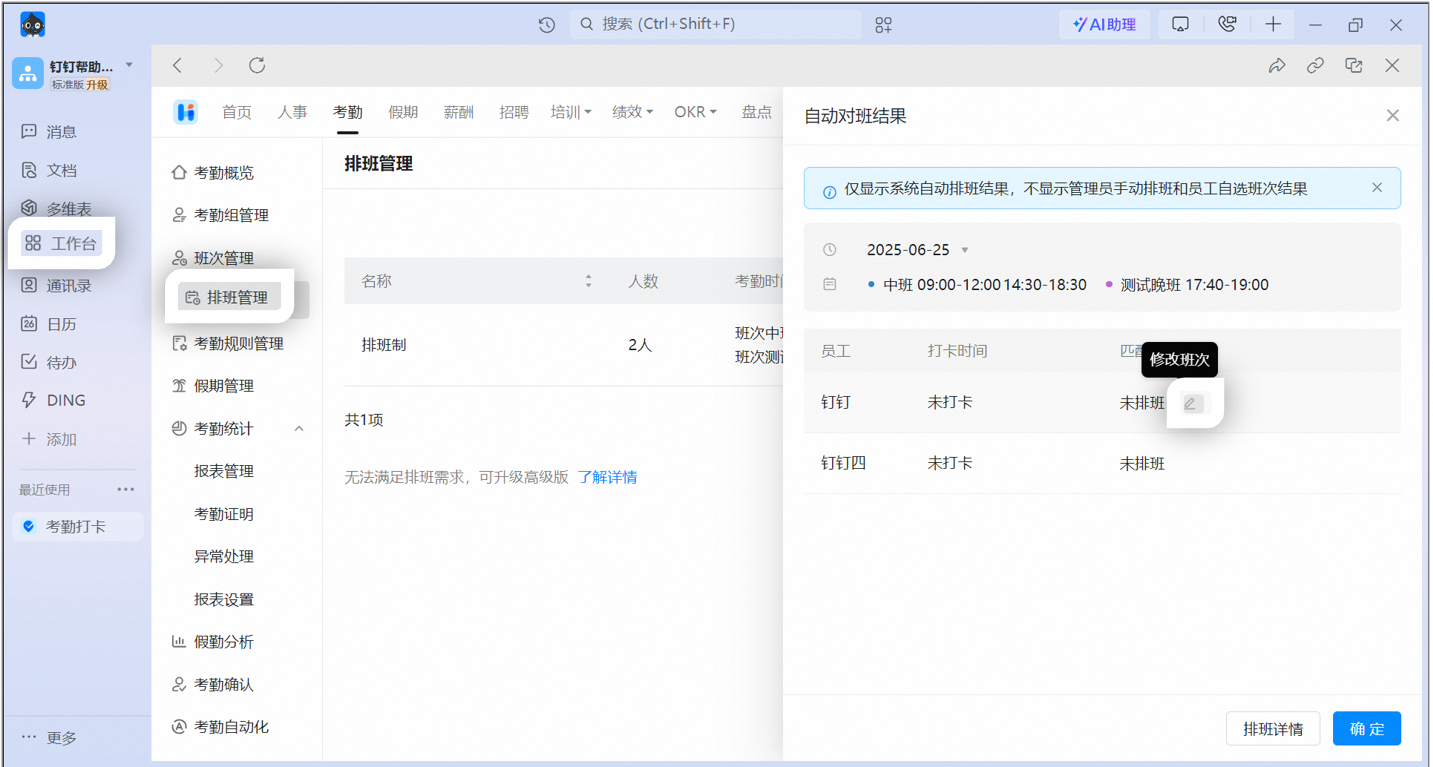
Viewing or editing matching results on desktop
Notes:Only results from automatic shift matching are displayed. Shifts manually scheduled by the Admin and shifts selected by Employees are not shown.
5. FAQ
If both automatic shift matching and employee-selectable shift clock-in are enabled, which takes precedence?
If both automatic shift matching and employee-selectable shift clock-in are enabled, which takes precedence?
When both Automatic shift matching when no shift is scheduled and Employees can select a shift to clock in when no shift is scheduled are enabled: if a User selects a shift before clocking in, the selected shift time applies. If the User clocks in without selecting a shift, the system automatically matches the closest shift based on the clock-in time.
Who can receive shift matching result notifications?
Who can receive shift matching result notifications?
Only the primary owner of the attendance group and sub-owners with scheduling Permissions can view automatic shift matching results through Work Notifications.
How do I turn off attendance reminders for automatic shift matching?
How do I turn off attendance reminders for automatic shift matching?
Automatic shift matching results are pushed automatically, and disabling this notification is not currently supported.
Why does the message "Automatic shift matching periods overlap. Please modify the automatic shift matching period" appear?
Why does the message "Automatic shift matching periods overlap. Please modify the automatic shift matching period" appear?
If you see the message “Automatic shift matching periods overlap. Please modify the automatic shift matching period” when selecting participating shifts in a Custom matching period, check whether the selected shifts have overlapping time ranges.