

 Chats
Chats Calendar
 Meetings
 Contacts
 Mail
Mail Docs
Docs Drive
Drive AI Table
 AI Minutes
 Attendance
 Approval
 YiDA
YiDA Admin Console
1. Admin settings
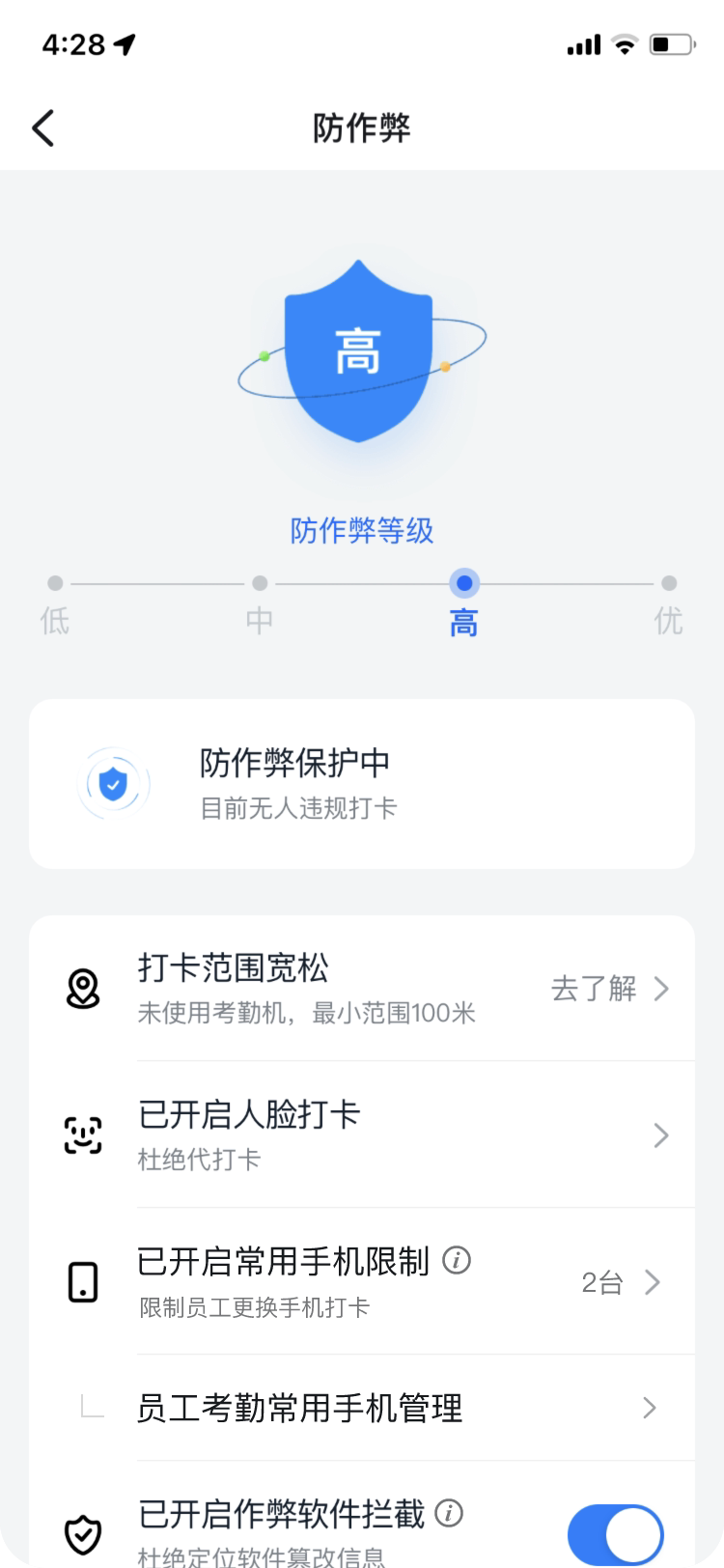
Admins can set the number of frequently used phones per employee, along with the verification method triggered when the limit is exceeded. Number of frequently used phones:- No limit: Any phone can clock in, with no security verification.
- Limit: Up to 3 phones; 1 is recommended.
- Photo confirmation (default): The employee must take a photo to confirm arrival at the attendance location. Admins can view the confirmation photo in the attendance records.
- Facial recognition (recommended): The employee must pass facial recognition. Clock-in succeeds once verification passes. If no face has been enrolled, the employee is prompted to enroll one before clocking in.
- Block clock-in: The employee cannot clock in. They must switch to a phone already bound as a frequently used phone, or contact the admin to remove a bound frequently used phone.
1
Click to enable the frequently used phone restriction
2
Turn on the switch
3
Select the number of frequently used phones
4
Set the verification method when the limit is exceeded
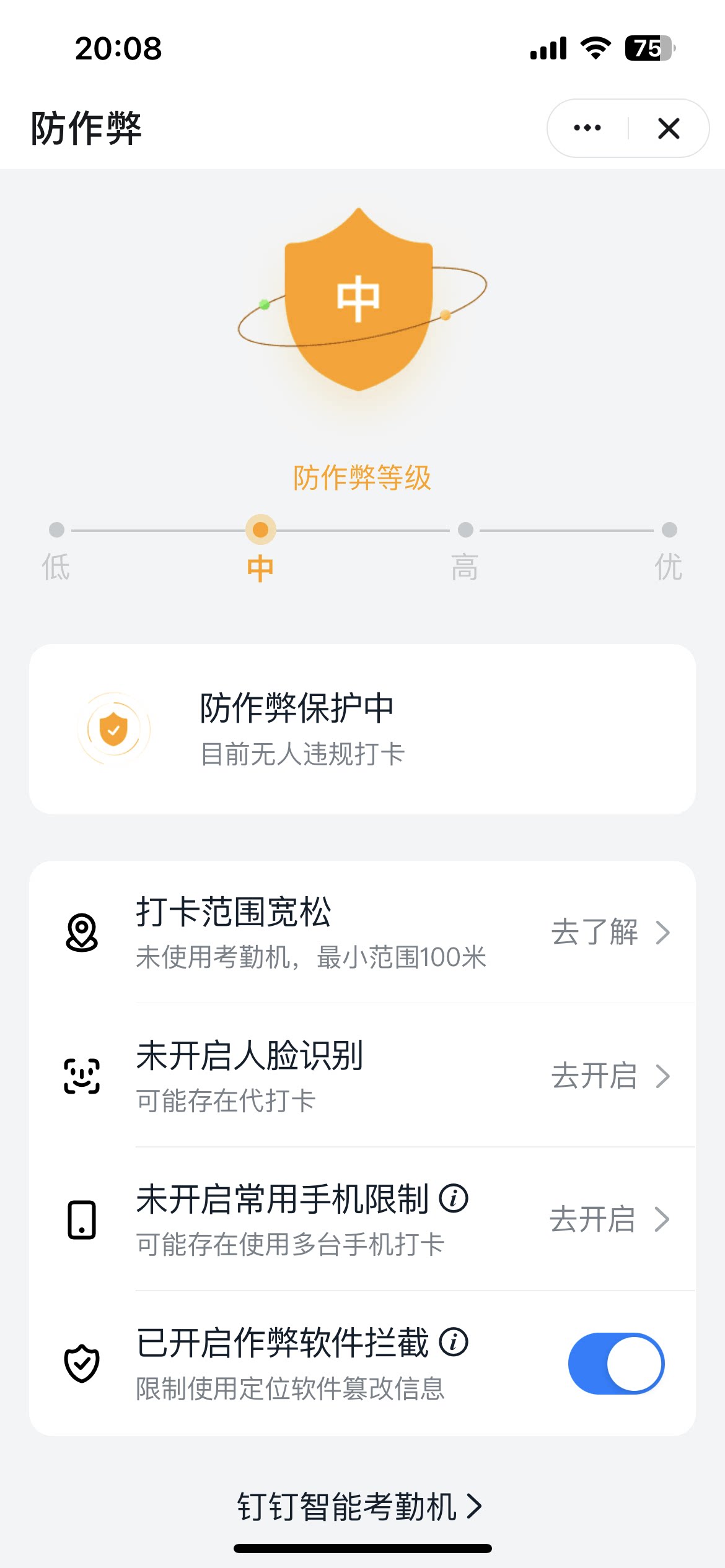
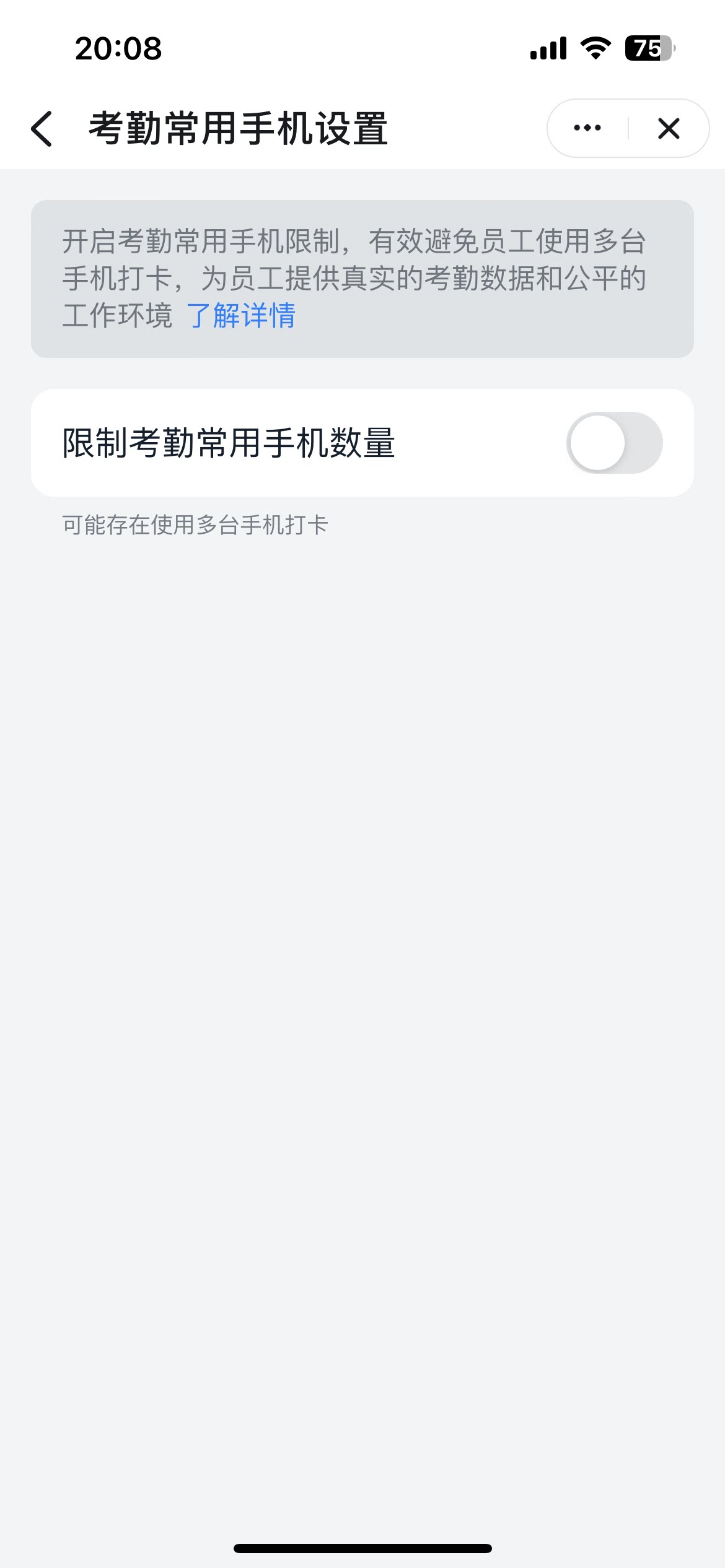
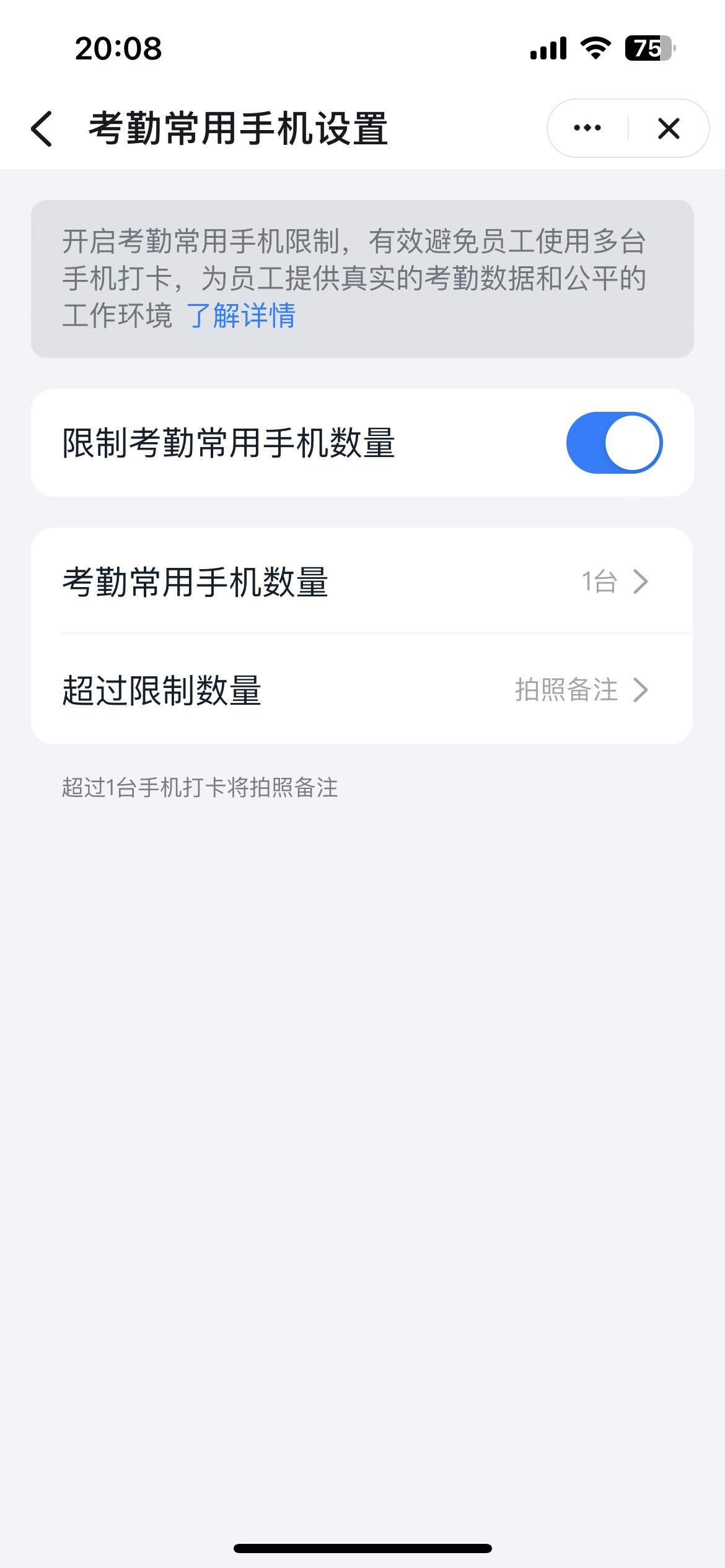
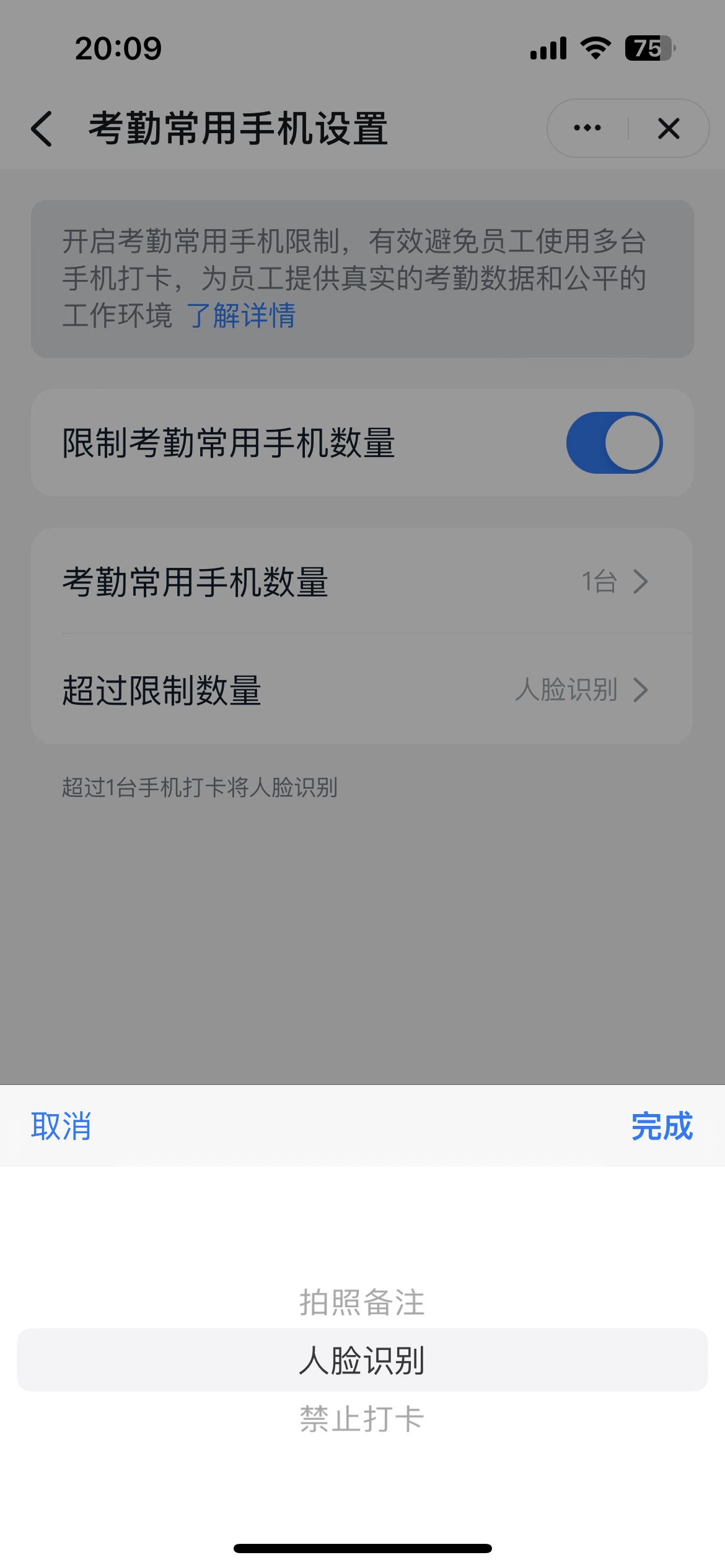
2. Employees bind their phones
When an employee clocks in for the first time or clocks in from a new phone, that phone is automatically bound as a frequently used phone. Once the number of bound phones reaches the limit set by the admin, no additional phones can be bound.FAQ: If an employee has already reached the frequently used phone limit set by the admin, and buys a new phone after their old one breaks, can the new phone be bound?Yes. If DingTalk Attendance detects that the current phone is new, it can be bound as a new frequently used phone. During binding, the employee must unbind one of the old phones.
3. Employee clock-in verification
When an employee uses another person’s frequently used phone, or exceeds the limit set by the admin, security verification is triggered. Depending on the admin’s settings, the employee must take a photo confirmation, pass facial recognition, or is blocked from clocking in.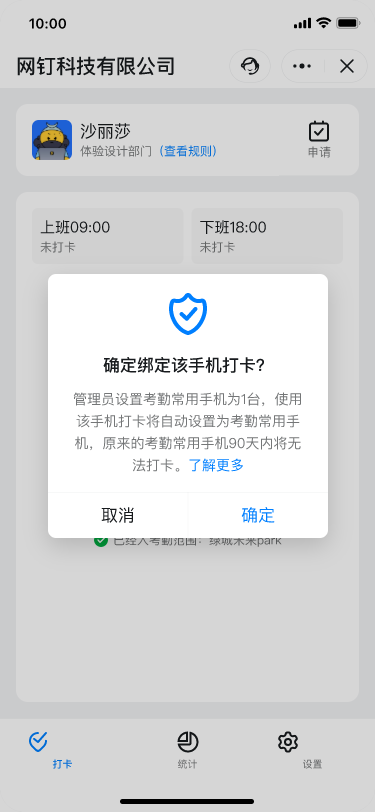
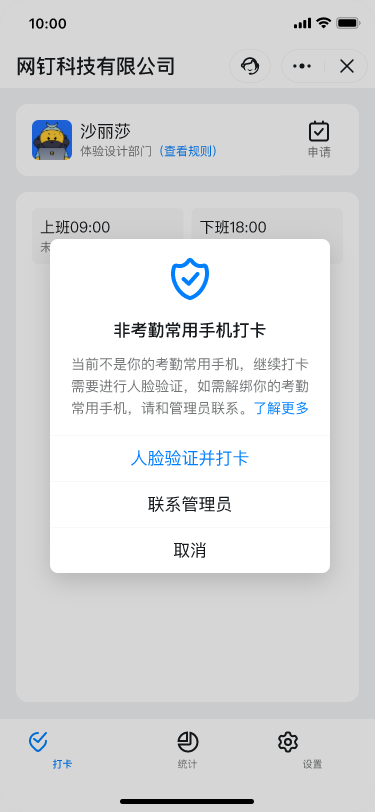
- Clocking in with a new phone automatically unbinds the original frequently used phone.
- Clocking in from a non-frequently-used phone triggers interception and verification.
4. Admin unbinding
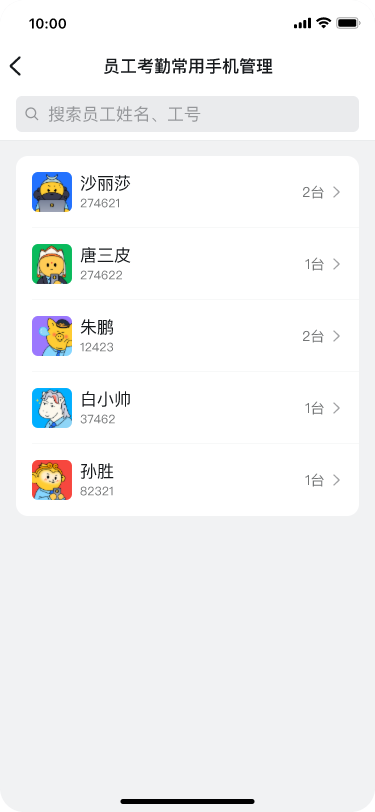
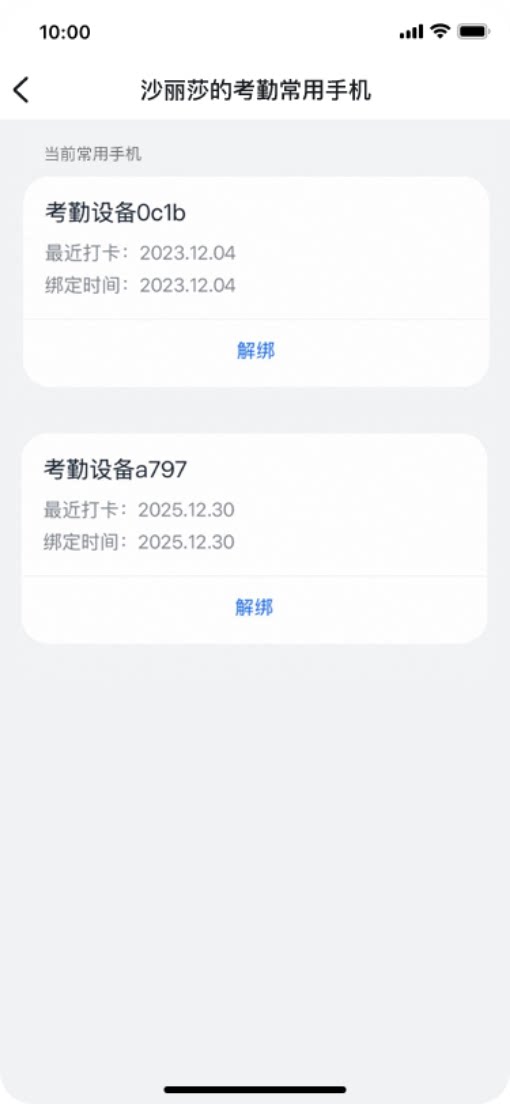
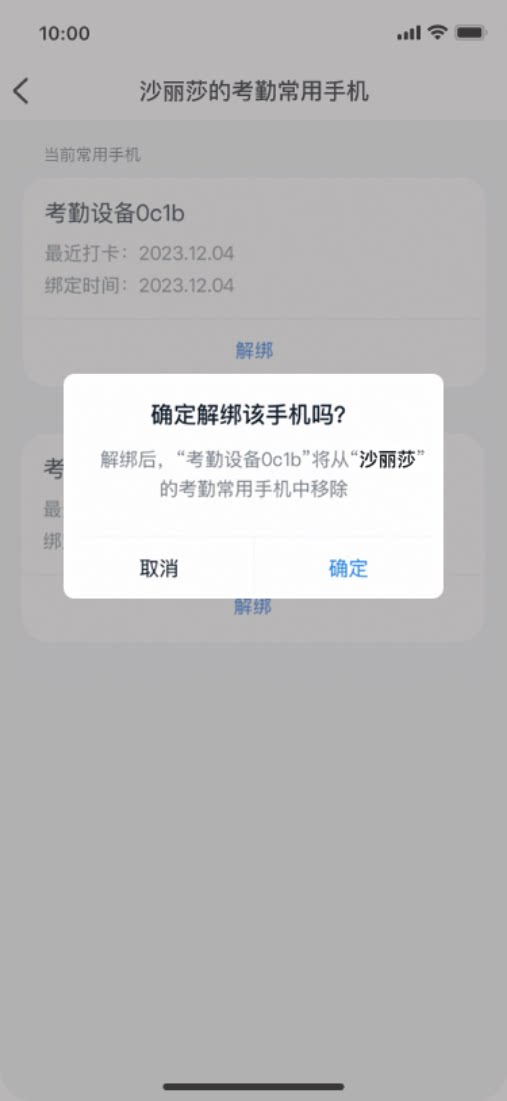
If an employee needs to reuse a previously unbound phone in special cases, they should contact the admin to remove a bound frequently used phone.1
Manage employees' frequently used phones
2
Select the employee to unbind
3
Select the phone to unbind
4
Confirm unbinding
Any behavior that violates the security rules above is logged in the security protection statistics, which you can view on mobile. Related information is also recorded in the attendance raw-record table and the employee monthly attendance calendar.In addition, DingTalk Attendance continues to iterate on the product and strengthen compliance. In line with the Personal Information Protection Law and other regulations governing sensitive personal information such as facial data, the DingTalk platform updates the product promptly. For organizations that enable facial recognition clock-in, it enhances the separate individual authorization required for enrolling a base face image and clarifies the scenarios and scope of data use. For existing facial photos (including facial clock-ins triggered by attendance errors), it optimizes data retention and performs deletion to protect sensitive personal information in accordance with the law.