

 Chats
Chats Calendar
 Meetings
 Contacts
 Mail
Mail Docs
Docs Drive
Drive AI Table
 AI Minutes
 Attendance
 Approval
 YiDA
YiDA Admin Console
1. Feature overview
Scheduling management is a key activity in enterprise operations. It focuses on how to effectively arrange employee work schedules to meet business needs while optimizing resource use and safeguarding work-life balance. A well-designed scheduling management system improves productivity, reduces costs, and helps boost employee satisfaction and team cohesion.2. Use cases
Employees have irregular or inconsistent start and end times each day.3. Procedure
Mobile
Authorized Admins can go to DingTalk mobile app > Workbench > Attendance > Settings > Scheduling management > select the target attendance group > Scheduling, choose the target date, and select Shift/Cycle to schedule.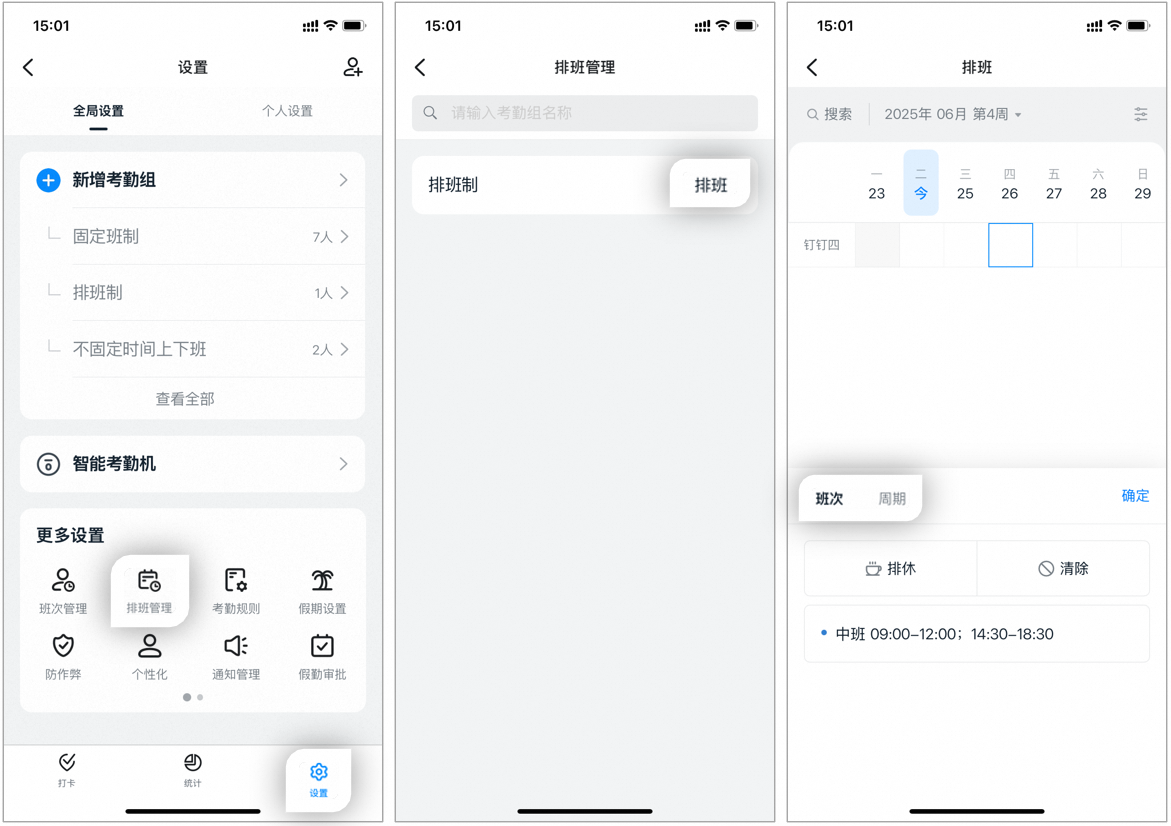
Mobile scheduling page example
Desktop
Authorized Admins can go to DingTalk desktop app > Workbench > Attendance > Scheduling management > select the target attendance group > Scheduling.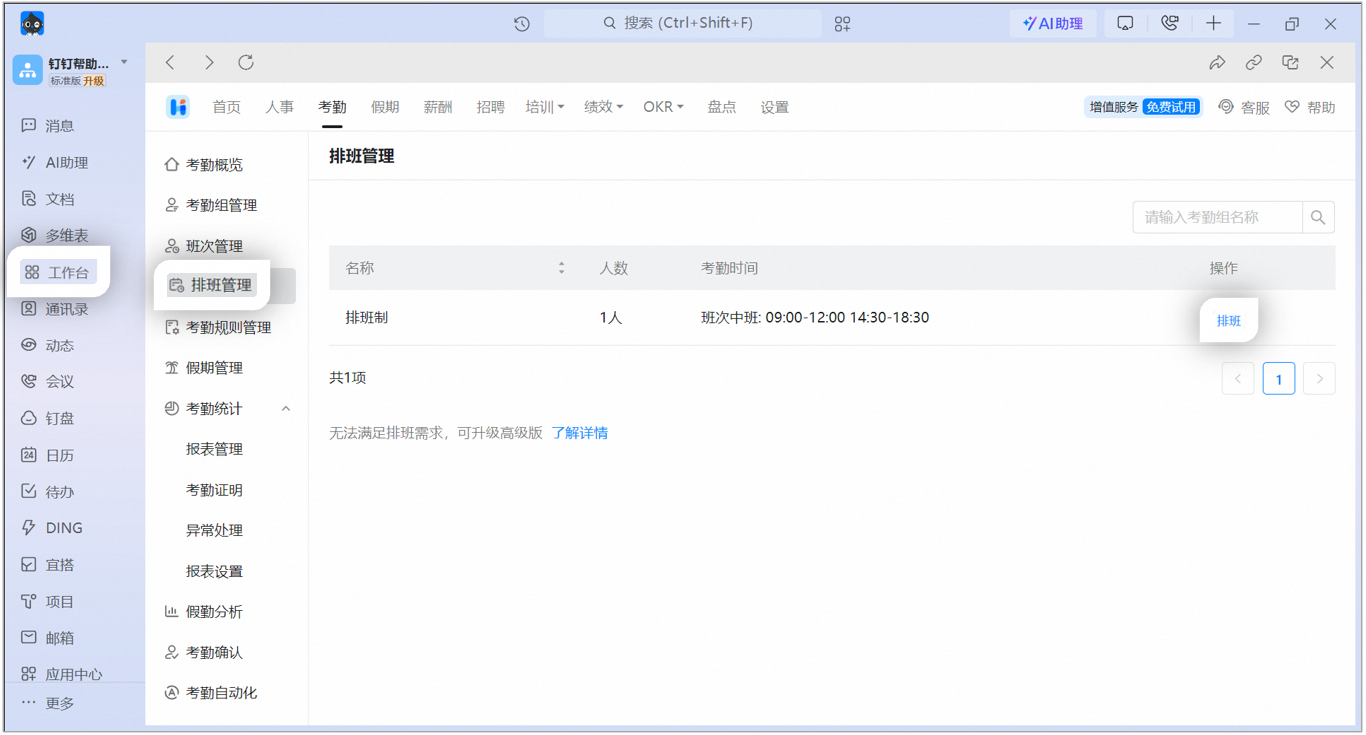
Desktop scheduling page example
4. Scheduling methods
After configuring the relevant scheduling settings, use any of the following methods to edit the schedule. Click Save to finish scheduling.While editing the schedule, click the Calendar box to switch between years and months.
Schedule by day
Click a Cell in the scheduling area, select Schedule by day, and then select a shift or Rest.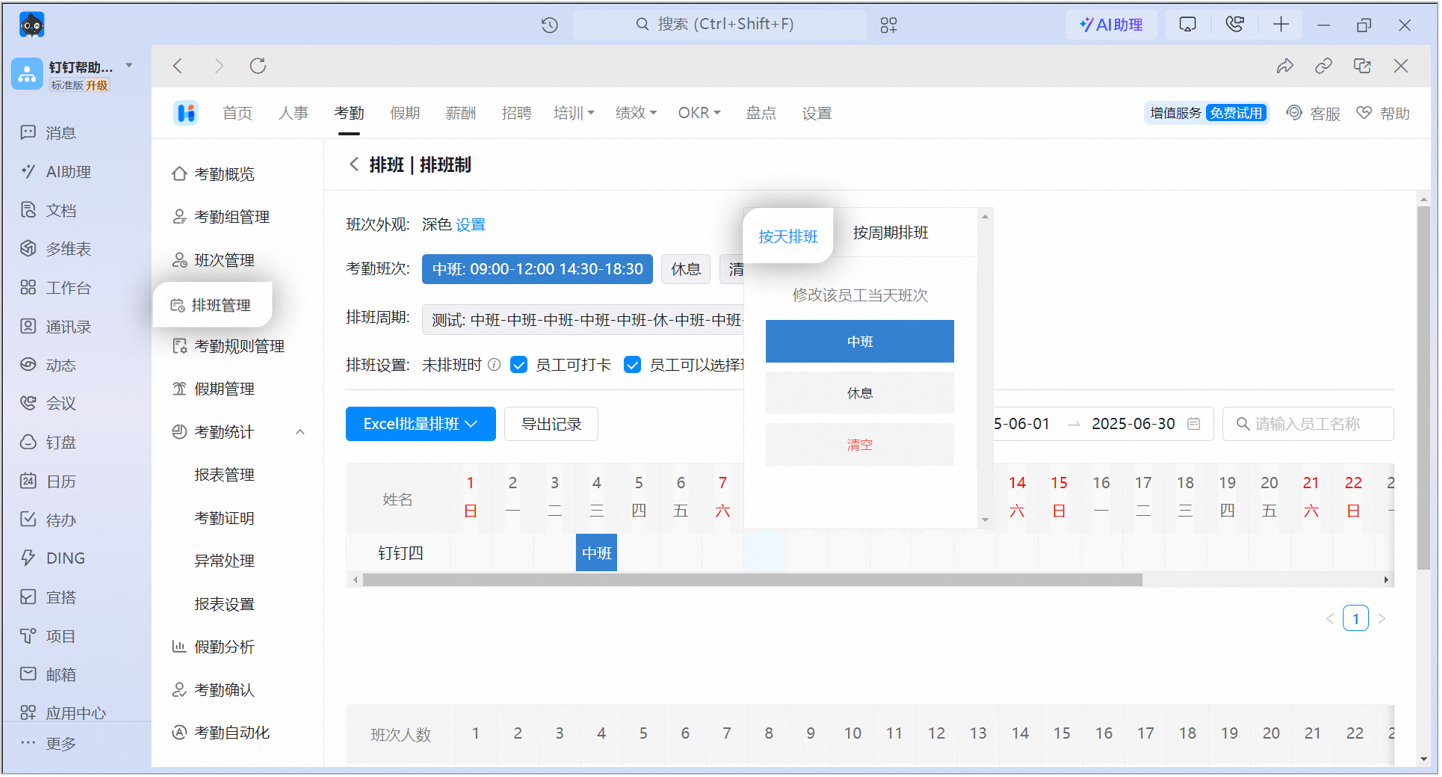
Schedule by day page example
Schedule by cycle
Click a Cell in the scheduling area, select Schedule by cycle, and then click the target cycle. Scheduling follows the selected cycle from that day through the last day of the month.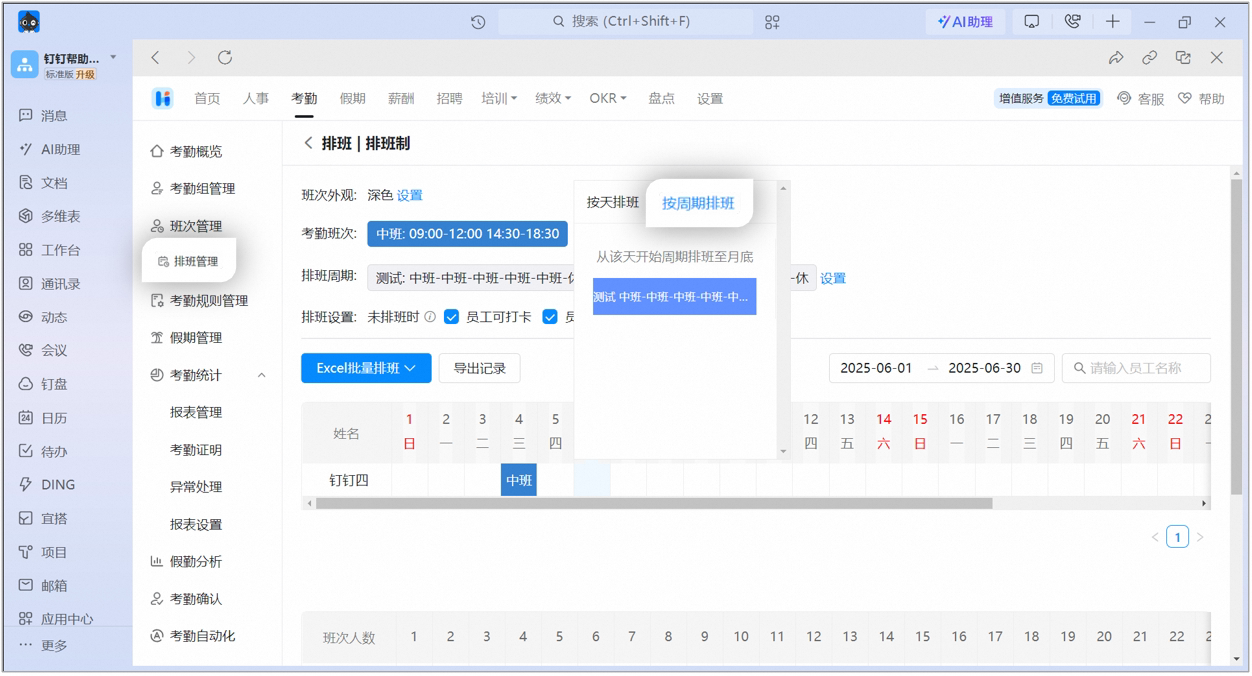
Schedule by cycle page example
Batch scheduling
Assign the same shift in batch by Date. Click the Date in the first row, and then select a shift to assign it to all Employees in the attendance group on that day.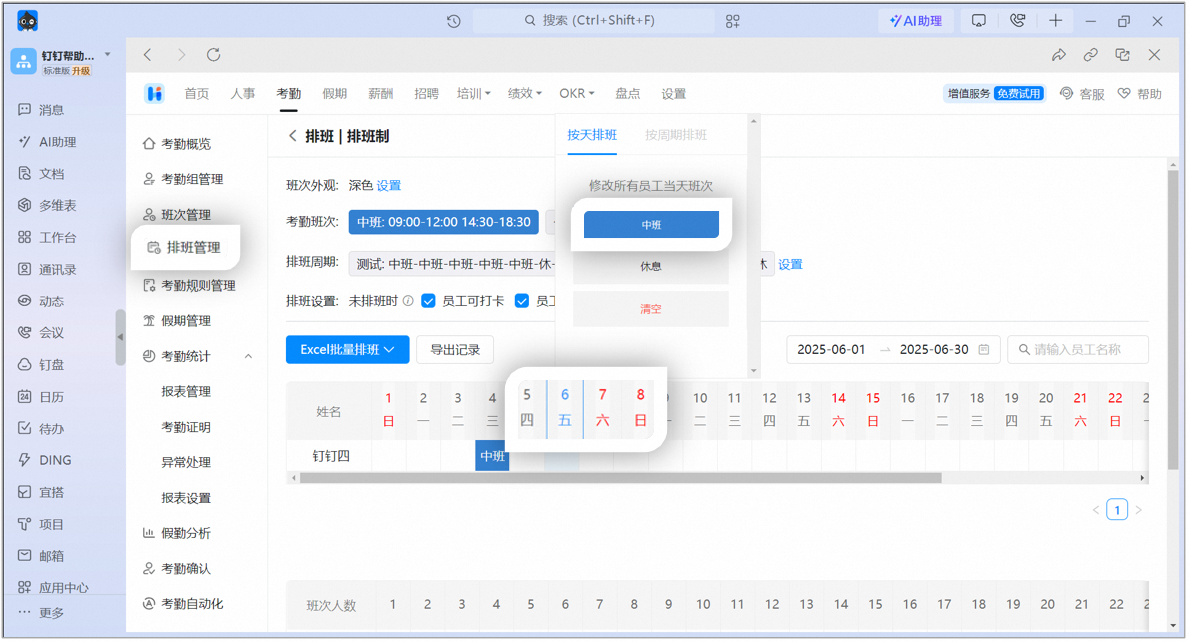
Batch scheduling page example
Excel scheduling
Click Download schedule template, arrange shifts for Employees in the exported Excel Table, and then click Import schedule template. ⚠️ Note: Add attendance shifts first, so that the corresponding shift options appear in the downloaded Excel Table.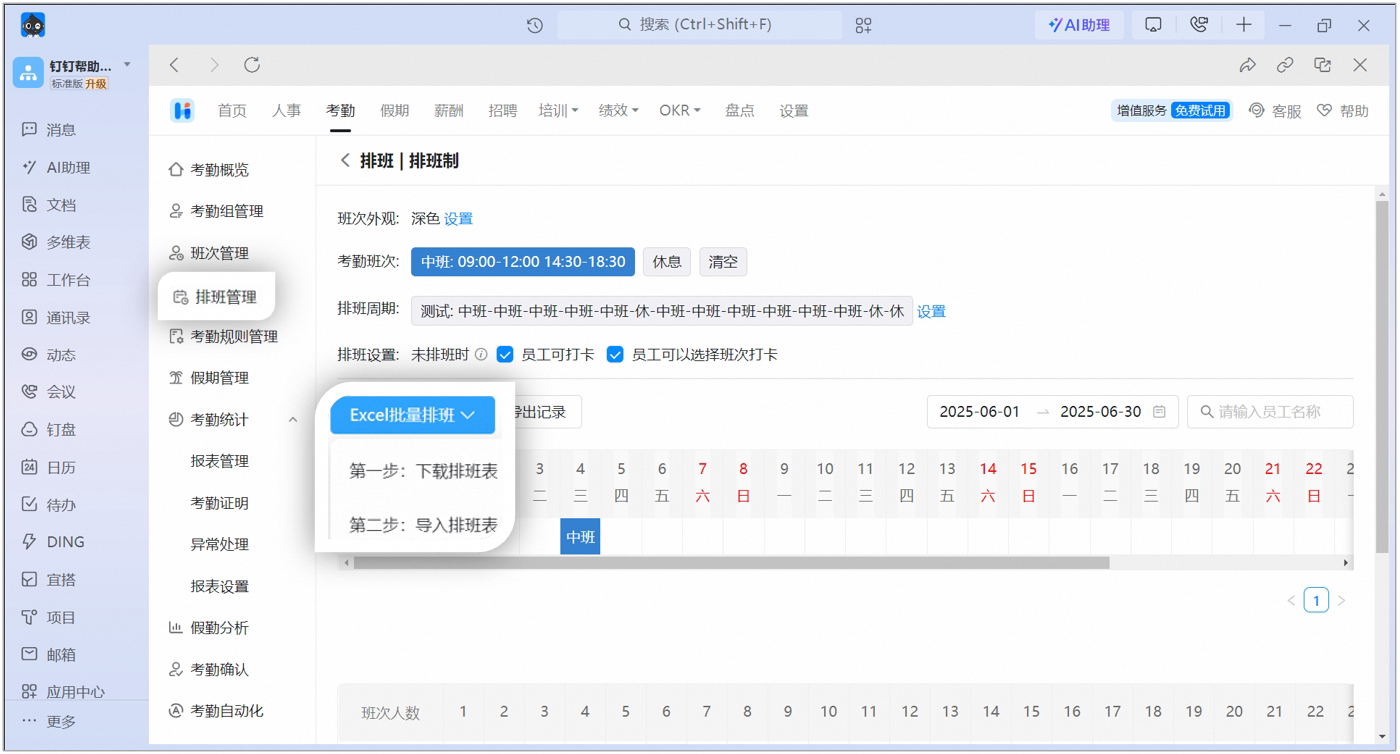
Excel scheduling page example