

 Chats
Chats Calendar
 Meetings
 Contacts
 Mail
Mail Docs
Docs Drive
Drive AI Table
 AI Minutes
 Attendance
 Approval
 YiDA
YiDA Admin Console
1. Feature overview
DingTalk Attendance provides organizations with a simple, efficient, and smart employee attendance management solution. With the Attendance app, employees can easily clock in, submit overtime requests, and complete other actions based on the rules set by their organization, helping the organization improve attendance management efficiency.2. Use cases
- Employees who take part in daily attendance clock-in within the organization.
- Employees who submit leave requests, business trip requests, overtime requests, makeup clock-in requests, or other actions.
3. Workflow
3.1 Attendance clock-in
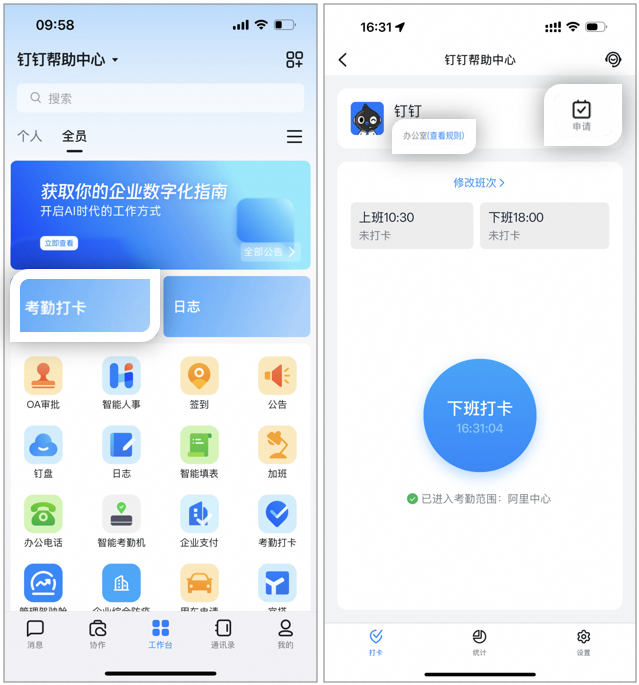
- Clock-in path: Open DingTalk mobile > Workbench > and go to the Attendance app. Based on your attendance schedule, tap the Clock-in button to complete the clock-in.
- View attendance rules or the attendance group owner: Open DingTalk mobile > Workbench > and go to the Attendance app, then tap View Rules at the top.
3.2 Submit overtime, makeup clock-in, and other approval requests
- Attendance request path: Open DingTalk mobile > Workbench > and go to the Request page in the Attendance app. Submit requests as needed, including makeup clock-in, leave request, overtime, out-of-office, and more.
- View historical request records: Open DingTalk mobile > Workbench > and go to Attendance > Request > Request Records.
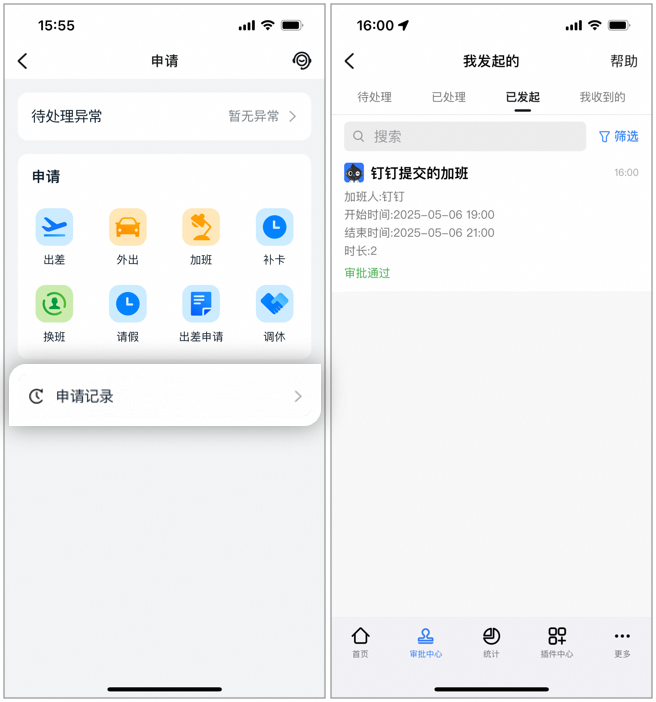
Sample of the employee attendance request page and request records
Notes:The Request page is configured by the Organization Admin. The page you see and the requests you can submit may vary.
3.3 Data statistics
- View your attendance: Go to DingTalk mobile > Workbench > and open the Attendance app, then tap Statistics to view your attendance, including late arrivals, early leaves, missed clock-ins, and other records. (This path is visible only if the Admin allows employees to view attendance data.)
- Handle your attendance errors: Go to DingTalk mobile > Workbench > and open the Attendance app, tap Statistics > tap the error attendance date > Handle Error.
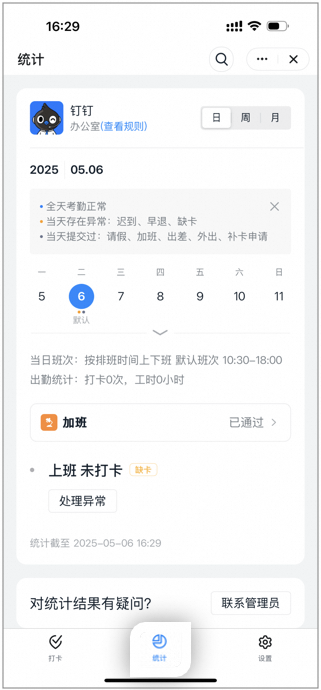
Sample of the employee attendance statistics page
3.4 Personal settings
Go to DingTalk mobile > Workbench > and open the Attendance app > Settings. Customize options such as clock-in reminder, Quick Check-in, clock-in result notification, missed clock-in reminder, personal attendance statistics notifications, face management, and more.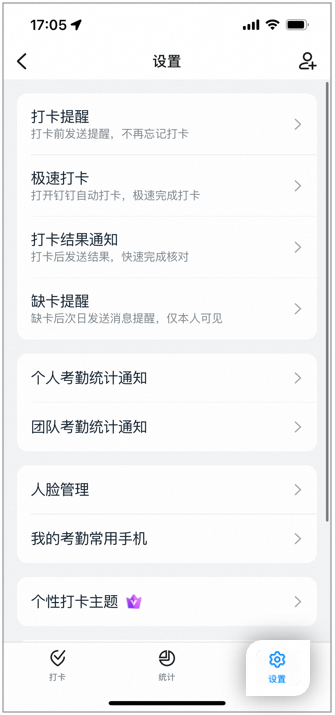
Sample of the employee attendance settings page
Notes:If you are an Organization Admin and want to learn how to configure attendance, overtime, leave, and other attendance settings, see Admin quickstart for Attendance.
4. FAQ
Why can't I see my attendance data on the personal attendance statistics page?
Why can't I see my attendance data on the personal attendance statistics page?
If your organization has subscribed to the DingTalk Attendance Enterprise plan or Professional plan, the Organization Admin can define the scope of attendance data that employees can view. The specific fields you can view depend on your organization’s settings. For details, contact your Organization Admin.