

 Chats
Chats Calendar
 Meetings
 Contacts
 Mail
Mail Docs
Docs Drive
Drive AI Table
 AI Minutes
 Attendance
 Approval
 YiDA
YiDA Admin Console
Mute a conversation
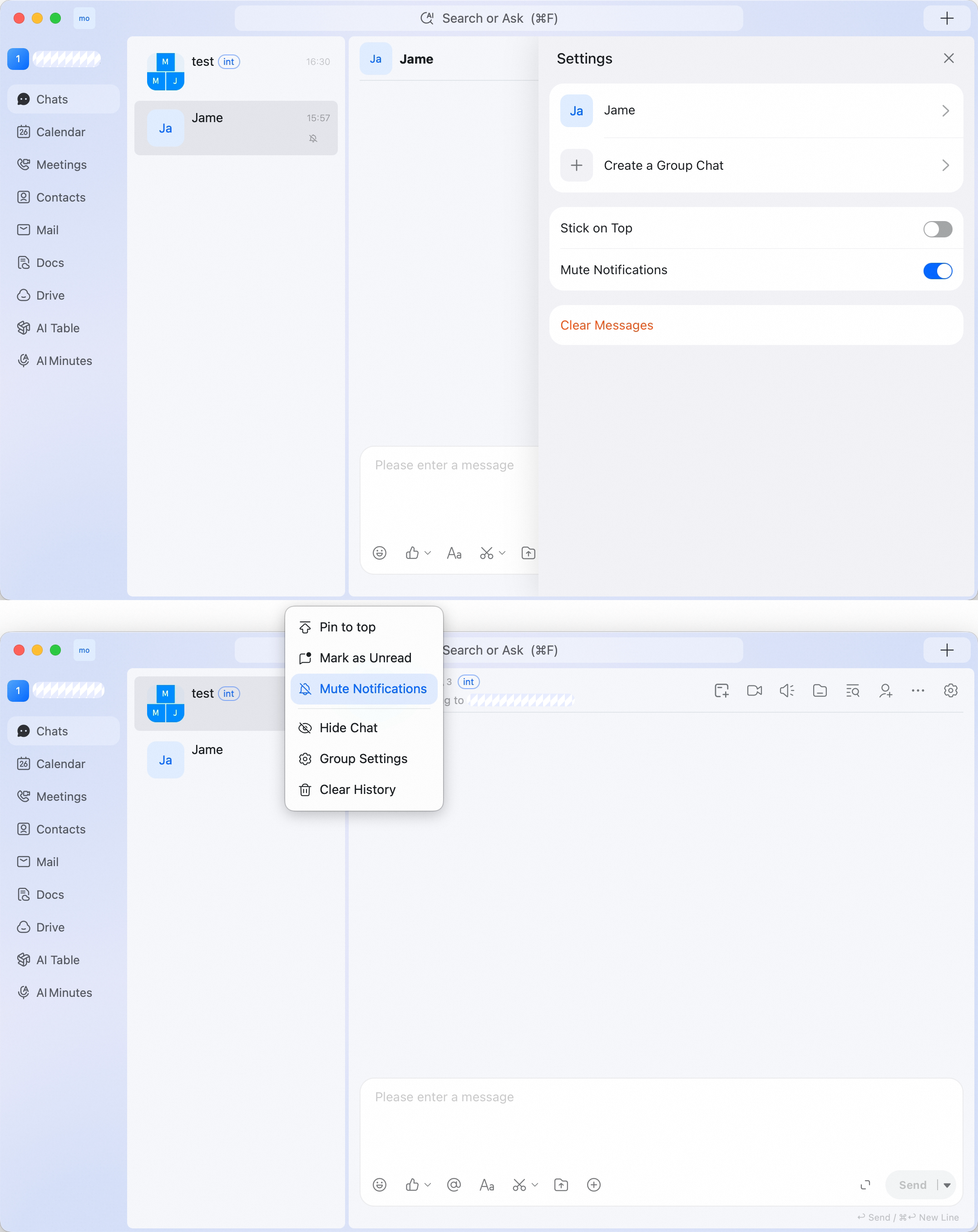
Use either method:- Open the conversation, click the gear icon, then turn on Mute Notifications.
- Right-click the conversation in the conversation list, then select Message Do Not Disturb.
Unmute a conversation
Open the conversation, click the gear icon, then turn off Mute Notifications.Mark a conversation as unread
Right-click the conversation in the conversation list, then select Mark as unread. Use this when you have opened a conversation but want to come back to it later.Open notification settings
Open Settings > Notifications. From this page, you can review options such as Message Notifications, Message Tone, Ringtone Settings, Message Desktop Notifications, Show Number of Unread Messages on Icon, Feature Notifications, Schedule Desktop Notifications, Mailbox Desktop Notifications, and Mailbox Navigation Notifications.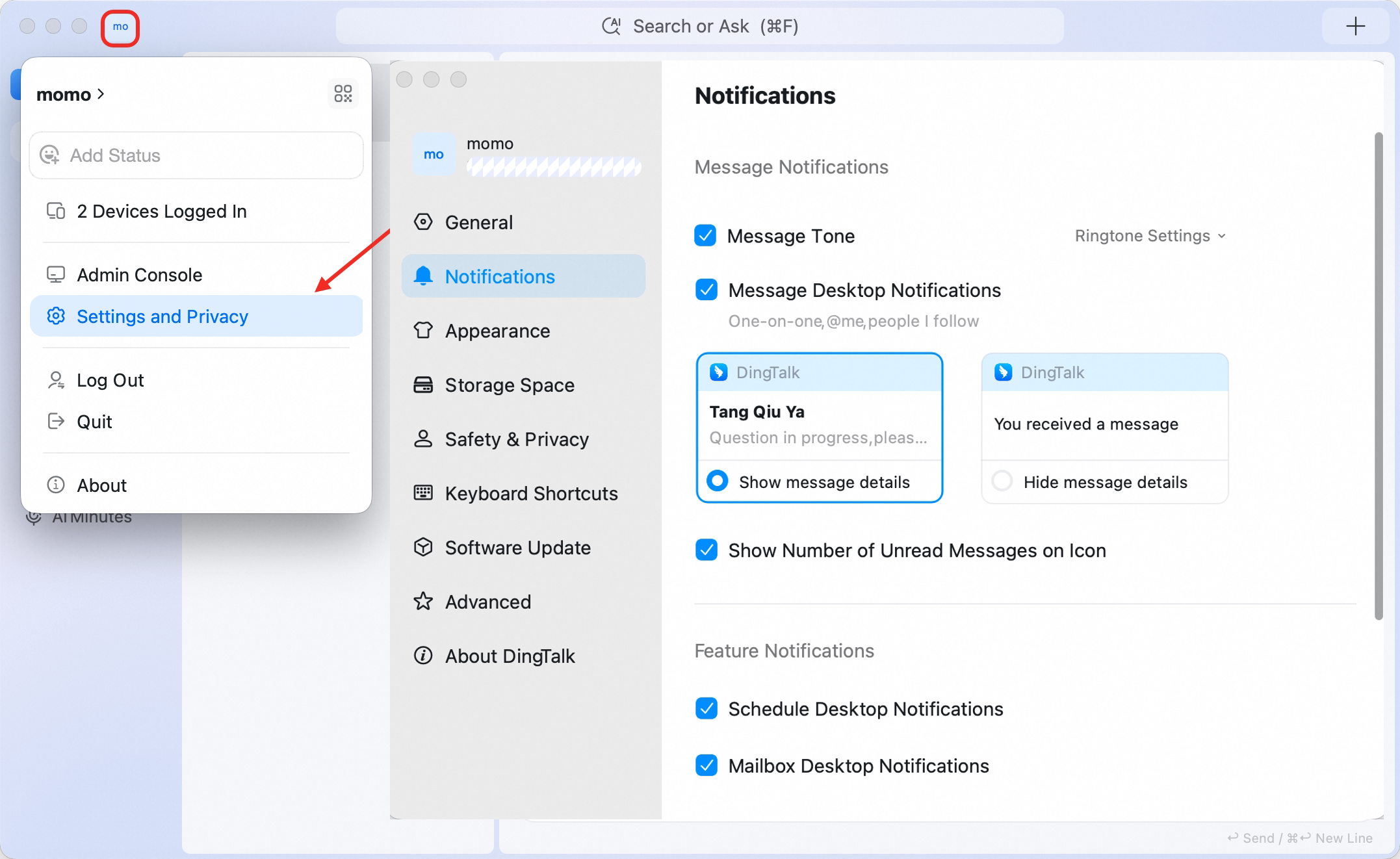
Tips
- Mute only the conversations that do not need immediate attention.
- Use Mark as unread when you need a visual reminder to return to a conversation.
- Review Message Desktop Notifications if you want to adjust how message alerts appear on your desktop.