Chats
Chats Calendar
 Meetings
 Contacts
 Mail
Mail Docs
Docs Drive
Drive AI Table
 AI Minutes
 Attendance
 Approval
 YiDA
YiDA Admin Console
View group members
- Open the group chat.
- Click the gear icon in the upper-right corner.
- In Members, view the member count or open View all group members.
Add members
- Open the group chat.
- Click the gear icon in the upper-right corner.
- Click + next to the member list.
- Select people from the contact selector.
- Click Confirm.
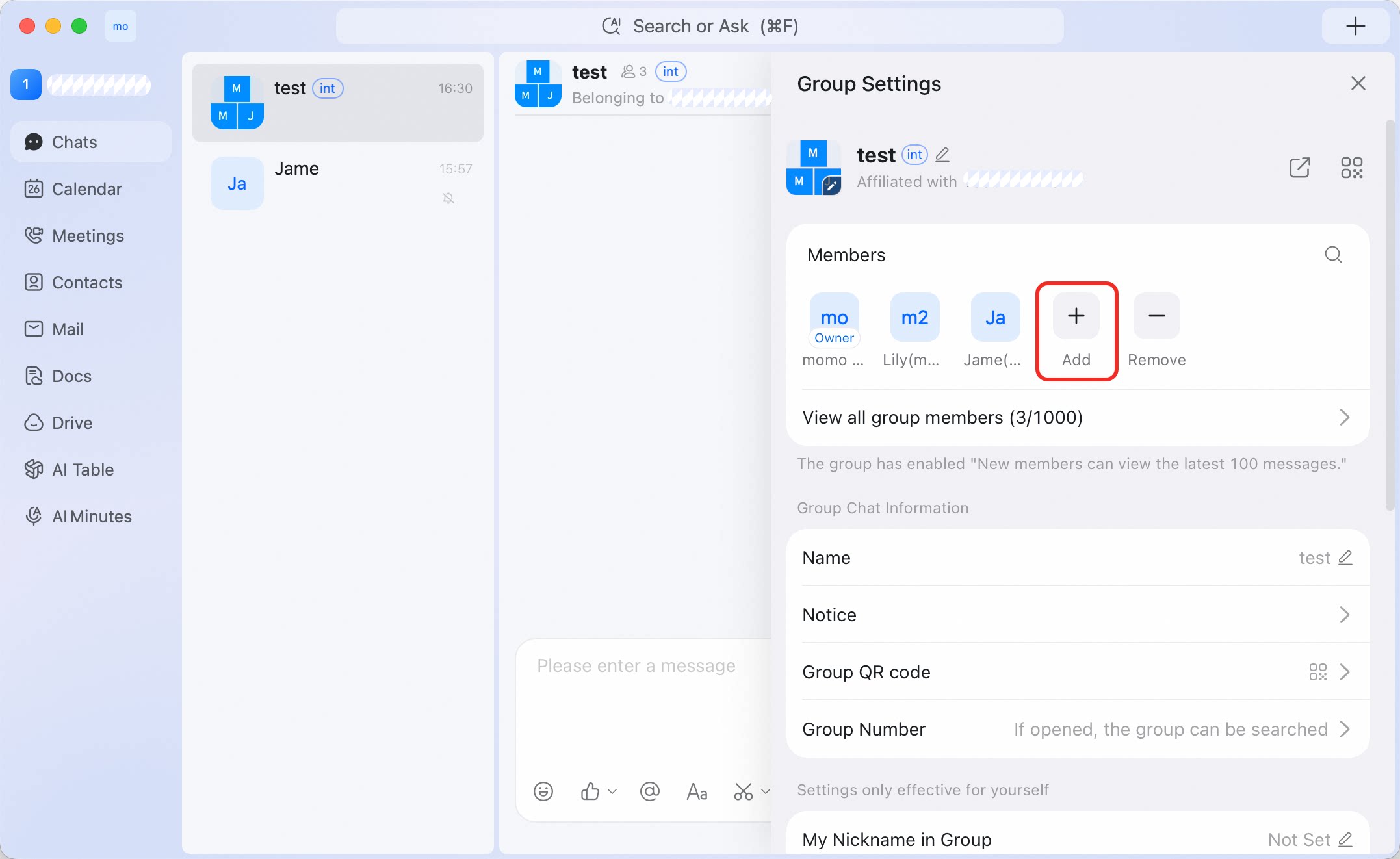 New members are added to the group after you confirm.
Add group admins
Use admins when more than one person needs to help manage a group. Open the group chat > gear icon > Group Management > Admin > Add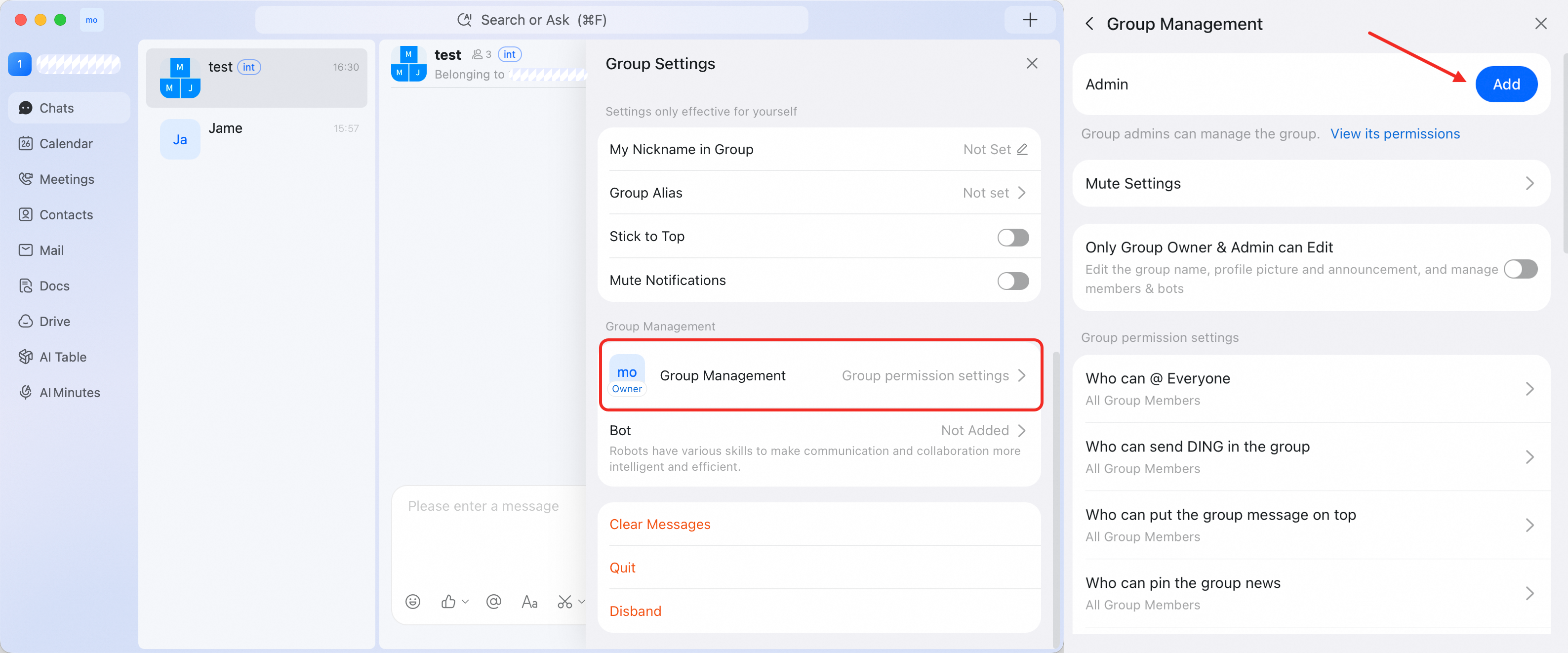
Manage group permissions
Open the group chat > gear icon > Group Management > Group permission settings. From this page, you can manage who can use @Everyone, send DING in the group, put group messages on top, pin group news, upload files, and start video or voice meetings.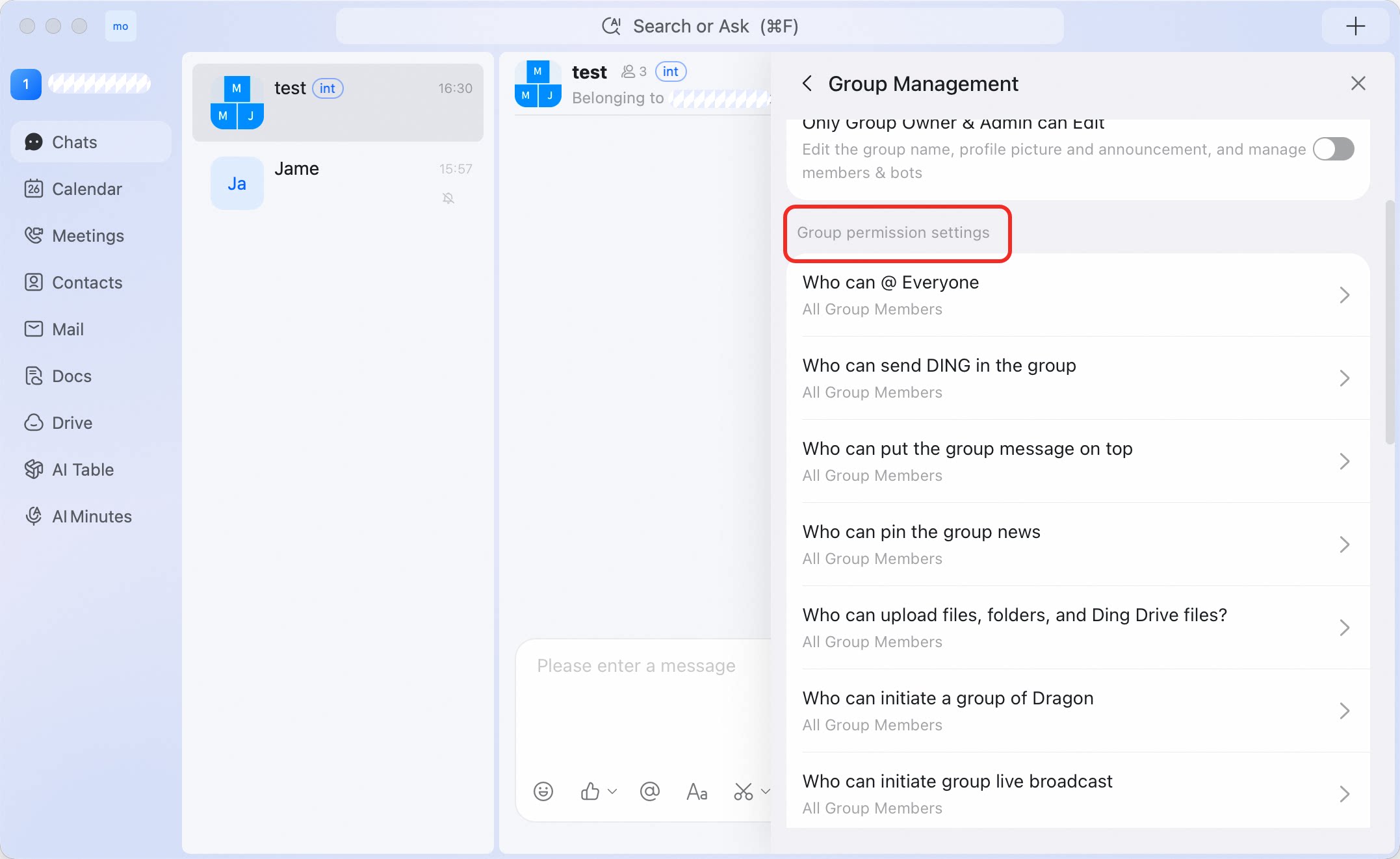
Manage how people join
Open the group chat > gear icon > Group Management > Join group permission. Use this setting to manage how new members can join the group.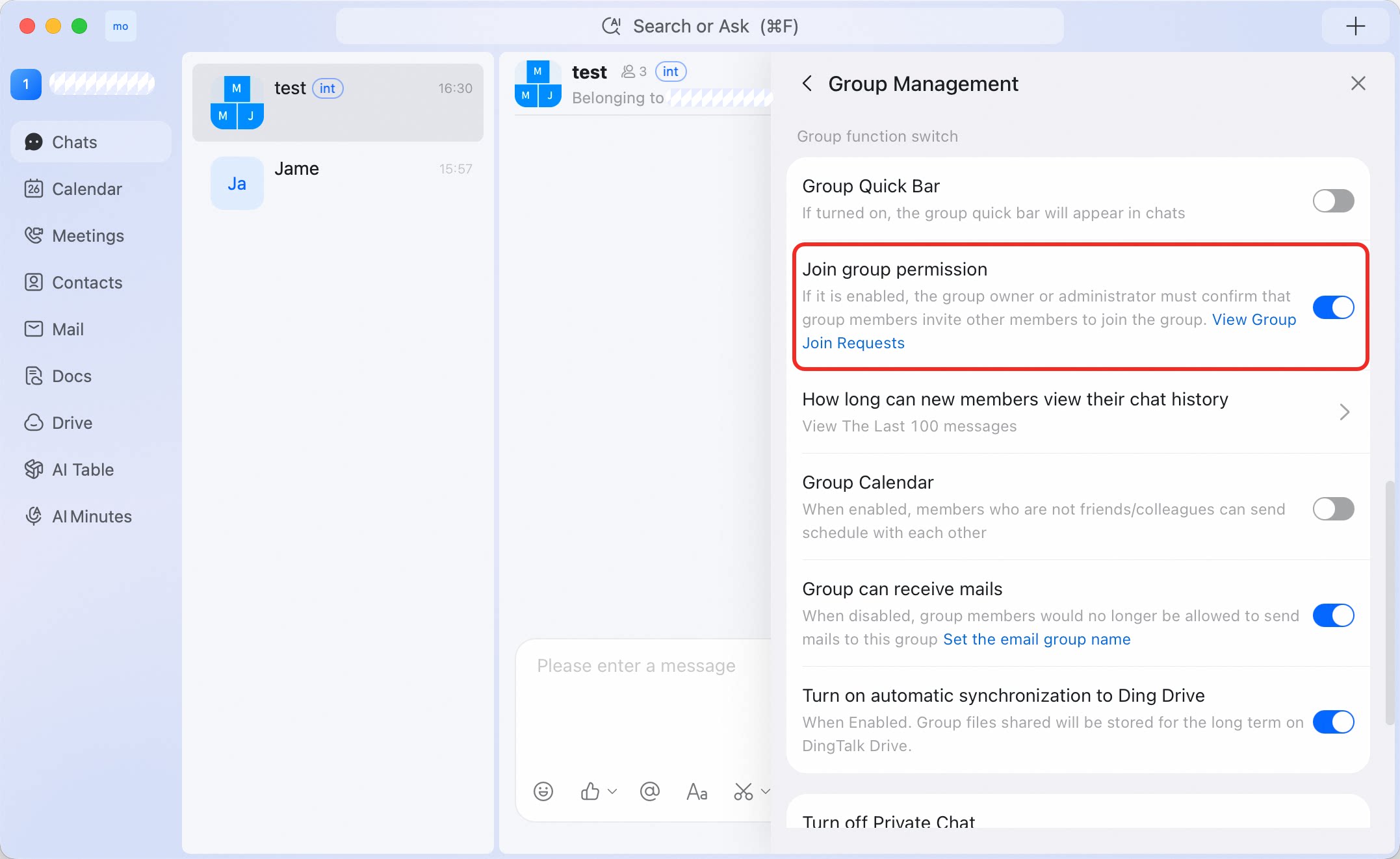
Clear messages
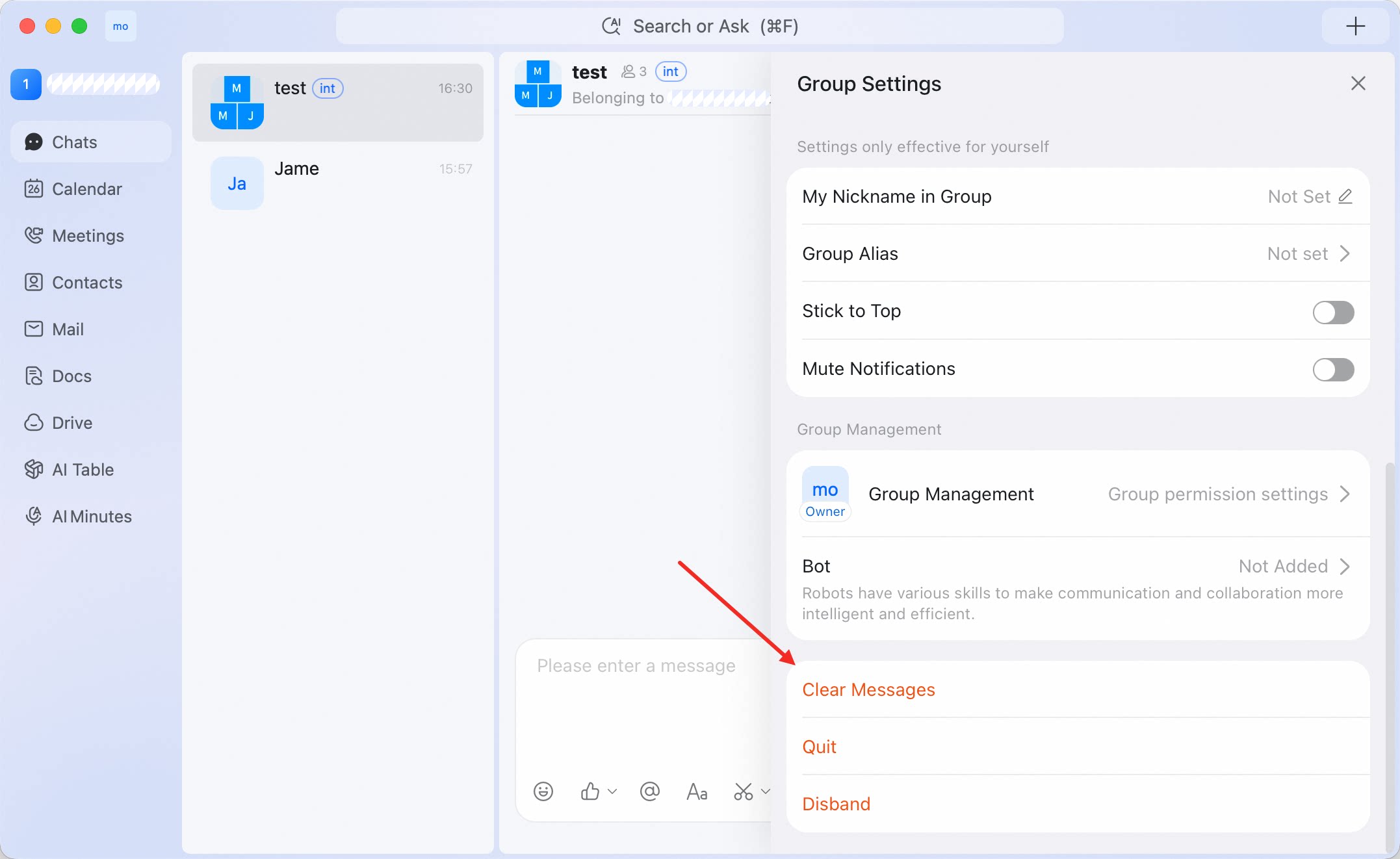
Open the group chat > gear icon > Clear Messages. This clears messages from your local view of the conversation.