

 Chats
Chats Calendar
 Meetings
 Contacts
 Mail
Mail Docs
Docs Drive
Drive AI Table
 AI Minutes
 Attendance
 Approval
 YiDA
YiDA Admin Console
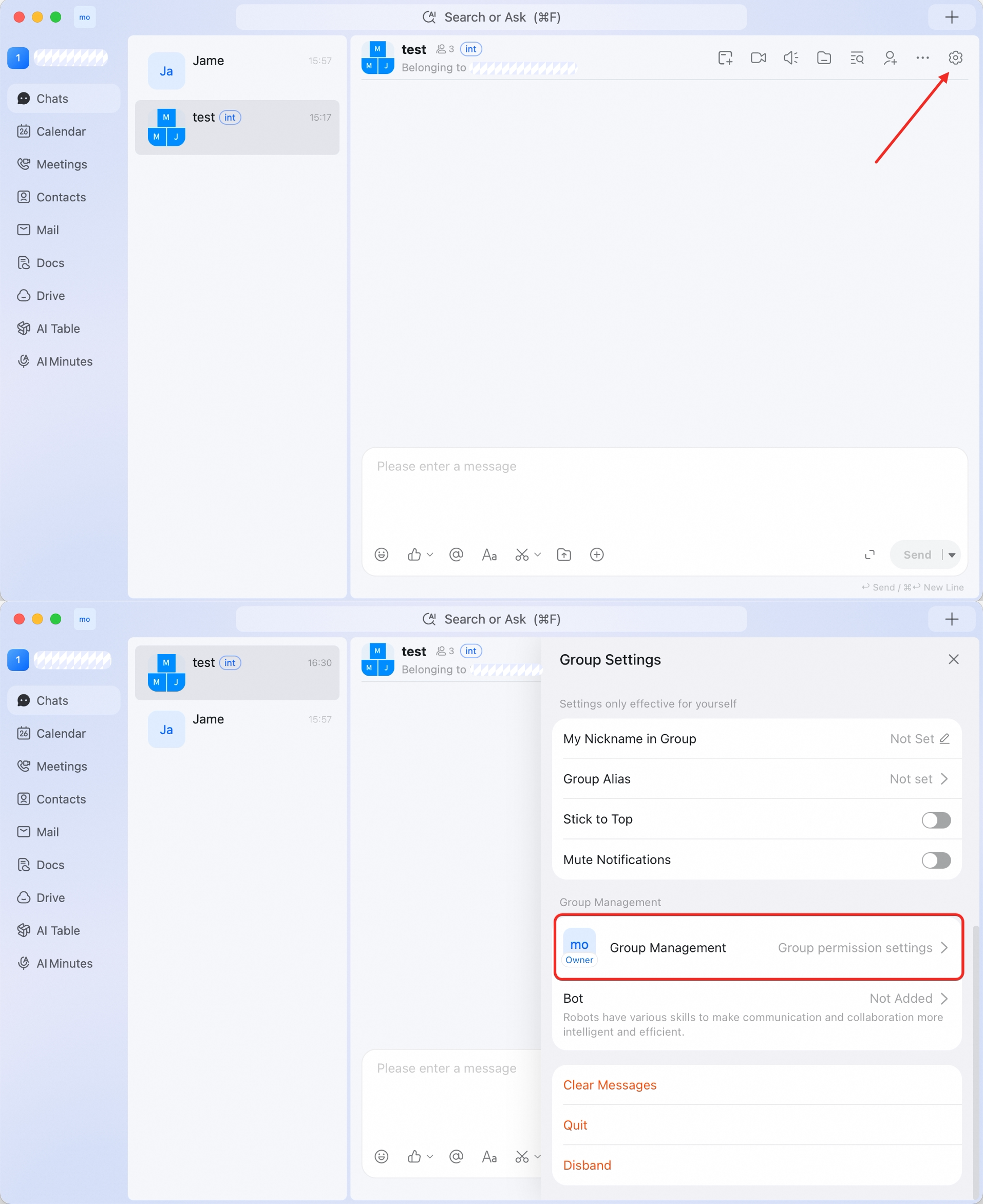
Open Group Management
- Open the group chat.
- Click the gear icon in the upper-right corner.
- Select Group Management.
Advanced settings you can find
Group Management includes settings for admins, mute controls, member permissions, join permissions, group tools, and group-related features.Group permission settings
Open Group permission settings when you need to control who can use specific group features. Available permission entries include:- Who can @ Everyone
- Who can send DING in the group
- Who can put the group message on top
- Who can pin the group news
- Who can upload files, folders, and Ding Drive files?
- Who can initiate video and voice meetings in the group