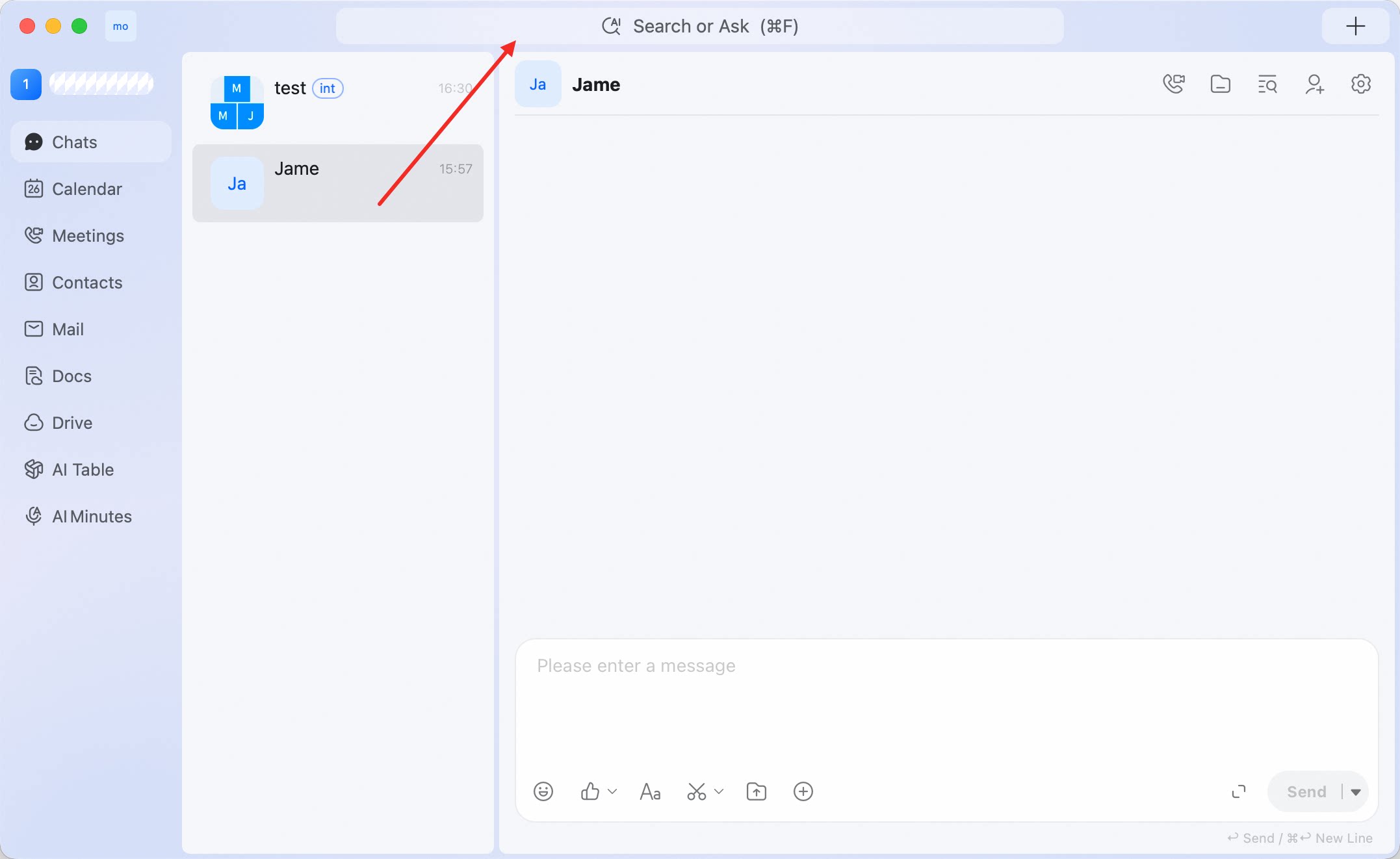
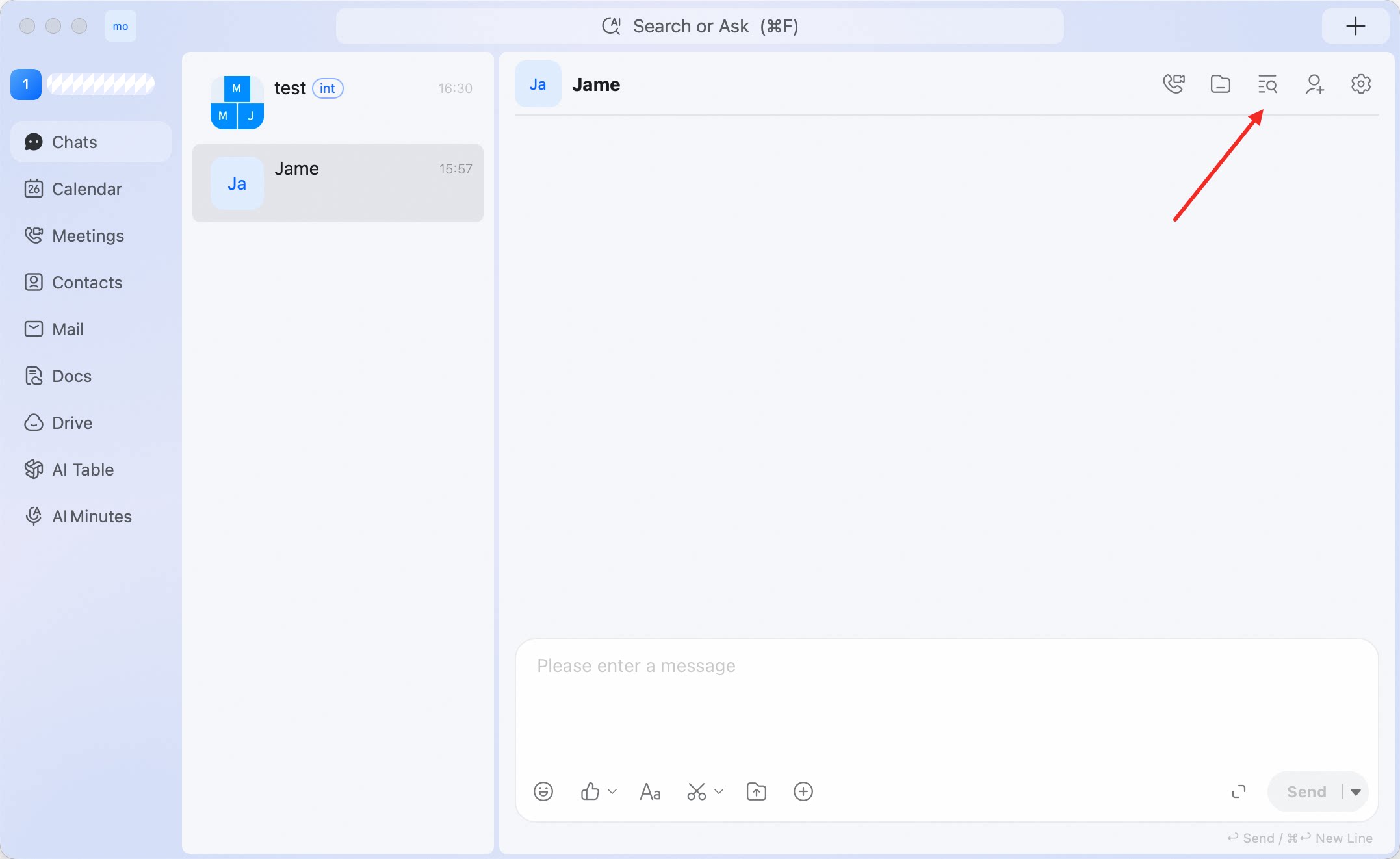
| Mute notifications | Open the conversation > gear icon > Mute Notifications |
| Keep the conversation at the top | Open the conversation > gear icon > Stick to Top |
| Mute from the conversation list | Right-click the conversation > Message Do Not Disturb |
| Keep at top from the conversation list | Right-click the conversation > Set-top session |
| Mark as unread | Right-click the conversation > Mark as unread |
| Hide from the list | Right-click the conversation > Do not display this session |
| Clear local history | Right-click the conversation > Empty chat history |


 Chats
Chats Calendar
 Meetings
 Contacts
 Mail
Mail Docs
Docs Drive
Drive AI Table
 AI Minutes
 Attendance
 Approval
 YiDA
YiDA Admin Console