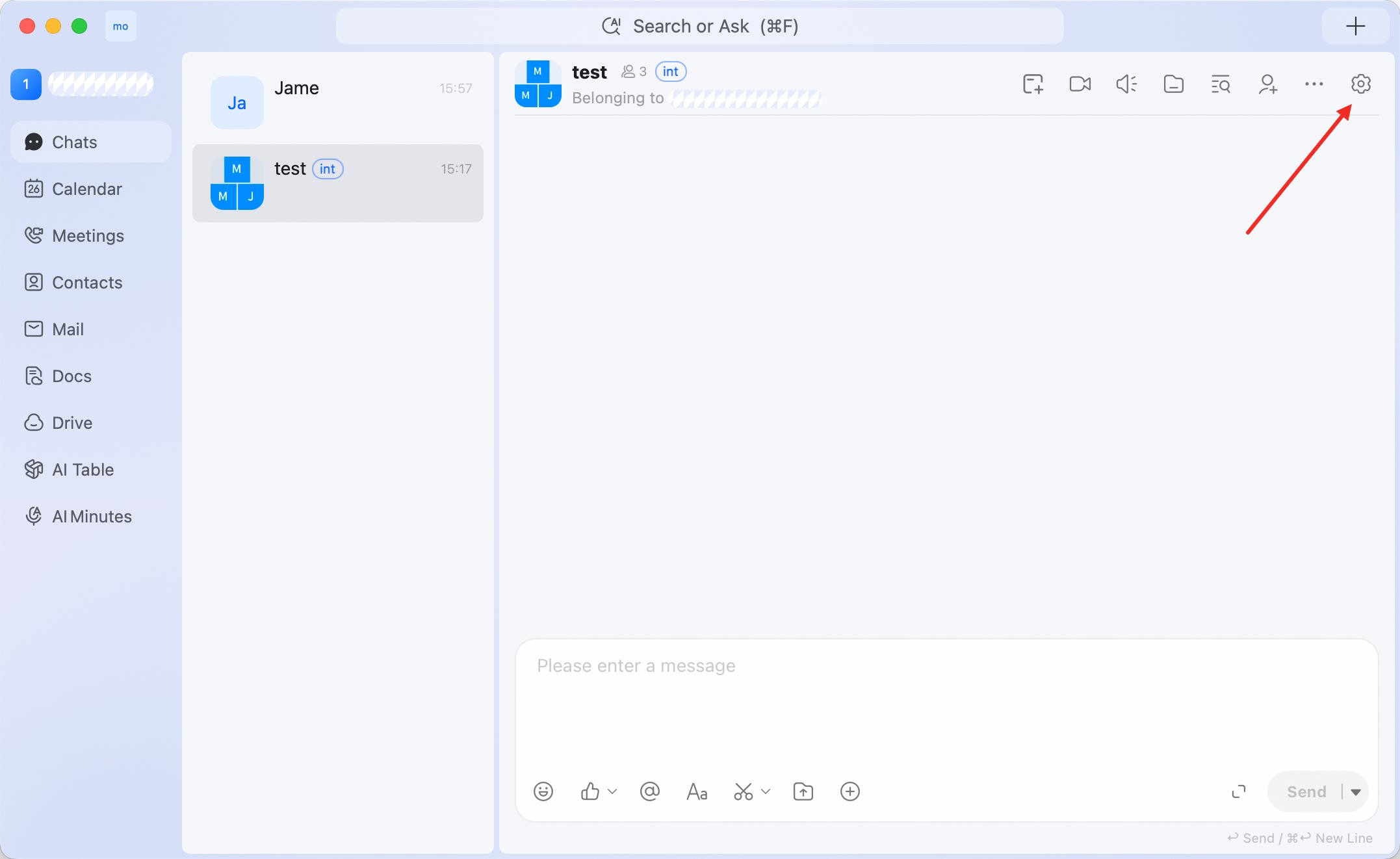
Use Group Settings to manage group information, your personal preferences, and group-level controls. To open Group Settings, open a group chat and click the gear icon in the upper-right corner. image.png

Group information

Use the group information section to manage basic group details.
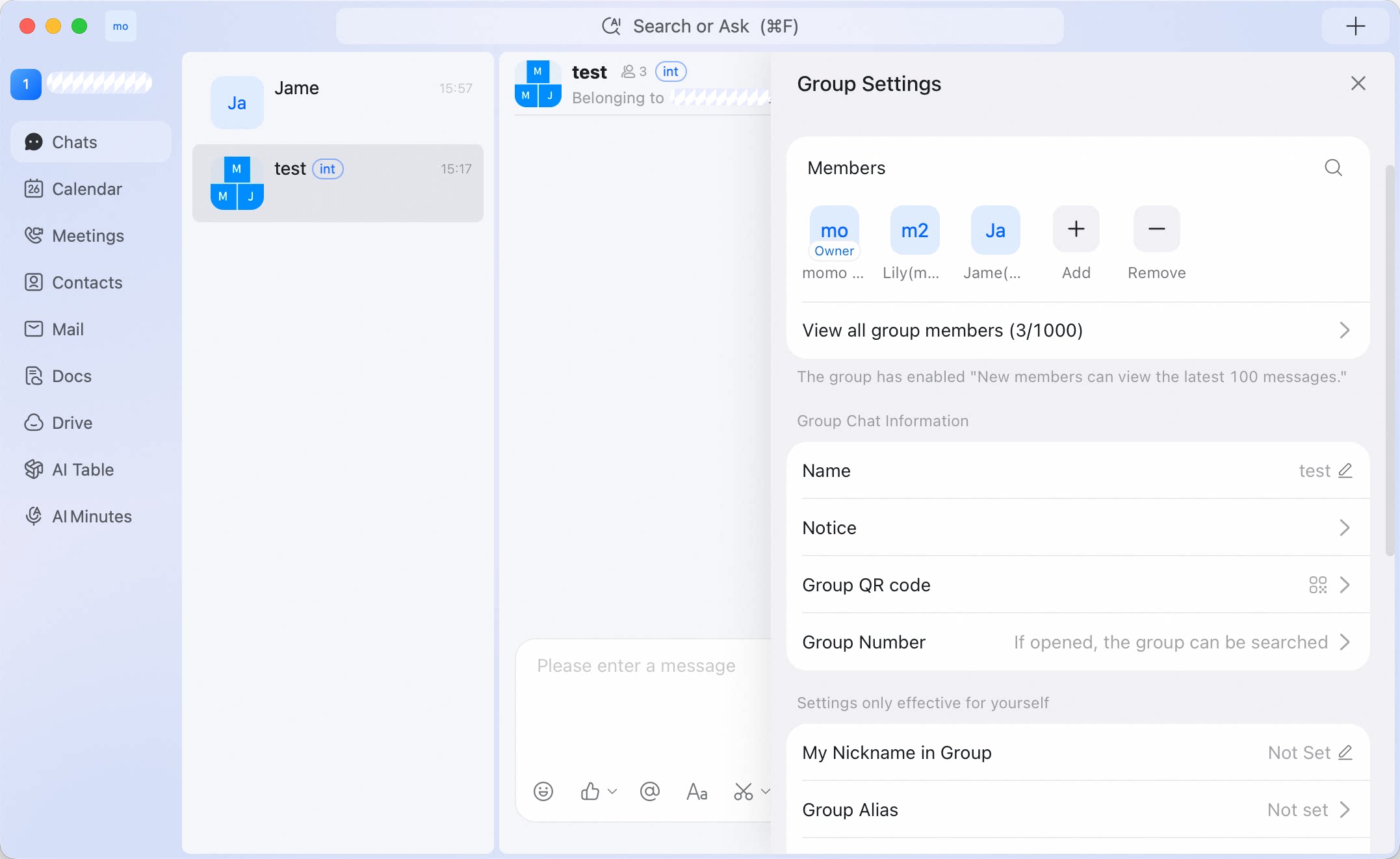
SettingWhat it does
NameView or edit the group name.
NoticeOpen group notices.
Group InvitationOpen group invitation options.
image.png

Personal group settings

These settings affect only your own experience in the group.
SettingWhat it does
My Nickname in GroupSet your display name in this group.
Group AliasSet your local alias for the group.
Stick to TopKeep the group near the top of your conversation list.
Mute NotificationsMute notifications for this group.

Group Management

Open Group Management when you need to manage admins, permissions, joining rules, or group-level features.
SettingWhat it does
Admin / AddAdd group admins.
Mute SettingsOpen group mute settings.
Group permission settingsControl member permissions for group features.
Group Quick BarConfigure the group quick bar.
Join group permissionConfigure how new members can join.
How long can new members view their chat historyConfigure how much previous history new members can view.
Group CalendarOpen the group calendar setting.
Group can receive mailsConfigure whether the group can receive mail.
Turn on automatic synchronization to Ding DriveSynchronize group files to Ding Drive.
Turn off Private ChatDisable private chat entry points from the group.
Transfer Group OwnershipTransfer ownership to another member.

Clear messages or quit the group

  • To clear local messages, open Group Settings > Clear Messages.
  • To leave the group, open Group Settings > Quit.