Chats
Chats Calendar
 Meetings
 Contacts
 Mail
Mail Docs
Docs Drive
Drive AI Table
 AI Minutes
 Attendance
 Approval
 YiDA
YiDA Admin Console
Create a group chat
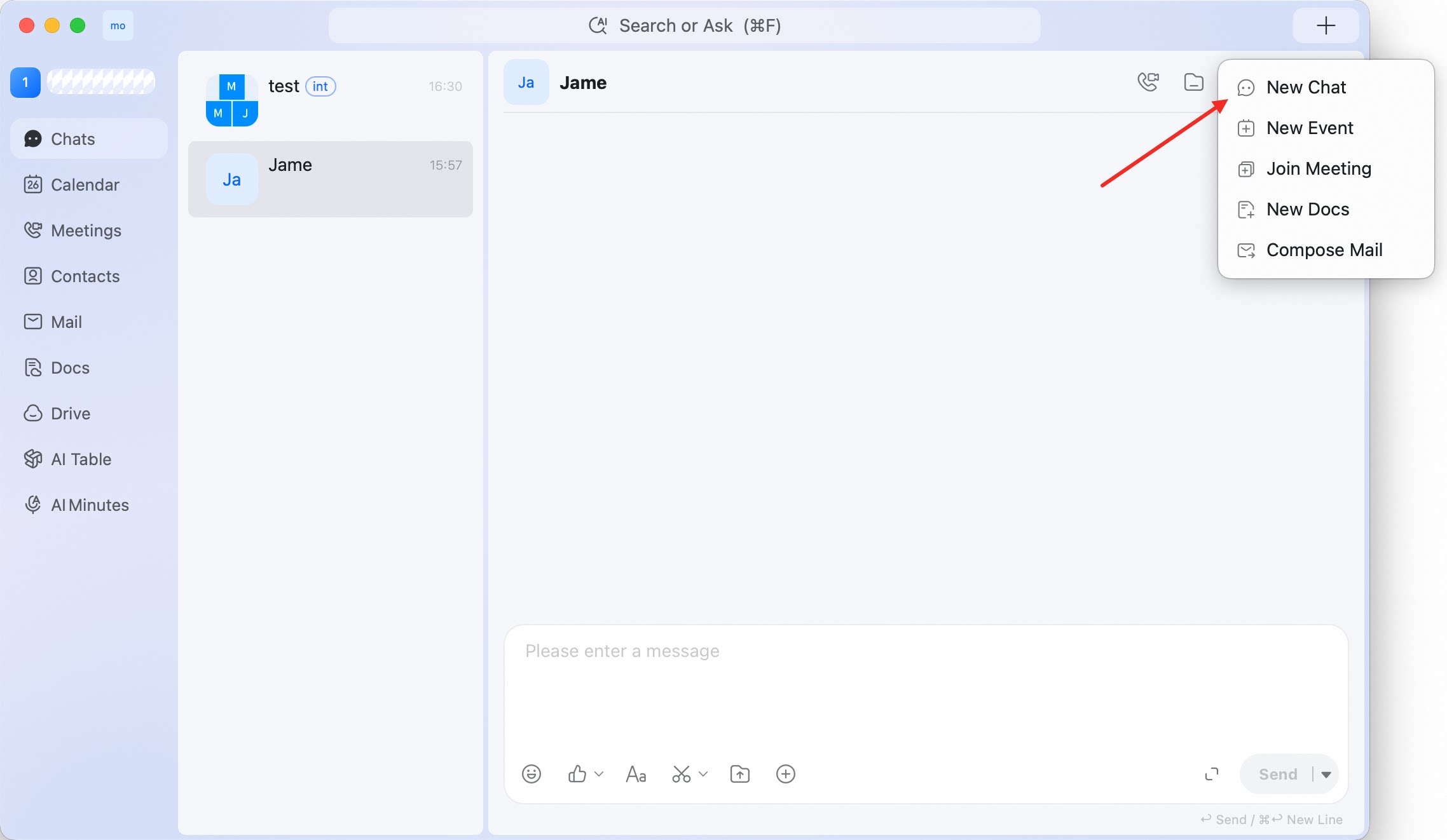
- Click + in the upper-right corner of DingTalk desktop app.
- Select New Chat.
- In Select Contact, search for people or choose from Friends, Organization, Groups, or Import.
- Select the people you want to add.
- Click Confirm.
Add members to a group
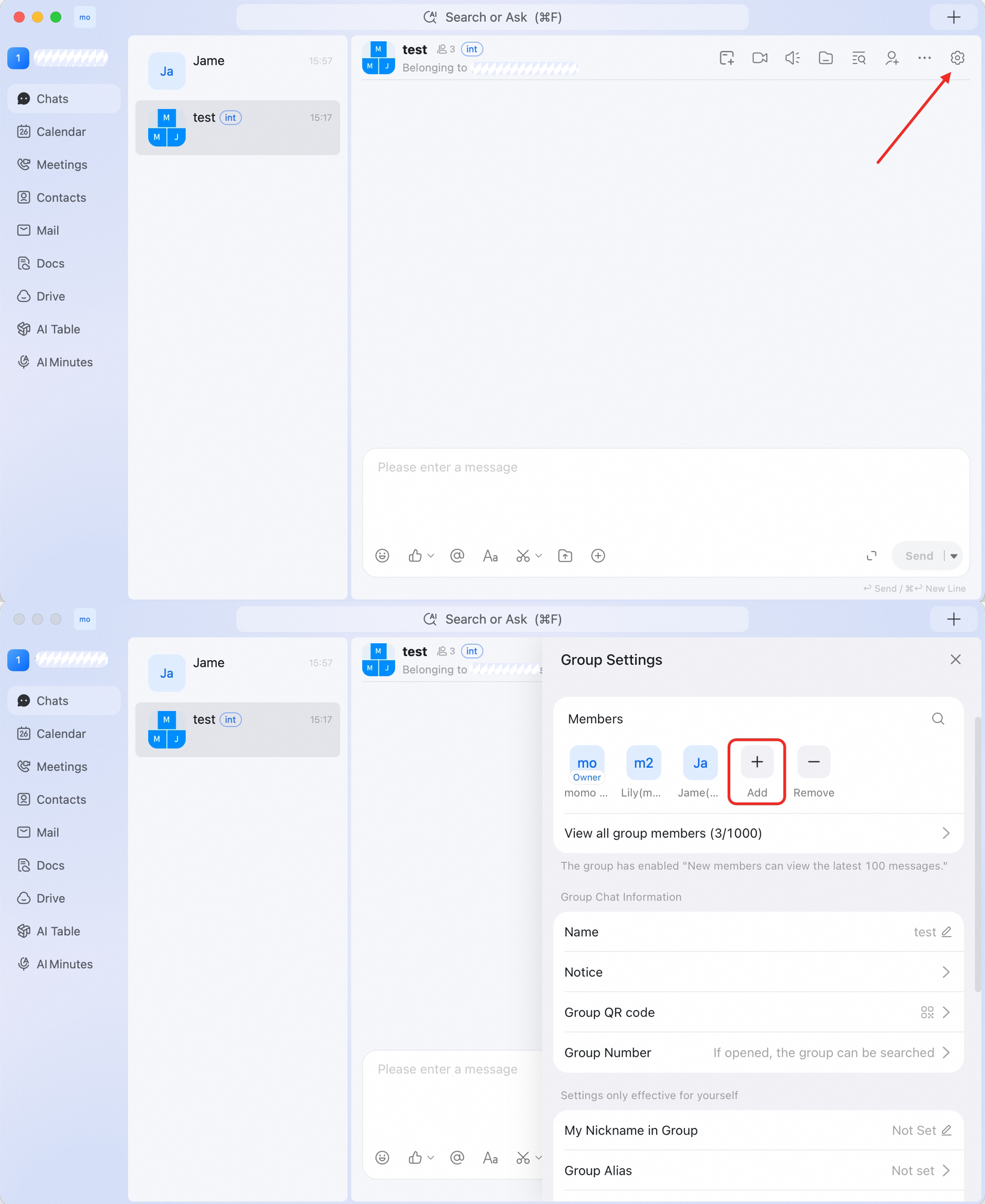
- Open the group chat.
- Click the gear icon in the upper-right corner.
- Click + next to the member list.
- Select the people you want to add.
- Click Confirm.
Invite people from Group Settings
Open the group chat, click the gear icon, then select Group Invitation. Use this entry when you want to invite more people from the group settings page.Open Group Settings
Open the group chat and click the gear icon in the upper-right corner. From Group Settings, you can manage group information, members, invitations, notification preferences, and group-level controls.Manage group permissions
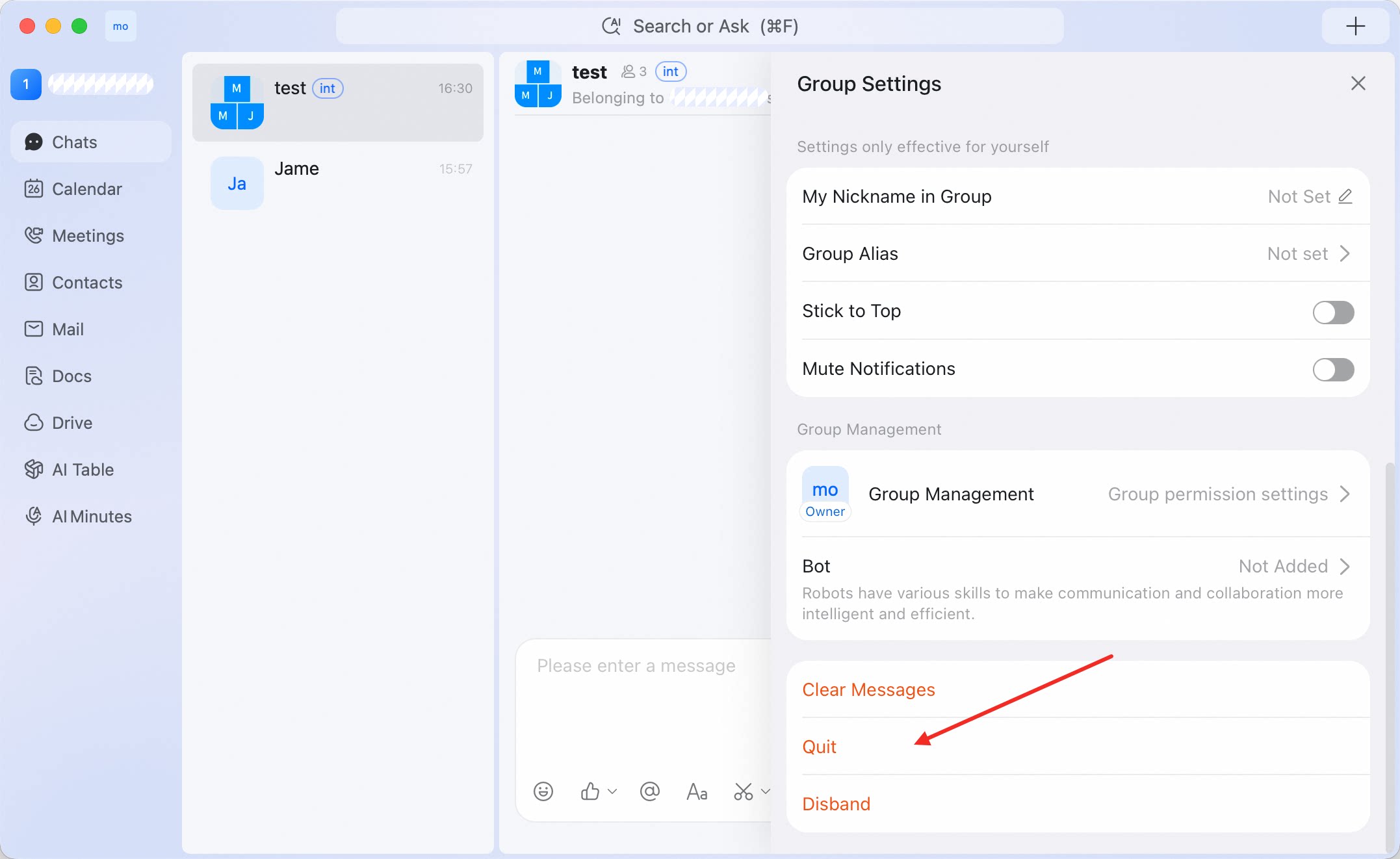
Open the group chat > gear icon > Group Management > Group permission settings. Use this page to control permissions such as who can use @Everyone, send DING in the group, put group messages on top, pin group news, upload files, and start meetings.Leave a group
Open the group chat > gear icon > scroll down > Quit. After you quit, the group is removed from your active conversations.