Chats
Chats Calendar
 Meetings
 Contacts
 Mail
Mail Docs
Docs Drive
Drive AI Table
 AI Minutes
 Attendance
 Approval
 YiDA
YiDA Admin Console
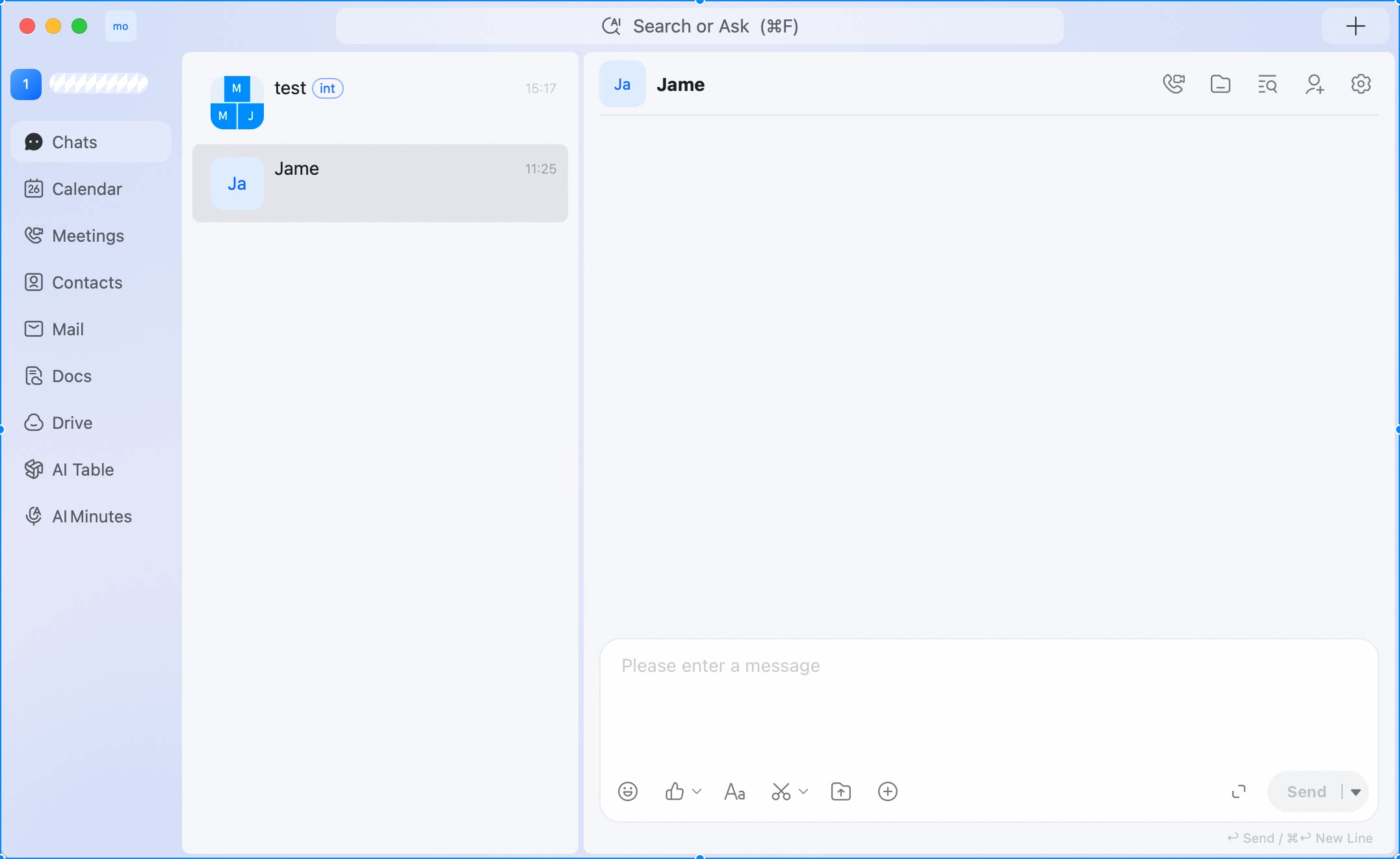
Send a text message
- Open a conversation.
- Type your message in the input box.
- Press Enter or click Send.
Format a message
Click Aa in the message composer to open the rich text toolbar. You can use formatting options such as Body, Bold, Text Color, Italic, Strikethrough, Bulleted List, Numbered List, Link, and Clear Formatting. Use rich text when you want to send a structured update, a list of action items, or a message that needs emphasis.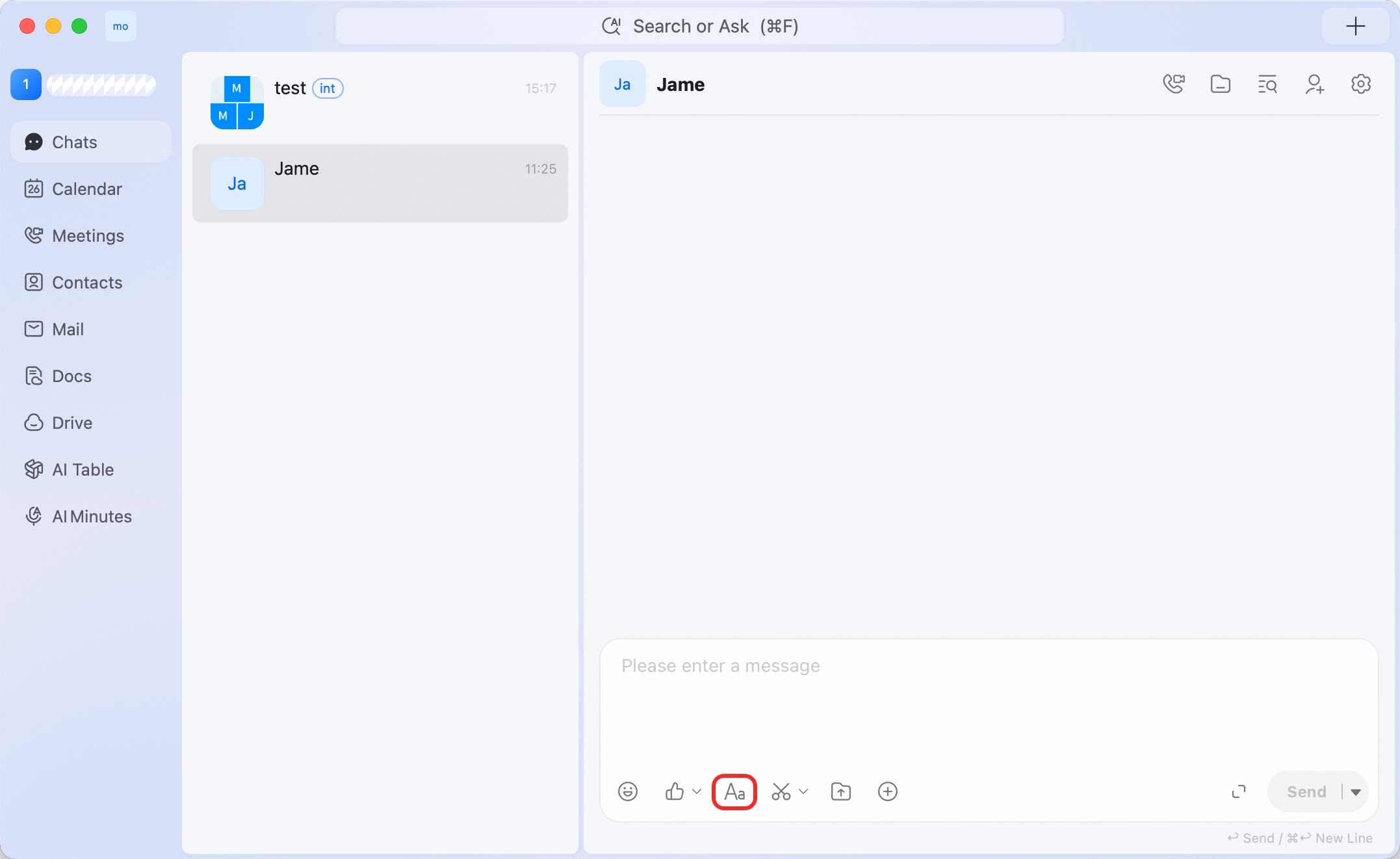
Send files or documents
- Open a conversation.
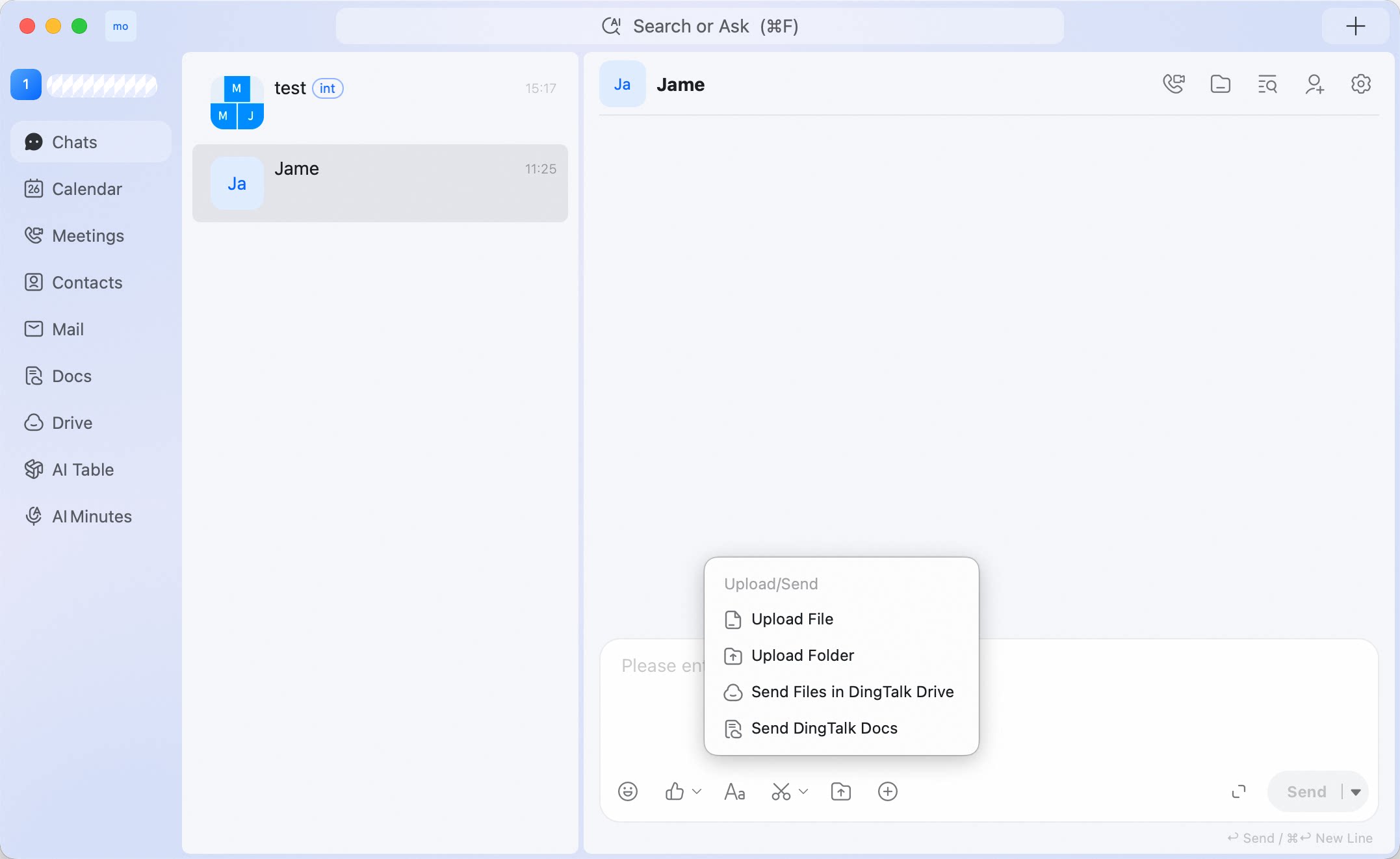
- Click the upload icon in the message composer.
- Select Upload File, Upload Folder, Send Files in DingTalk Drive, or Send DingTalk Docs.
- Complete the selection.
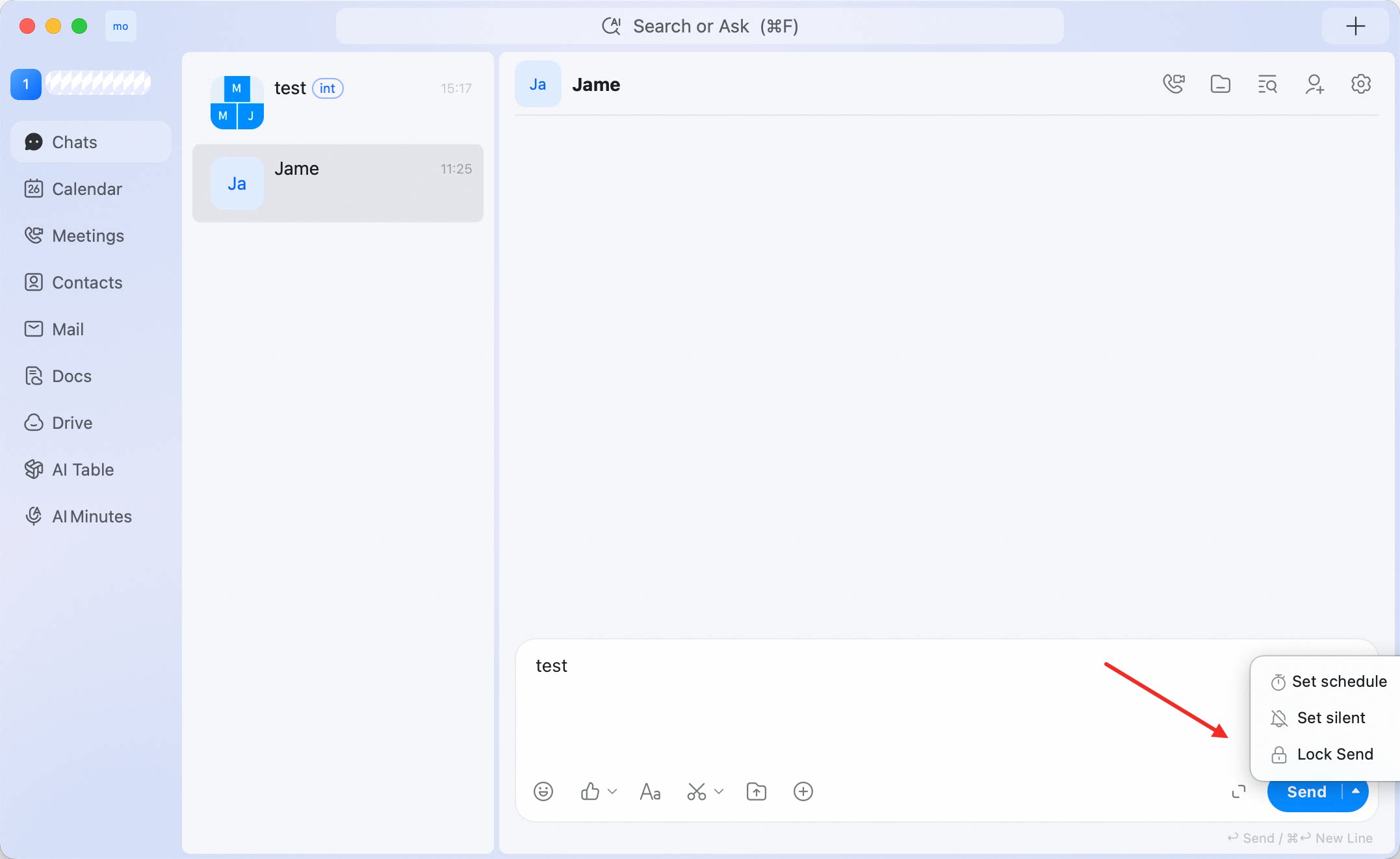
Send silently or lock sending
- Type your message.
- Click the dropdown arrow next to Send.
- Select Set silent or Lock Send.
Use composer shortcuts
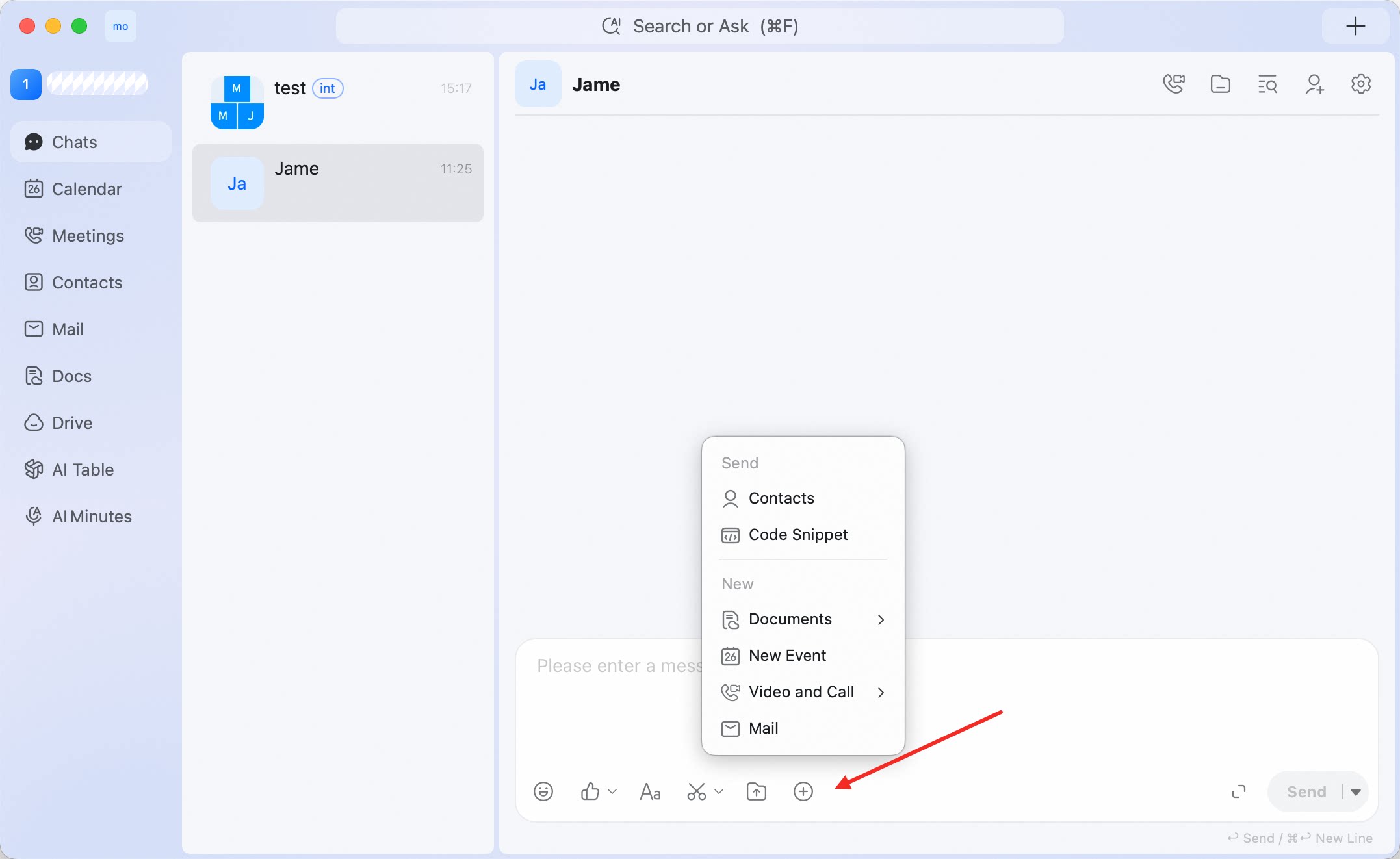
Click + in the message composer to open shortcuts. The menu includes:- Contacts
- Code snippet
- DingTalk documentation
- New Event
- Video Conference