Chats
Chats Calendar
 Meetings
 Contacts
 Mail
Mail Docs
Docs Drive
Drive AI Table
 AI Minutes
 Attendance
 Approval
 YiDA
YiDA Admin Console
Get the Meeting ID on Desktop
Get the Meeting ID for a Scheduled Meeting
After scheduling a meeting, or after clicking a scheduled meeting from Calendar or the Meetings page, open the meeting details pop-up >> click the Copy icon next to the automatically generated meeting ID in the upper-right corner.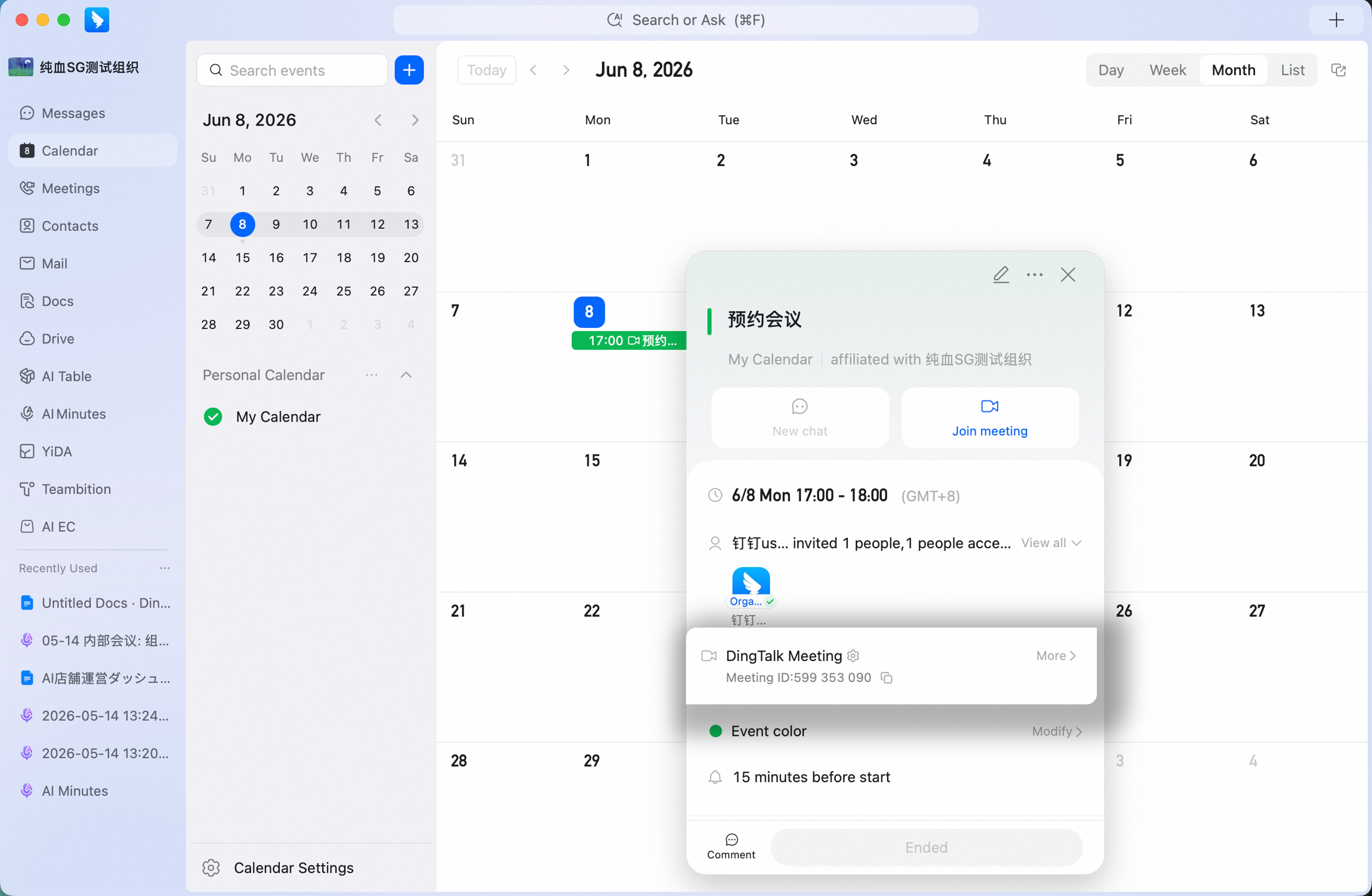
Get the Meeting ID During a Meeting
During a meeting, hover over Meeting Information in the upper-left corner >> click the Copy button next to the meeting ID, or click Copy Join Information.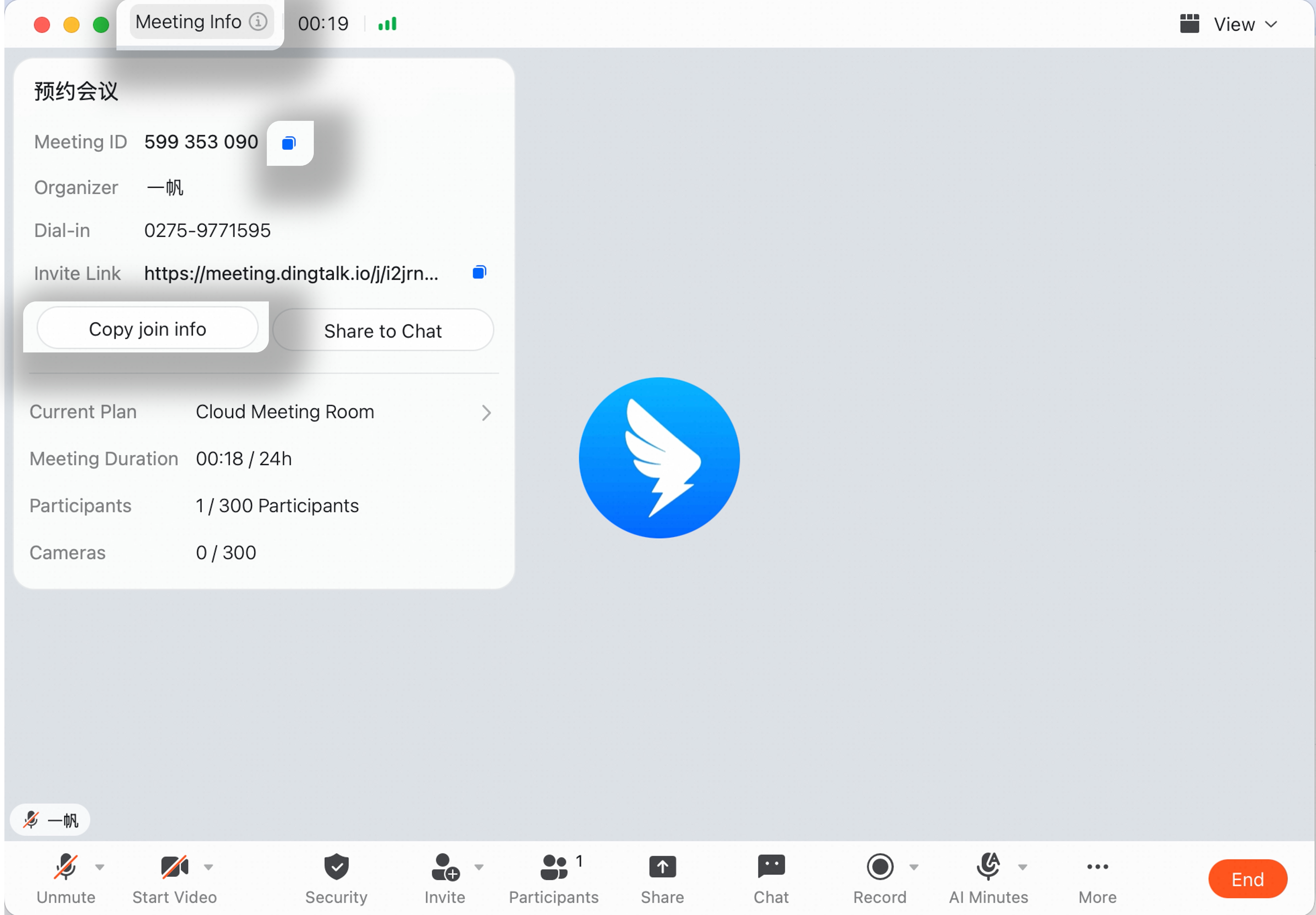
Get the Meeting ID on Mobile
Get the Meeting ID for a Scheduled Meeting
After scheduling a meeting, or after tapping a scheduled meeting from Calendar or the Meetings page, open the meeting details page >> tap the Copy button next to the meeting ID.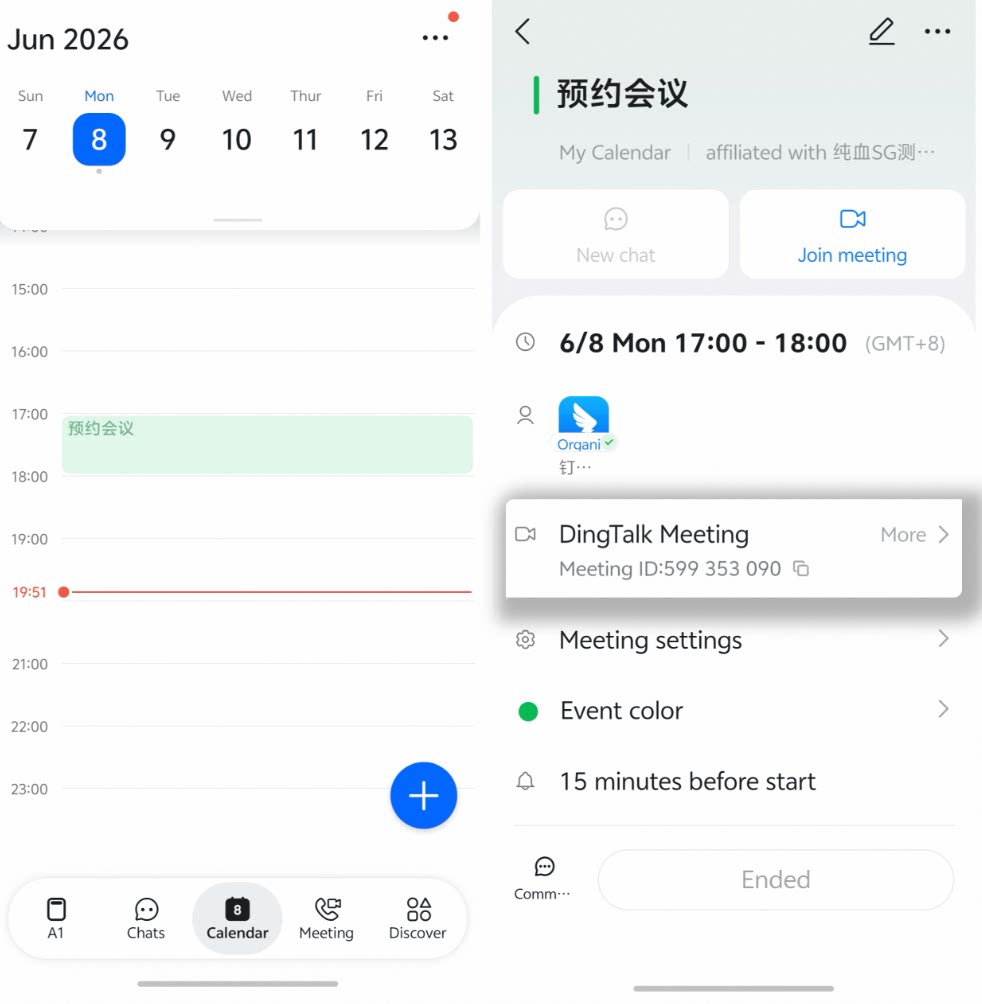
Get the Meeting ID During a Meeting
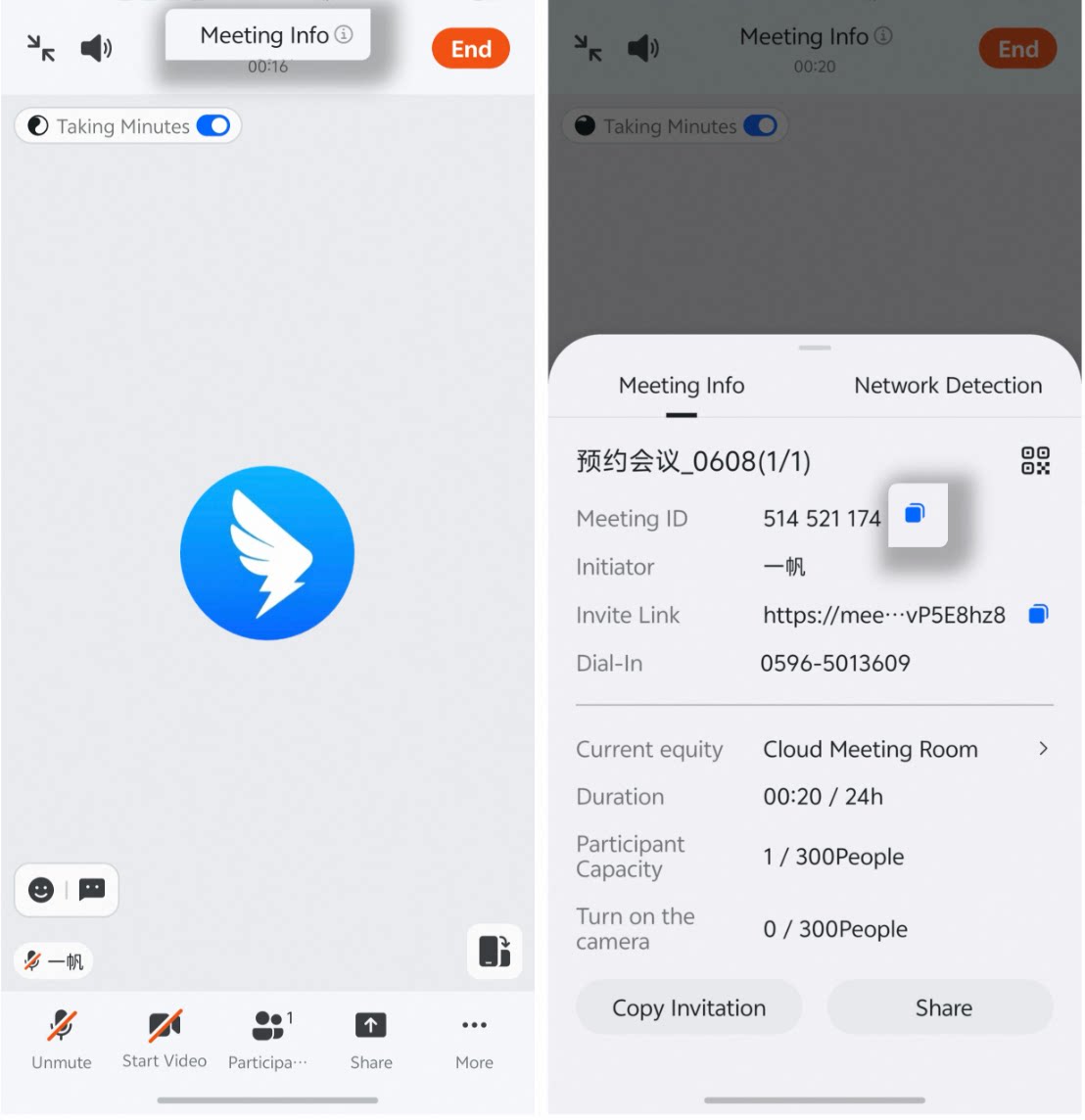
Start or join a meeting >> on the meeting screen, tap Meeting Information at the top >> tap the Copy button next to the meeting ID.