Chats
Chats Calendar
 Meetings
 Contacts
 Mail
Mail Docs
Docs Drive
Drive AI Table
 AI Minutes
 Attendance
 Approval
 YiDA
YiDA Admin Console
Availability
Free meetings can use captions for only 10 minutes per meeting. After purchasing a paid version, captions can be used without a time limit. DingTalk Meetings paid plans provide unlimited-time meetings and 10+ benefits. Users can purchase or request consultation from the relevant DingTalk Meetings purchase pages.Use Captions on Desktop
Turn On Captions
During a meeting, click More at the bottom, then click Captions to turn on captions. After captions are enabled, spoken content is transcribed into text in real time.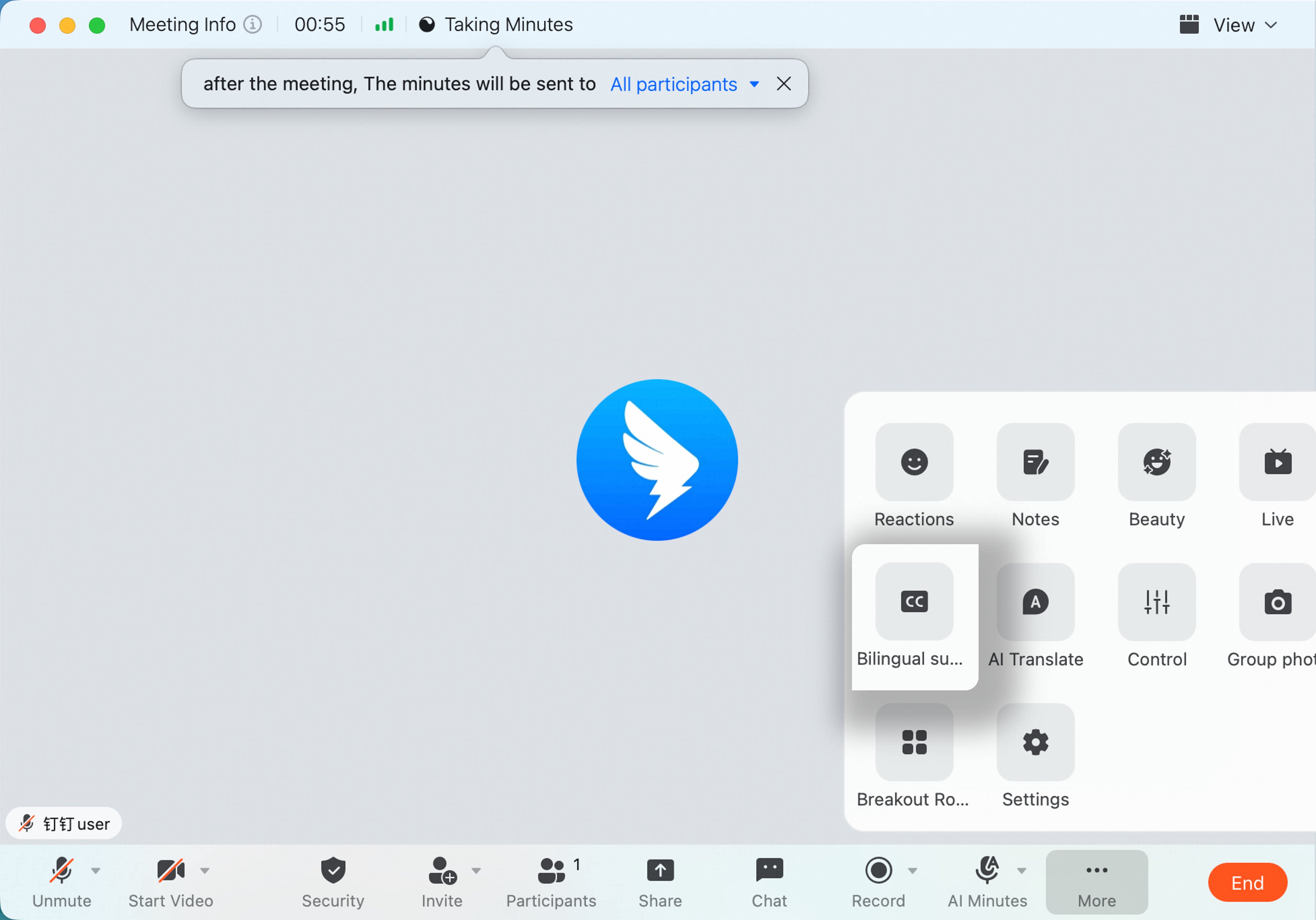
Use Caption Translation
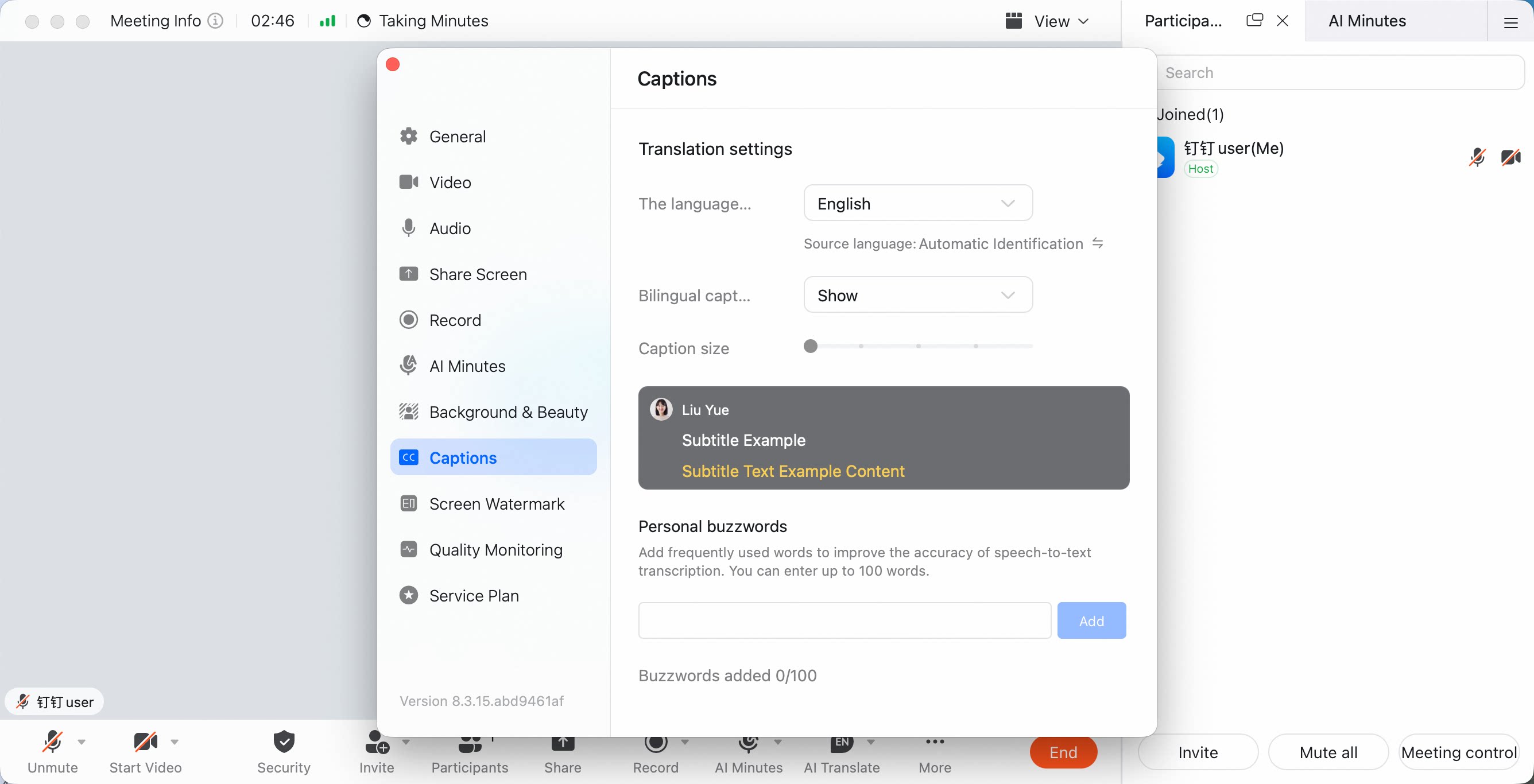
In the upper-right corner of the caption block, click the translation icon, then select the language you want to view to enable caption translation. The feature supports two-way real-time translation across Chinese, English, Japanese, Korean, and 21 other languages.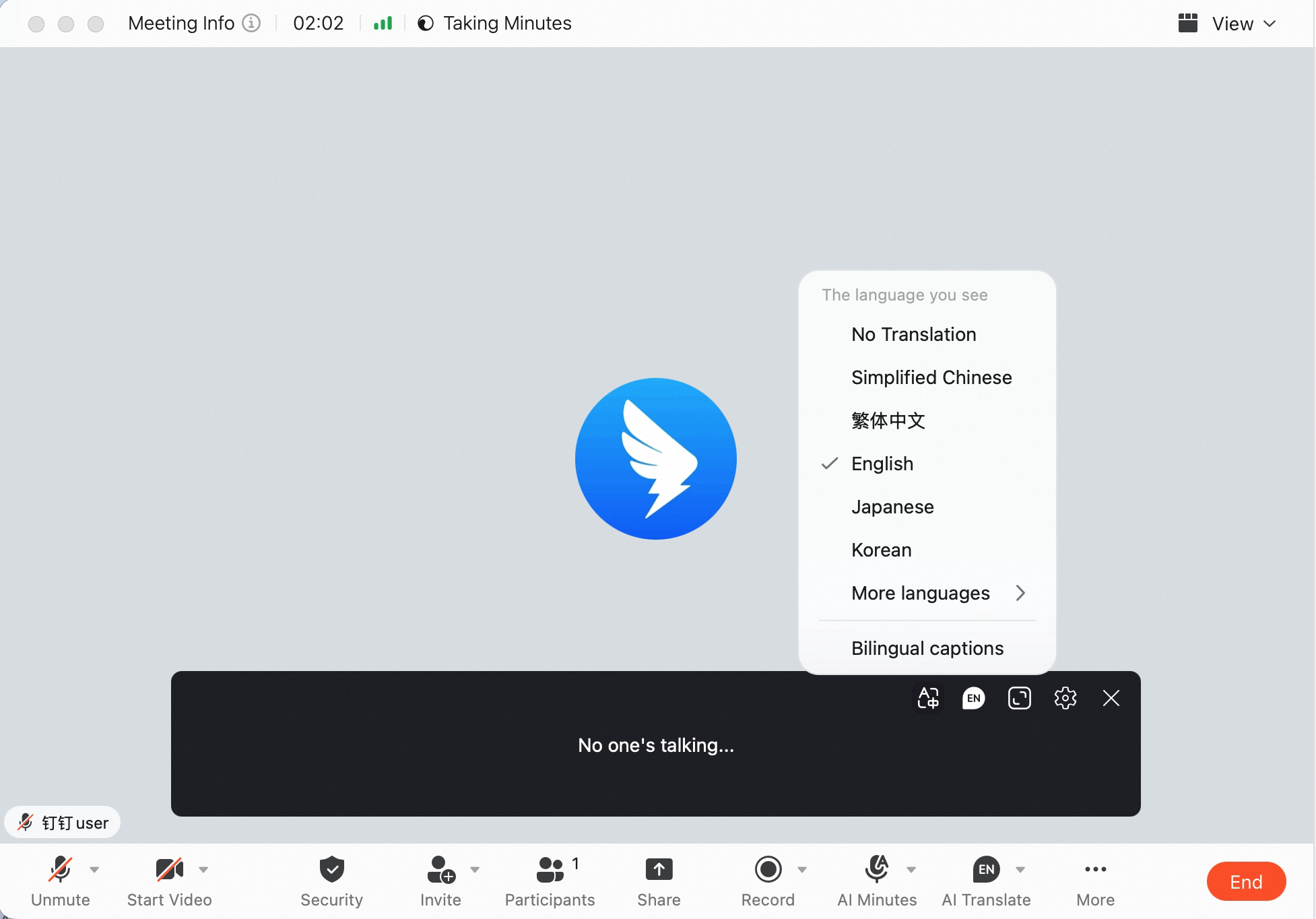 You can also choose Show Bilingual Captions.
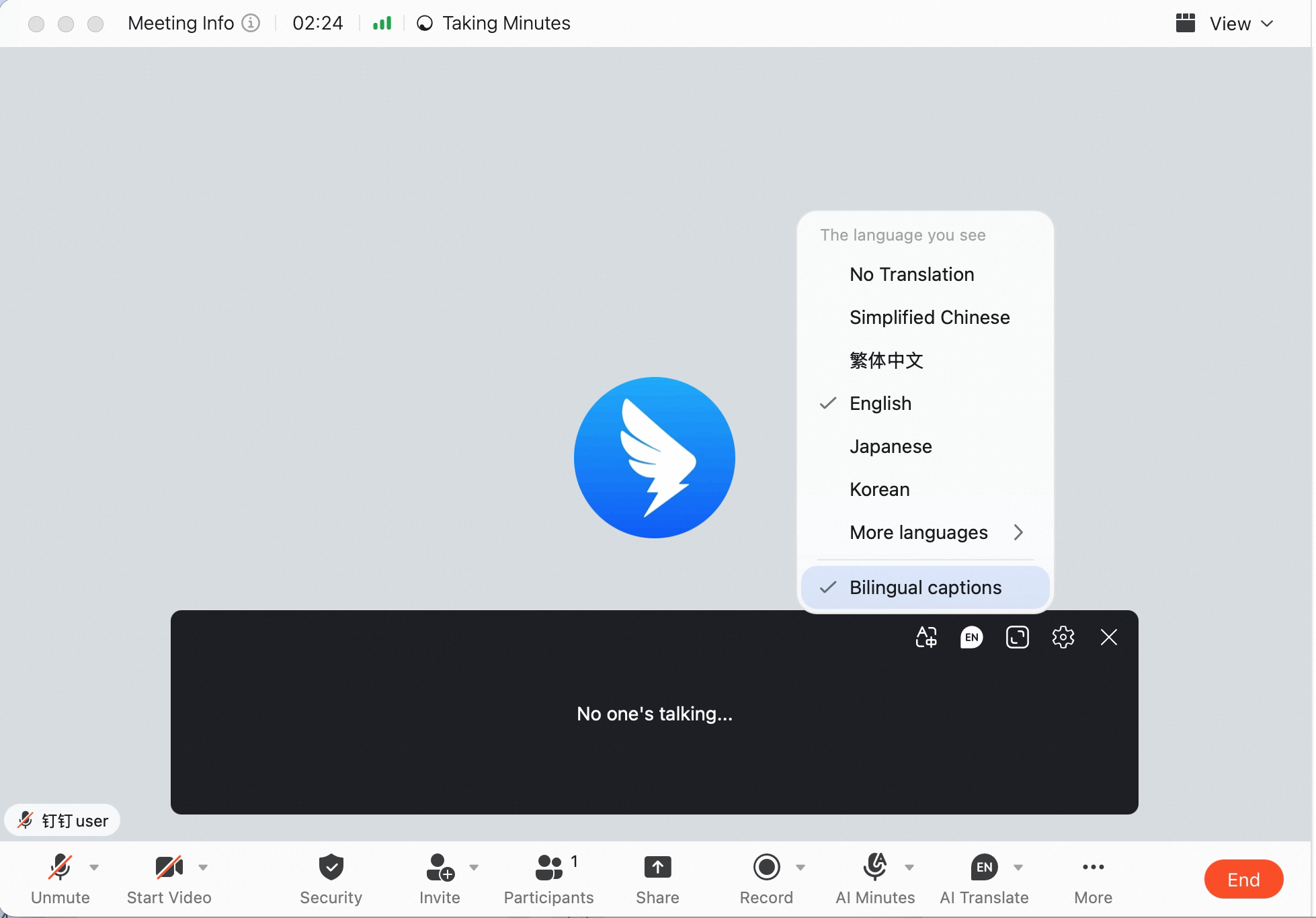 For more detailed language settings, click More, click Settings, then click Captions on the left.
Adjust Caption Font Size
After captions are enabled, hover over the caption block and click the settings icon in the upper-right corner to quickly adjust the caption font size. You can also click More, click Settings, then click Captions on the left to adjust caption size.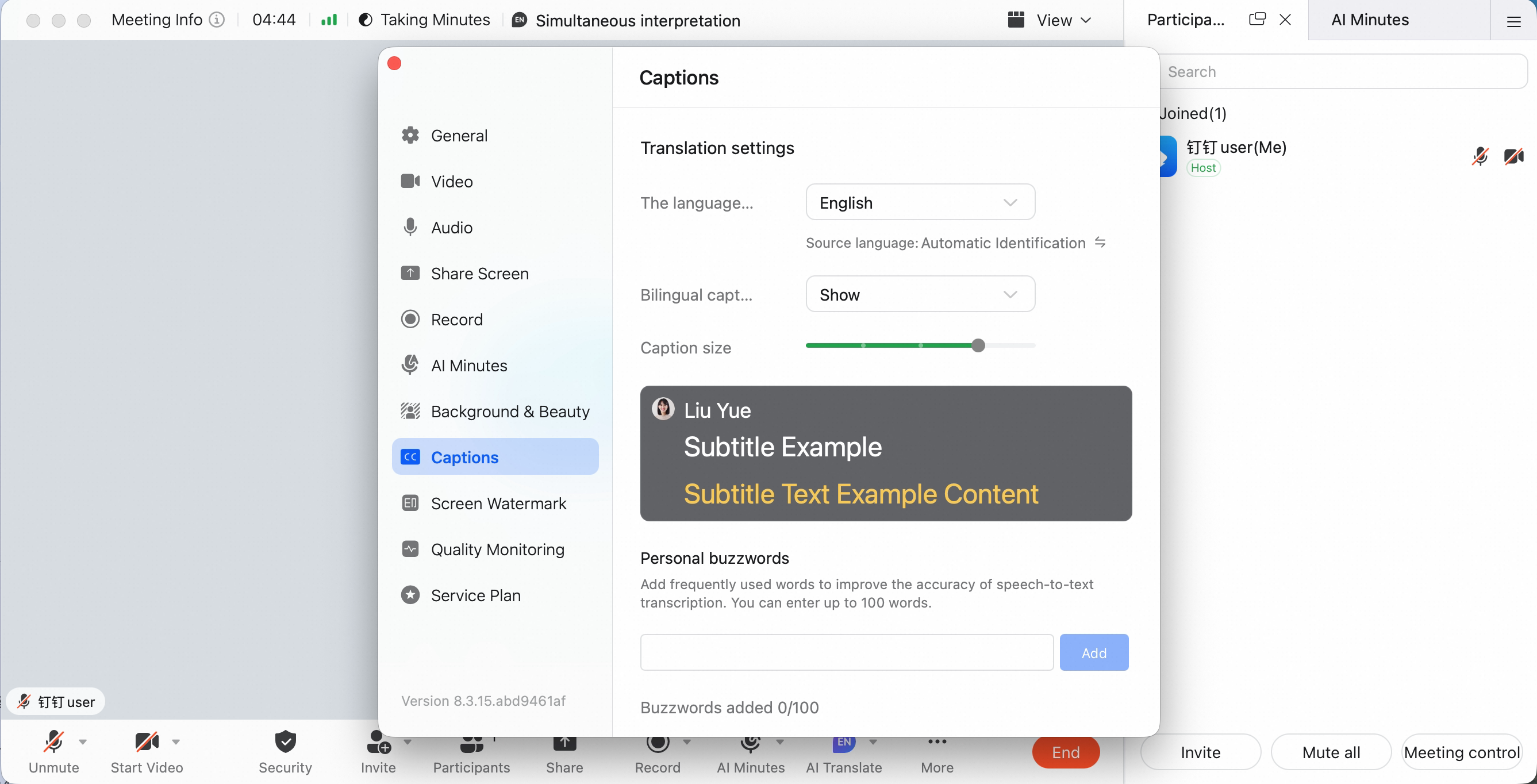
Configure Personal Hotwords
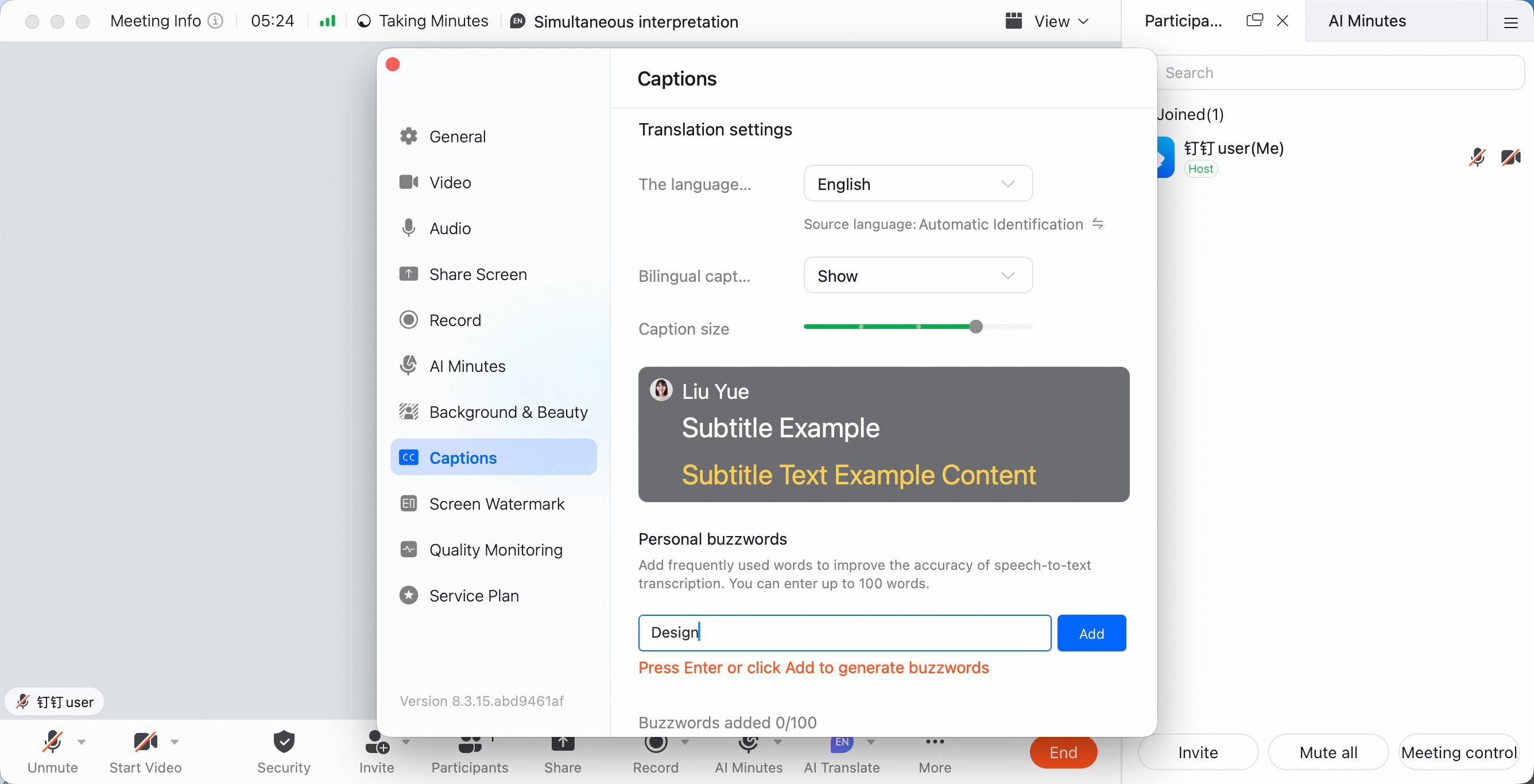
If your meetings often include specialized words, such as business terms or brand names, you can customize personal hotwords to improve caption recognition accuracy. Click More, click Settings, click Captions on the left, enter a Personal Hotword on the right, then click Add.Personal hotwords support up to 50 entries and can be configured in Chinese or English.
Use Captions on Mobile
Turn On Captions
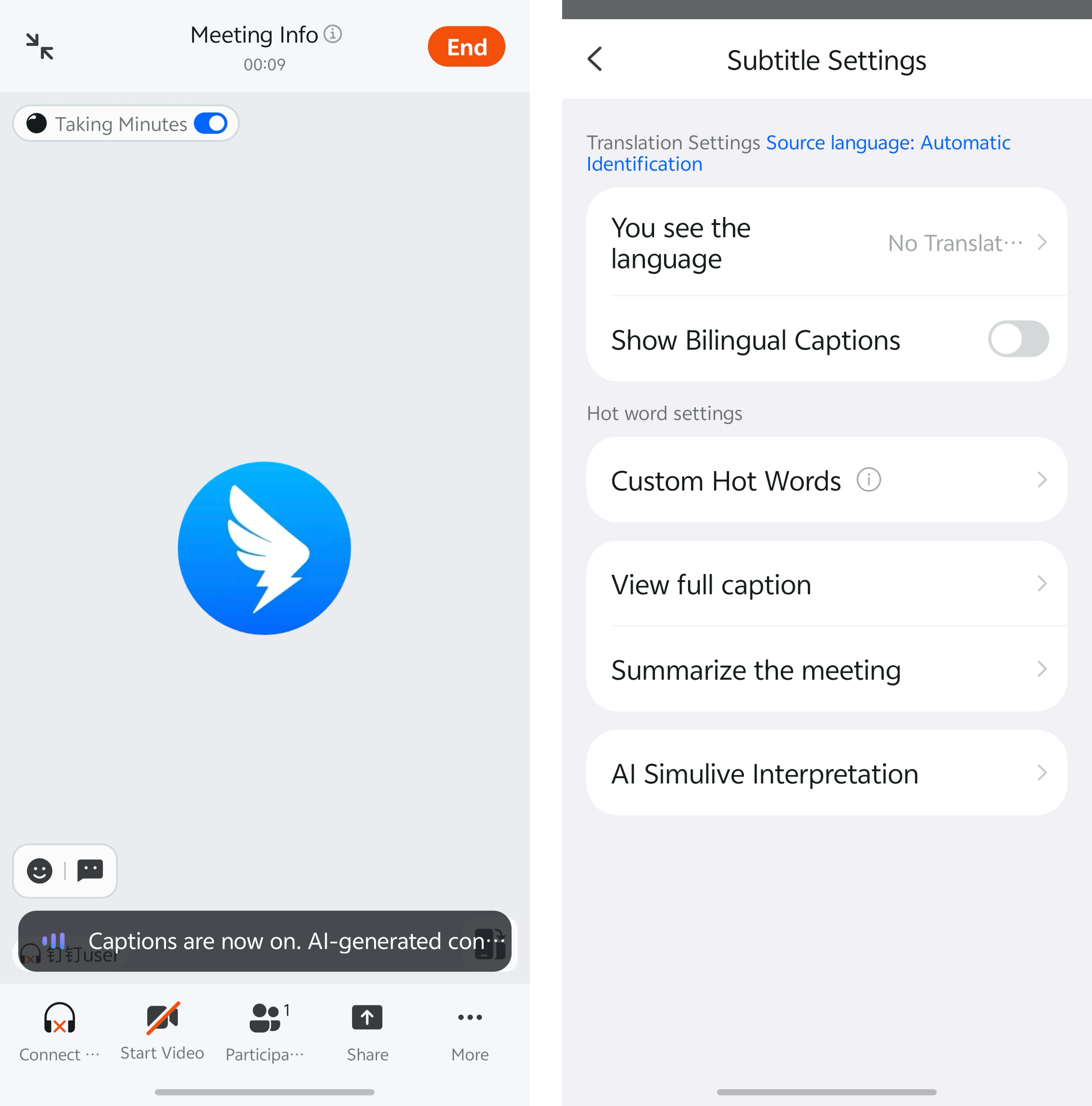
During a meeting, tap More at the bottom, then tap Captions to turn on captions.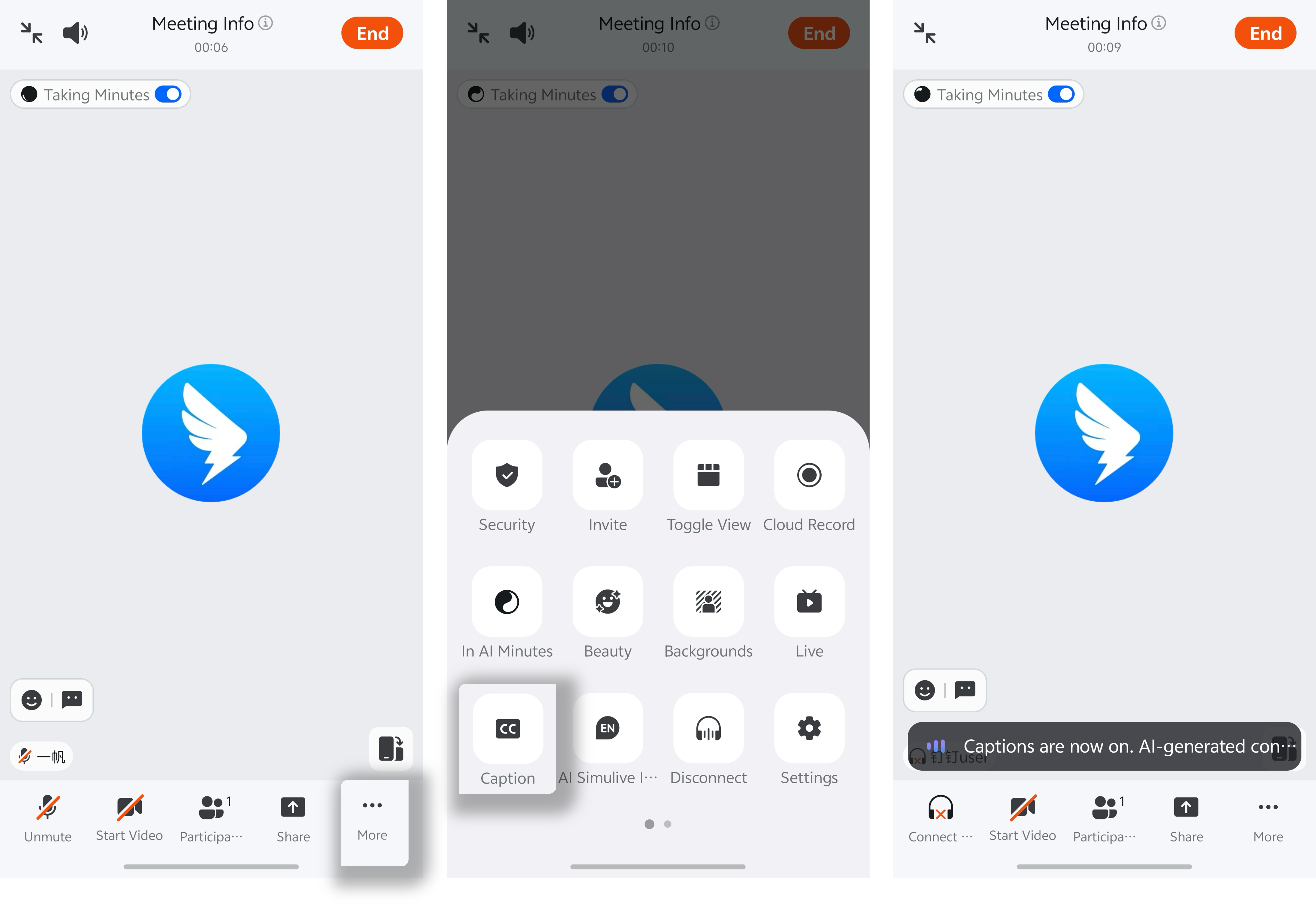
Caption Settings: Translation and Hotwords
After captions are enabled, tap the caption block at the bottom of the screen to open caption settings. From there, you can configure caption translation, caption hotwords, and view the full caption transcript.