Chats
Chats Calendar
 Meetings
 Contacts
 Mail
Mail Docs
Docs Drive
Drive AI Table
 AI Minutes
 Attendance
 Approval
 YiDA
YiDA Admin Console
How to Troubleshoot Camera Image Issues
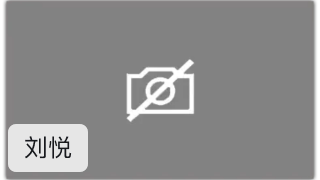
Camera Shows a White Slashed Camera Icon
Symptom: After turning on the camera in a meeting, the camera window does not show the user and only displays a white slashed camera icon. Solutions:- If a PC manager app is installed, it may prevent the camera from being called normally. Temporarily close it to rule out interference.
- The laptop camera may be disabled locally. For Lenovo laptops, open the sliding switch near the front camera. For other laptop brands, press Fn together with the function key that has a camera icon.
- If these steps do not work, contact computer after-sales support and install the latest camera driver.
Camera Shows the DingTalk Avatar
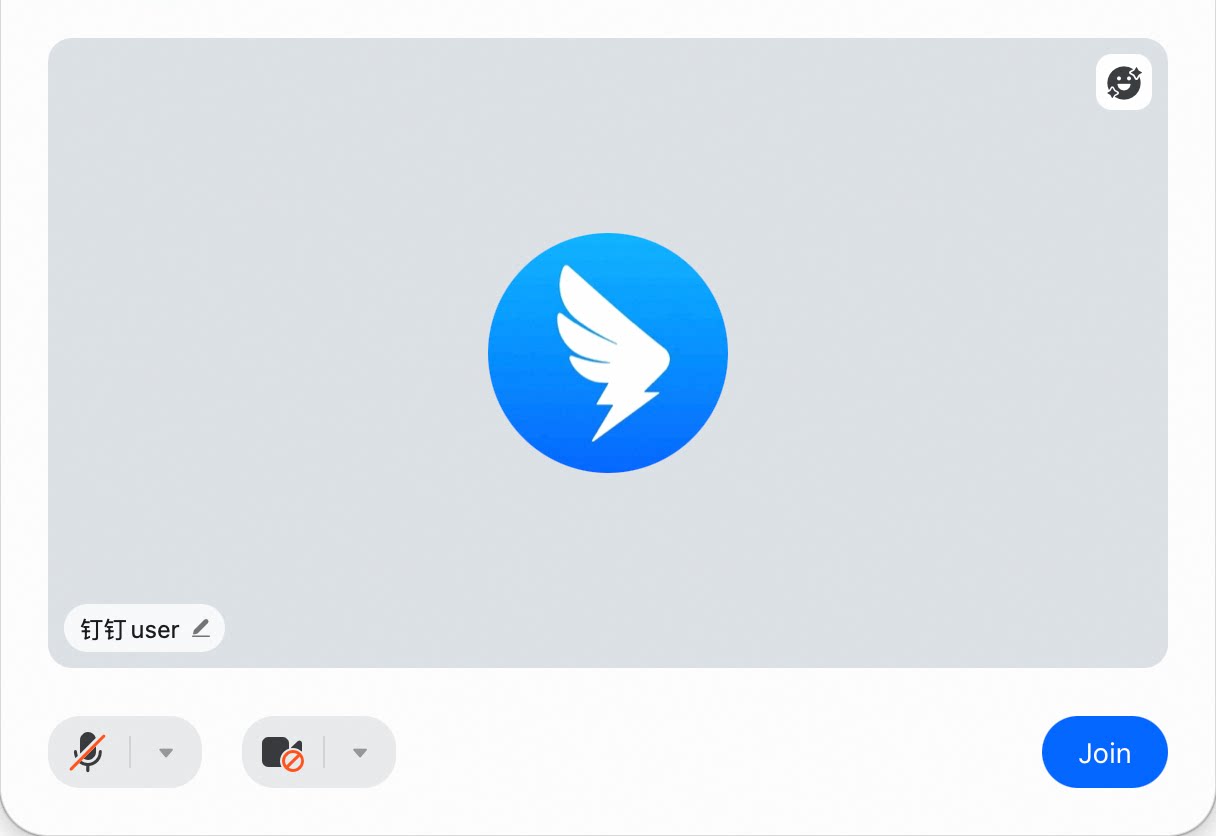
Symptom: After turning on the camera, the camera window shows only a circular DingTalk avatar. Solution: The user has disabled their camera. Turn on the camera during the meeting to restore normal display.
Camera Image Is Completely Black
Symptom: After turning on the camera, the camera window is black. Solutions:- Check whether anything is blocking the camera.
- Contact computer after-sales support and install the latest camera driver.

Camera Fails to Start
Symptom: After turning on the camera, the camera window does not show the user and reports a camera startup exception or failure. Solutions:- Close other software that may be using the camera on the computer or phone.
- Exit security or protection software, such as 360 Security, 360 Antivirus, Tencent PC Manager, 2345 Security, Microsoft PC Manager, or Lenovo PC Manager.
-
Enable camera permissions:
- Windows 10: Desktop menu > gear icon > Privacy > Camera > turn on Allow apps to access your camera.
- Mac: Grant camera permission, then restart the computer. If already authorized, try reauthorizing and restarting.
- iOS: System Settings > Privacy > Camera > turn on DingTalk.
- Android: Follow the settings for your specific system.
Camera Image Is Dim
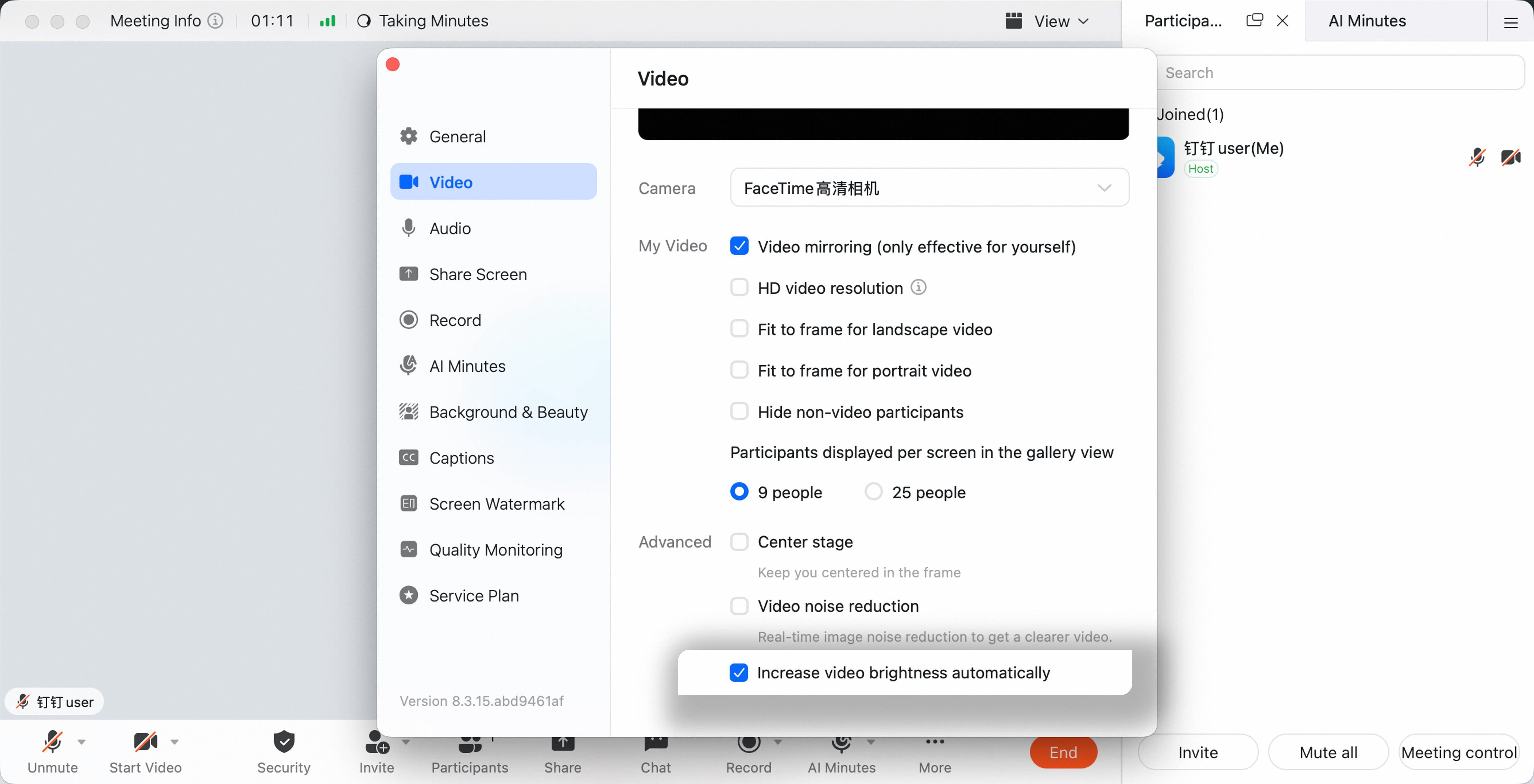
Symptom: After turning on the camera, the image is dark. Solutions: Improve lighting in the meeting environment. On desktop, open meeting settings, click Video on the left, scroll to the bottom, and select Automatically improve video brightness in low-light environments.
Camera Turns Off Automatically
Symptom: After the user turns on the camera, it turns off automatically. Solution: This may be caused by a damaged or outdated camera driver. Contact computer after-sales support and install the latest camera driver.Camera Image Is Upside Down
Symptom: The camera image is upside down. Solutions:- Computer: Adjust the camera angle.
- Phone or tablet: Rotate the device vertically to restore normal display.

Camera Image Is Garbled
Symptom: The camera image appears distorted or garbled. Solutions:- For an external camera, unplug and reconnect the device or try another USB port.
- If the camera is not physically damaged, update to the latest camera driver. To check whether the camera is damaged, test it in another app such as WeChat or QQ. If it is also garbled there, the camera may be damaged.
Camera Image Is Gray
Symptom: The camera image is gray. Solution: The local camera is usually disabled on the laptop. For Lenovo laptops, open the sliding switch near the front camera. For other laptop brands, press Fn together with the function key that has a camera icon.
Camera Shows a Laptop Icon
Symptom: The camera view shows an icon similar to a laptop. Solution: The camera is usually disabled in the laptop system settings. Re-enable it with the camera switch on Lenovo laptops, or press Fn plus the camera-function key on other laptop brands.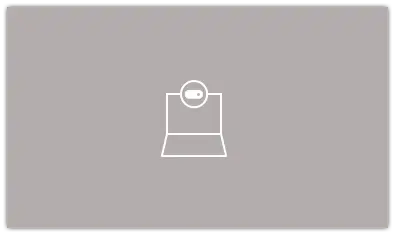
Camera Shows a Lock Icon
Symptom: The camera window shows a lock icon instead of the user. Solution: The local system has disabled the camera, preventing all software from using it. Re-enable it with the camera switch on Lenovo laptops, or press Fn plus the camera-function key on other laptop brands.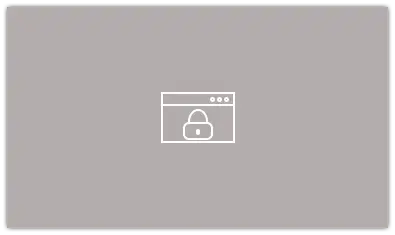
Camera Image Is Incomplete
Symptom: When using a Huawei phone or tablet to join a meeting, the camera image displays abnormally and part of the image is missing. Solution: Disable Parallel View mode on the device, then rejoin the meeting. Path: phone Settings > Vision > Parallel View > More Settings > find DingTalk and turn it off.