

How to View Network Metrics

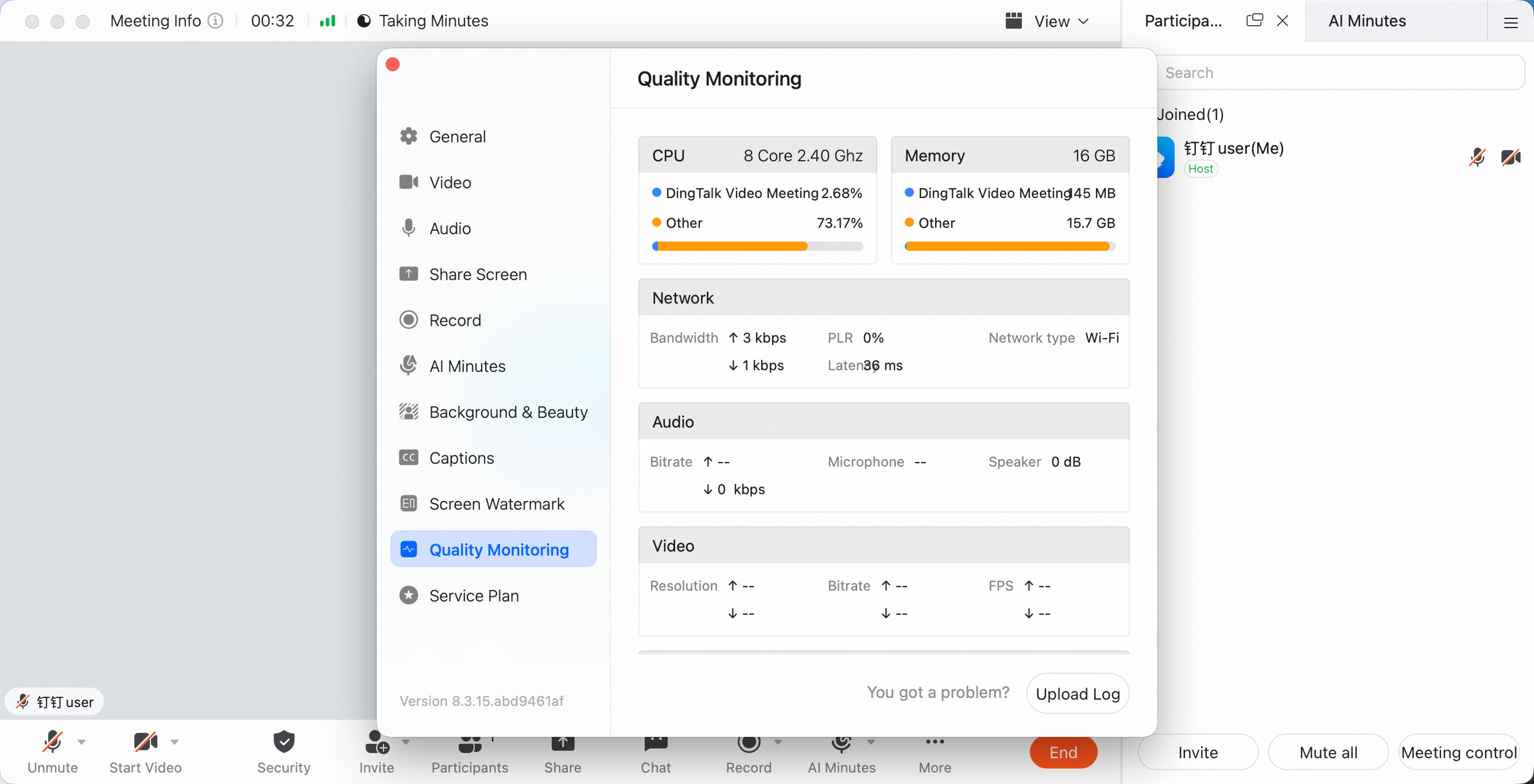
Participants can view the local device’s network status from the meeting window: More > Settings > Quality Monitoring. image.png
What Network Metrics Are Reasonable?

The following ranges usually do not noticeably affect the meeting experience. Actual experience may still be affected by momentary network fluctuations and averages. Background metric monitoring runs once per minute.

Network

ScenarioBandwidthLatencyPacket LossNetwork Jitter
Audio onlyUplink: 60-200 kbps; Downlink: 60-600 kbps<300 ms<40%Max <400 ms
VideoUplink: 0.5-3.0 Mbps; Downlink: 0.5-4.0 Mbps<300 ms<30%Max <400 ms

Audio

When someone is speaking, use the following metrics as reference. When there is no audio, bitrate, microphone, and speaker metrics may be low.
BitrateMicrophoneSpeaker
Uplink: 60-200 kbps; Downlink: 60-600 kbps30-90 dB; actual experience also depends on device pickup quality30-90 dB; actual experience also depends on system volume settings

Video

Actual bitrate, resolution, and frame rate are affected by device performance and network status. The following uses camera video as an example.
DeviceBitrateResolution
ComputerUplink: 1.5-3.0 Mbps; Downlink: 0.5-4.0 MbpsUp to 1080p
MobileUplink: 0.8-2.0 Mbps; Downlink: 0.5-4.0 MbpsUp to 720p

Sharing

Actual bitrate, resolution, and frame rate are affected by device performance and network status.
ScenarioBitrateResolution
Static PPT1-100 kbpsUp to 1080p
Web browsing0.2-1.3 MbpsUp to 1080p
Dynamic video0.5-1.5 MbpsUp to 1080p