Chats
Chats Calendar
 Meetings
 Contacts
 Mail
Mail Docs
Docs Drive
Drive AI Table
 AI Minutes
 Attendance
 Approval
 YiDA
YiDA Admin Console
Availability
Only the host or co-host can enable the waiting room.Enable the Waiting Room
The waiting room is useful for multi-round interviews, performance conversations, business negotiations, and other scenarios where participants need to be separated to protect privacy.Enable the Waiting Room on Desktop
Method 1: During a meeting, click Security at the bottom, then turn on Waiting Room.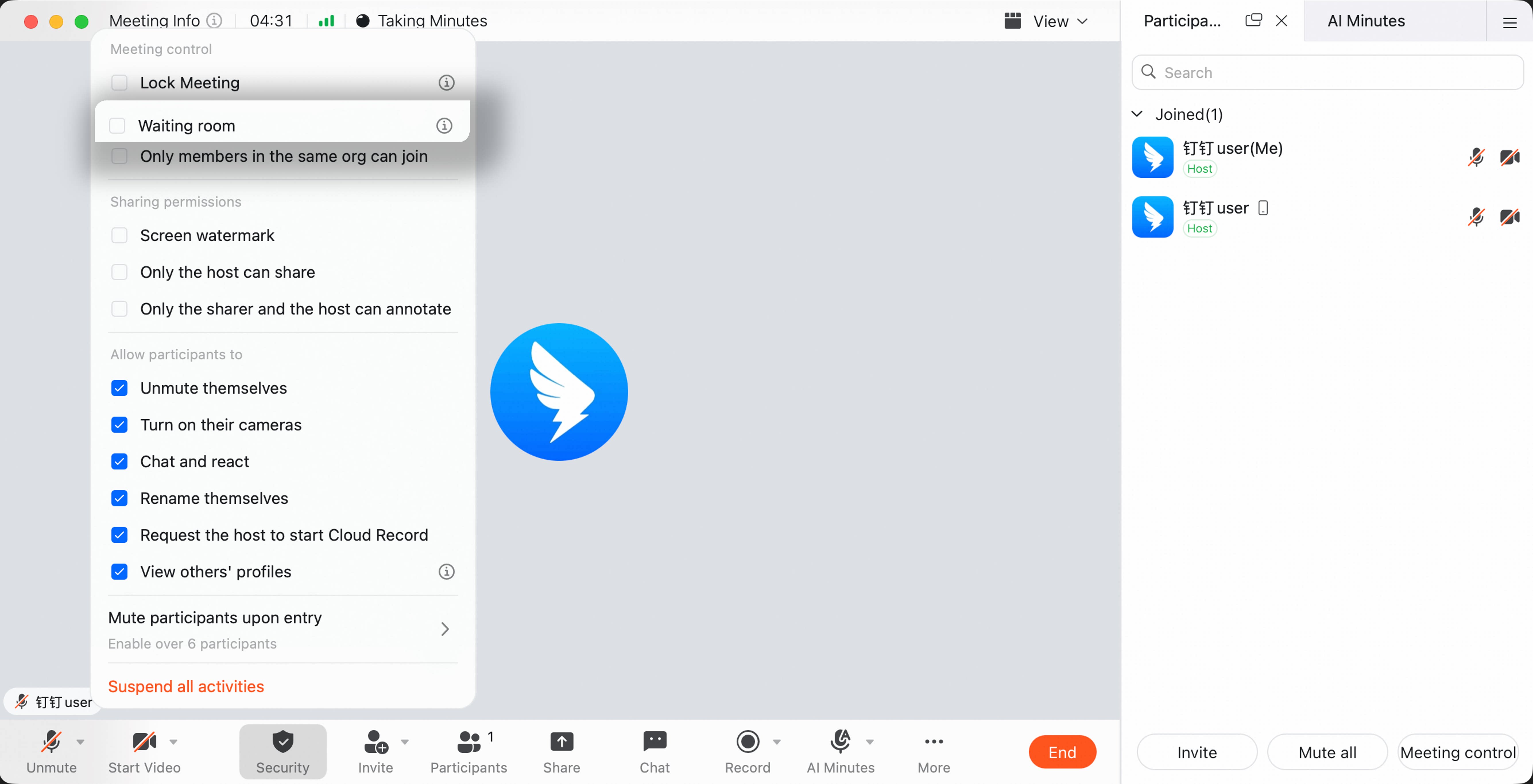 Method 2: During a meeting, click Members at the bottom to open the member management panel. Click Meeting Control in the lower-right corner, then turn on Waiting Room.
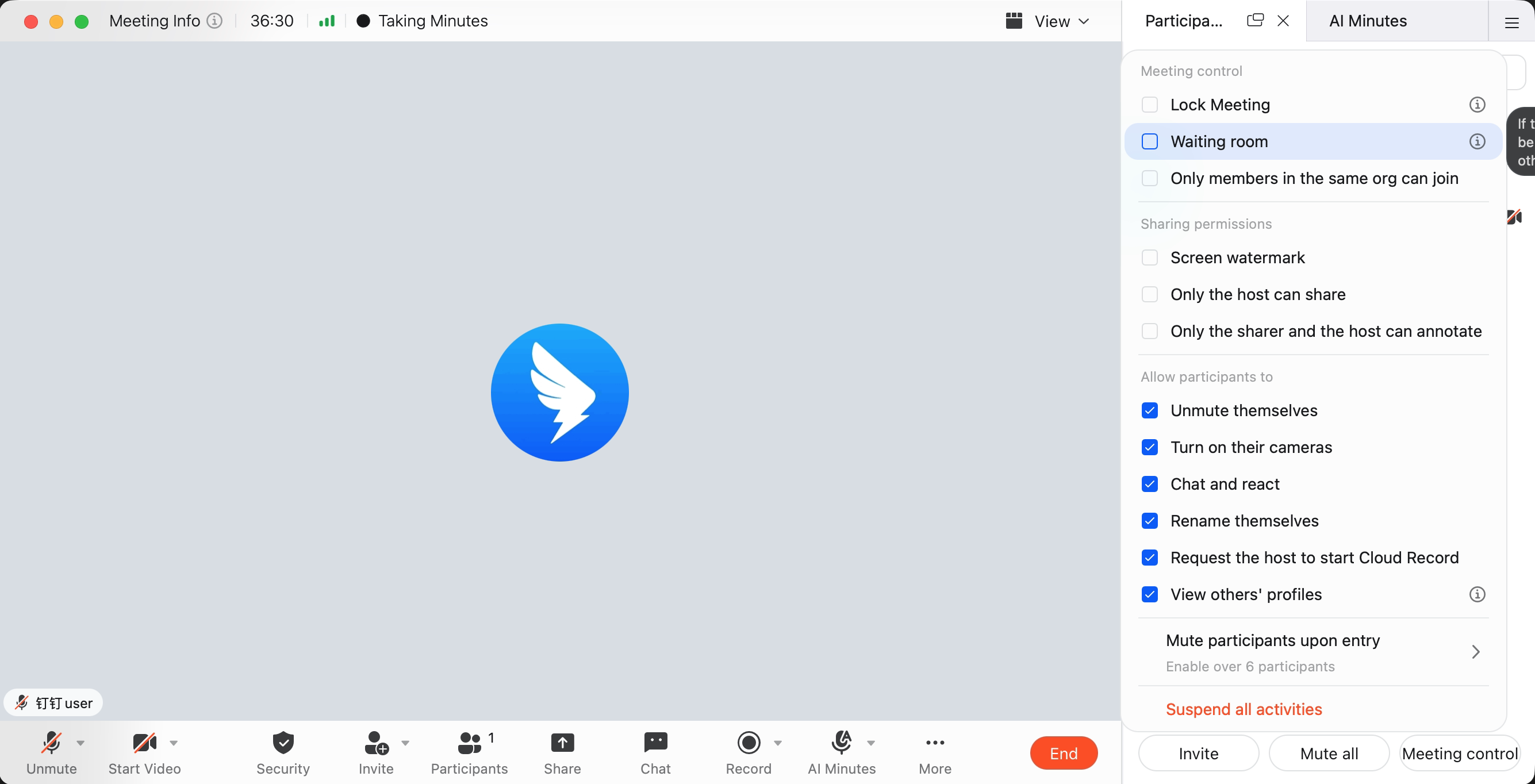 After the waiting room is enabled, members who join first enter the waiting room and wait until the host admits them. The host also receives a notification when a user enters the waiting room.
Enable the Waiting Room on Mobile
During a meeting, tap More in the lower-right corner, tap Security, then turn on Waiting Room in the security settings.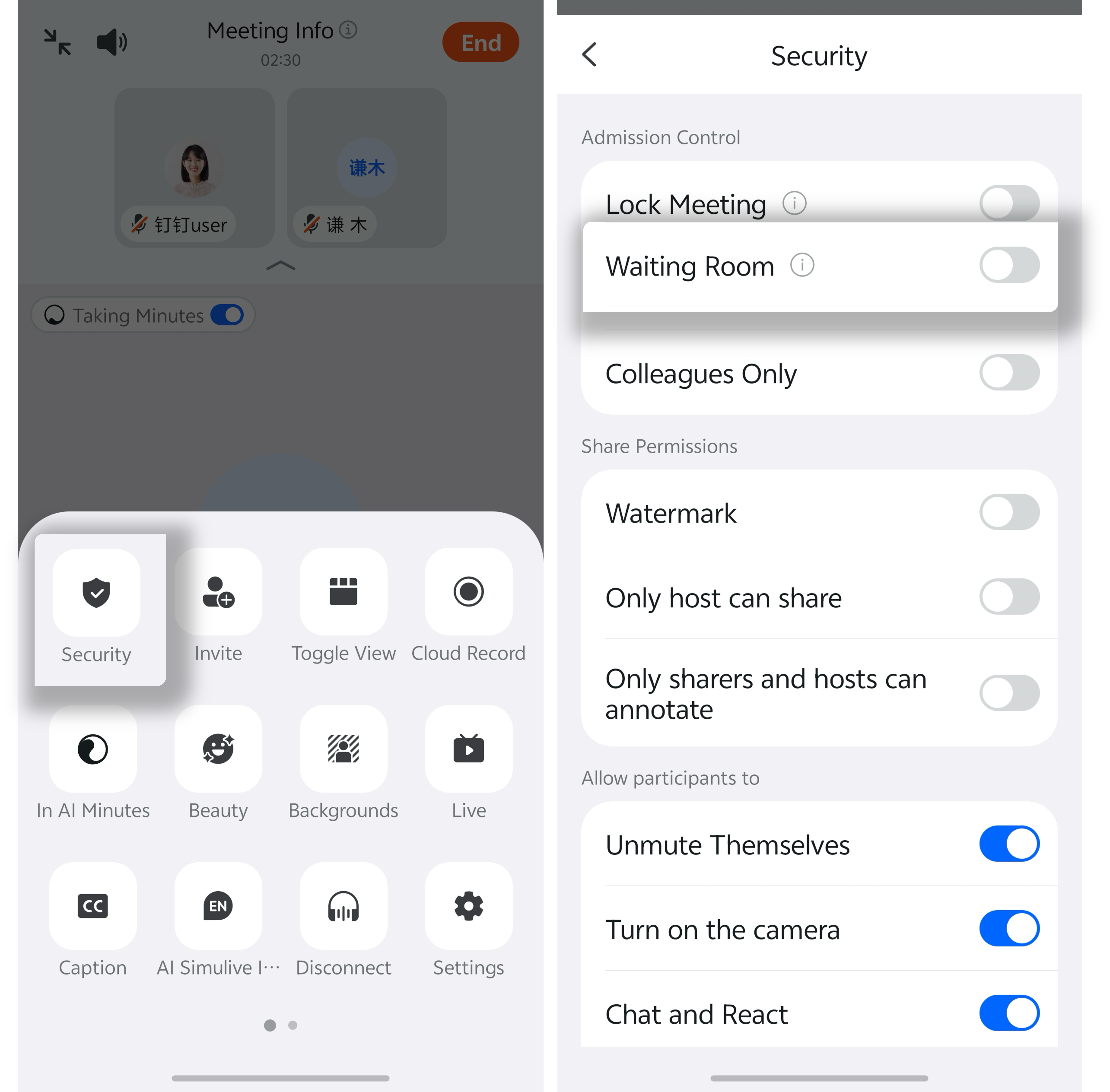 After the waiting room is enabled, members who join first enter the waiting room and wait until the host admits them. The host also receives a notification when a user enters the waiting room.
Manage Waiting Room Members as Host
Admit or Remove Waiting Room Members on Desktop
Method 1 - From the member management panel Prerequisite: The waiting room is enabled and members are waiting. During a meeting, click Members at the bottom to open the member management panel. In the waiting room group, choose Admit or Remove for the waiting member.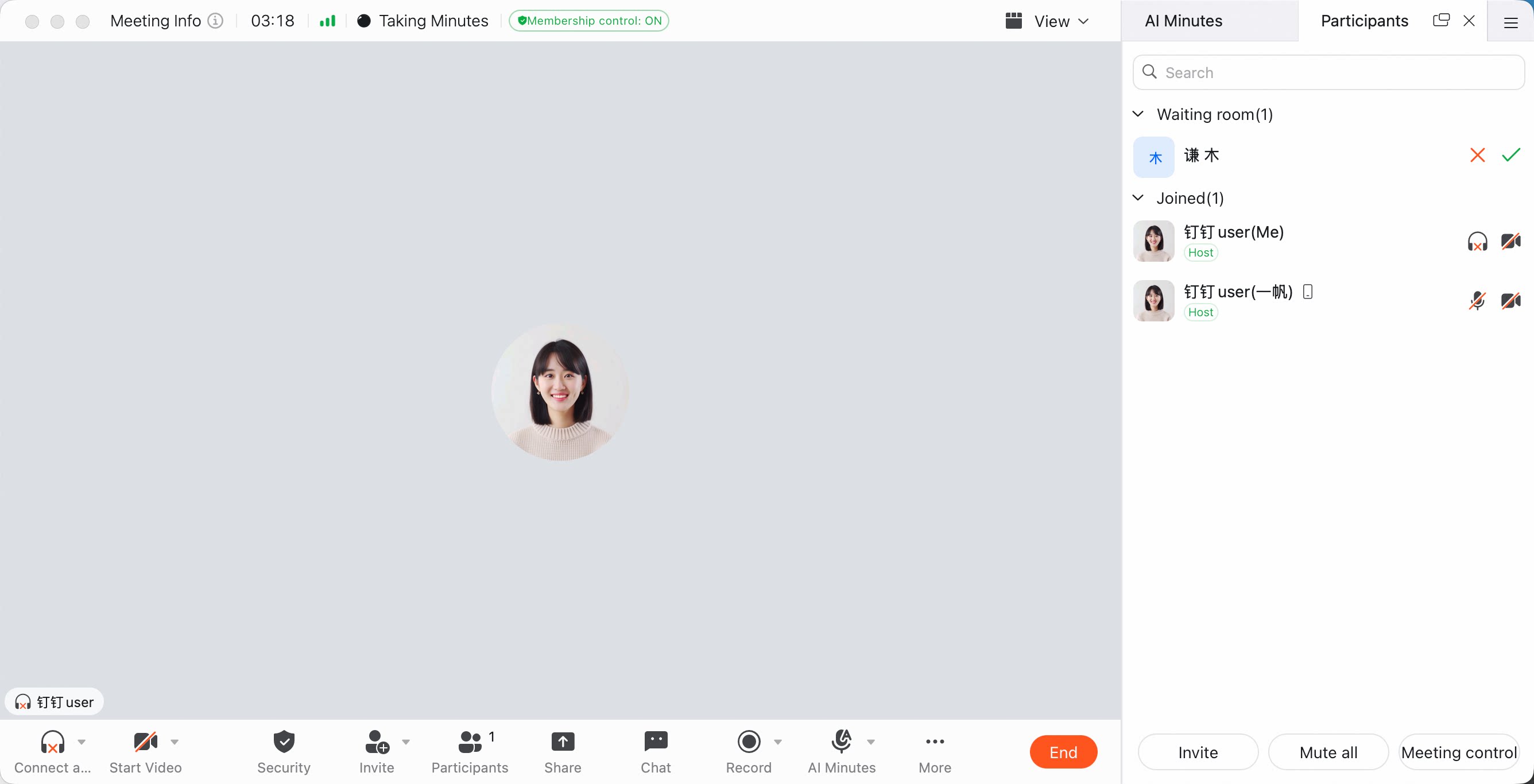 Method 2 - From the notification
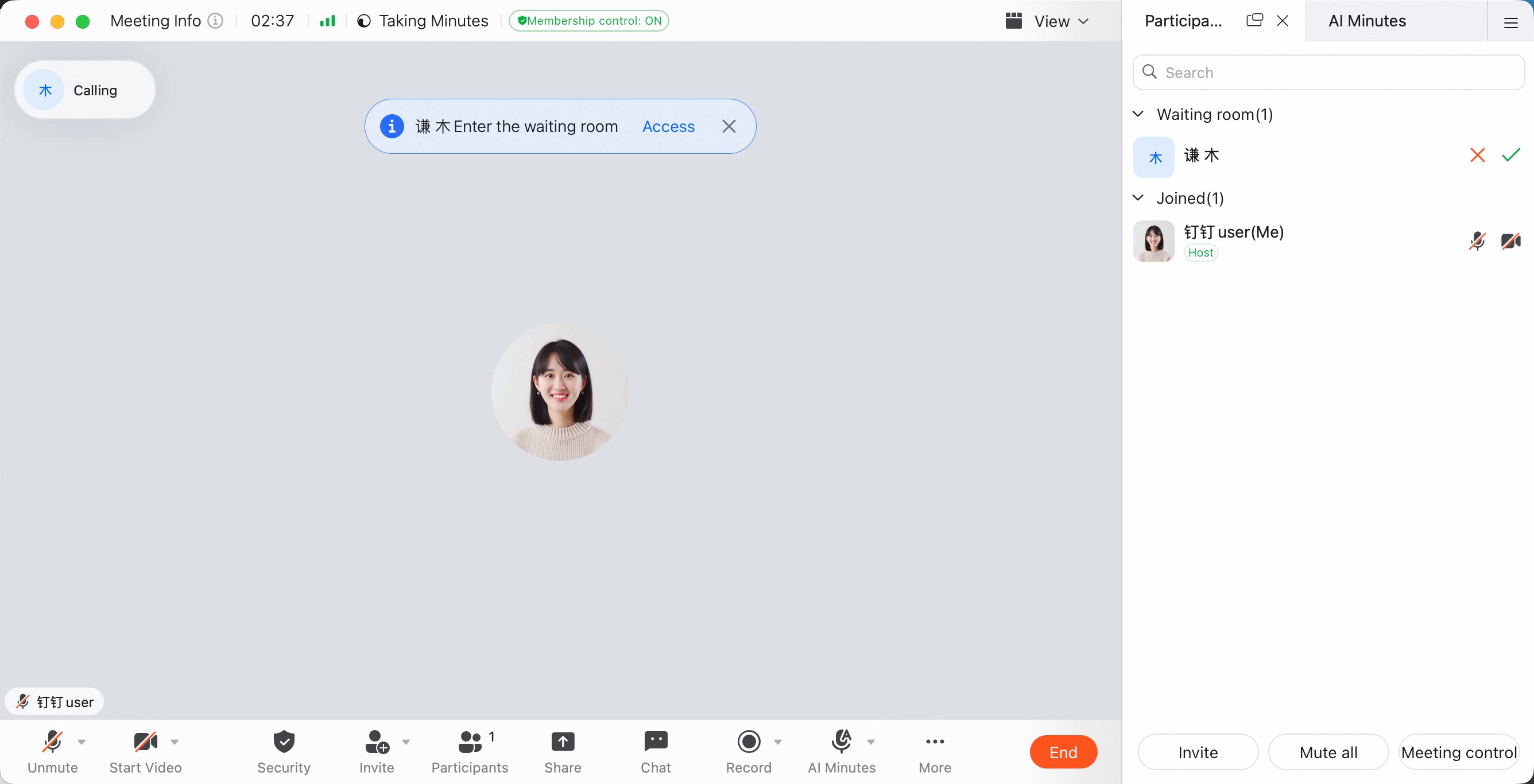
When the host receives a notification that a user has entered the waiting room, click Admit in the notification.
Method 2 - From the notification
When the host receives a notification that a user has entered the waiting room, click Admit in the notification.
Admit or Remove Waiting Room Members on Mobile
Method 1 - From the member management panel Prerequisite: The waiting room is enabled and members are waiting. During a meeting, tap Members at the bottom to open the member management panel. In the waiting room group, choose Admit or Remove for the waiting member.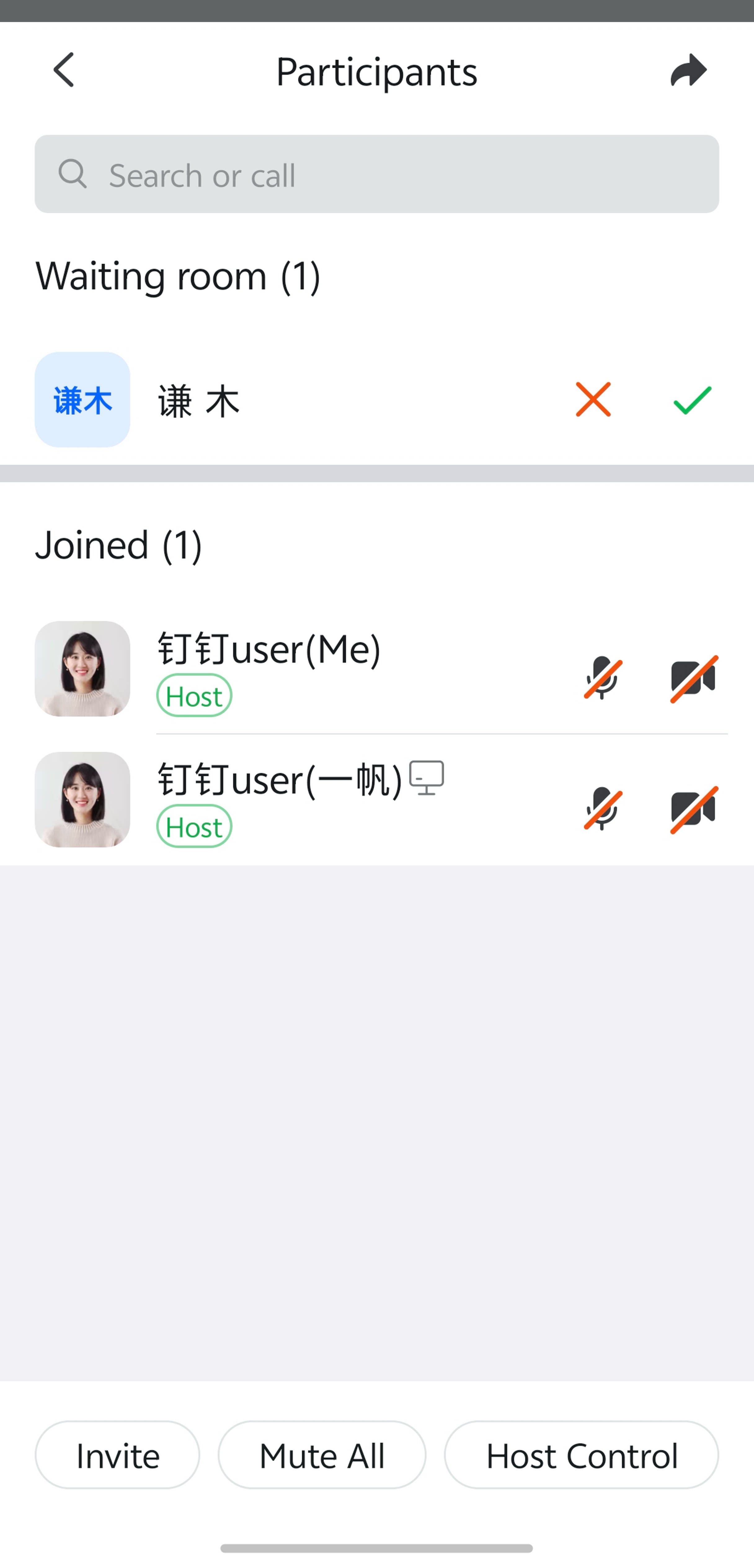
Move an In-Meeting Member to the Waiting Room on Desktop
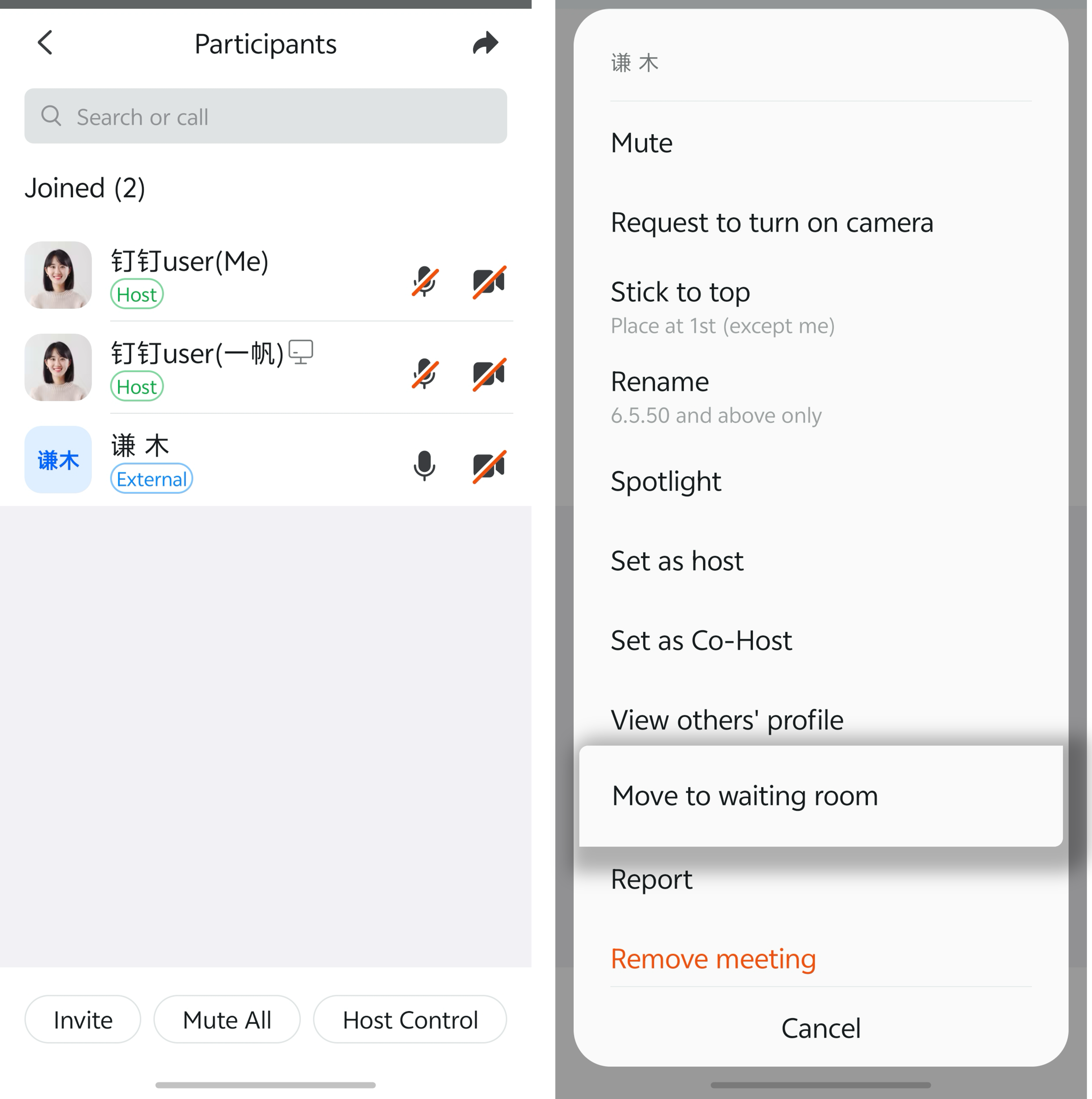
During a meeting, click Members at the bottom to open the member management panel. In the joined members group, click the icon on the right side of the member, then select Move to Waiting Room.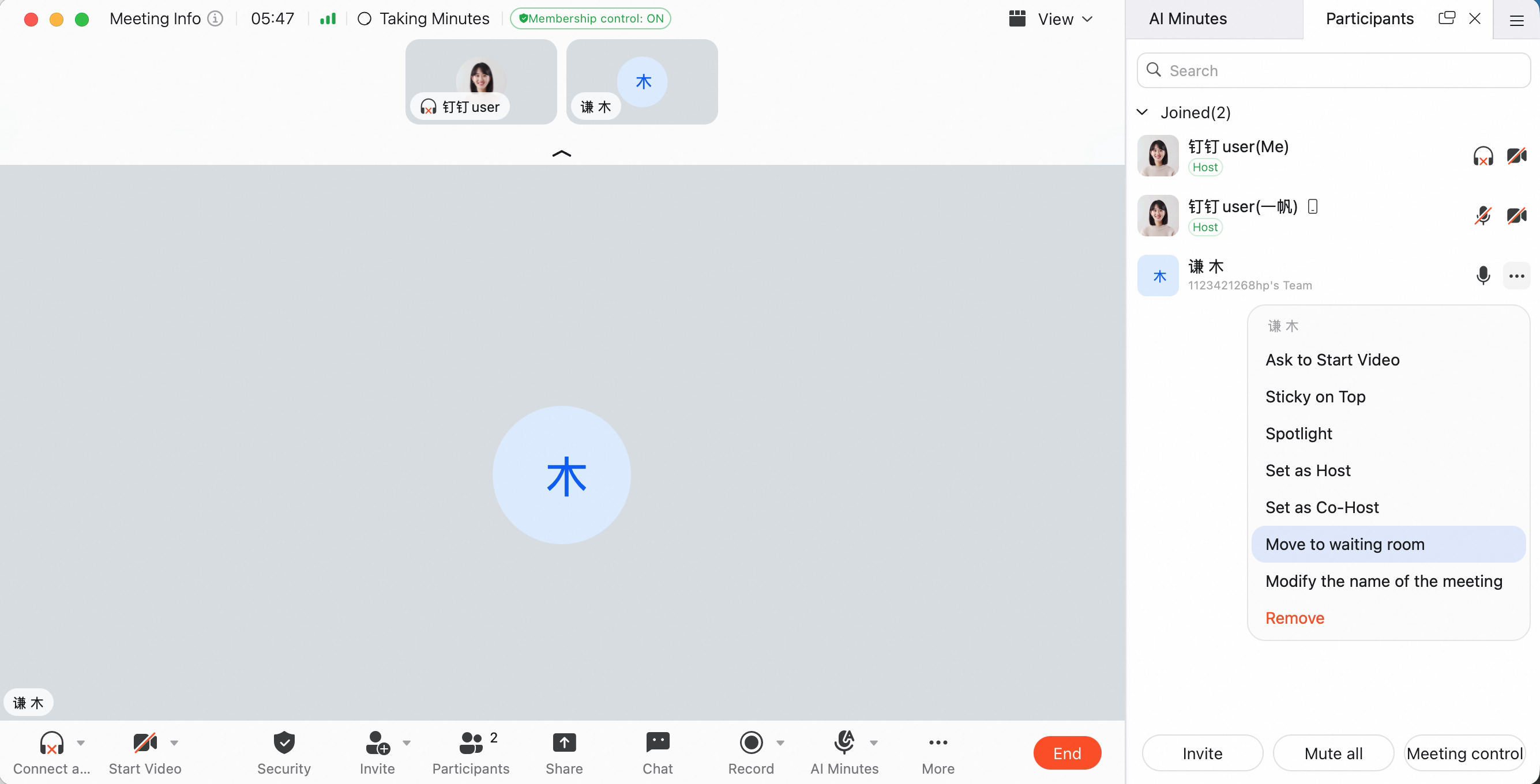
Move an In-Meeting Member to the Waiting Room on Mobile
During a meeting, tap Members at the bottom to open the member management panel. In the joined members group, tap the member, then select Move to Waiting Room.