Chats
Chats Calendar
 Meetings
 Contacts
 Mail
Mail Docs
Docs Drive
Drive AI Table
 AI Minutes
 Attendance
 Approval
 YiDA
YiDA Admin Console
Share Your Screen on Desktop
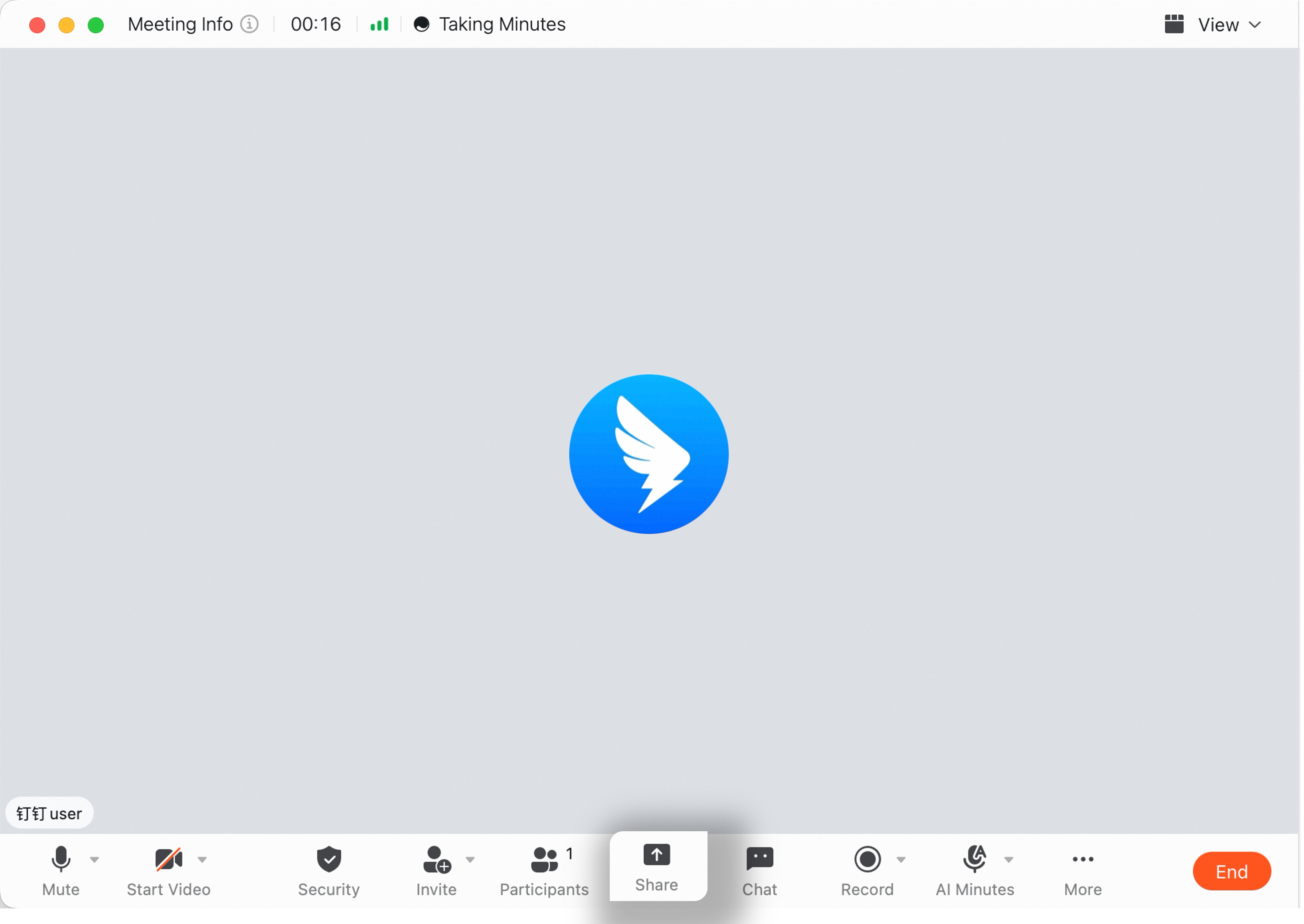
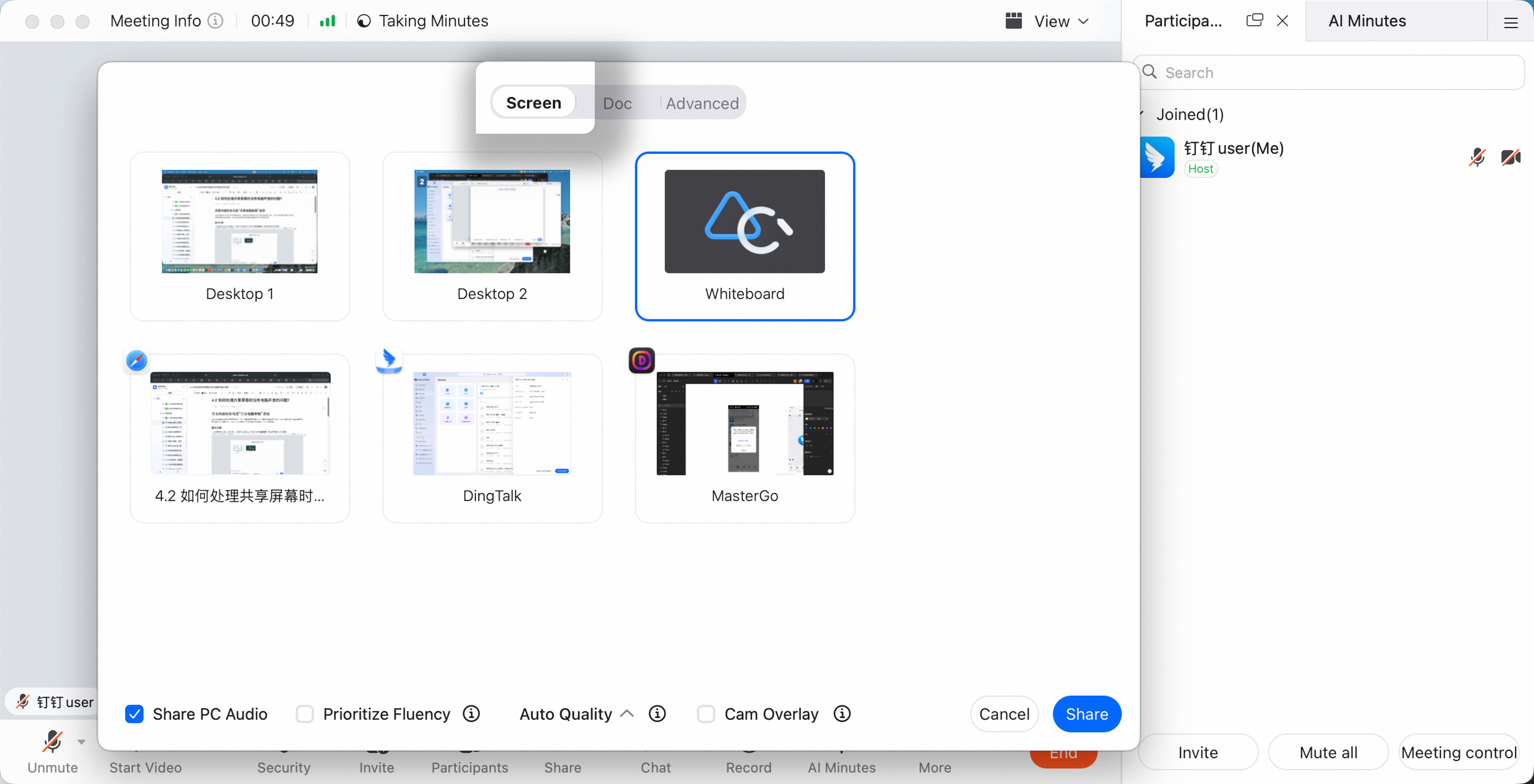
During a meeting on desktop, click Share in the bottom menu bar to open the sharing panel. Two sharing modes are available:- Share Desktop: Share the content of your current desktop with participants. You can choose a window, desktop, or whiteboard to share.
- Share Document: Share a selected DingTalk Doc. This supports collaborative editing and switching between free browsing and follow mode.
- Share computer audio: When sharing your desktop, choose whether to share computer audio so participants can hear sound from your computer.
- Prioritize video smoothness: Select this option when shared content includes video playback to improve smoothness.
After desktop sharing is turned on, all members can view the shared content.
 Share screen
 Share documents
Sharing Toolbar
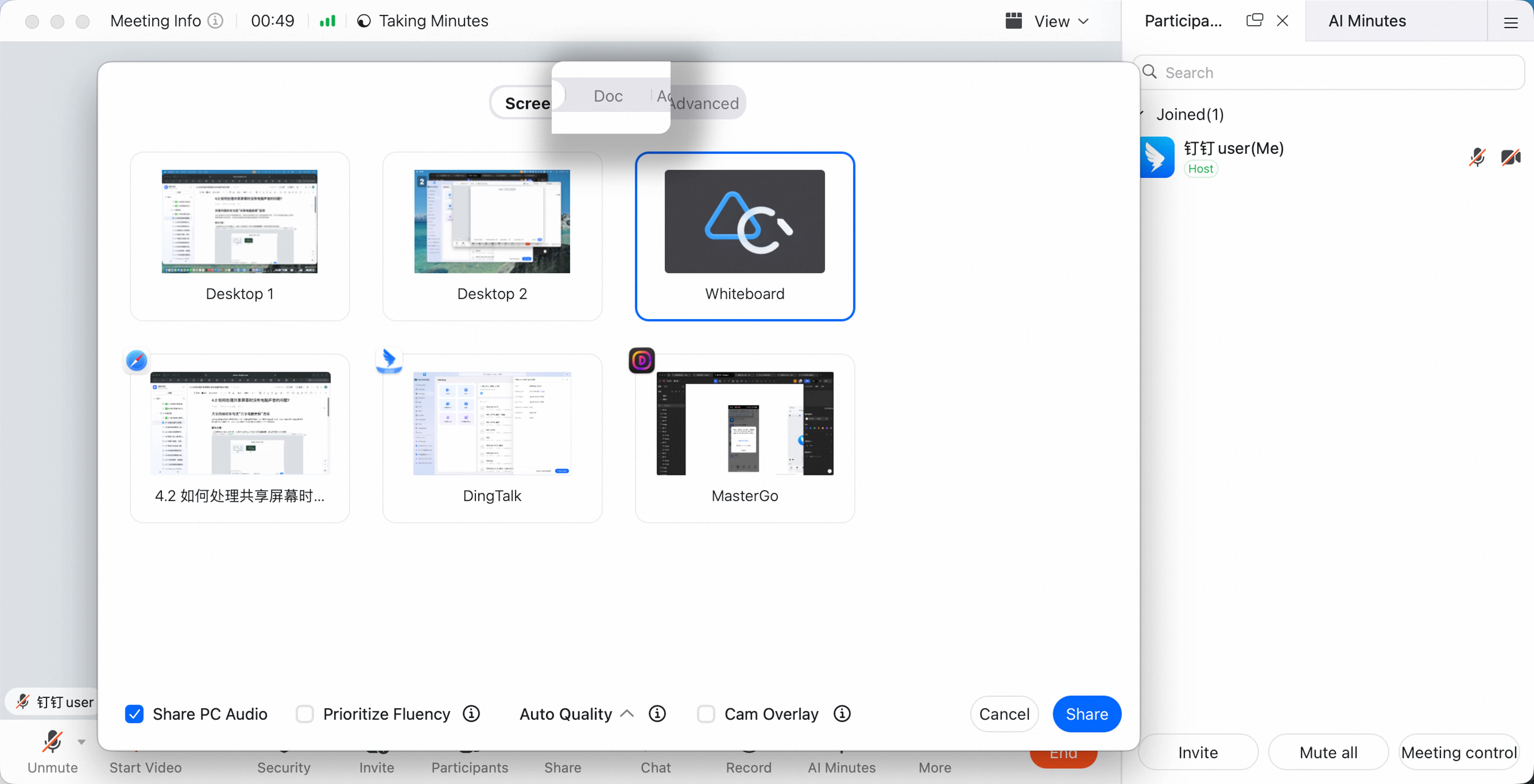
When sharing your screen, a toolbar appears at the top of the screen and supports the following feature: Move the toolbar: Drag the icon on the far left to move the toolbar and prevent it from blocking content.
Share Your Screen on Mobile
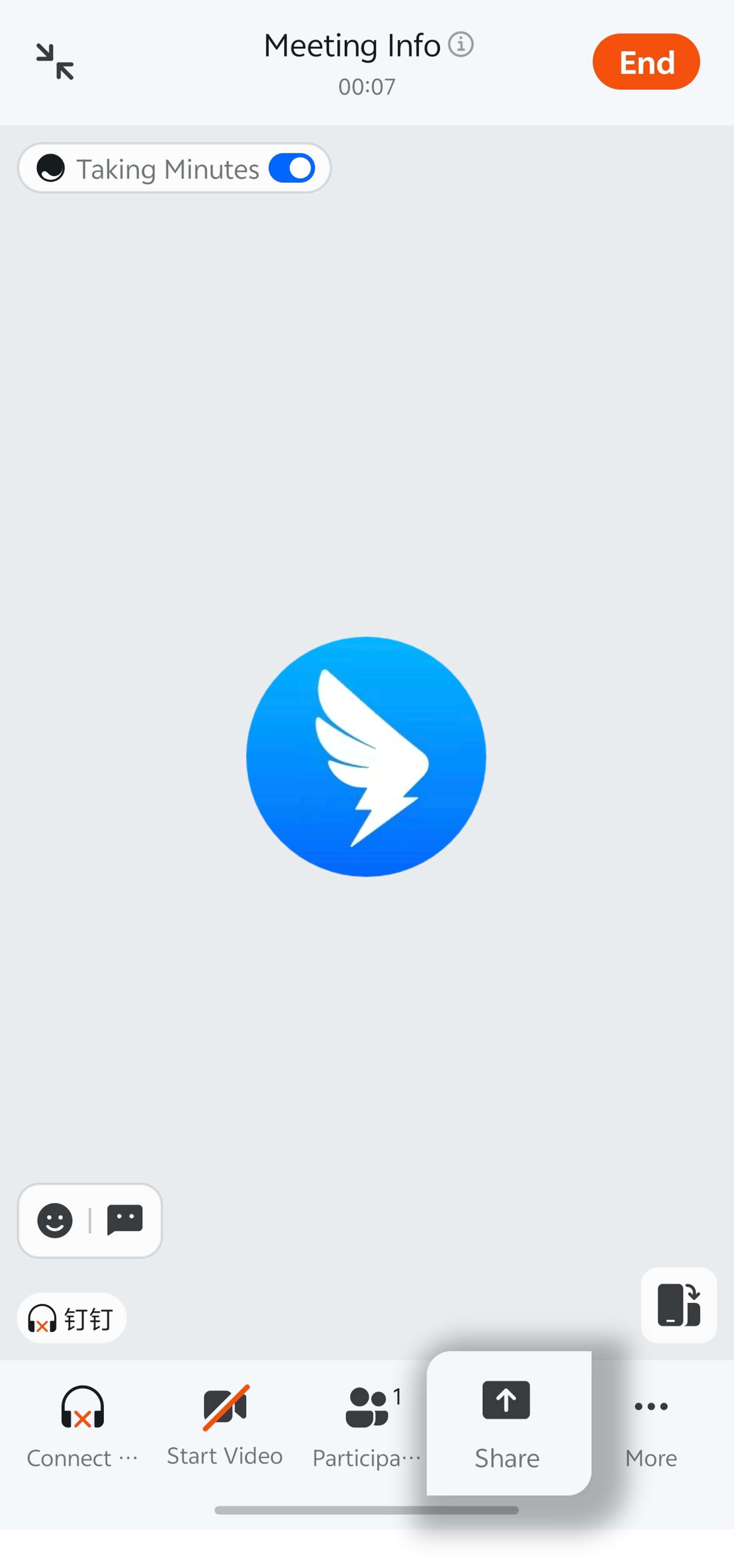
During a meeting on mobile, tap Share in the bottom menu bar >> select Share Screen or Share Document.