Chats
Chats Calendar
 Meetings
 Contacts
 Mail
Mail Docs
Docs Drive
Drive AI Table
 AI Minutes
 Attendance
 Approval
 YiDA
YiDA Admin Console
How to Use Breakout Rooms?
After breakout rooms are enabled, the host can divide participants into smaller groups for discussion. When the discussion ends, everyone can return to the main meeting room.- Messages and activities inside each breakout room, including chat, video meeting, sharing, and reactions, are visible only within that room.
- The host can freely enter and leave each breakout room and join the discussions.
Availability
- Only the host or co-host can configure breakout rooms.
- Free users can create up to 2 breakout rooms. Paid versions support up to 50 breakout rooms.
Create Breakout Rooms as Host
Entry point: During a meeting, click More at the bottom, then click Breakout Rooms.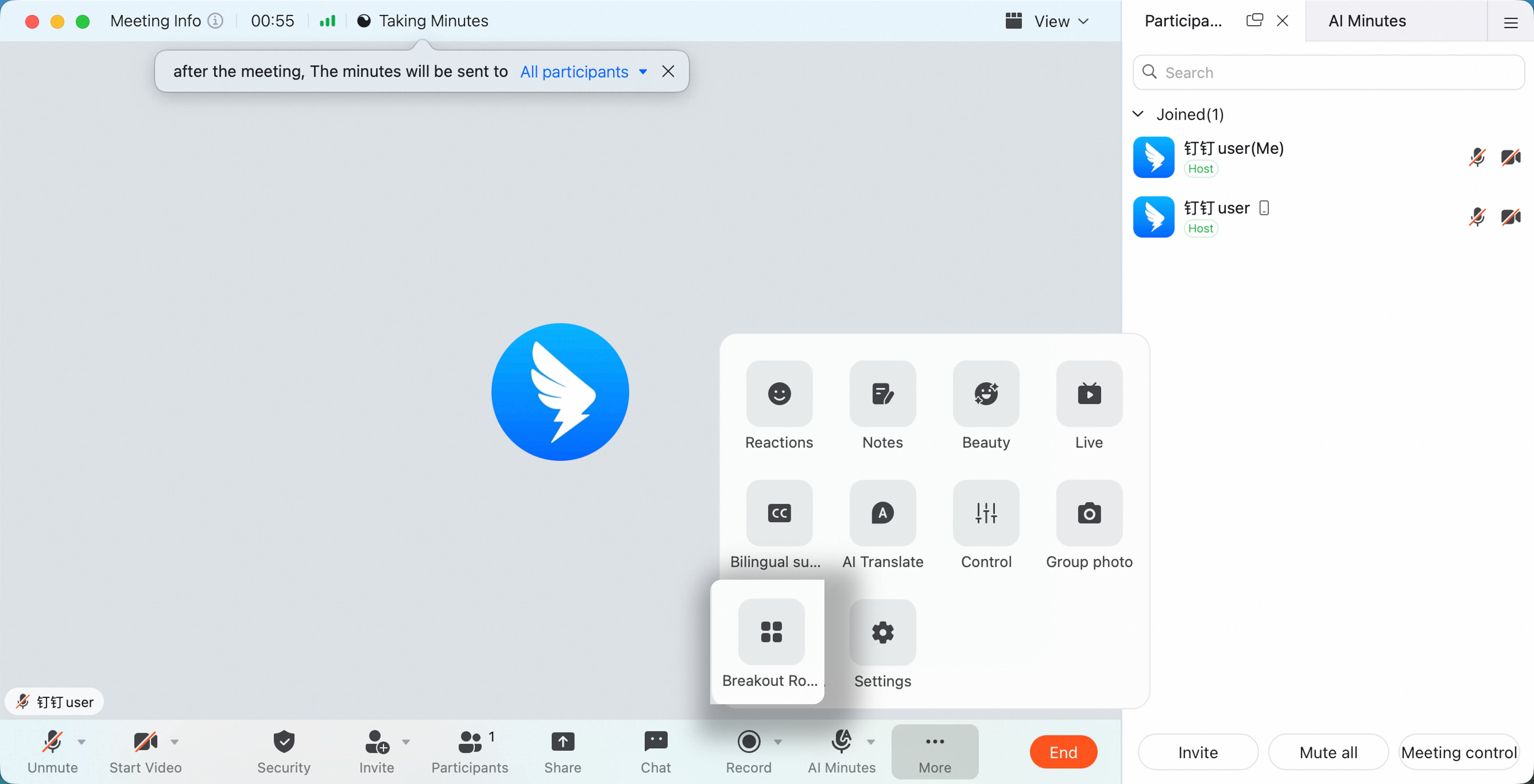
Grouping Methods
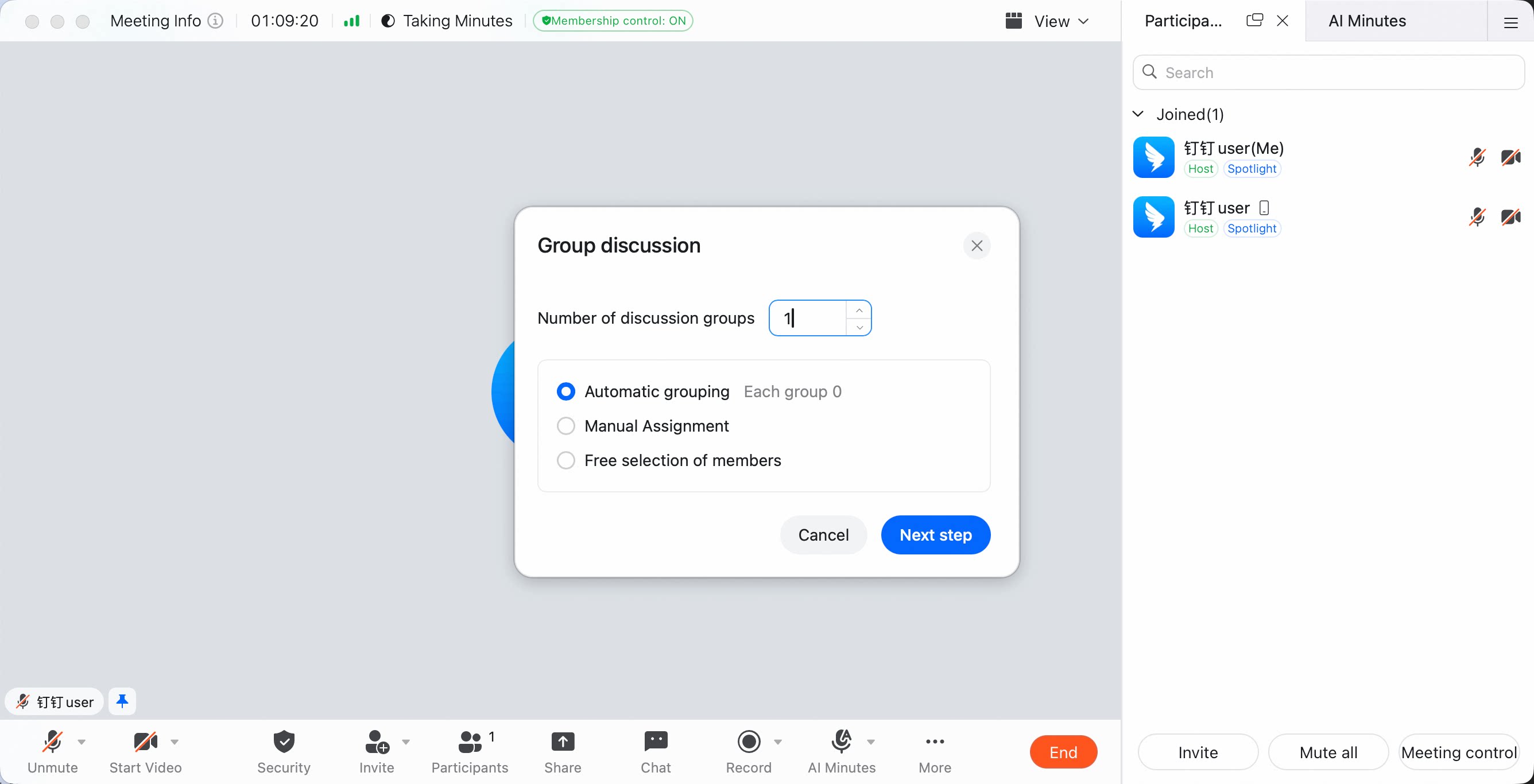
The host can choose the number of rooms and assign participants in three ways:- Auto assign: Participants are randomly assigned to different rooms.
- Manual assign: The host assigns participants to the desired rooms.
- Participants choose rooms: Participants choose which rooms to join.
Free users can currently create up to 2 breakout rooms. Paid users can create up to 50 breakout rooms.
Edit Breakout Rooms
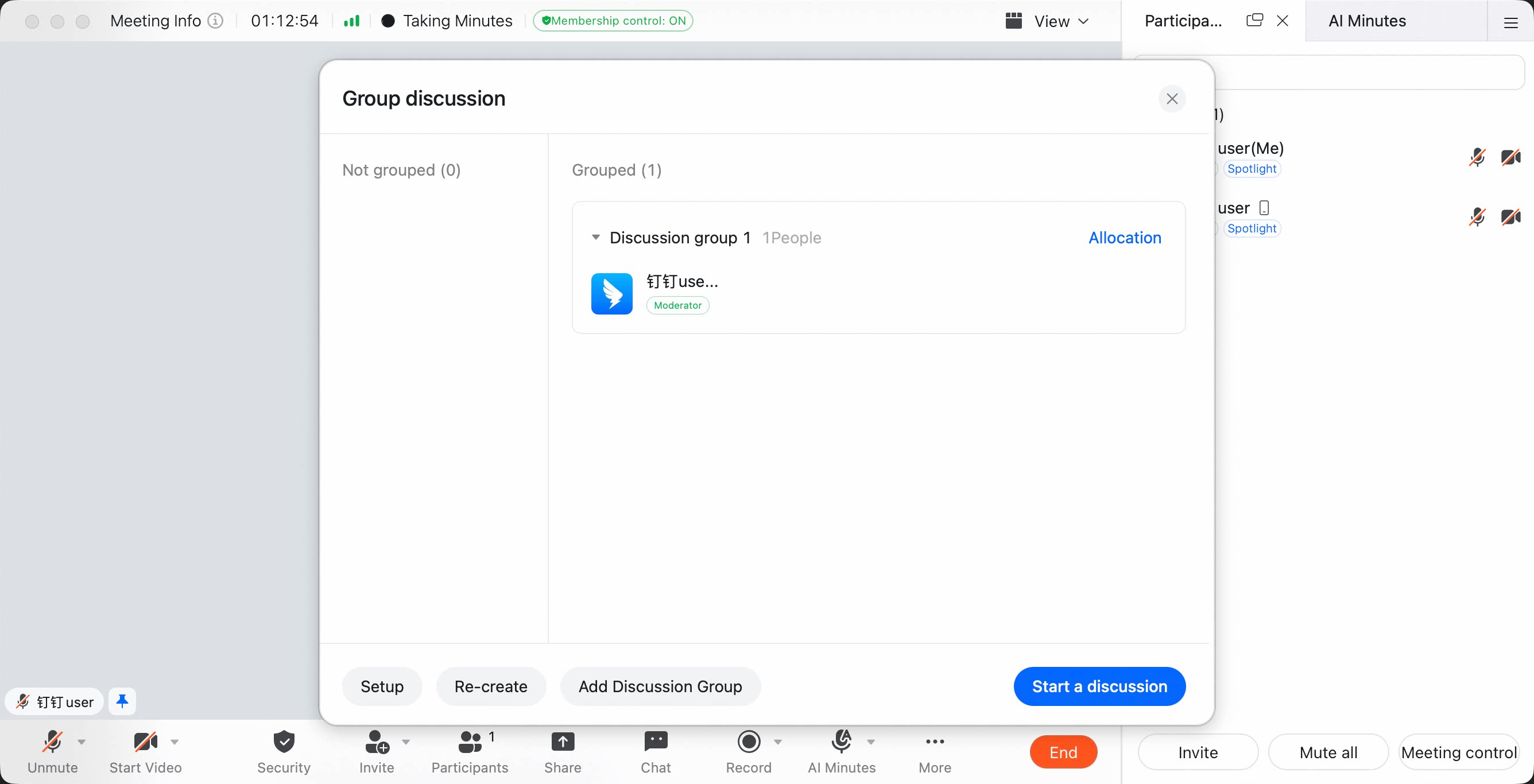
After creating breakout rooms, the host can continue editing them as needed.- Manage room members: Arrange members in each breakout room.
- Manage rooms: Add, delete, or rename breakout rooms.
- Breakout room settings: Set the discussion duration, participant movement permissions, and other options.
Manage Breakout Room Members
- Assign members: Hover over the breakout room name and click Assign to select room members.
- Move members: Drag a member into or out of a room, or hover over the member and click Move to to choose another room.
Add or Delete Breakout Rooms
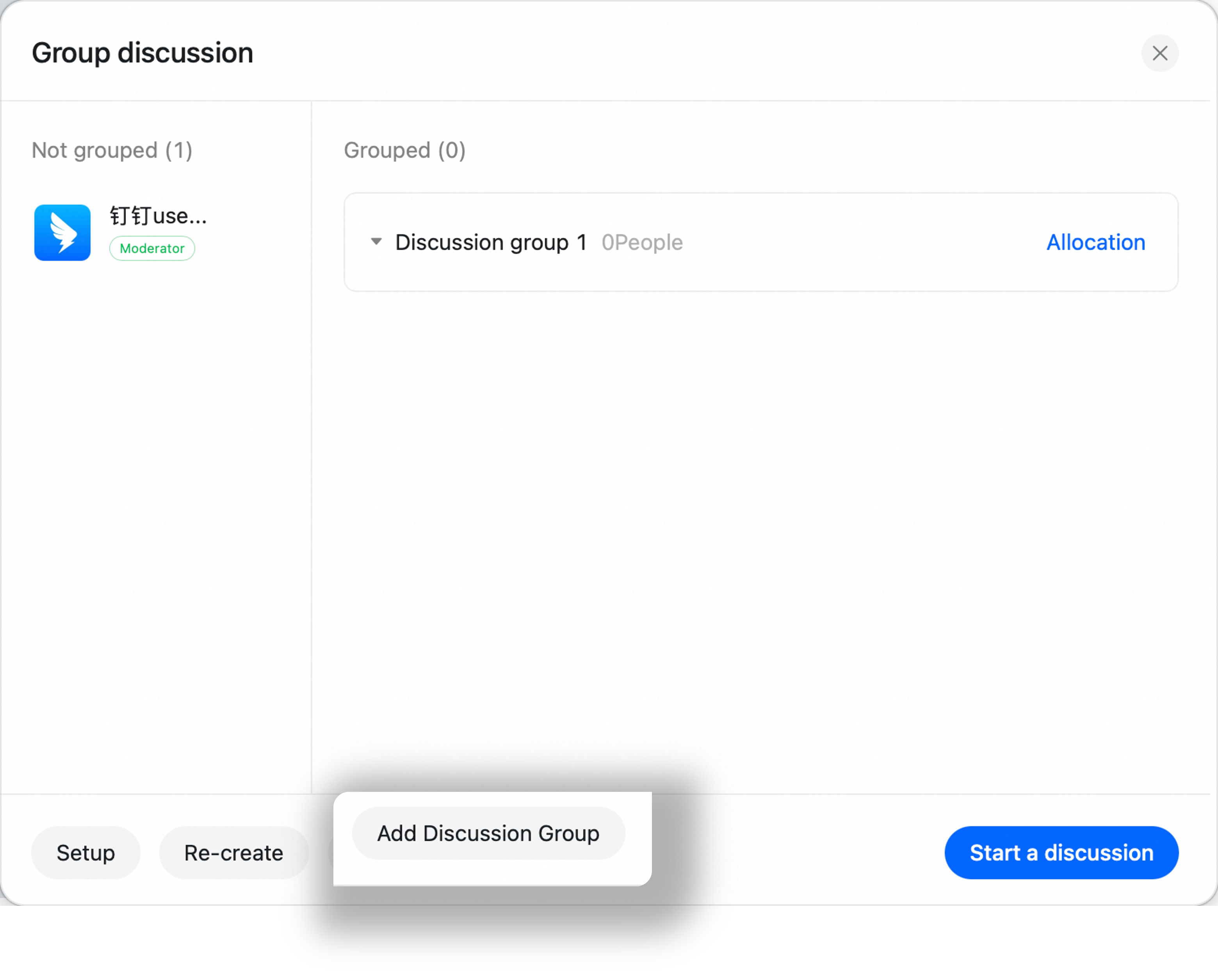
- Add a room: Click Add Disscussion Group in the lower-left corner of the breakout room panel.
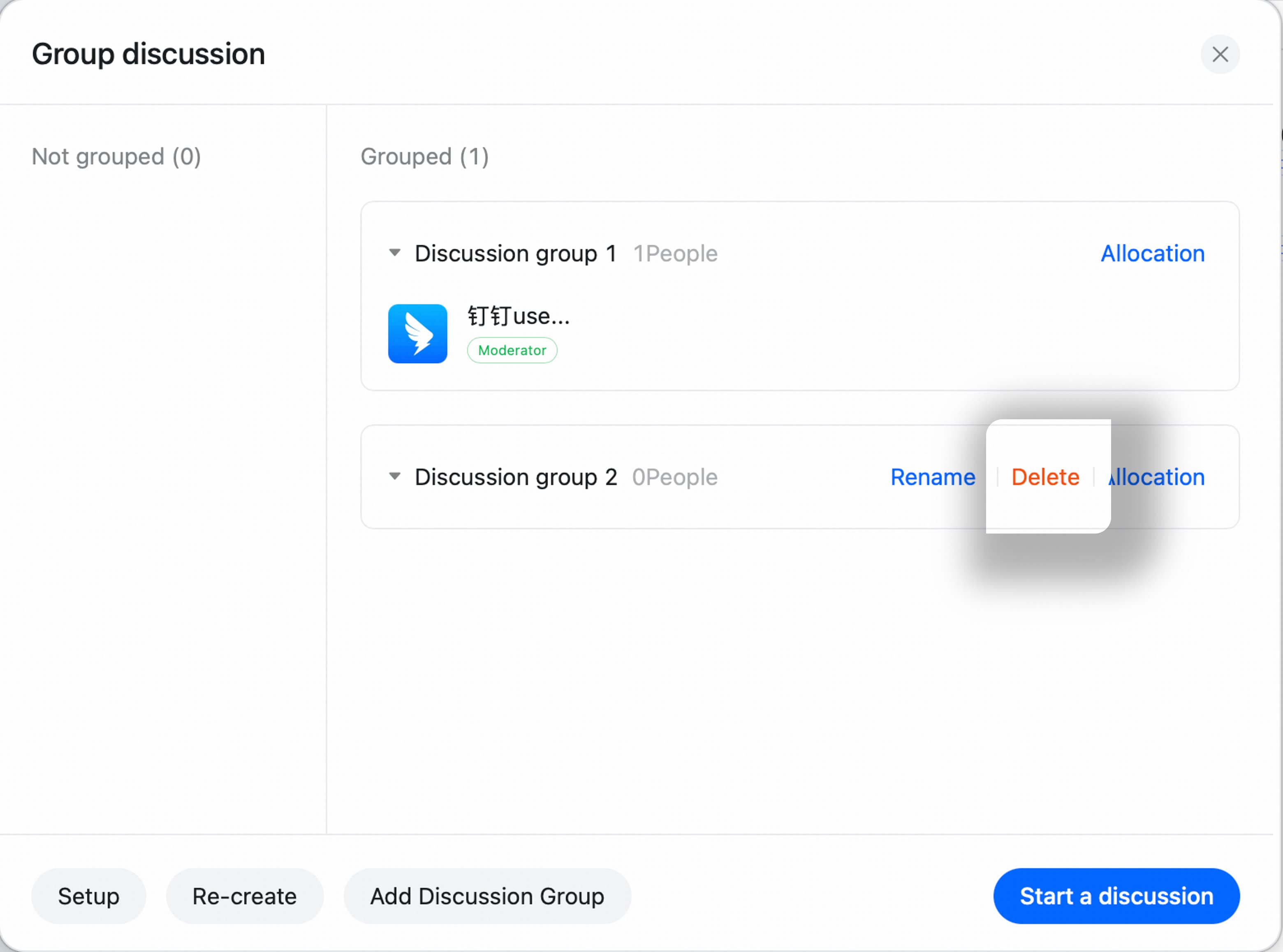
- Delete a room: Hover over the room name and click the delete button on the right.
Rename a Breakout Room
Hover over the breakout room name, click Rename on the right, enter a new room name, then click outside the field or press Esc to finish.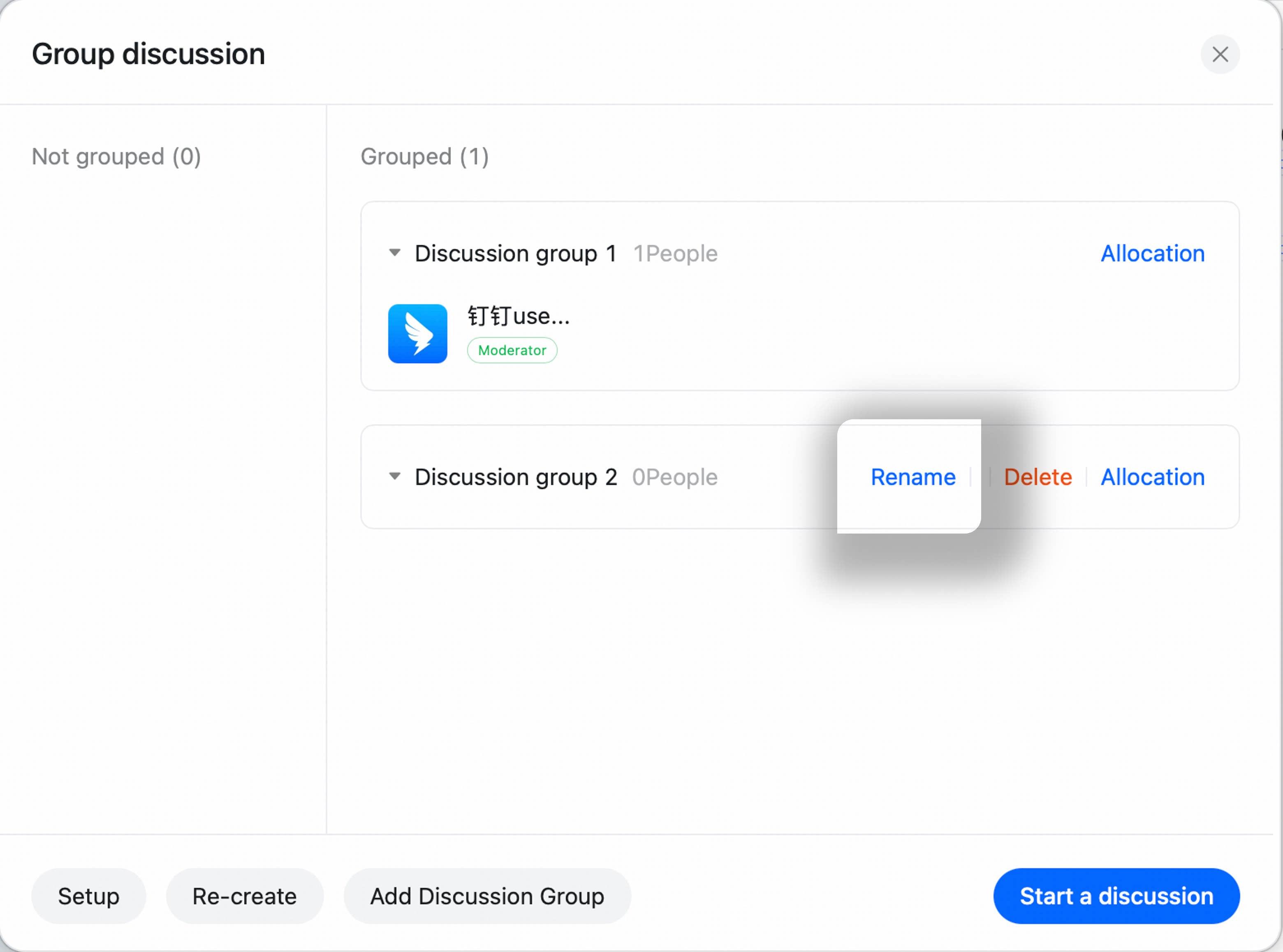
Configure Breakout Room Settings
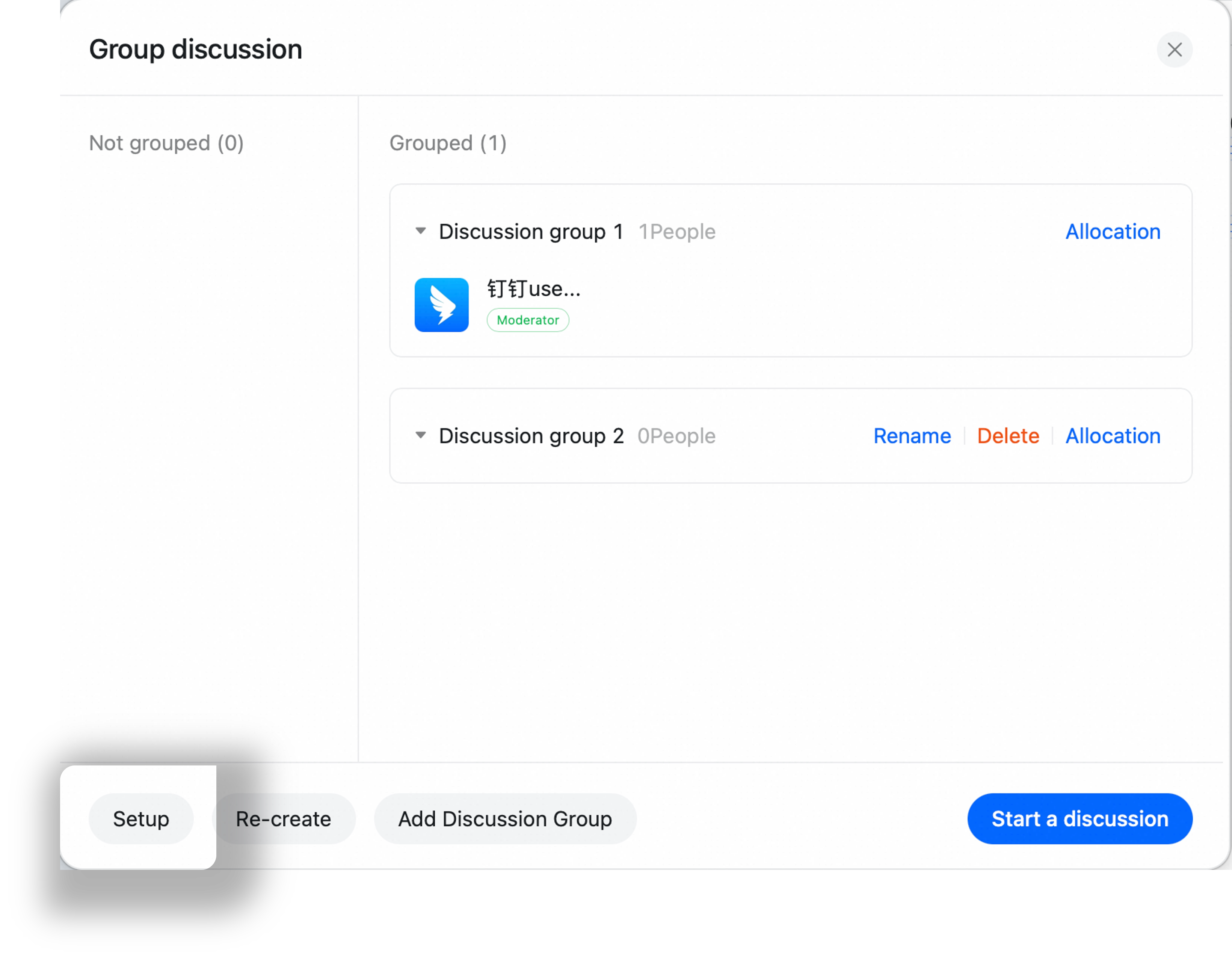
Click Settings in the lower-left corner of the breakout room panel. You can configure:- How members join breakout rooms: require member confirmation or automatically join assigned rooms.
- Member movement permissions: whether members can return to the main meeting room at any time and choose rooms themselves.
- Return countdown: how many minutes the discussion lasts before it ends automatically.
During Breakout Room Discussions
During breakout discussions, information inside a room is visible only to that room, including chat, video, sharing, and reactions.View the Current Room
The upper-left corner of the meeting window shows the current room or main meeting room.
Host: Join a Breakout Room
During a meeting, click More, click Breakout Rooms to open the panel, hover over the room name, click Assign, and select yourself to join that room.Host: Broadcast a Message
During a meeting, click More, click Breakout Rooms to open the panel. After discussion starts, click the broadcast button in the lower-left corner, enter the message, then click Send. All participants receive the broadcast.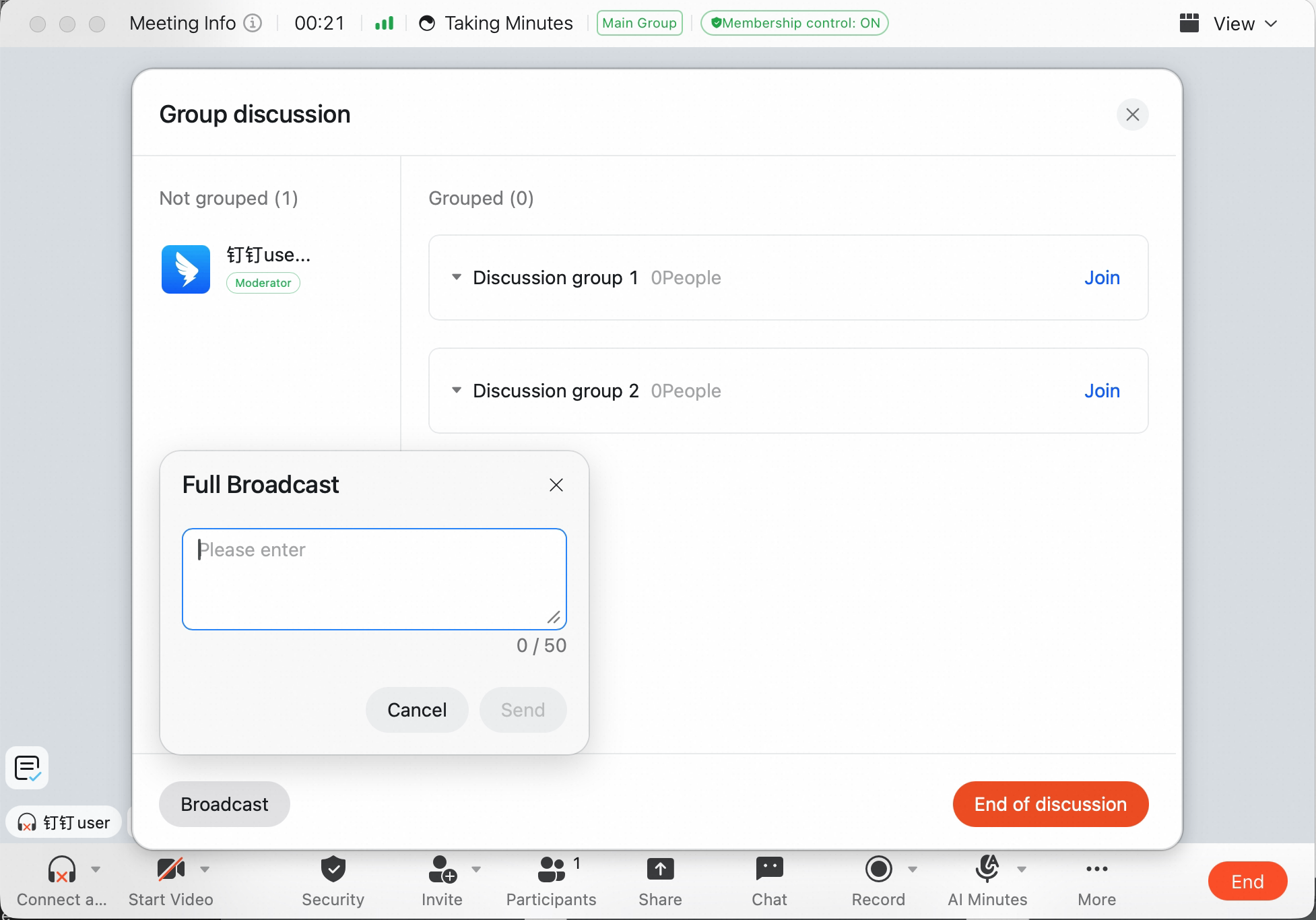
End Breakout Room Discussions
End Manually
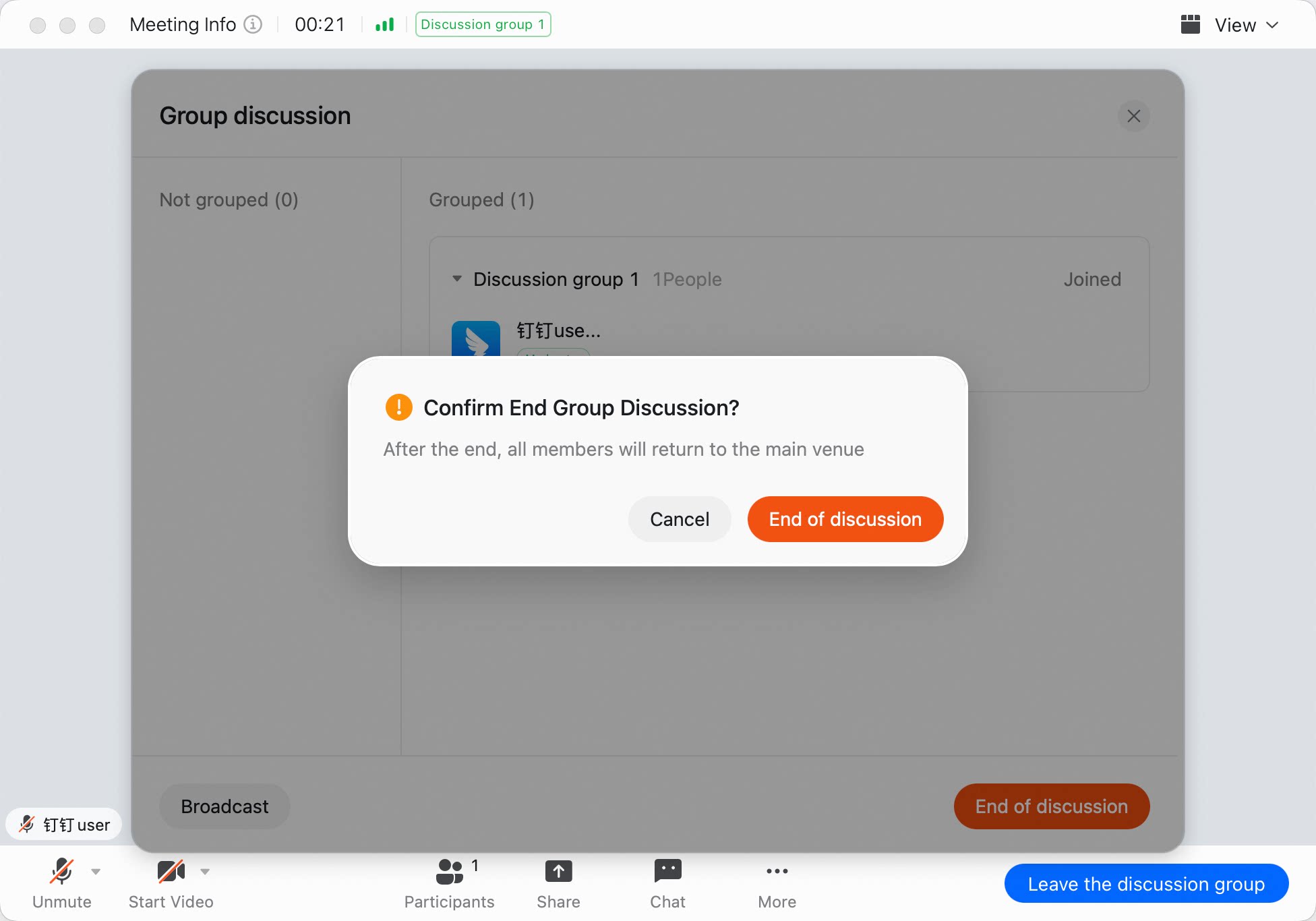
During a meeting, click More, click Breakout Rooms to open the panel, click End Discussion in the lower-right corner, then confirm by clicking End Discussion in the pop-up.