

 Chats
Chats Calendar
 Meetings
 Contacts
 Mail
Mail Docs
Docs Drive
Drive AI Table
 AI Minutes
 Attendance
 Approval
 YiDA
YiDA Admin Console
Start a Meeting Guide
Start a Meeting on Desktop
Start from the Meetings Page
Open and sign in to the DingTalk desktop client >> click Meetings on the left side of the client >> enter the Meetings page >> click Start Meeting.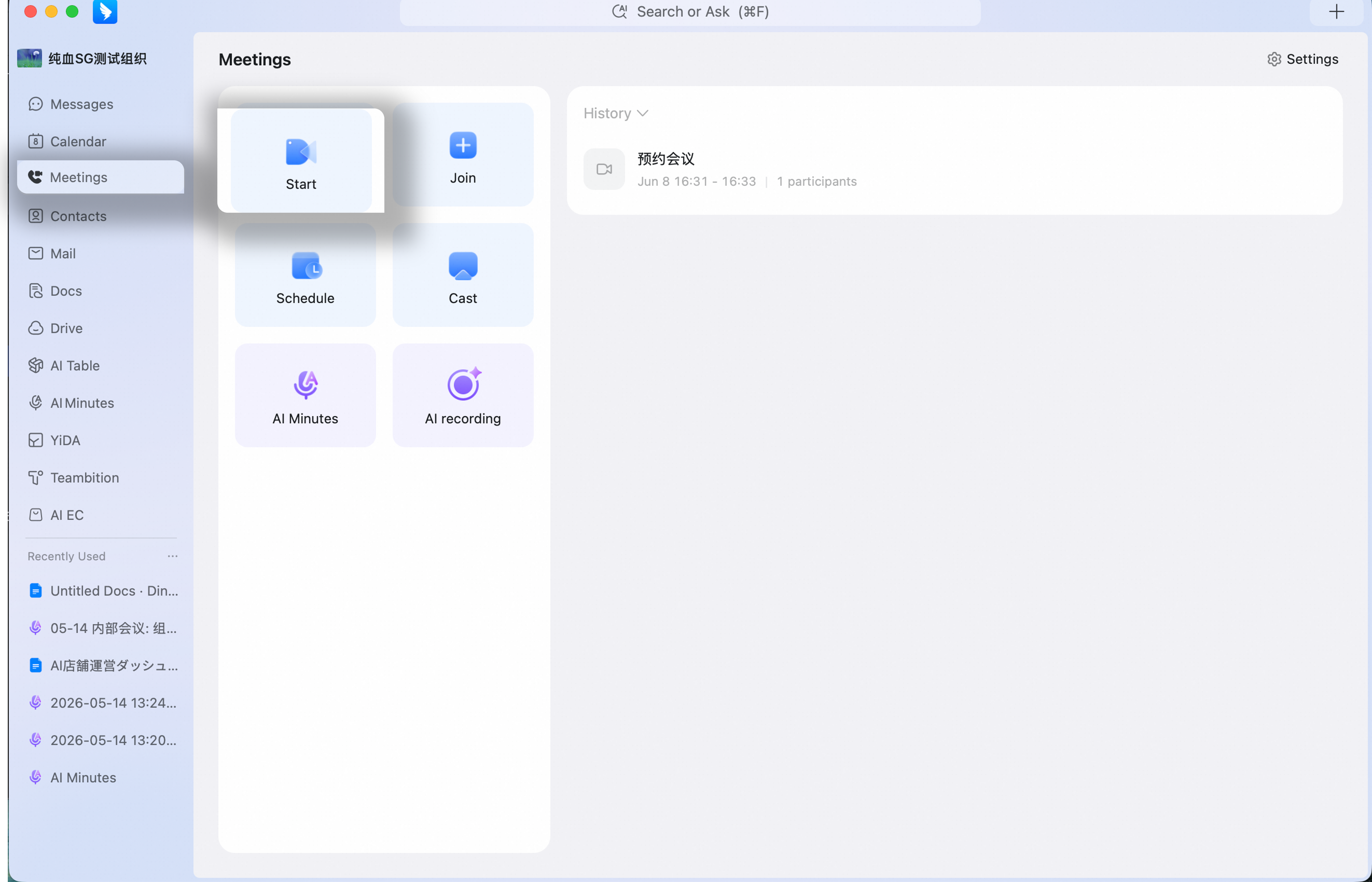
Start from a Chat Window
Open and sign in to the DingTalk desktop client >> click the + icon below the chat input box >> select Video and Calls.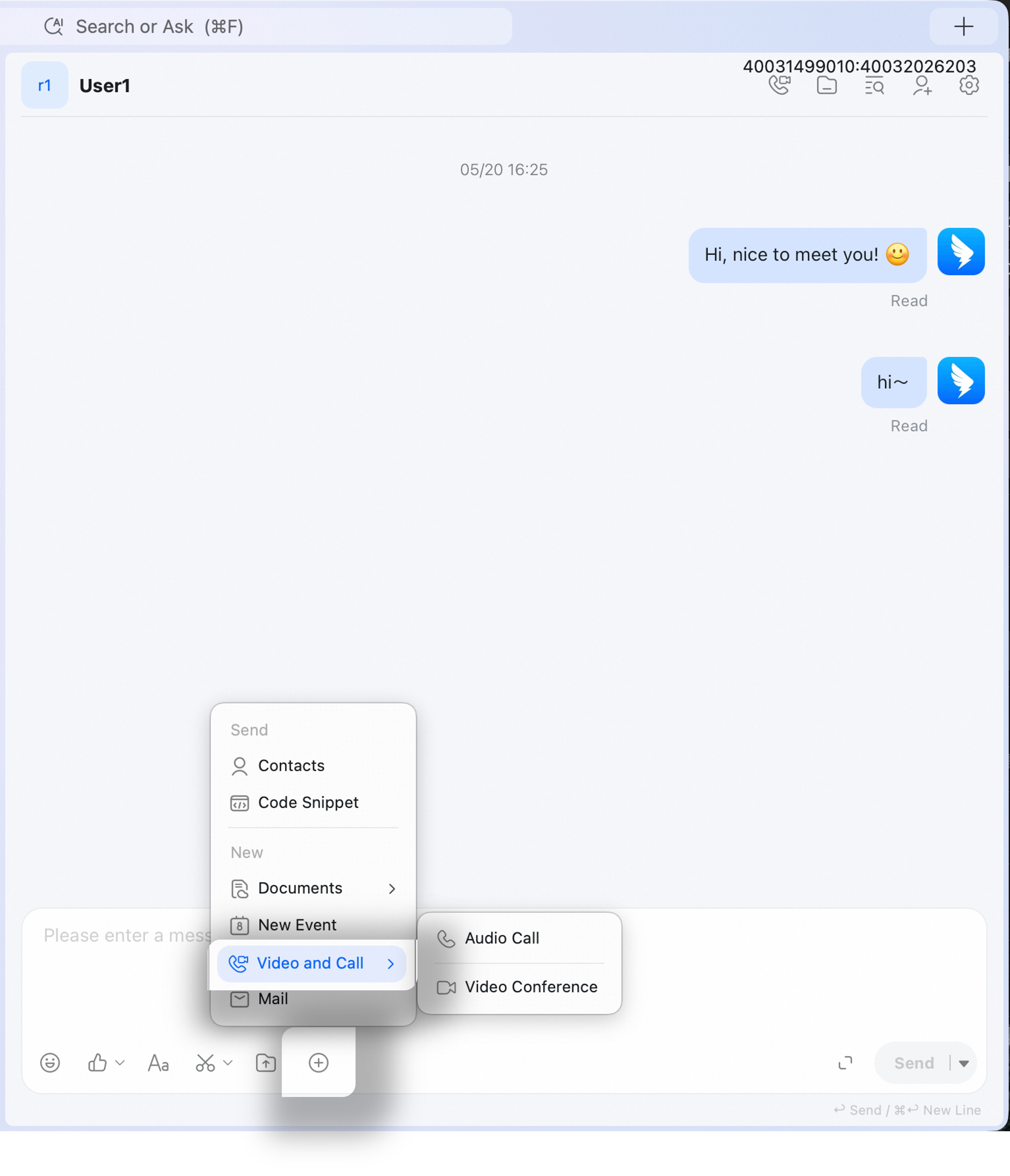
Start a Meeting on Mobile
Start from the Meetings Page
Open and sign in to the DingTalk mobile app >> tap the Calls icon in the upper-right corner >> tap Start Meeting.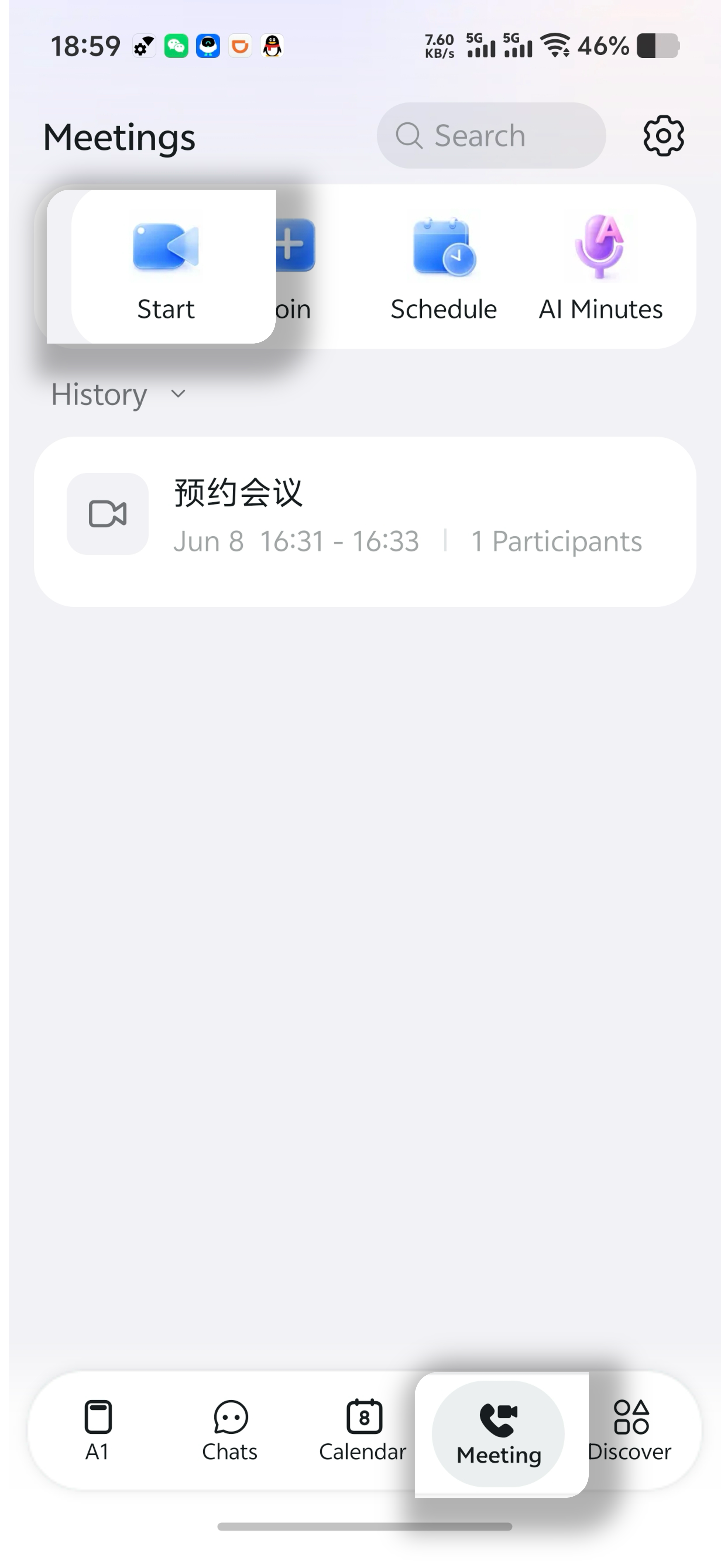
Schedule a Meeting Guide
Schedule a Meeting on Desktop
Schedule from the Meetings Page
Method 1: Open the DingTalk desktop client >> click Meetings on the left side >> click Schedule Meeting >> set the meeting time and participants >> click Done.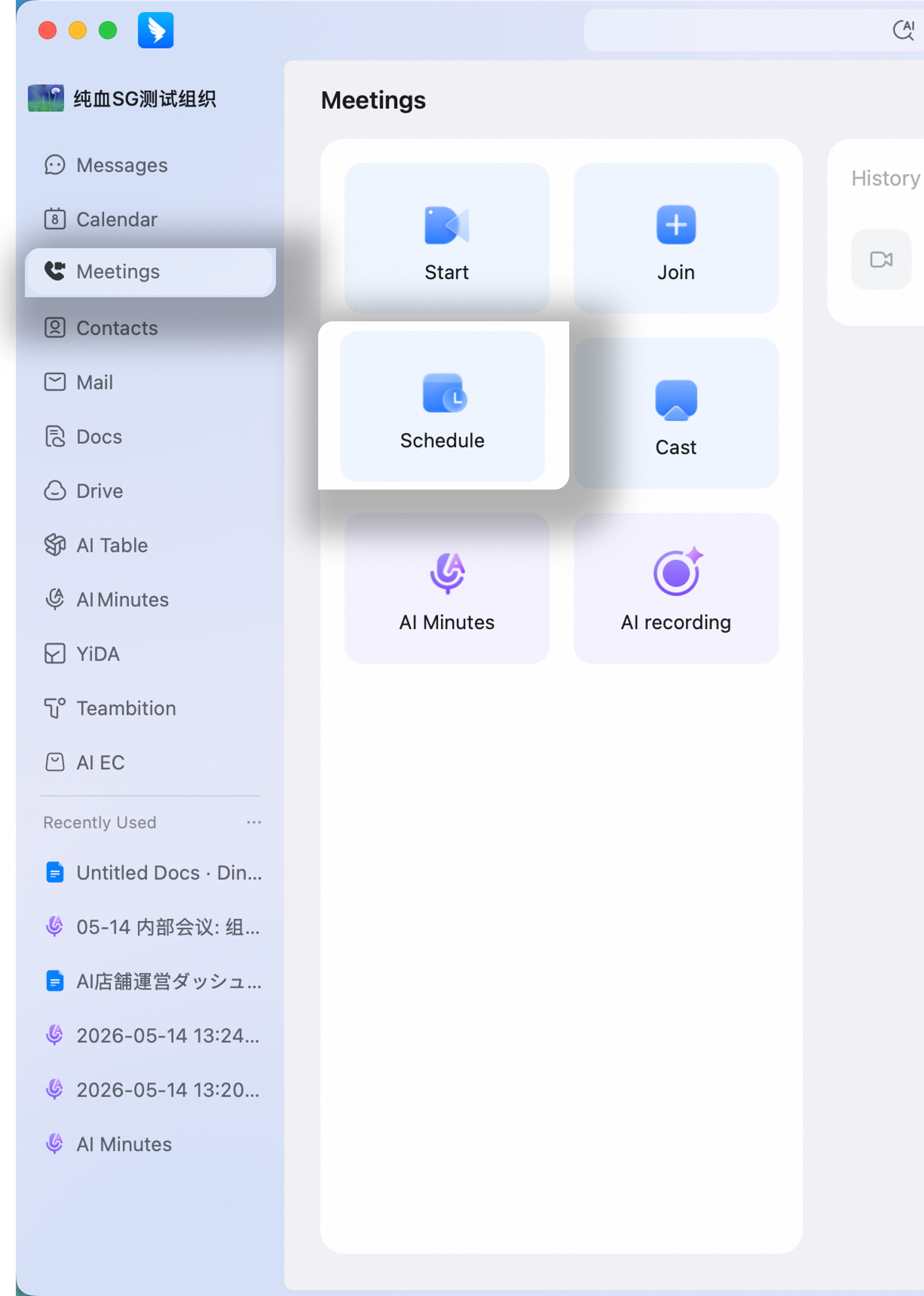
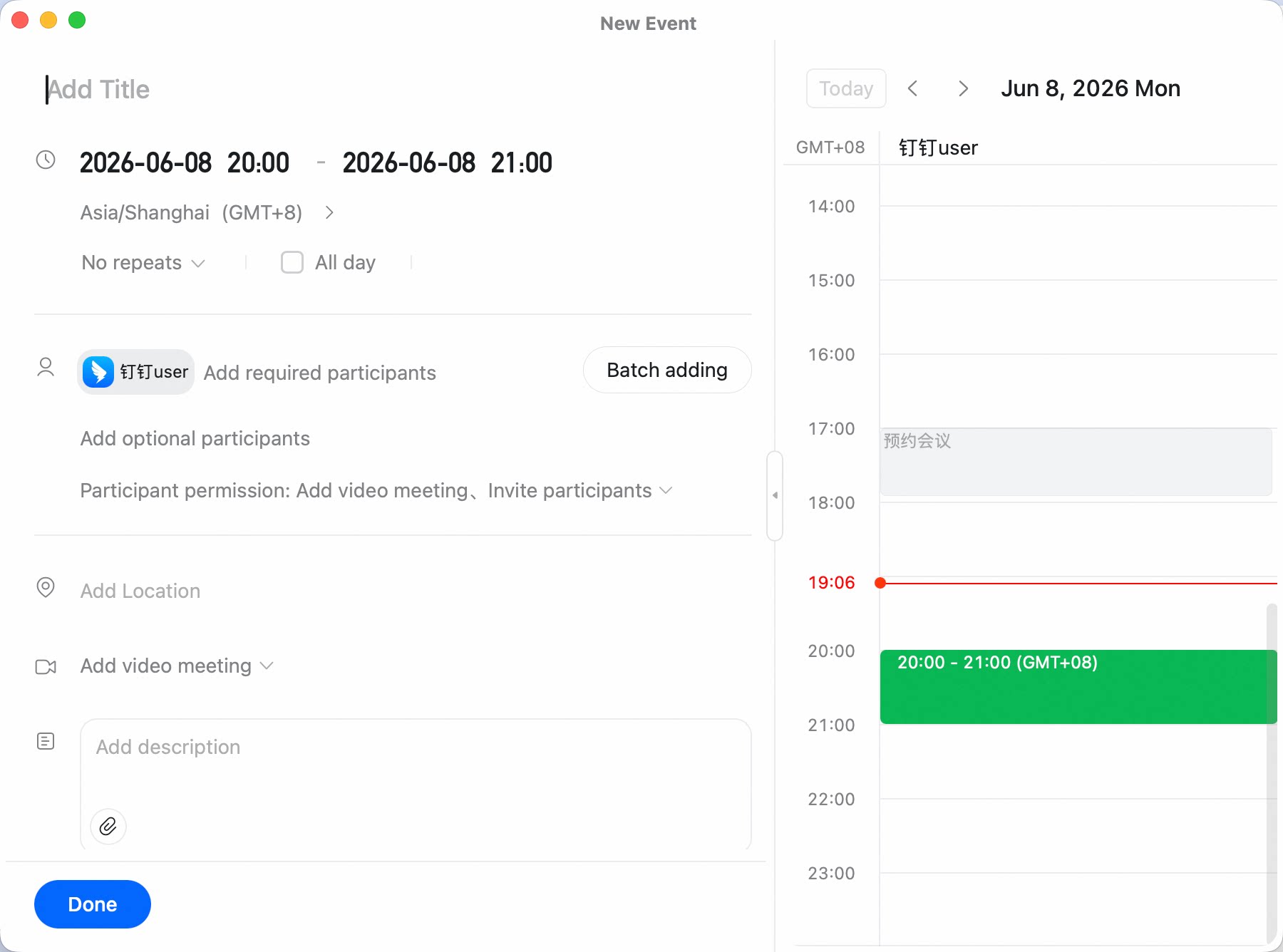
Schedule from the Calendar Page
Open the DingTalk desktop client >> click Calendar on the left side >> click the + button in the upper-left corner >> select the meeting time and participants >> click Add Video Meeting >> select DingTalk Video Meeting >> click Done.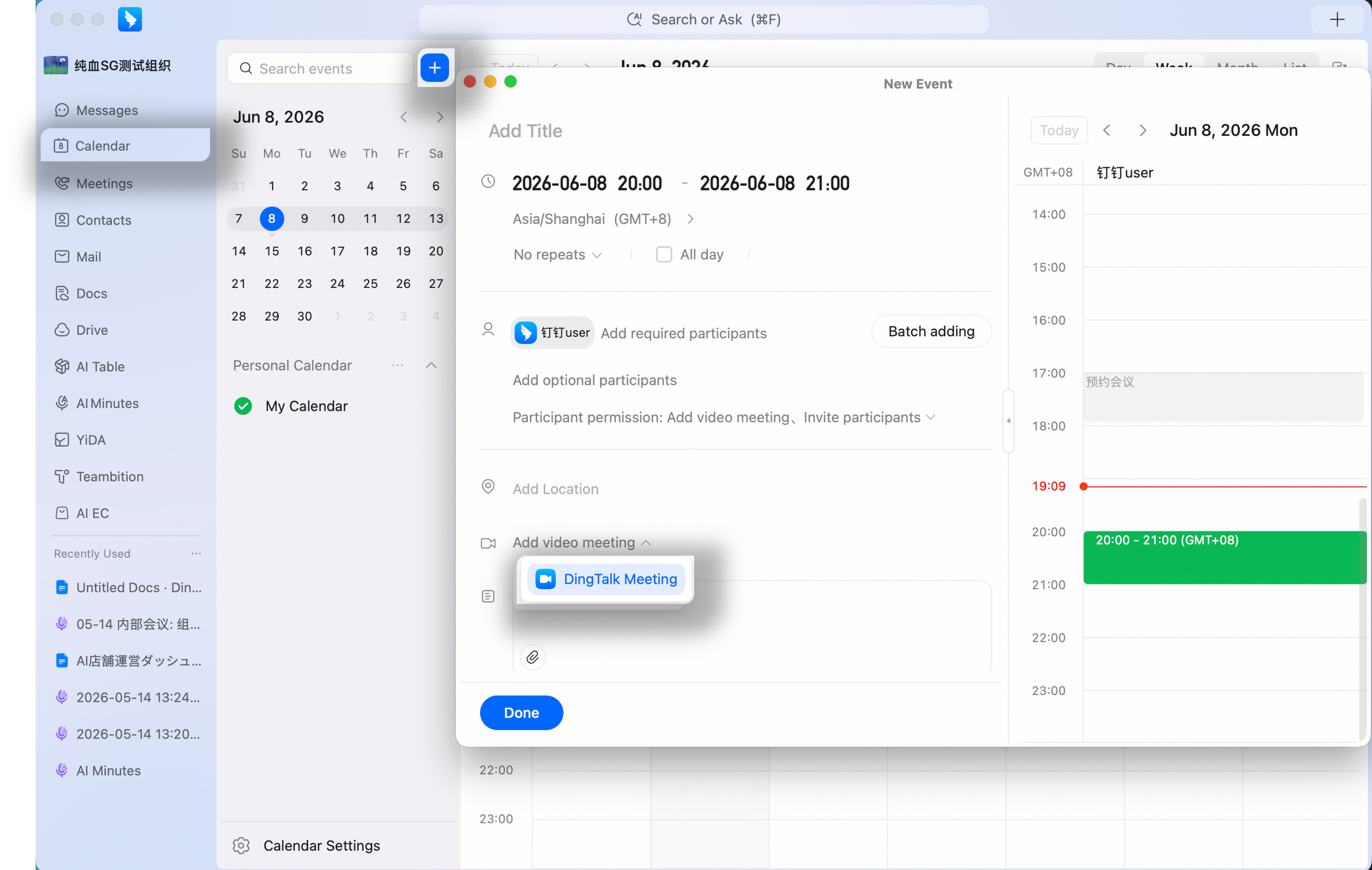
Schedule from a Chat Window
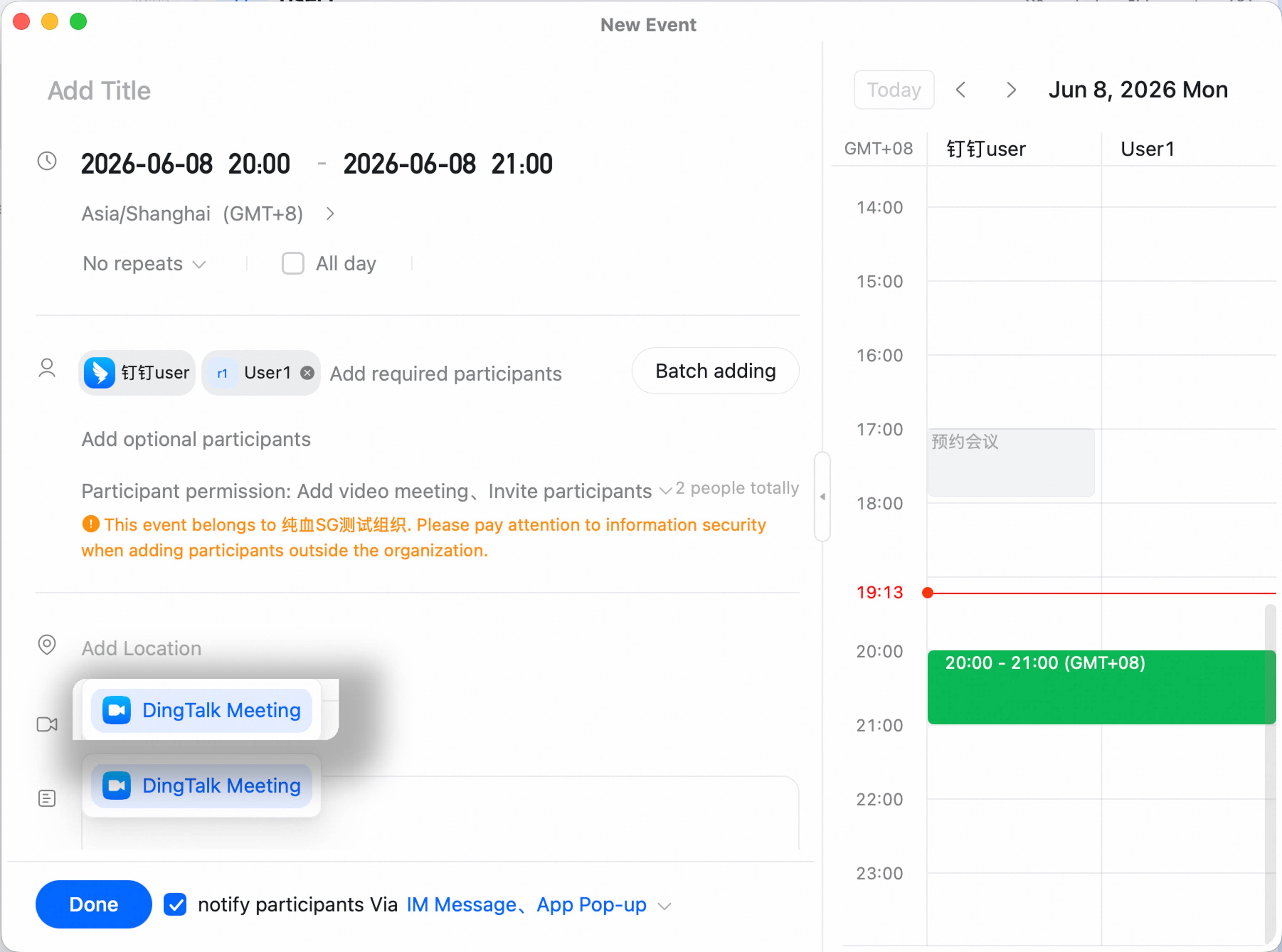
Click the + icon below the chat input box >> click Event >> select the meeting time and participants >> click Add Video Meeting >> select DingTalk Video Meeting >> click Done.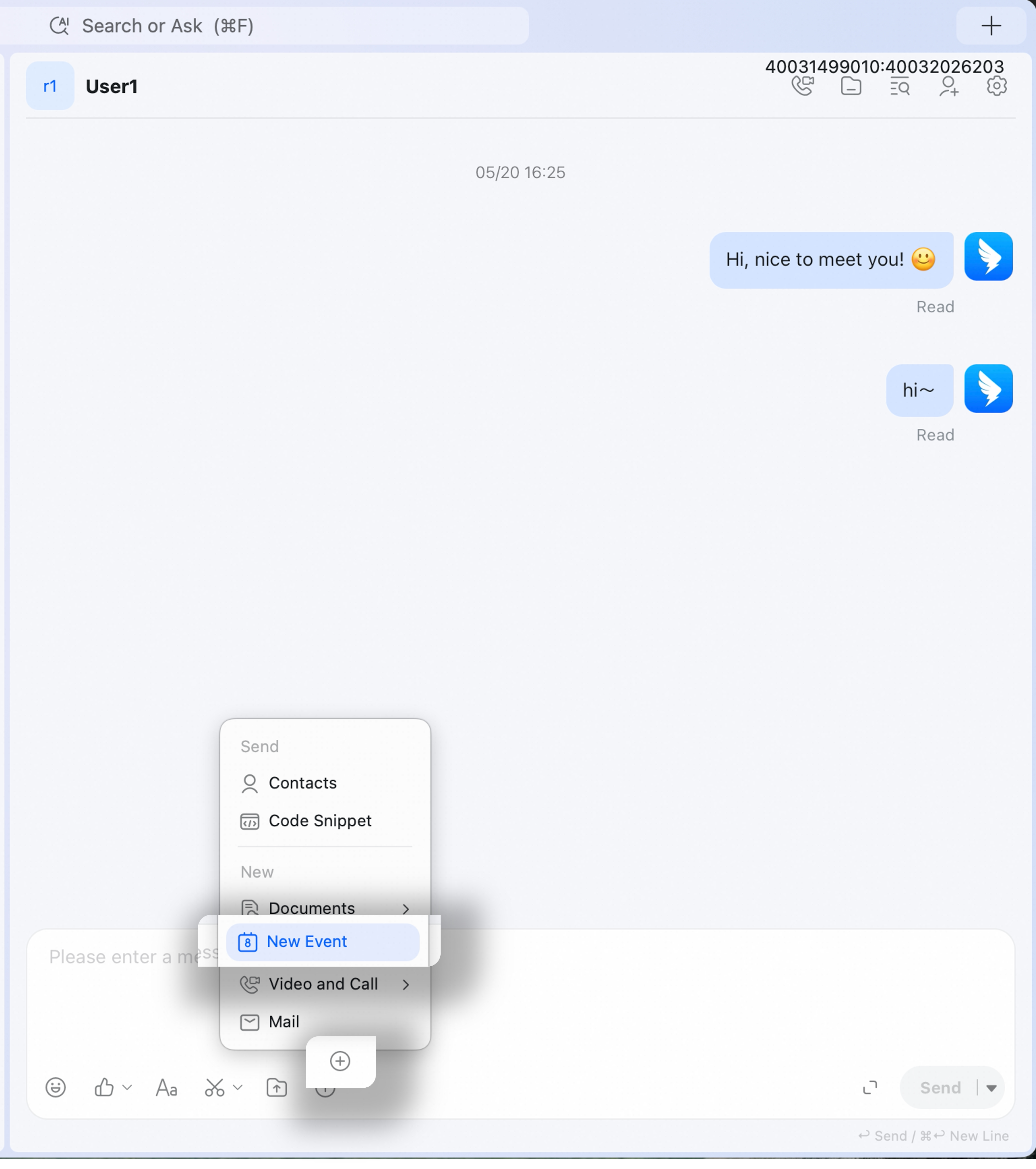
Schedule a Meeting on Mobile
Schedule from the Meetings Page
Open the DingTalk mobile app >> tap the Calls icon in the upper-right corner >> select Schedule Meeting.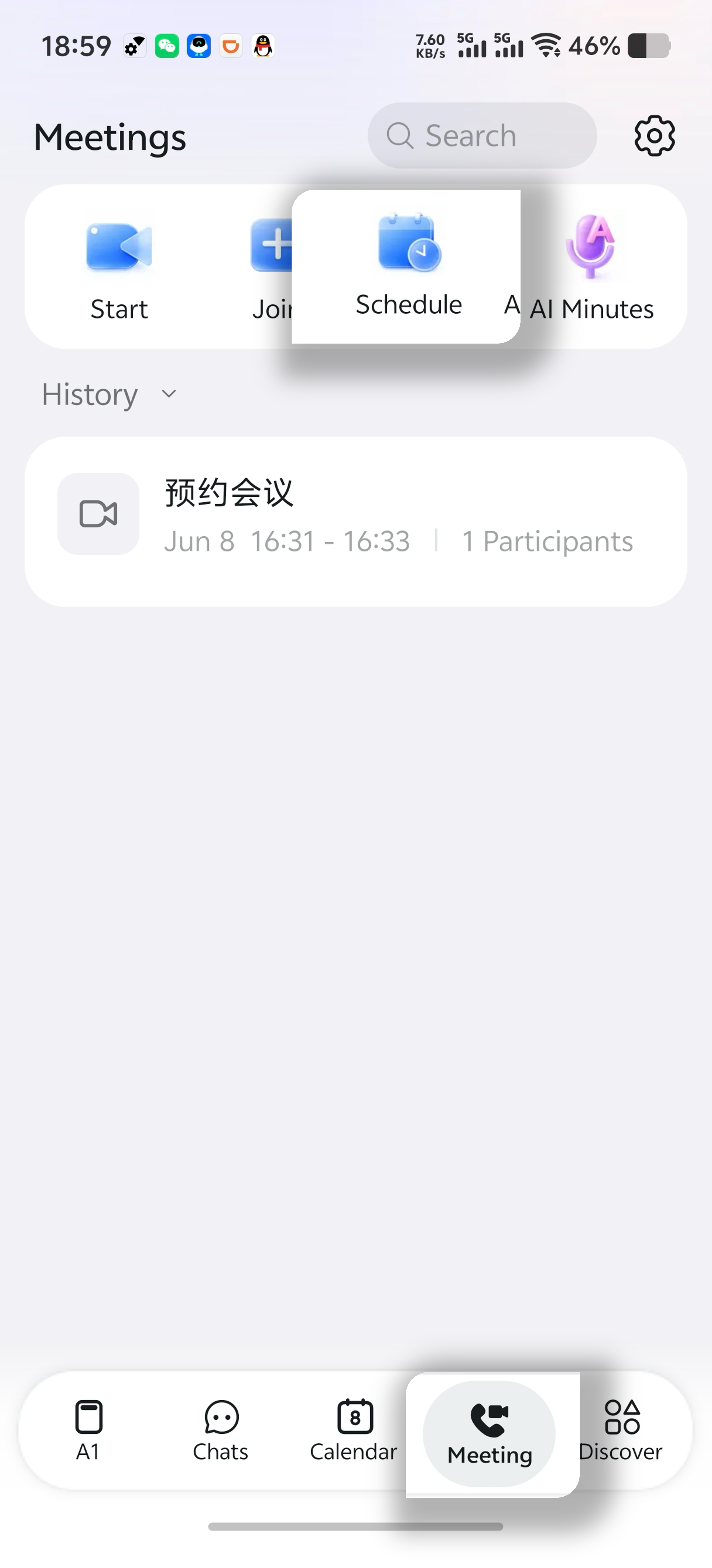
Schedule from the Calendar Page
Open the DingTalk mobile app >> tap Calendar at the bottom >> tap the icon in the lower-right corner to create a new event >> scroll down and tap Add Video Meeting >> select DingTalk Video Meeting.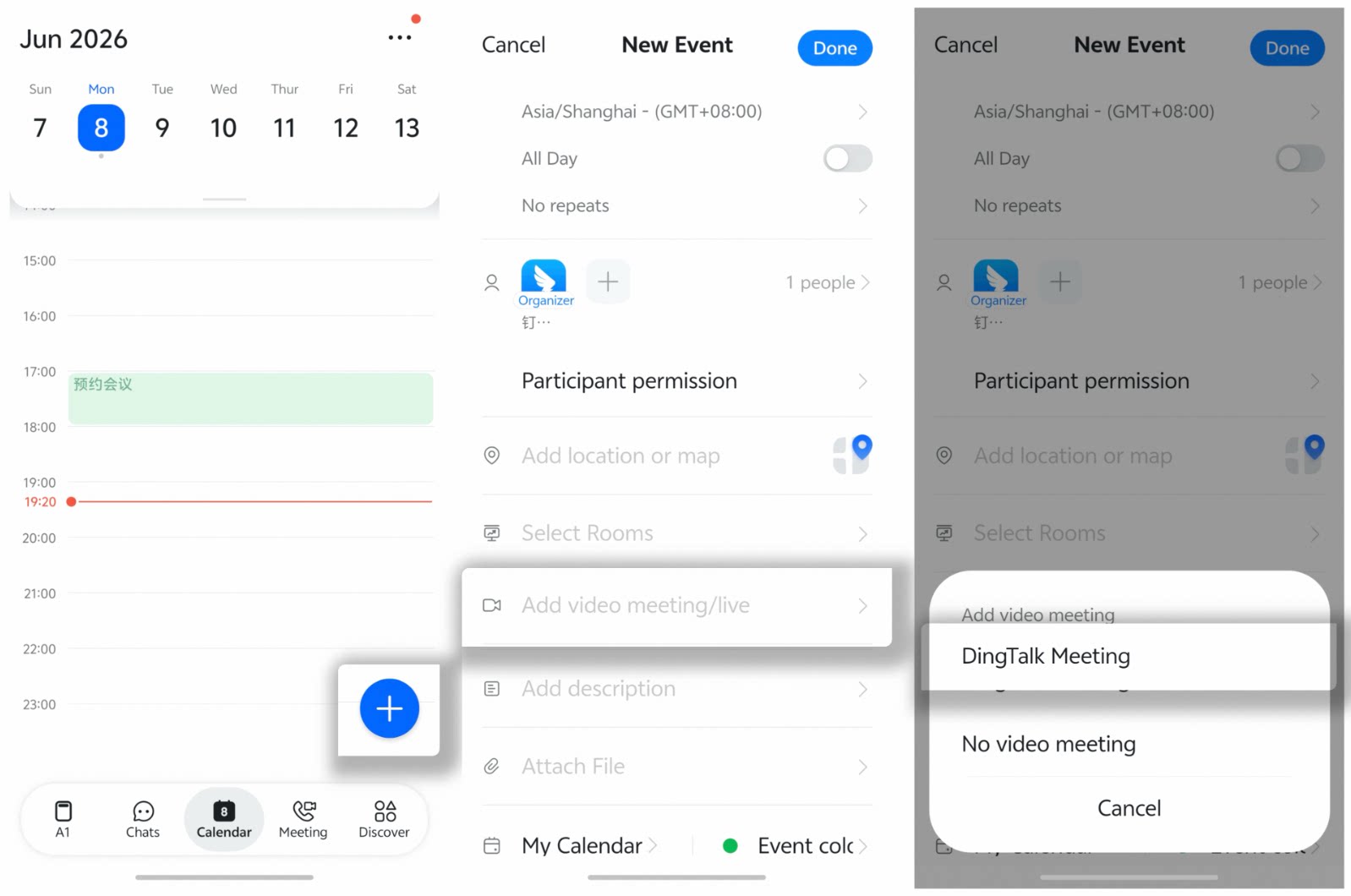
Schedule from a Chat Window
Open a chat window in the DingTalk mobile app >> tap the + icon in the lower-right corner >> tap Event to create a new event >> scroll down and tap Add Video Meeting >> select DingTalk Video Meeting.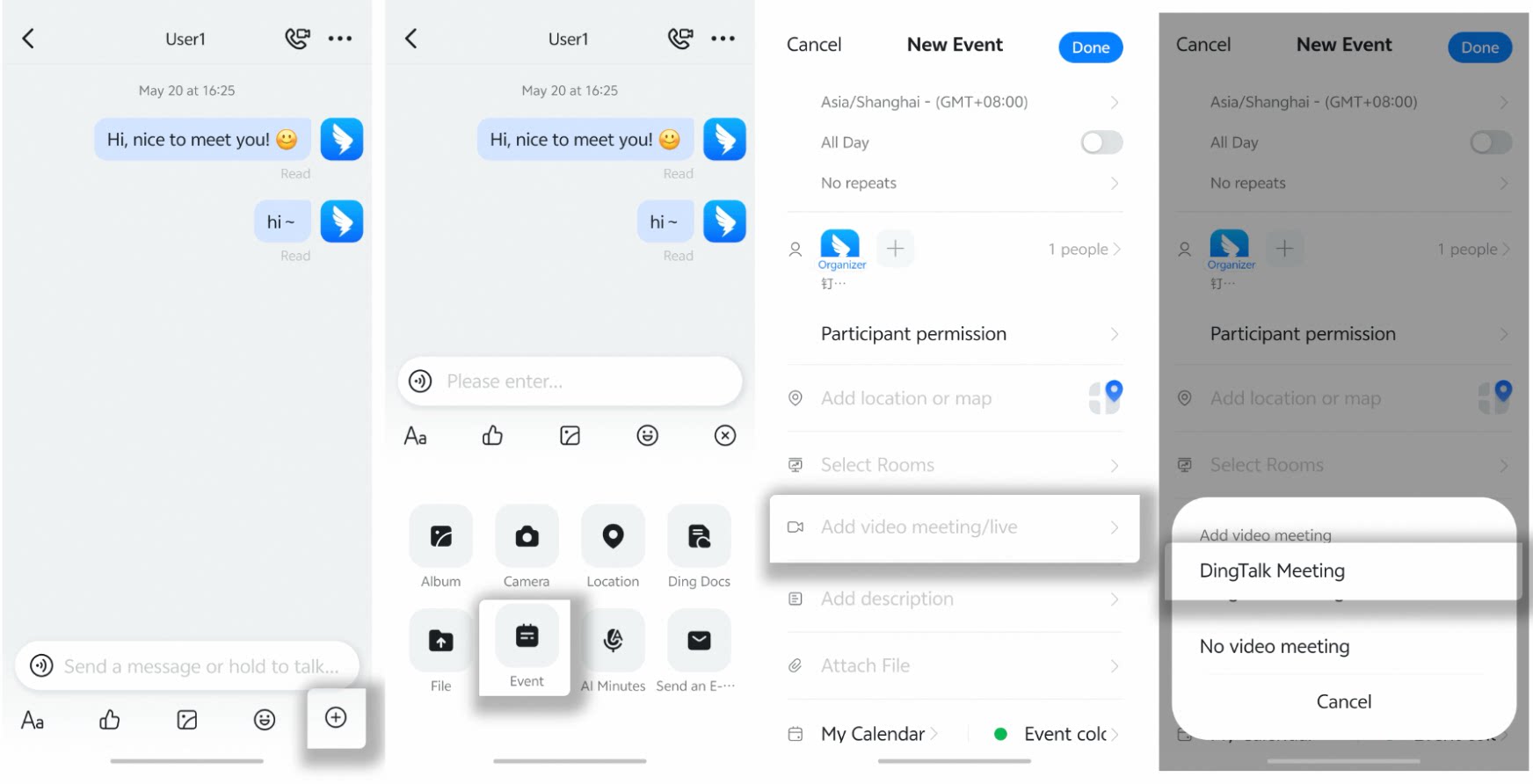
Configurable Options for Scheduled Meetings
- Configure the meeting title, time, and participants. After you finish scheduling, the meeting can be viewed in Calendar.
- To set up a recurring meeting, click Does not repeat >> select a repeat rule >> customize the settings.
- Add a meeting room. This feature does not support recurring meetings. If your organization has registered offline meeting rooms in DingTalk Smart Meeting Rooms, you can select or reserve an offline meeting room here.
- Add a video meeting. You can add a DingTalk video meeting.
- Set a meeting reminder, or choose no reminder.
- After the meeting is created, you can obtain the meeting ID and join information.