

 Chats
Chats Calendar
 Meetings
 Contacts
 Mail
Mail Docs
Docs Drive
Drive AI Table
 AI Minutes
 Attendance
 Approval
 YiDA
YiDA Admin Console
View the Current Network Status During a Meeting
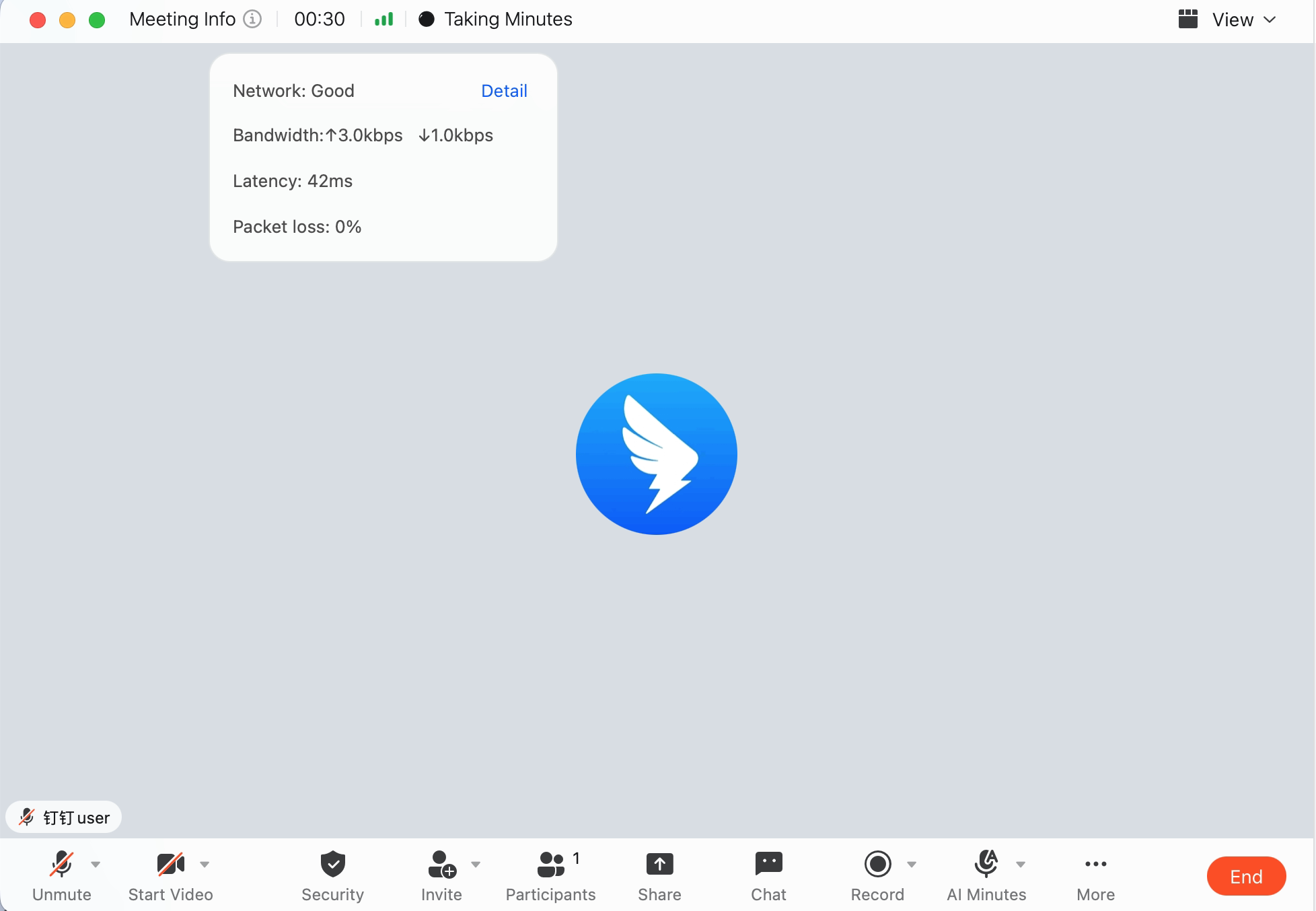
Entry 1: Move the mouse over the signal icon in the upper-left corner. A pop-up automatically displays the current network status, uplink and downlink bandwidth, packet loss rate, and latency. Click Details to view more detection data.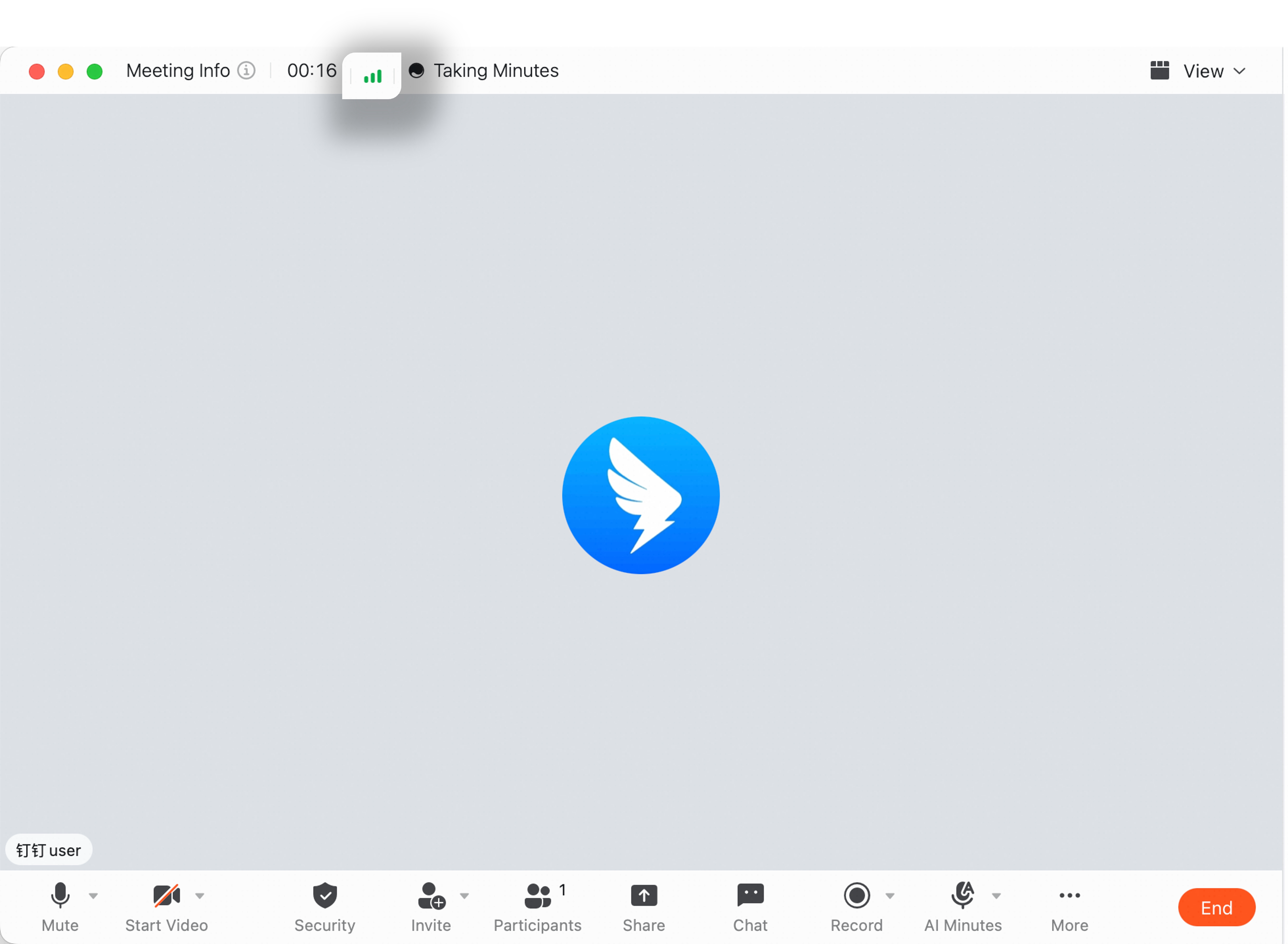
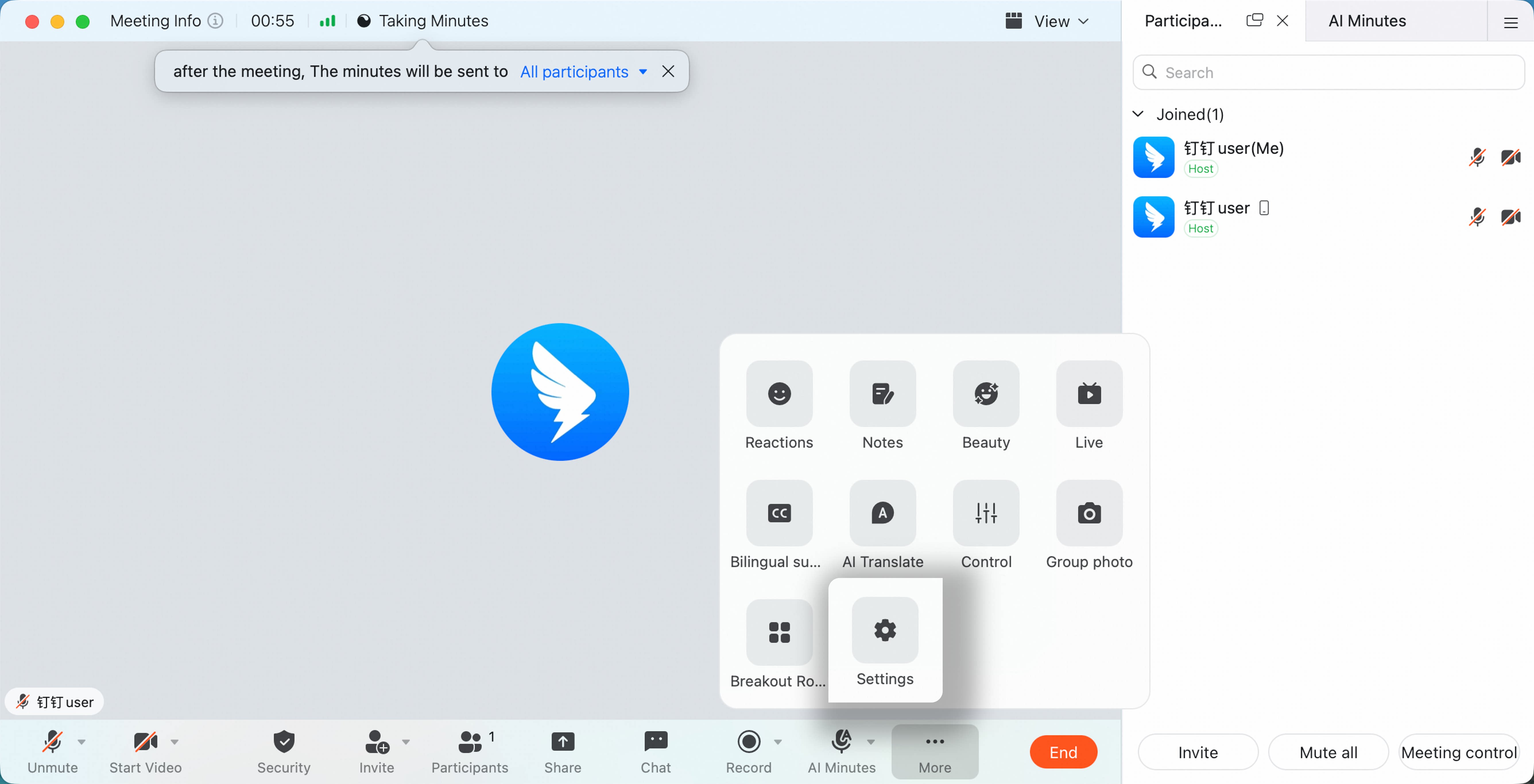
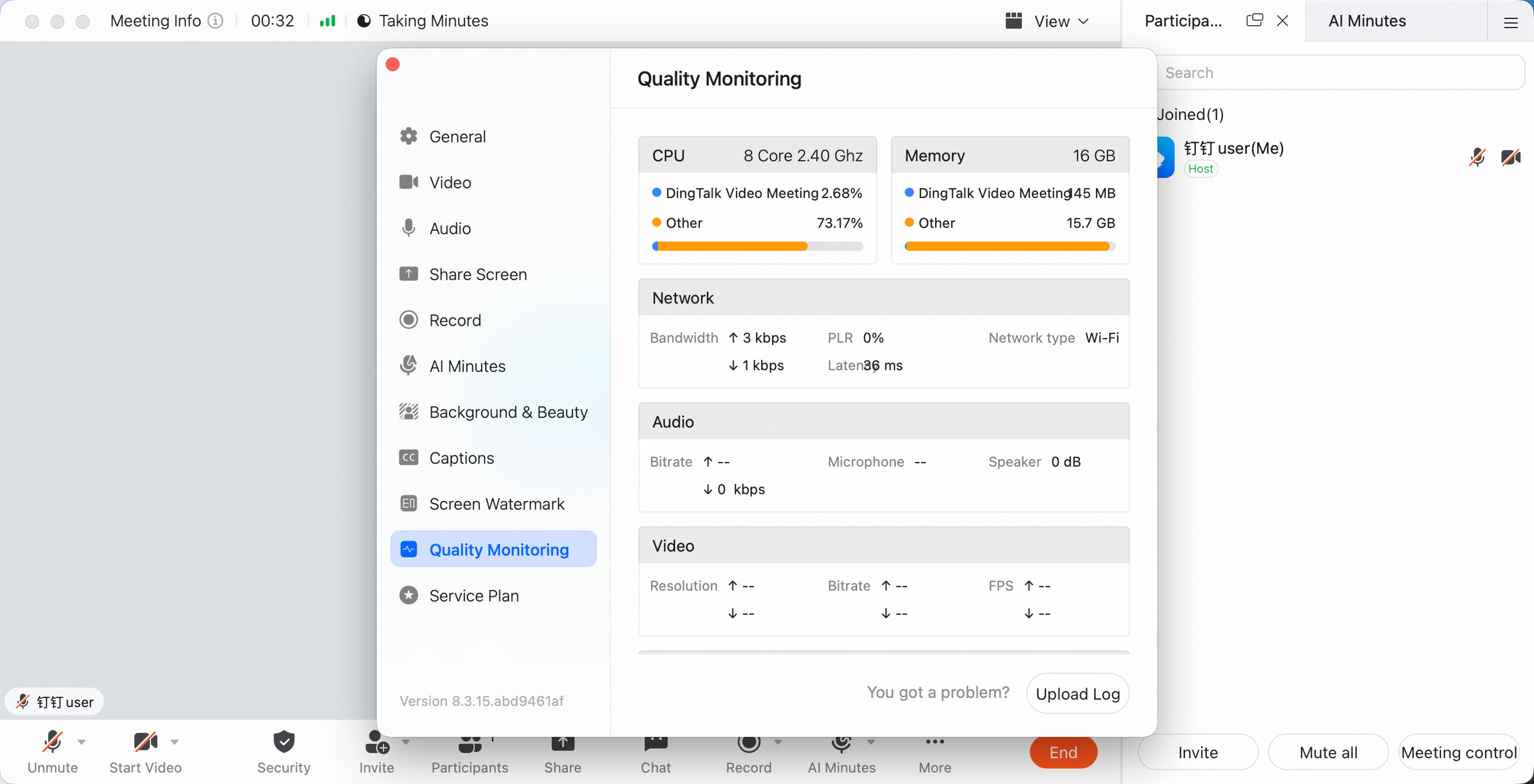
 Entry 2: You can also go to More > Settings > Quality Monitoring at the bottom. On mobile, tap the triangle icon at the top of the video meeting and view Network Detection. Together with weak-network prompts, this helps you understand the current network status and troubleshoot lag or latency.
Detect Network Status Before a Meeting
Use the video meeting network detection tool. Select the network node closest to you, click Start, and wait for the detection to complete to view the network report. [Image placeholder]Recommended Network Conditions
To ensure meeting quality, internet packet loss should be below 5%, and latency should be below 100 ms.