

 Chats
Chats Calendar
 Meetings
 Contacts
 Mail
Mail Docs
Docs Drive
Drive AI Table
 AI Minutes
 Attendance
 Approval
 YiDA
YiDA Admin Console
Scenario Highlights
1.1 Accurate Transcript Review
After voiceprint recognition is enabled, the AI Minutes transcript shows the speaker information for each sentence, including the speaker avatar and contact name. This makes it easier to find important opinions by speaker name when reviewing a meeting, improving information retrieval efficiency.1.2 Smarter Key-Point Summaries
Smart minutes and chapters identify the source of each opinion by speaker, helping readers quickly understand who made each important conclusion. In workplace collaboration, this makes responsibility clearer and supports more accurate review and traceability.1.3 Accurate To Do Matching
AI Minutes automatically links meeting To Dos to specific owners based on voiceprint information. It also supports one-click syncing to DingTalk To Do, giving post-meeting tasks clearer owners and improving follow-through efficiency.Operation Flow
Entry Point for Enabling Voiceprint Recognition
Method 1: Manually Enable Voiceprint Recognition From Settings
On the AI Minutes home page, click … in the upper-right corner, then choose Enable voiceprint recognition.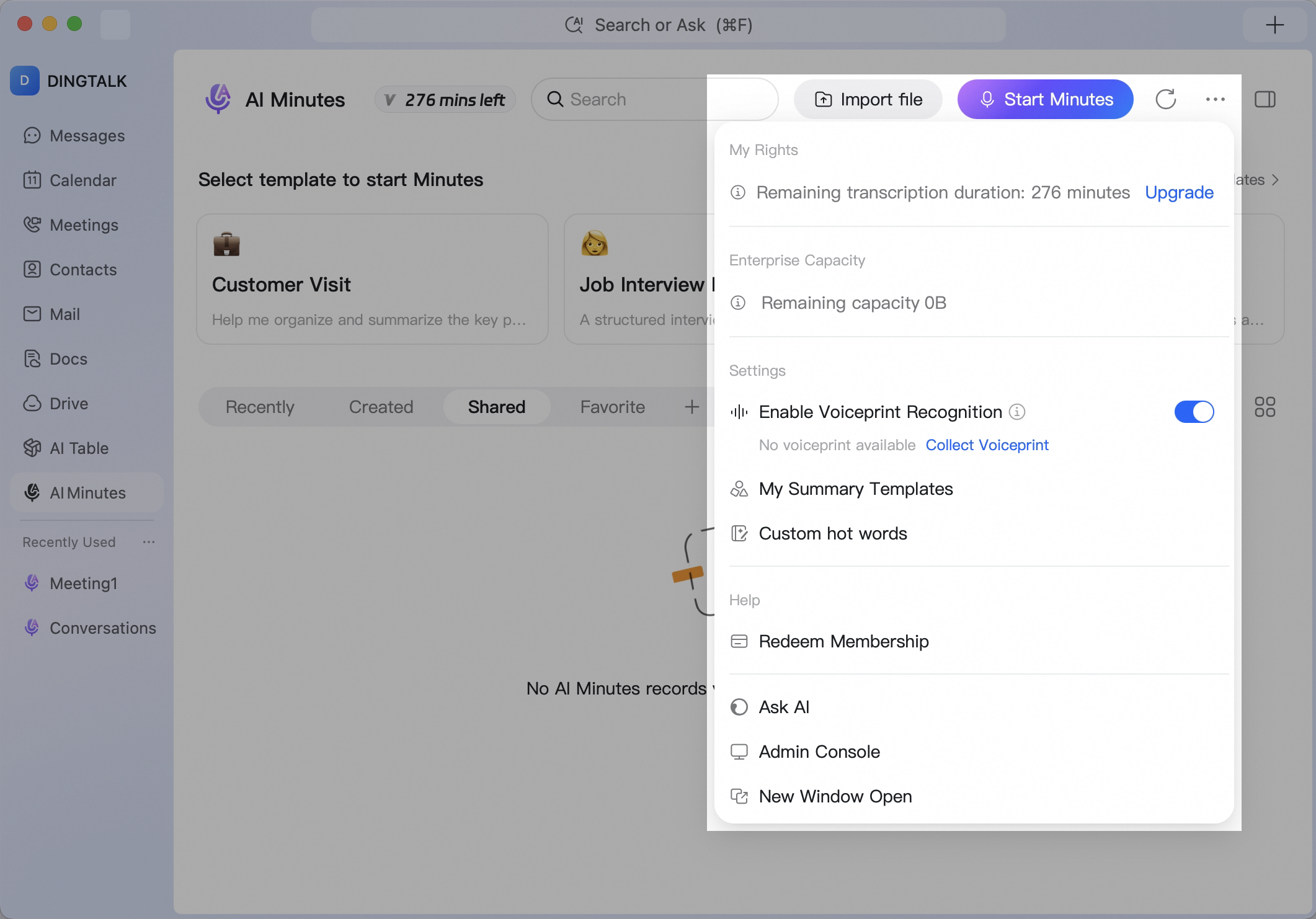
Agree to Enable
Because voiceprints are sensitive biometric information, DingTalk only applies voiceprint recognition after the individual user agrees to enable it. DingTalk protects voiceprint information strictly according to its privacy statement. Privacy agreement: DingTalk Privacy Policy If a user wants to clear their voiceprint after agreeing, they can clear it at any time.Collect a Voiceprint
After clicking Agree to enable, you can collect your voiceprint in either of the following ways.Method 1: Read a Passage Aloud to Collect Immediately
In the Voiceprint collection pop-up window, click Start reading, then read the text at a normal pace in a quiet environment. After you finish reading the full passage, click Done to complete voiceprint collection. Desktop: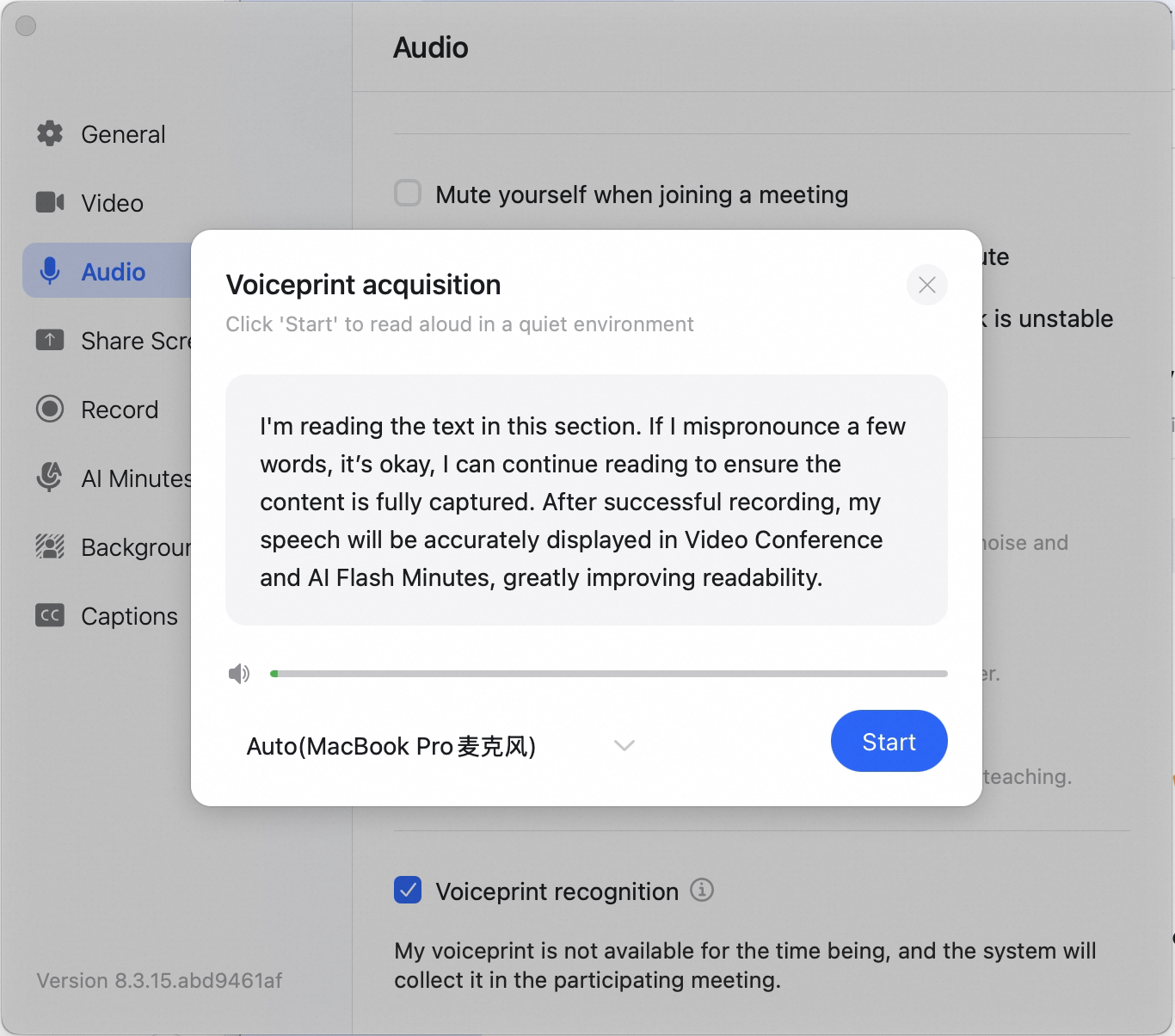 Mobile:
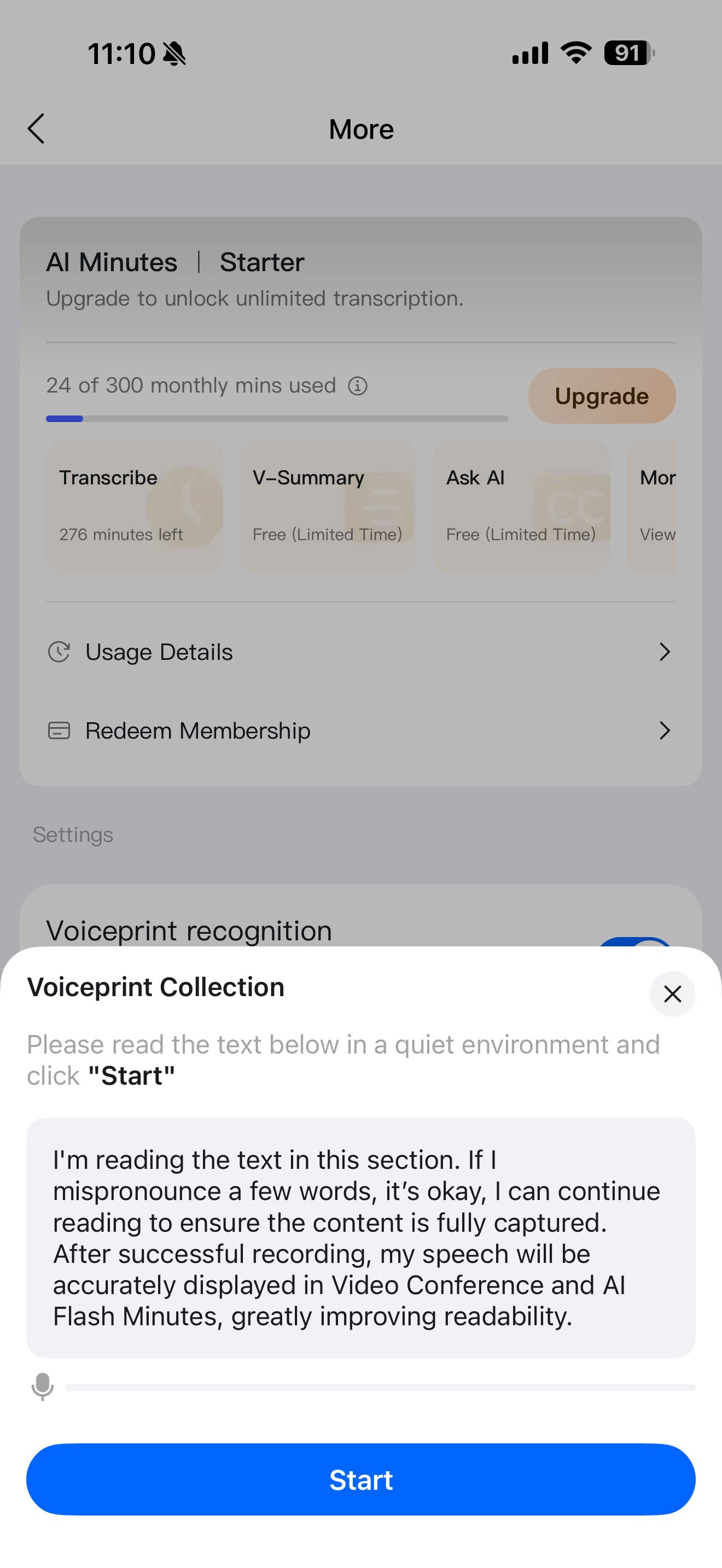
Method 2: Automatically Collect From Meetings
If you do not have a voiceprint yet, DingTalk will automatically collect your voiceprint from AI Minutes generated by cloud recordings of meetings you previously attended or will attend later. After collection is complete, the voiceprint recognition switch will show My voiceprint exists below it. Click Clear to clear the existing voiceprint.Voiceprint Recognition Results
Voiceprint recognition results will be shown in the next AI Minutes file after voiceprint collection is complete. Your speech will automatically be matched to your name and avatar. If the voiceprint recognition result is inaccurate, click the speaker avatar, then click Change speaker to modify the recognition result. Names can be changed in two ways:- Single change: only the corresponding entry is changed.
- Global change: all instances of the same recognized speaker are changed.