Chats
Chats Calendar
 Meetings
 Contacts
 Mail
Mail Docs
Docs Drive
Drive AI Table
 AI Minutes
 Attendance
 Approval
 YiDA
YiDA Admin Console
View Smart Minutes
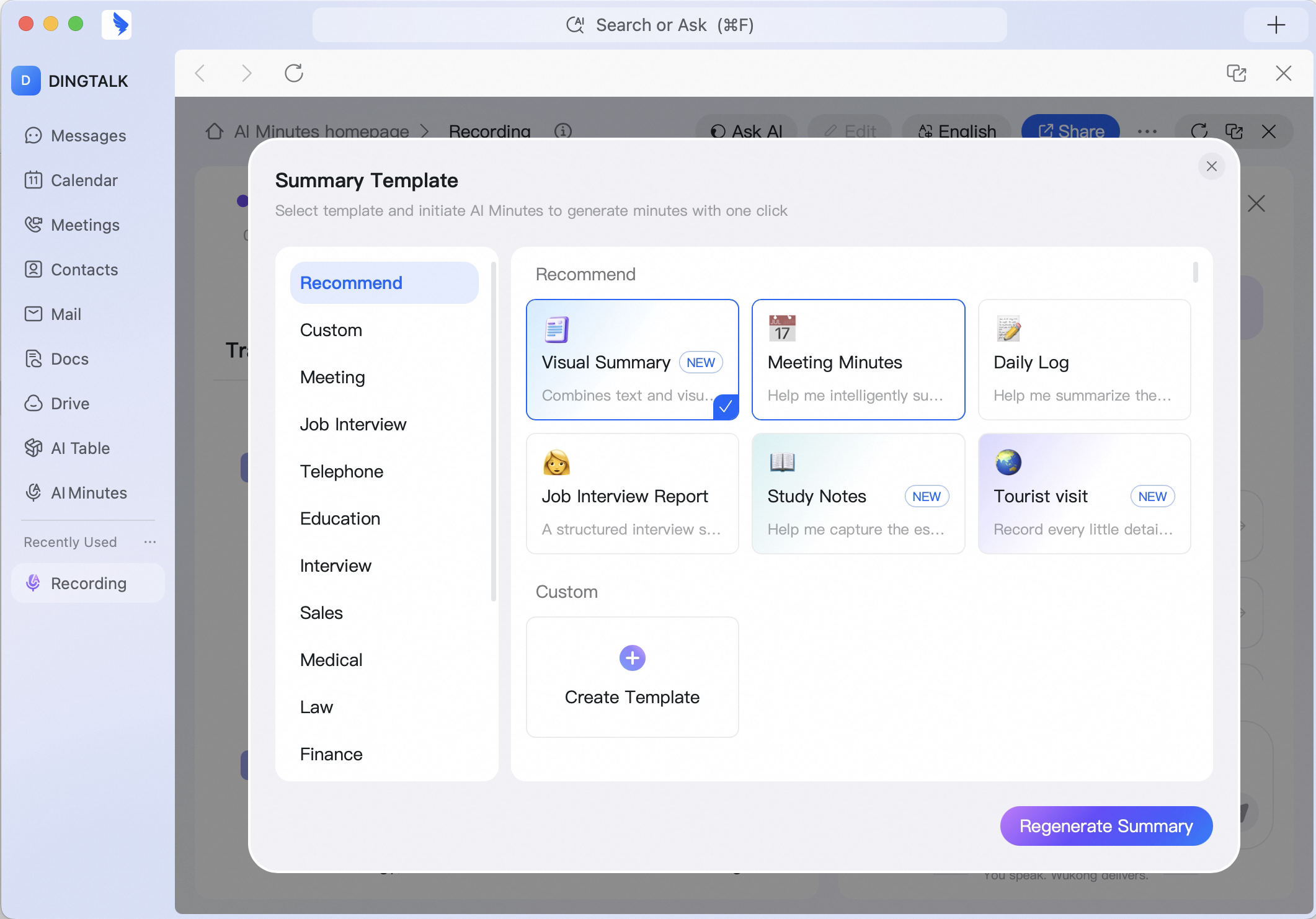
AI Minutes can intelligently analyze meeting content, automatically match the most suitable minutes template, and present key information in a structured format. This helps participants review and look up meeting content more efficiently, improving readability and collaboration.Switch Minutes Templates
If you are not satisfied with the automatically generated minutes, click the … button in the upper-right corner, choose Regenerate meeting minutes, and select a template that better fits the current scenario. AI Minutes provides 36 professional templates, covering study notes, meeting minutes, daily records, interview reports, customer service, guided tours, and more. These templates help you quickly generate clearer minutes that better match the actual context.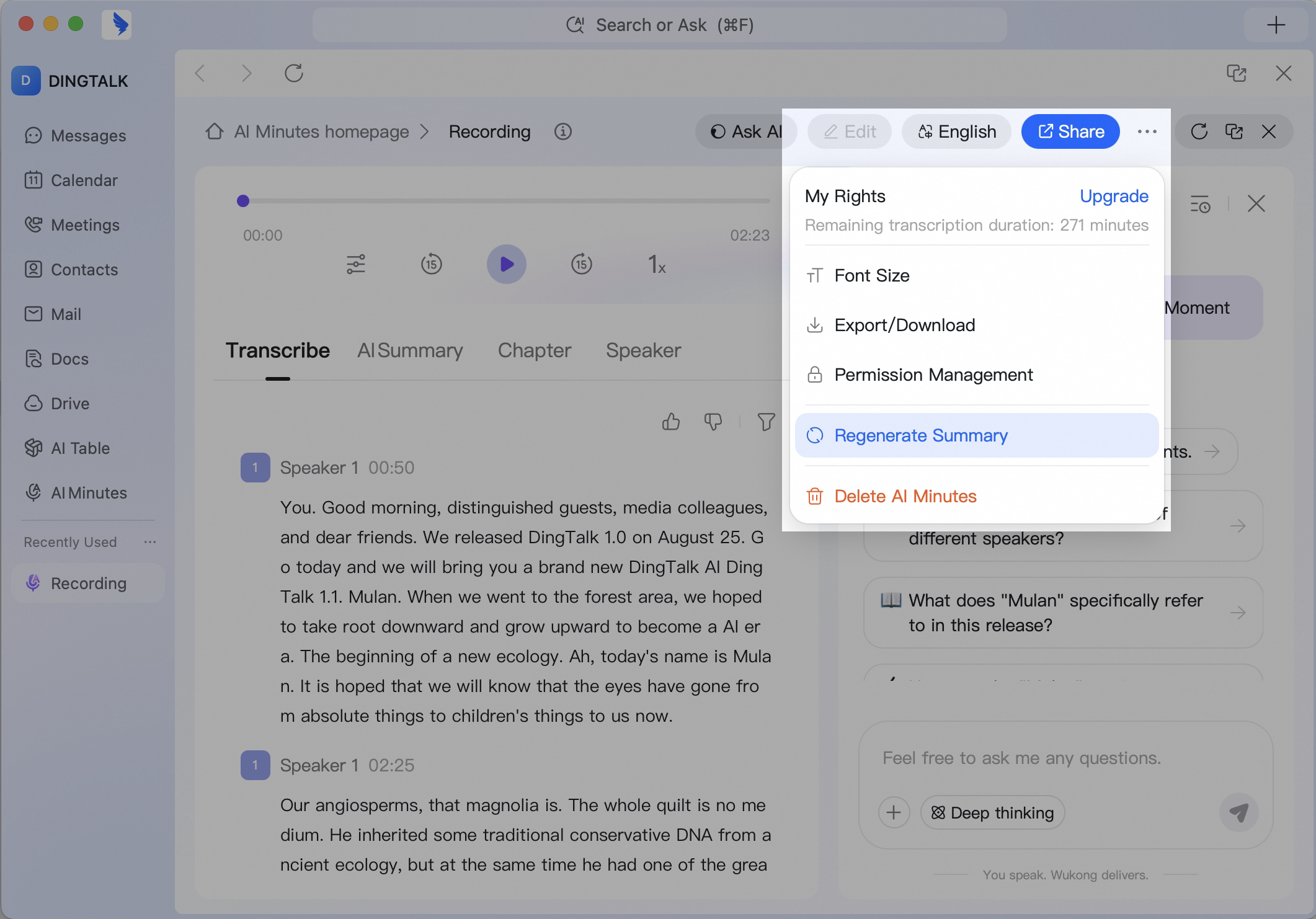
View Smart Chapter Segments
To quickly locate chapter content, click the Chapters list. The audio or video file and AI Summary will jump to the corresponding position at the same time.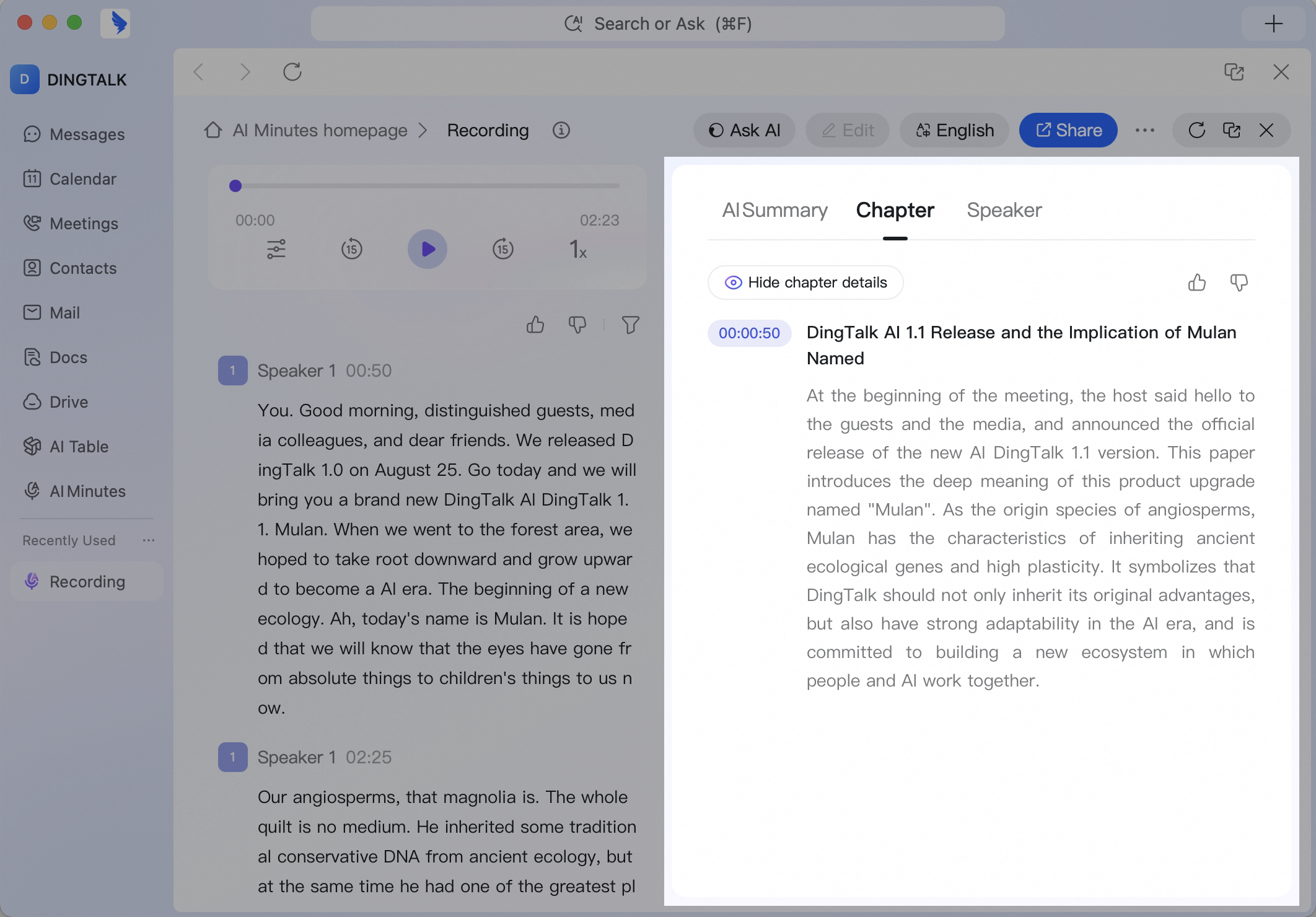
View the AI Summary
Click the AI Summary to view the original AI Summary from all speakers in the meeting. The content is intelligently optimized by AI. Repeated words, fillers, and other redundant information are automatically filtered to improve readability.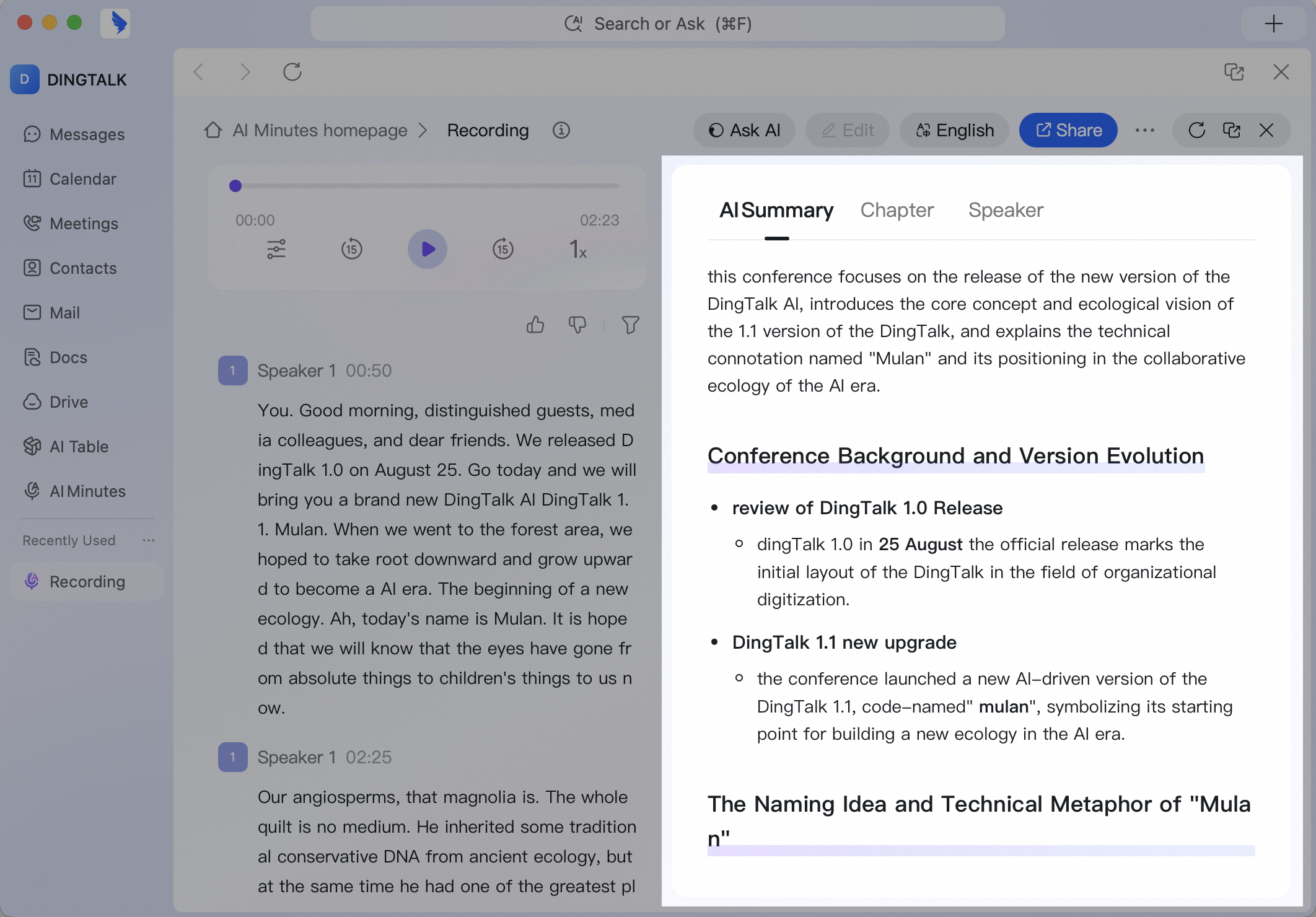
View Speaker Segments
To quickly view what a specific speaker said, click the AI Summary. AI intelligently separates and displays each speaker’s speech segments and speaking duration. Select any segment, and the AI Summary and audio or video progress bar will automatically jump to the corresponding position for precise review.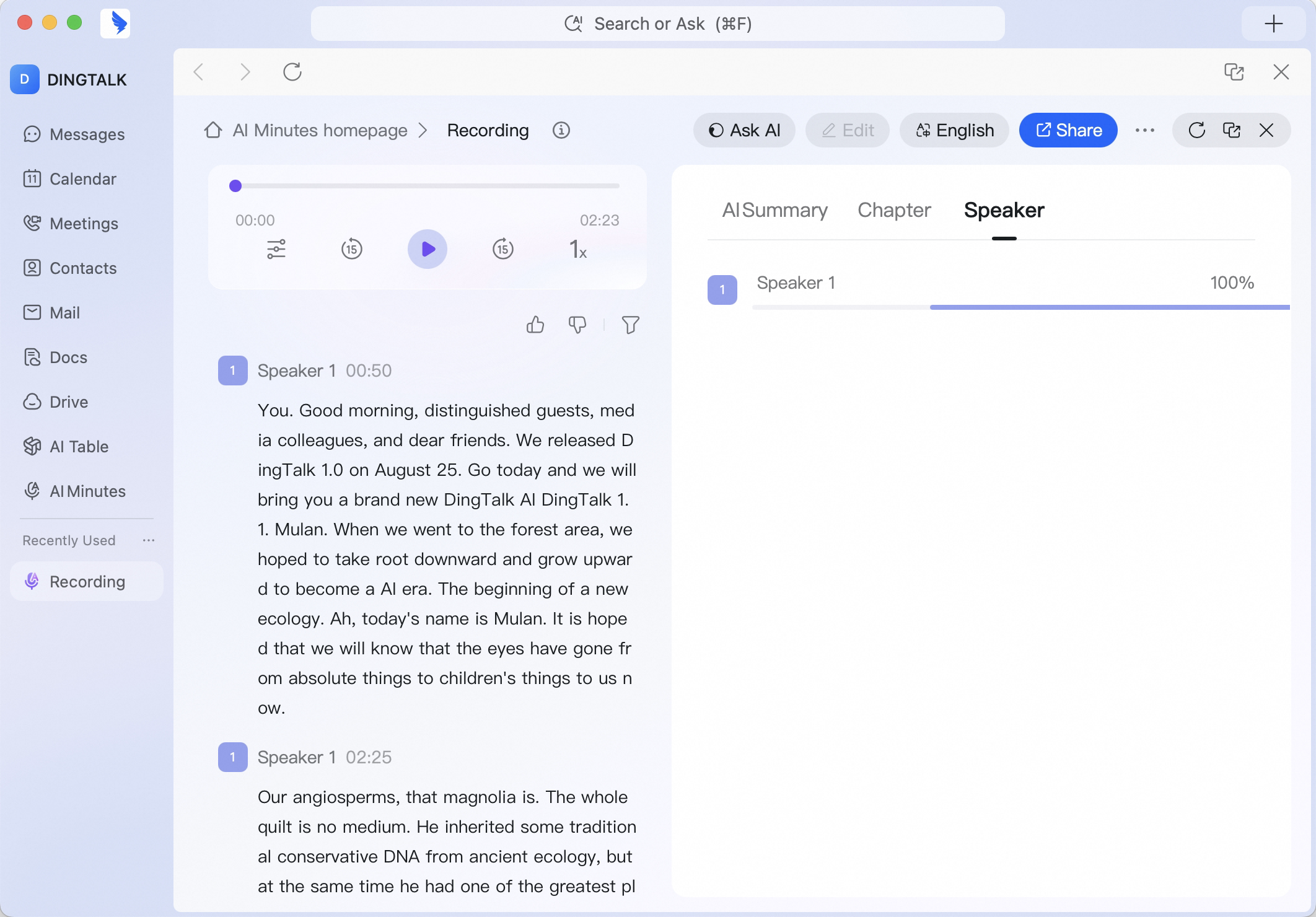
Accurately Distinguish Speakers
- If no voiceprint information has been recorded: when multiple speakers use the same microphone, AI Minutes automatically labels the AI Summary as Speaker 1, Speaker 2, Speaker 3, and so on.
- After entering a name, you can search contacts according to DingTalk contact search rules and select the corresponding contact directly.
- Names can be changed for a single segment or globally.
- In the AI Summary list, a single-name change only applies to that specific entry.
- In the Speakers list, a global change applies to all instances of the same recognized speaker.
- After a user records a personal voiceprint by following the guide, the AI Summary will recognize the enrolled voiceprint and show the user’s contact avatar. For the voiceprint enrollment tutorial, see Voiceprint Recognition Guide.
Keyword Search
AI Minutes supports keyword search. After you search, matching words in the AI Summary are highlighted.Text Editing
AI Minutes content can be edited and corrected after generation, so you can adjust the transcribed text. Click Edit in the upper-right corner to enter editing mode. You can add, delete, or revise text, then click Done to save your changes.Note: Only AI Minutes files for which you have edit permission can be edited.
Multilingual Translation
Click the Translate drop-down menu in the upper-right corner to translate the AI Summary into another language. AI Minutes currently supports translation into 19 languages, and translated content can be shown bilingually.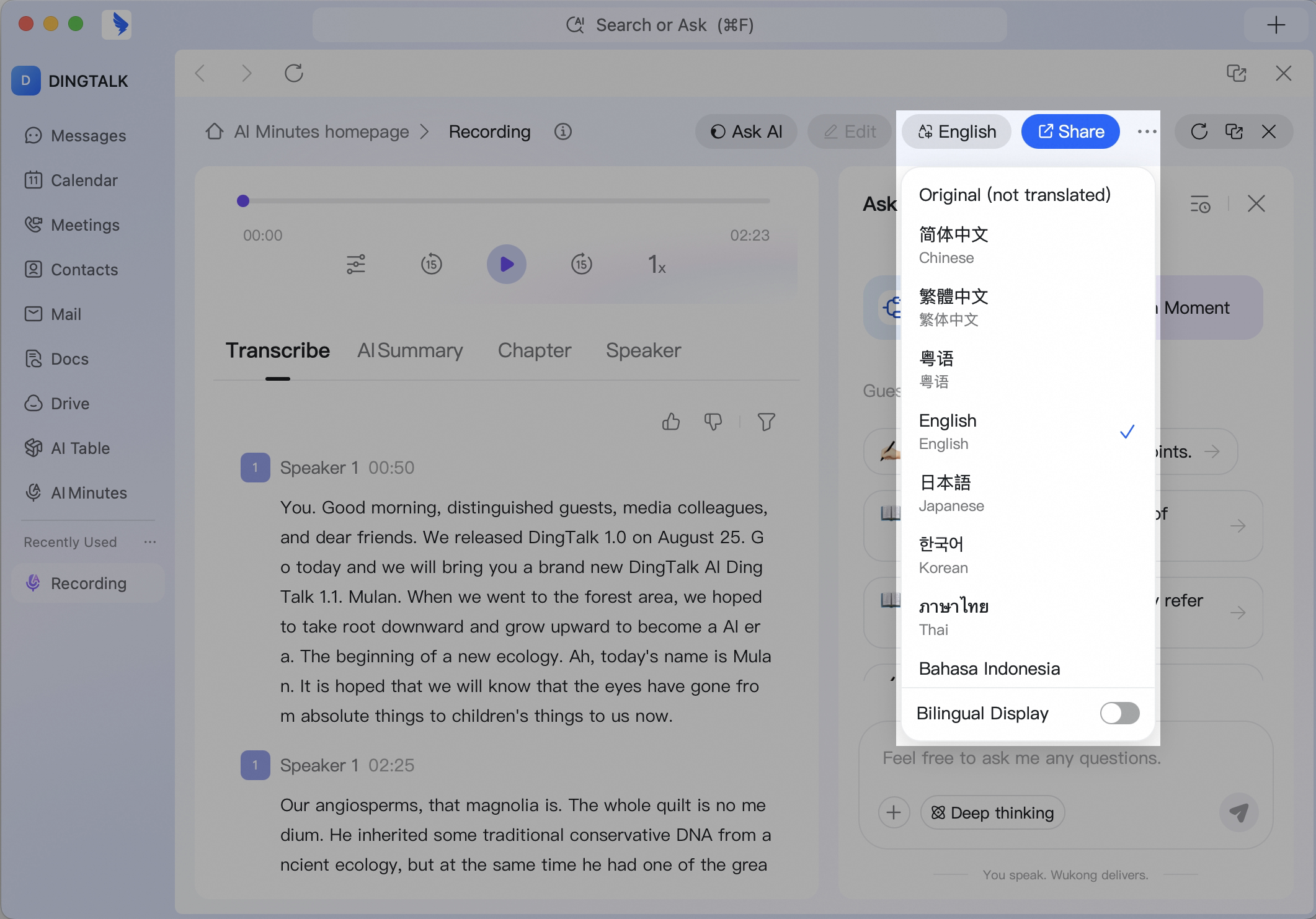
Adjust Font Size
Click … > Adjust font size in the upper-right corner to choose Small, Medium, Large, or Extra large, meeting different personalization needs.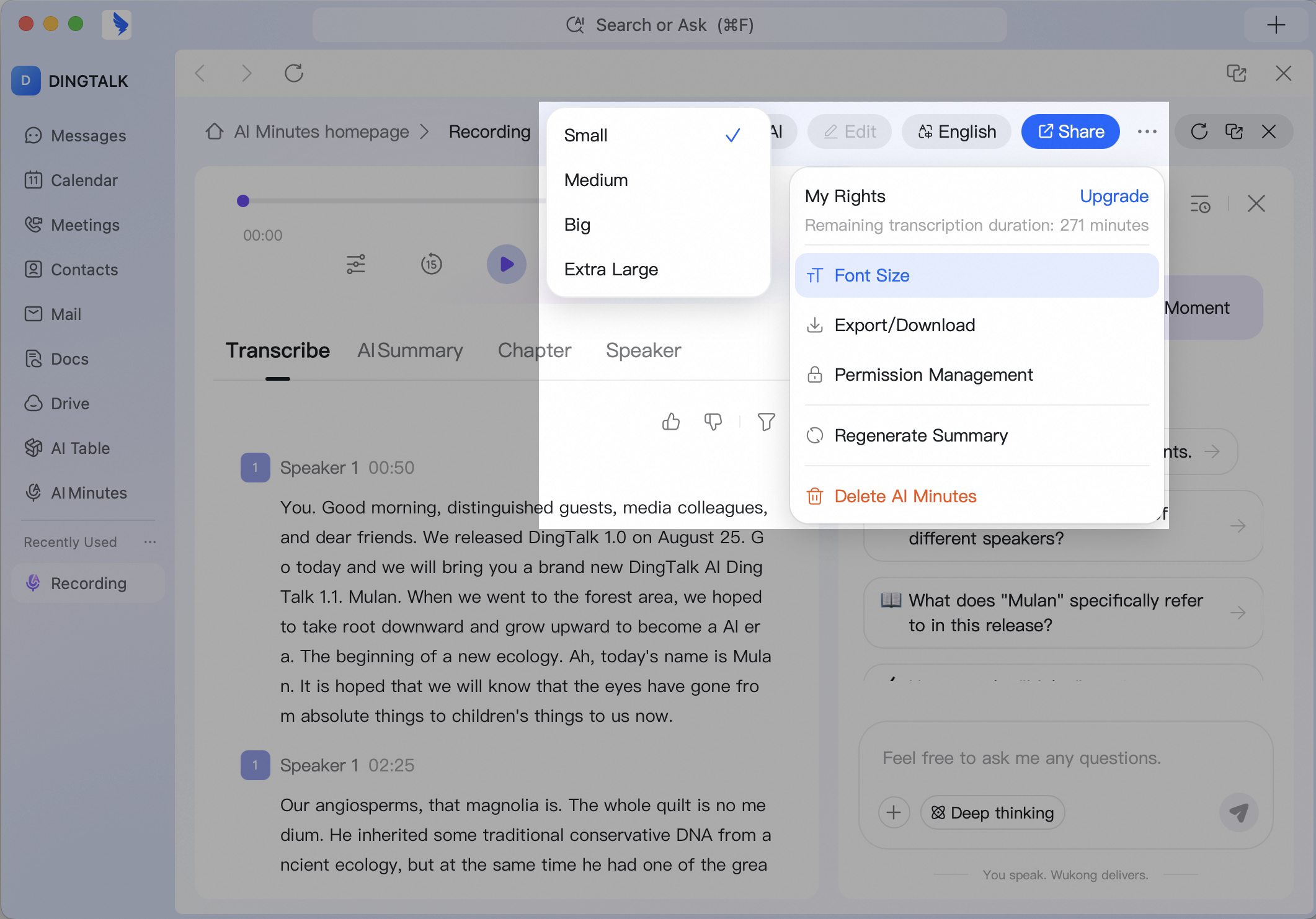
Export Files
AI Minutes supports editing or deleting recorded content so users can make their own adjustments. Click … in the upper-right corner, then click Export AI Minutes. You can export multiple content modules, including the AI Summary, minutes, and audio or video file, as DingTalk Docs, PDF, docx, and srt files.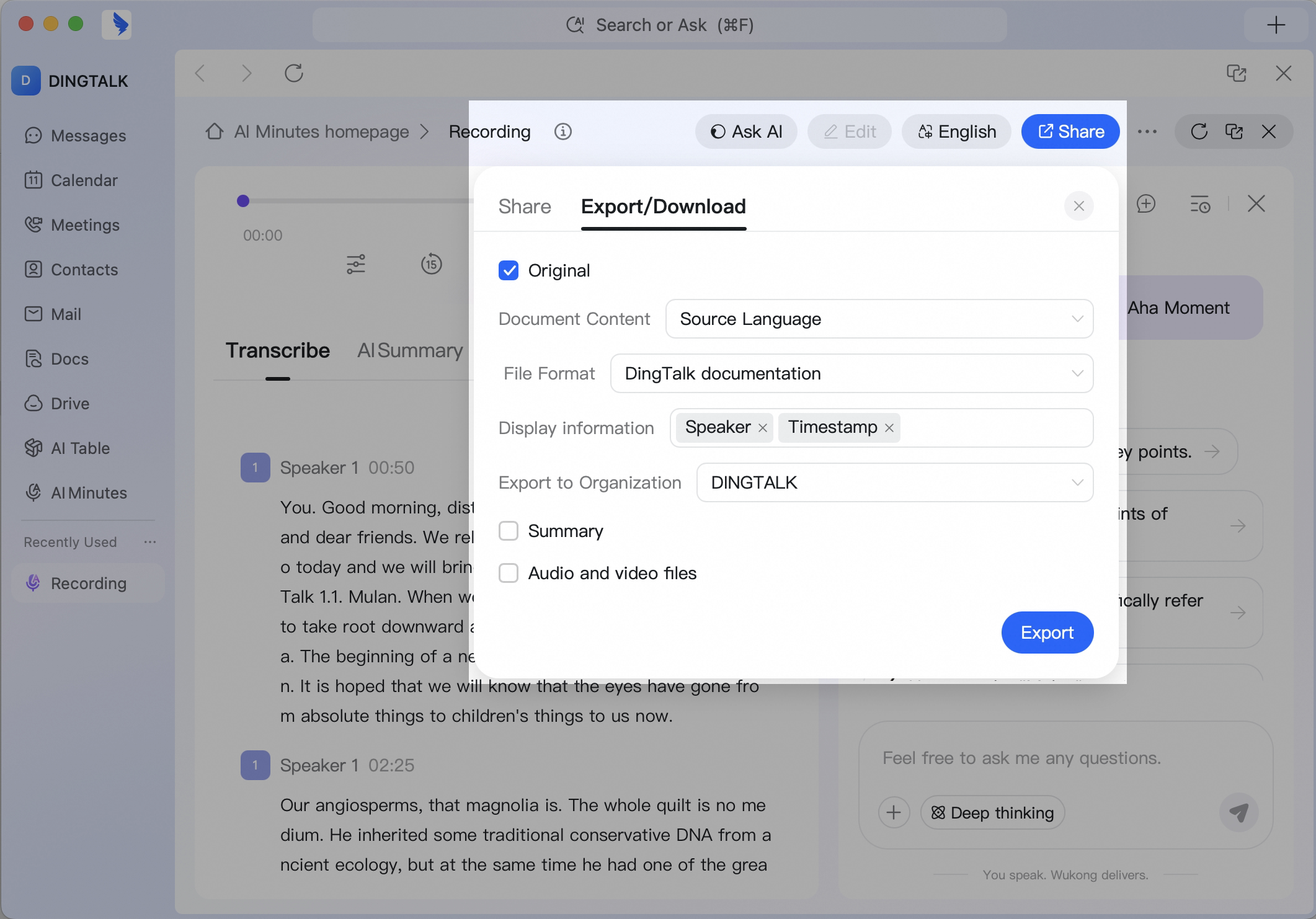
Public Access and Sharing
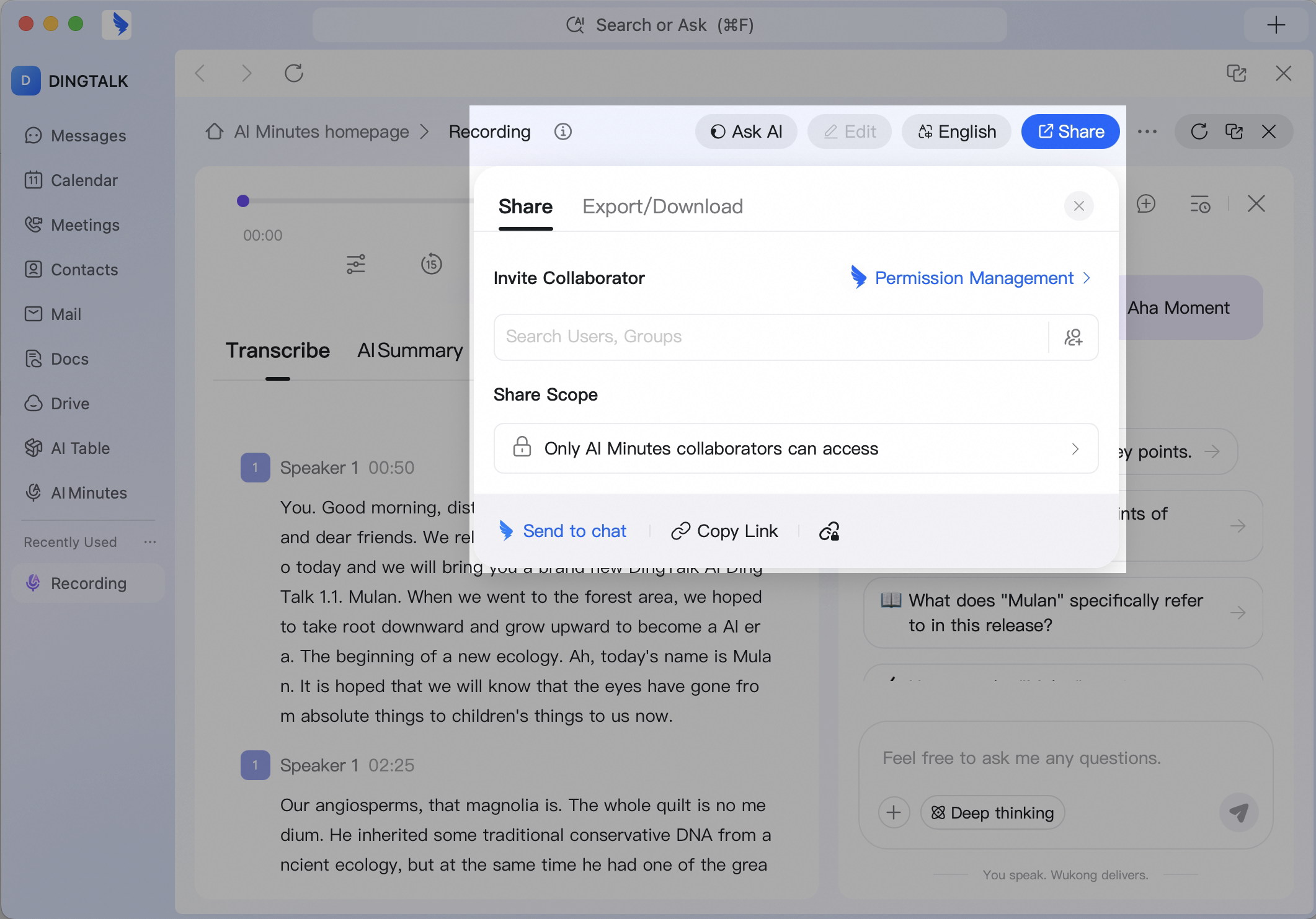
AI Minutes supports three types of public access:- Grant permissions to specified members or groups.
- Make the file public within the organization, so all organization members can obtain the corresponding permissions.