

1. Feature Overview

In an enterprise organization structure, some departments may involve sensitive information or special functions, such as legal, audit, or executive teams, and may not need to be visible to all members. DingTalk supports setting a department as hidden to protect department member privacy and information security.

2. Procedure

Difference between Hide this department and Restrict members of this department from viewing Contacts:
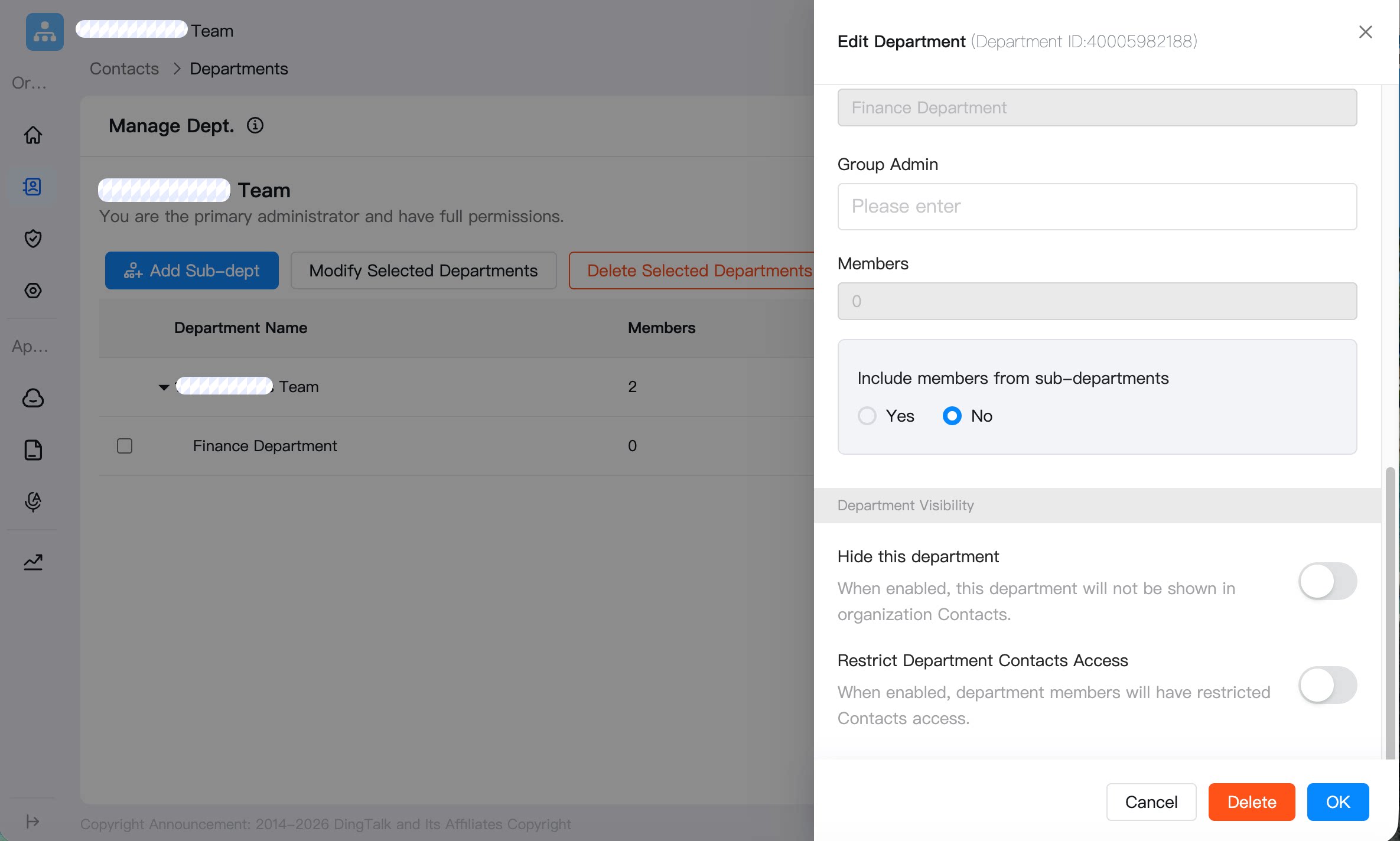
  • Hide this department: When enabled, this department will not be shown on profile pages or in chats.
  • Restrict members of this department from viewing Contacts: When enabled, members of this department can see only the allowed Contacts scope in organization structure, search, profile pages, and chats. They also cannot send DING messages, To Do items, events, and similar items to other people.

Desktop

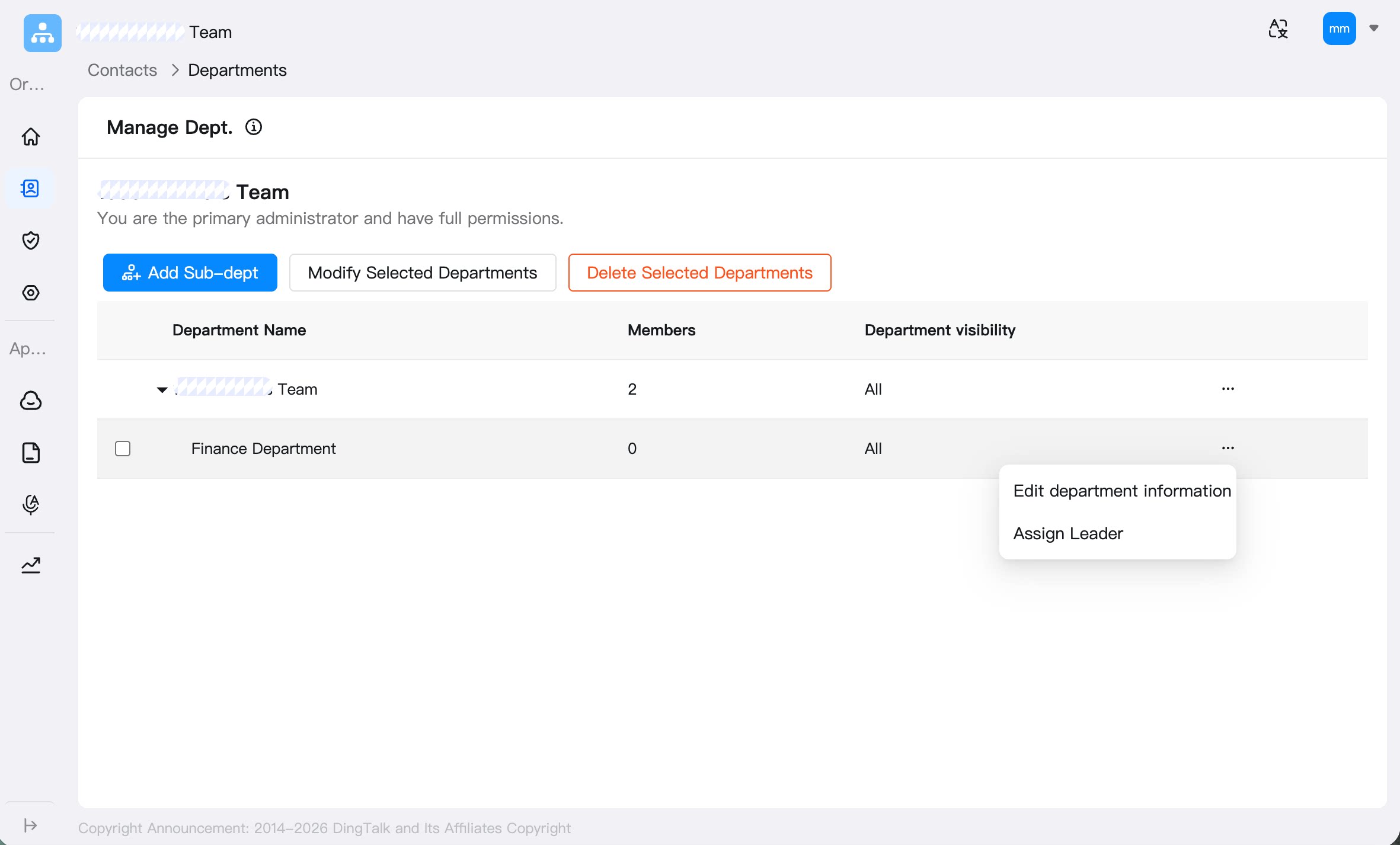
Go to Admin Console > Contacts > Department Management > click … after the target department > Edit Department Information > enable Hide this department or Restrict department Contacts Access. image.png image.png
Differences in hidden scope

FunctionScopeDescription
Hide this departmentHide from everyone and all departmentsWhen a department is set to be hidden from everyone, the hidden department will not be visible when browsing the address book structure.
Allow specified departments/users to viewYou can set a whitelist of users and departments. Users in the whitelist can see the hidden department.
Restrict members of this department from viewing the address bookCannot view the full address book; only themselves are visibleWhen a department is set to only allow members to view themselves, members of that department can only see themselves when browsing the address book.
Can only view the address book of their own department and subordinate departmentsMembers can only view the address book of their own department and subordinate departments.
Can only view specified departments/usersWhen a department is set to only allow viewing specified users and departments, members of that department can only see the specified users and departments when browsing the address book.

3. FAQs

Q: After a hidden department is enabled, can other people still view the hidden department?

A: After Hide this department is enabled, the department will not appear in company Contacts. Other people cannot see the department in Contacts. This does not affect members of the hidden department from viewing other departments. You can choose the hidden scope: hide from all people and departments, or allow specified departments or people to view it.

Q: Can a hidden department view other departments?

A: A hidden department can view departments that are not hidden. Other departments cannot see the hidden department. Members of non-hidden departments cannot search for members of the hidden department.

Q: If a parent department is hidden, can its sub-departments still be viewed?

A: This depends on the configuration: Scenario 1: The parent department is hidden from all people and departments. a. If an organization member belongs to the parent department or a sub-department, the member can still see the parent and sub-departments after the parent department is hidden. b. If an organization member belongs to another department and not to the parent or sub-departments, the member cannot see the parent or sub-departments after the parent department is hidden. Scenario 2: The parent department is set to allow specified departments or people to view it. If an organization member belongs to the parent or sub-department and the configuration allows specified departments or people to view it, the member can still see the specified department’s parent and sub-departments. This is because allowing specified departments or people to view includes the department and its lower-level departments.

Q: Can a hidden department still participate in attendance?

A: Yes. After a department is hidden, it can still be selected when adding attendance participants to an attendance group.