

 Chats
Chats Calendar
 Meetings
 Contacts
 Mail
Mail Docs
Docs Drive
Drive AI Table
 AI Minutes
 Attendance
 Approval
 YiDA
YiDA Admin Console
1. Feature Overview
As an enterprise grows and its organization structure becomes more complex, efficiently managing departments and related groups becomes important for team collaboration. This guide provides administrators with a structured method for managing departments and department groups.2. Procedure
View a Department ID
Go to Admin Console > Contacts > Department Management > select the target department > click Edit Selected Department to view the department ID.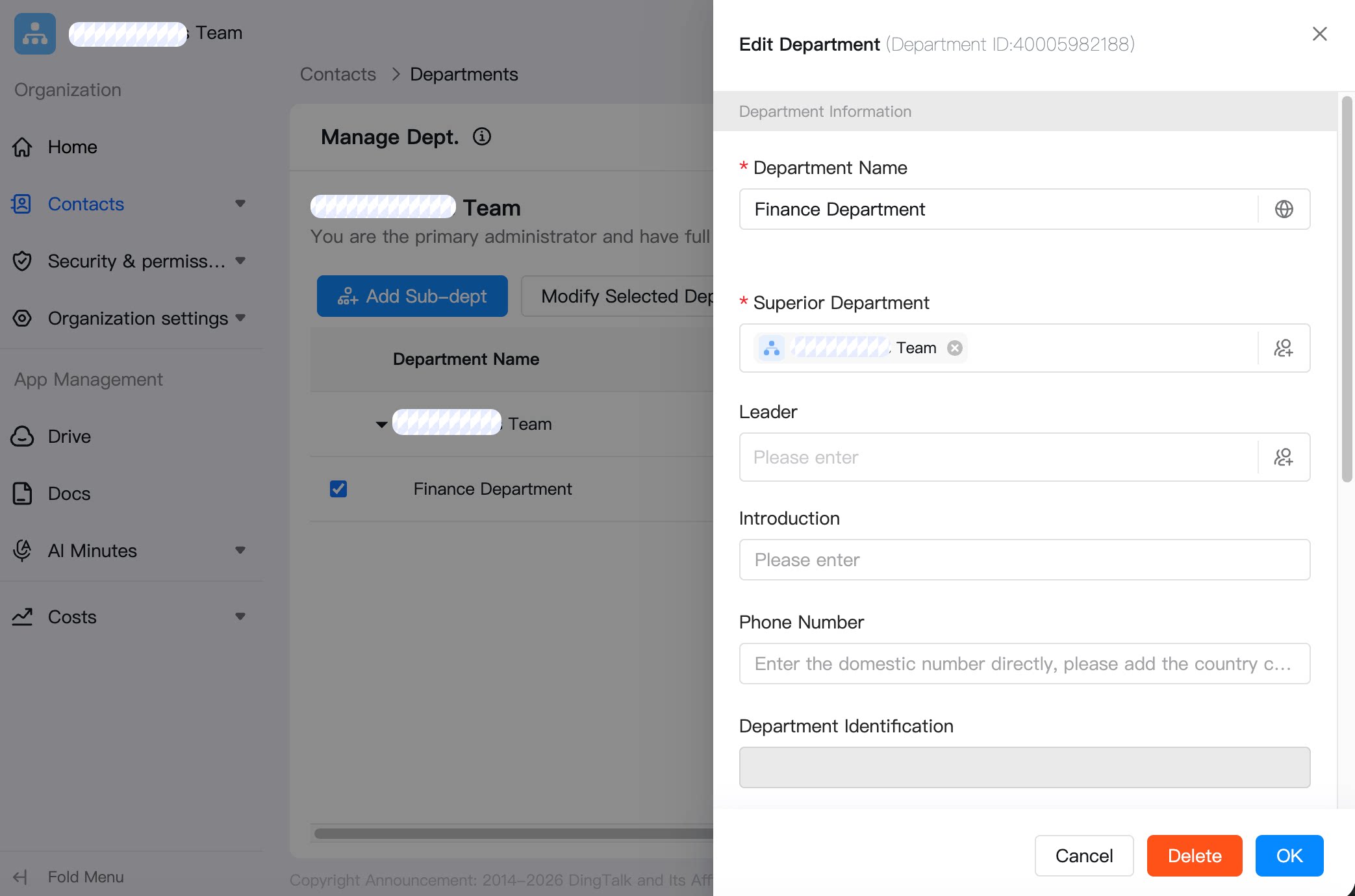
Set Department Leader
There is currently no limit on the number of department supervisors. Go to Admin Console > Contacts > Department Management > select the target department > click … > Set Department leader.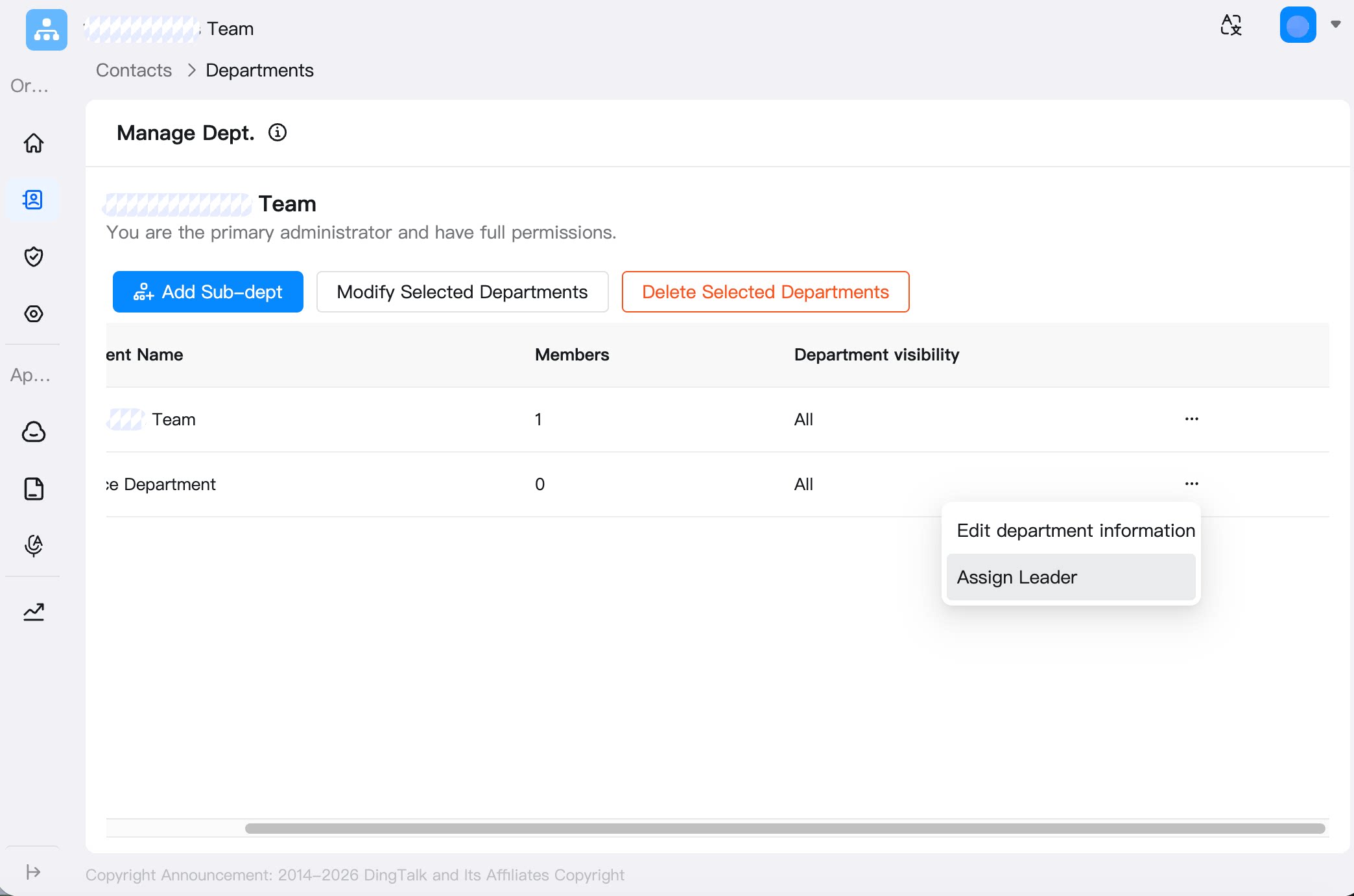
Set Department Introduction and Phone Number
Go to Admin Console > Contacts > Department Management > select the target department > Edit Selected Department > set Department Introduction / Phone Number.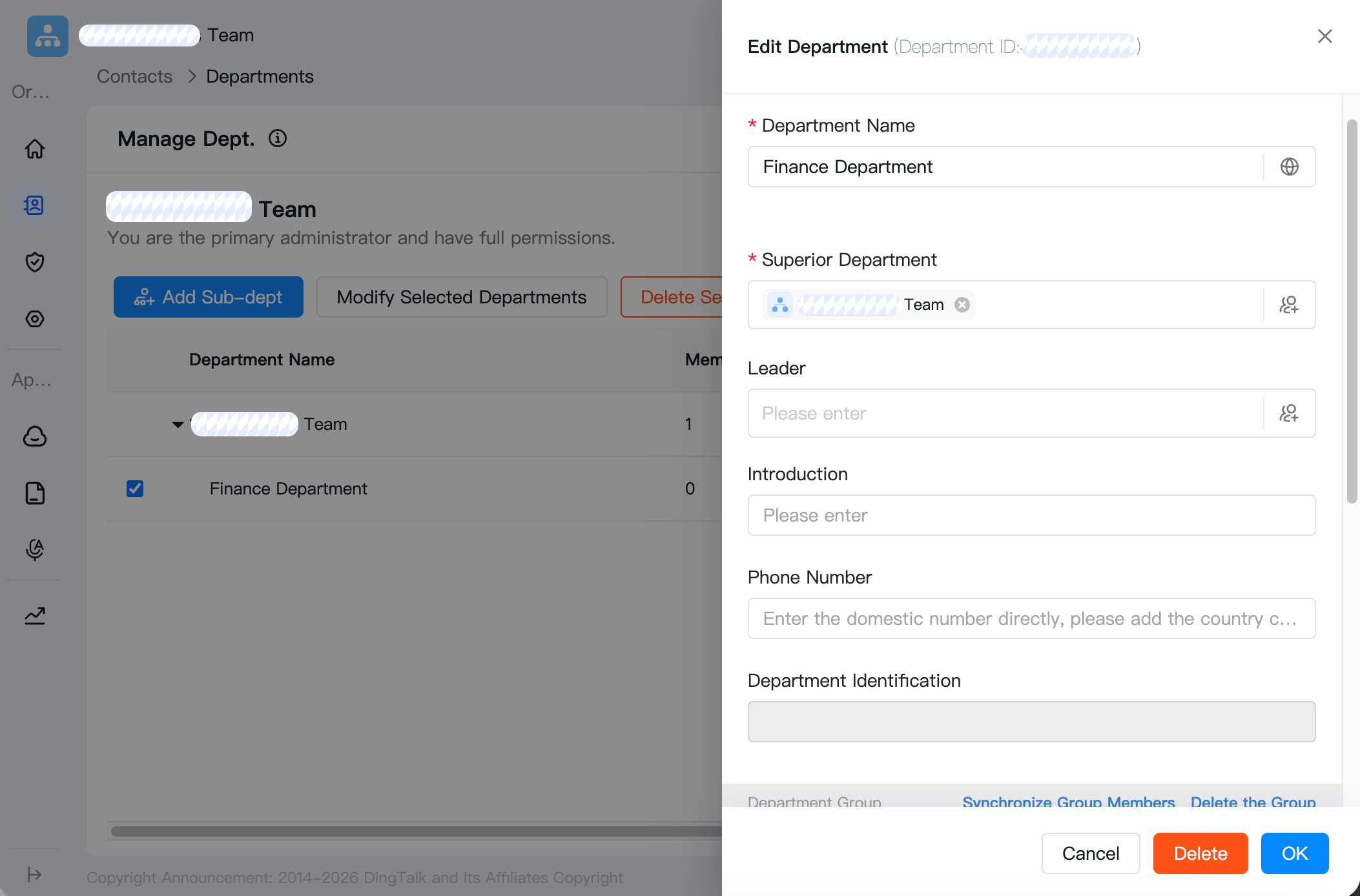
All-Member Group Settings
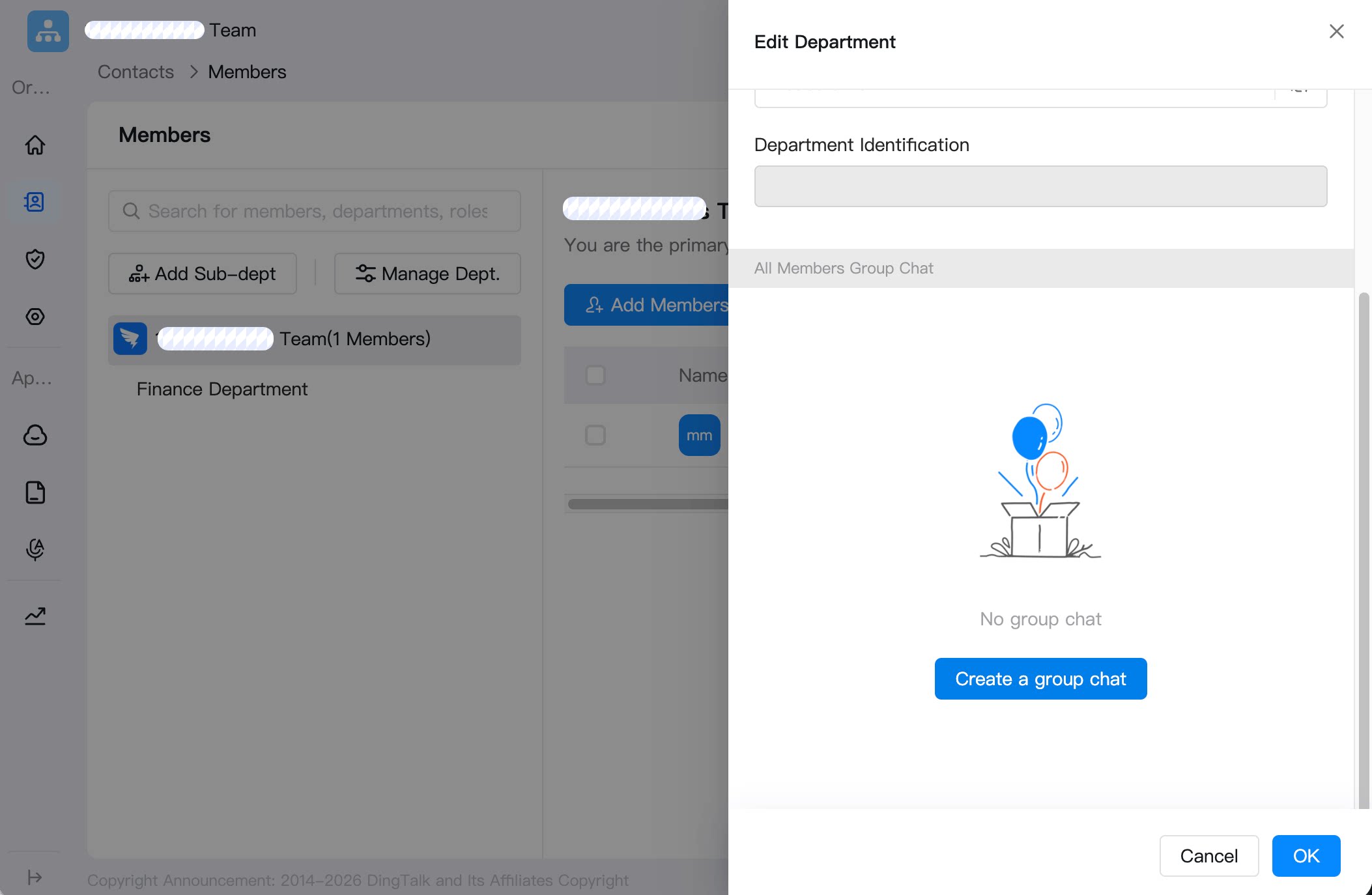
An all-member group can be created only after a team or enterprise is created. It must be created by a primary administrator or a sub-administrator with Contacts permissions. Ordinary members cannot create an all-member group.Create an All-Member Group
Go to Admin Console > Contacts > Member Management > click … after the root department > Edit Department Information > Create Group Chat.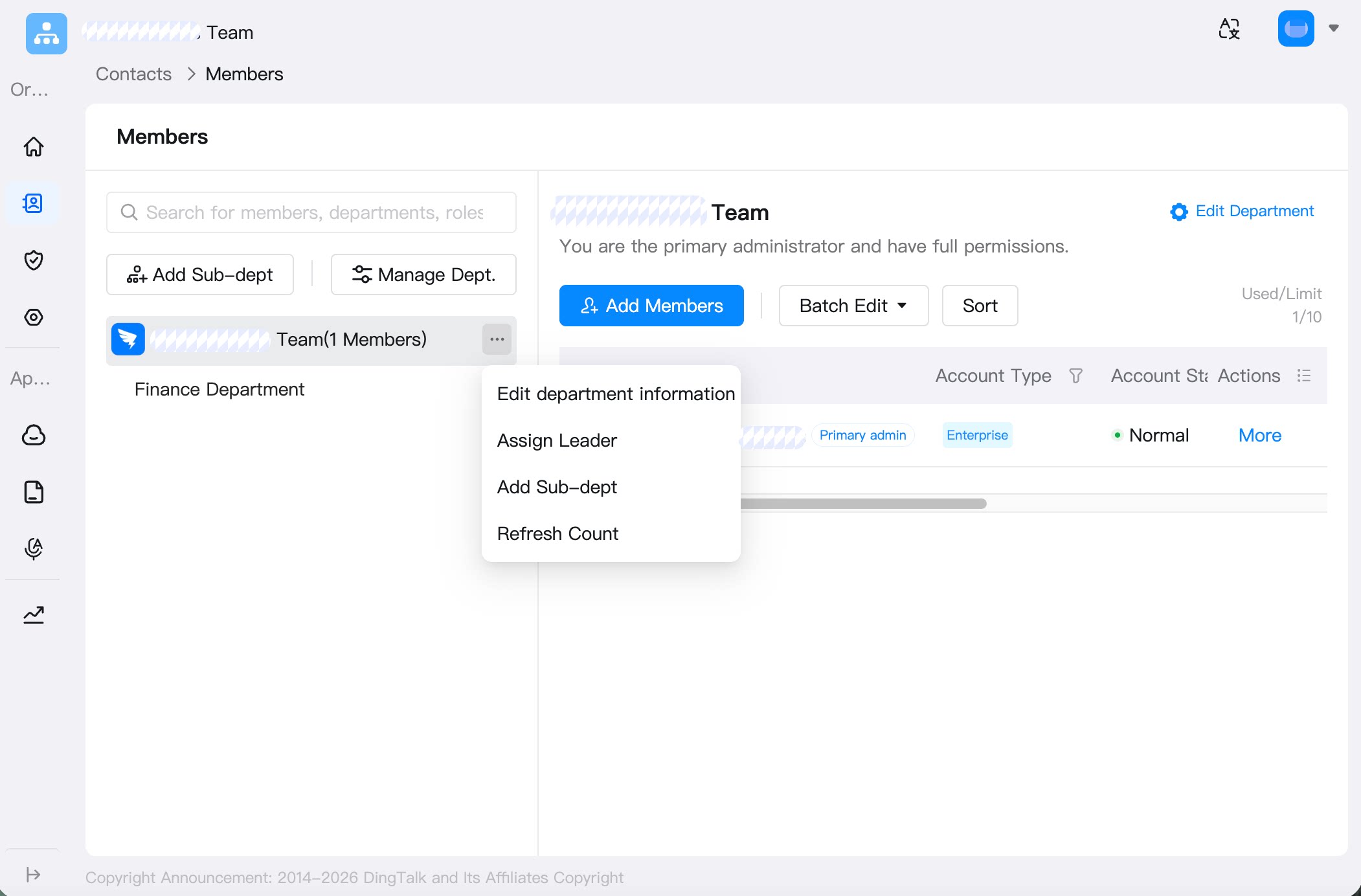
Delete an All-Member Group
Go to Admin Console > Contacts > Member Management > click … after the root department > Edit Department Information > Delete the group.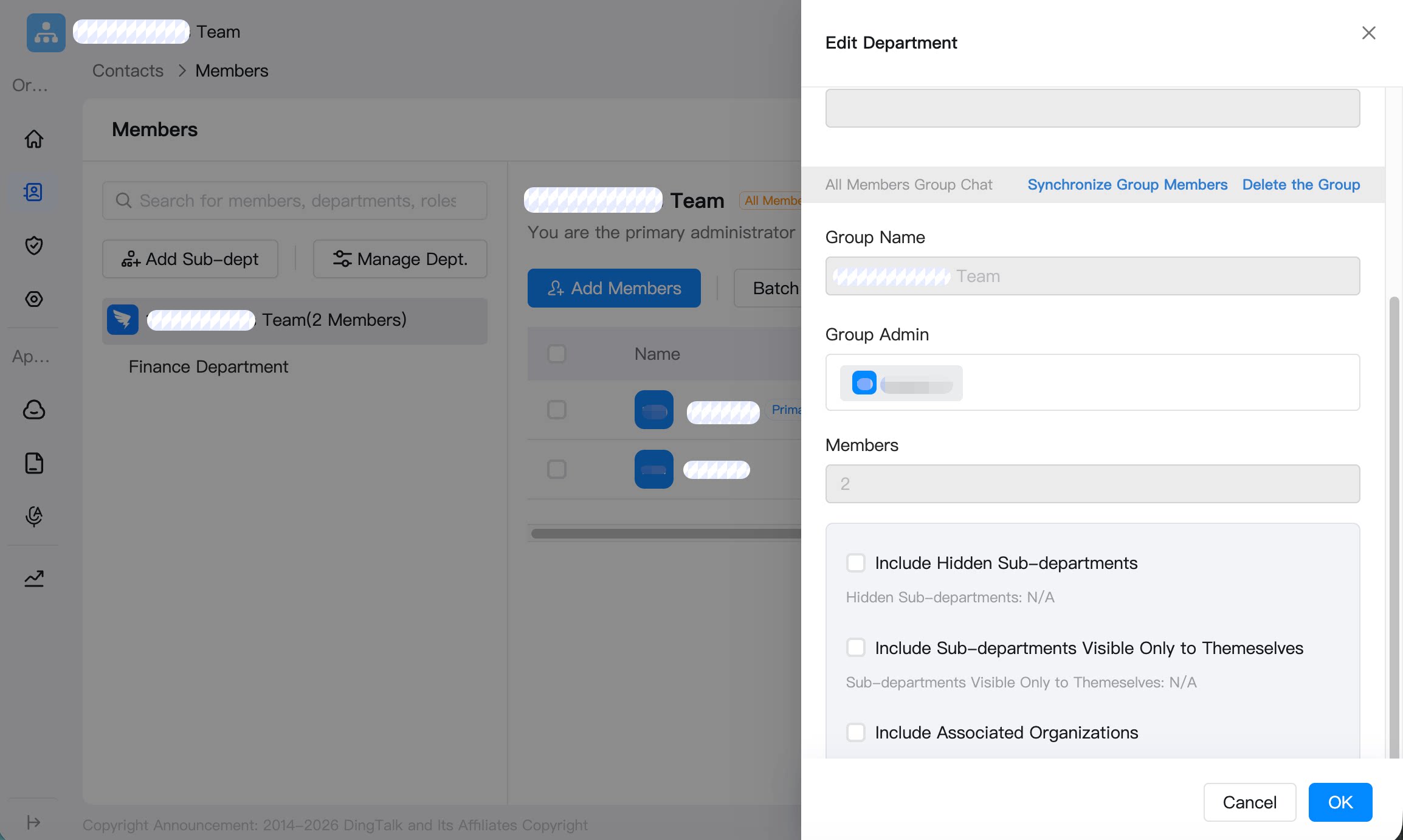
Set the Group Owner
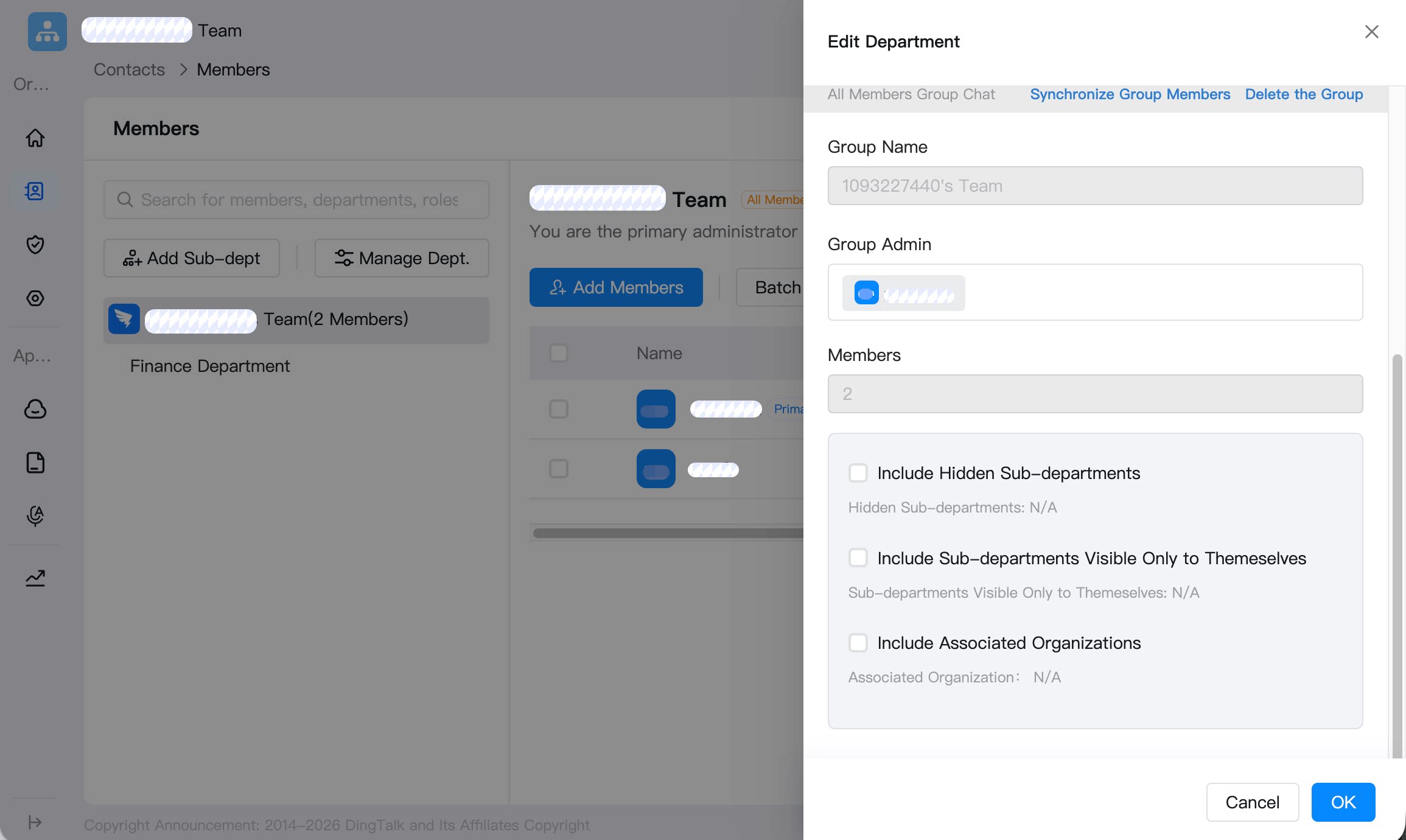
Go to Admin Console > Contacts > Member Management > Edit Department > select Group Owner.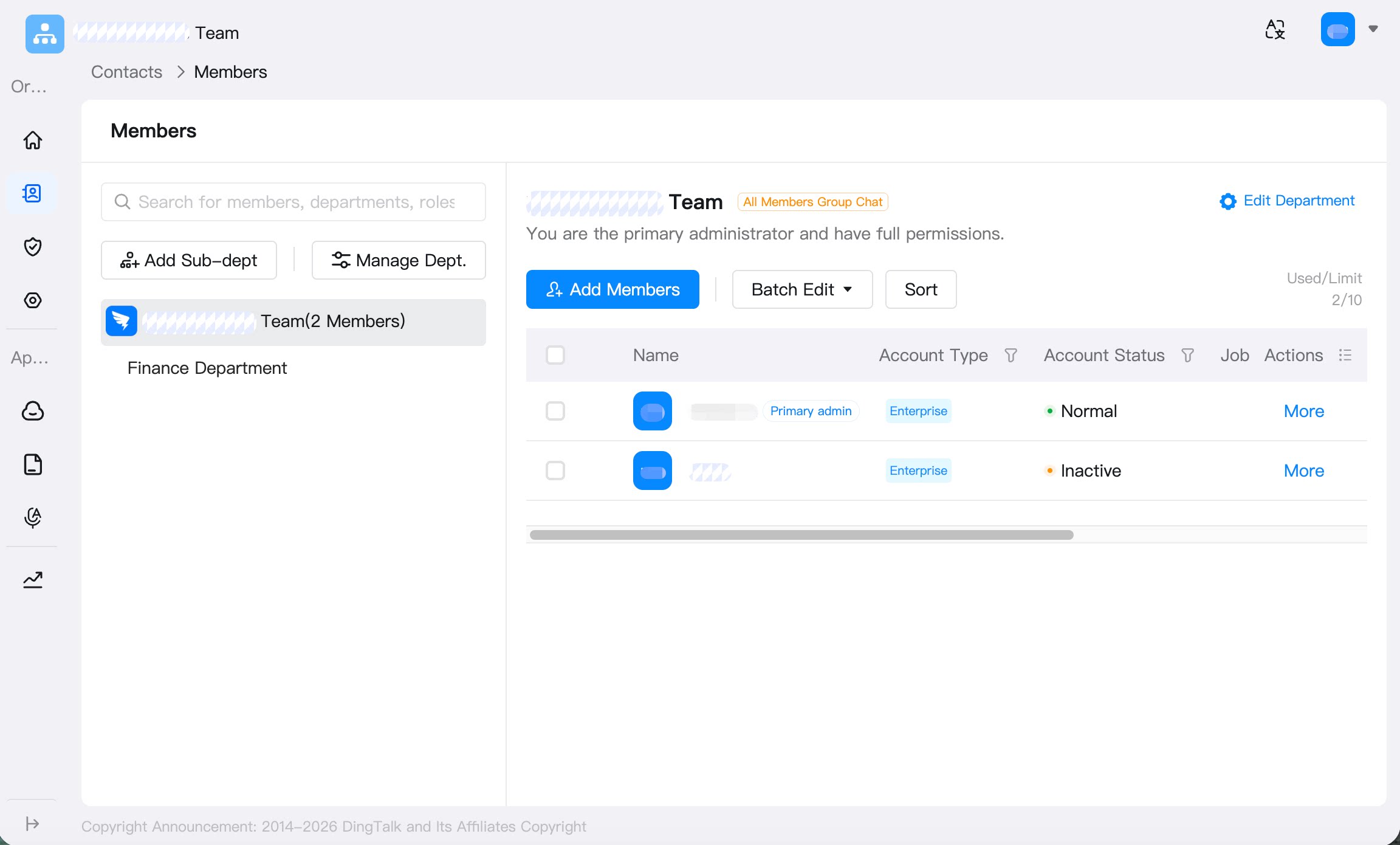
Transfer the Group Owner on Mobile
Open DingTalk on mobile > Chats > enter the all-member group > … in the upper-right corner > Group Management > scroll to the bottom and select Transfer Group Ownership.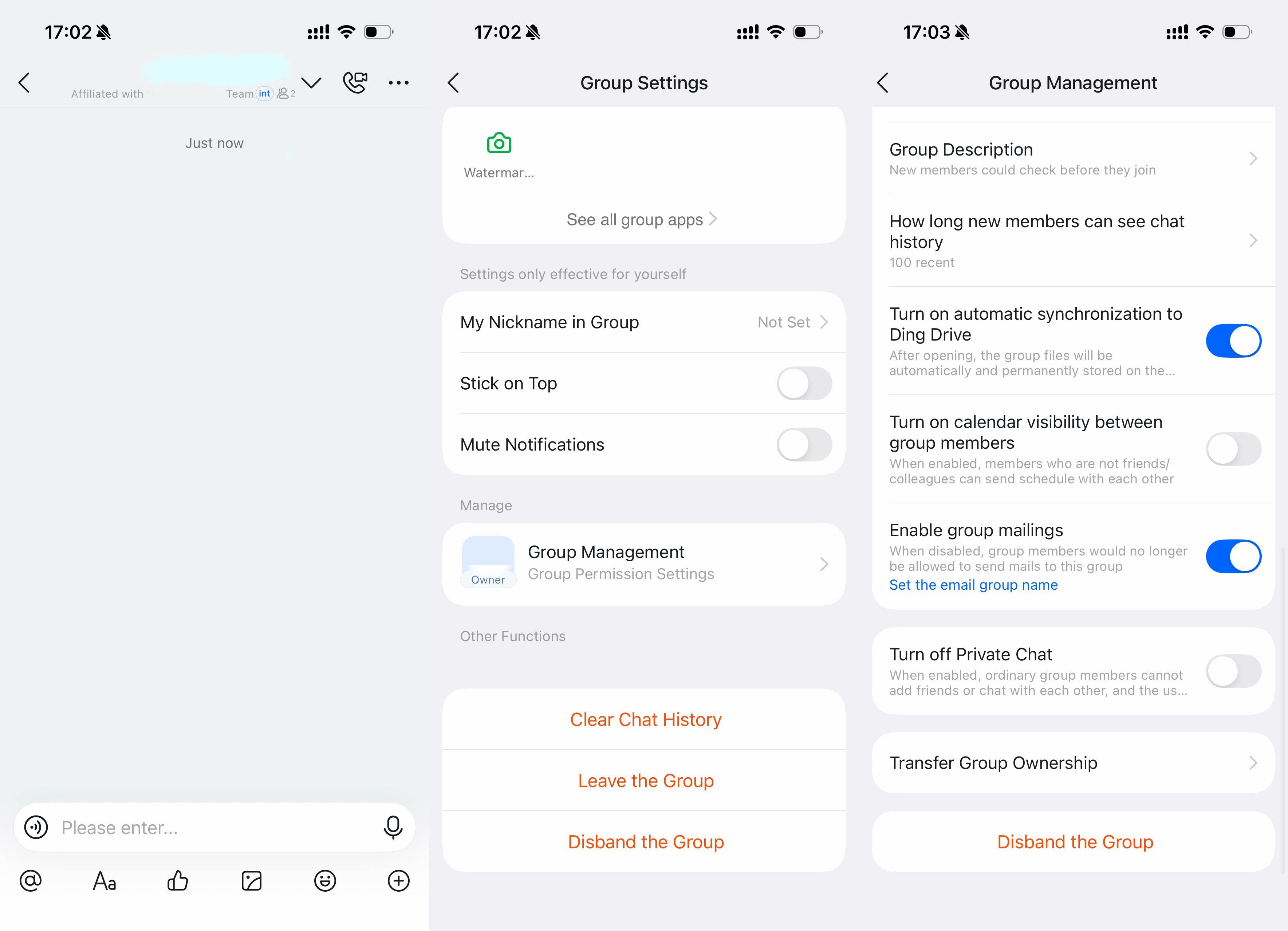
Department Group Settings
Create a Department Group
A department group can be created only after a team or enterprise is created. It must be created by a primary administrator or a sub-administrator with Contacts permissions. Ordinary members cannot create a department group.Desktop
Go to Admin Console > Contacts > Department Management > select the target department > Edit Selected Department > Create Group Chat.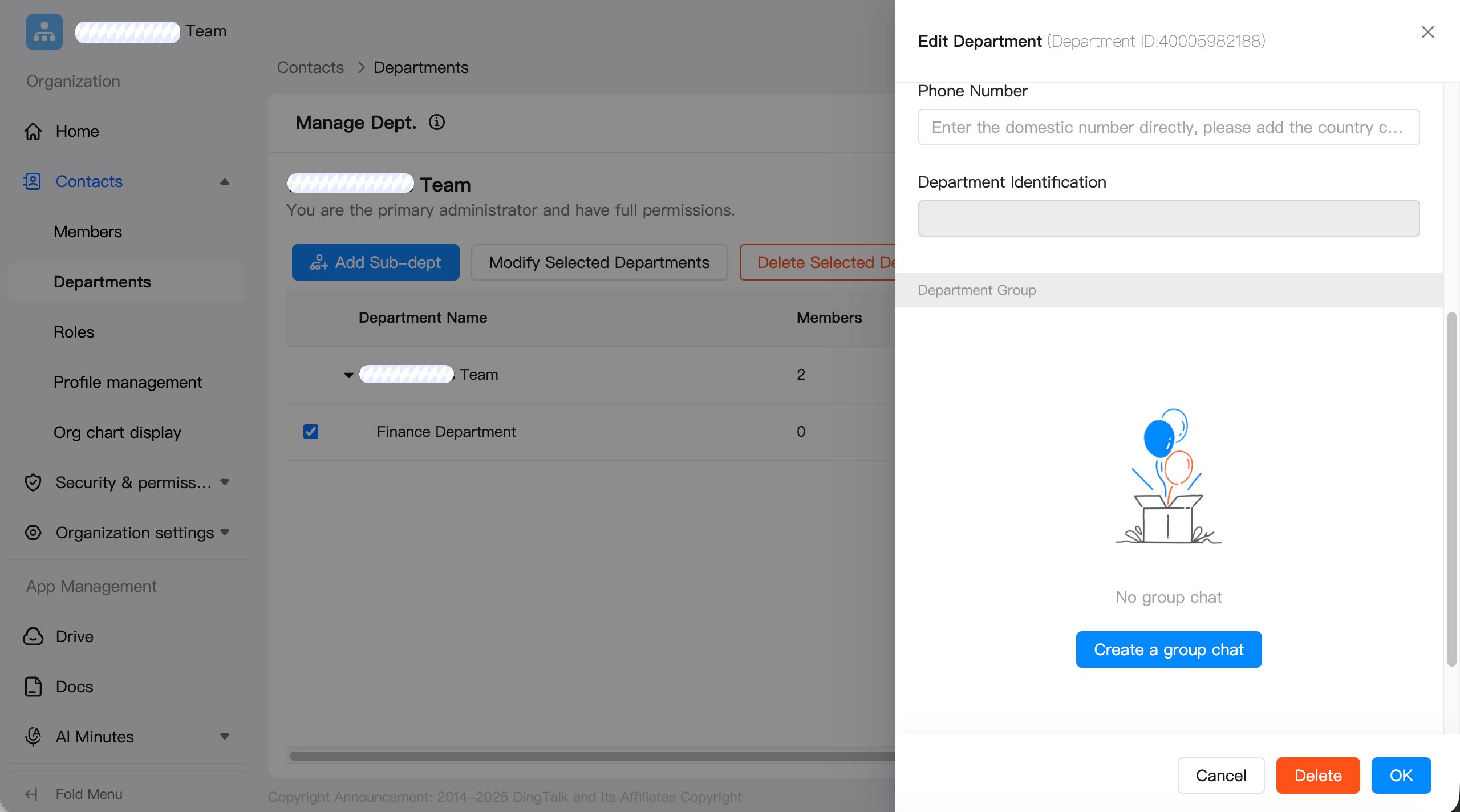
Delete a Department Group
Go to Admin Console > Contacts > Department Management > select the target department > Edit Selected Department > Delete This Group.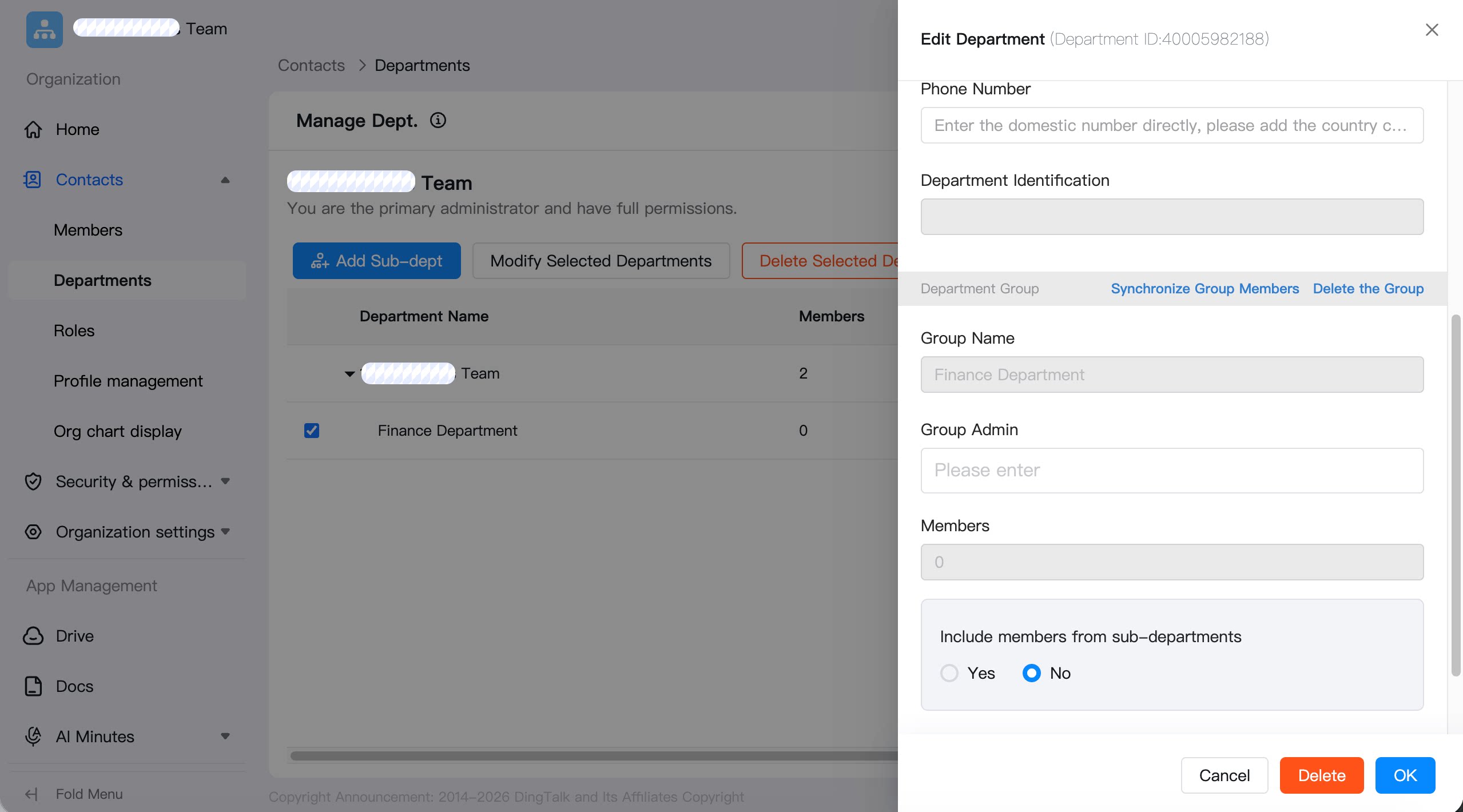
Set the Department Group Owner
Go to Admin Console > Contacts > Department Management > select the target department > Edit Selected Department > select Group Owner.