Chats
Chats Calendar
 Meetings
 Contacts
 Mail
Mail Docs
Docs Drive
Drive AI Table
 AI Minutes
 Attendance
 Approval
 YiDA
YiDA Admin Console
1. Feature Overview
To improve HR management efficiency, DingTalk provides enterprise administrators with Batch Add Members and Batch Modify Member Information. By importing Excel files, you can quickly add or update large amounts of employee information and avoid repetitive manual work.2. Use Cases
Use this feature when:- An enterprise creates a new DingTalk organization or establishes a new department.
- An enterprise runs campus recruiting or another large-scale recruiting process.
- An enterprise works on a project with external partners such as suppliers or customers.
- You need to add members or modify member information in bulk.
3. Procedure
Administrators with permission can go to Admin Console > Contacts > Members> Batch Edit > Bulk Import / Bulk Export.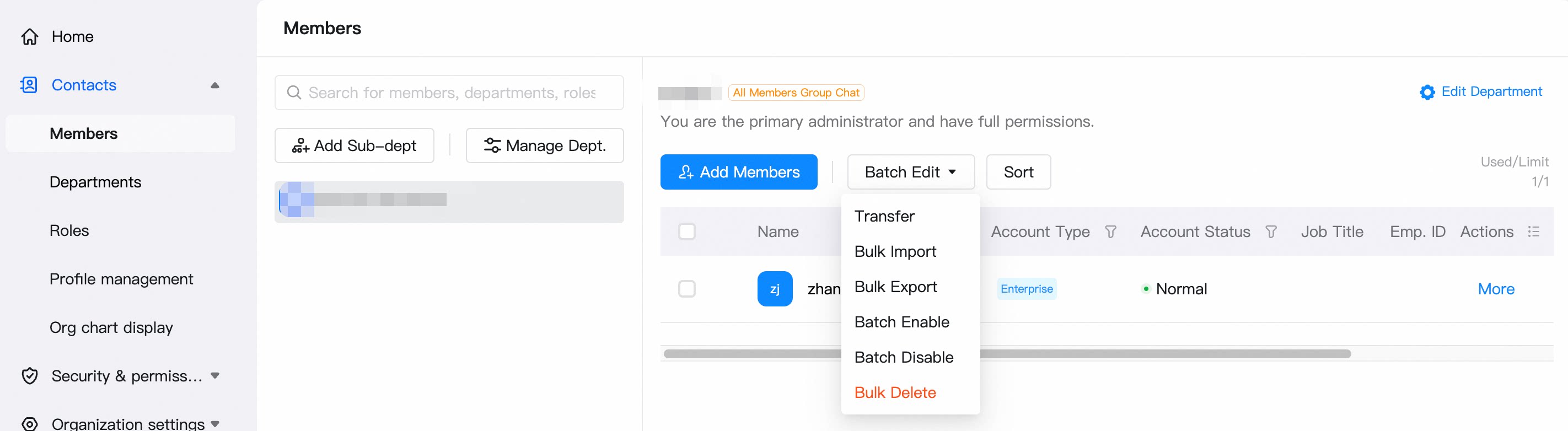 For batch member addition, download the standard template on the Batch Import Members page, fill in member information, and upload it back to DingTalk to quickly add new members to Enterprise Contacts.
For bulk export or modification, export the standard template from the Export/Modify Members page, modify member information in the file, and upload it back to DingTalk to quickly modify multiple members.
For batch member addition, download the standard template on the Batch Import Members page, fill in member information, and upload it back to DingTalk to quickly add new members to Enterprise Contacts.
For bulk export or modification, export the standard template from the Export/Modify Members page, modify member information in the file, and upload it back to DingTalk to quickly modify multiple members.
Batch Add Members
Go to Batch Import
Go to Admin Console > Contacts > Members > Batch Edit > Bulk Import > Download Template.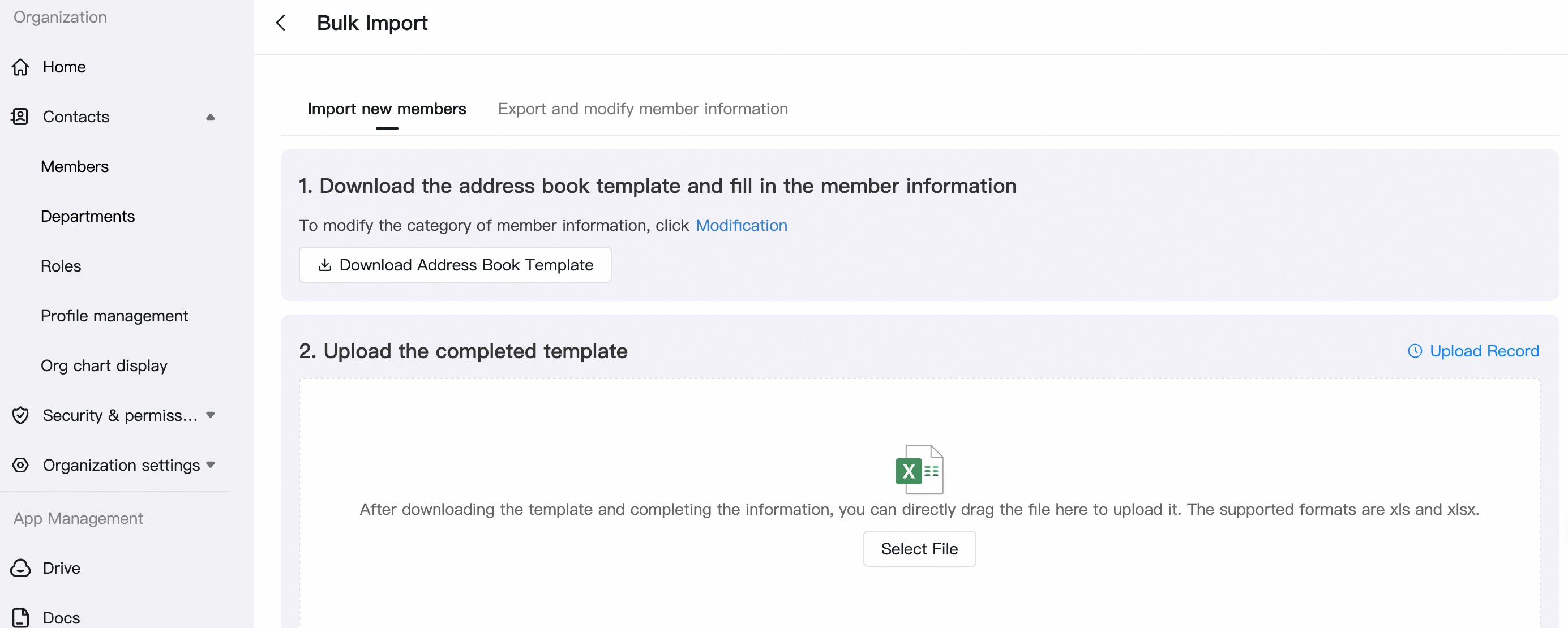
Fill in Employee Information
After downloading the template, refer to the sample text in the first row and the filling instructions to enter the new employee information.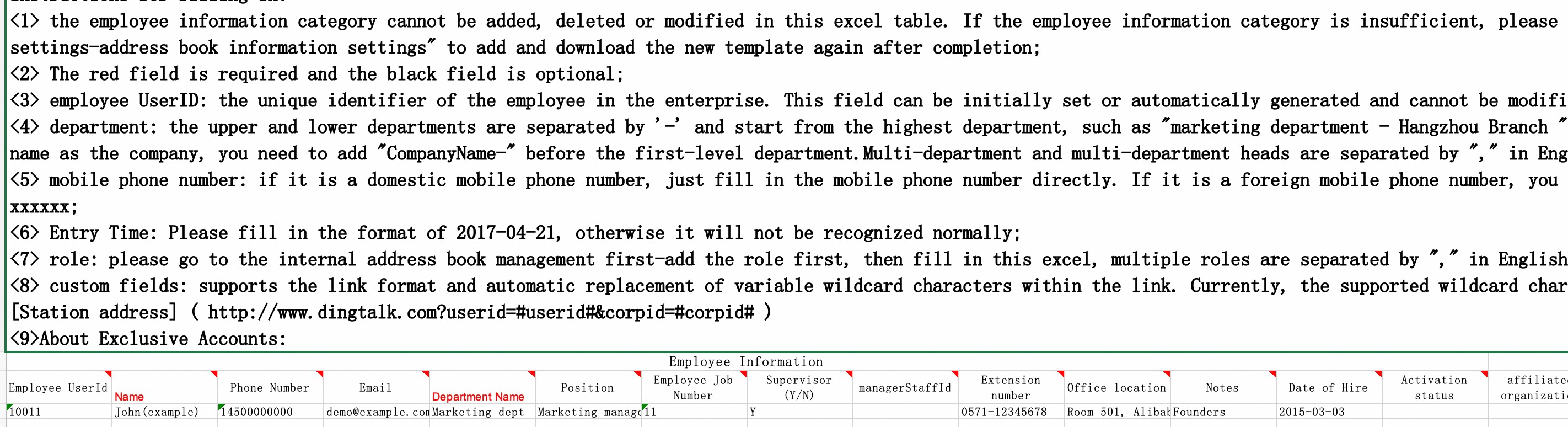
Delete the Sample Row
After filling in the file, delete the first row of sample text and save the file.Upload the File
On the Batch Import Members page, click Upload File, select the employee information file, and click Import. The new members will be added to Enterprise Contacts.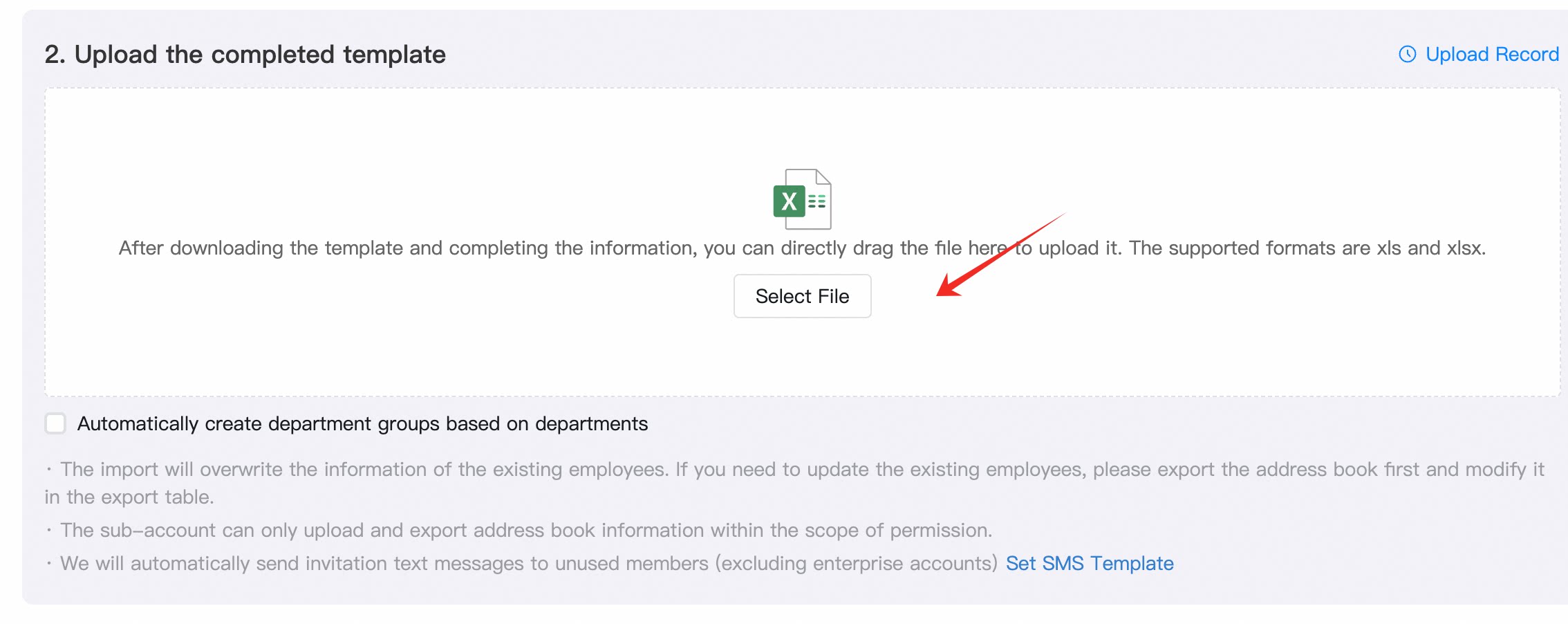
Batch Modify Member Information
Export Member Information
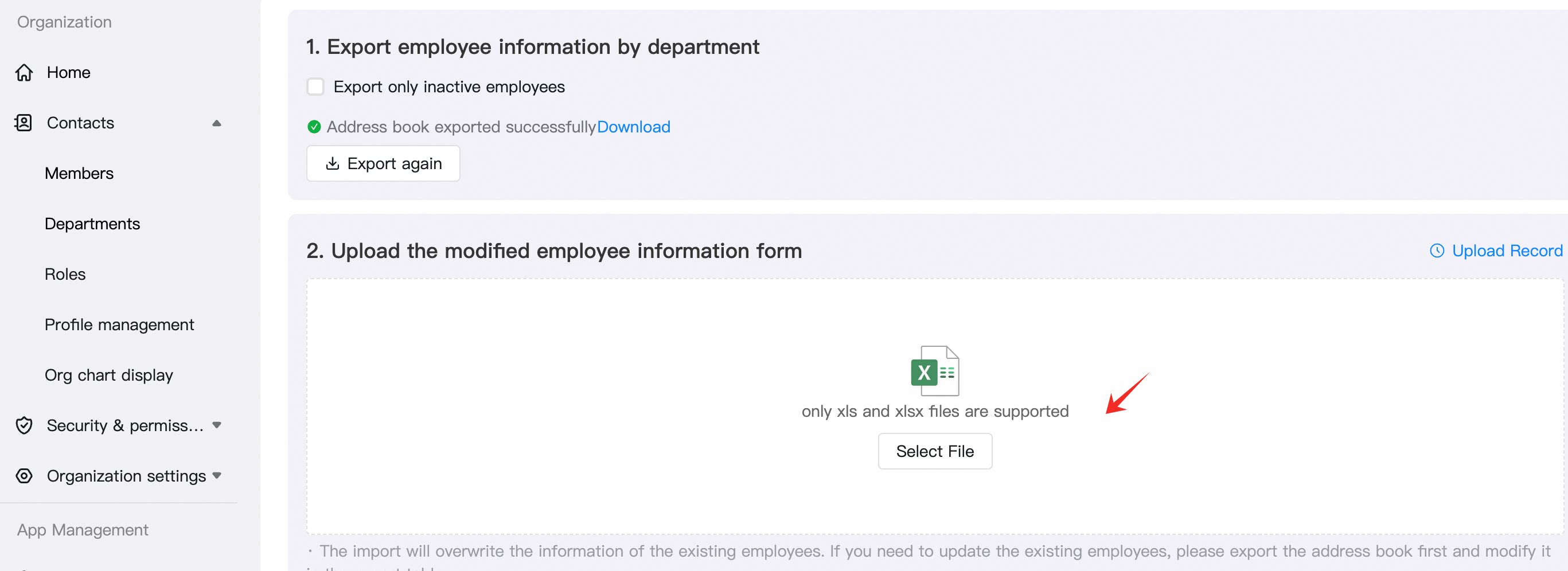
Go to Admin Console > Contacts > Members> Batch Edit > Bulk Export, then click Export/Modify Members > Export.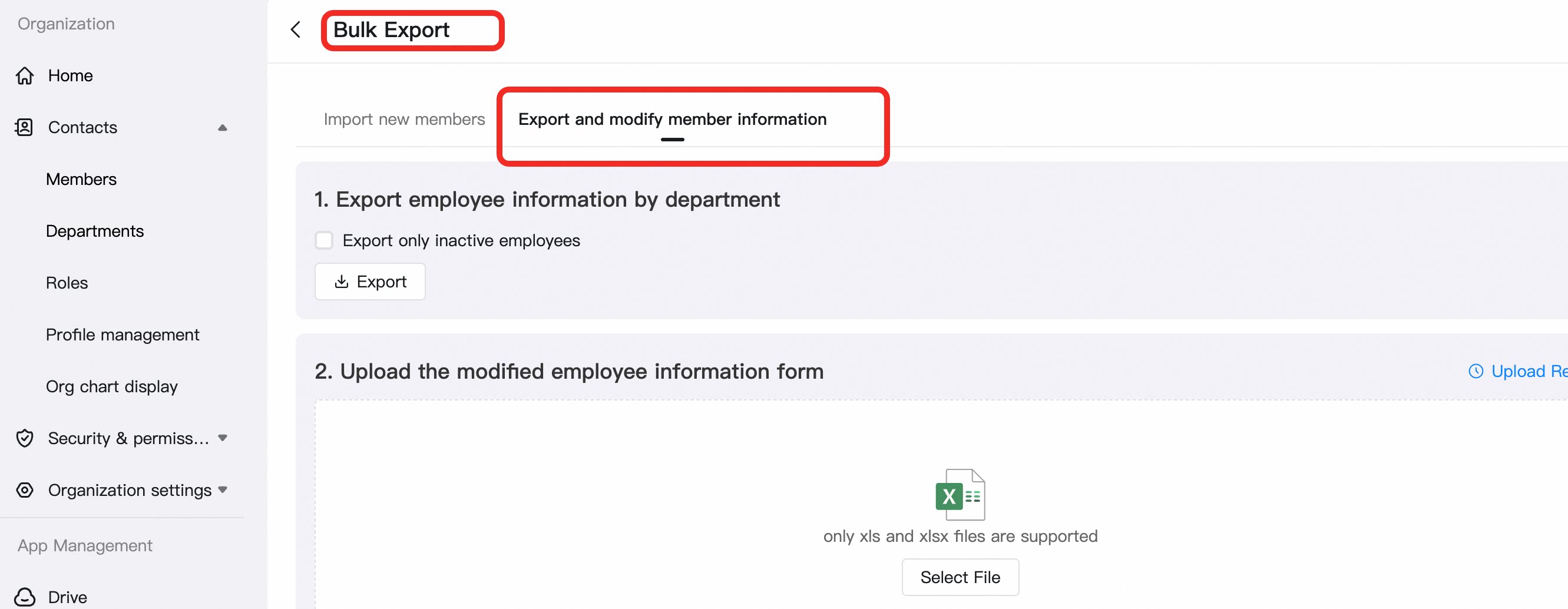
Select Departments
Select the departments whose information needs to be modified, then click Confirm.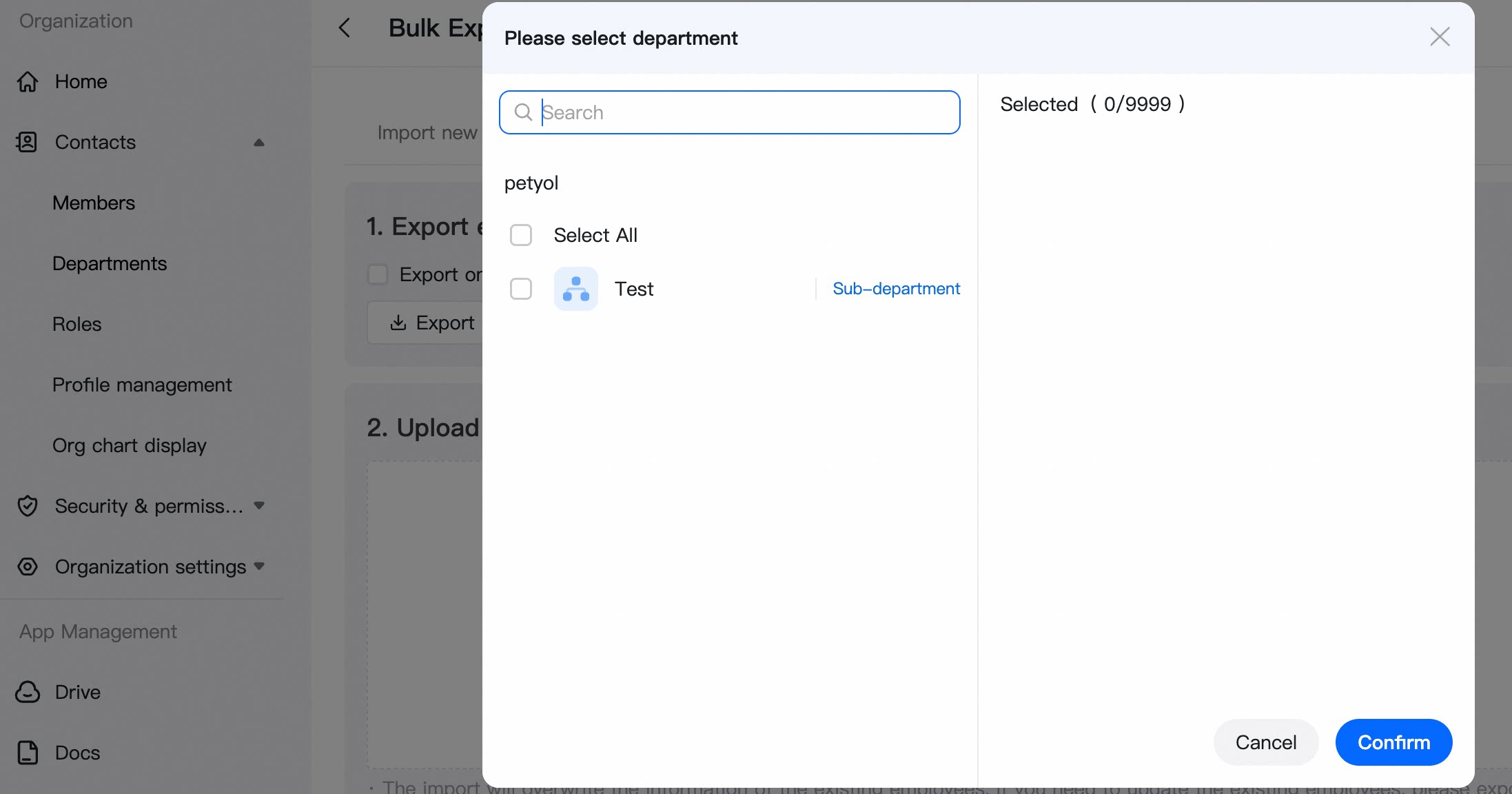
Download the Exported File
When the page shows that Contacts export succeeded, click Download.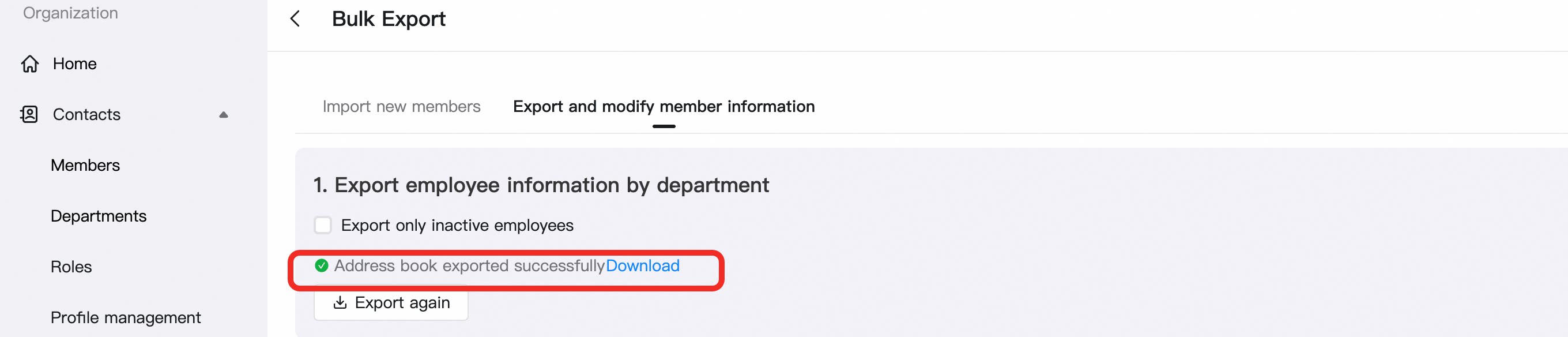
Modify the File
Open the downloaded file and modify the existing information according to the filling instructions.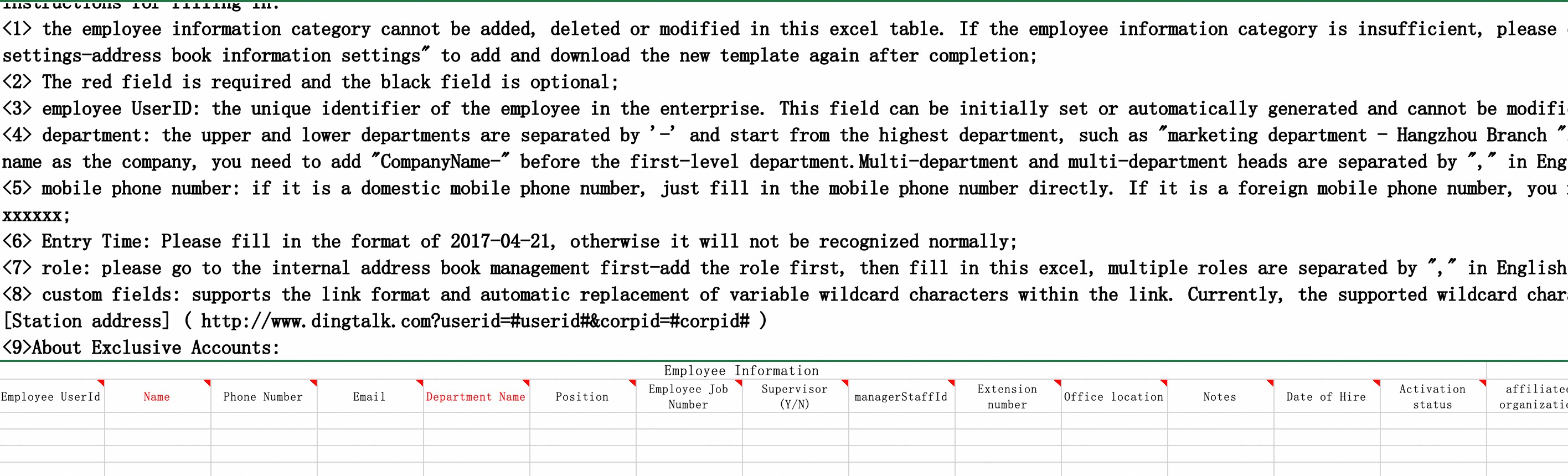
Upload the Modified File
Upload and import the saved file.