Chats
Chats Calendar
 Meetings
 Contacts
 Mail
Mail Docs
Docs Drive
Drive AI Table
 AI Minutes
 Attendance
 Approval
 YiDA
YiDA Admin Console
1. Overview
Admins can configure premium settings.Premium settings apply to the current form only.They include initiator settings, approver settings, data title and summary settings, permission settings, submission reminders, and more.
2. Prerequisites
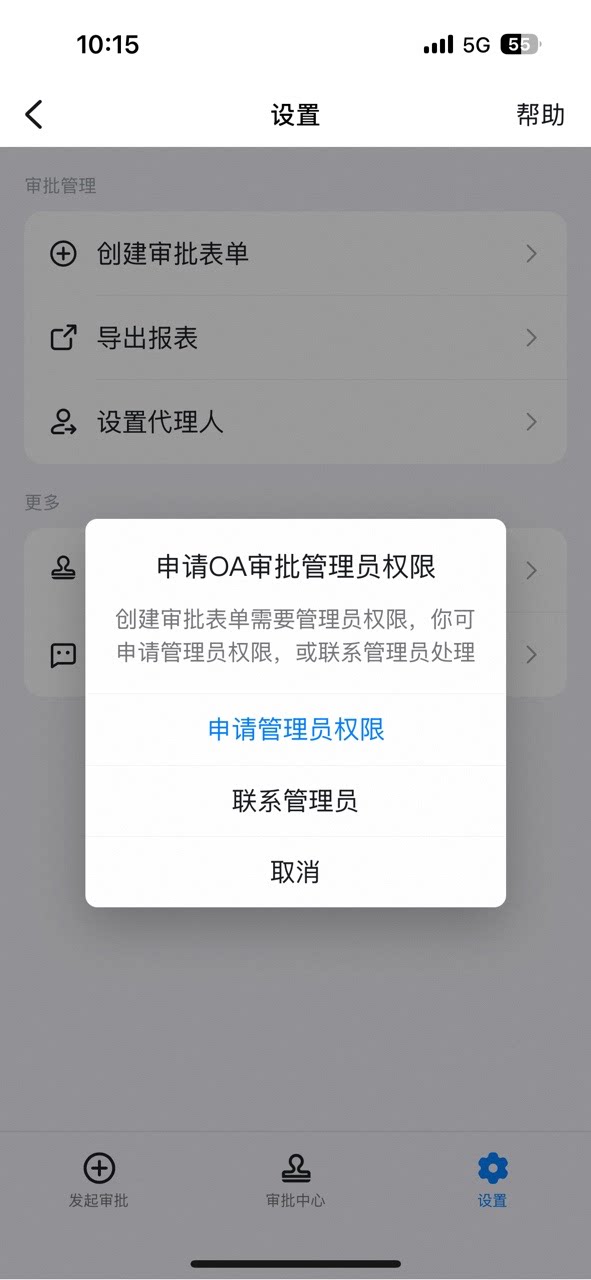
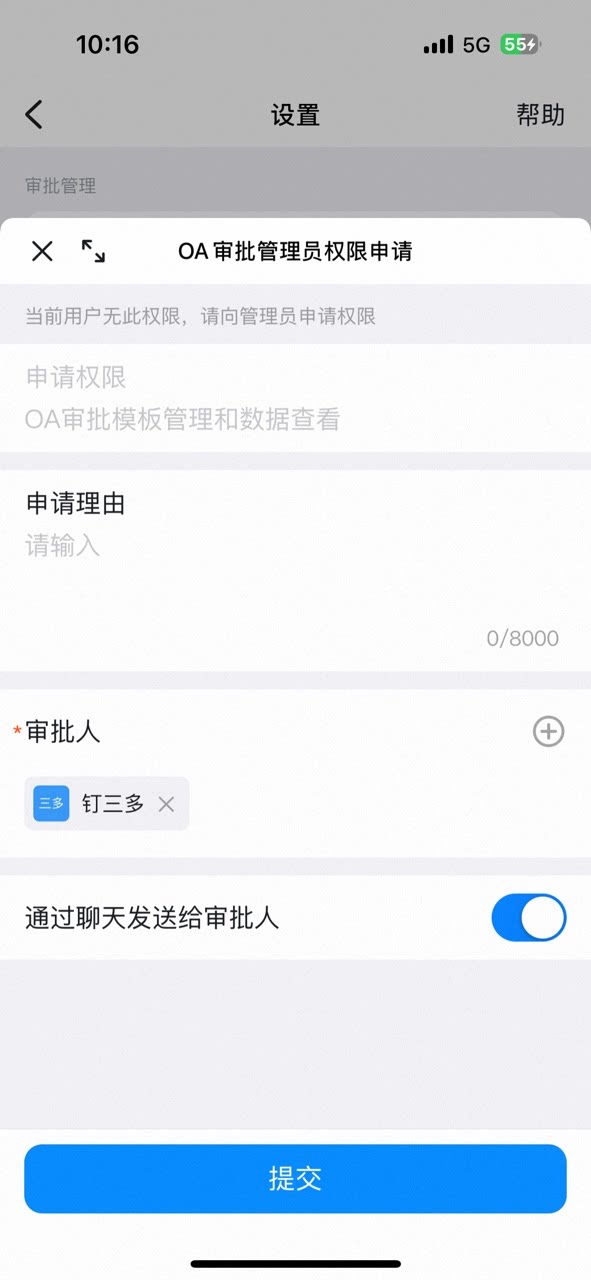
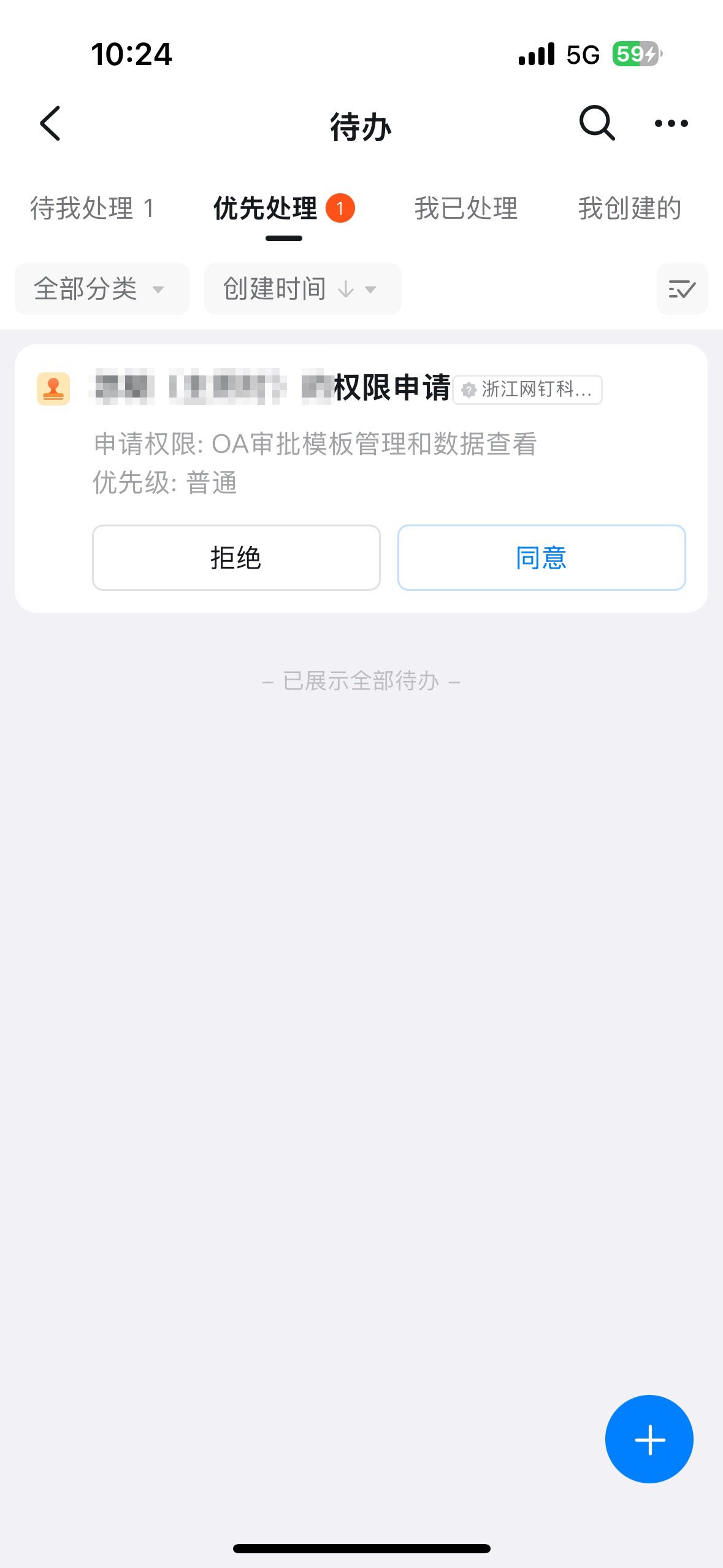
- Only an approval Admin can design processes, so you must first become an approval Admin.
3. Steps
1. Access form data management
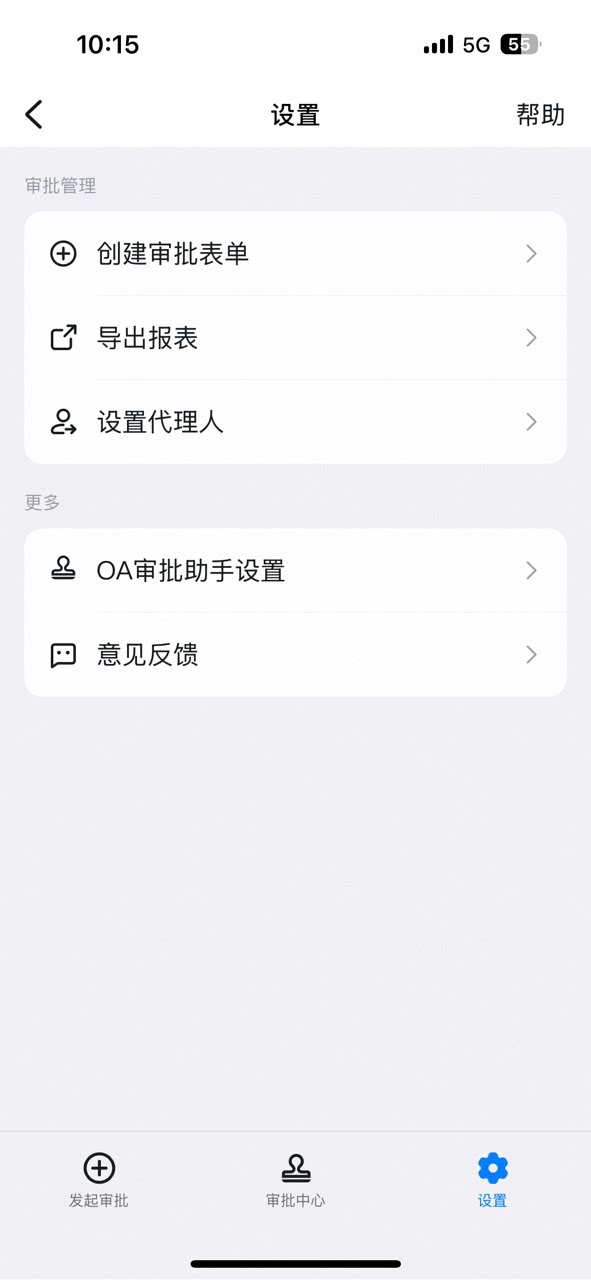
Click Manage Approval Forms in the top-right corner, and then click Form Data Management to manage your data.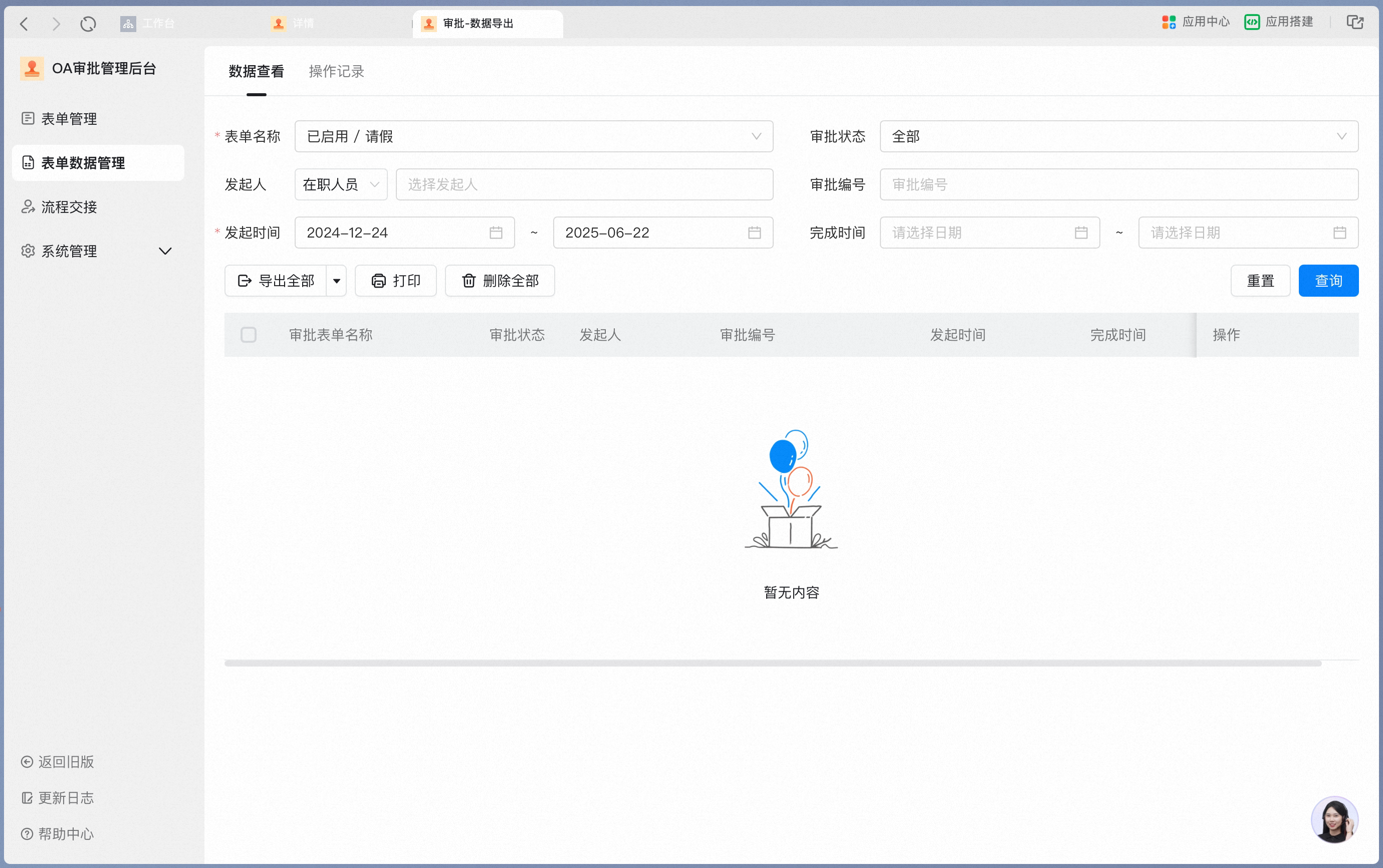
2. Query and export data
Query data by form name, approval status, initiator, approval number, submission time, or completion time. The time range cannot exceed six months.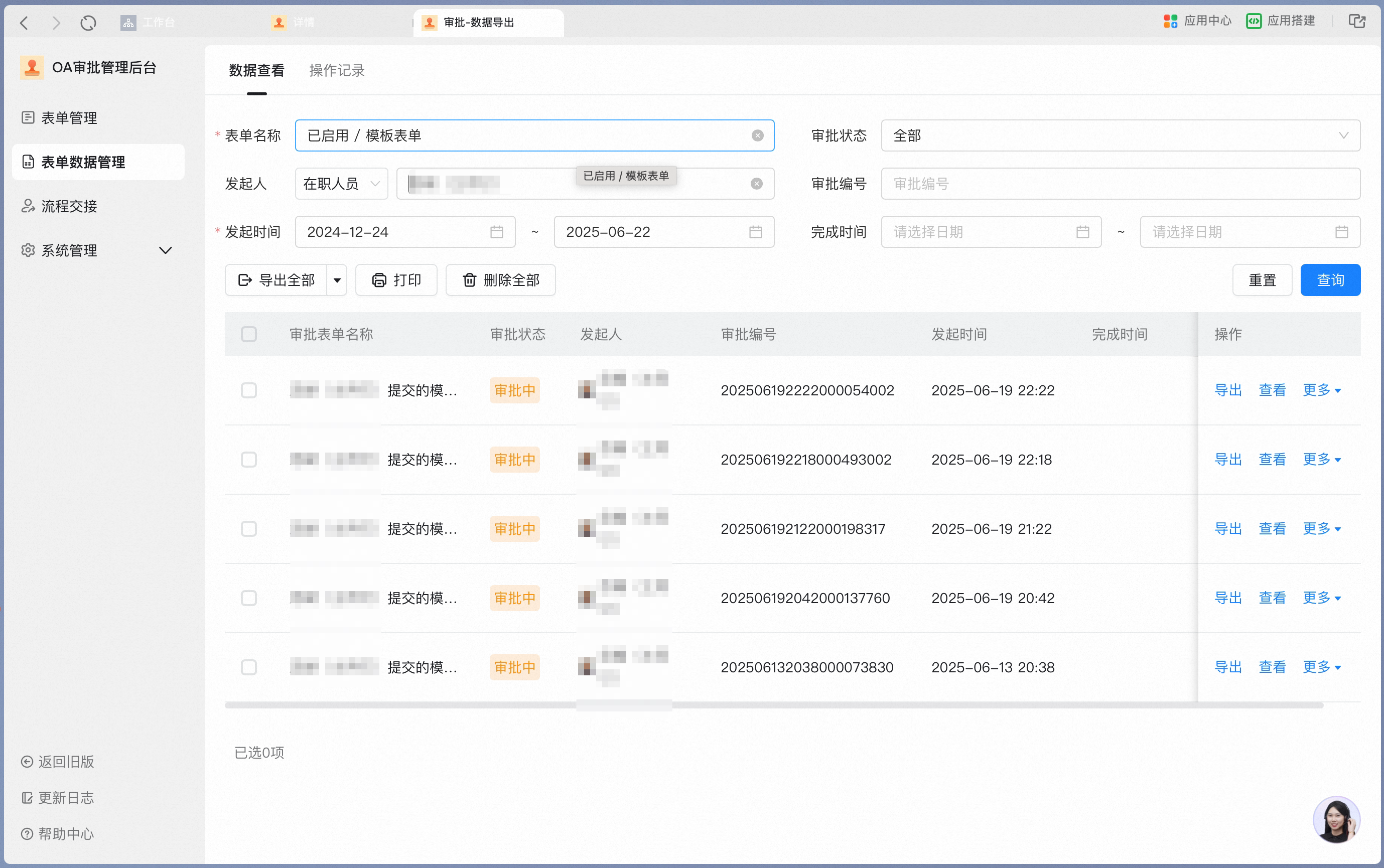
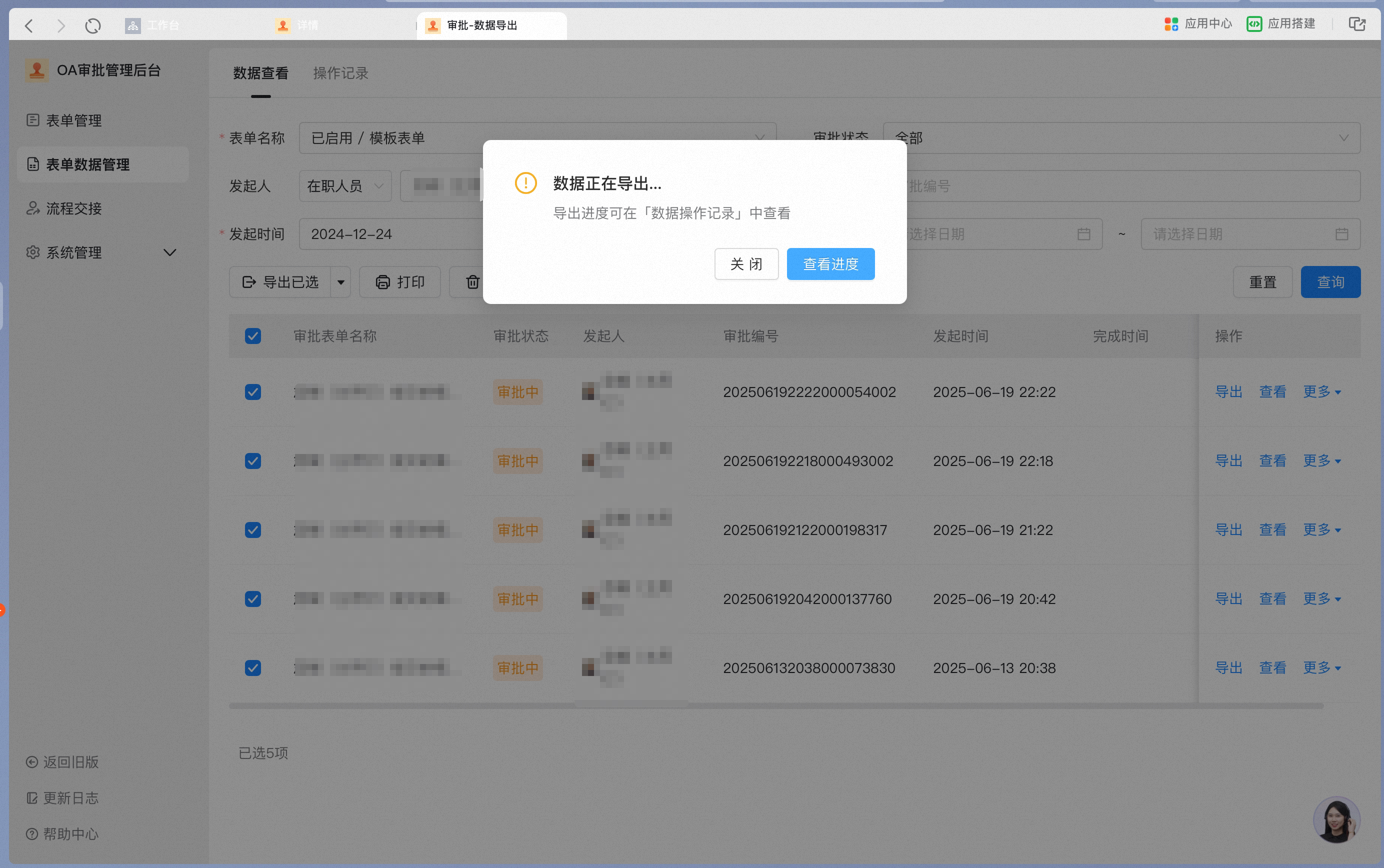
- Select the query results. You can select multiple records or Select all, and then click Export All.
3. Delete data
After filtering or querying, Select all to delete records in bulk, or select specific records and click Delete Selected.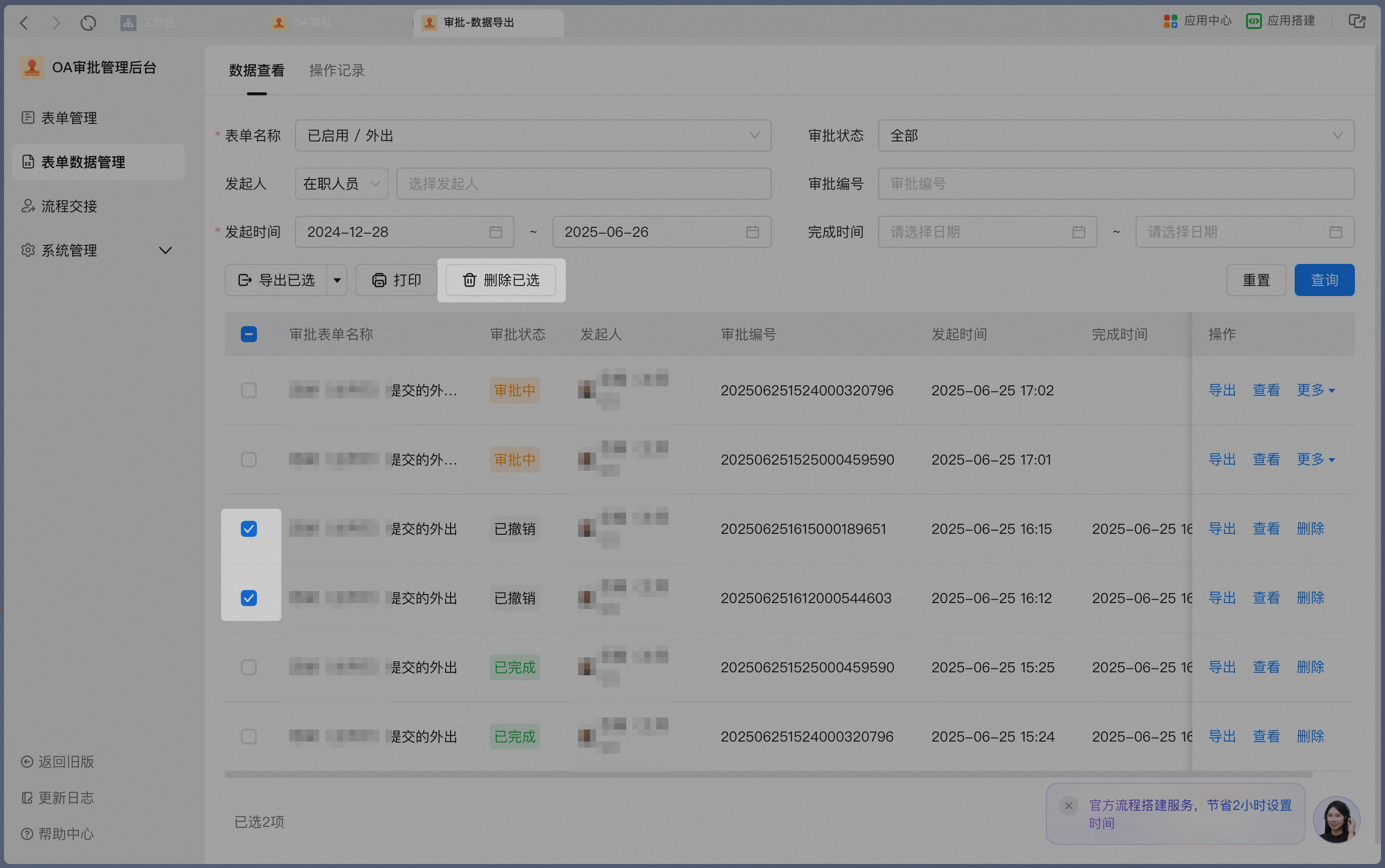
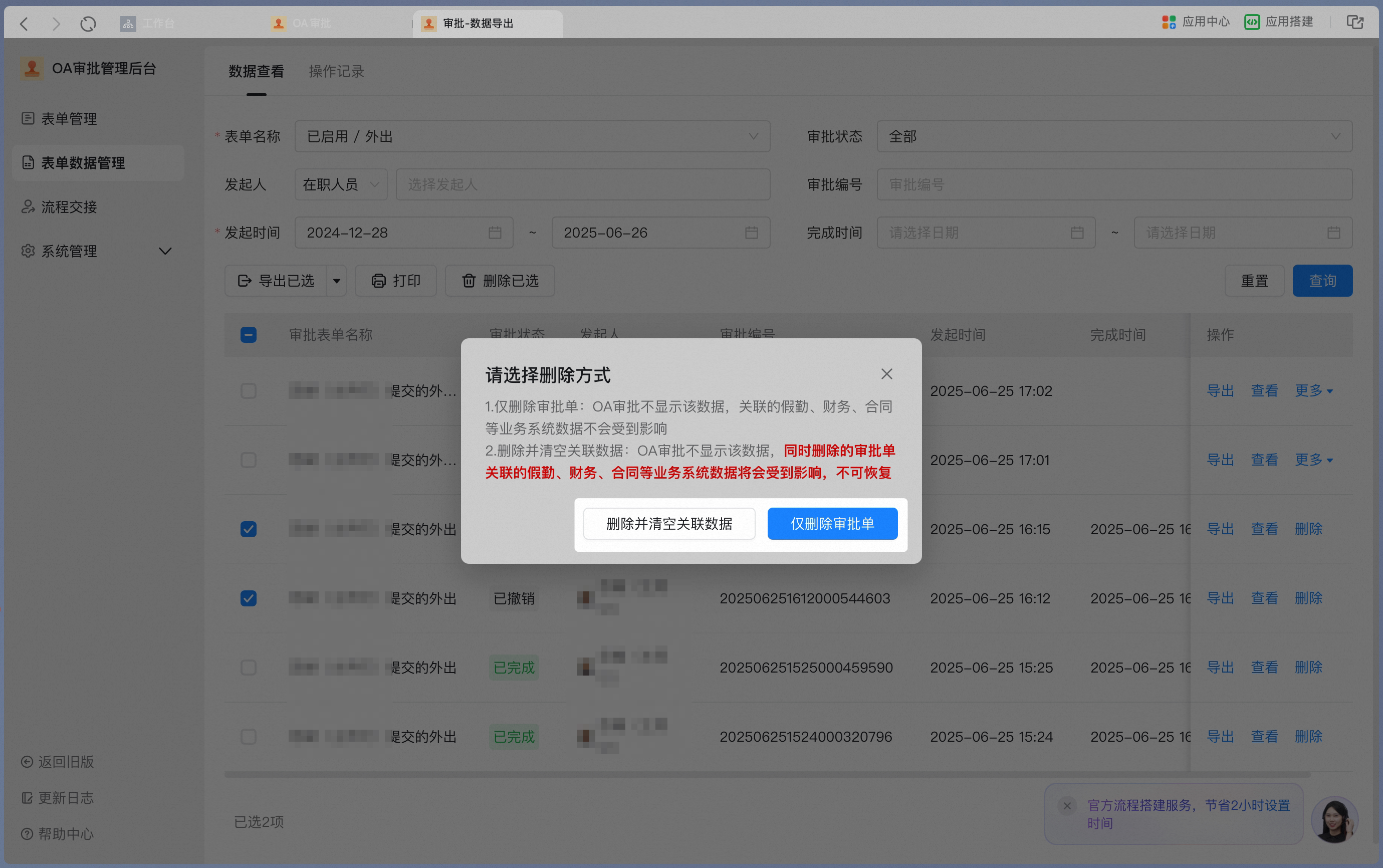
- Delete approval form only: Deletes only the Approval form without removing data in associated systems. For example, when deleting a leave request approval, this option does not affect the leave that has already been applied for. Dates that have already been requested for leave cannot be requested again.
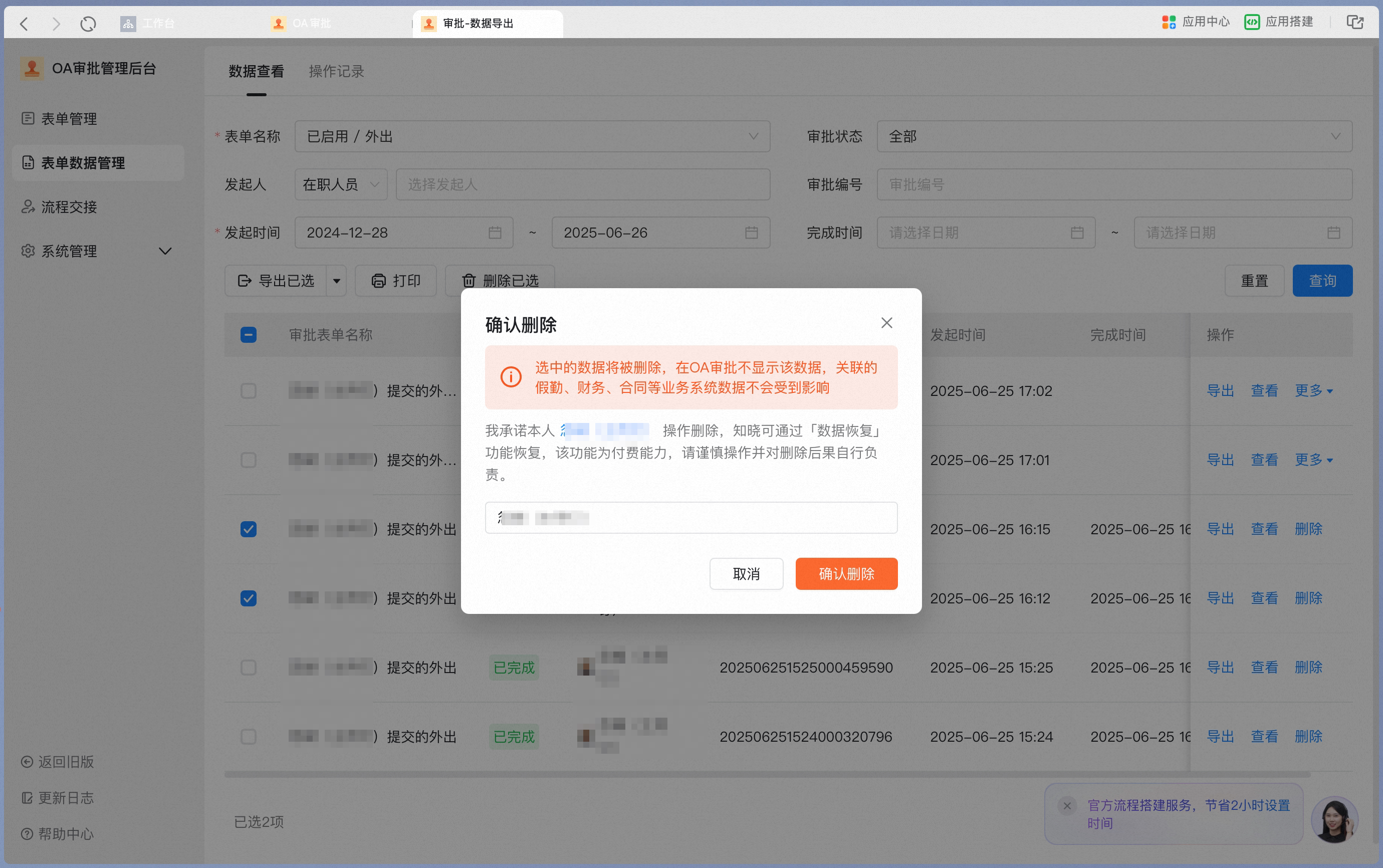
- Delete and clear associated data: Deletes the Approval form and also removes data in associated systems. For example, when deleting a leave request approval, this option restores the previously requested leave dates so they can be requested again. Once associated system data is deleted, it cannot be recovered.
4. Transfer data
When an error occurs with an individual Approval form—for example, when an approver did not set up an approval delegate before taking leave—the Admin can transfer the in-progress Approval form to another approver by clicking More under Data Management.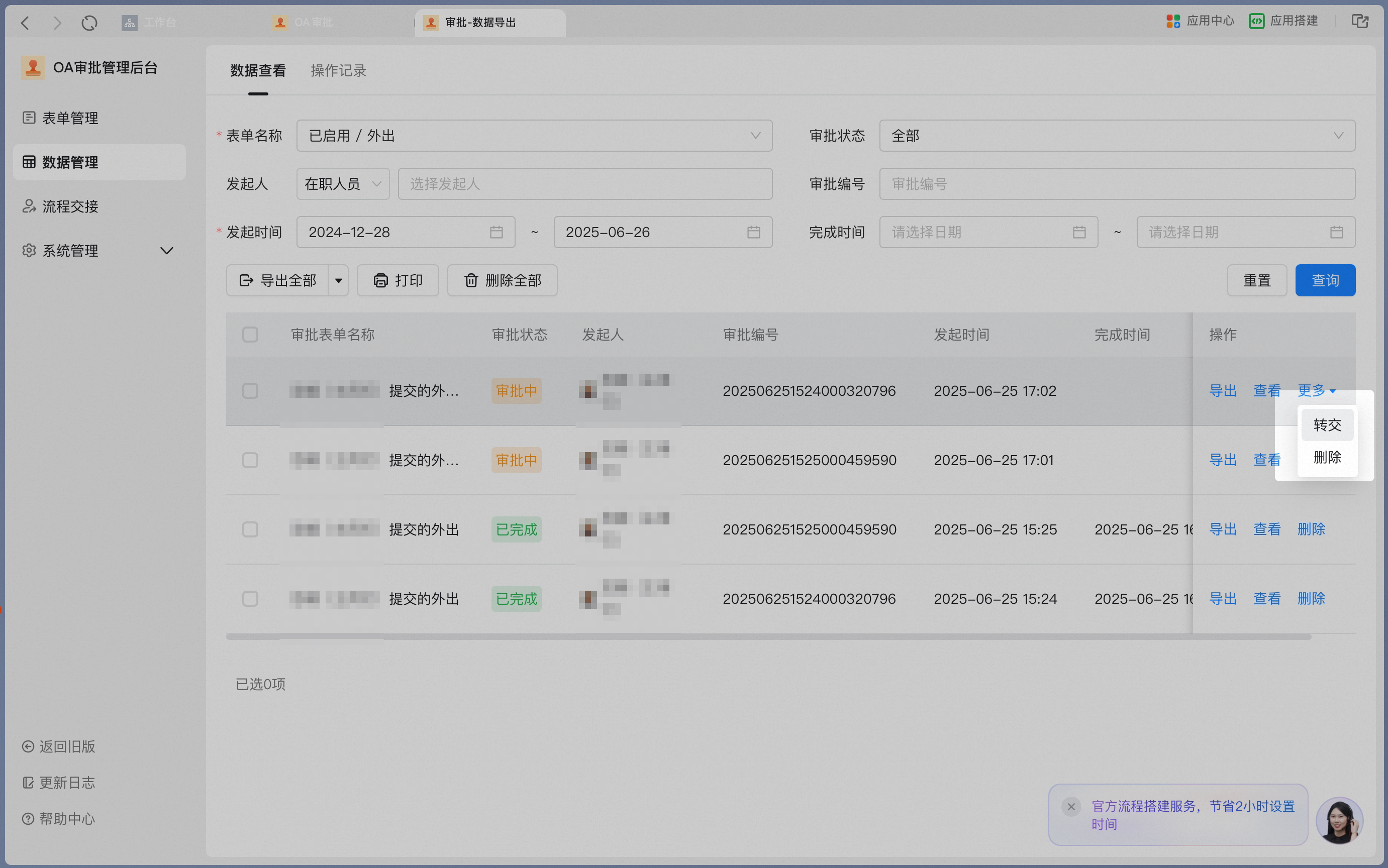
5. Download approval form details
Click View to open the form details, then click Download in the top-right corner to save the current form as a PDF for archiving.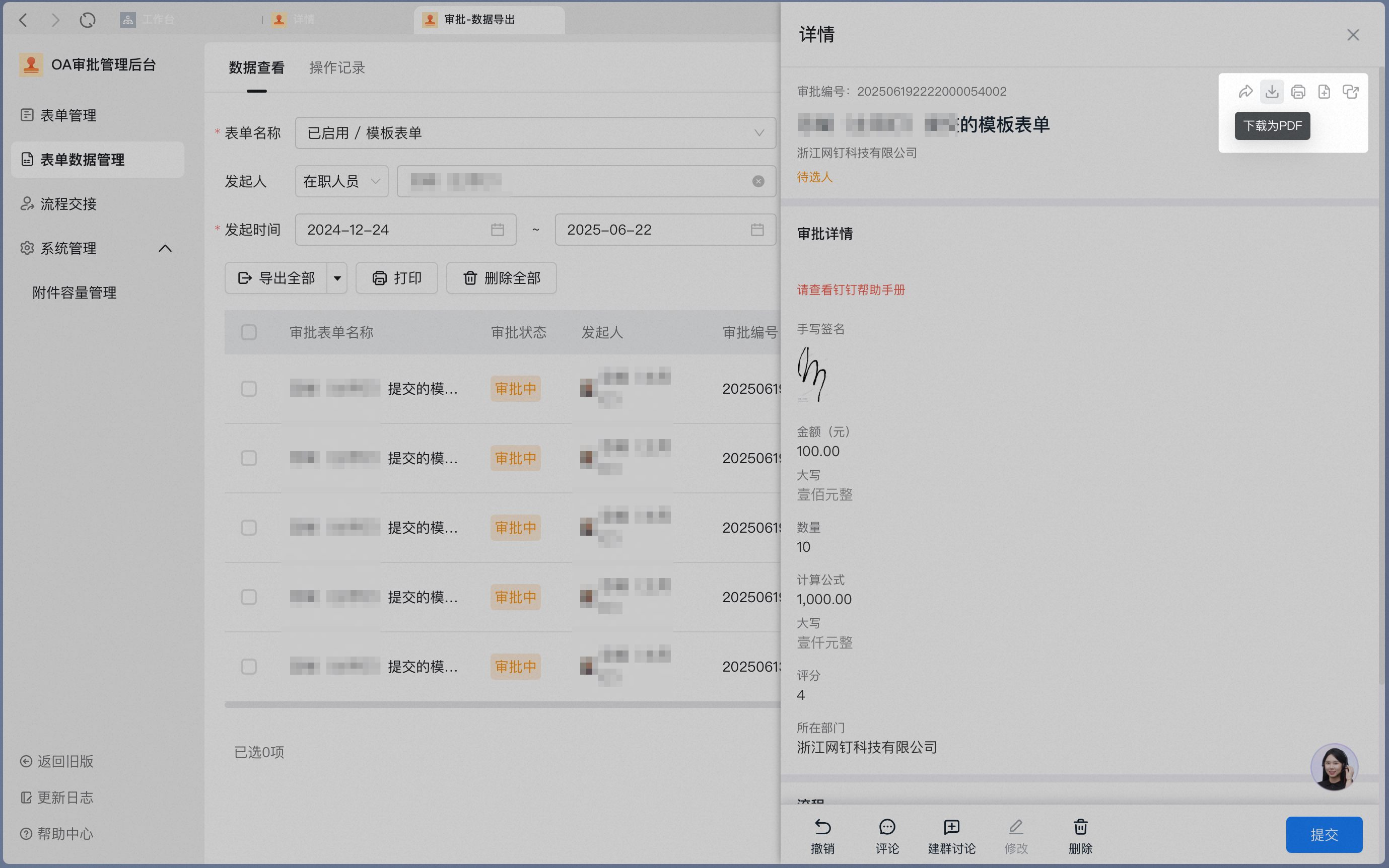
6. Activity log
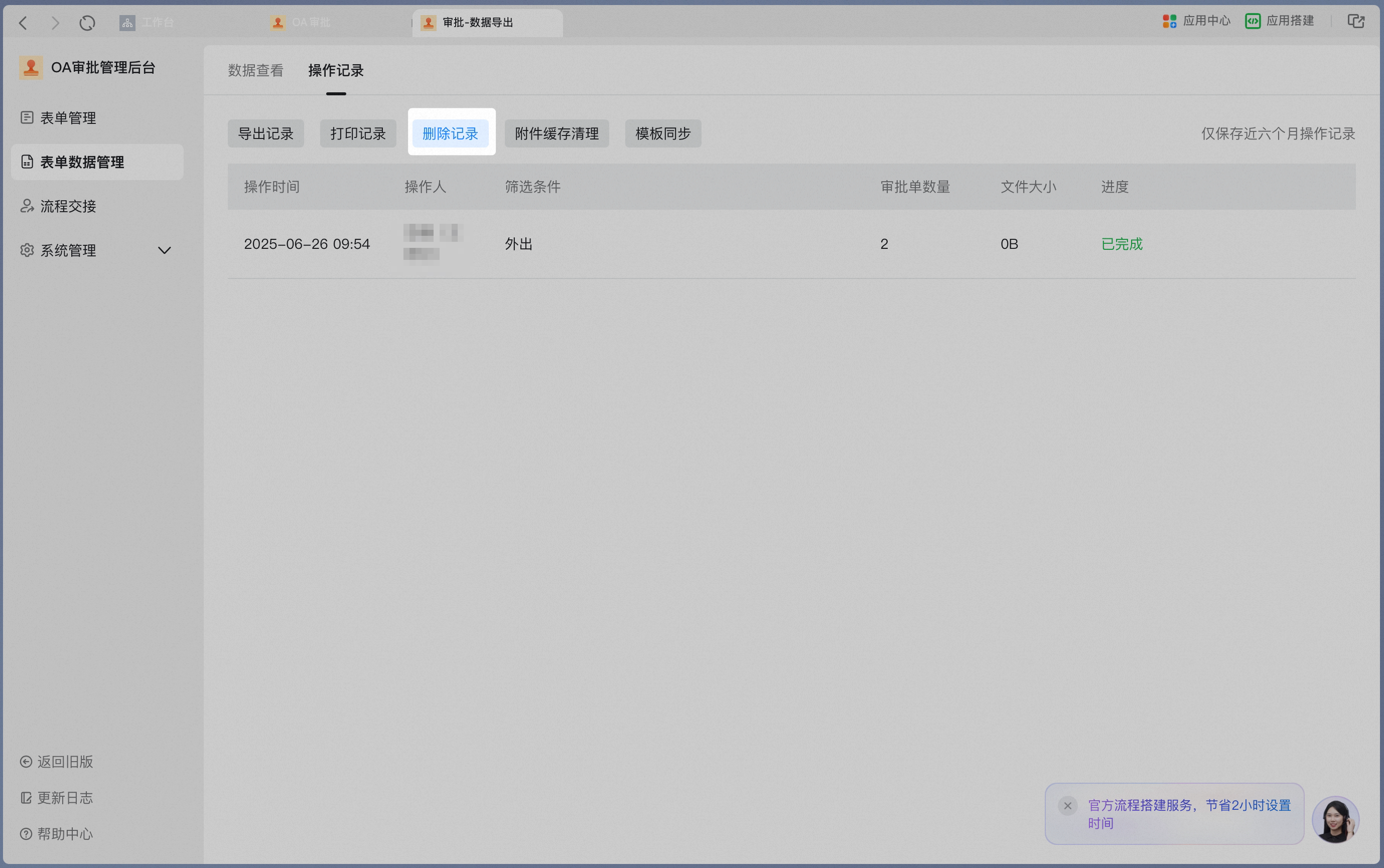
In the Admin Console, go to Data Management > Activity log to view records for actions such as Export, Print, Delete, attachment cache cleanup, and template sync.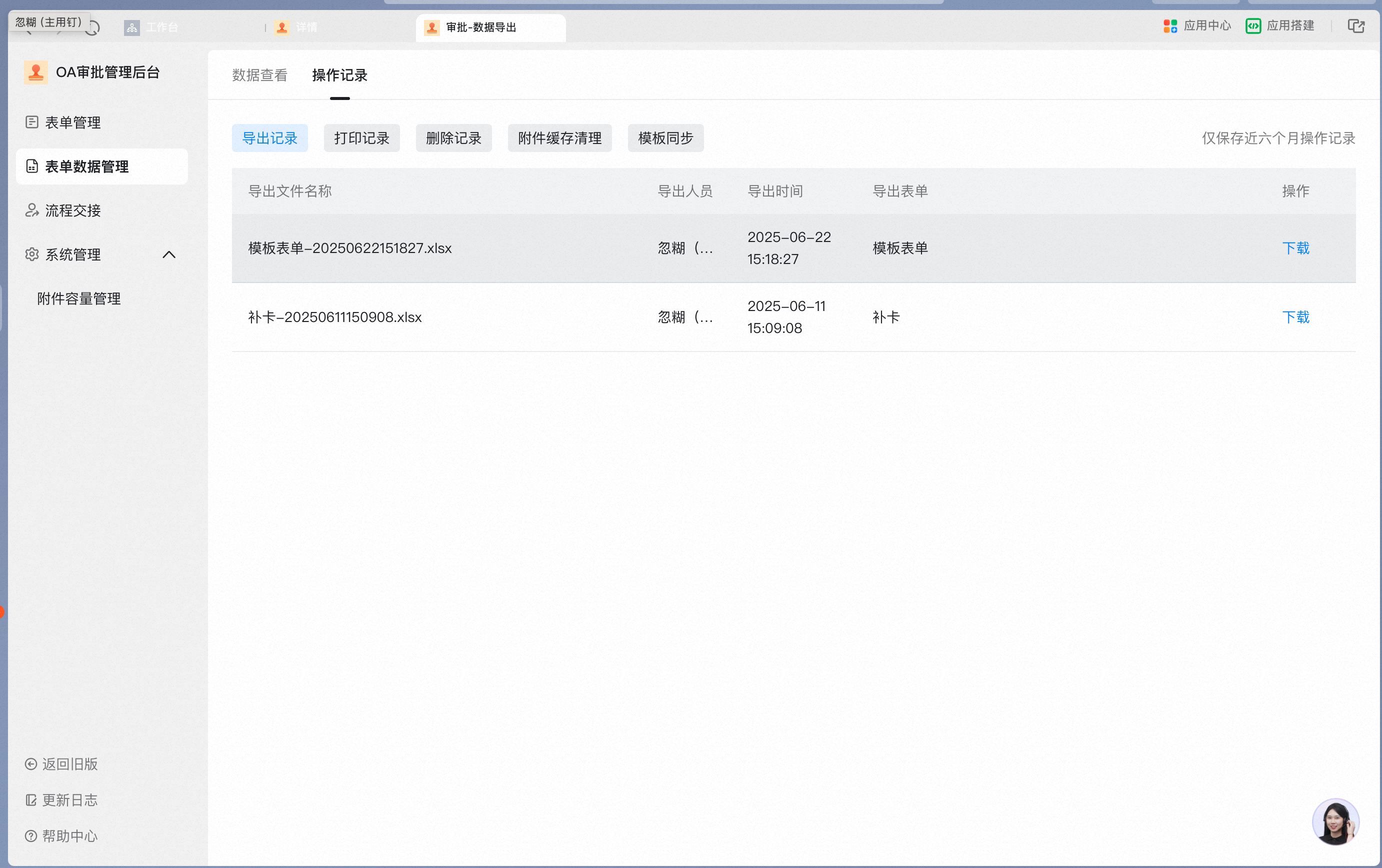
7. Process handover
- Approval process handover
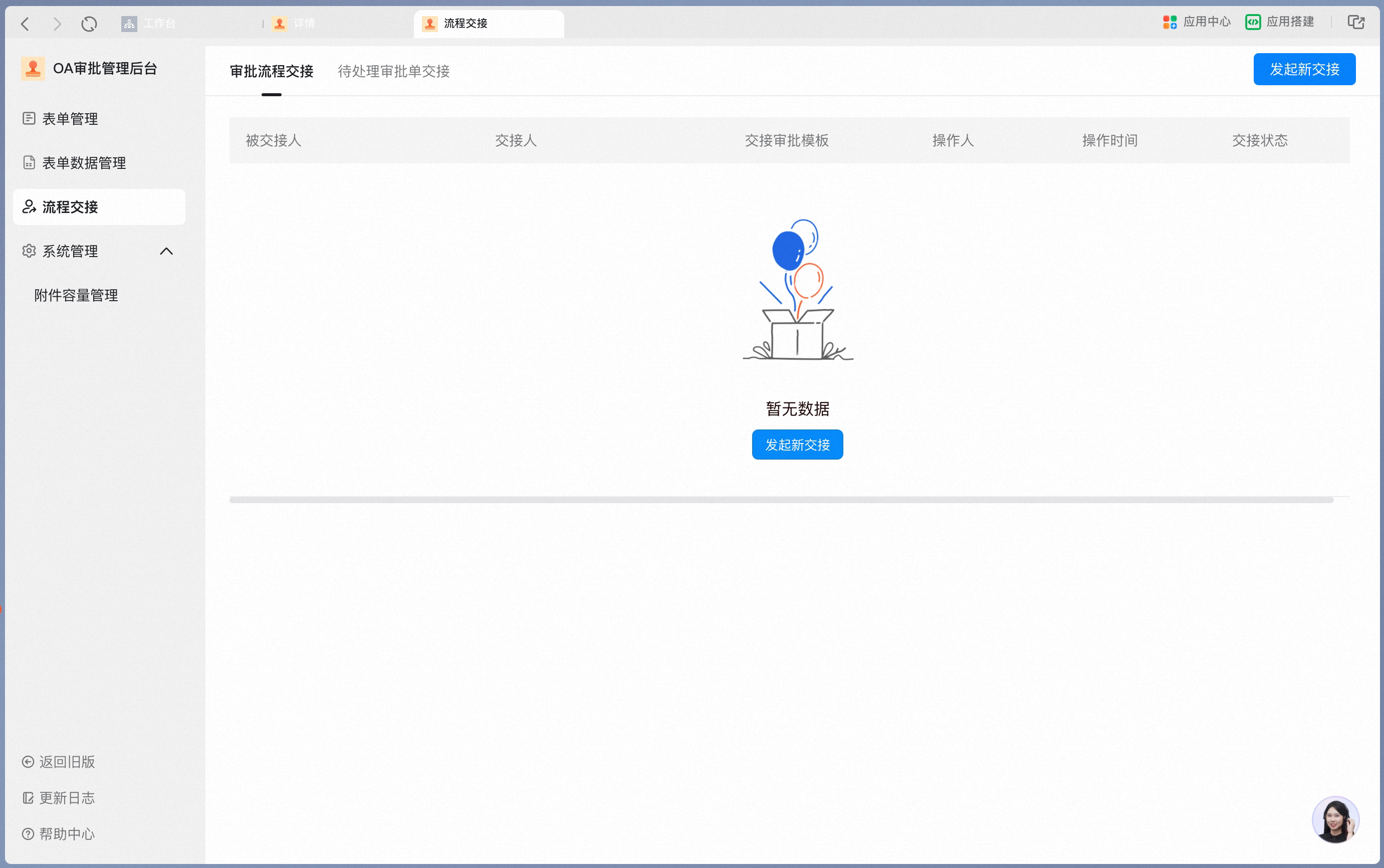
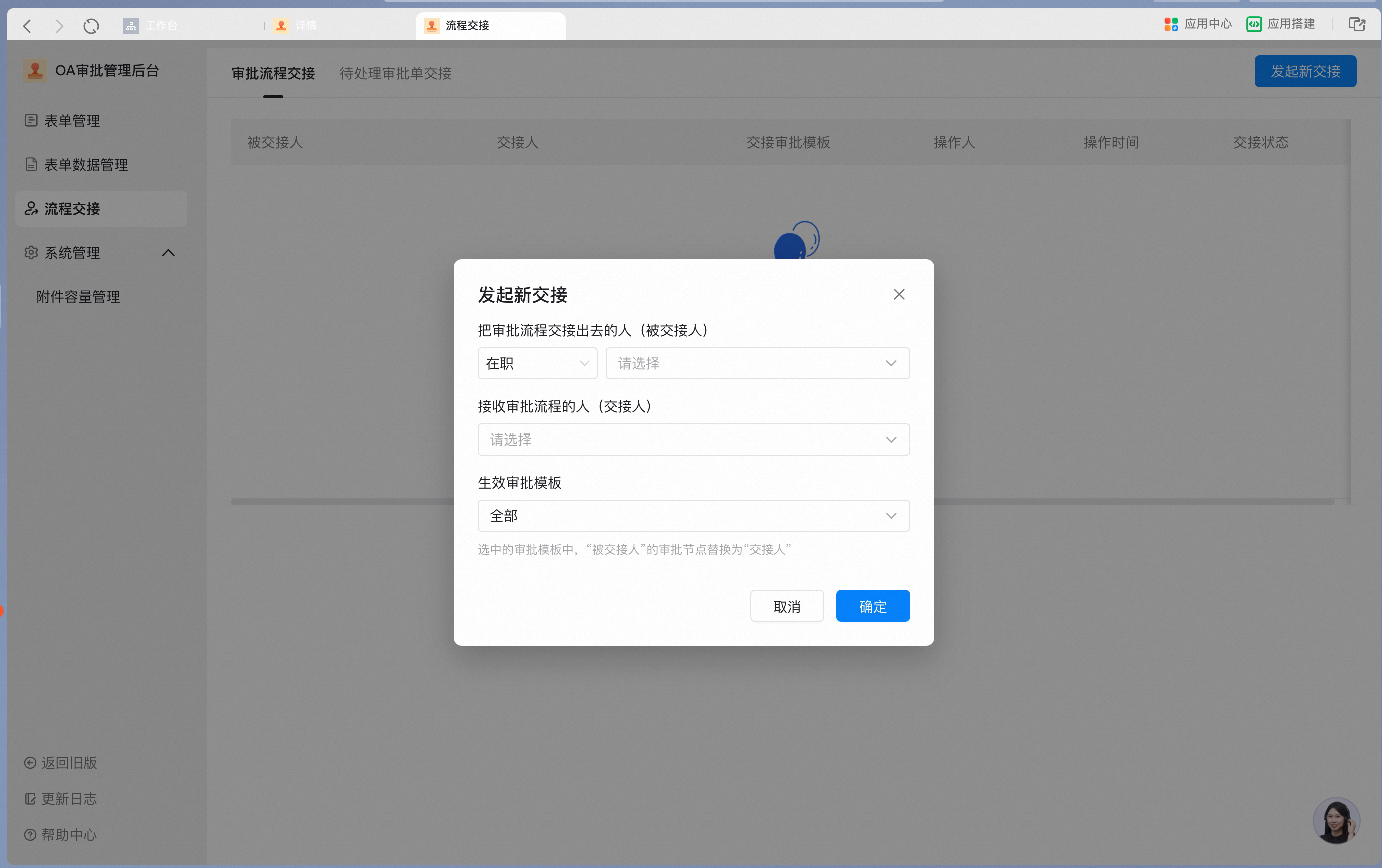
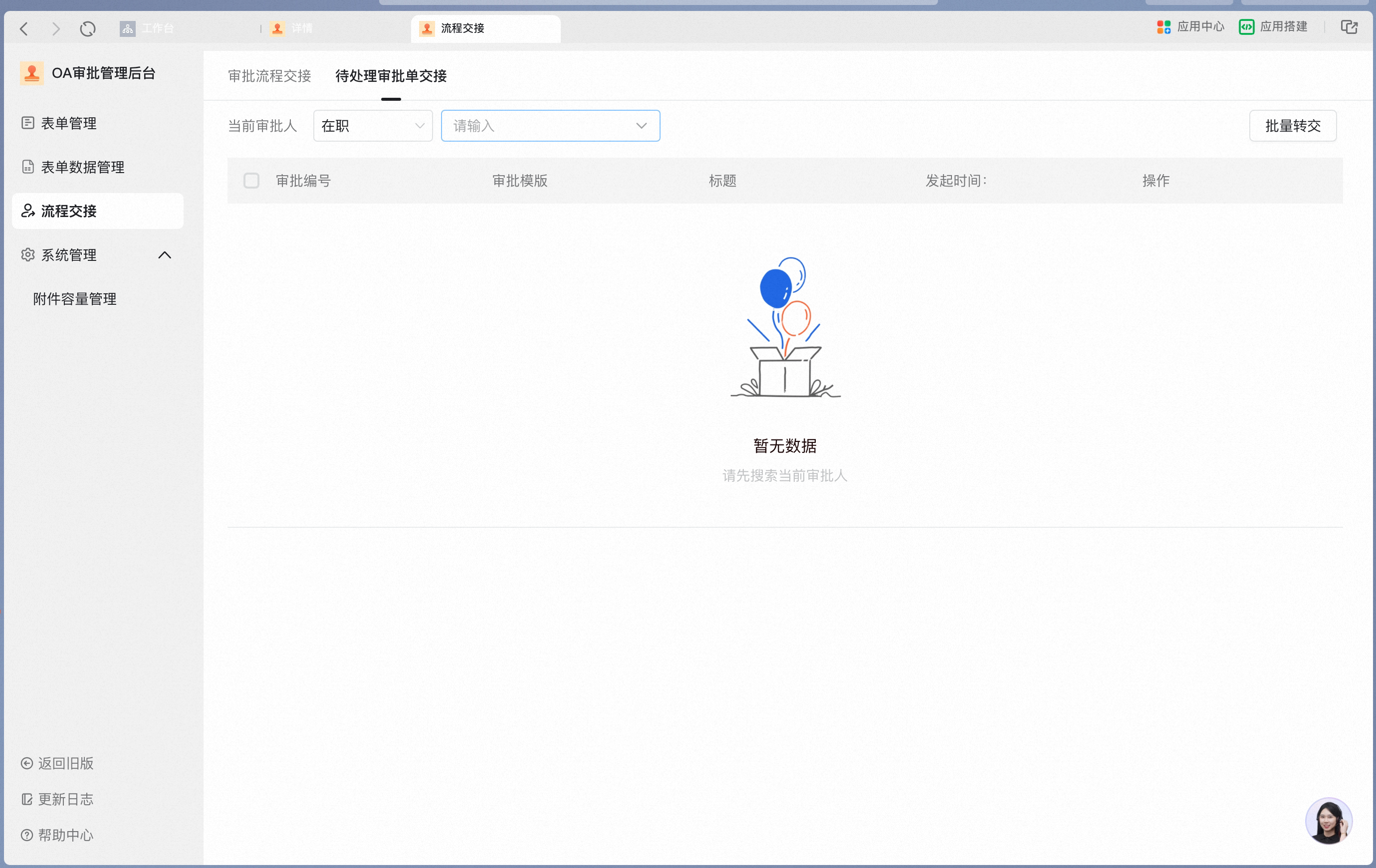
- Pending approval form handover
- You can hand over a pending Approval form only after the process reaches the Step that needs to be handed over. Forms that have not yet reached that Step do not appear in the pending List.
- For forms whose approver is set as a role or manager, if the form has been submitted and is in progress, you must also use Pending Approval Form Handover. Approvers are not automatically replaced when roles or department managers are updated.
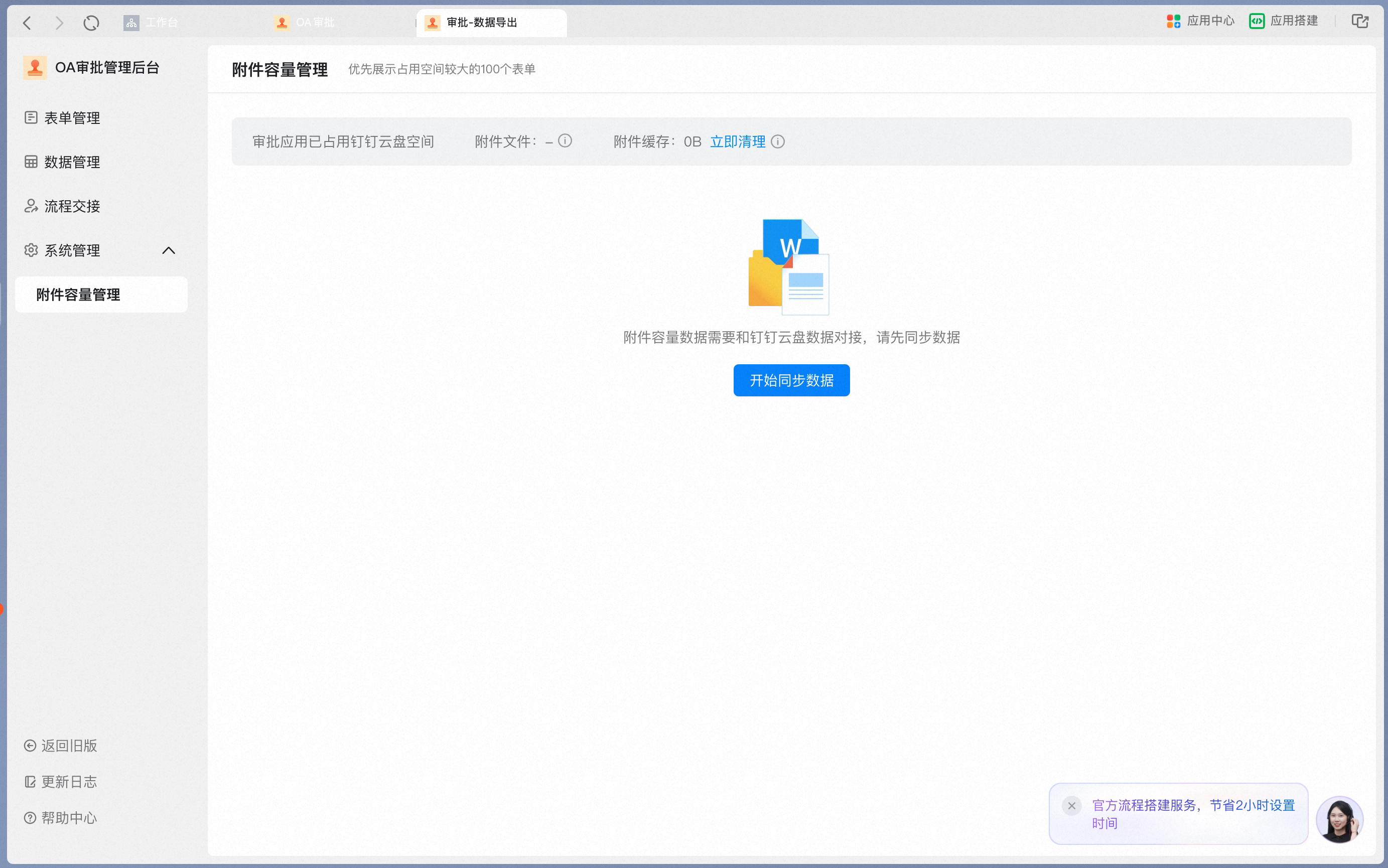
8. Attachment management
Click Attachment Storage Management. When you access it for the first time, sync data first.