

 Chats
Chats Calendar
 Meetings
 Contacts
 Mail
Mail Docs
Docs Drive
Drive AI Table
 AI Minutes
 Attendance
 Approval
 YiDA
YiDA Admin Console
1. Role overview
In DingTalk OA Approval, organization members who submit approval requests are collectively called initiators.Initiator permissions:
- Search for and view forms they are allowed to initiate (such as leave request, business trip, and reimbursement).
- Fill in Form Fields by typing or selecting, following the rules set on the form.
- Submit the form once the entered information is correct and every Required field is complete; when approvers must be picked manually, select approvers from the organization according to the rules set on the form.
- Track approval progress at any point during the Approval process.
- Undo or modify the Approval form during the Approval process, subject to the rules set on the form.
- Download details of Approval forms within their management scope.
2. Core actions
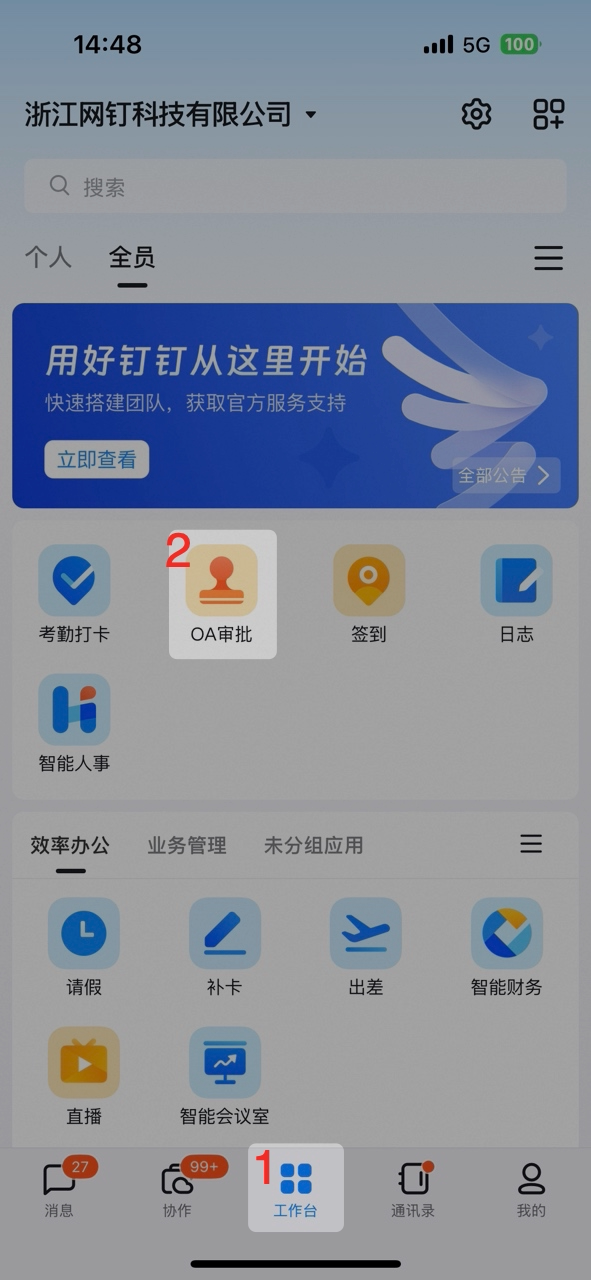
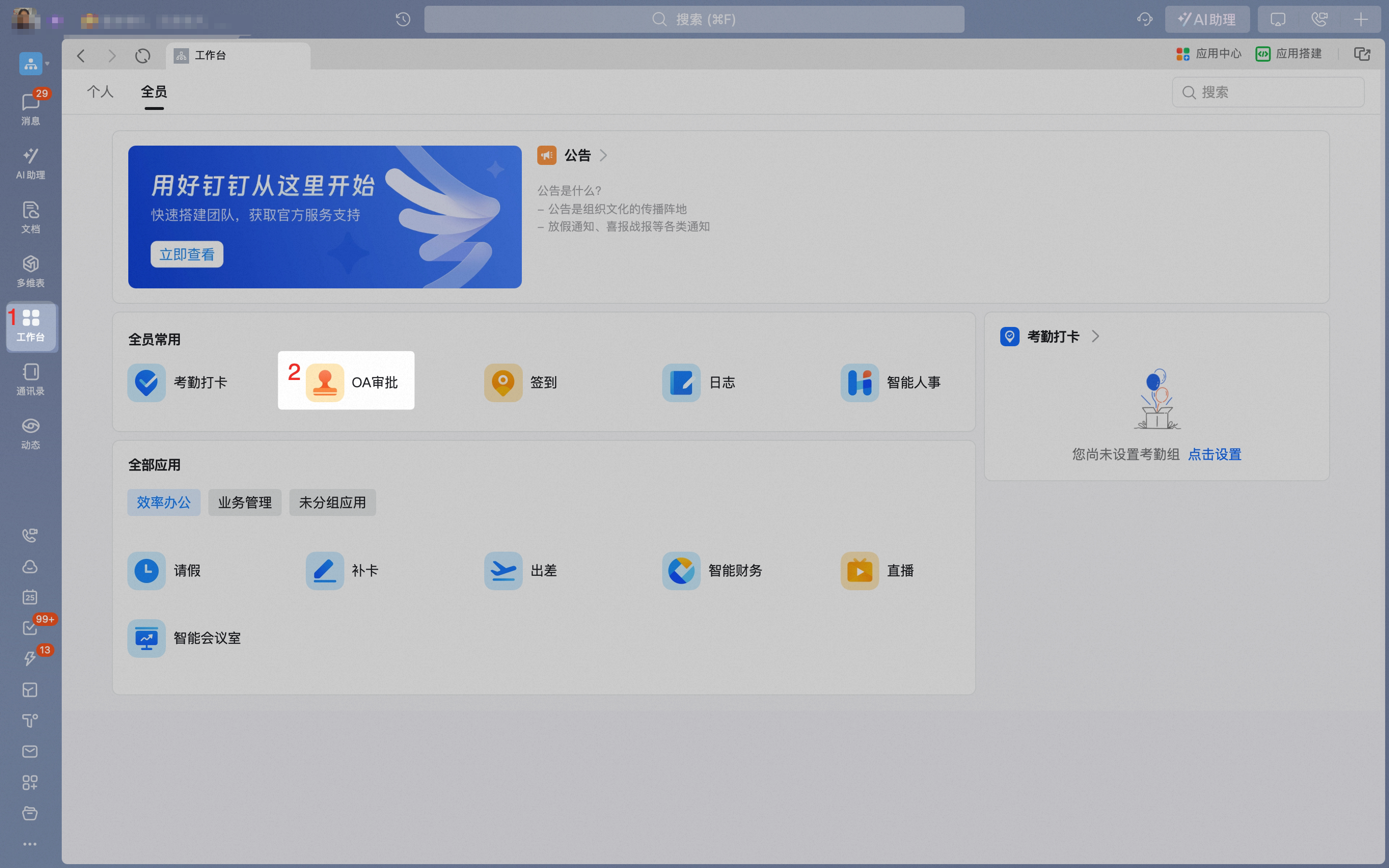
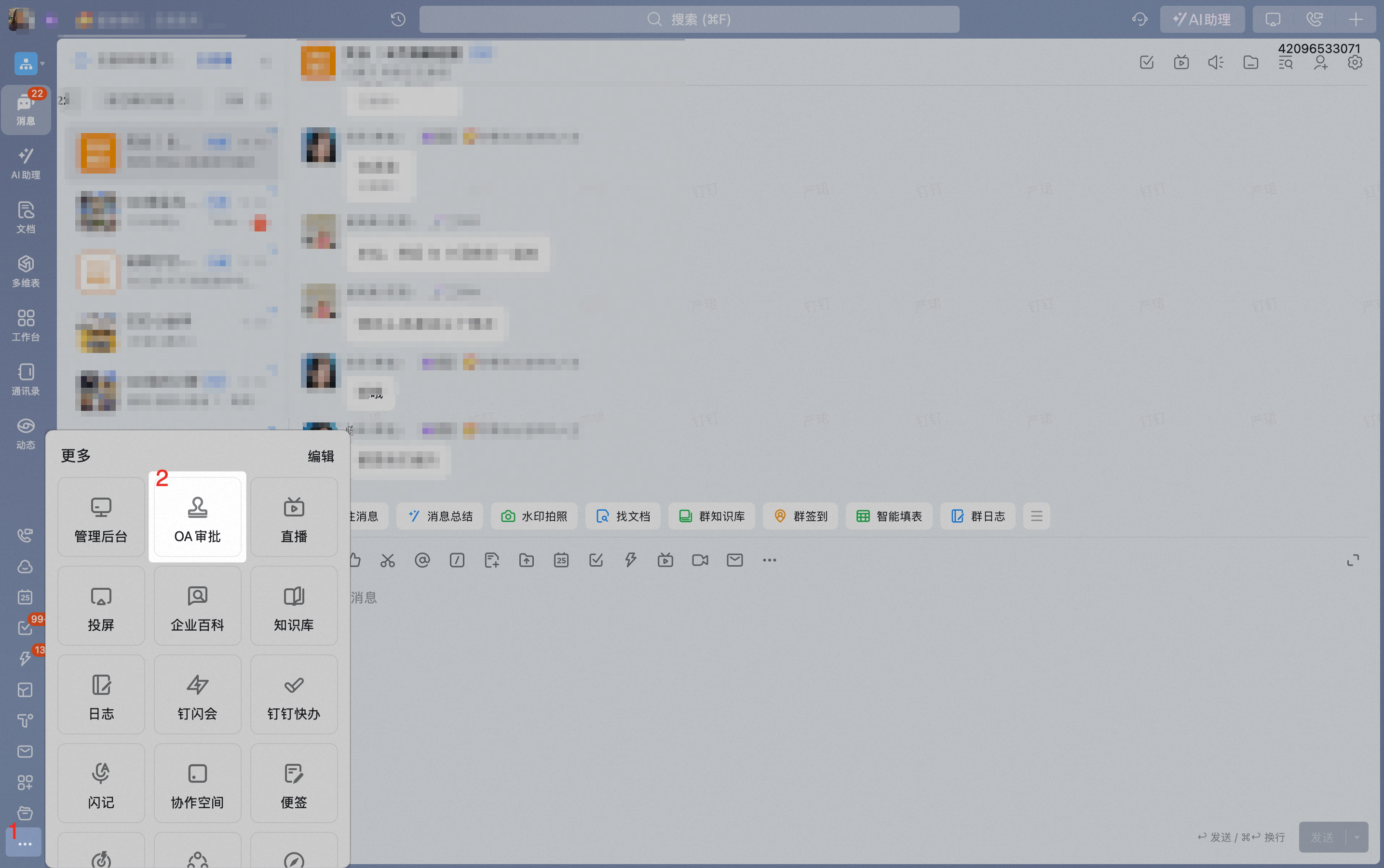
Initiator core actions are organized into the following 8 steps in order of use — jump to any step as needed:1. Open the Approval app
Organization members can find the OA Approval app on the Workbench or in the sidebar.- Mobile
- Desktop
Workbench
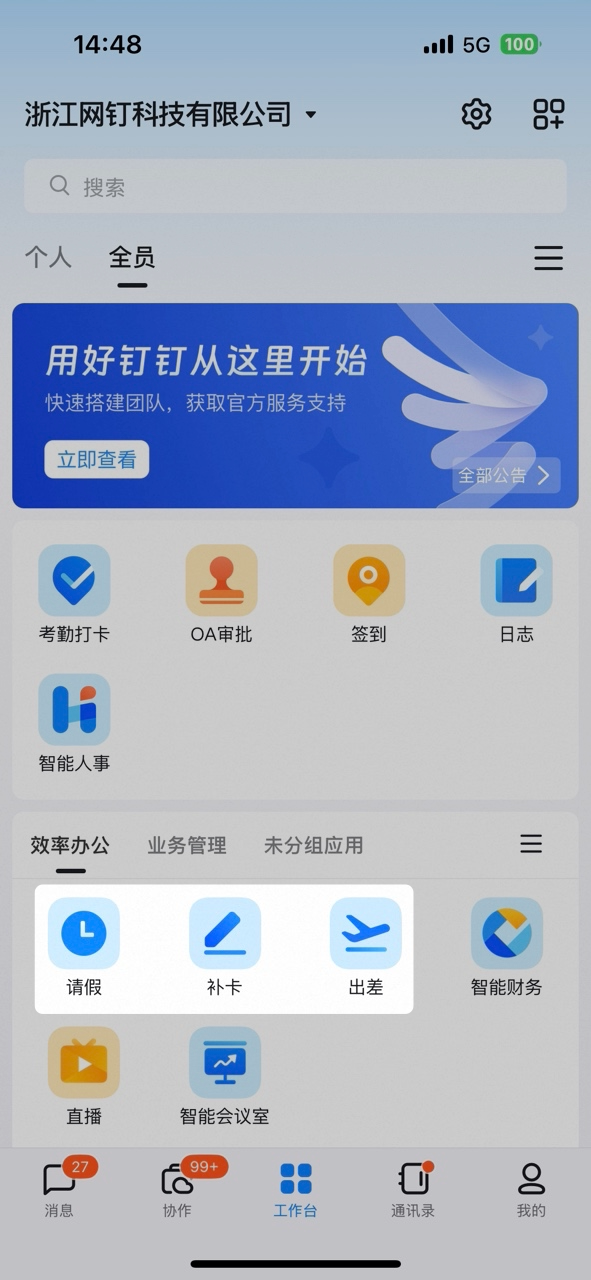
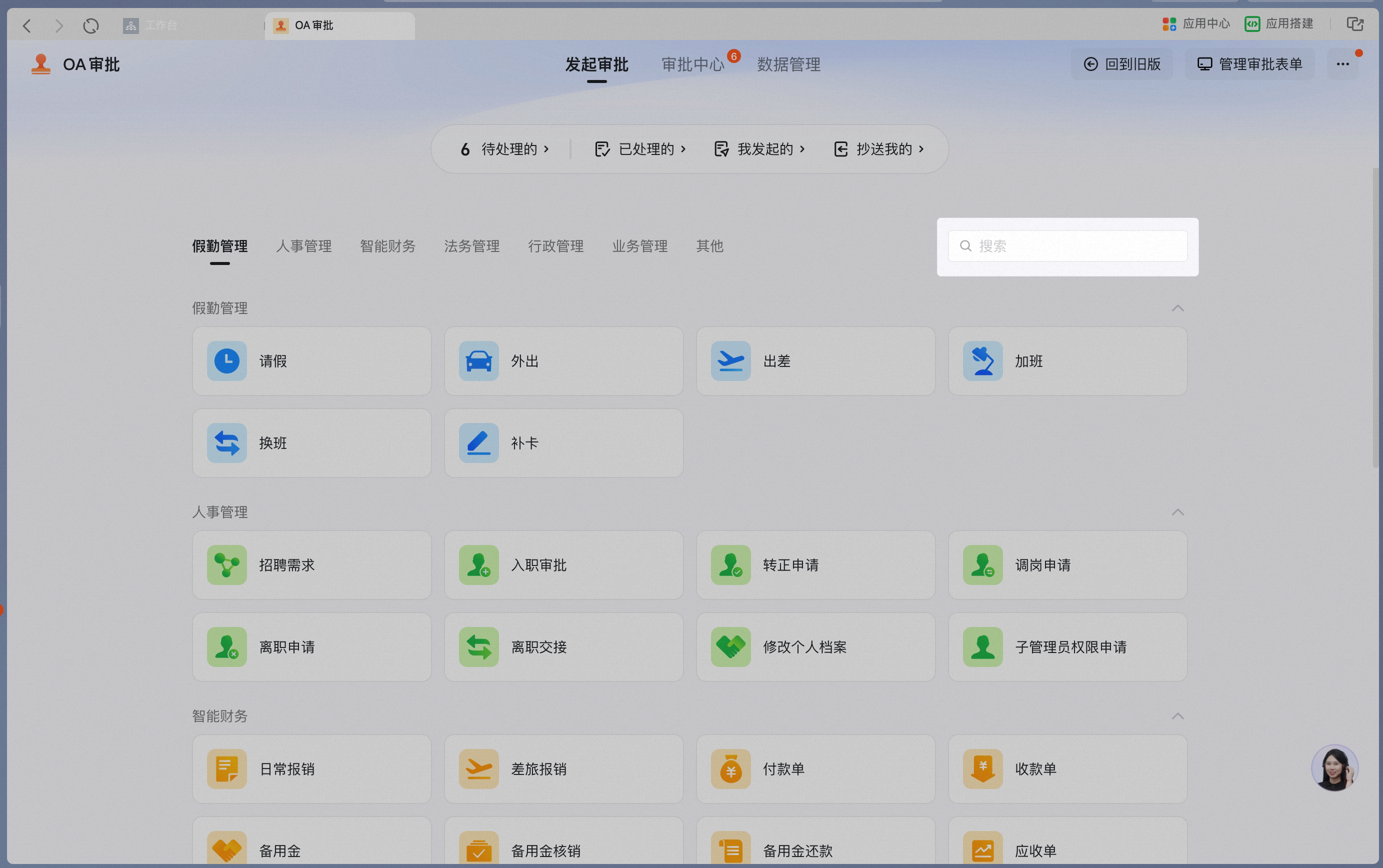
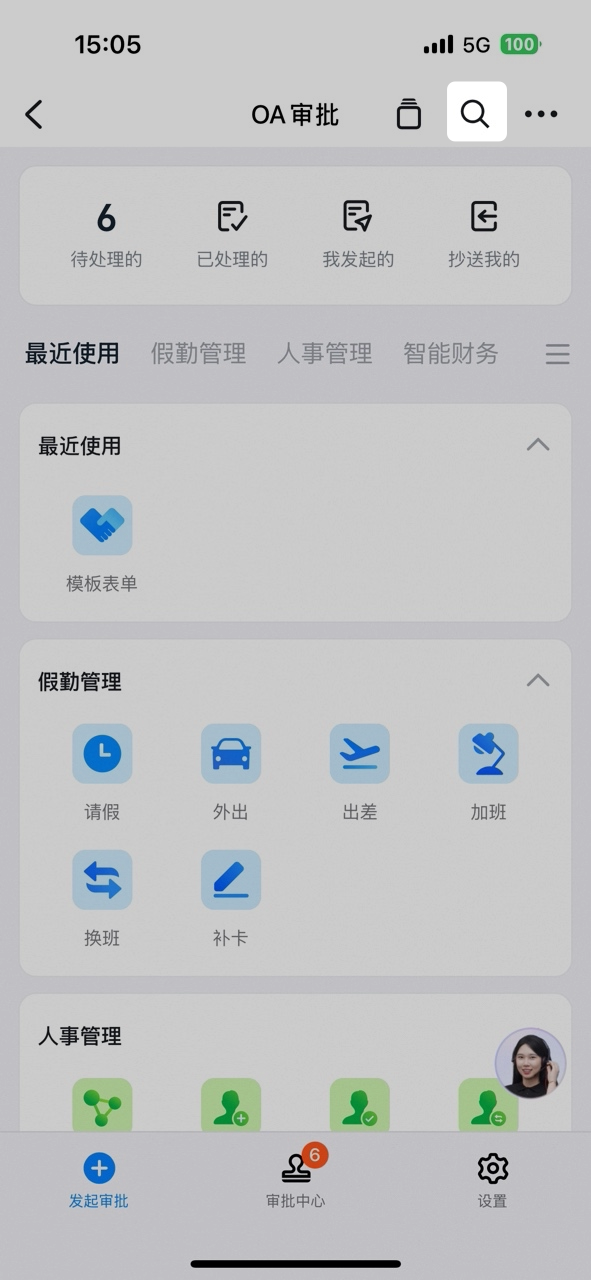
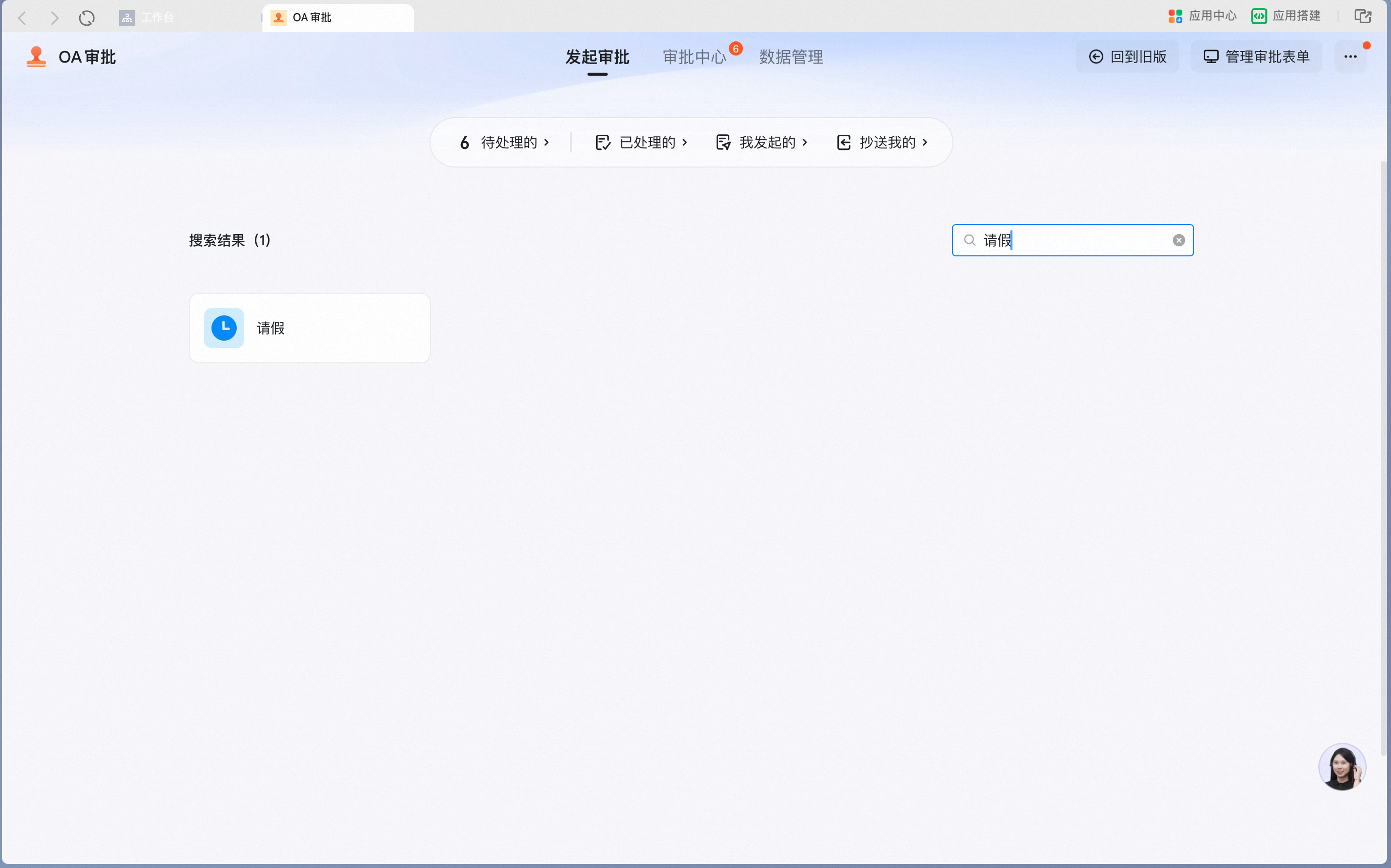
2. Open the Approval form
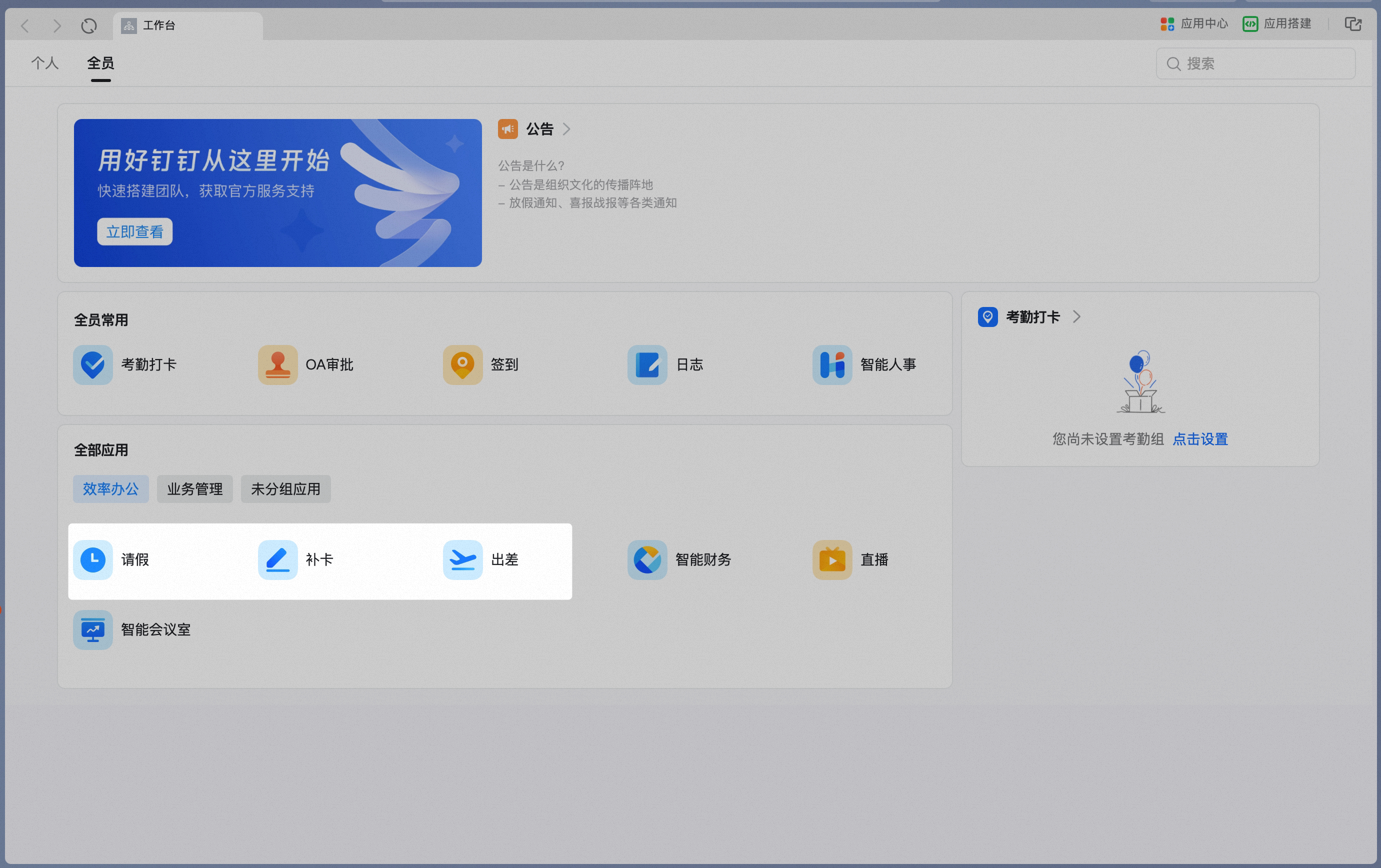
Organization members can open an Approval form directly from the Workbench, or find one inside OA Approval.- Workbench
- OA Approval
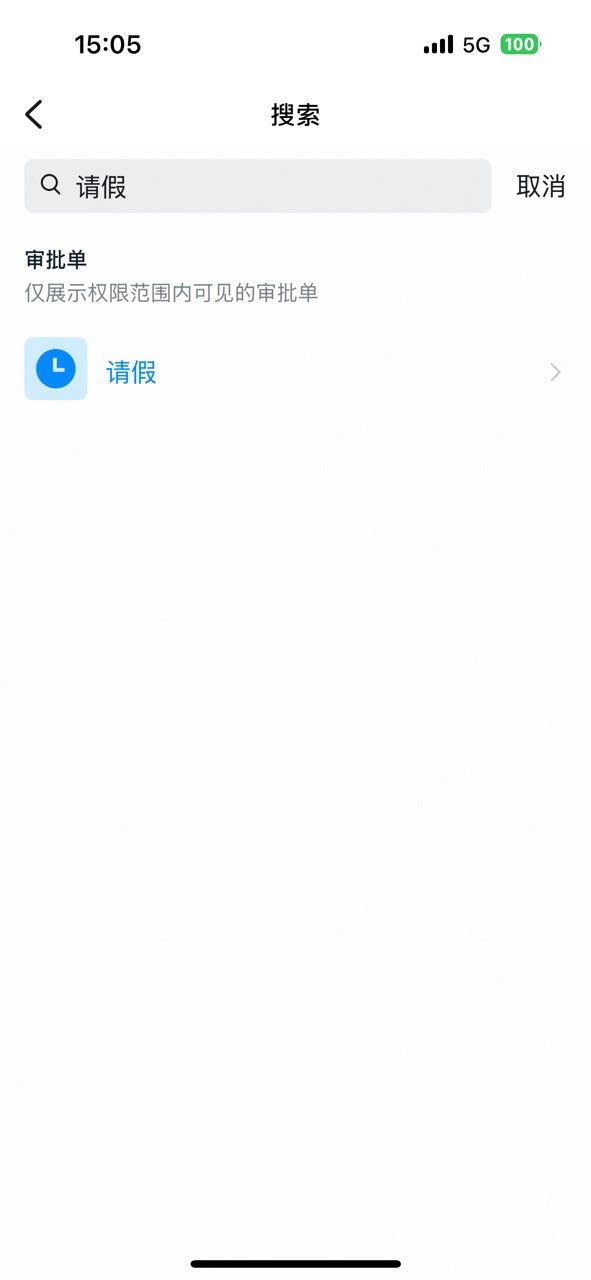
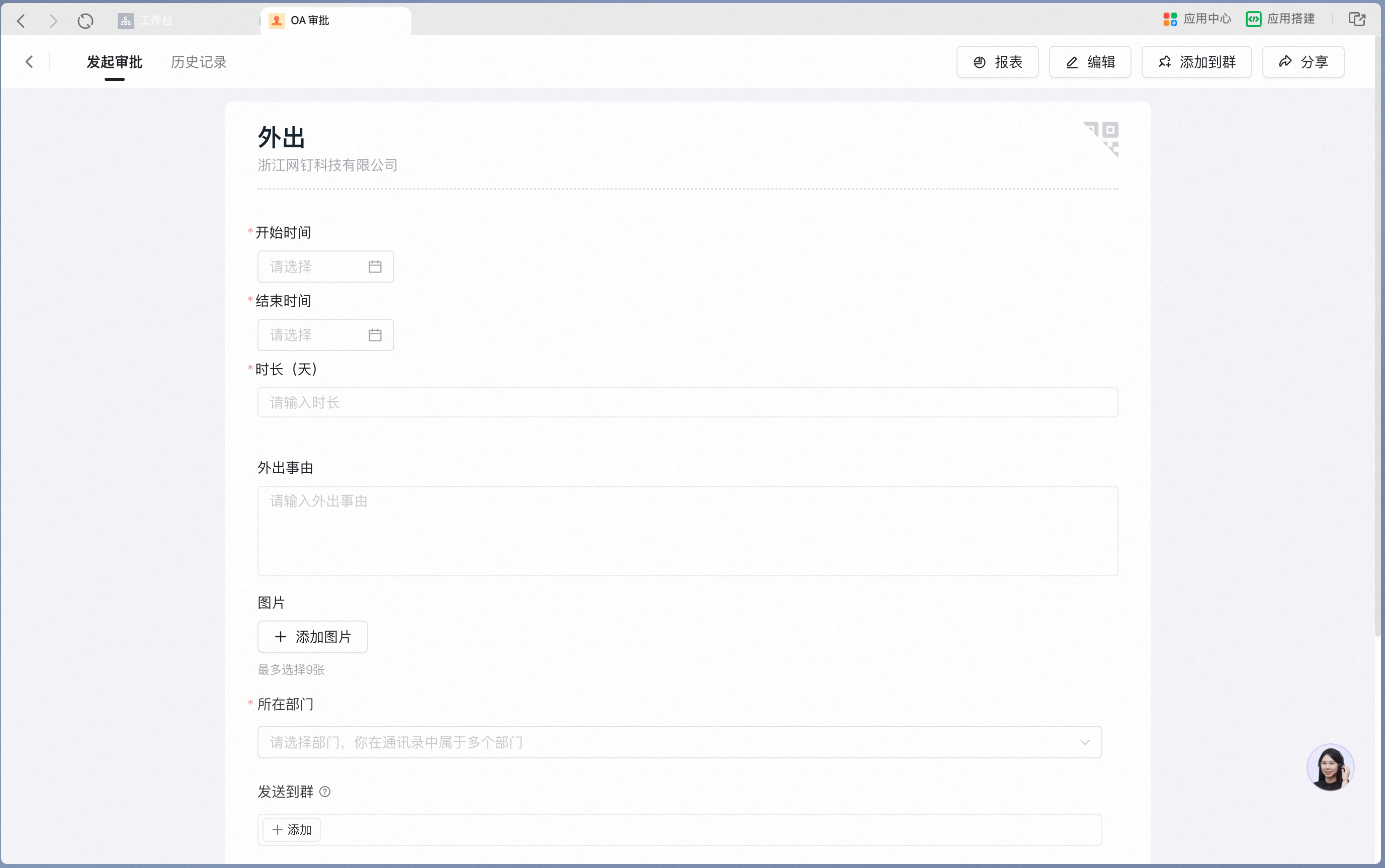
3. Fill in the Approval form
Organization members fill in the form by typing or selecting values, following the fields configured on the form.Desktop
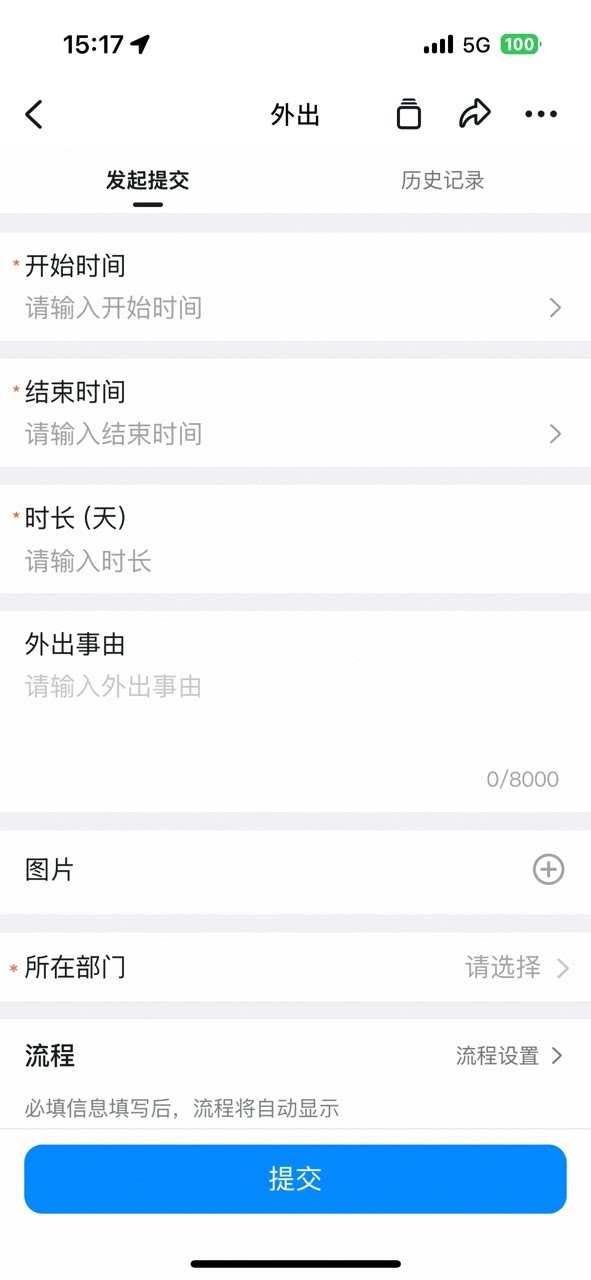
Mobile
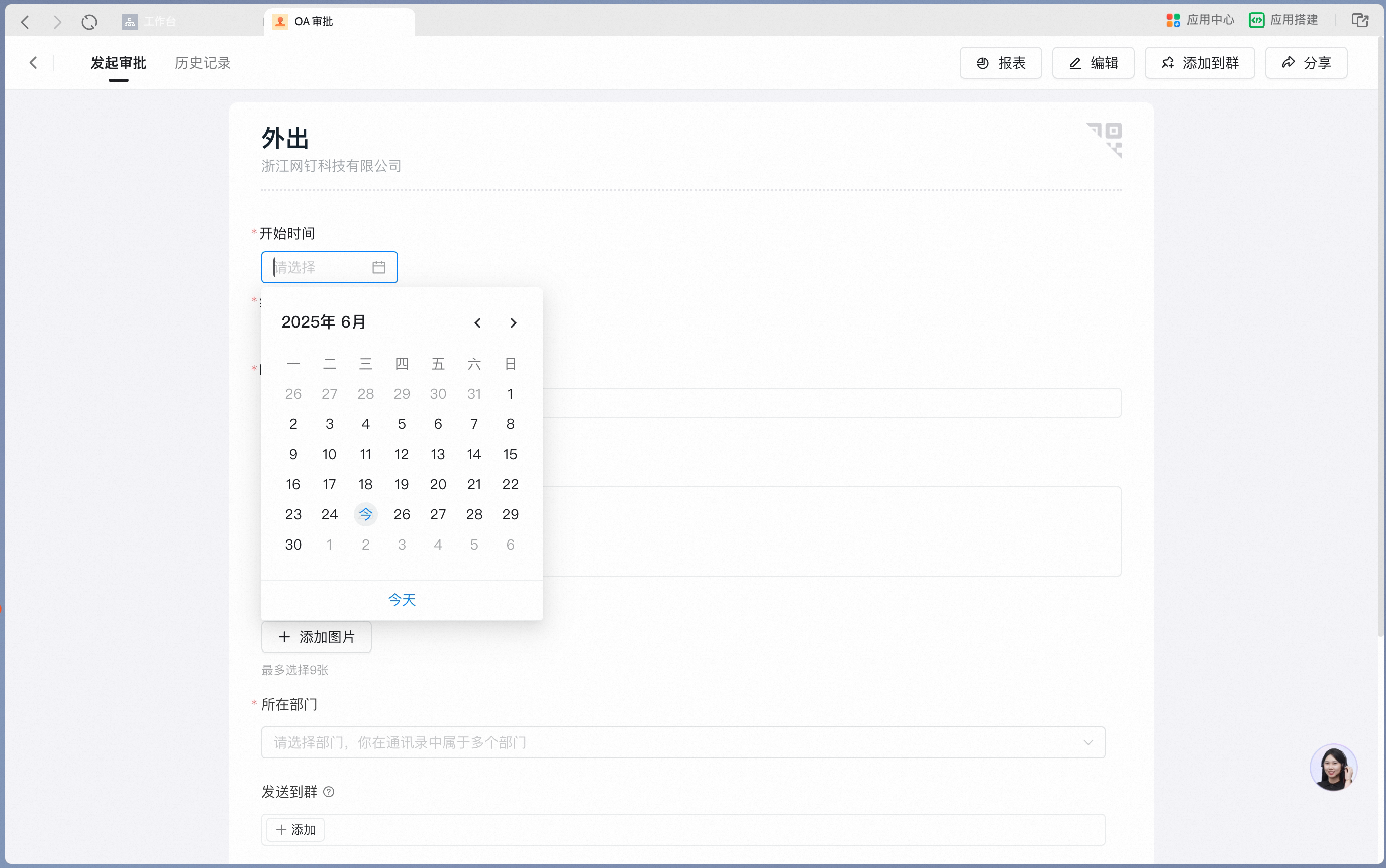
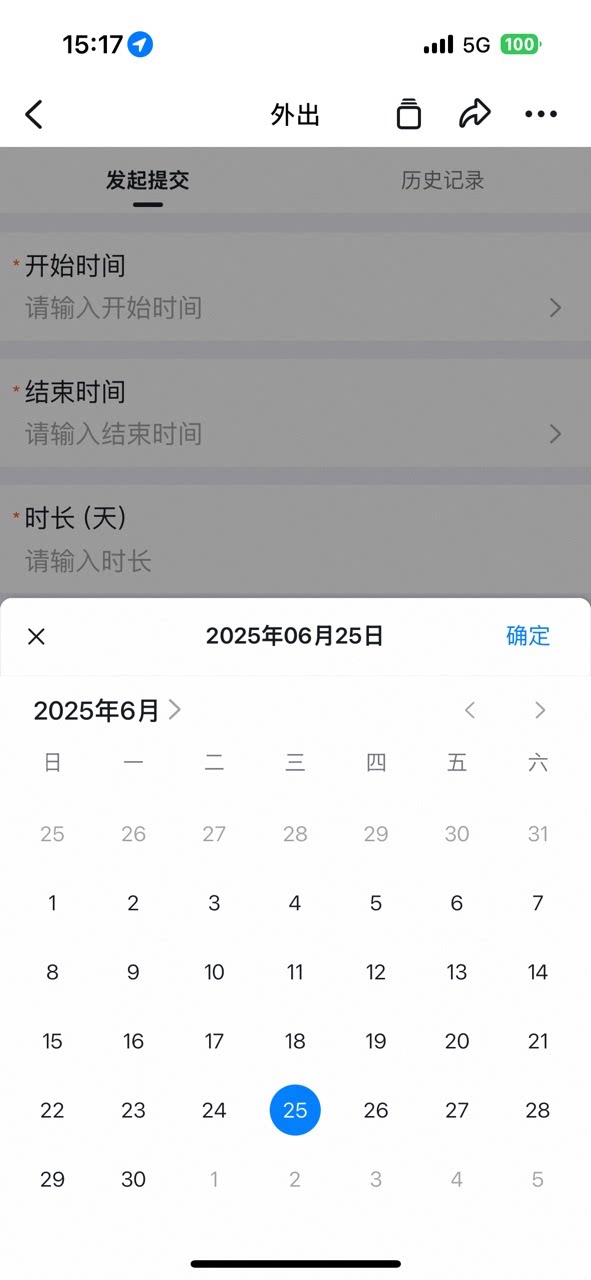
Desktop
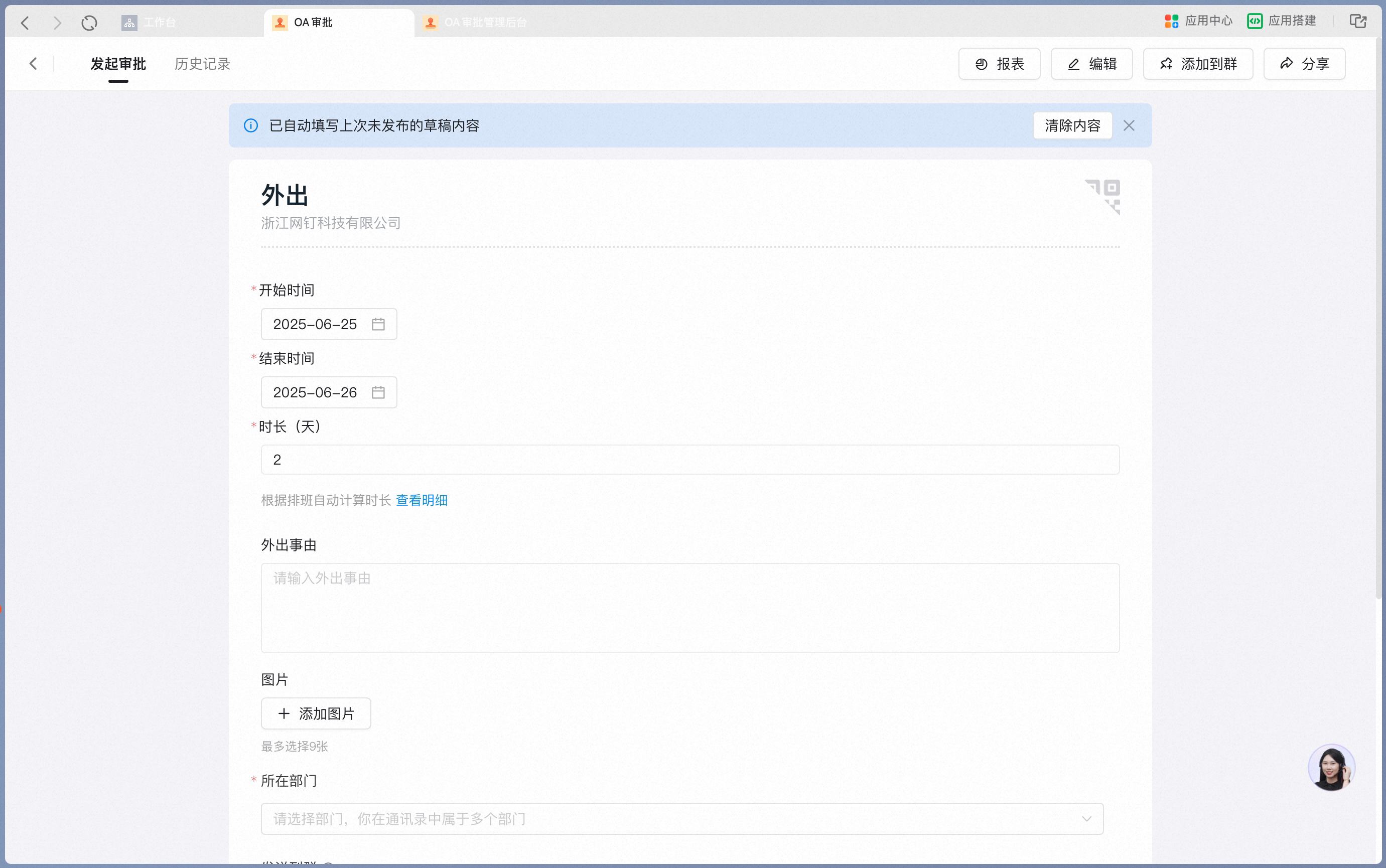
Mobile
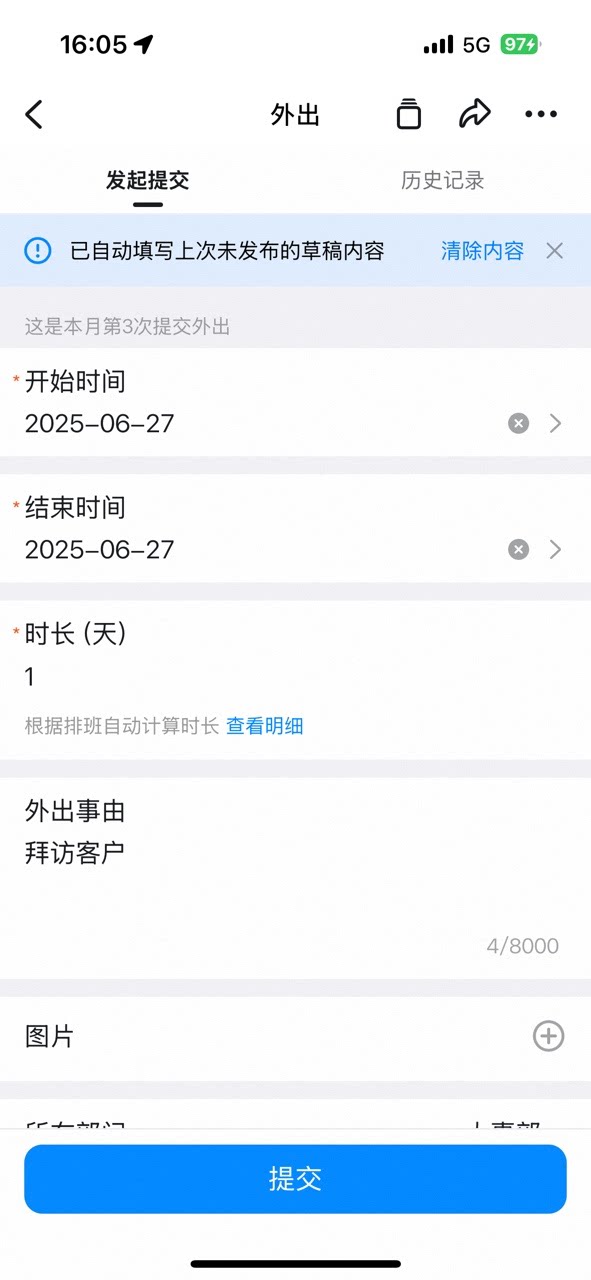
4. Submit the Approval form
Once the filled-in Content meets the requirements, organization members can tap Submit to send the approval request.Desktop
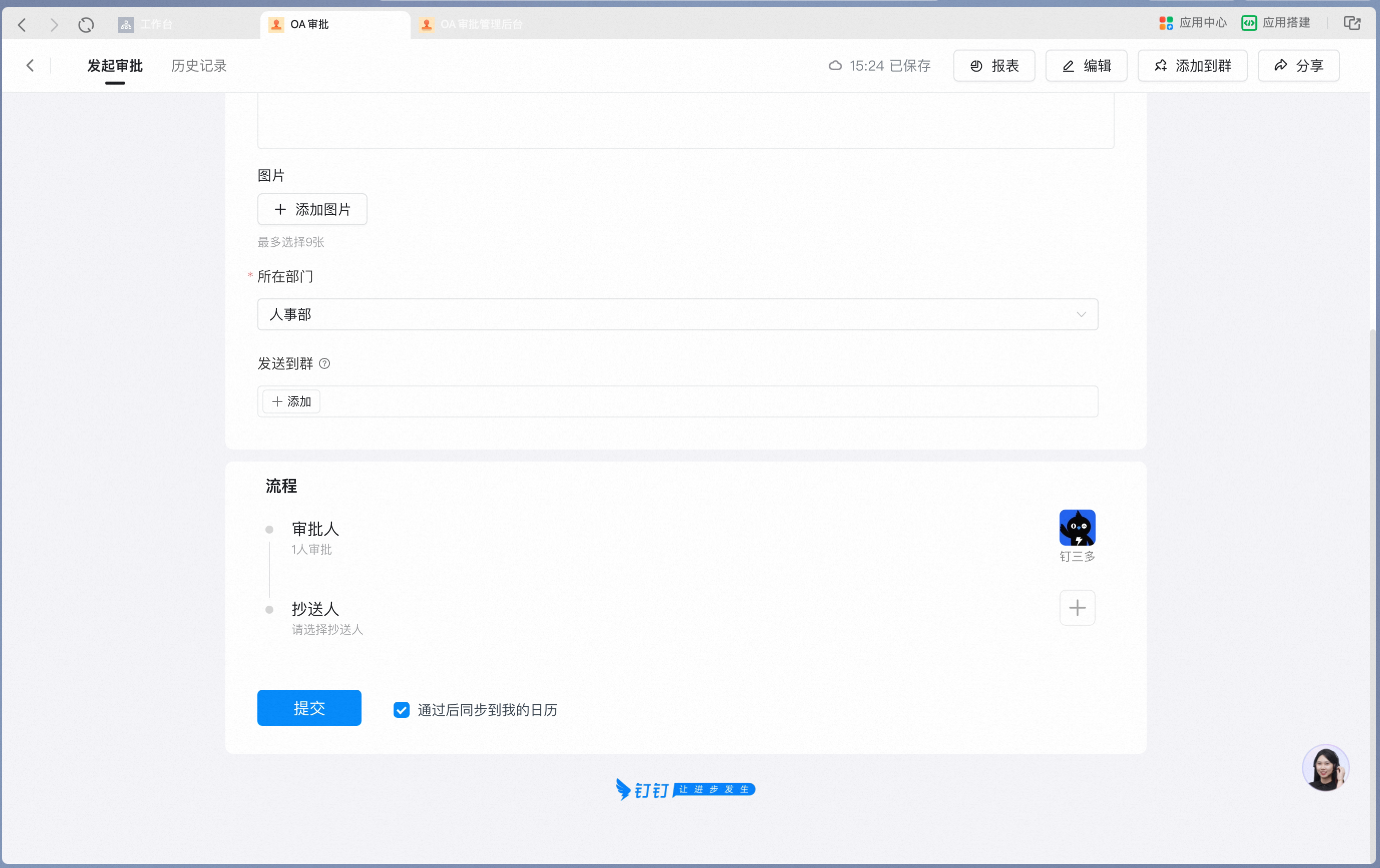
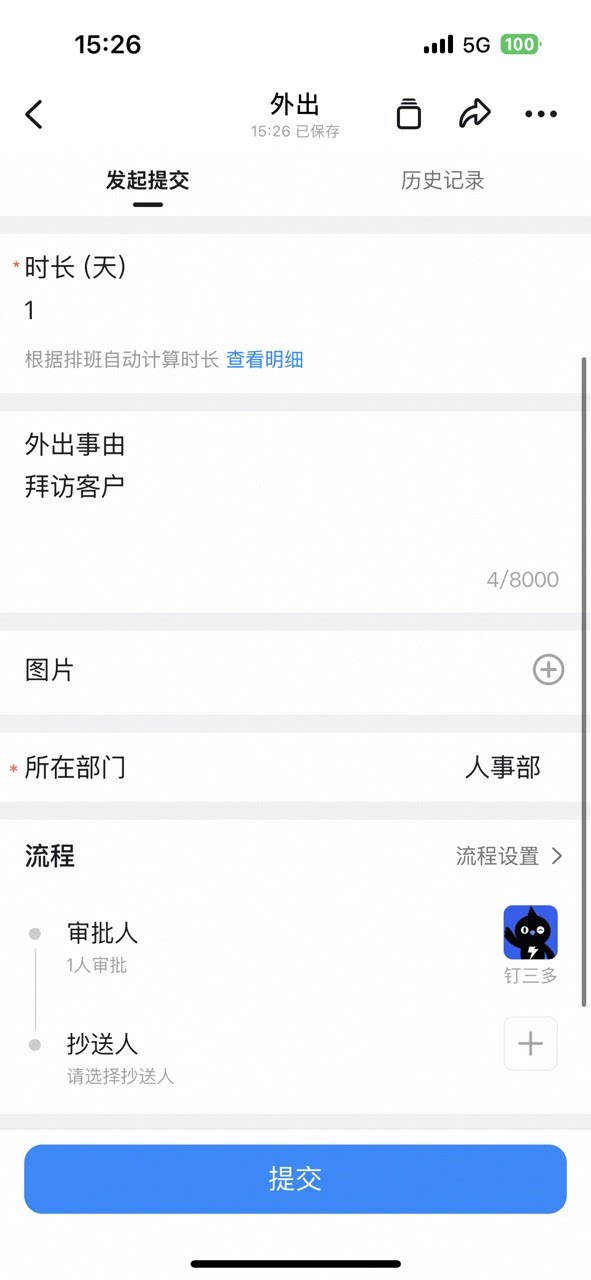
Mobile
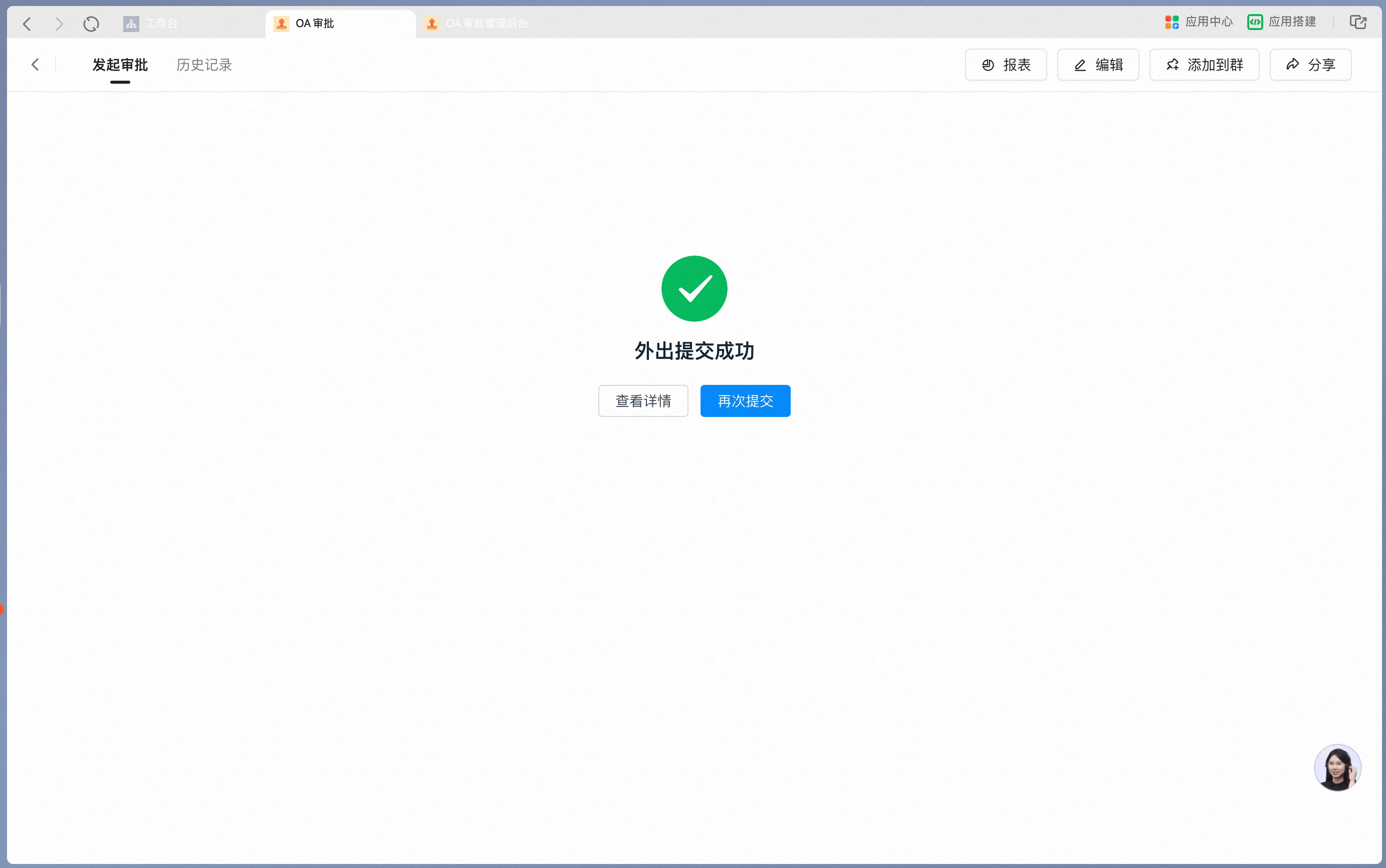
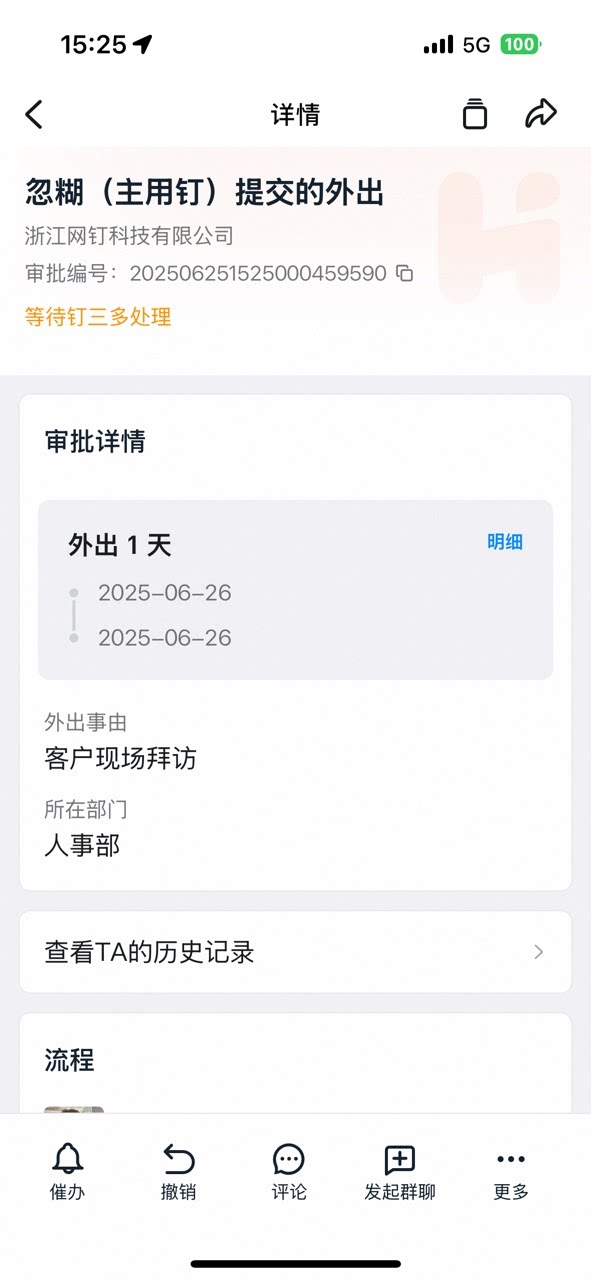
Common submission failure cases
If Submit shows a message saying the form cannot be initiated, check against these 6 common cases:1
Case 1: A Required Field is empty
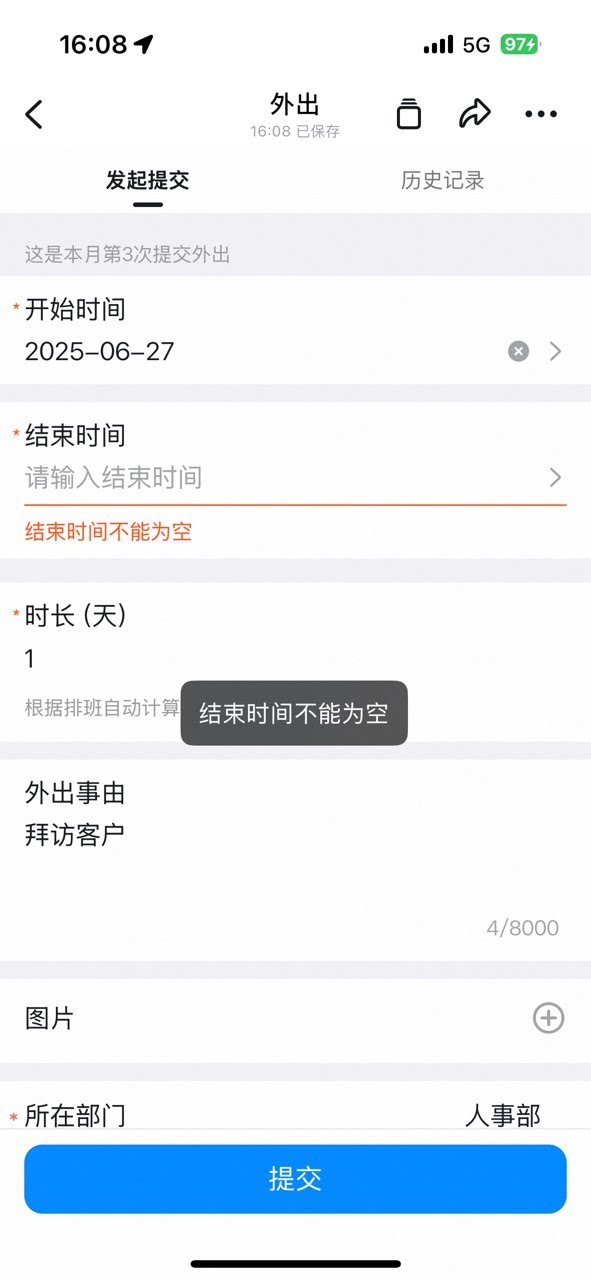
2
Case 2: Initiating Department not selected
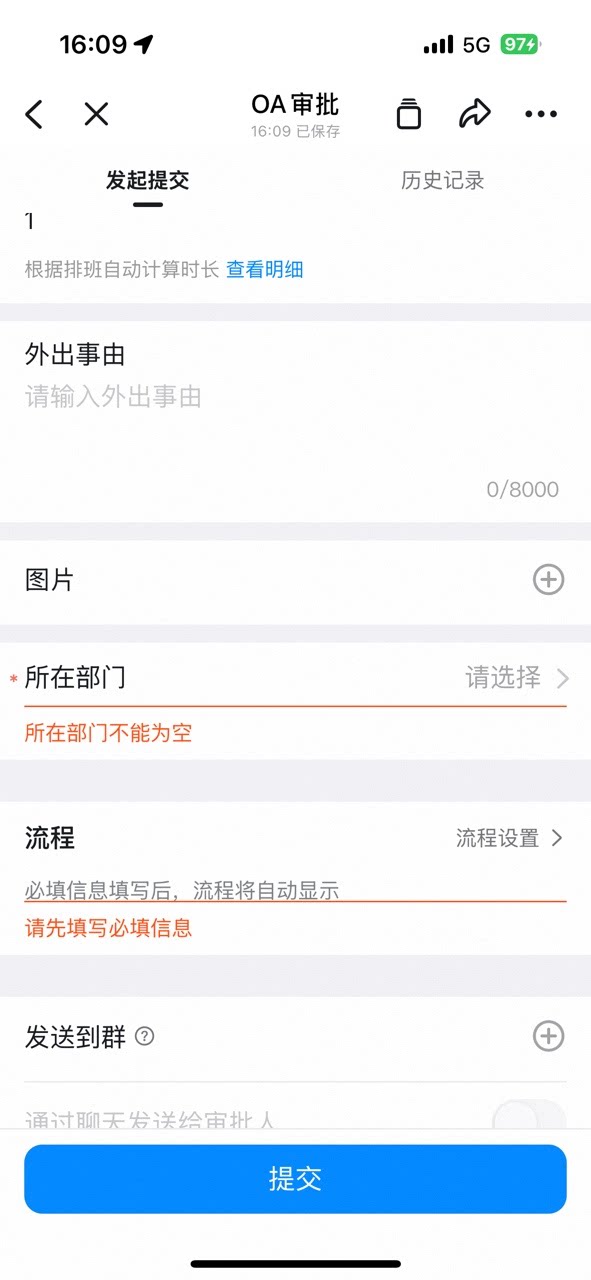
3
Case 3: An Approval form already exists for the same time range
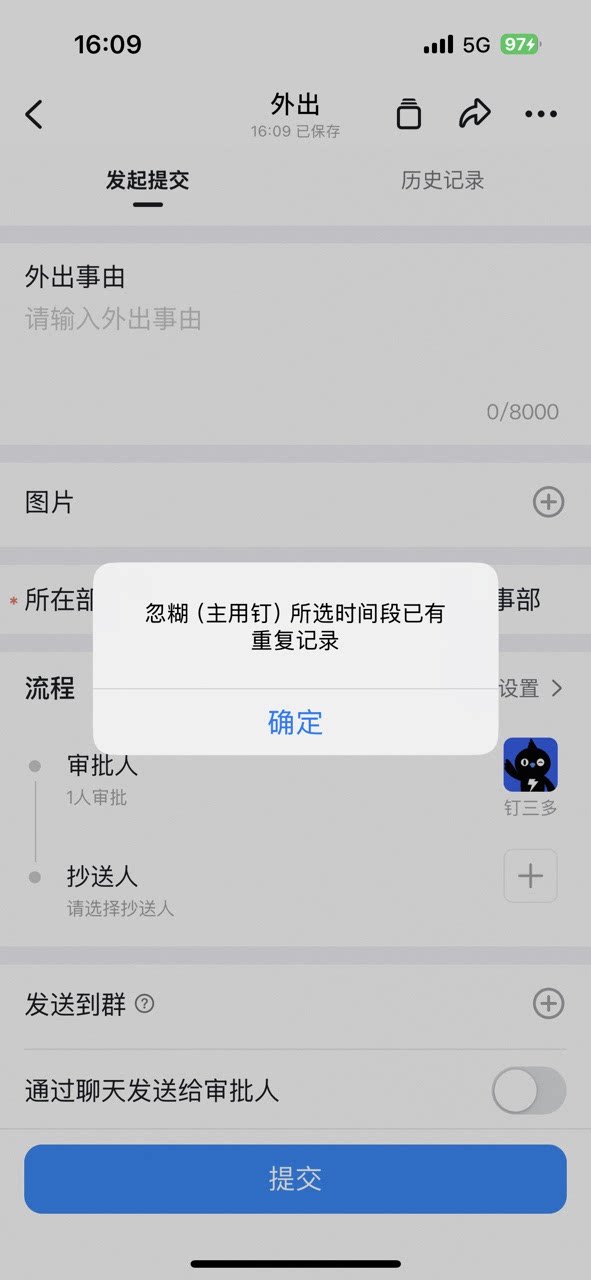
- View History, locate the existing request for the same time range, Undo it, then Submit again.
- If there is no Undo Button (the Admin has set the form as non-undoable), contact the Approval Admin to Delete the time-Repeat Approval form in the Admin Console (this also deletes the related system Data).
- If you cannot find the existing request, the Admin has already deleted the Approval form but removed only the form itself, not the associated system Data. Ask the Admin to first restore the Trash Data, delete the associated system Data, and then submit again.
4
Case 4: Manually-selected approver not chosen
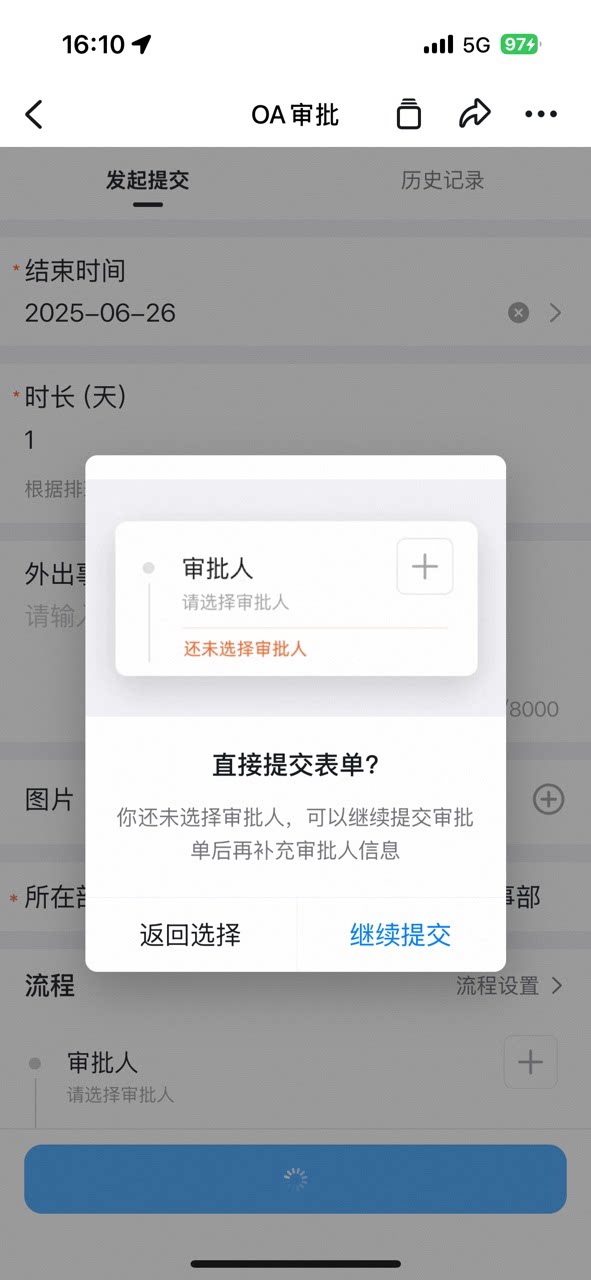
- Select an approver and Submit again.
- Contact the Admin to configure the approver.
5
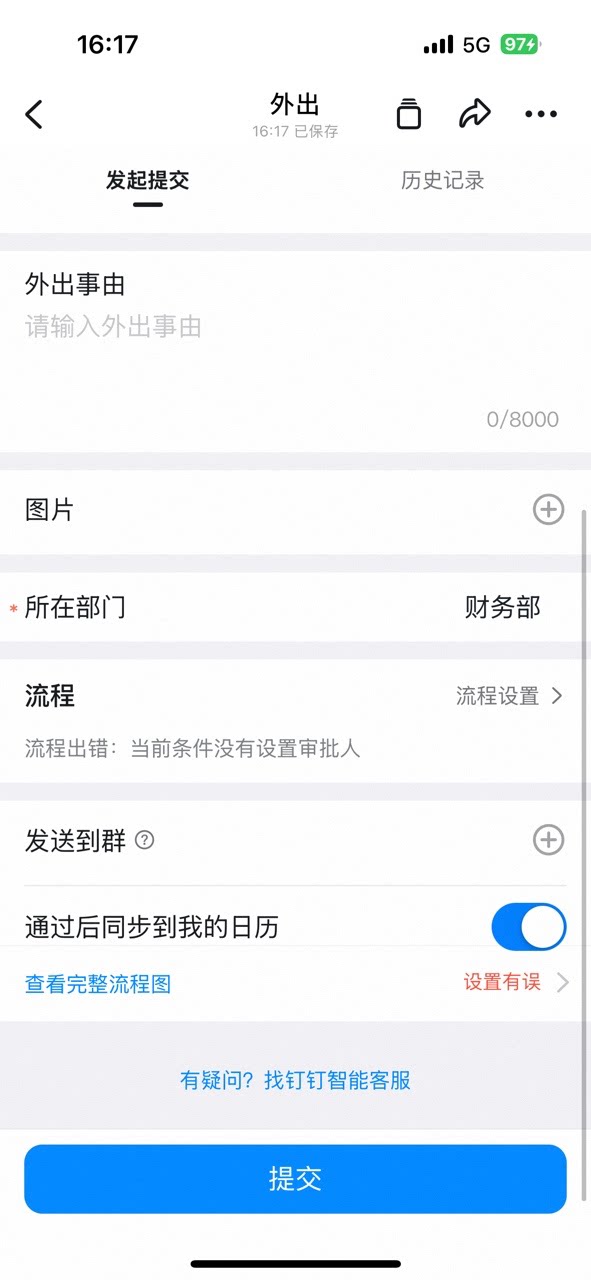
Case 5: The process could not find an approver
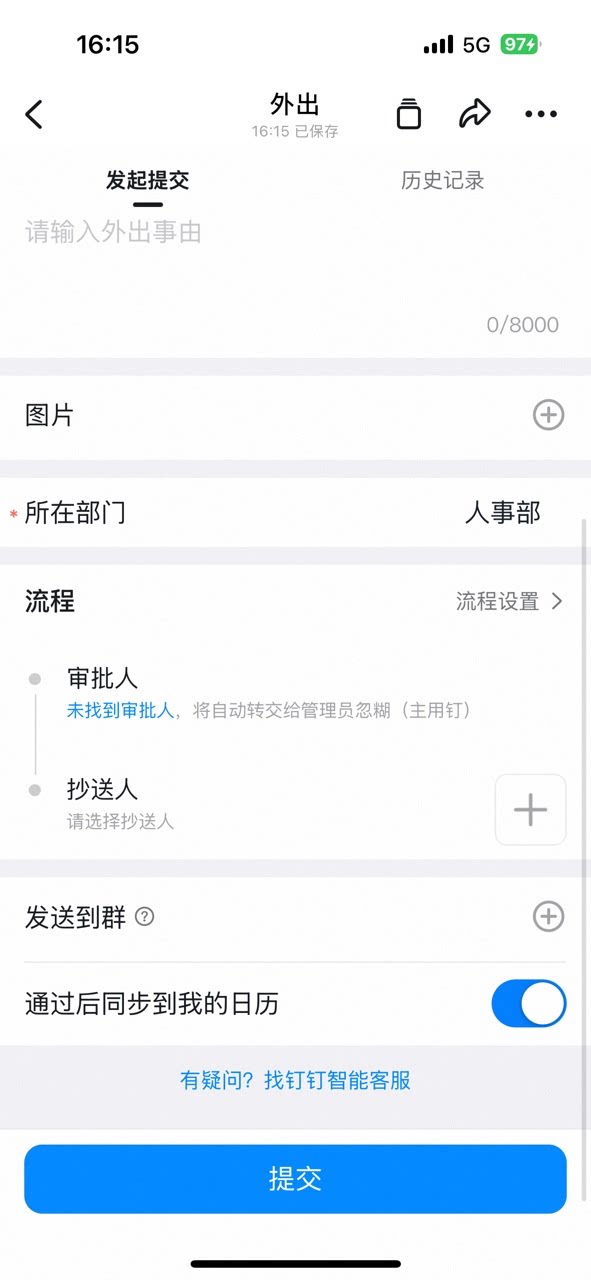
6
Case 6: No branch condition matches
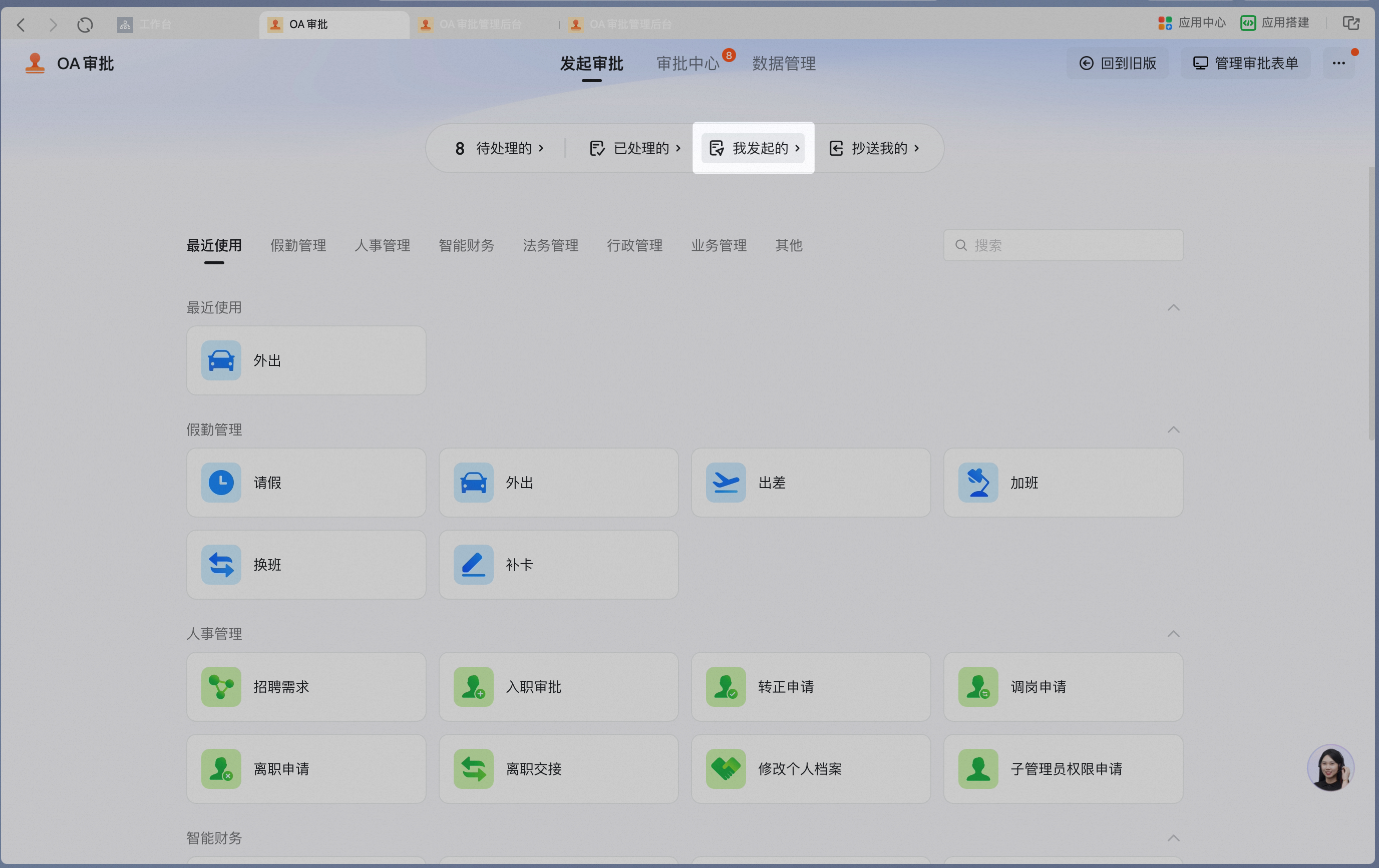
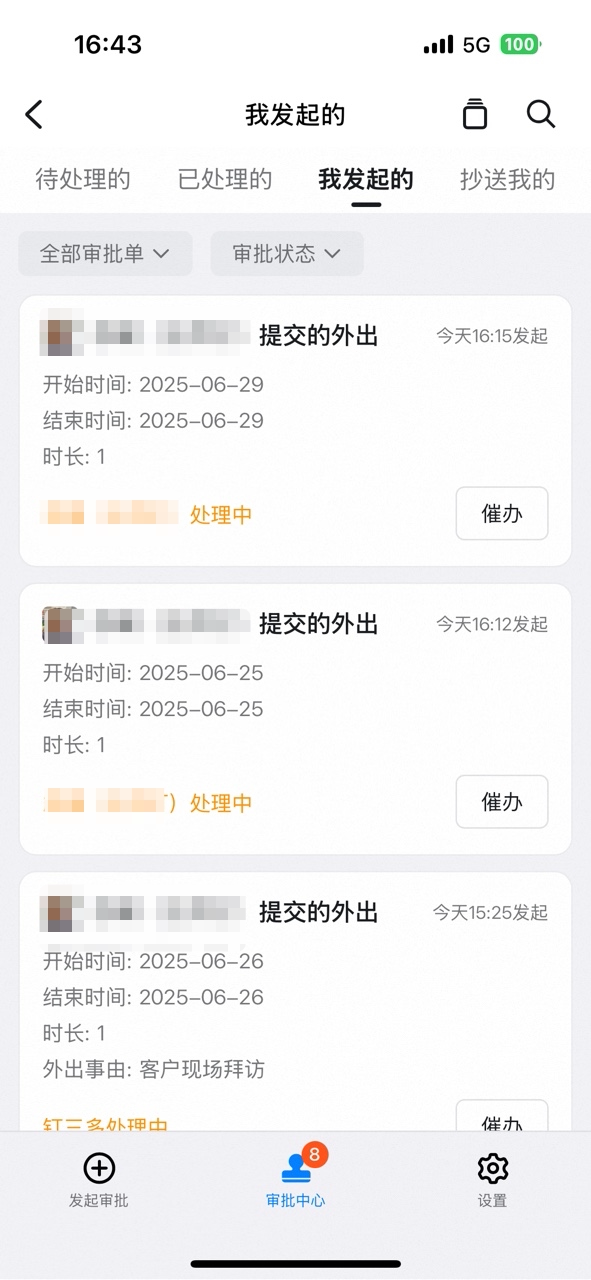
5. View approval Progress
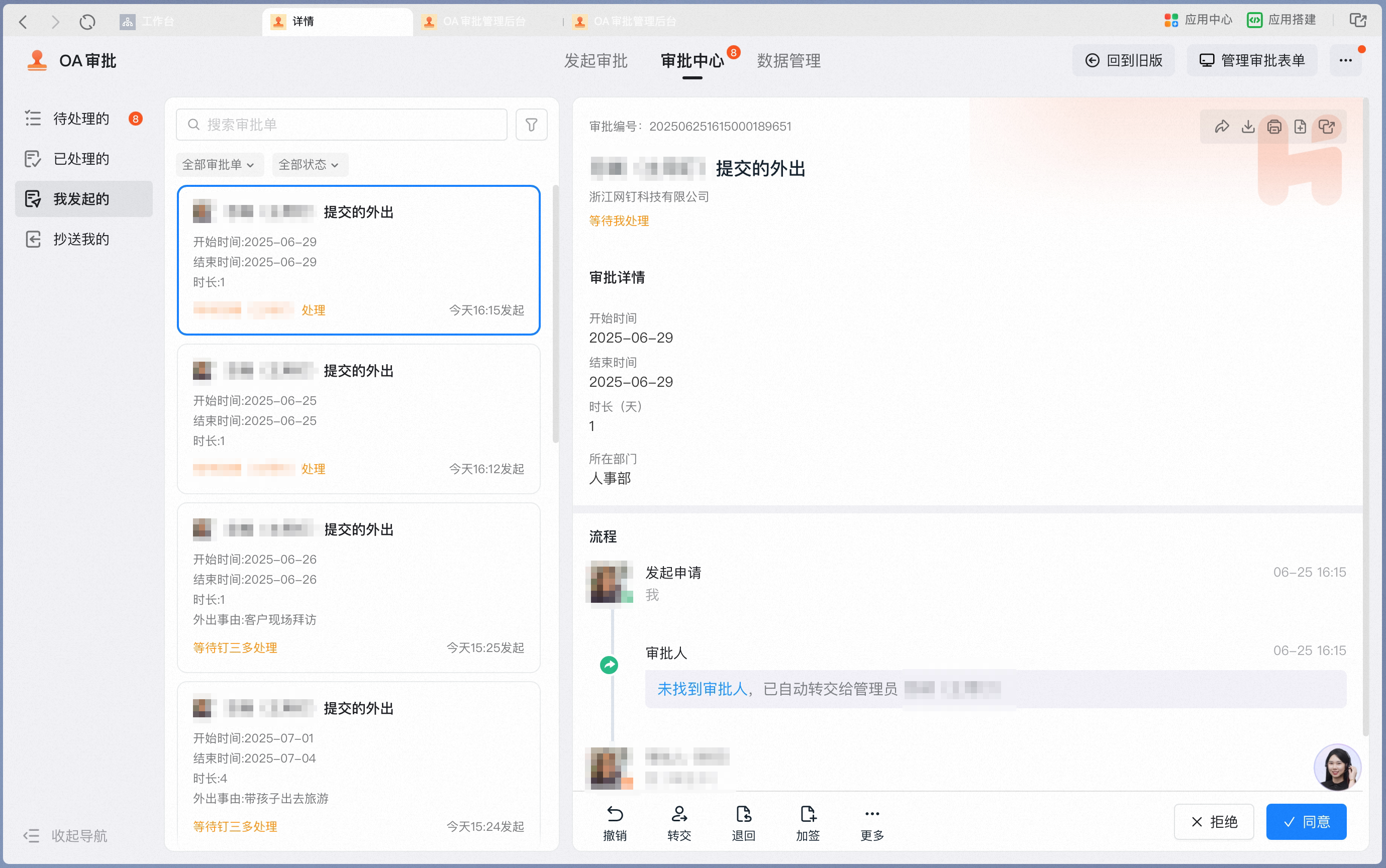
Once the request is submitted successfully, organization members can track Progress in OA Approval — Initiated by Me.Desktop
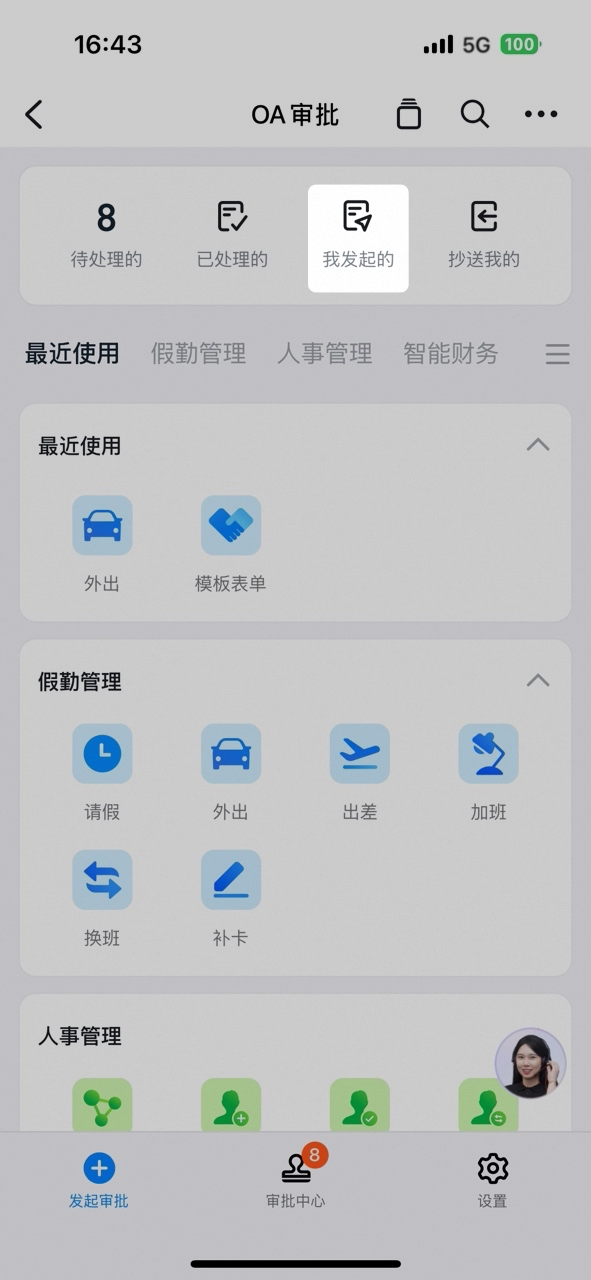
Mobile
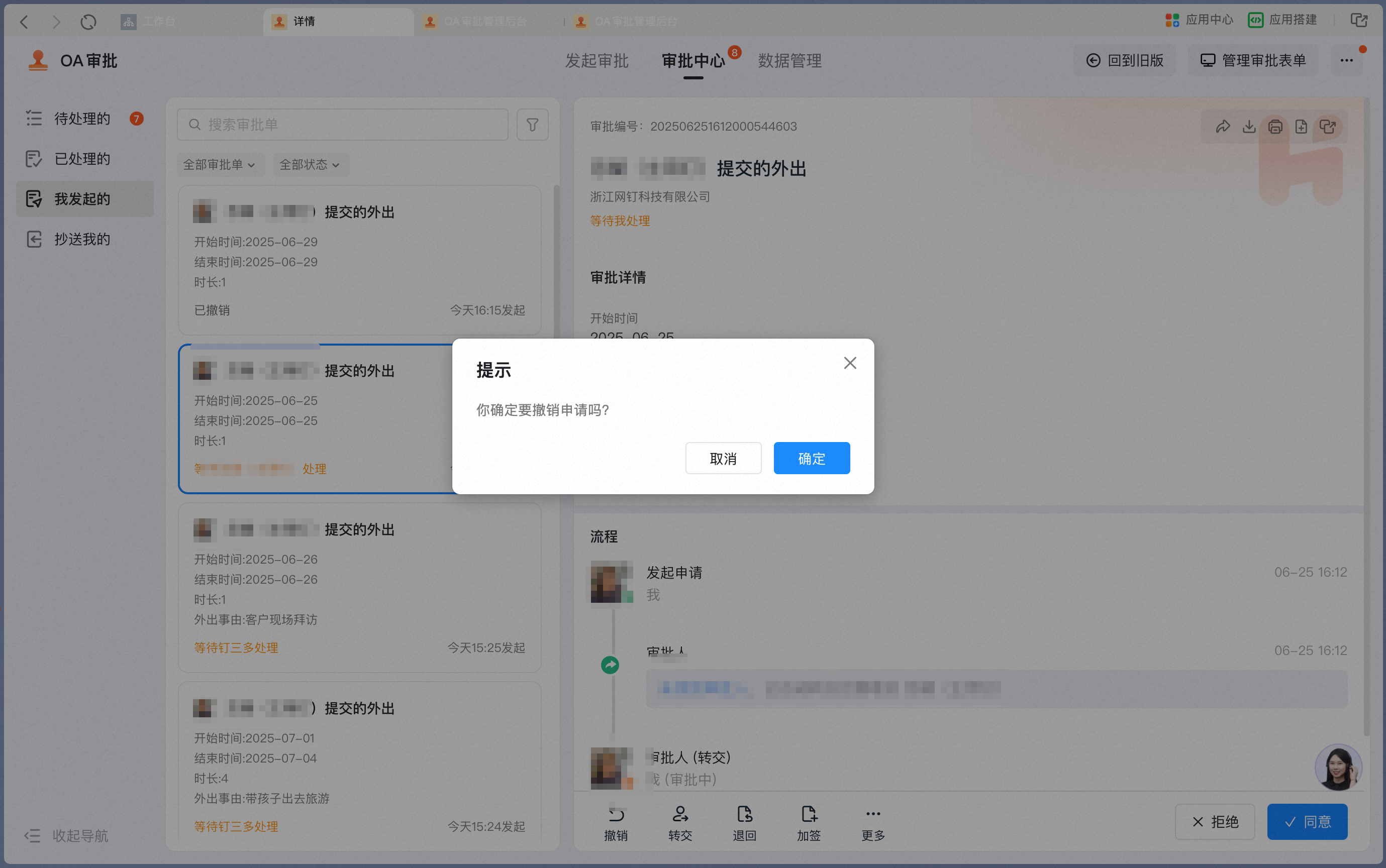
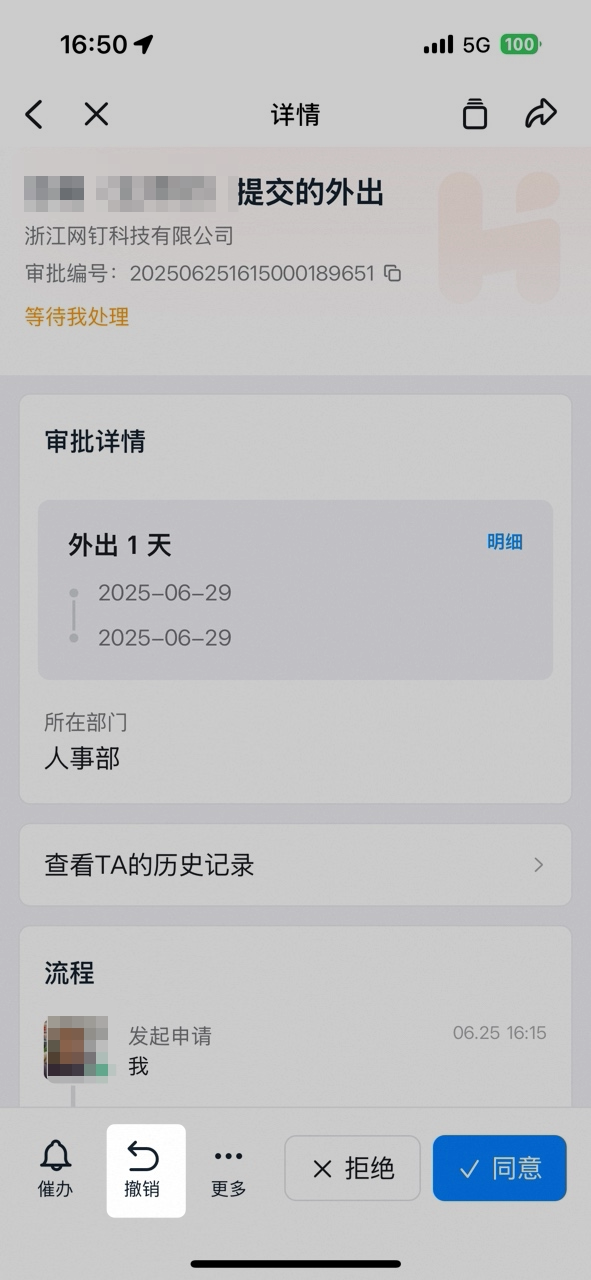
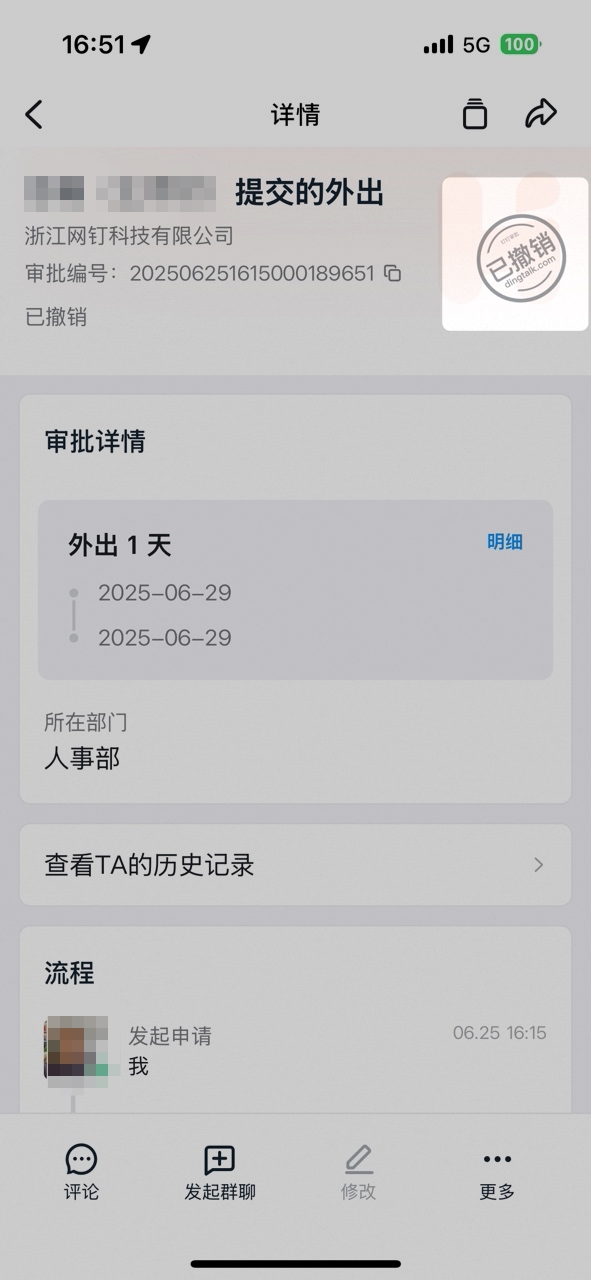
6. Undo the Approval form
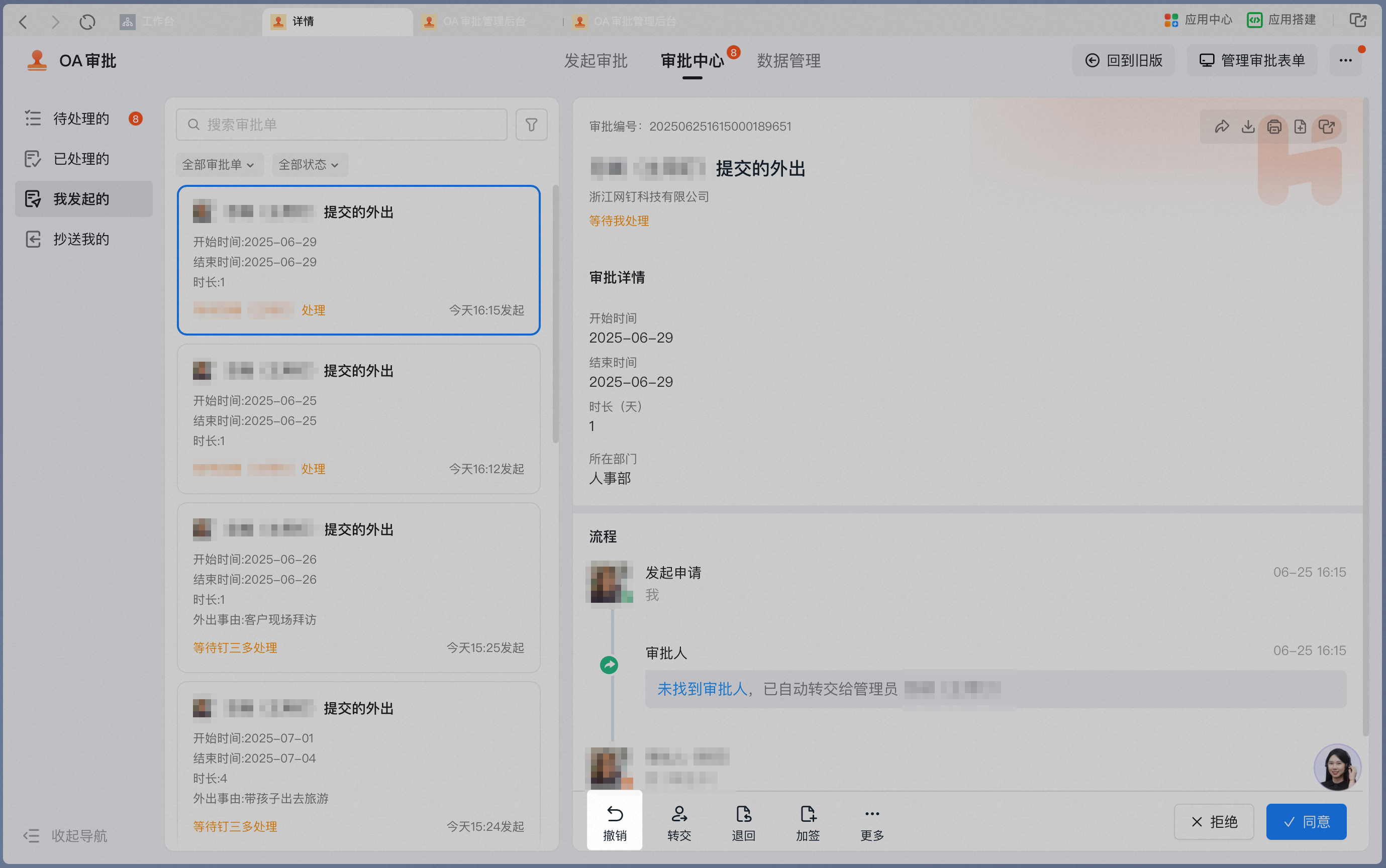
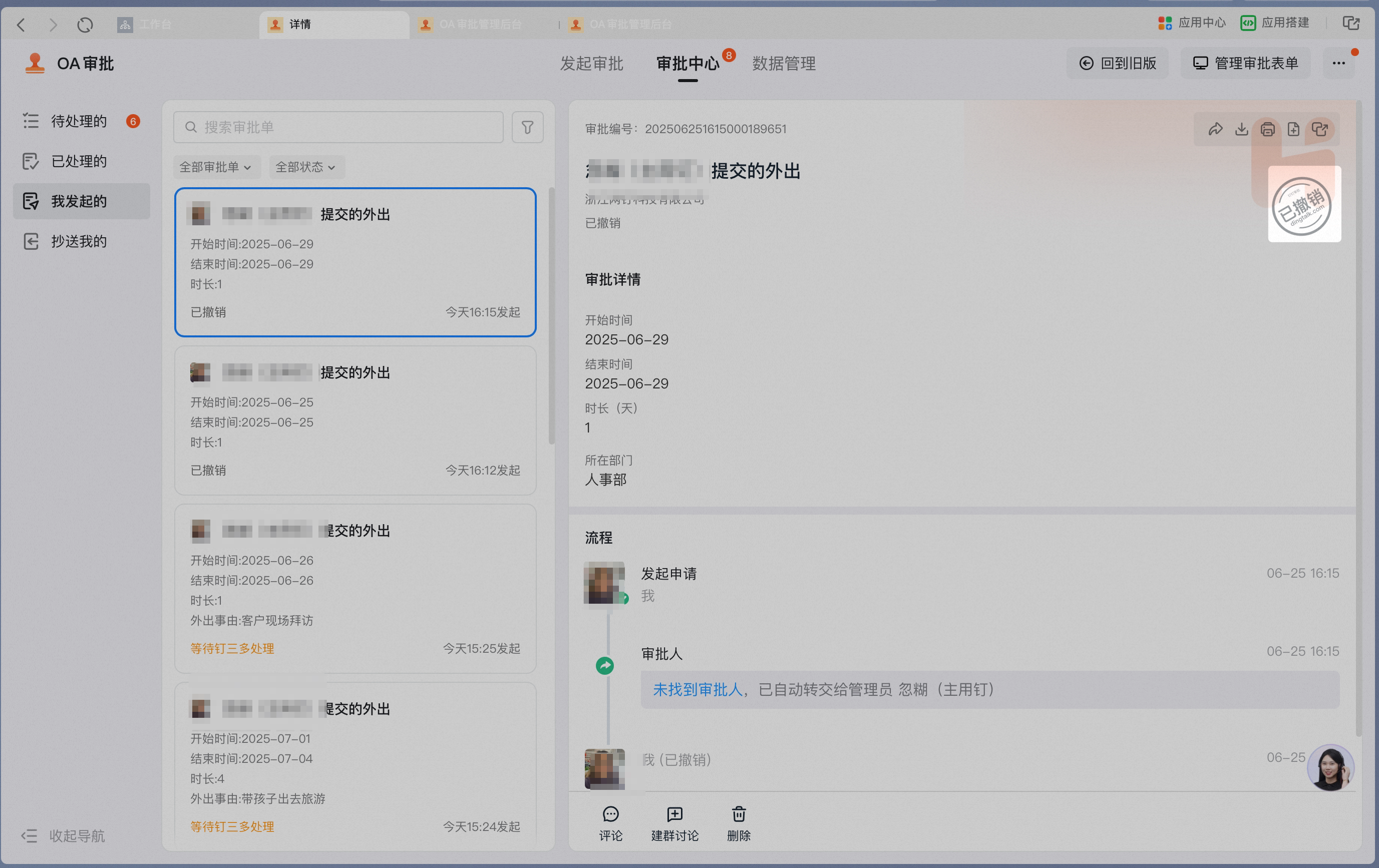
If the Admin has turned On Allow Undo, the initiator can Undo the Approval form.If there is no Undo Button on the Approval form, the Admin has not enabled Undo Permissions — contact the organization’s Approval Admin.
Desktop
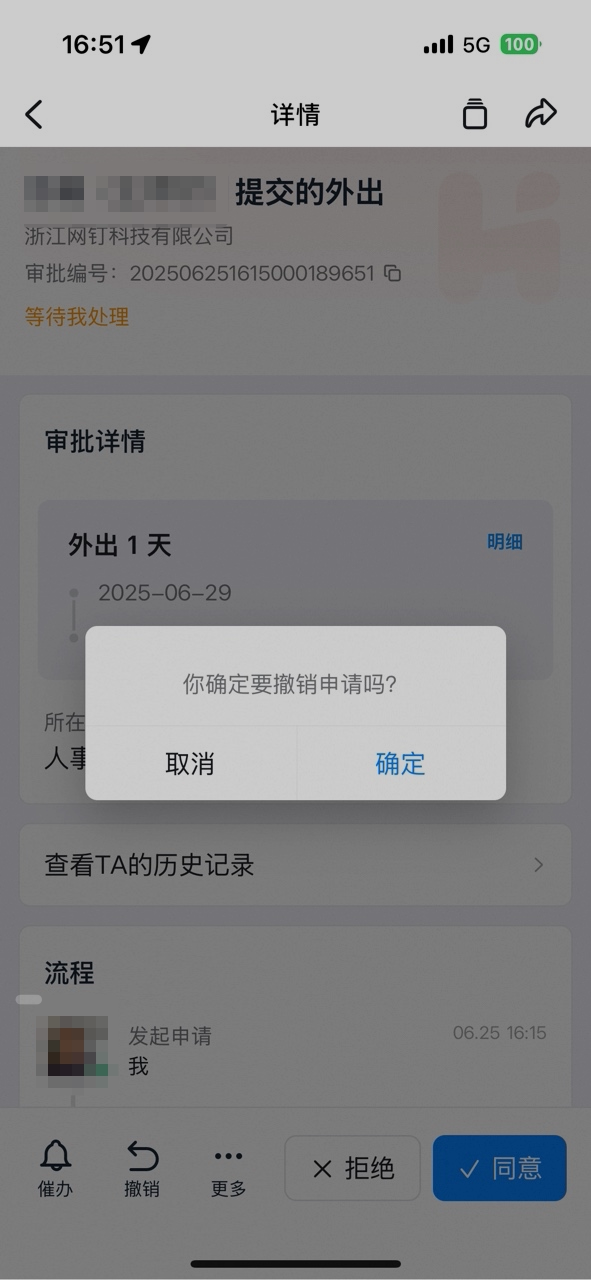
Mobile
7. Modify the Approval form
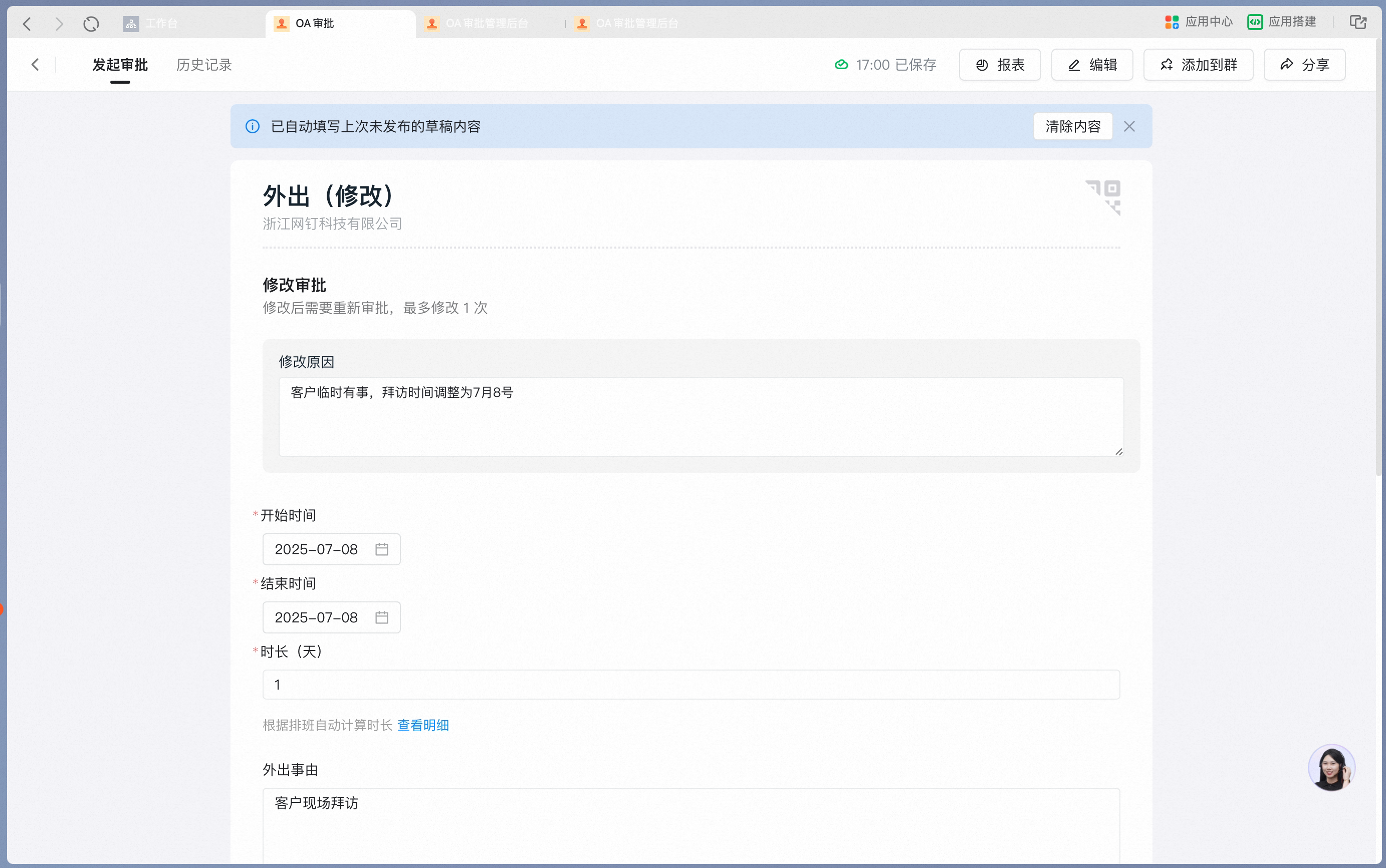
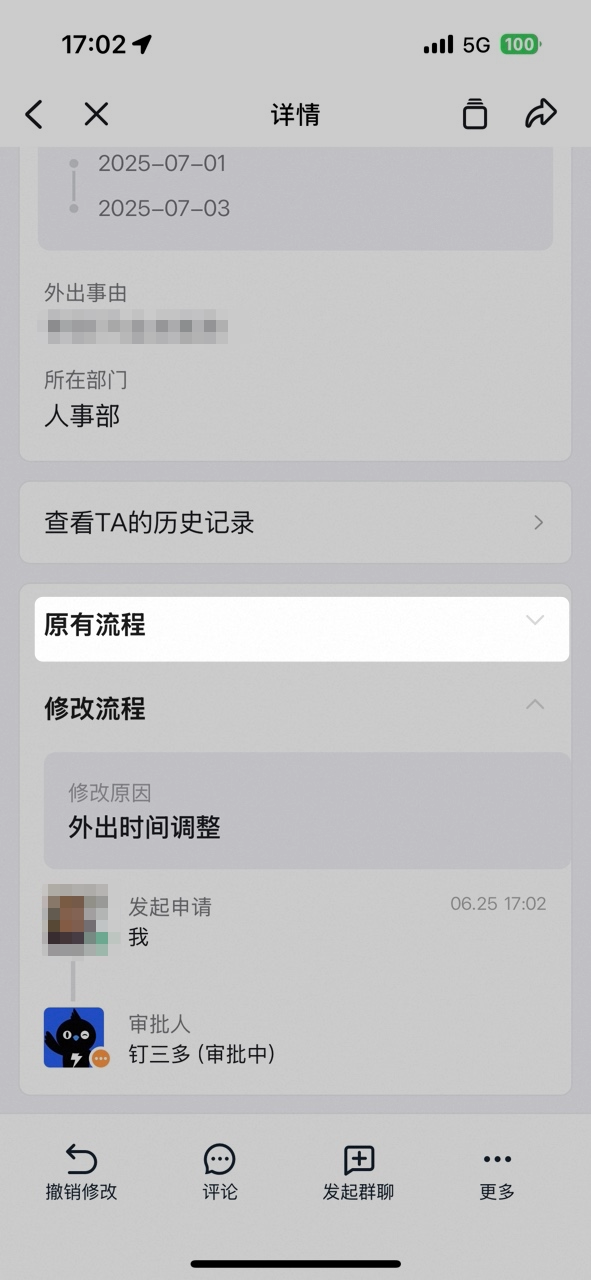
If the Admin has turned On Allow Modify for already-approved Approval forms, the initiator can modify them. Modifying requires a reason for the change; once resubmitted, the original Approval form is attached to the modified one for easy reference.Desktop
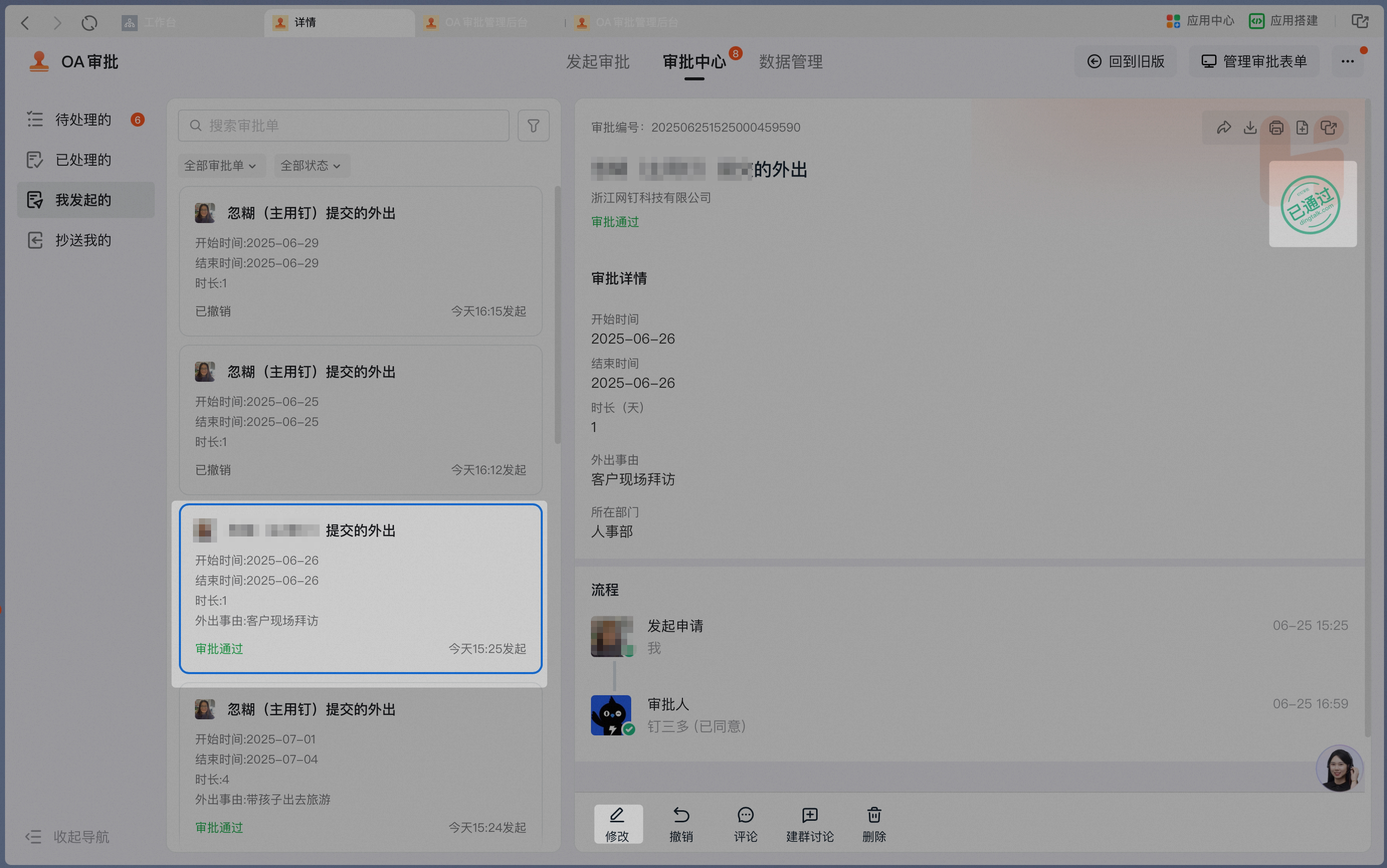
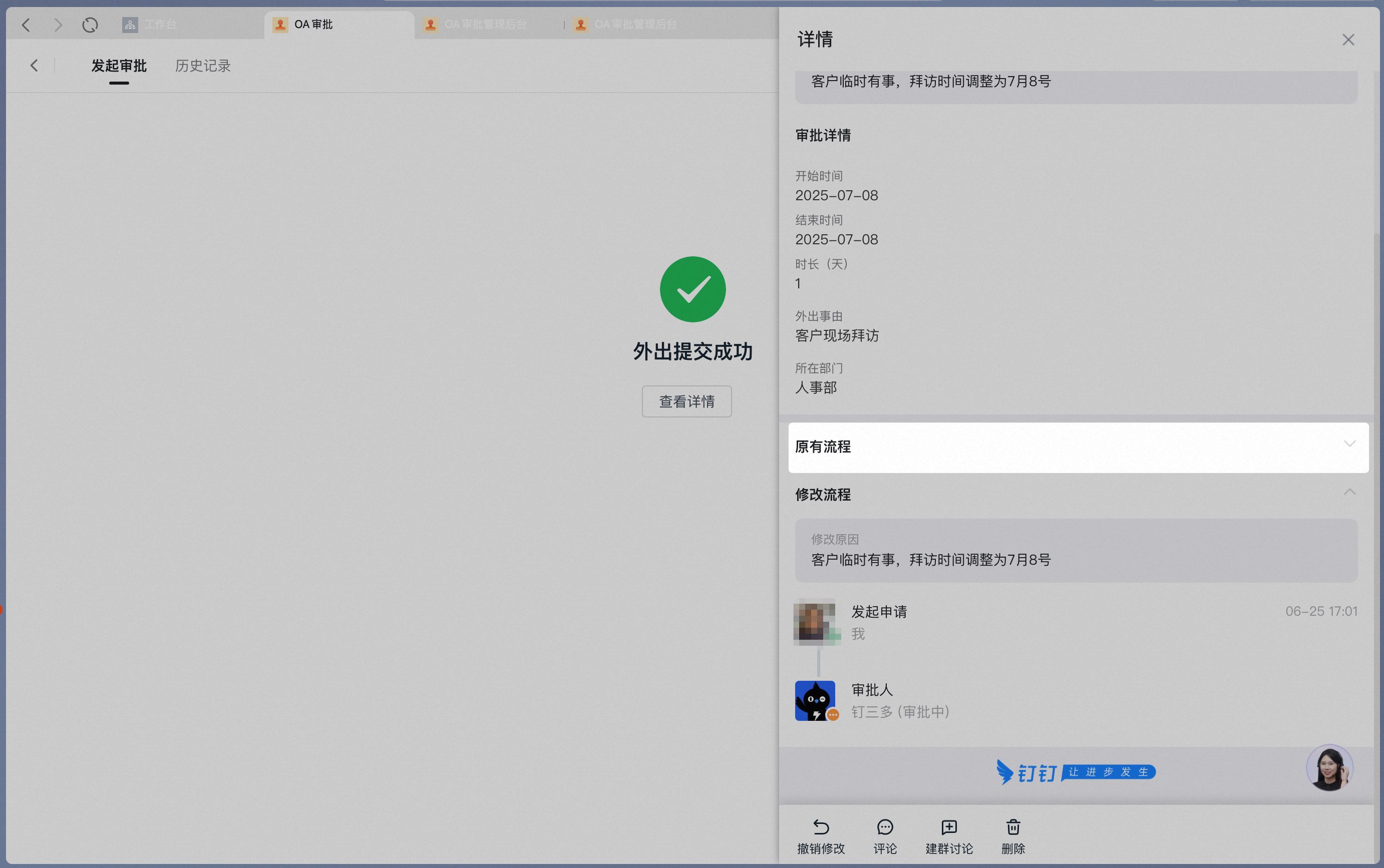
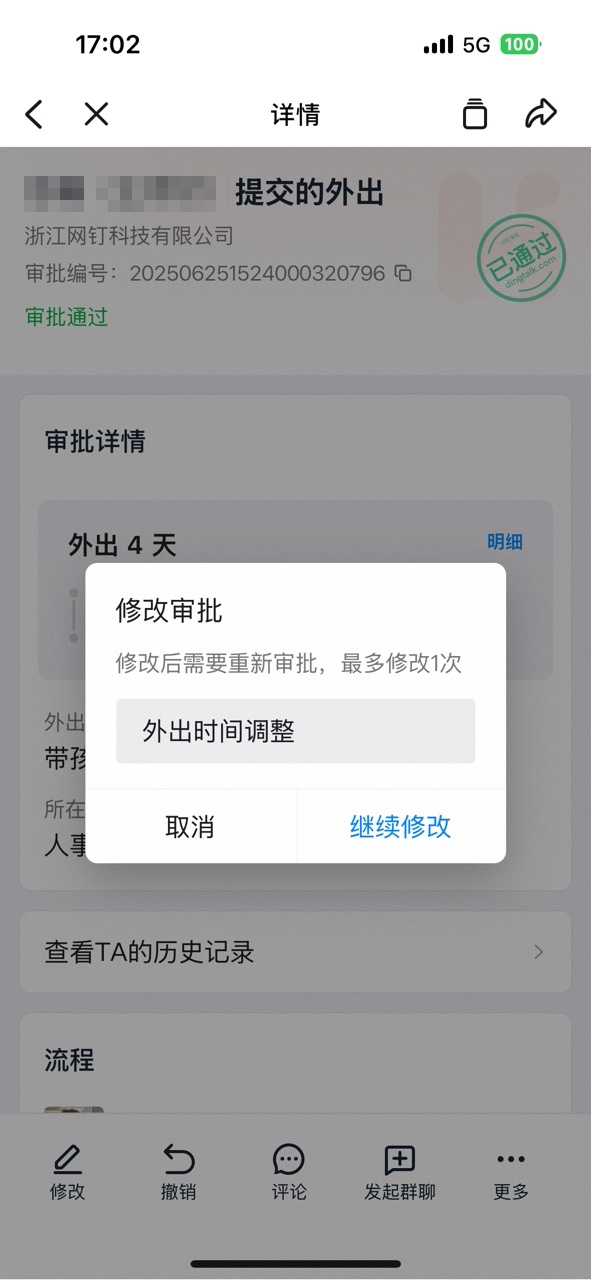
Mobile
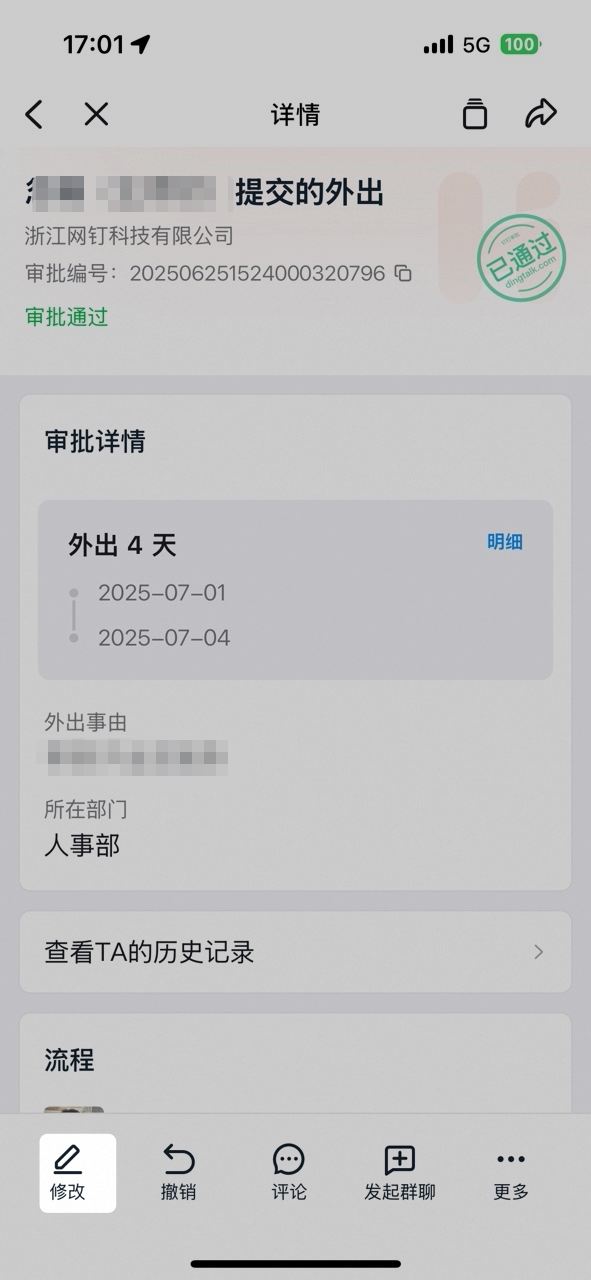
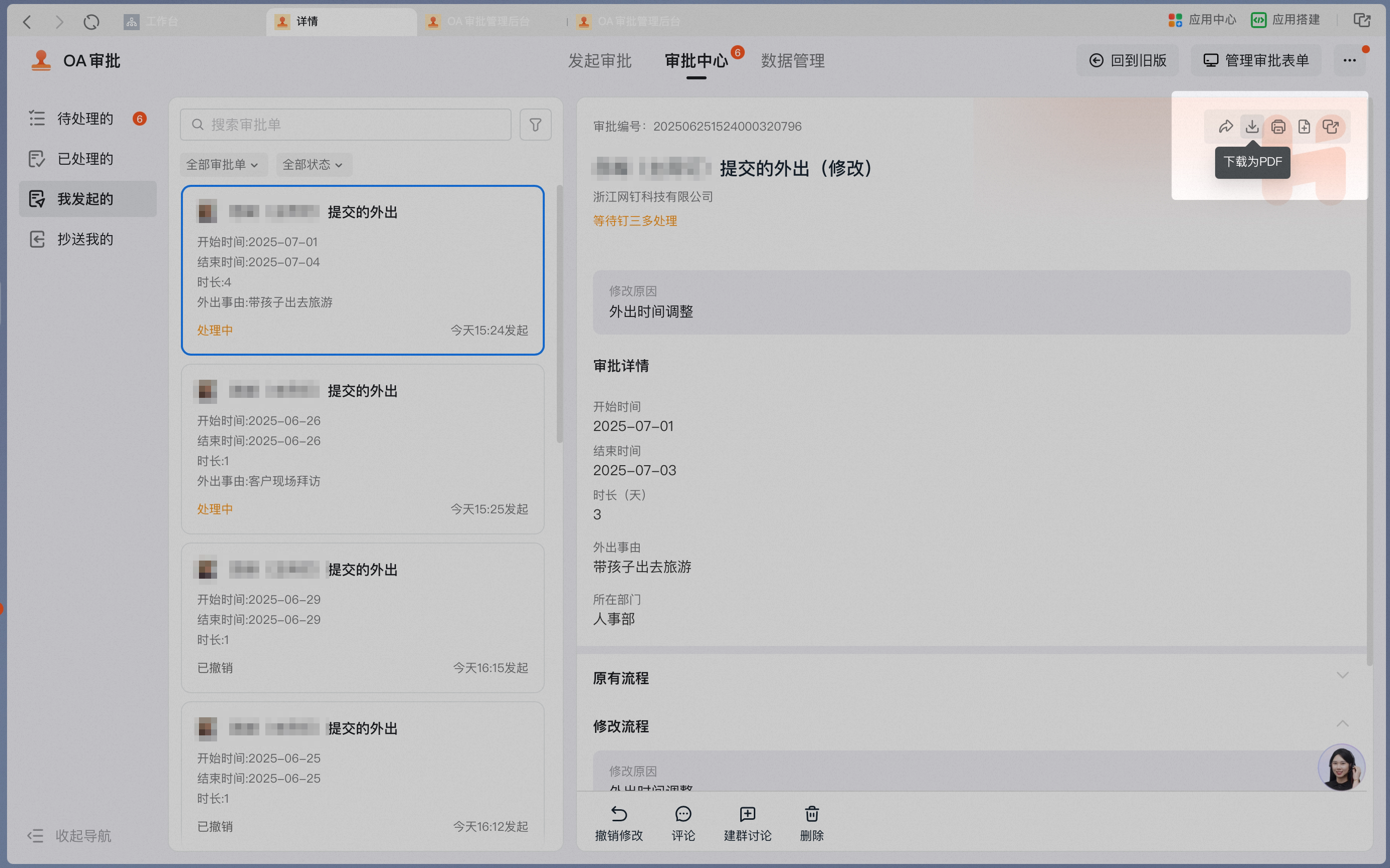
8. Download approval details
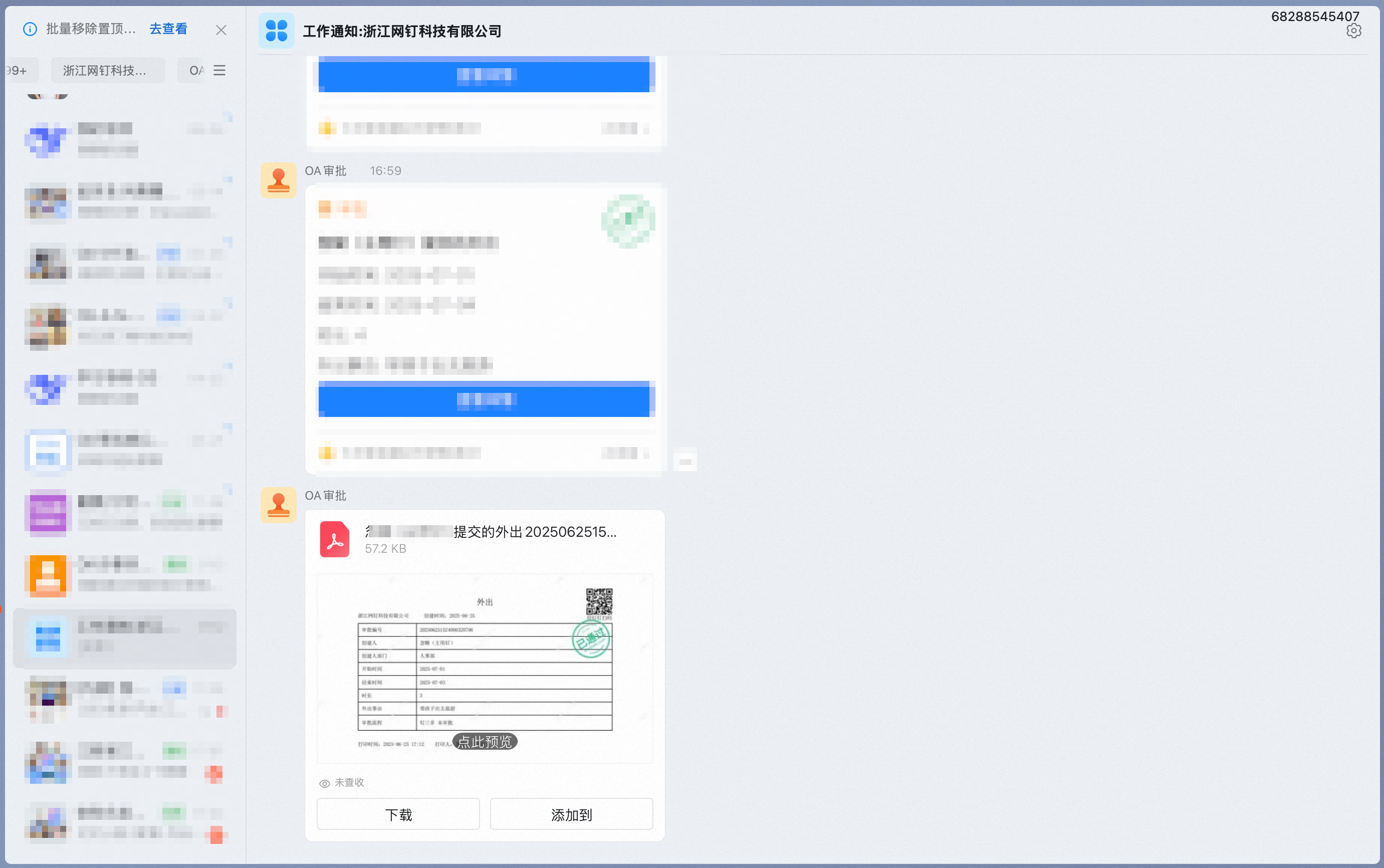
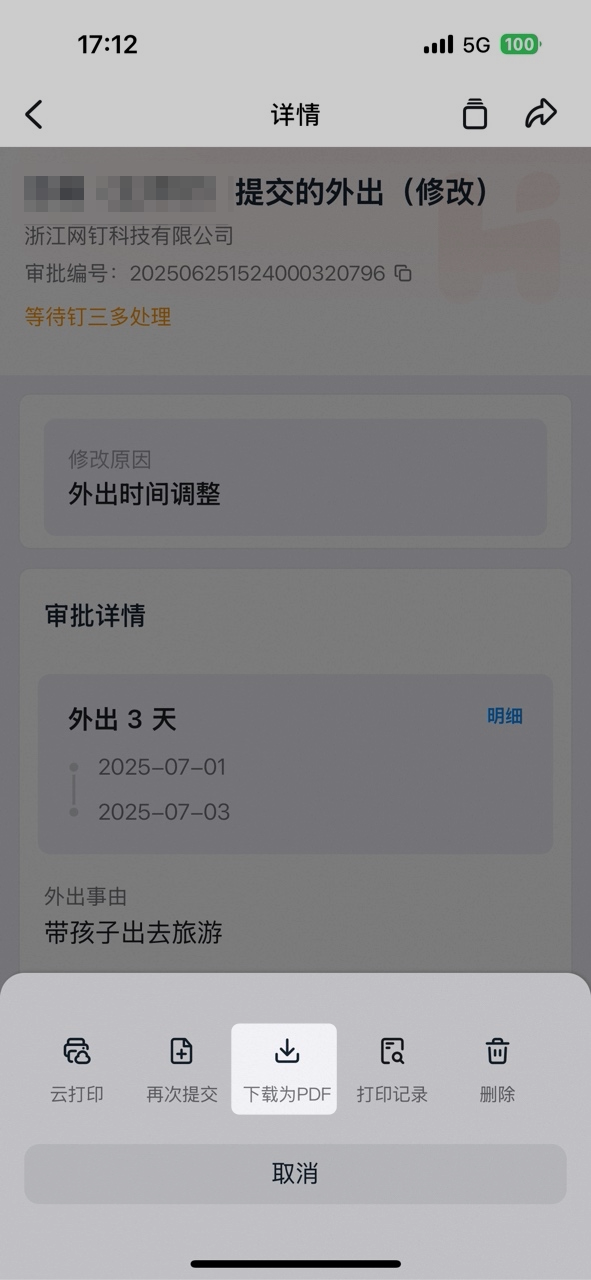
Organization members can Download approval details from the approval detail Page.Desktop
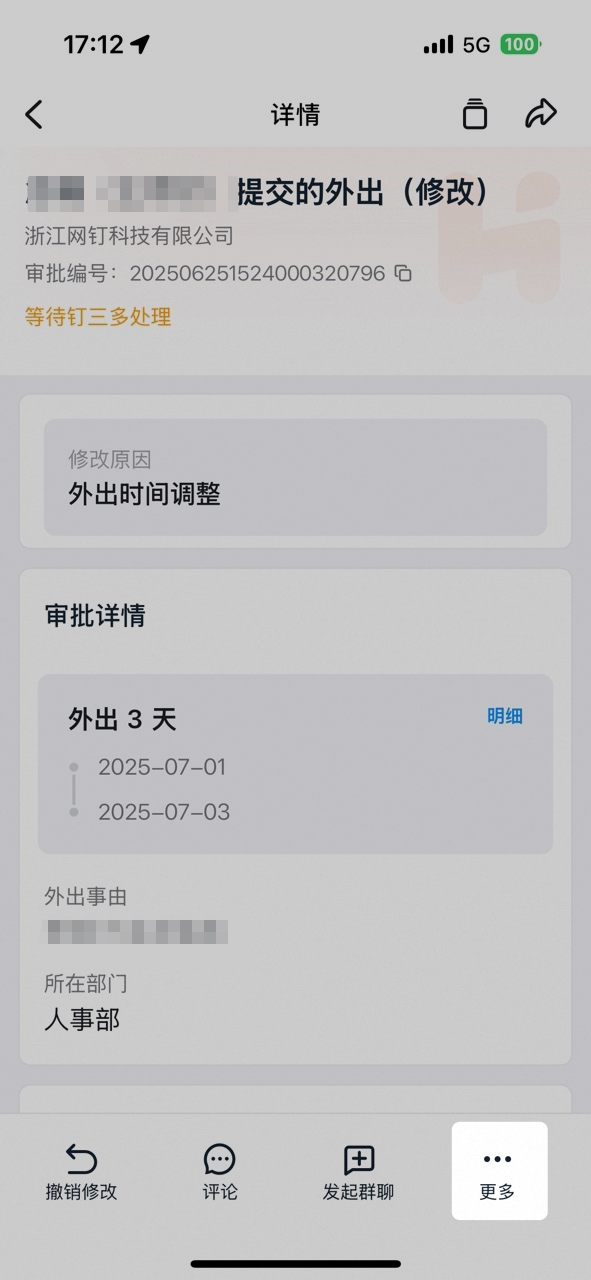
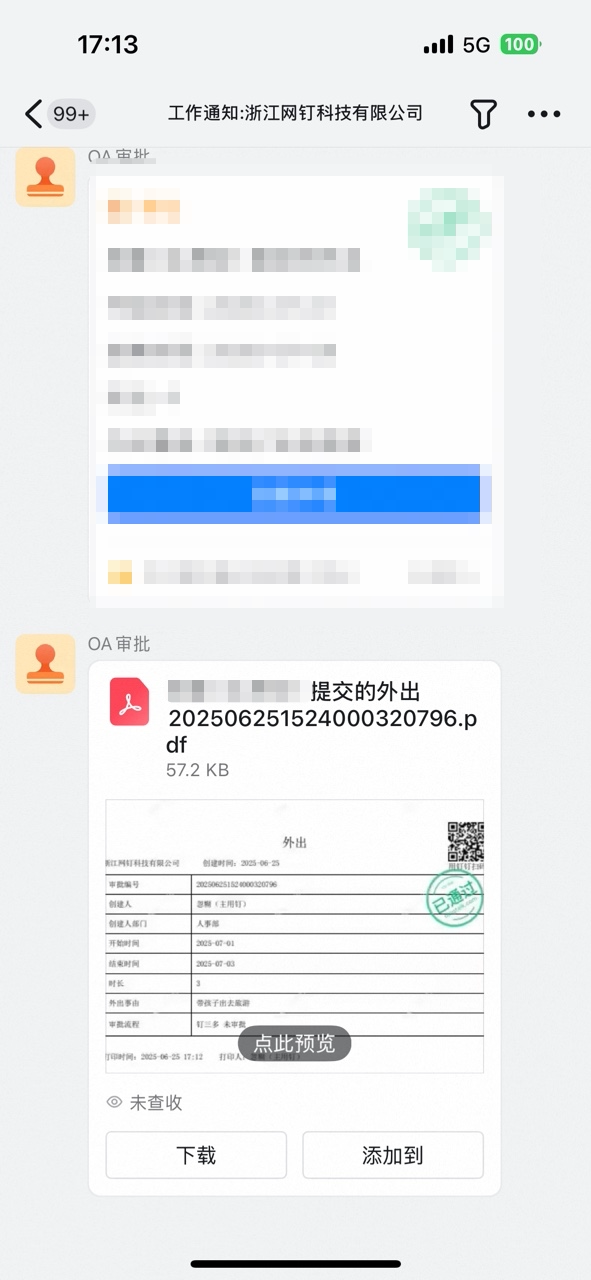
Mobile
3. Related documents
Operation Interface
Get familiar with the Home, Approval Center, and other General operation interfaces
Operator Handbook
Learn how approvers, handlers, and CC recipients process Approval forms