

 Chats
Chats Calendar
 Meetings
 Contacts
 Mail
Mail Docs
Docs Drive
Drive AI Table
 AI Minutes
 Attendance
 Approval
 YiDA
YiDA Admin Console
1. Capability overview
2. Applicable scenarios
1. Mobile (voice)
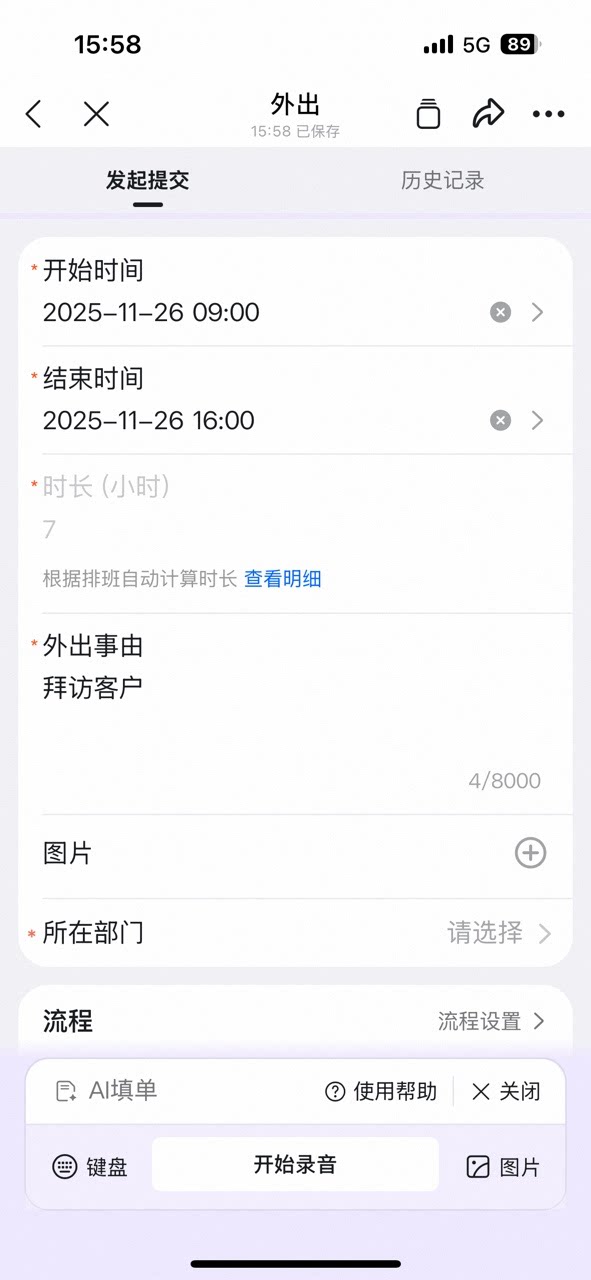
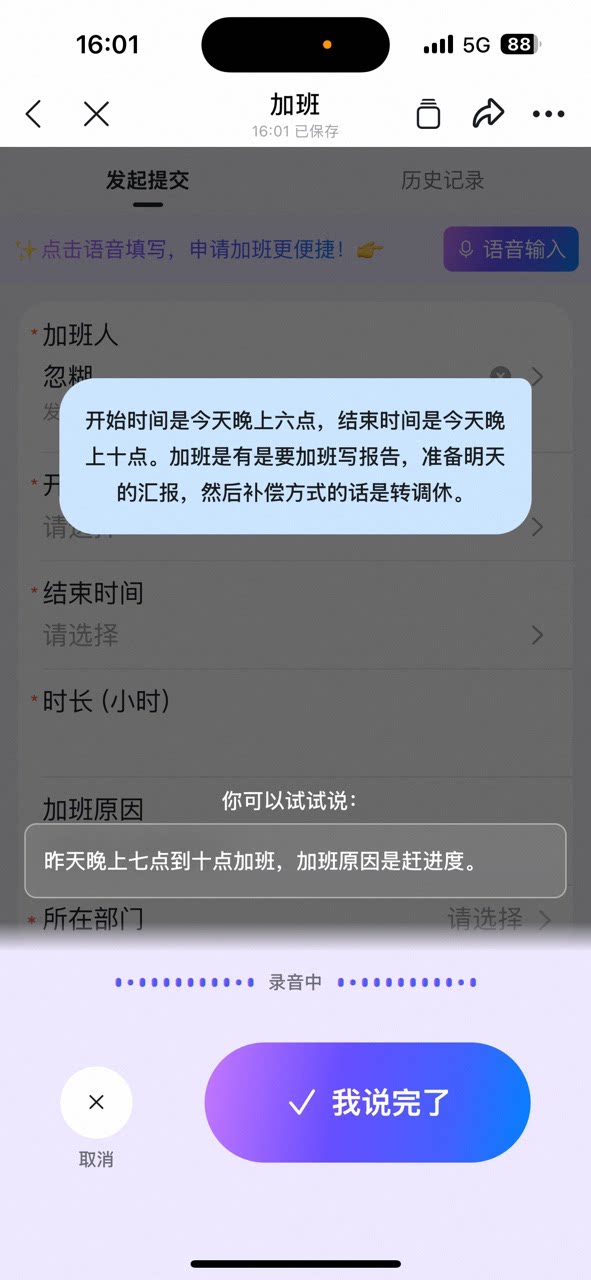
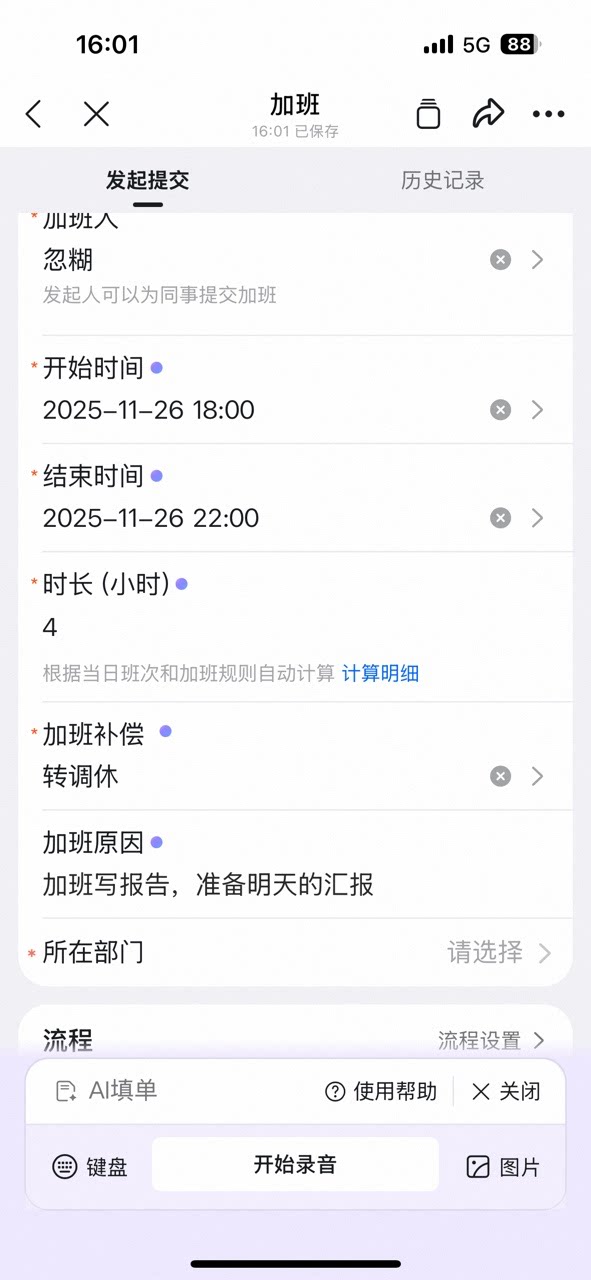
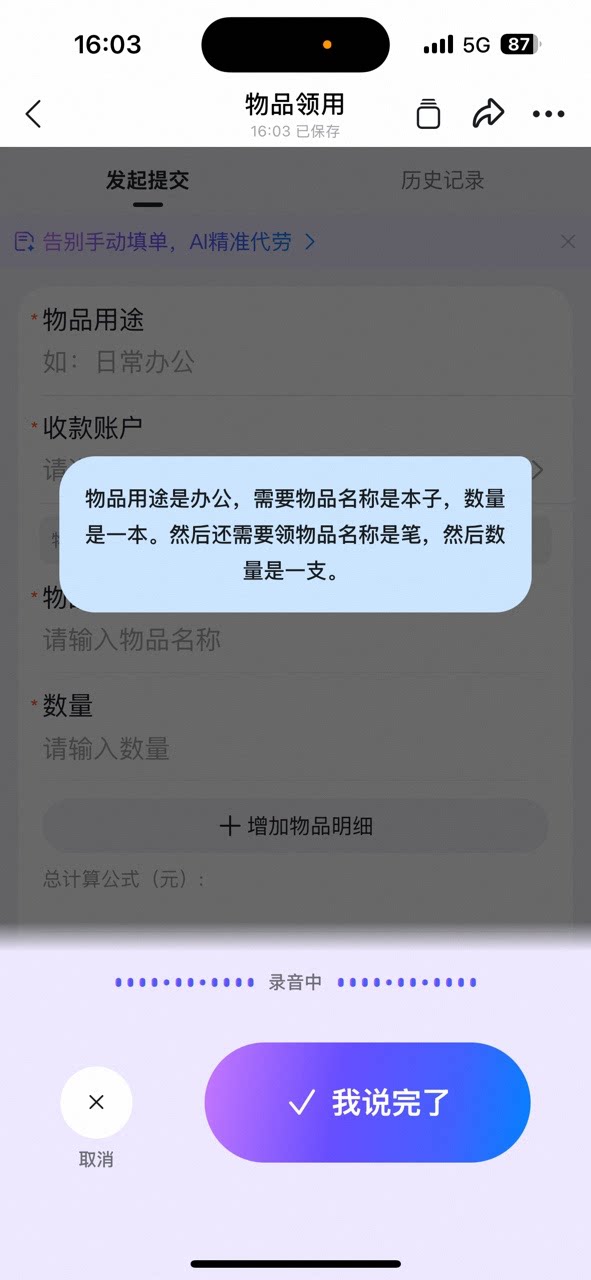
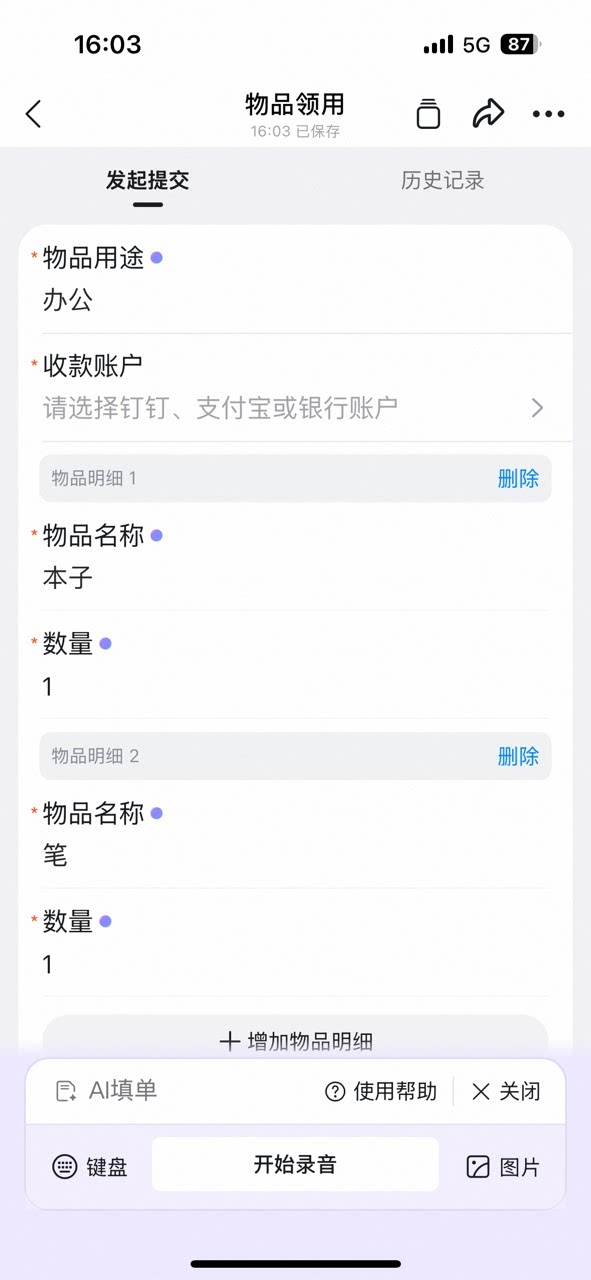
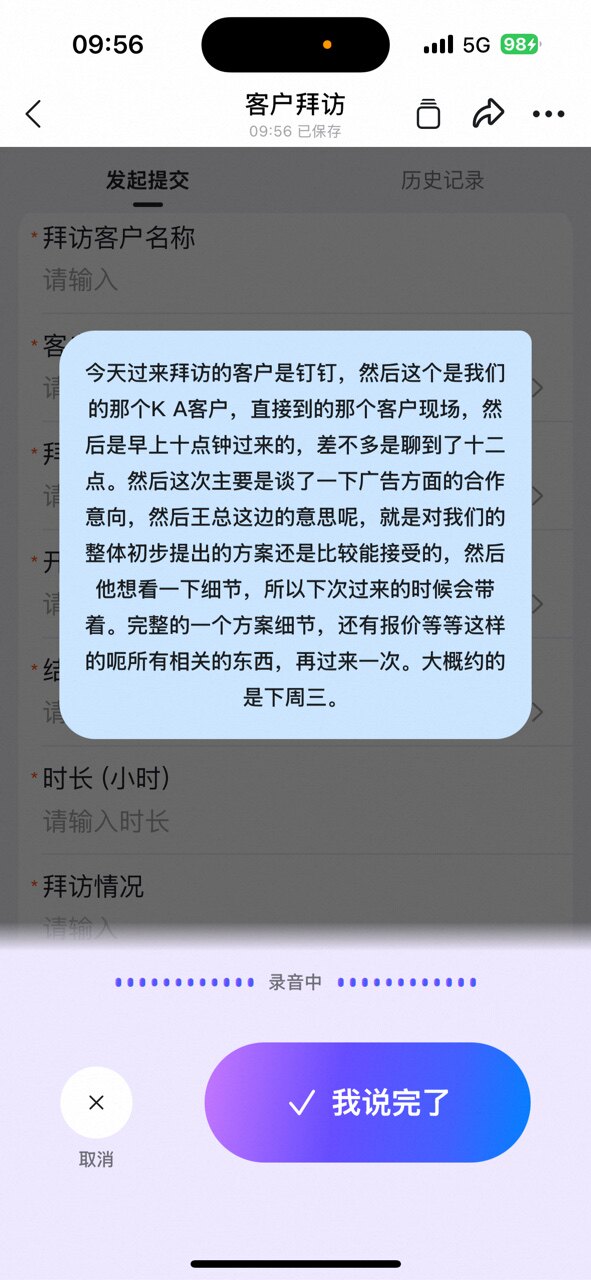
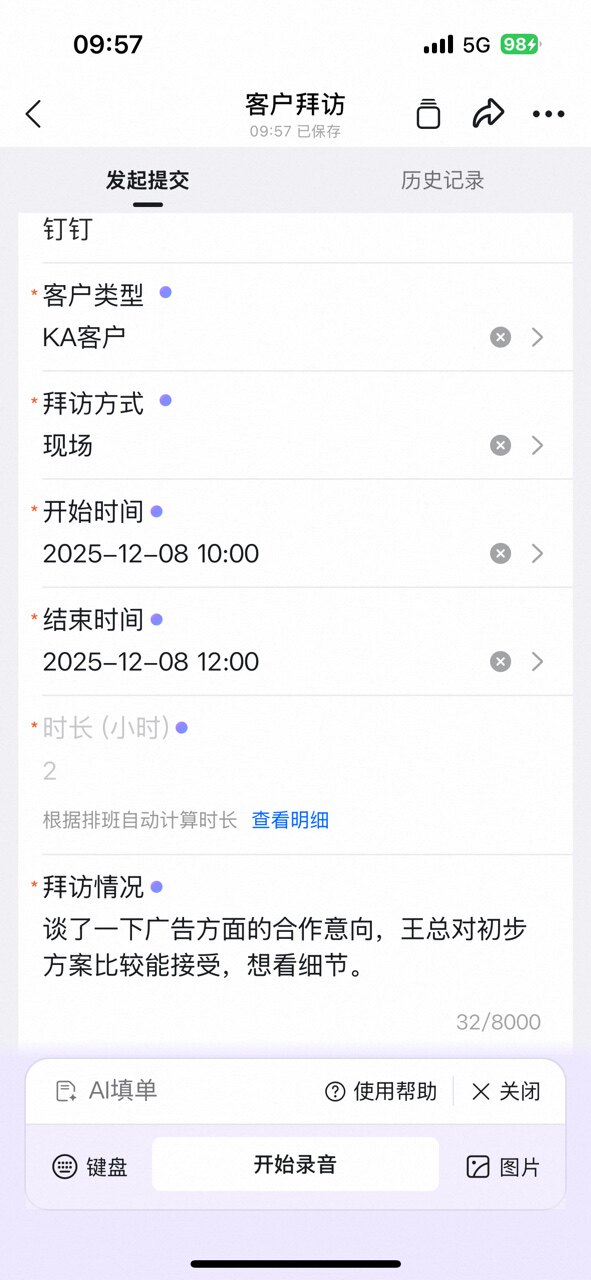
Scenario 1: Out-of-office request Speak the out-of-office time and reason into your phone, and AI transcribes as you speak: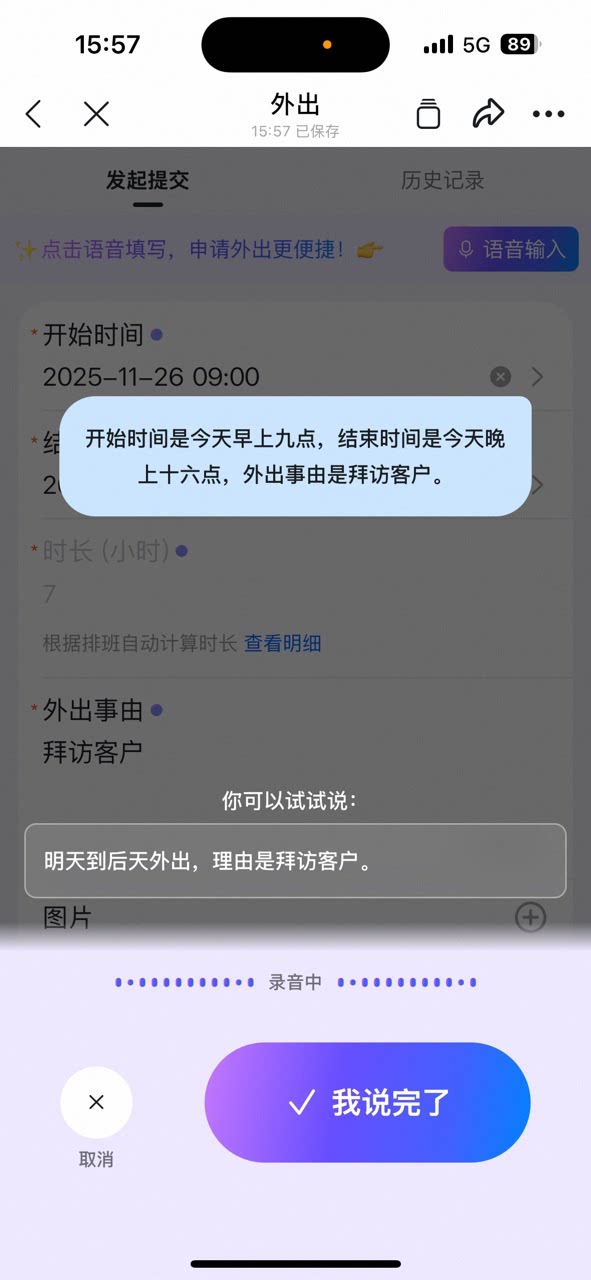
2. Mobile (text / image)
Scenario: Sales performance reporting When store performance data is sent in Chats, there is no need to copy each item into the form manually:
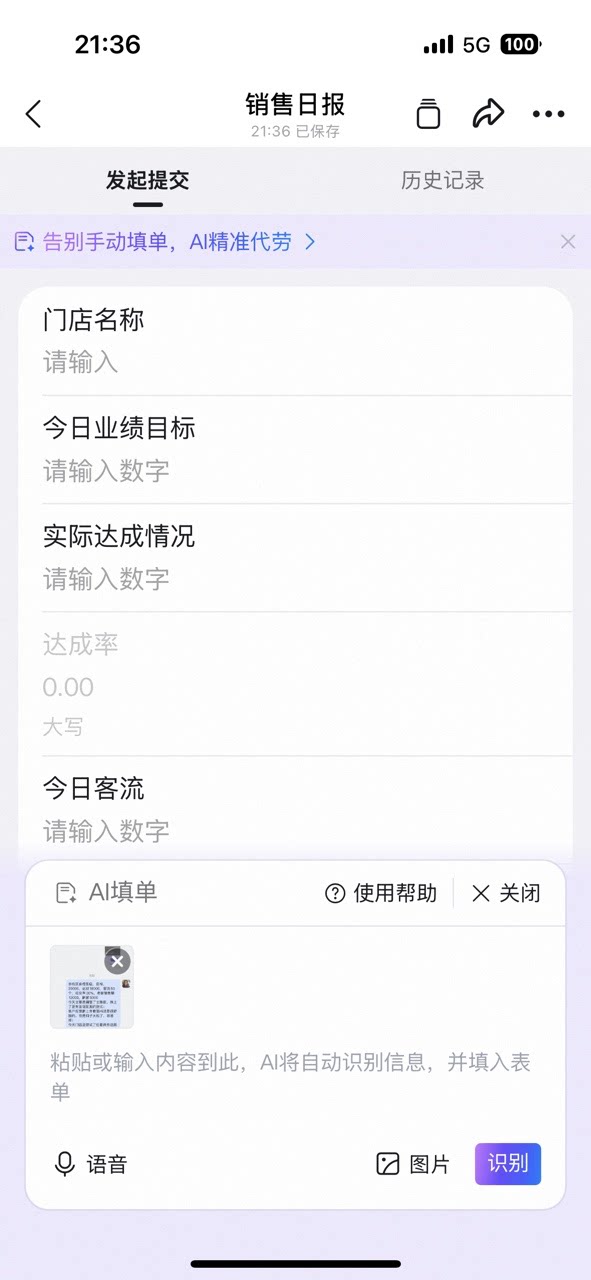
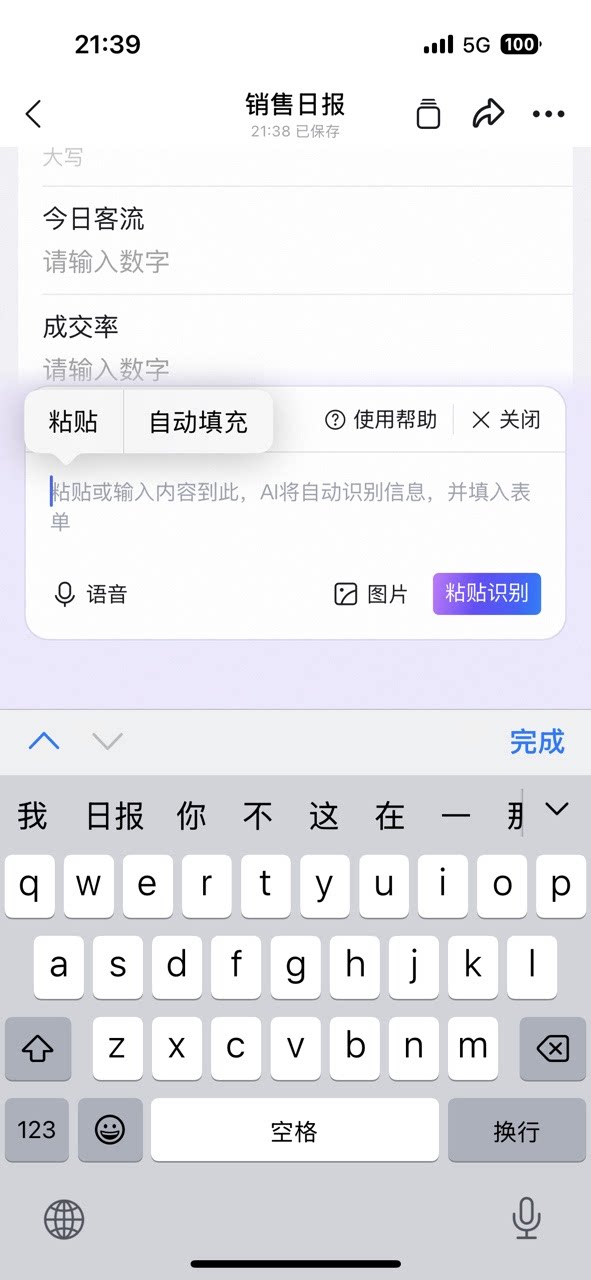

3. Desktop (image)
Scenario: Purchase request Upload a photo of a paper item list. No need to enter the spreadsheet data manually: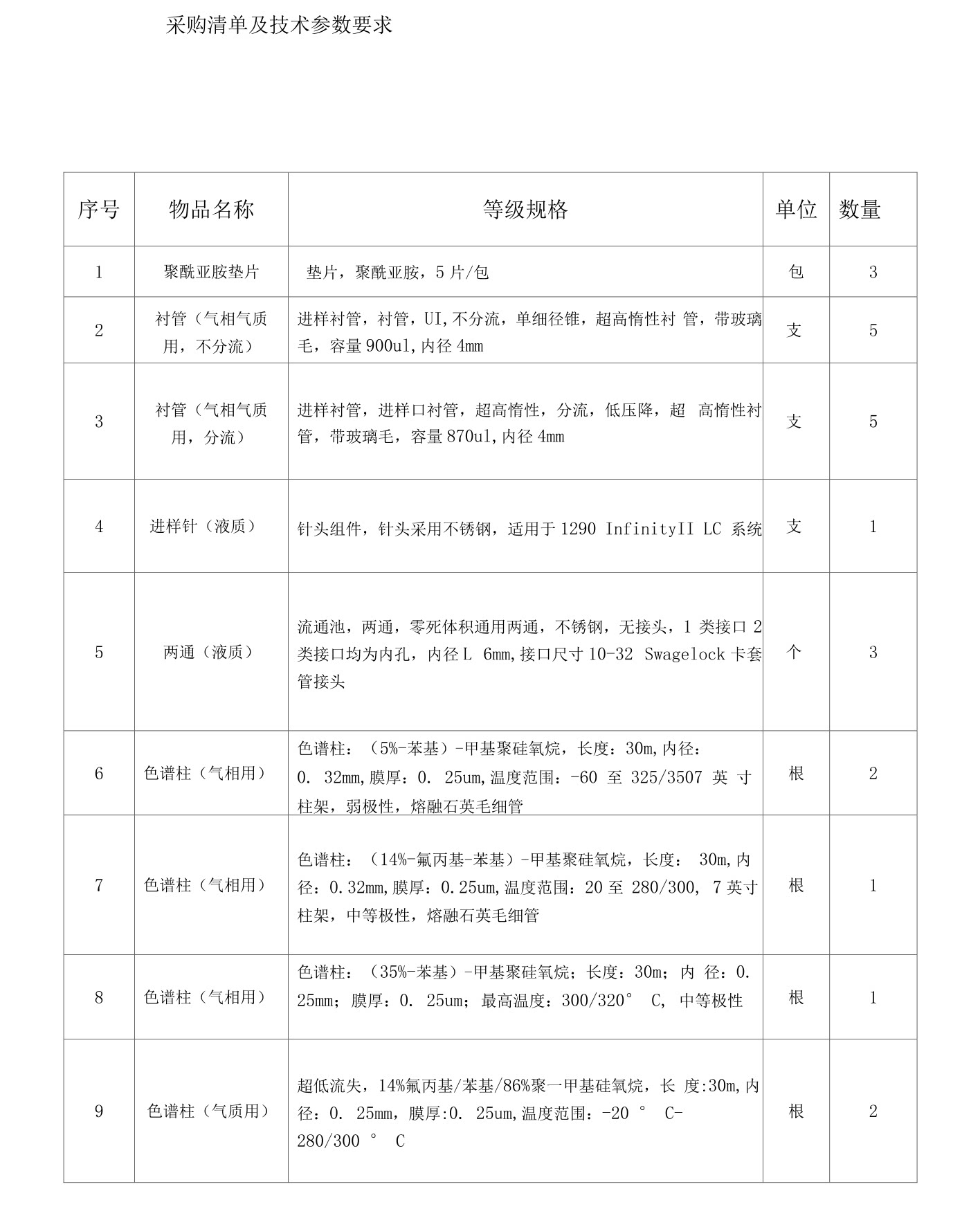
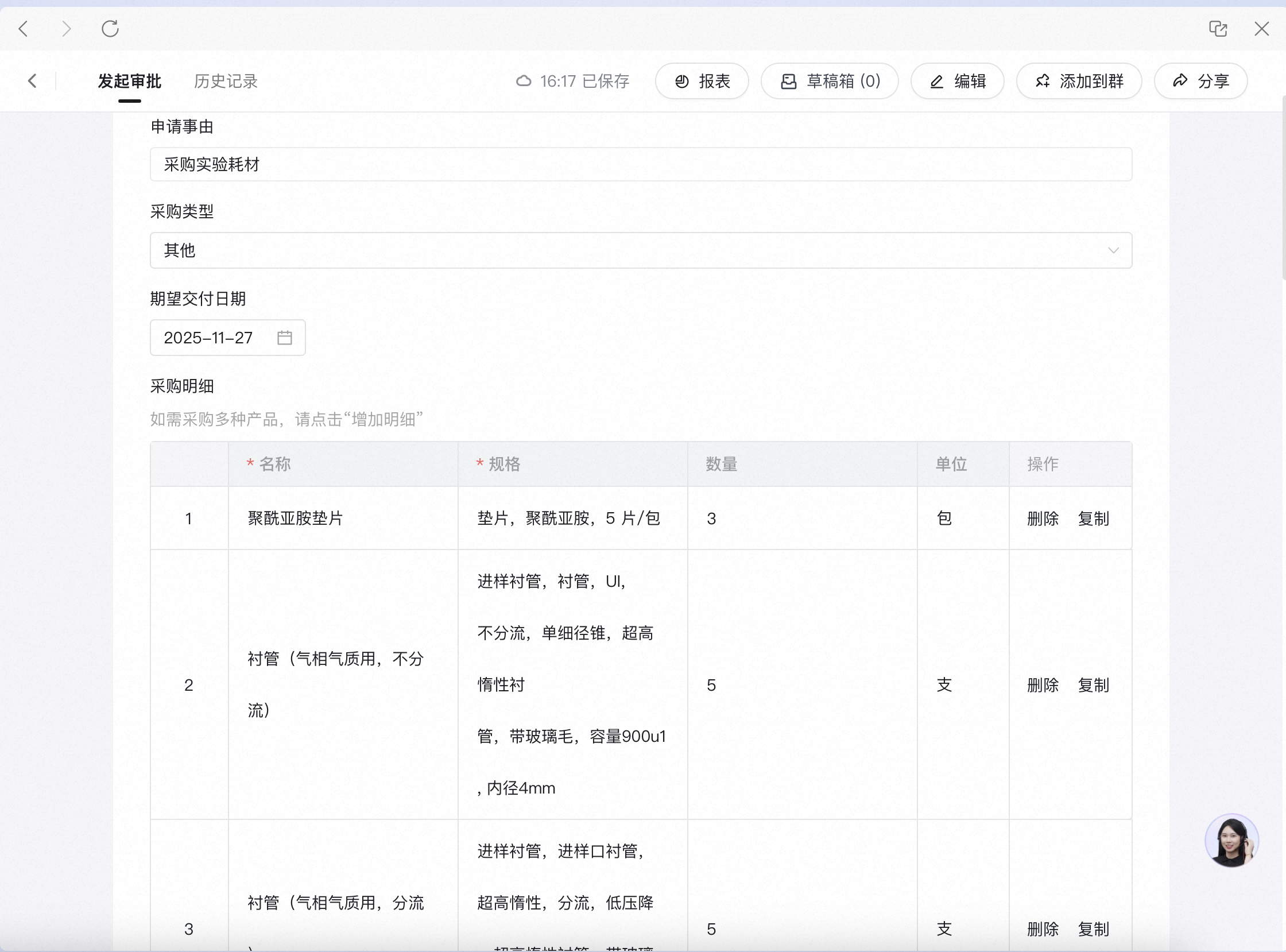
4. Desktop (text)
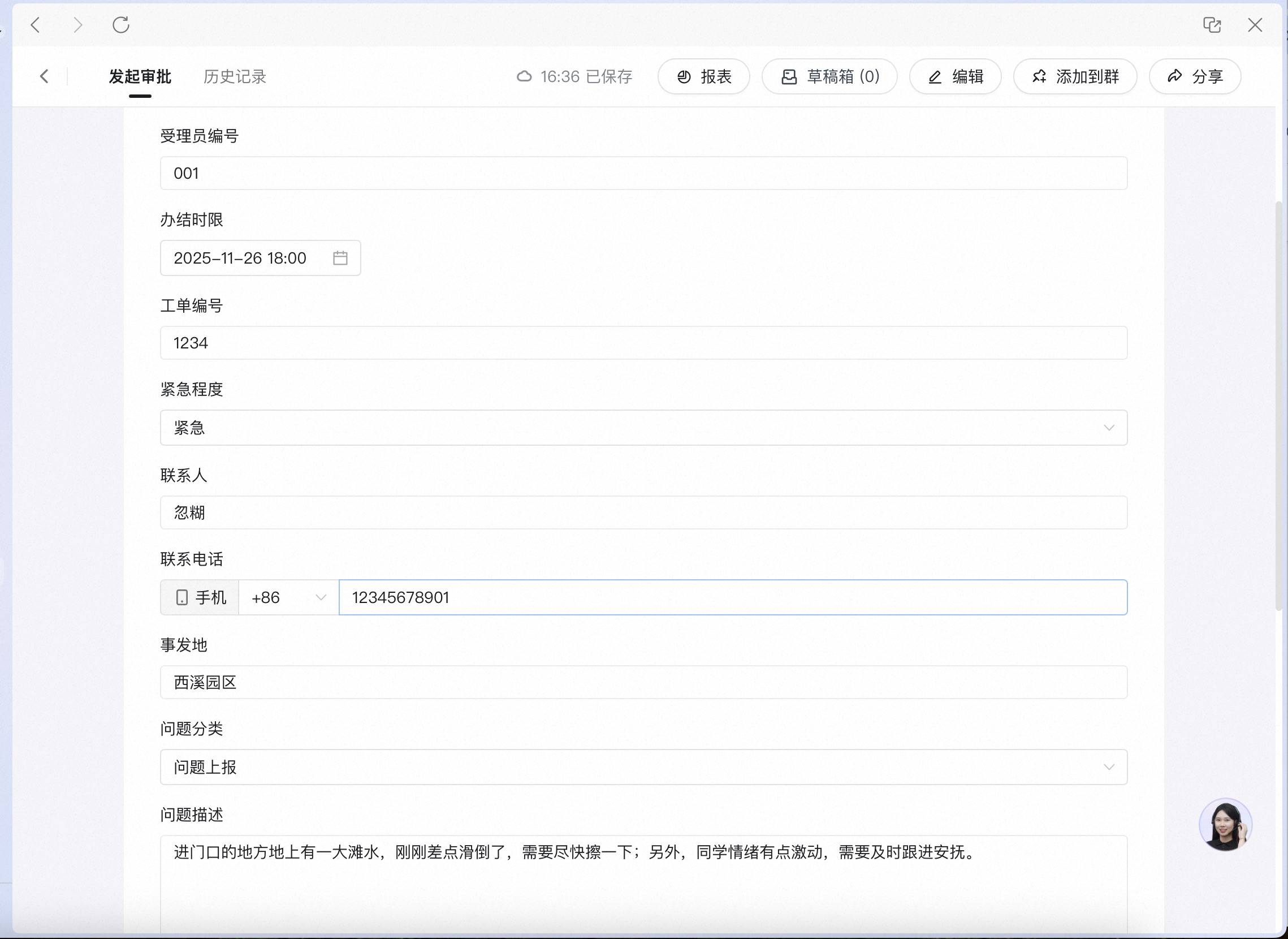
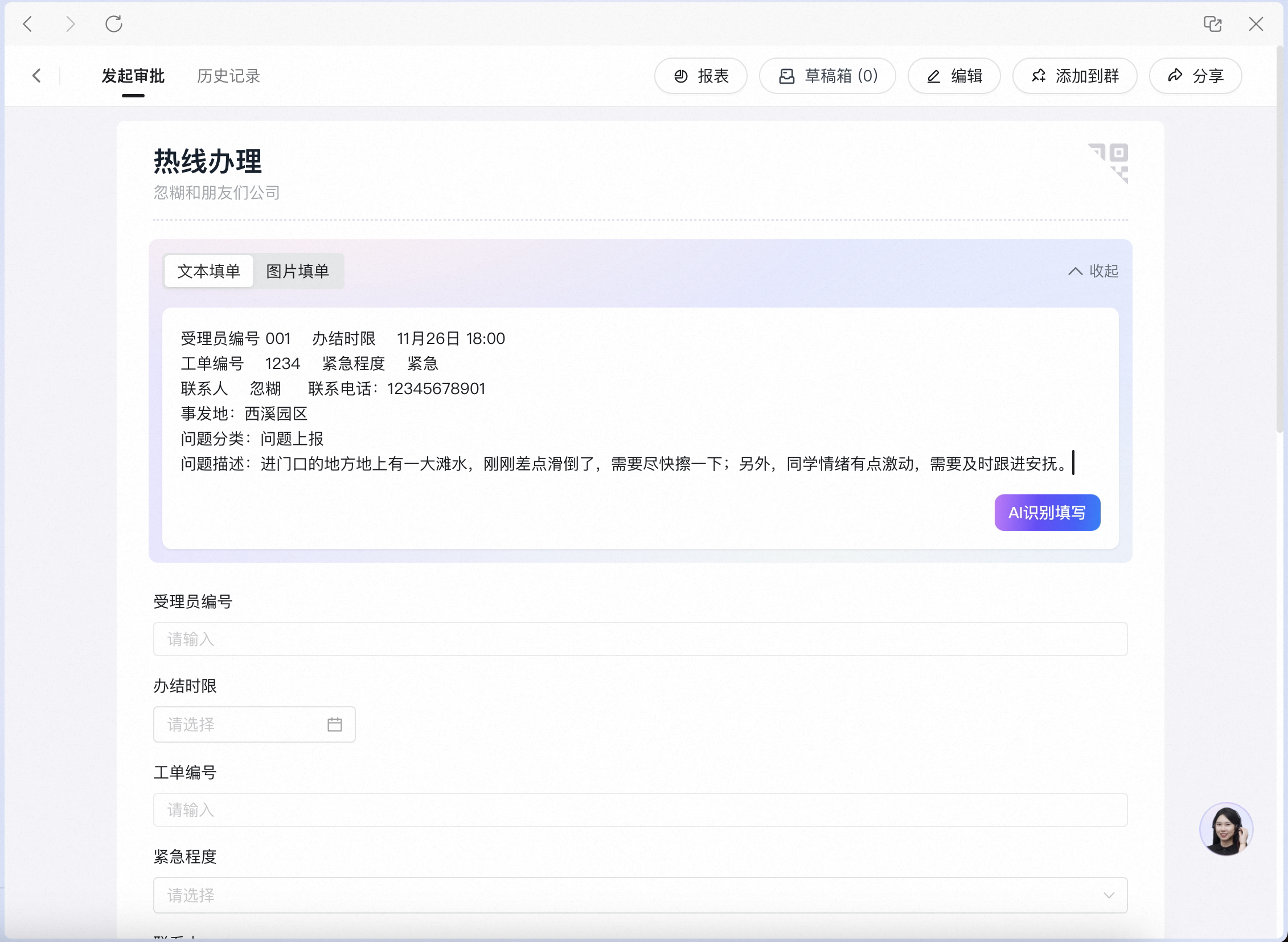
Scenario: Hotline case handling Paste the ticket text (agent number, ticket number, contact, problem description, etc.) into the AI recognition box: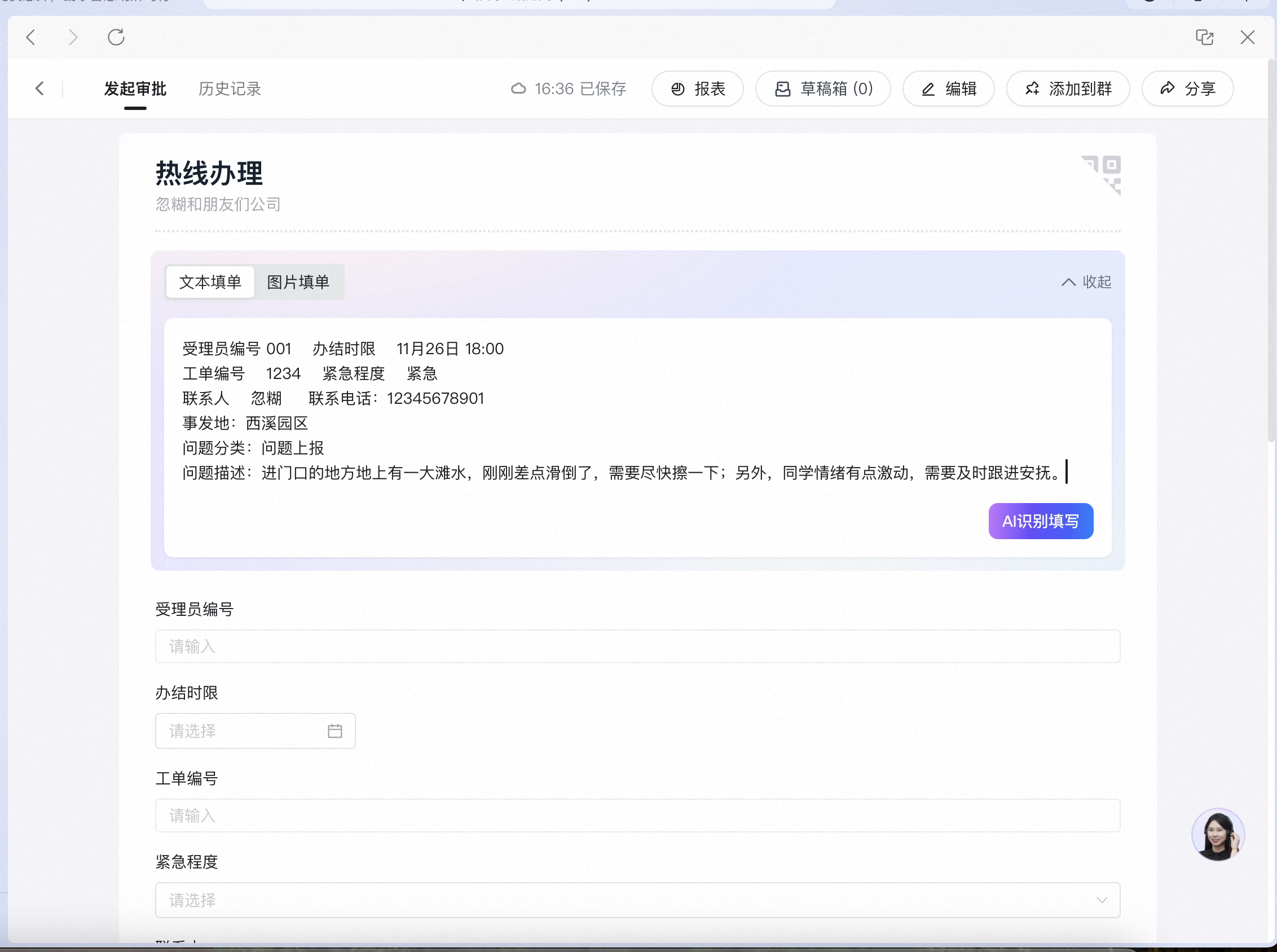
3. Steps
1. Mobile voice initiation
Using an out-of-office request as an example, the full flow for voice initiation is as follows:Open the form and tap [Voice Input]

When the input box appears, start speaking
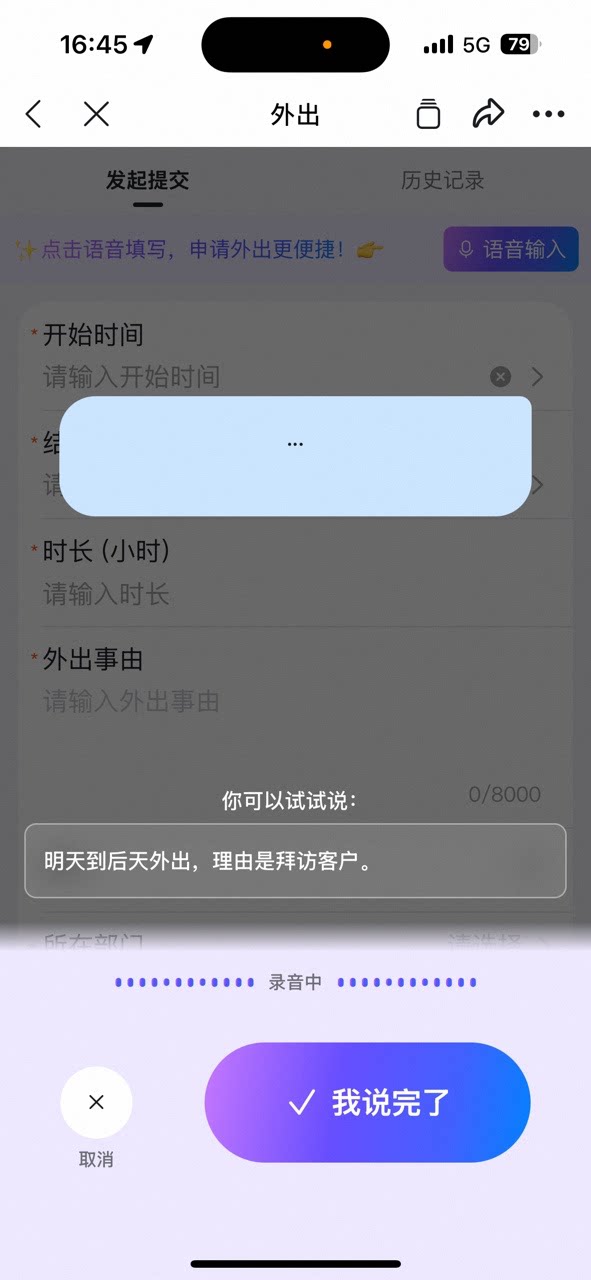
Tap [I'm Done] when you finish speaking
The form is auto-filled
2. Mobile image-based reporting
Open the form and tap [AI Form Filling]
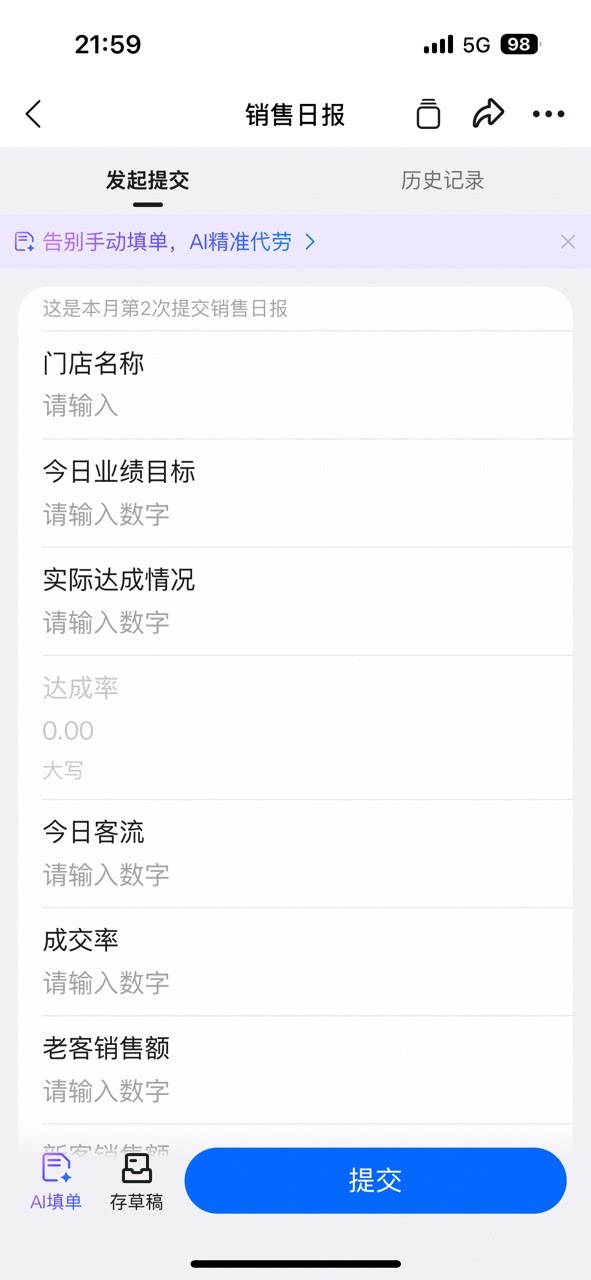
When the AI form filling interface appears, tap [Image]
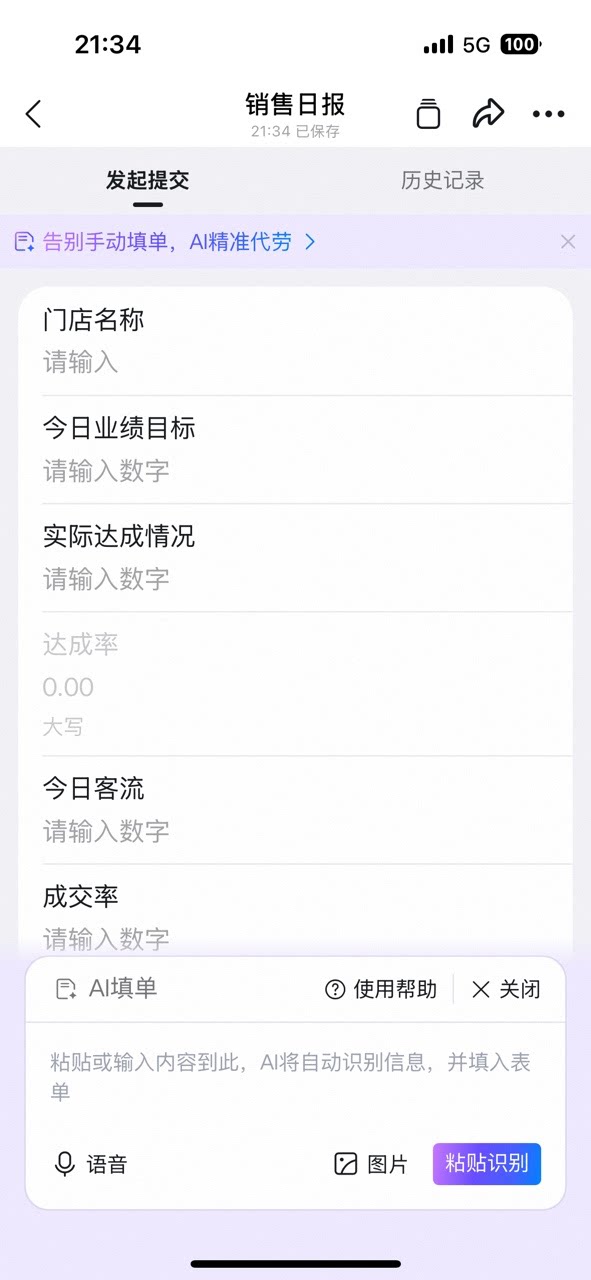
After the upload succeeds, tap [Recognize]
Wait for AI recognition

Wait a moment for the form to be filled
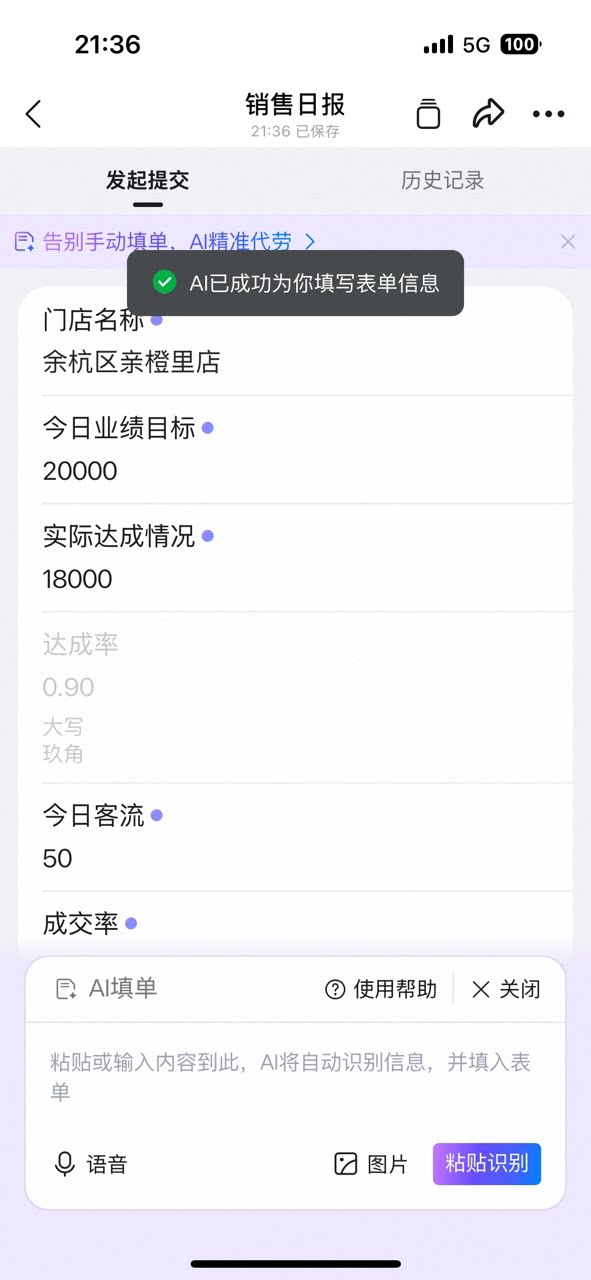
3. Mobile text-paste initiation
Open the form and tap [AI Form Filling]
When the AI form filling interface appears, tap [Paste & Recognize]
Wait for AI recognition

Wait a moment for the form to be filled
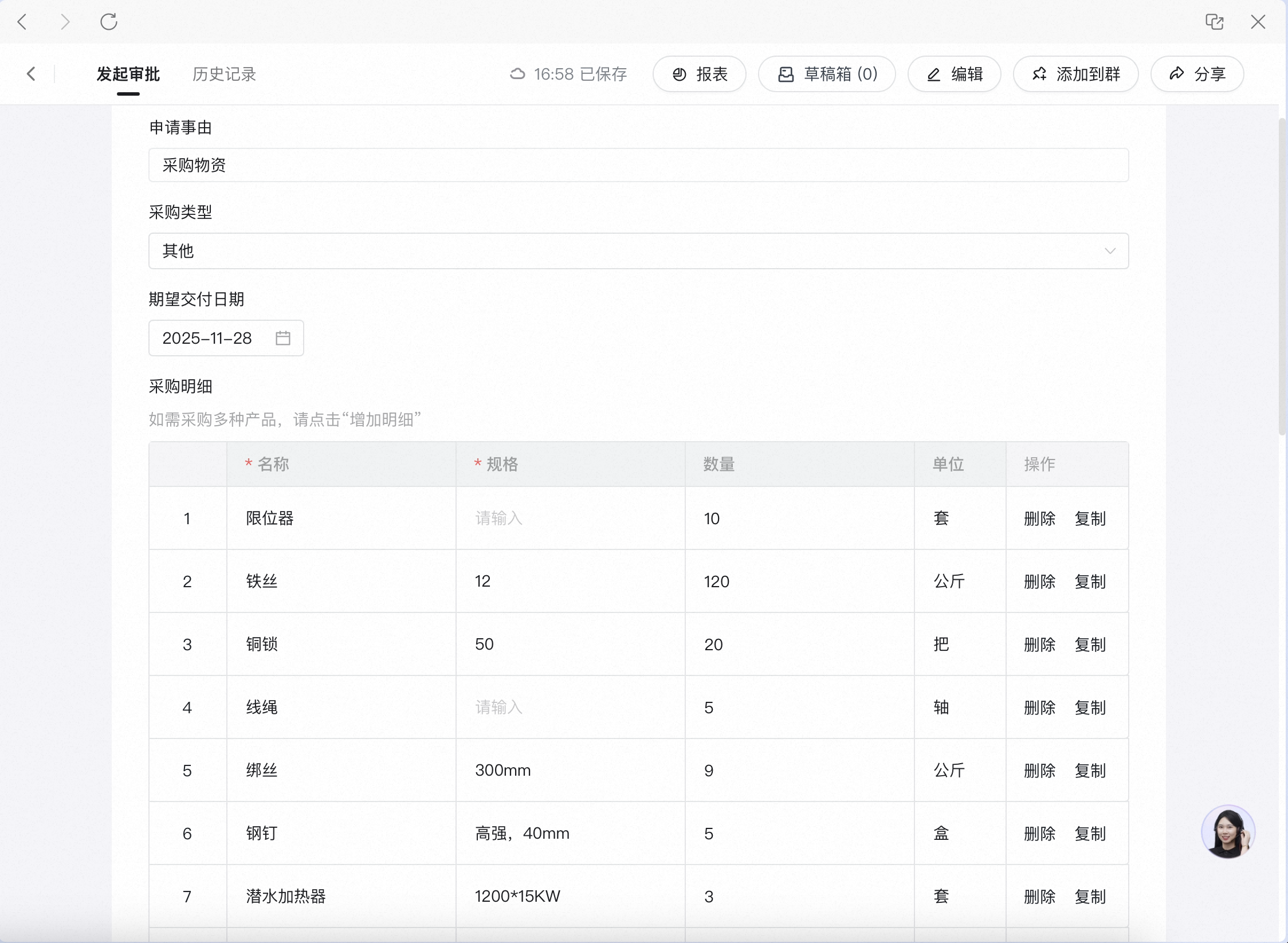
4. Desktop image-based detail entry
Open the form and click [Upload Image]
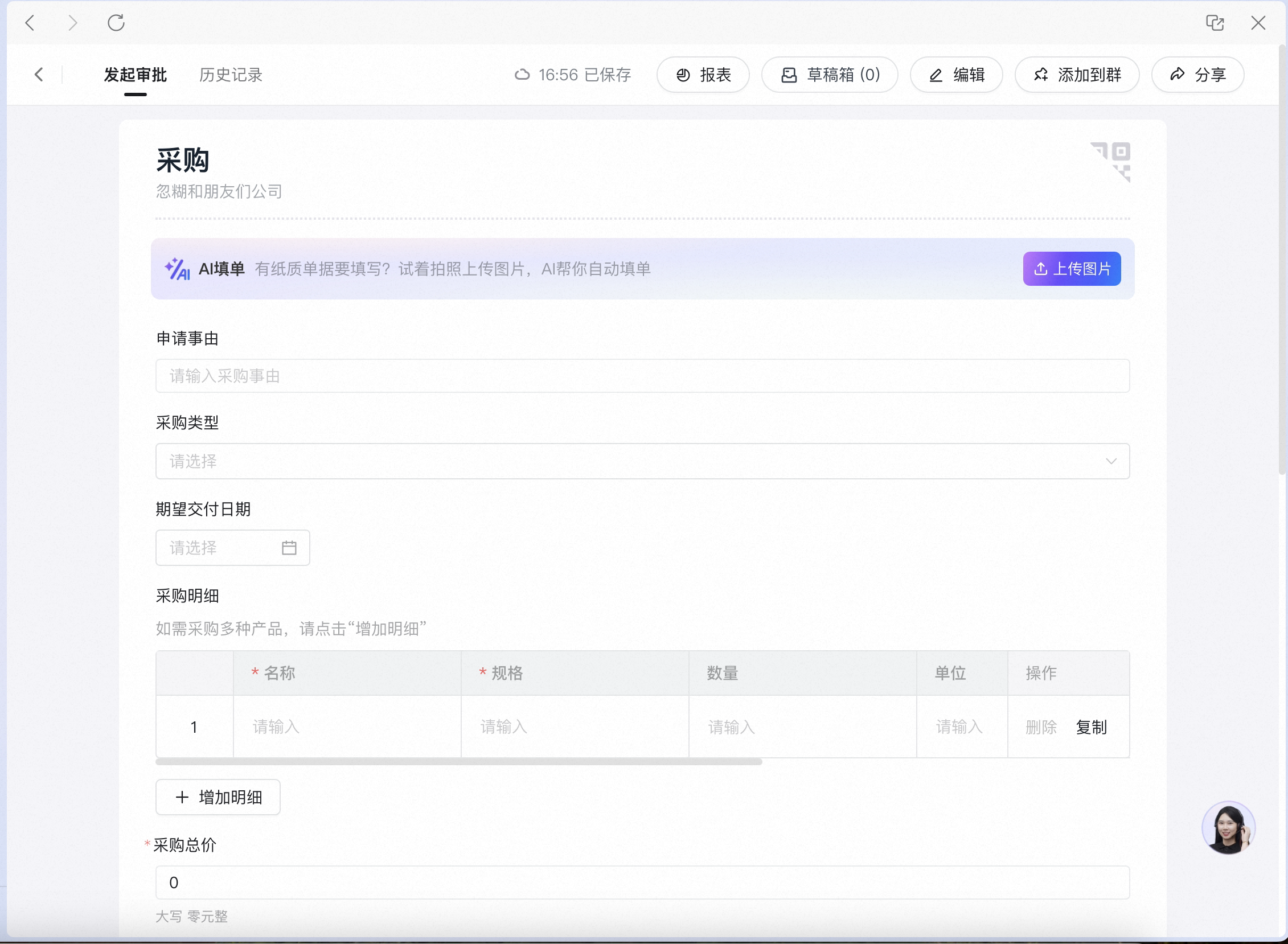
Select a local image, then wait for AI recognition
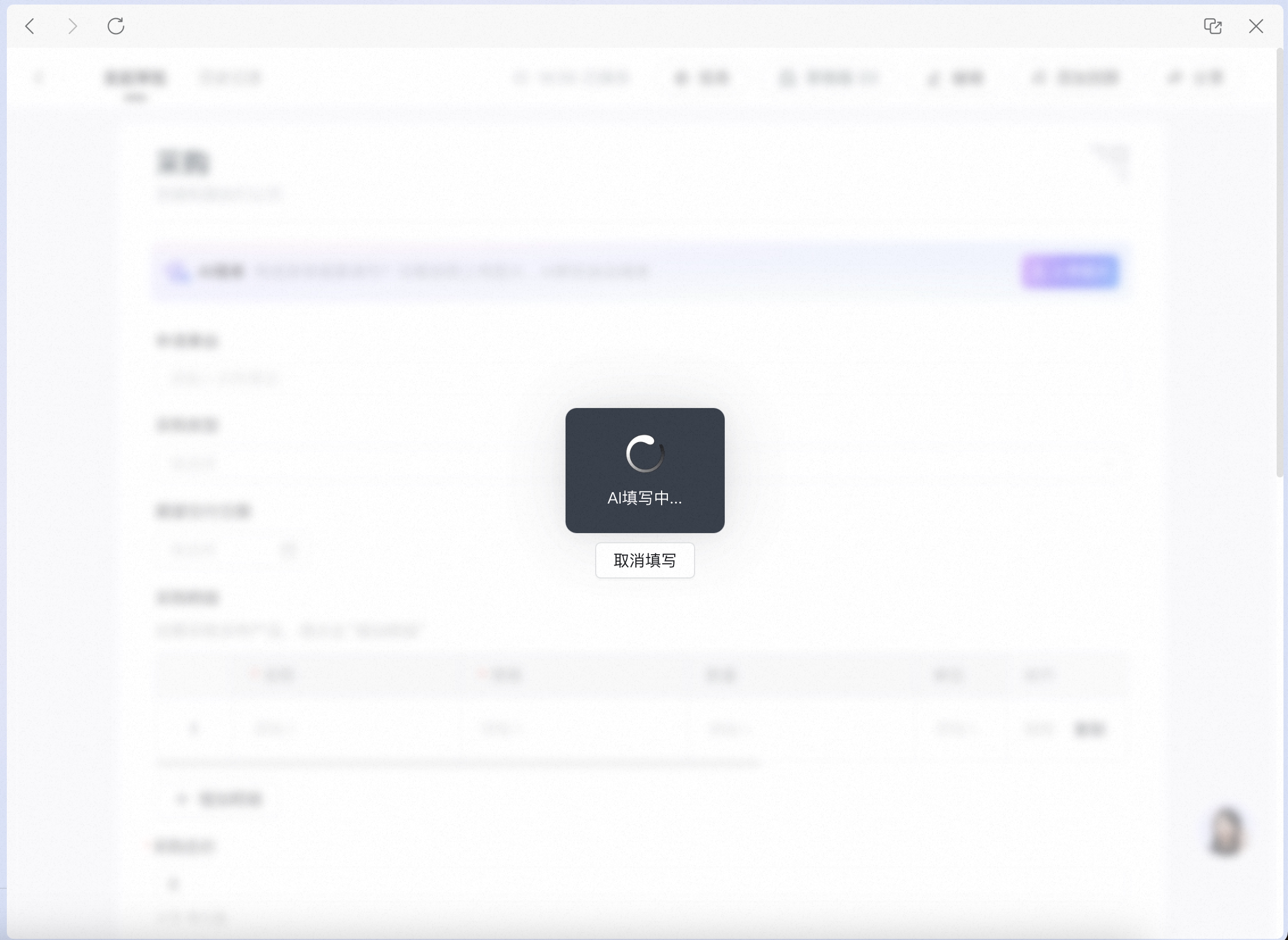
Recognition complete — the form is auto-filled
5. Desktop text form filling
Paste content and click [AI Recognize & Fill]
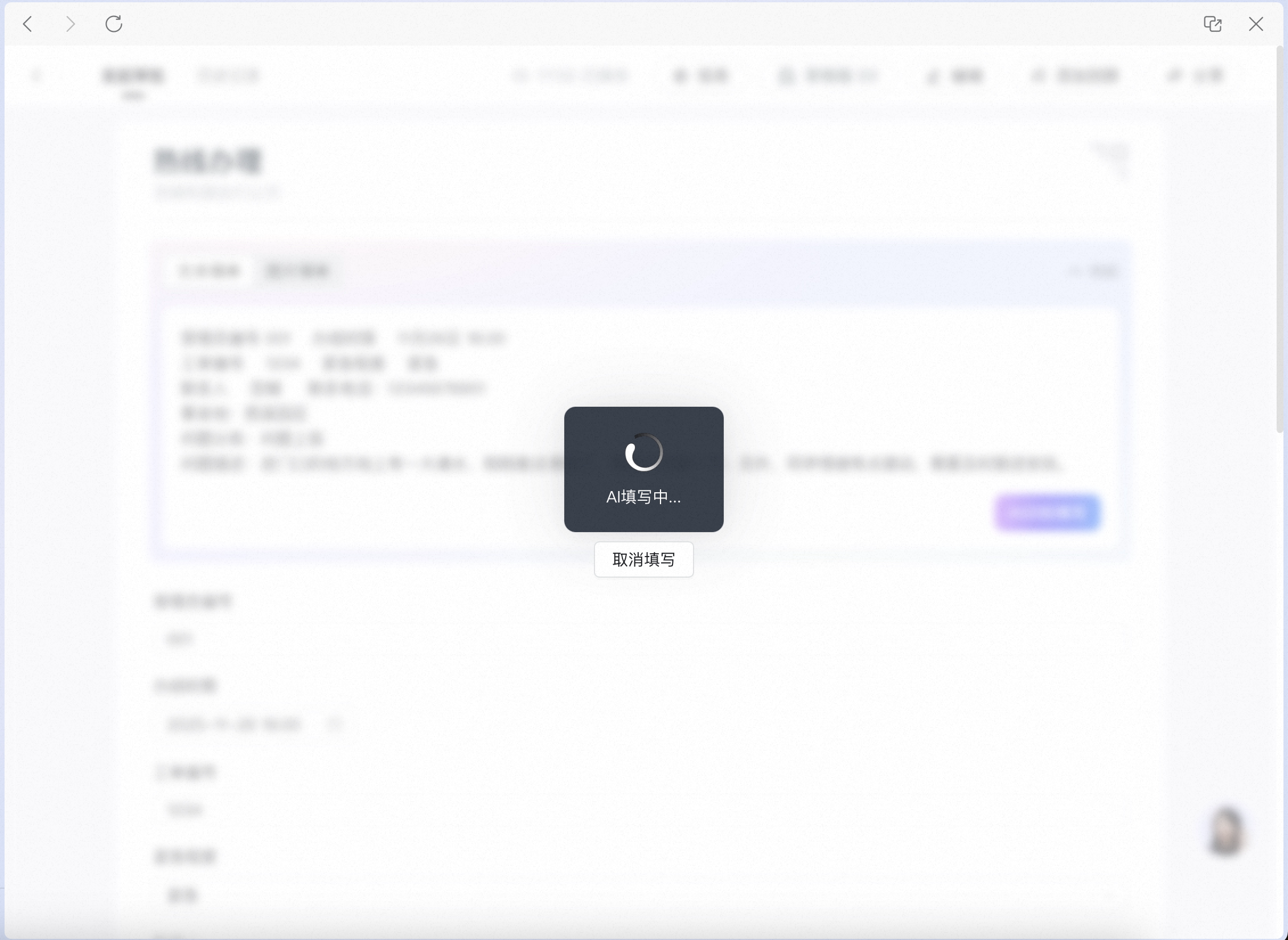
Wait for AI recognition (a short wait)
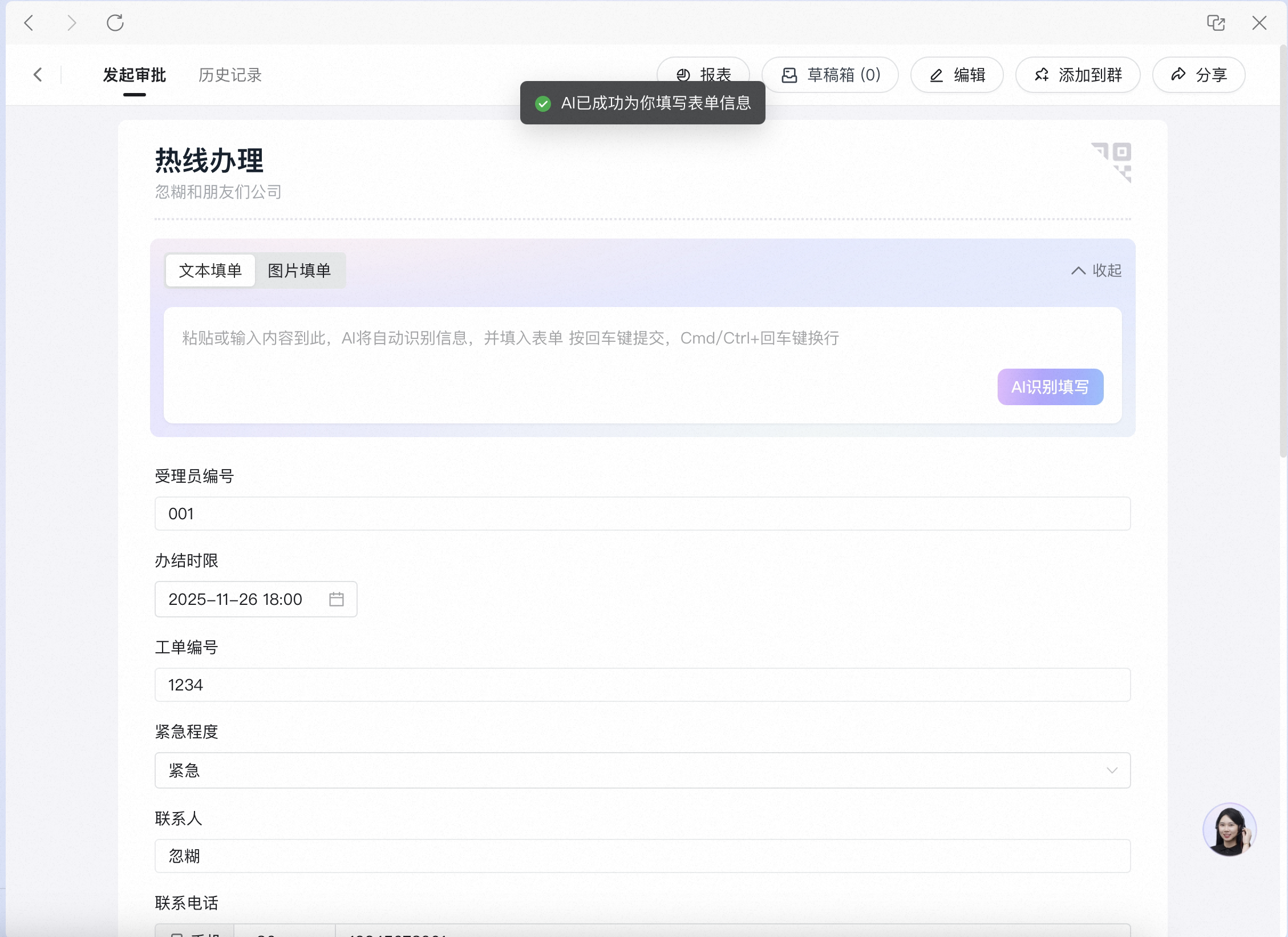
Recognition complete — the form is auto-filled
6. Feature settings
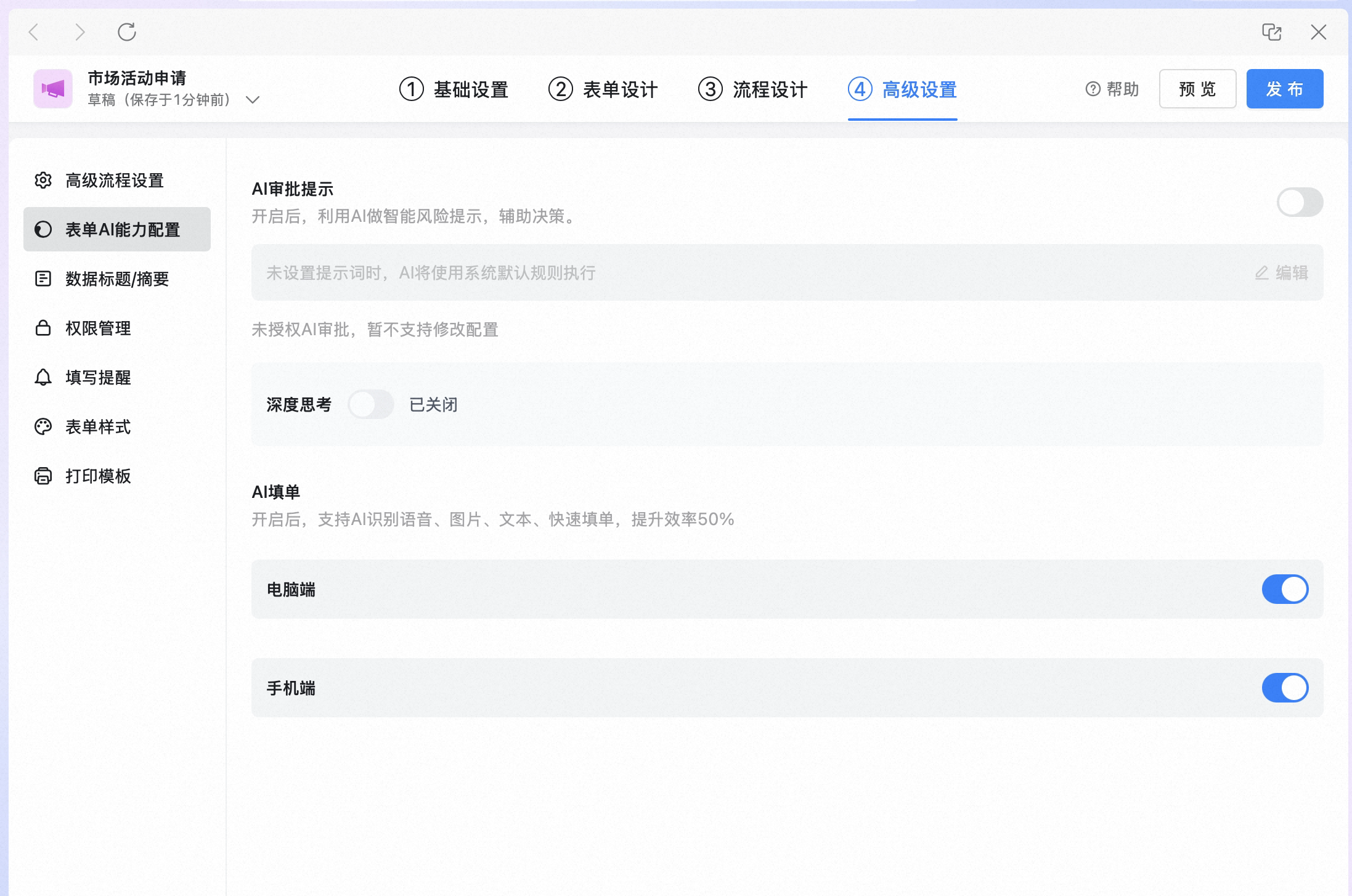
- Go to Form Settings → Premium Settings → Form AI Capability Configuration → AI Form Filling to turn off AI form filling for the current form:
- Go to Admin Console → System Management → Form AI Capability Configuration → AI Form Filling to turn off AI form filling for all forms:
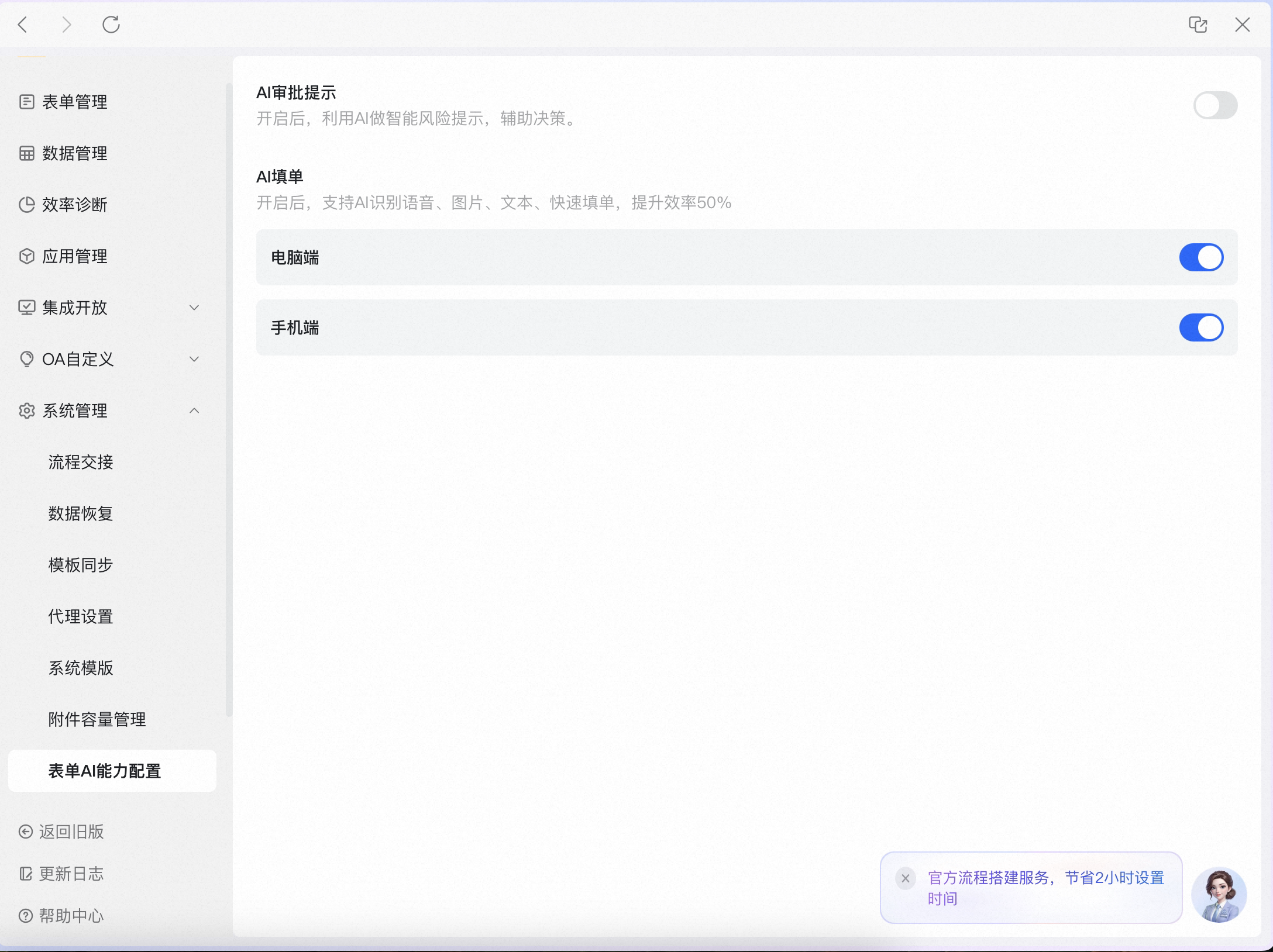
- Per-form settings take precedence over global settings. For example:
- When the global toggle is off, you can still turn on AI form filling for a specific form.
- When the global toggle is on, you can turn off AI form filling for a specific form.
4. FAQ
Why do some forms not offer AI form filling?
Why do some forms not offer AI form filling?
- Unsupported control groups: leave request / compensatory leave, business trip, HR contract approval, batch payment, all finance & tax control groups, all legal management control groups, other third-party control groups (engineering, assets, vehicle use, etc.)
- Unsupported controls: cascading / classification, engineering project, customer, budget request, associated contract
Why do some forms not support text form filling?
Why do some forms not support text form filling?
Will AI leak my data?
Will AI leak my data?