

 Chats
Chats Calendar
 Meetings
 Contacts
 Mail
Mail Docs
Docs Drive
Drive AI Table
 AI Minutes
 Attendance
 Approval
 YiDA
YiDA Admin Console
1. Capability overview
Value in one sentence: helps approvers quickly grasp key form information and improve decision efficiency.Applicable role: approver.Supported fields: Text, Number, Image, and most other approval form controls. Attachments and business control groups are not supported yet.Core capability: the admin selects a skill for the control → the AI runs automatically when the approver opens the form.
2. Applicable scenarios
Input: fields on the form (custom selection, up to 10).Judgment basis: the 4 default skills plus a custom prompt.Output: conclusions delivered to the approver.
1. Text summarization
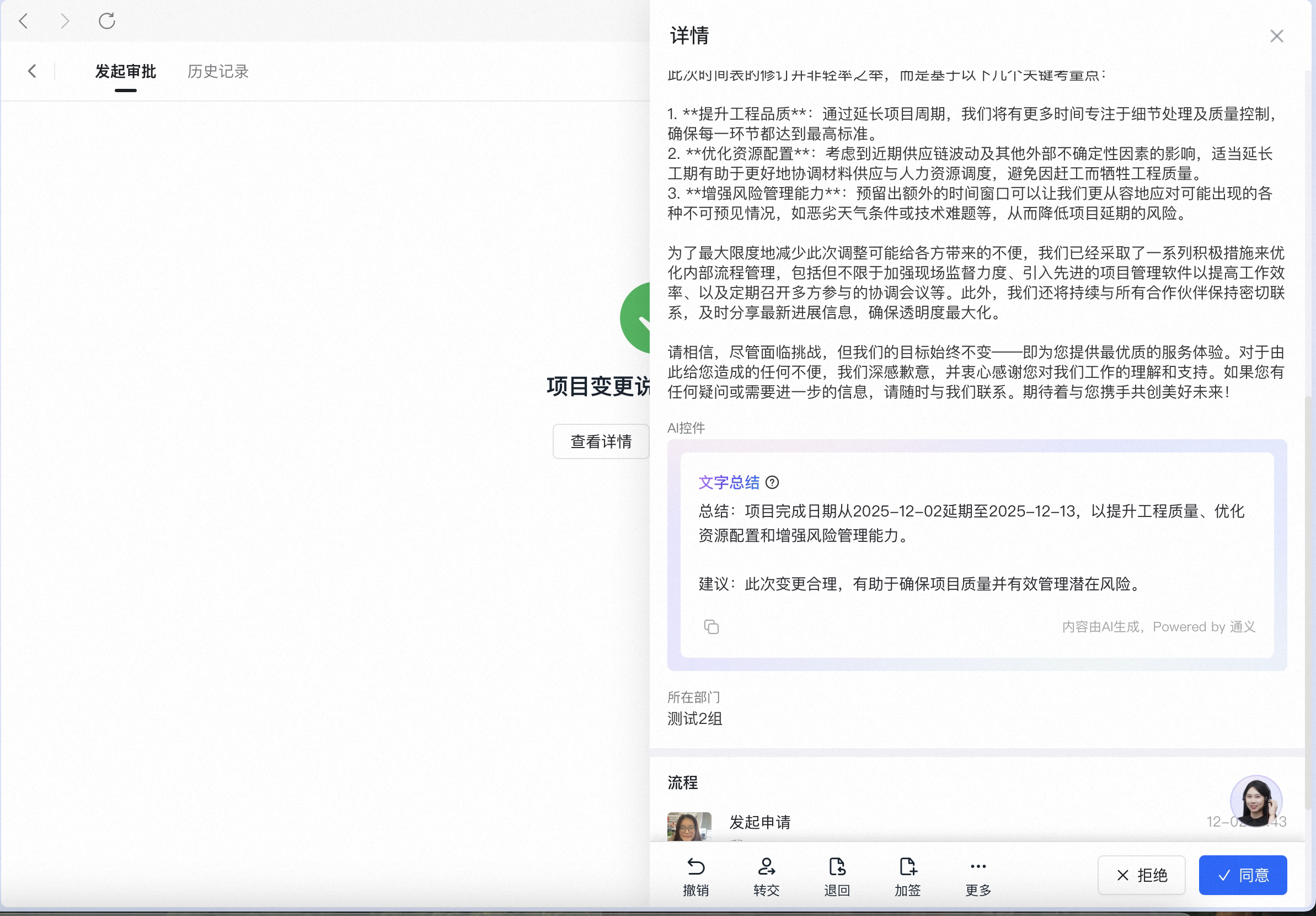
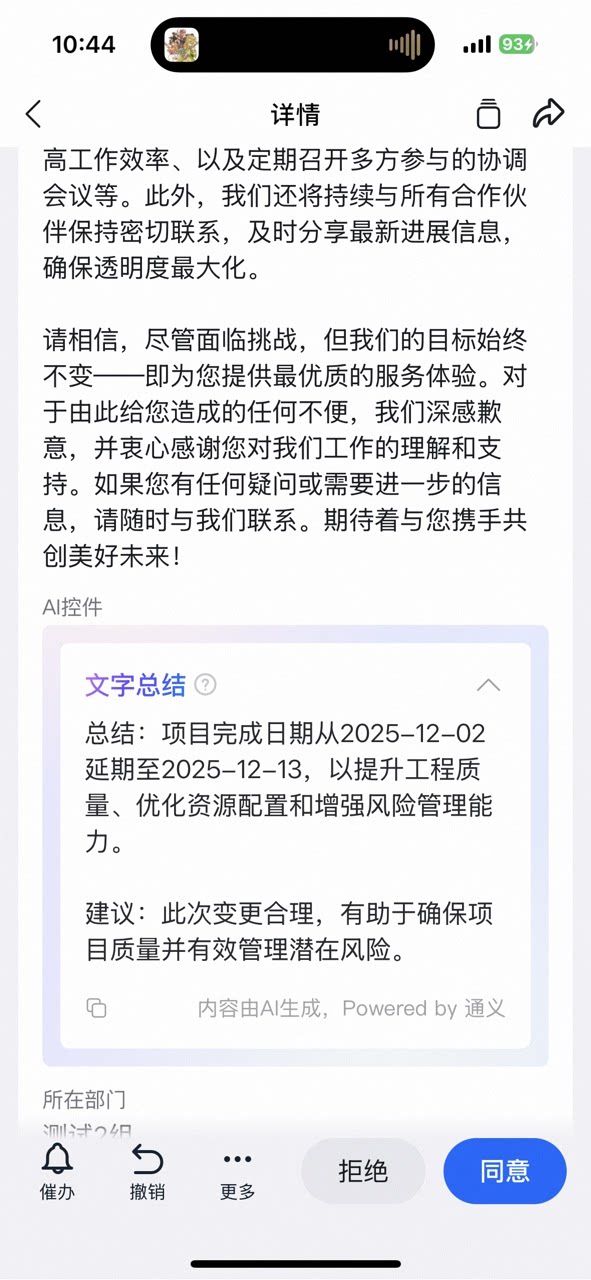
Taking a project change approval as an example, configure the AI control in the form designer and select the text summarization scenario: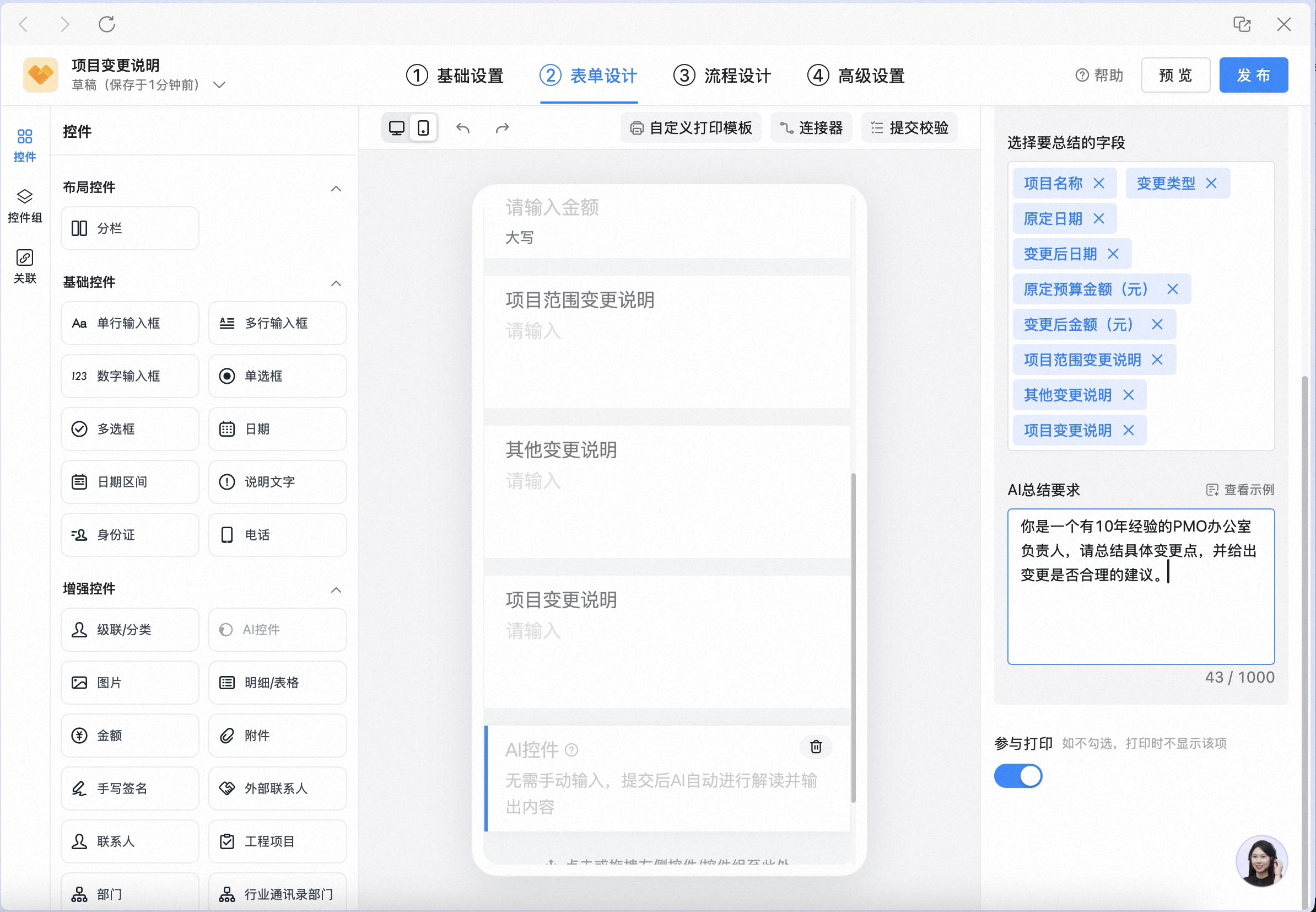
2. Information extraction
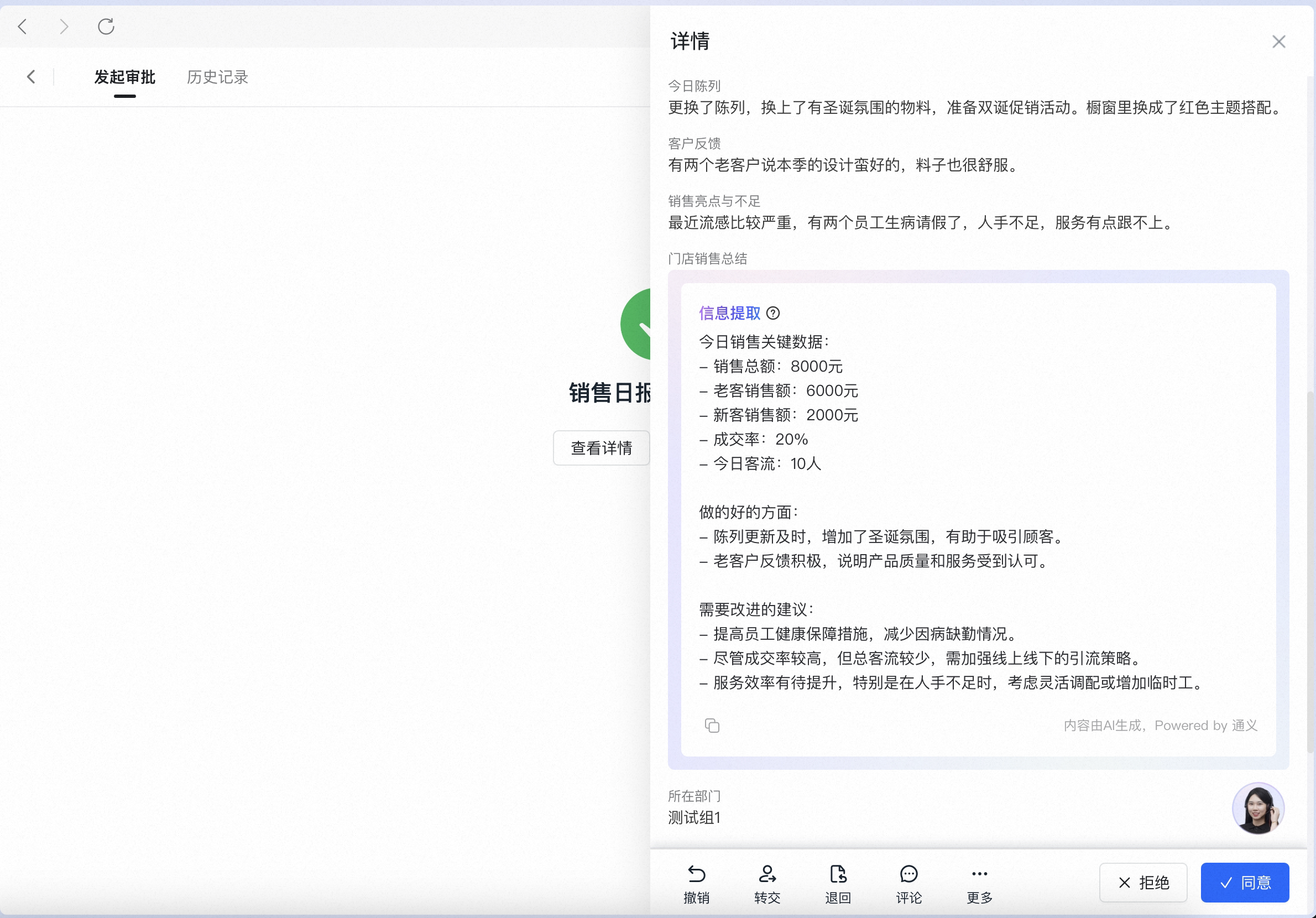
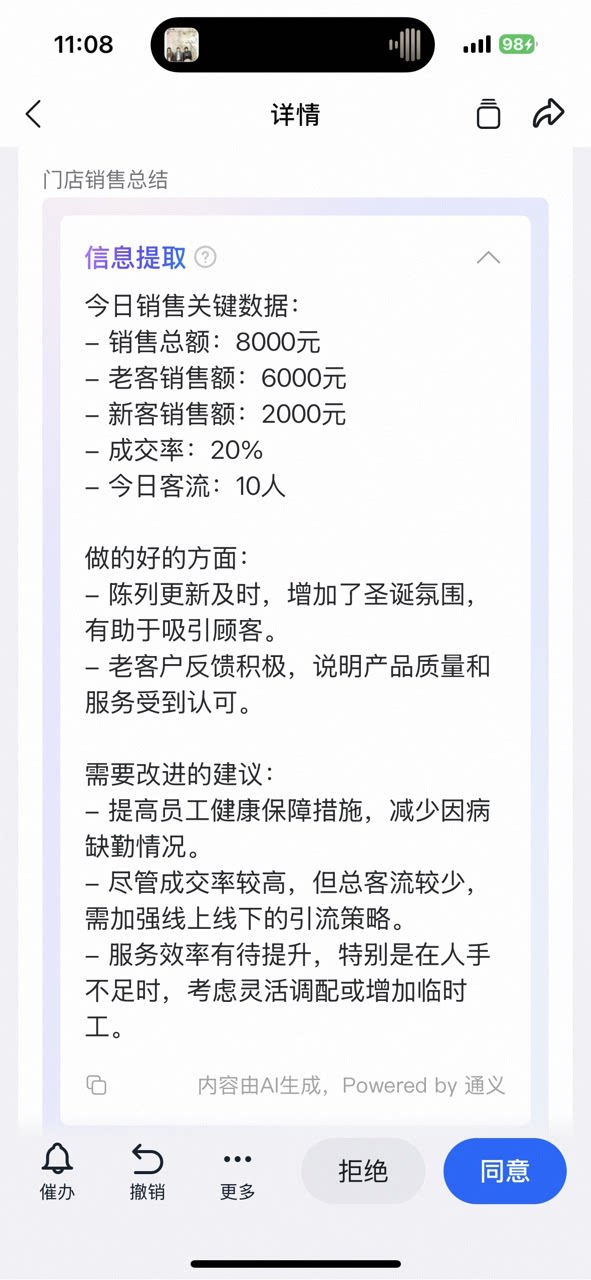
Taking a sales daily report as an example, configure the AI control to extract the day’s key sales data and actions: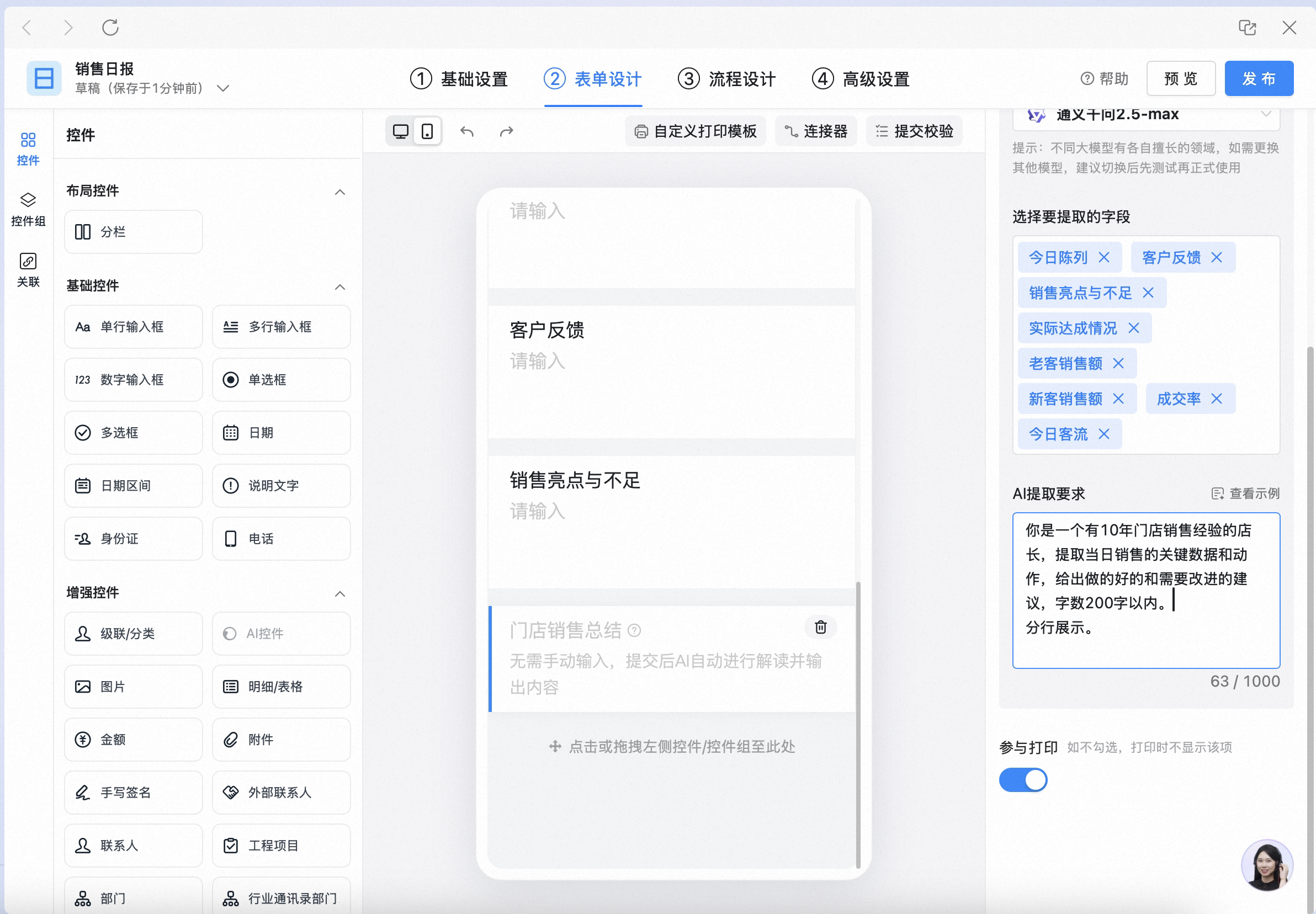
3. Text translation
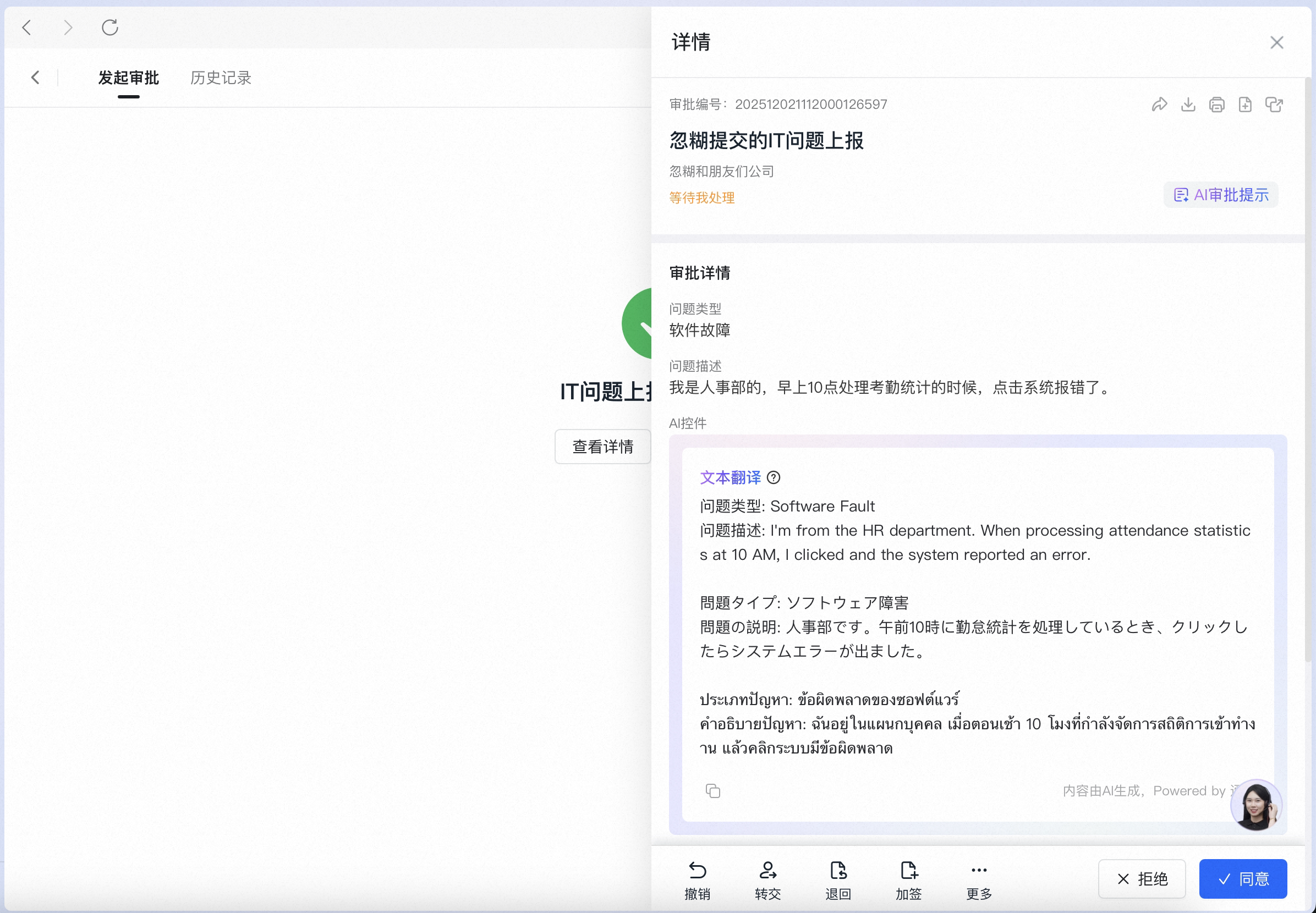
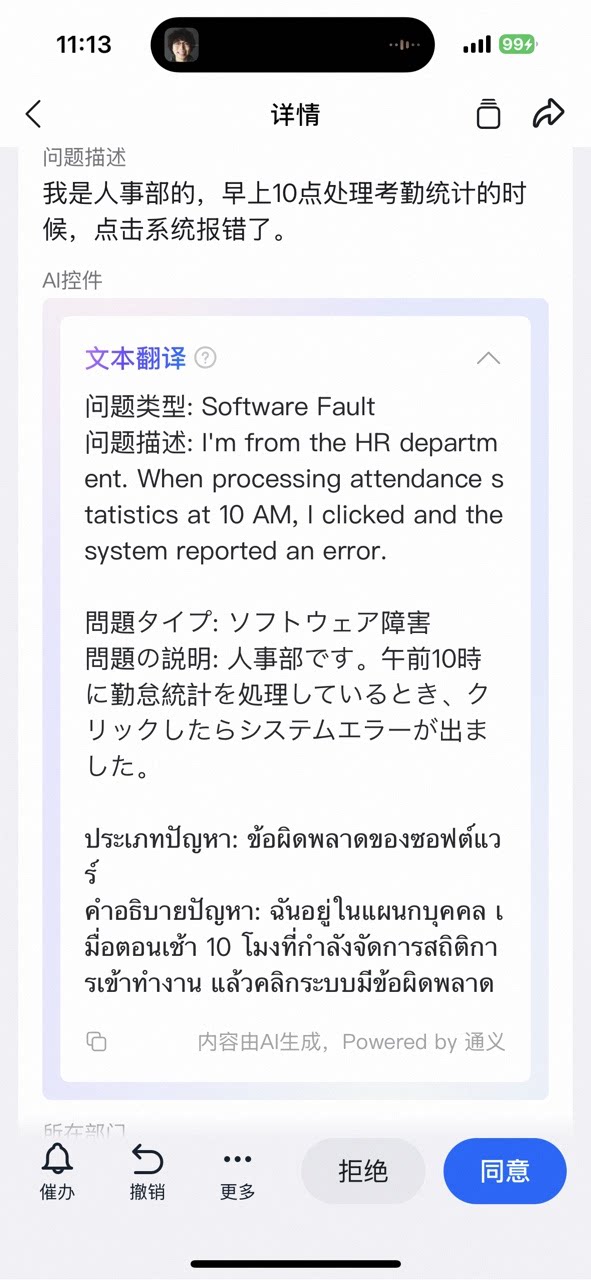
Taking an IT trouble ticket as an example, configure the AI control to translate the issue description into multiple languages: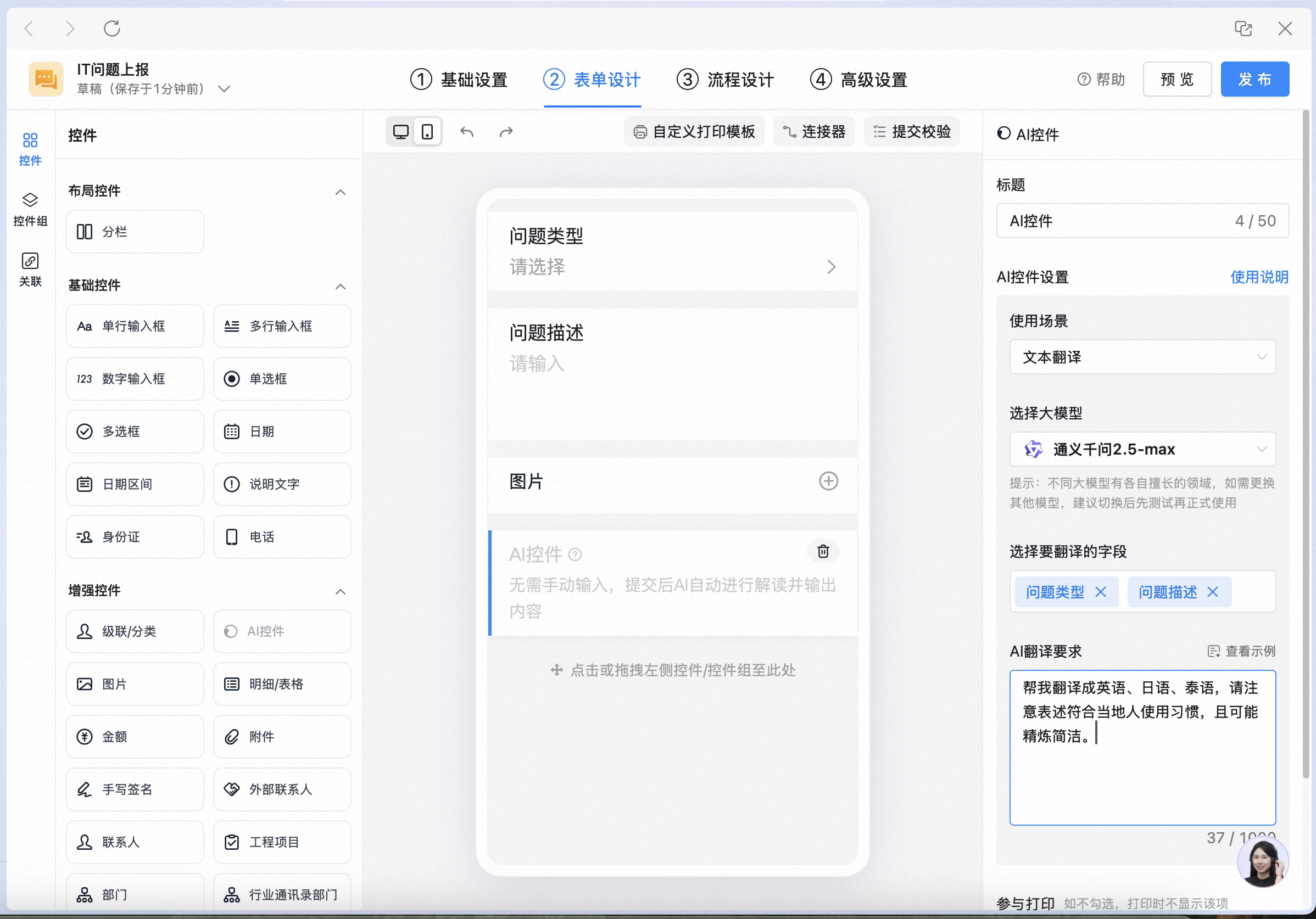
4. Image interpretation
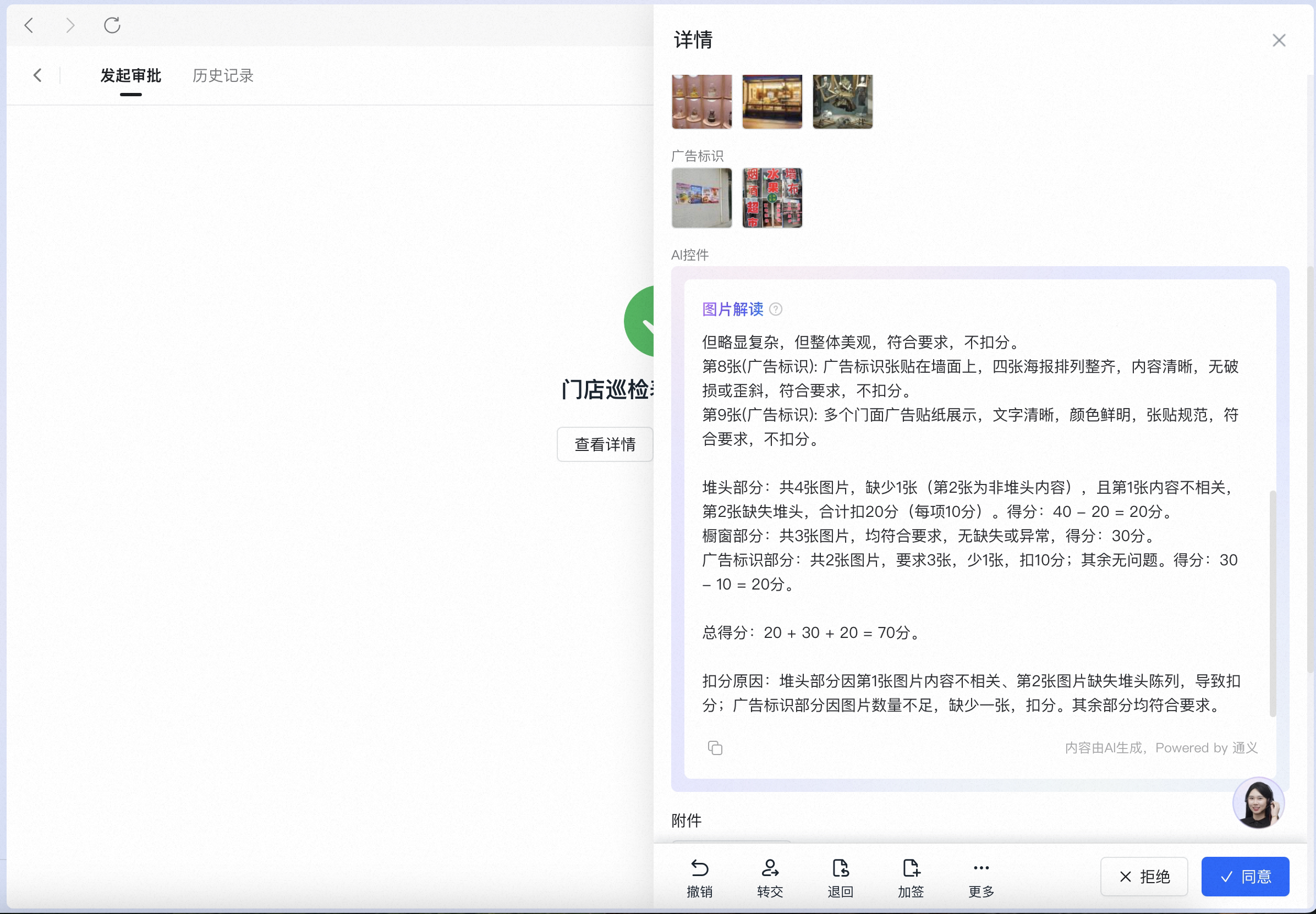
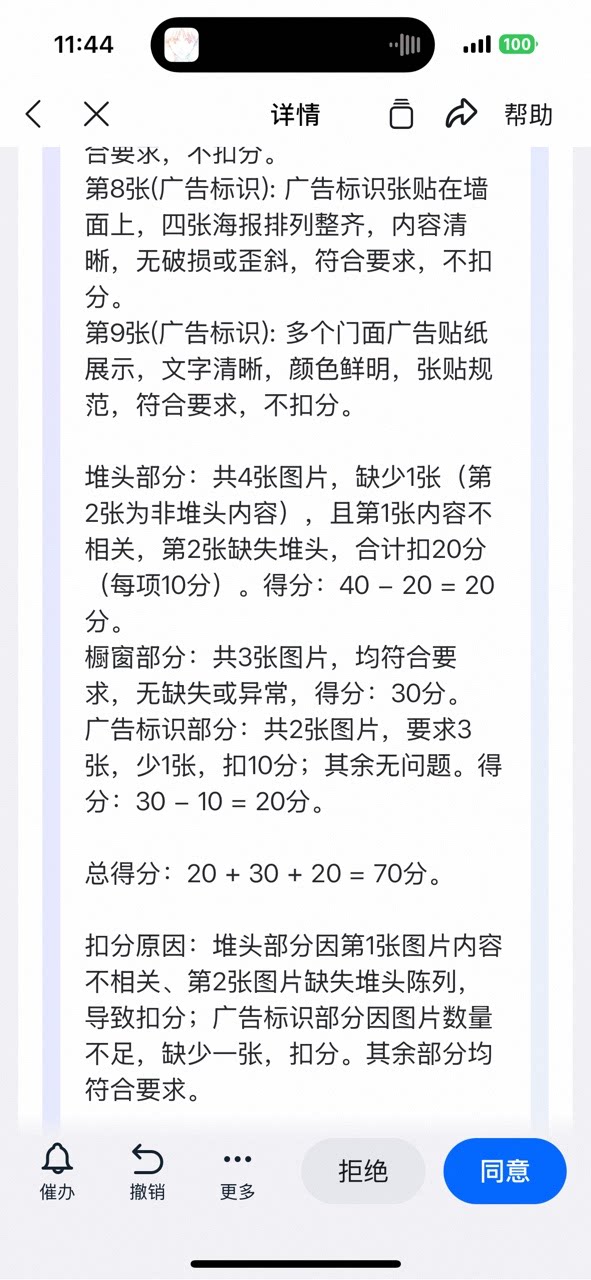
Taking store inspection as an example, configure the AI control to interpret inspection images against the rules for stack displays, window displays, and advertising signage: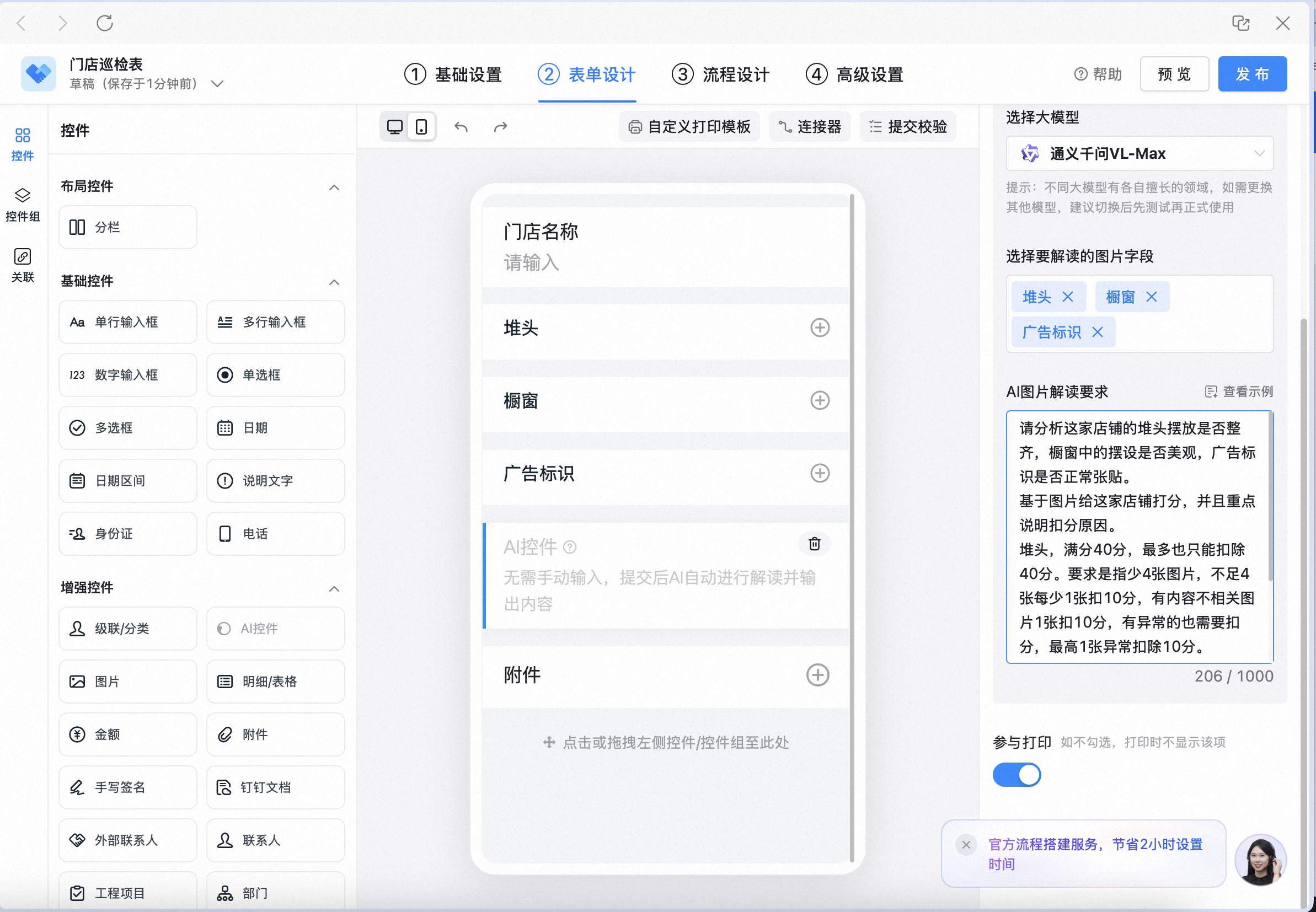
3. Steps
1
Add the AI control to the form
In the upper right corner, click Manage approval forms to open the Admin Console. Search for the form you want to update, click Edit to open the form designer, click Form design, and add the AI control to the form: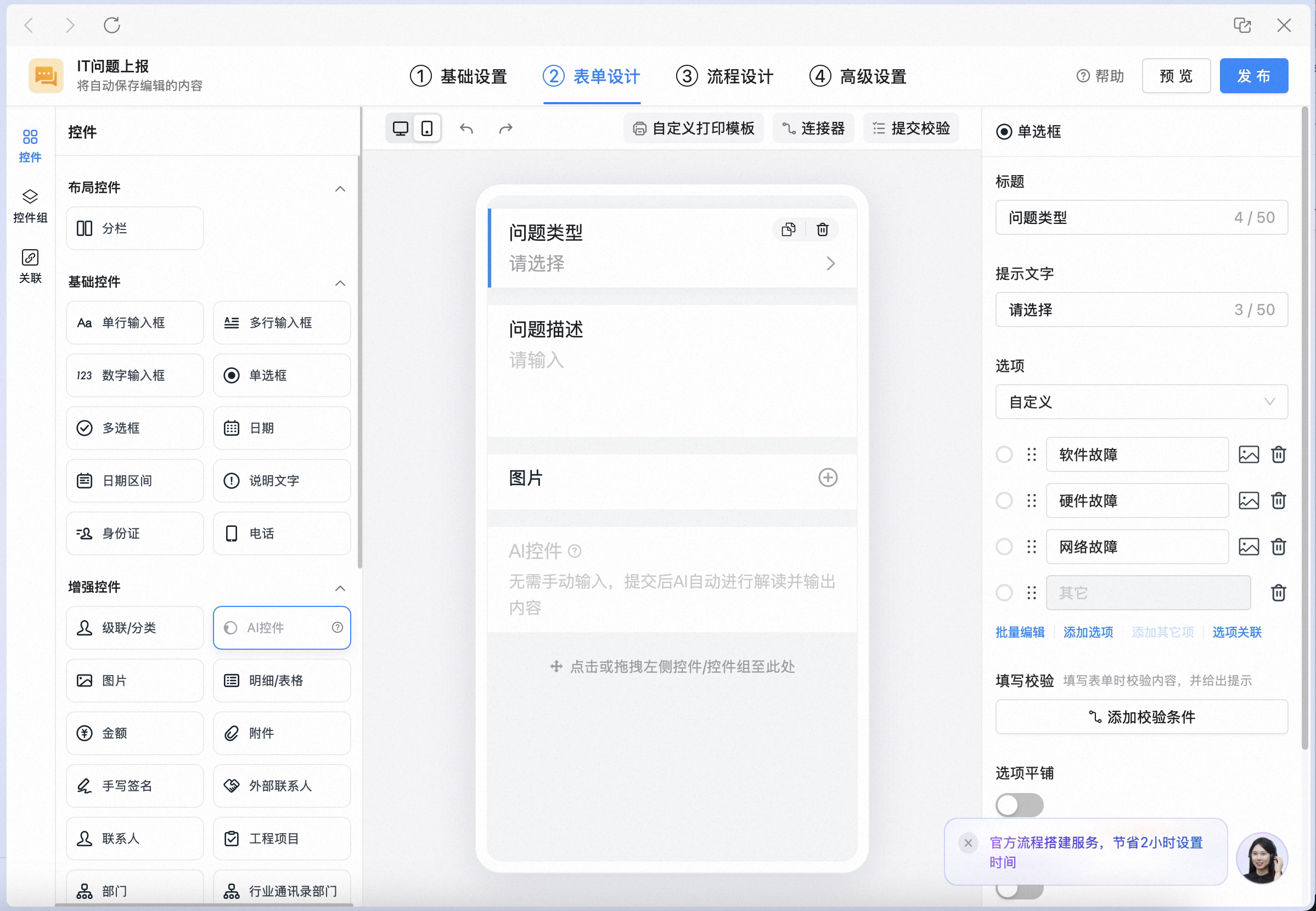
2
Configure the AI control
Set the AI control’s title, choose the scenario (a model is matched automatically), select the fields to support, and enter your requirements in the AI prompt box: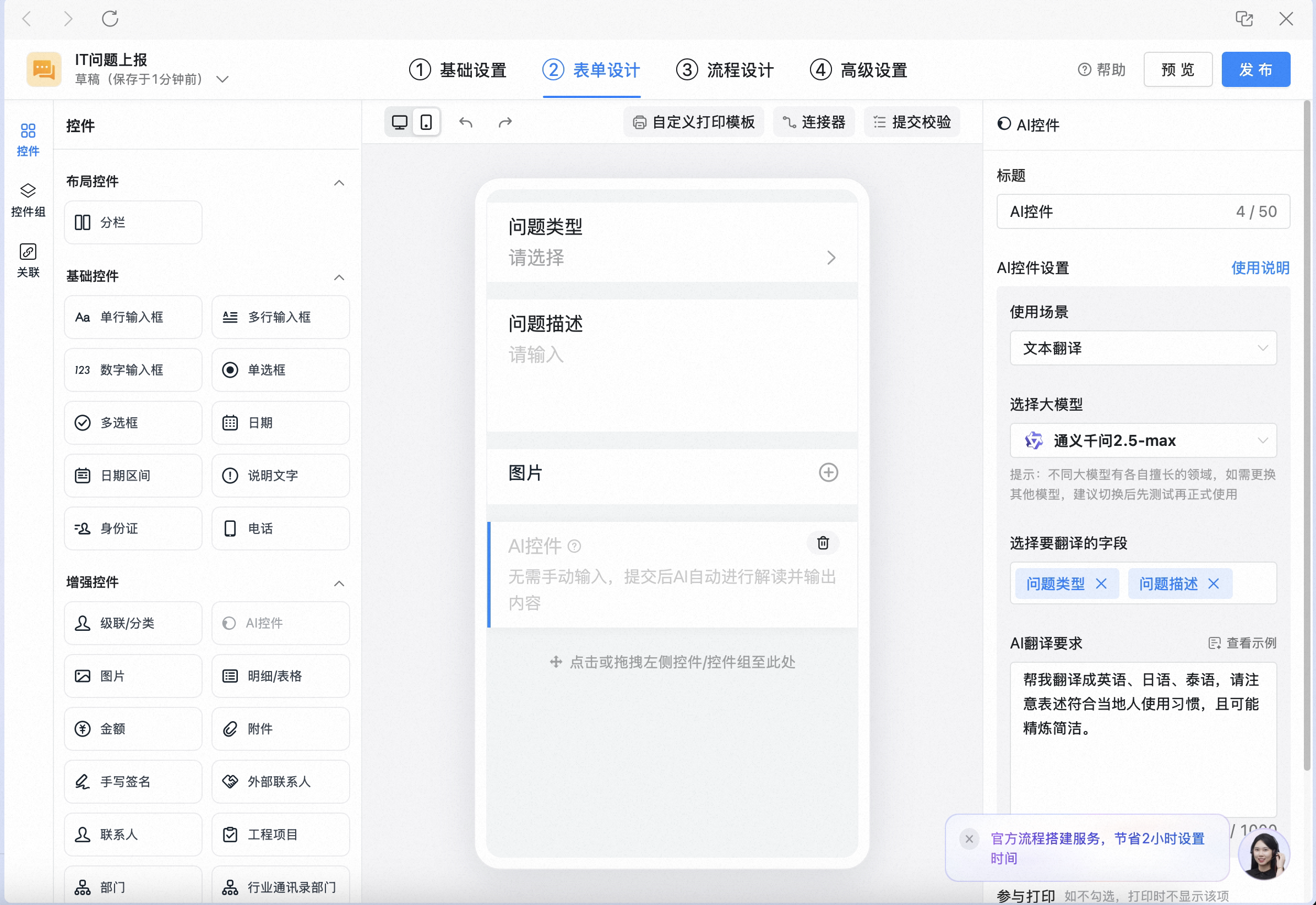
3
Publish the form and invoke the AI control
Once the form is published, opening the approval form on desktop invokes the AI control automatically:It also runs automatically on mobile:
4. Walkthrough videos
1. Text summarization
Prompt example:2. Information extraction
Prompt example:3. Text translation
Prompt example:4. Image interpretation
Prompt example:5. FAQs
Who can see the AI control?
Who can see the AI control?
Like other controls, the AI control’s visibility can be set per step: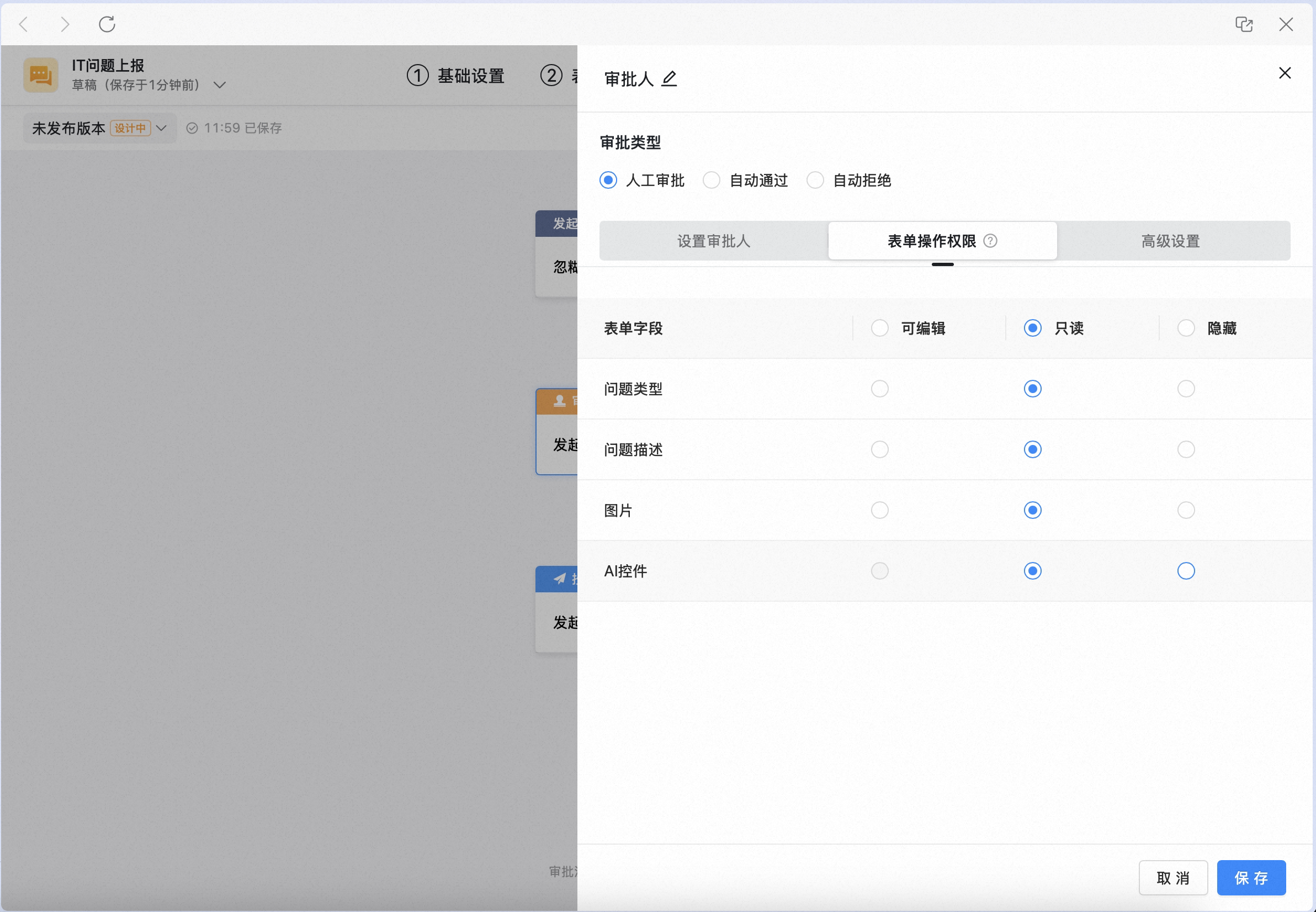
Which controls are supported?
Which controls are supported?
Text summarization, information extraction, and text translation: do not support description text, Image, detail/Spreadsheet, Attachment, Signature, industry contacts department, associated approval form, engineering project, all business controls, ID card recognition, or all business control groups.Image interpretation: only supports the Image control.
Can it be used on mobile?
Can it be used on mobile?
The configuration side currently supports only desktop and web, while the usage side supports both mobile and desktop.
Will the AI read my approval content?
Will the AI read my approval content?
Only while the AI capability is running, the current content is sent temporarily for generation; it is not stored or logged afterward, meeting organization data security requirements.
6. Related documents
AI Capabilities Overview
Learn the product value and applicable roles of every Approval AI capability
AI Form Filling
Let AI fill the form for you — start an approval in 3 seconds