

 Chats
Chats Calendar
 Meetings
 Contacts
 Mail
Mail Docs
Docs Drive
Drive AI Table
 AI Minutes
 Attendance
 Approval
 YiDA
YiDA Admin Console
1. Feature overview
This manual guides Organization Admins and developers on how to integrate Approval processes and pages in the DingTalk OA system with third-party business systems (such as ERP, CRM, and finance systems) to deliver a unified entry point, data interoperability, and process coordination. Integration raises your organization’s level of office automation, eliminates duplicate data entry, and improves cross-system collaboration efficiency.2. Applicable scenarios
Kick off a process from your business system, call the official DingTalk OA Approval APIs to create a DingTalk OA Approval process, and open the DingTalk Approval detail page on the DingTalk side to handle the process.3. Business flow
The overall interaction flow between the business system and the DingTalk side is shown below: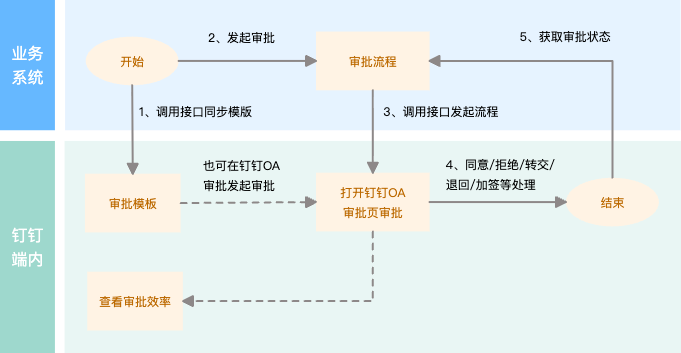
4. Result
1. Kick off a process from the business system to create an OA Approval process
The business system calls the DingTalk OA Approval API to kick off an Approval and automatically create a DingTalk OA Approval process: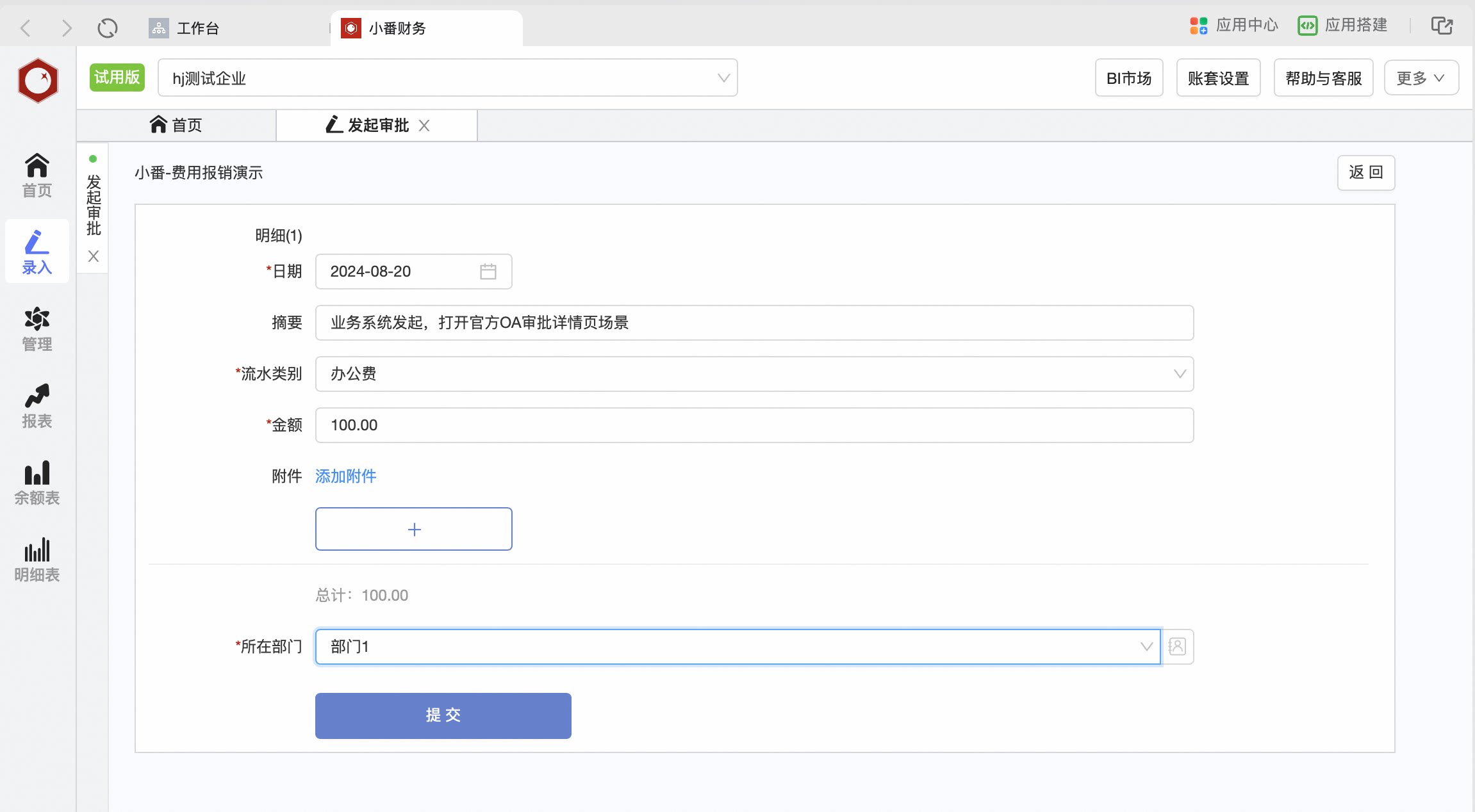
2. Open the official OA Approval detail page from the DingTalk OA Approval list to approve
Tap an Approval form in the DingTalk OA Approval List to open the official detail page for processing: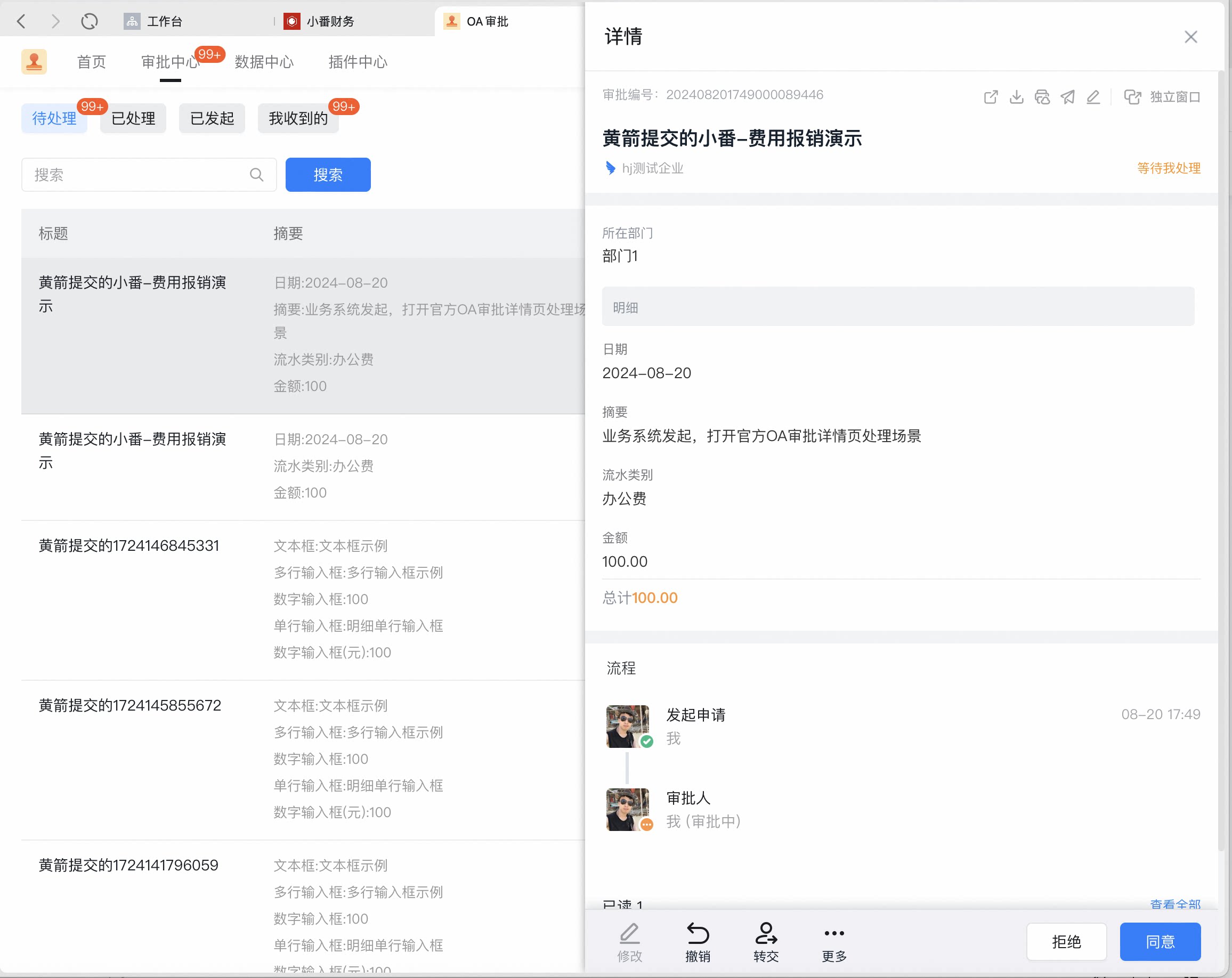
3. Open the official OA Approval detail page from DingTalk To-Do to approve
Tap a To-Do task in the DingTalk To-Do Center to open the official detail page for processing: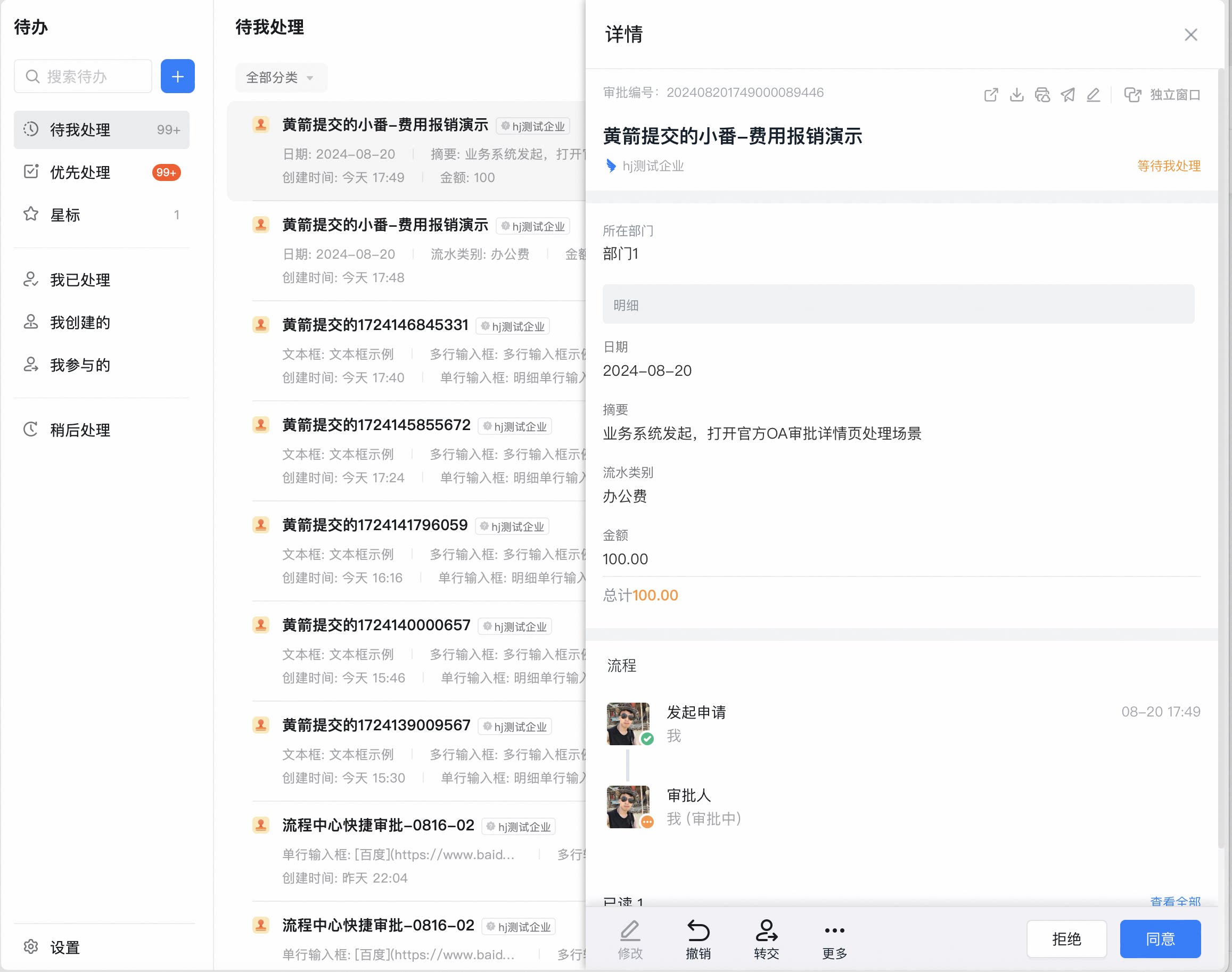
5. Development flow
The API interaction flow between an Internal app and DingTalk OA Approval is shown below: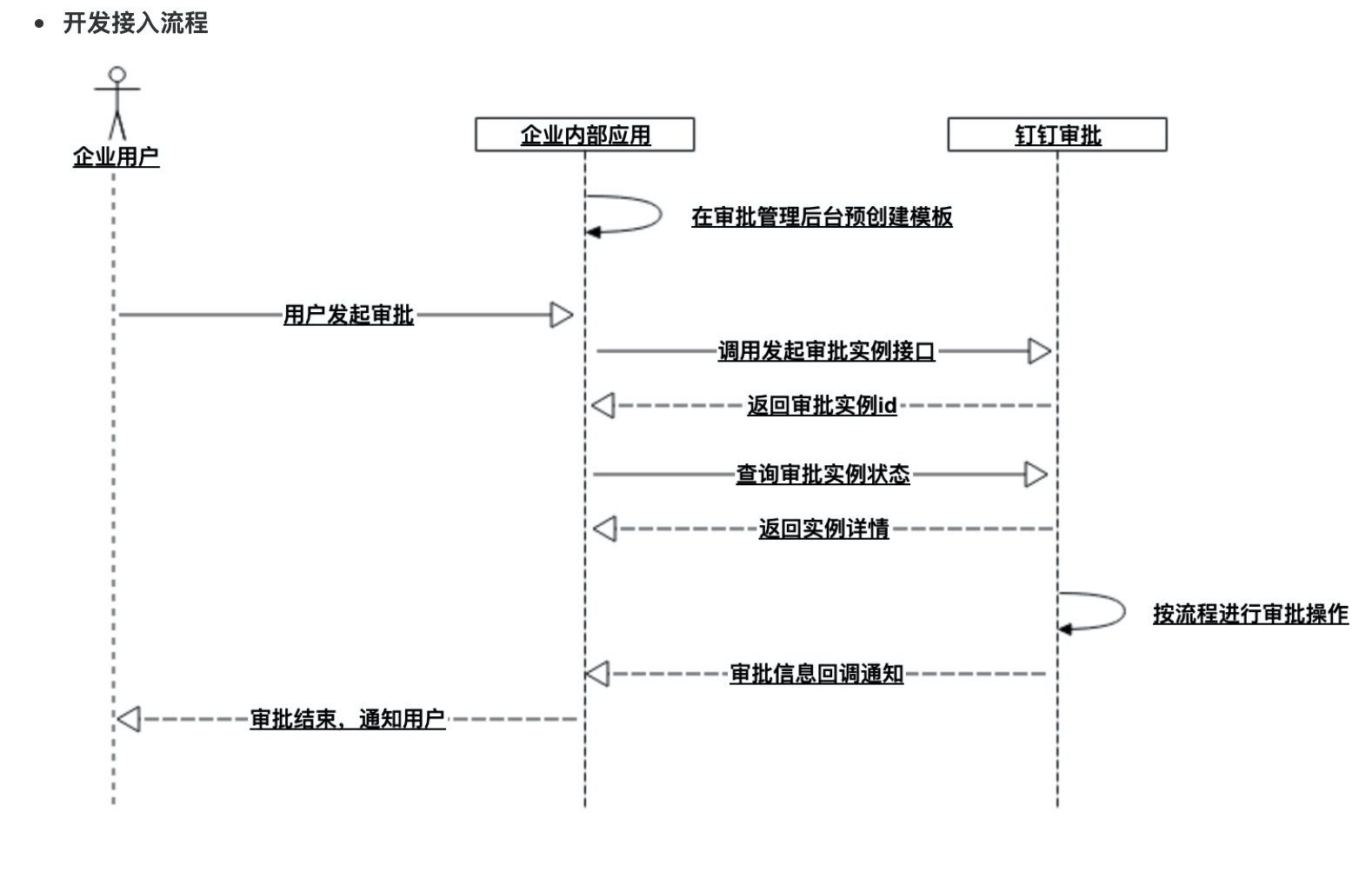
Integration flow overview
This document walks through creating an Internal app and using the official OA Approval APIs — creating and updating official approval templates, kicking off, undoing, and commenting on Approval instances, accepting, declining, and transferring Approval tasks, uploading and downloading Approval Attachments, and subscribing to official OA Approval instance and Approval task callback events — to implement the scenario of kicking off from the business system and opening the official OA Approval detail page inside the DingTalk client for integration.
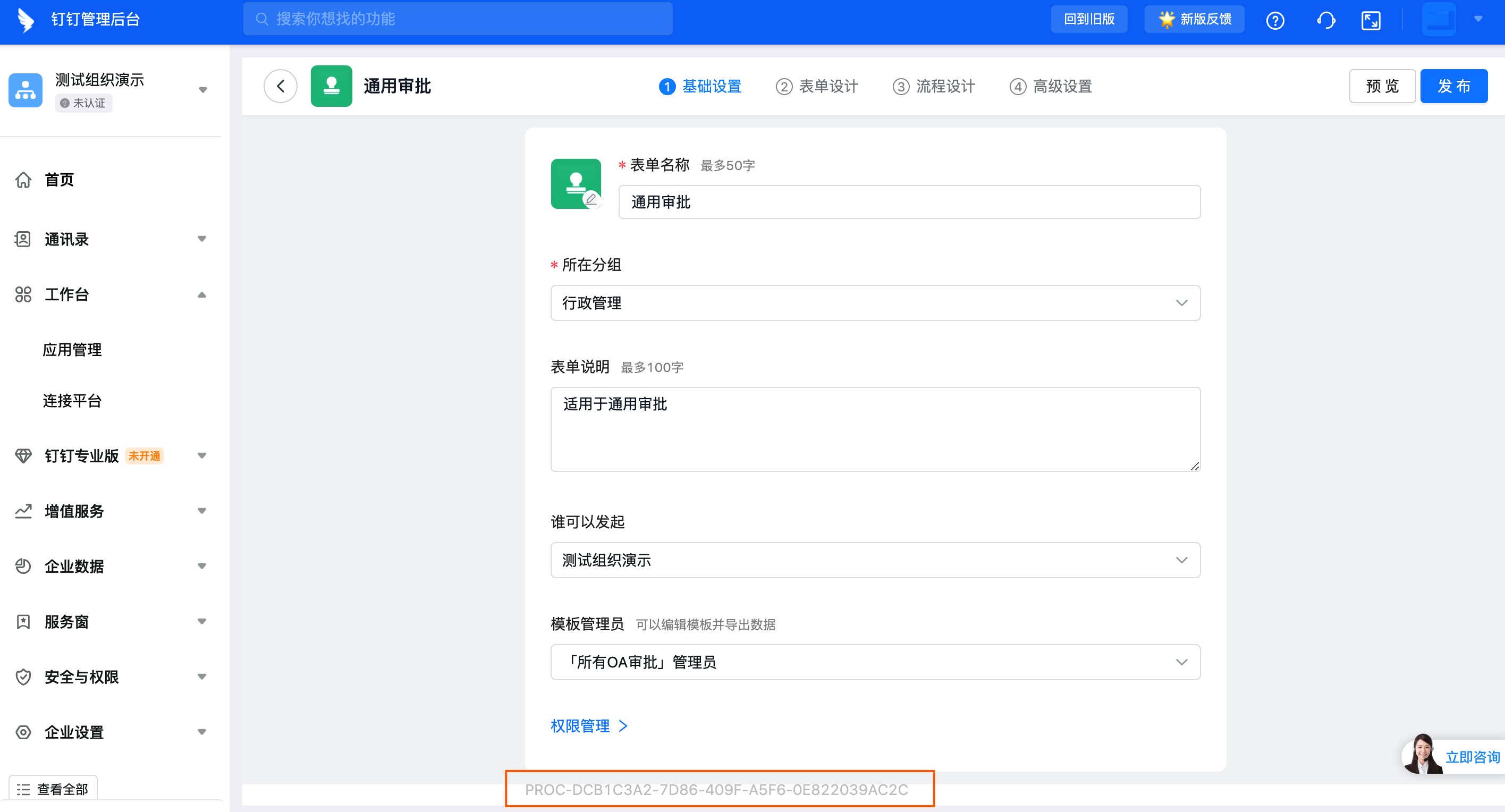
- Create an official OA Approval template: An Admin can create one manually in the OA Admin Console, or the business system can call the new Server API — Create or update an approval form template — to obtain the template’s unique code
processCode. If you did not save the template codeprocessCodereturned by the API, sign in to the DingTalk Admin Console to view it.
- Once the approval template is created, users can view and edit the official OA Approval form template, view and search template Data, and export or delete template Data in the DingTalk OA Approval Admin Console.
-
Kick off an official OA Approval instance: Users can kick off an Approval manually via the official OA Approval App, or the business system can call the new Server API — Kick off an approval instance — with the template code
processCodeto kick off an Approval instance and obtain the Approval instance’sinstanceId. - Once the Approval instance is kicked off, users can go to the DingTalk Approval Center to view the four Approval lists (Pending, Handled, Kicked off, Received), search Approval instance Data, perform Approval Actions, and more.
-
Add an Approval comment Attachment: To add an Approval comment Attachment, first Upload the File to the Approval Drive Space, then call the new Server API — Add an approval comment. For a detailed guide, see: Comment on and undo an Approval process.
- Call the new Server API — Get Approval Drive Space info — to obtain Upload Permissions for the Drive Space and retrieve the Approval Drive Space’s spaceId.
- Call the Client-side JSAPI — Upload an attachment to Drive / Select a file from Drive — to obtain the File’s basic info. This flow uses JSAPI Explorer for the demonstration.
-
Once you have the Approval Drive Space’s spaceId, use the Approval instance’s
instanceIdto call the new Server API — Add an approval comment — to add a comment to the Approval form.
-
Preview and Download an Approval Attachment: To preview or download an Attachment, call the Server API — Authorize Approval Drive file Download — and the Authorize Approval Attachment preview API to authorize the Approval Drive File, then call the Server API — Download Attachment — to obtain the file’s
downloadUrifor Download. For a detailed guide, see: Action flow for Approval Attachments. -
Accept or decline an Approval task: approvers can accept or decline an Approval task manually via the DingTalk Approval Center or the DingTalk To-Do Center, or the business system can call the new Server API — Get a single approval instance’s details — with the Approval instance’s
instanceIdto retrieve the Approval instance’s details and thetaskIdof each Approval task node. -
With the Approval instance’s
instanceIdand the corresponding task nodetaskId, call the new Server API — Accept or decline an approval task — to act on the Approval task. Once every Approval node accepts, the Approval form is approved. -
Undo an official OA Approval instance: after reviewing an Approval, if the submitted Approval form is wrong and needs to be undone, use the Approval instance’s
instanceIdto call the new Server API — Undo an approval instance — to Undo the Approval form. - When the status of an Approval form changes, OA Approval can push callback events such as Approval task status change and Approval instance status change to the business system, allowing enterprise apps to integrate more deeply with the DingTalk platform for information sharing and business coordination. For a detailed guide, see: event subscription operations guide.
6. APIs used
1. Approval form
2. Approval instance
3. Approval Drive Space and Attachments
4. Approval task
5. Approval callback events
5.1 Callback events for Internal app types
5.2 Callback events for Third-party enterprise apps
7. Related documents
Process Center open solutions
Overview of the four solutions for integrating enterprise business systems with DingTalk OA Approval
Third-party process page integration
The business system kicks off the process; its detail page opens inside the DingTalk client for Approval