

 Chats
Chats Calendar
 Meetings
 Contacts
 Mail
Mail Docs
Docs Drive
Drive AI Table
 AI Minutes
 Attendance
 Approval
 YiDA
YiDA Admin Console
1. Feature overview
As enterprise digitalization deepens, more organizations need to integrate their OA systems with third-party business systems such as ERP, CRM, and finance systems. Third-party process and page integration enables data exchange, process sharing, and a unified operation interface, improving overall office efficiency and management collaboration. This guide walks developers and system administrators through configuring third-party process and page integration on the OA platform, so you can quickly implement system integration.2. Applicable scenarios
Initiate a process from a business system and call DingTalk’s native OA Approval APIs to create a DingTalk OA Approval process. Then, open the business system’s approval detail page inside DingTalk to process the approval.3. Operation flow
The end-to-end interaction between the business system and DingTalk is shown below: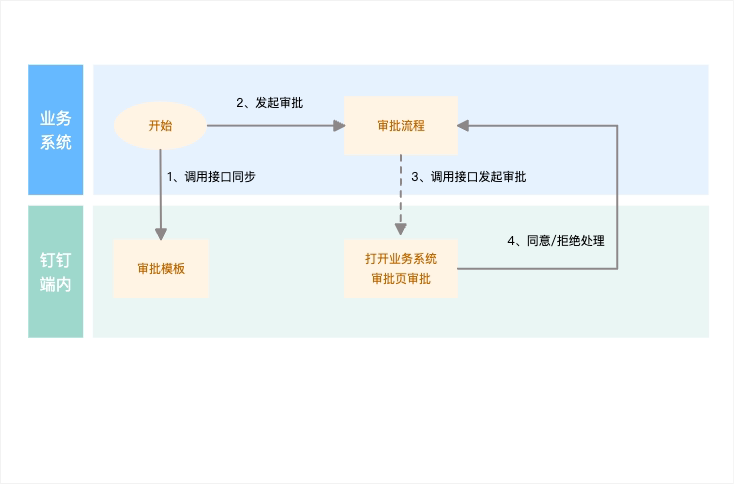
4. Result preview
1. Open the business system’s approval detail page from the DingTalk OA Approval list
Take a business trip request as an example. From the DingTalk OA Approval list, tap the approval form to open the business system’s detail page directly for processing: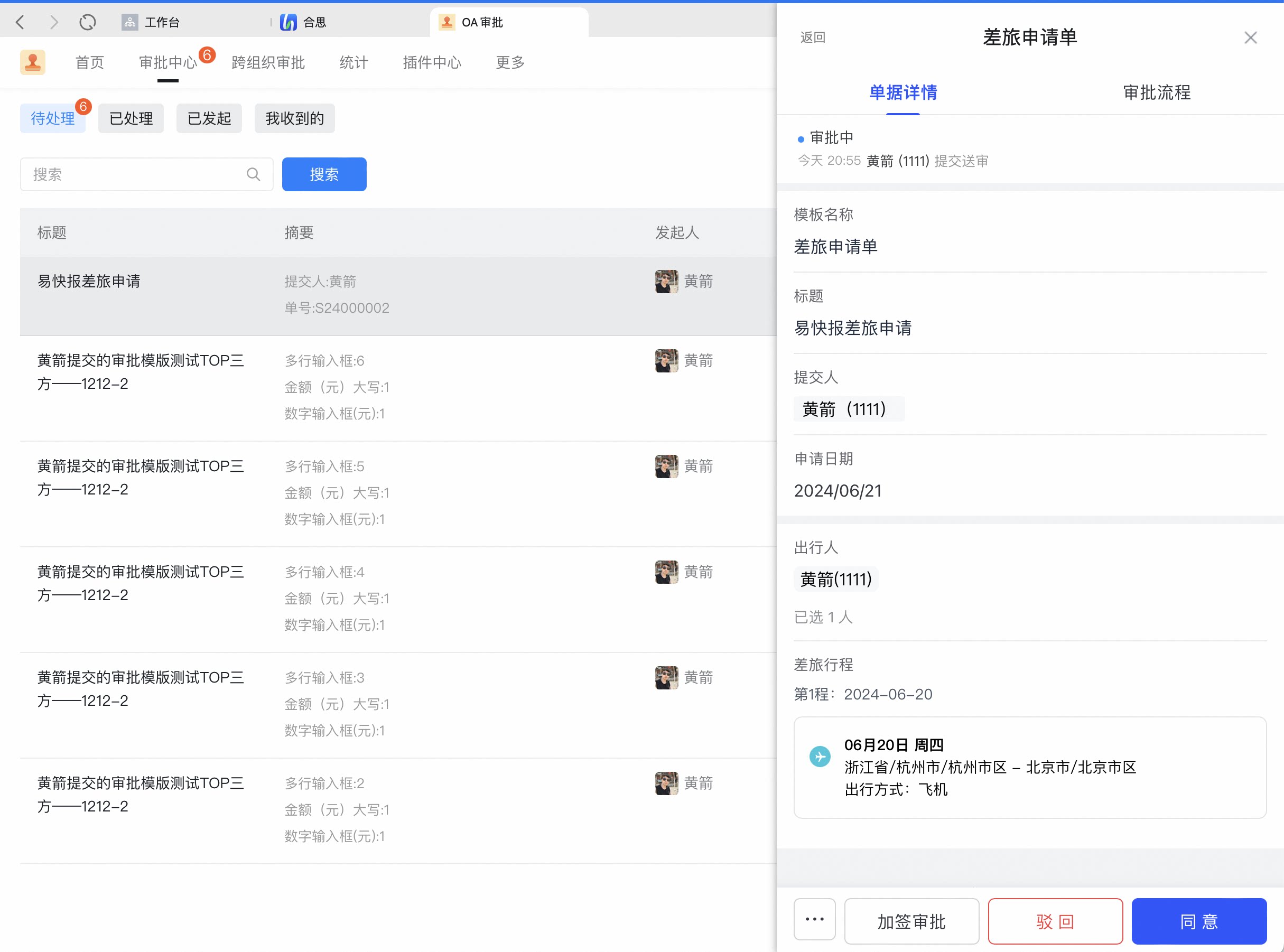
2. Open the business system’s approval detail page from DingTalk To-Do
In DingTalk To-Do Center, tap a to-do task to open the business system’s detail page for processing: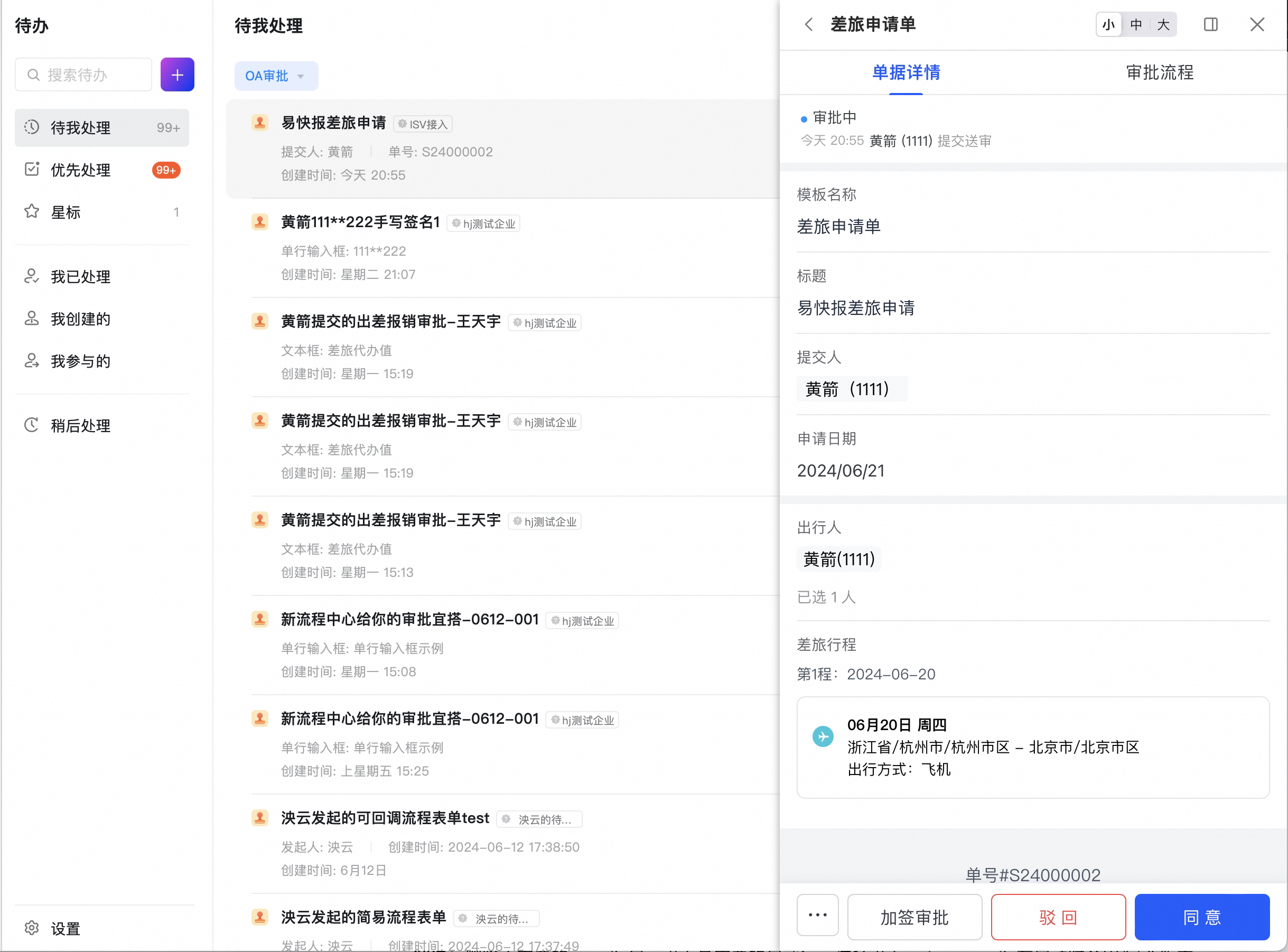
5. Development flow
The following example uses an Internal app developed by an organization to implement this integration. The business system initiates the approval, and its detail page opens inside DingTalk for processing. The implementation flow is shown below. (Note: in this scenario, approval tasks are synchronized in step 5.)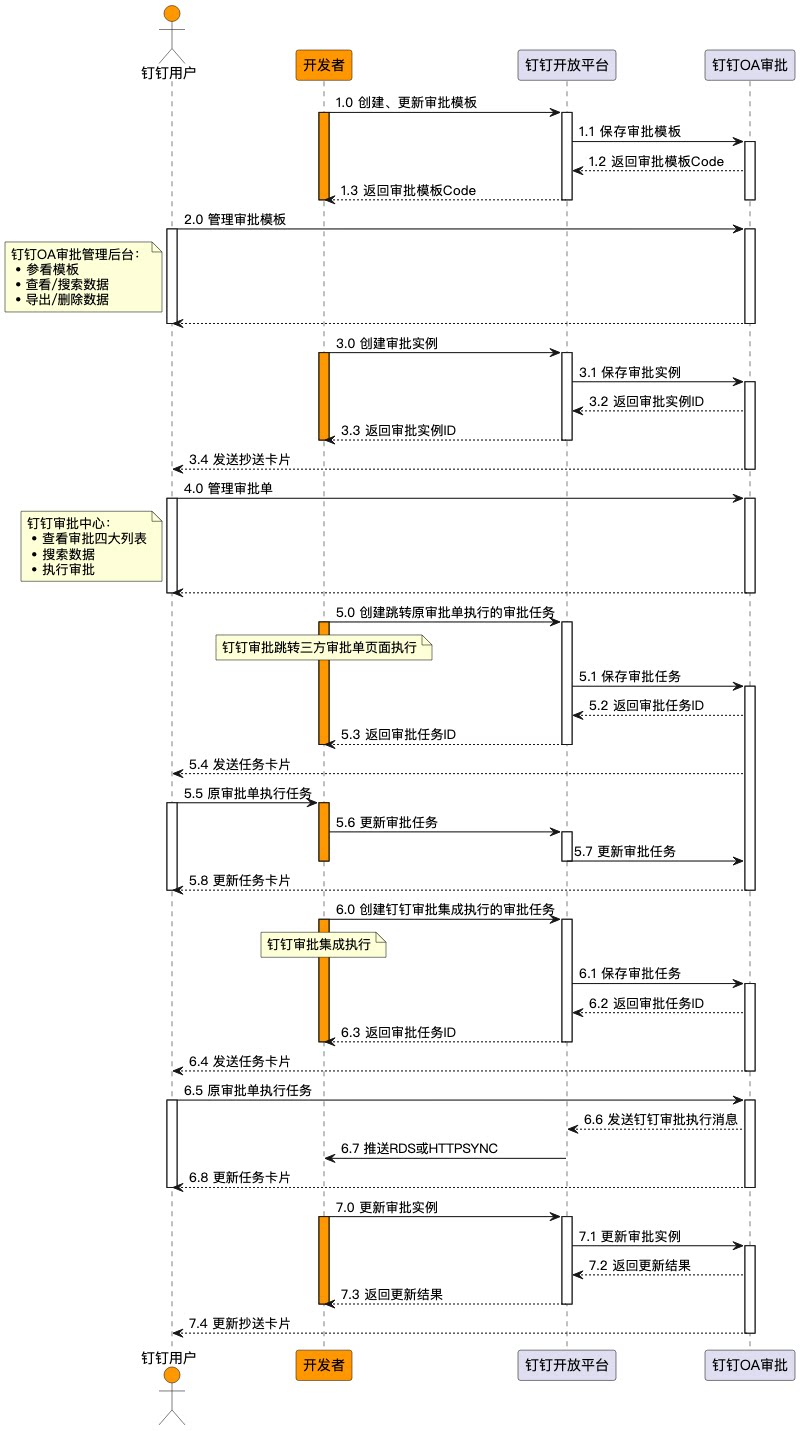
Integration flow overview
This document walks through creating an Internal app and using APIs provided by the OA Approval Process Center to create, update, and delete third-party approval templates; create and update approval instances; create, update, and query approval to-do tasks; and clean up OA Approval data. It shows how the business system initiates the approval and how the business system’s detail page opens inside DingTalk for this integration scenario. Prerequisite: complete the Create app flow. Step 1: Go to the app details page and obtain the Client ID and Client Secret. Step 2: Apply for the API permission, specifically the “OA Approval” permission. Step 3: Obtain the app’s access credential by retrieving the access token for the Internal app. The access token is used to authenticate the caller when invoking the API. Step 4: Call the OA Approval-related APIs:-
Sync approval template data to DingTalk: Call the new Server API — Create or update approval template — to obtain the unique template code
processCode.Note: In this scenario, you do not need to configure theprocessFeatureConfigProcess Center integration settings. By default, approvals are handled by opening the business system’s detail page. -
If you did not save the
processCode, call the Get template code API to retrieve it. - After the approval template is created, go to the DingTalk OA Approval Admin Console to view third-party approval form templates, view or search template data, and export or delete template data.
-
Sync approval instance data to DingTalk: using the template code
processCode, call the new Server API — Create instance — to initiate an approval instance and obtain the approval instanceprocessInstanceId. - After the approval instance is created, go to the DingTalk Approval Center to view the four approval lists (Pending, Processed, Initiated, Received), search approval instance data, and perform approval actions.
-
Sync approval task data to DingTalk: using the approval instance
processInstanceIdand thetasksto-do list, call the Create Process Center pending task API to sync approval node information from the third-party system to DingTalk OA Approval, obtain thetaskIdof each to-do item, and generate the corresponding DingTalk to-do tasks. Note: In this scenario, synced approval tasks are handled by opening the business system’s detail page. - After the pending task is created, call the Query OA approval tasks integrated via Process Center API to query the user’s running approval tasks.
-
Sync approval task status to DingTalk: using the approval instance
processInstanceIdand the approval to-dotaskId, call the Update Process Center task status API to sync status updates for your own approval to-dos. In scenarios such as parallel approval (OR-sign), call the Batch cancel OA Approval pending tasks API to set all running to-do items under an approval instance to CANCELED in bulk. -
Sync approval instance status to DingTalk: using the approval instance
processInstanceId, instancestatus, and instanceresult, call the Update instance status or Batch update instance status API to update the instance status. - Finally, to clean up approval template data, call the Delete template API to delete the approval template created for the organization. Instances and to-do tasks created under that template are deleted as well.
6. APIs used
1. Approval form
2. Approval instance
3. Process Center tasks
7. Related documents
Process Center open solution
Overview of the four solutions for integrating enterprise business systems with DingTalk OA Approval
DingTalk process and page integration
The business system initiates the approval, and the official OA Approval detail page opens inside DingTalk for processing