Chats
Chats Calendar
 Meetings
 Contacts
 Mail
Mail Docs
Docs Drive
Drive AI Table
 AI Minutes
 Attendance
 Approval
 YiDA
YiDA Admin Console
Mobile
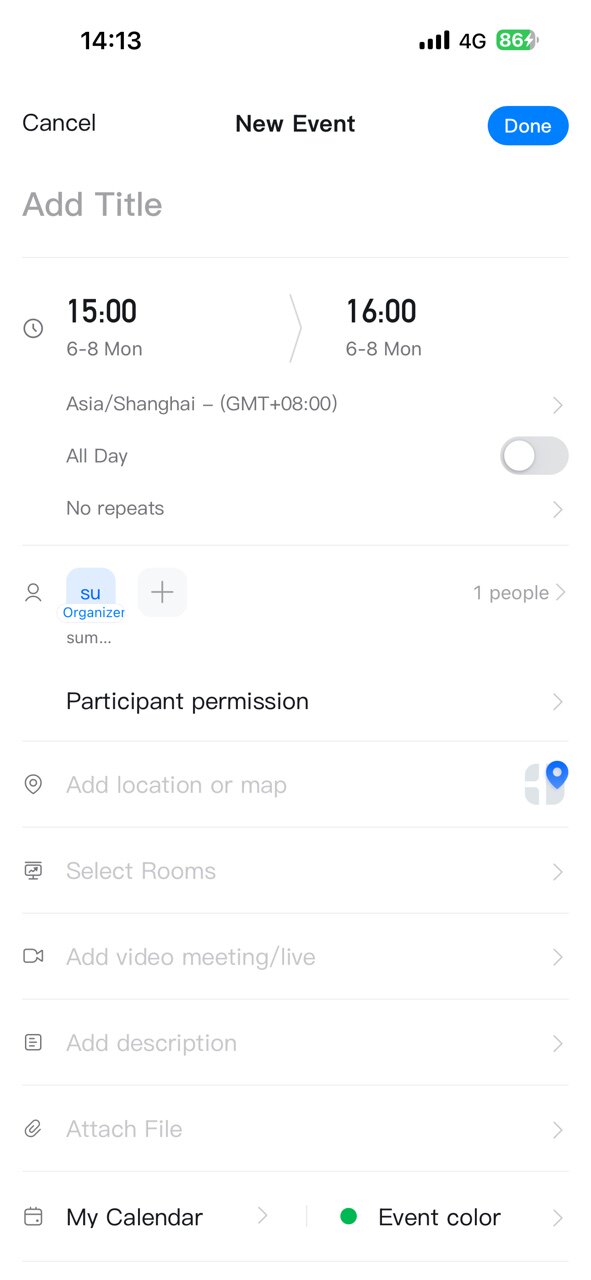
Go to Calendar, tap the + button in the lower-right corner, complete the event details in the new event pop-up, and tap Done to create it. The process is consistent with desktop.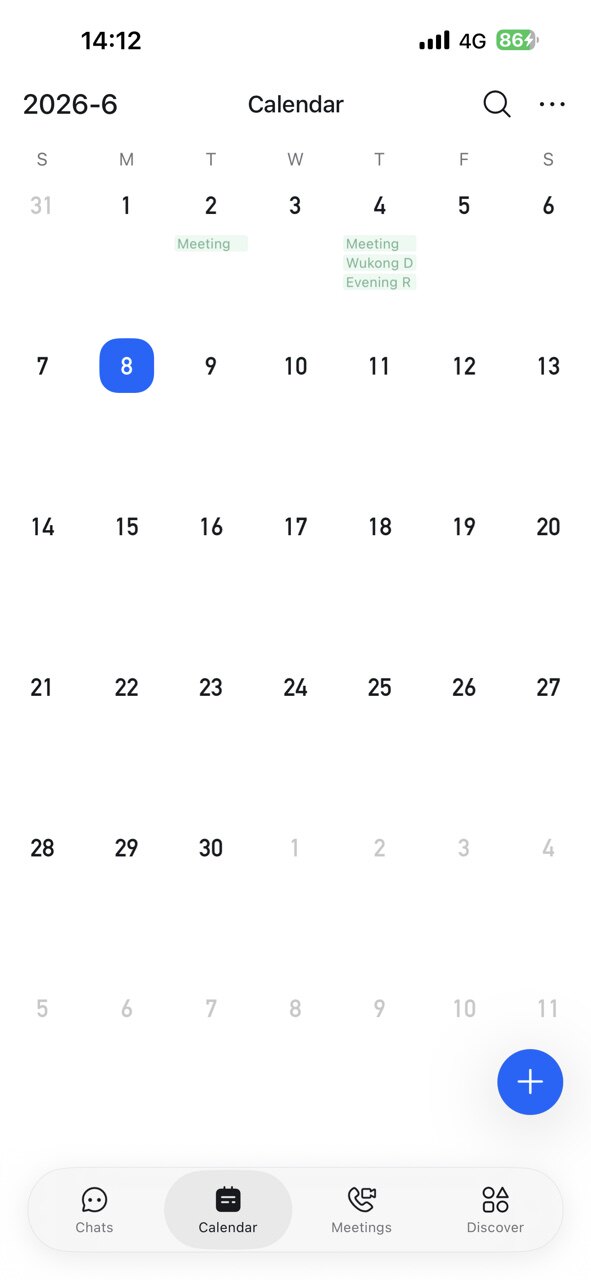
Desktop
Method 1
On Calendar Home, click + in the upper-left corner.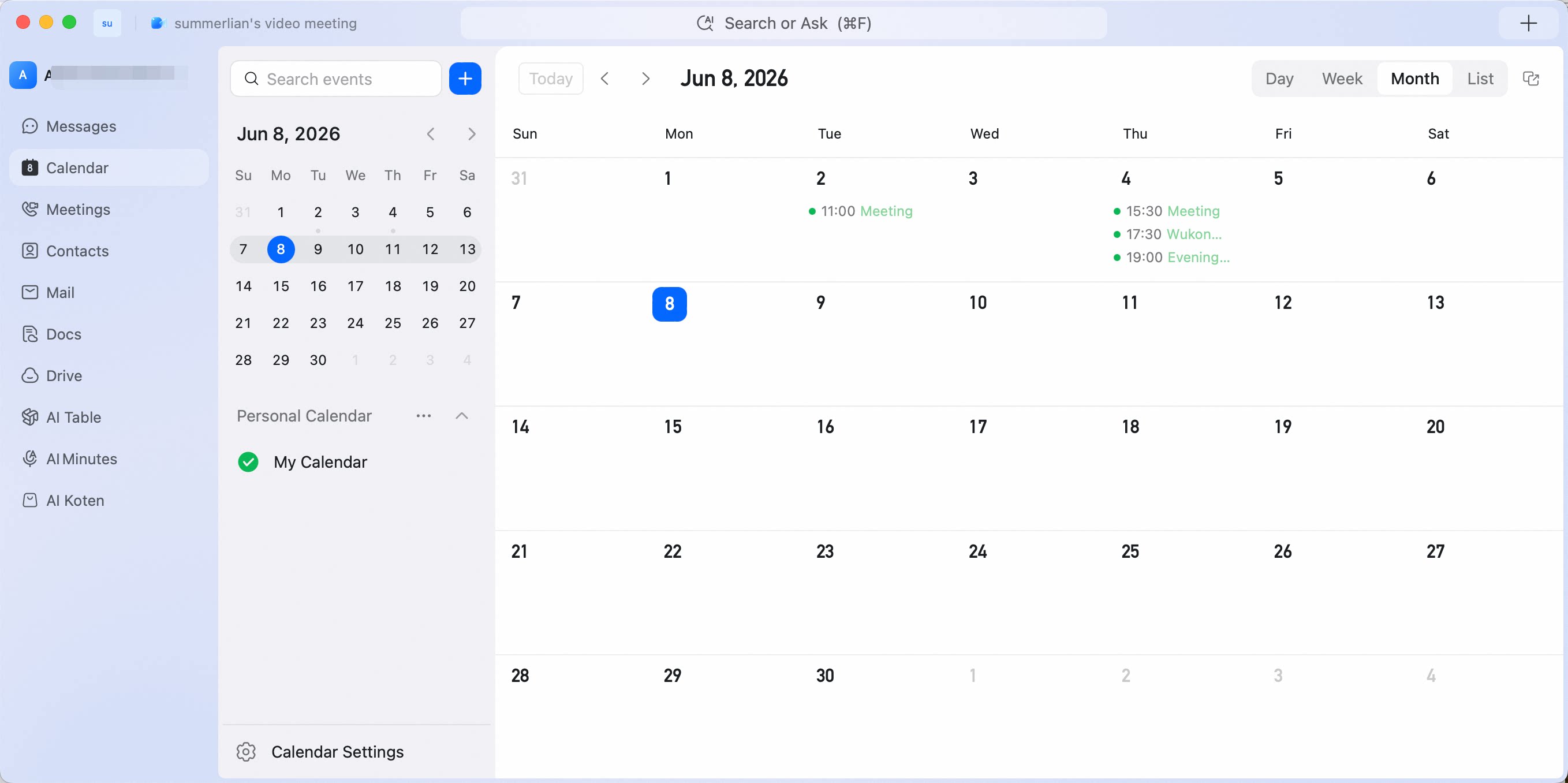 Complete the event, activity, or meeting information in the pop-up to create a new event.
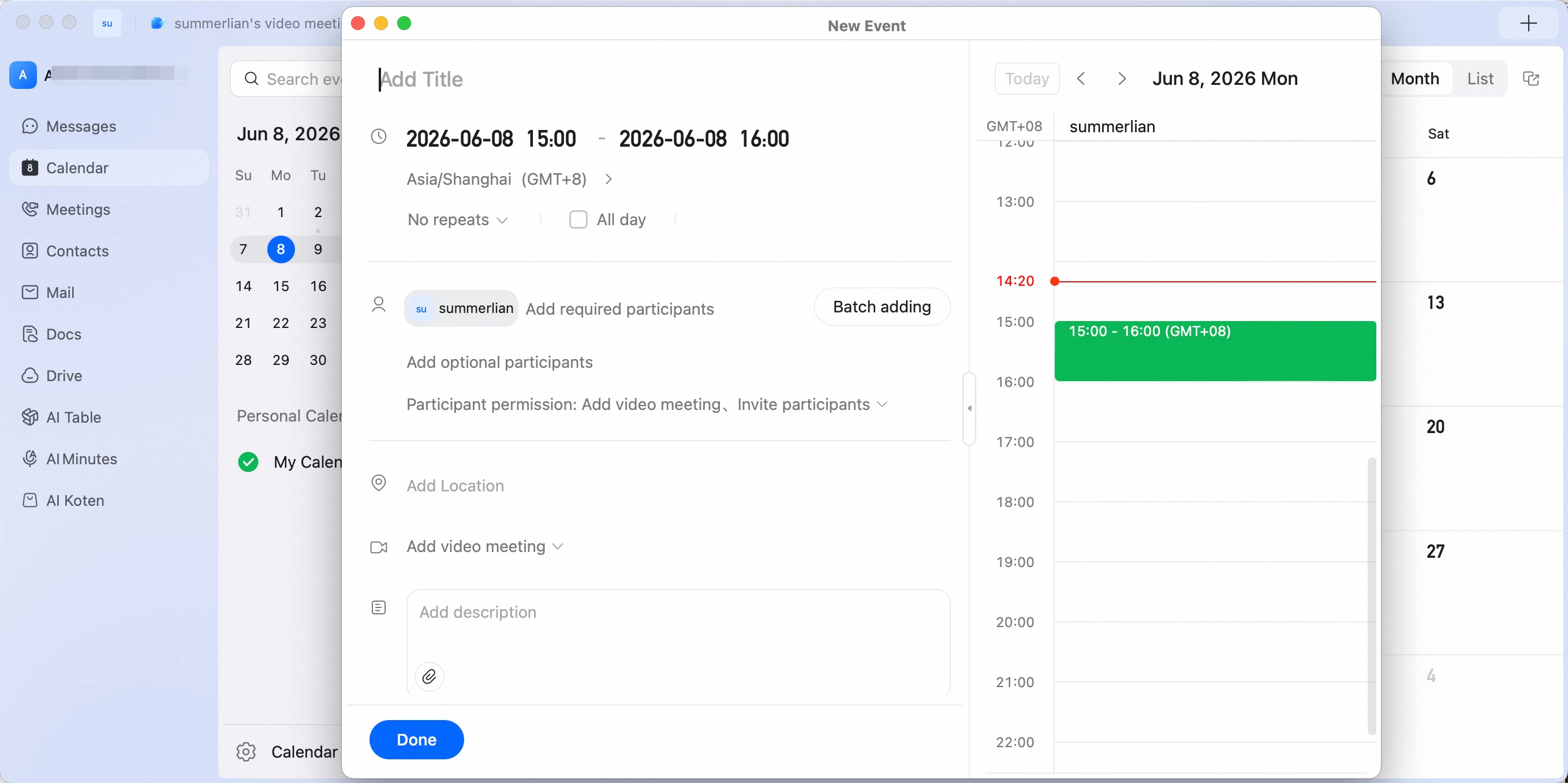 In the pop-up, you can set the following details:
- Title: Select the type, such as meeting or activity.
- Time: Set the time, time zone, and repeat cycle. You can create a repeating event for multiple future weeks at once.
- Participants: Add required and optional participants.
- Location: Supports Amap navigation. If it is a meeting, you can also click Add meeting room to reserve a meeting room.
- DingTalk video meeting: If you need a video discussion, add a video meeting or livestream and configure the meeting or livestream details.
- Event description: Add a brief description so participants can understand the purpose more quickly. You can add an agenda, use meeting templates for efficient meetings, and attach related files.
- Reminder: Set a meeting reminder time and notify participants to avoid missing the meeting or activity.
Method 2
On Calendar Home, click a date on the calendar to create an event, activity, or meeting. In day or week view, you can drag to precisely adjust the event time. Tip: When creating an event this way, we recommend switching Calendar to day view.