Chats
Chats Calendar
 Meetings
 Contacts
 Mail
Mail Docs
Docs Drive
Drive AI Table
 AI Minutes
 Attendance
 Approval
 YiDA
YiDA Admin Console
Switch calendar views with one click
To meet different viewing habits, DingTalk Calendar supports multiple views that you can switch between with one click.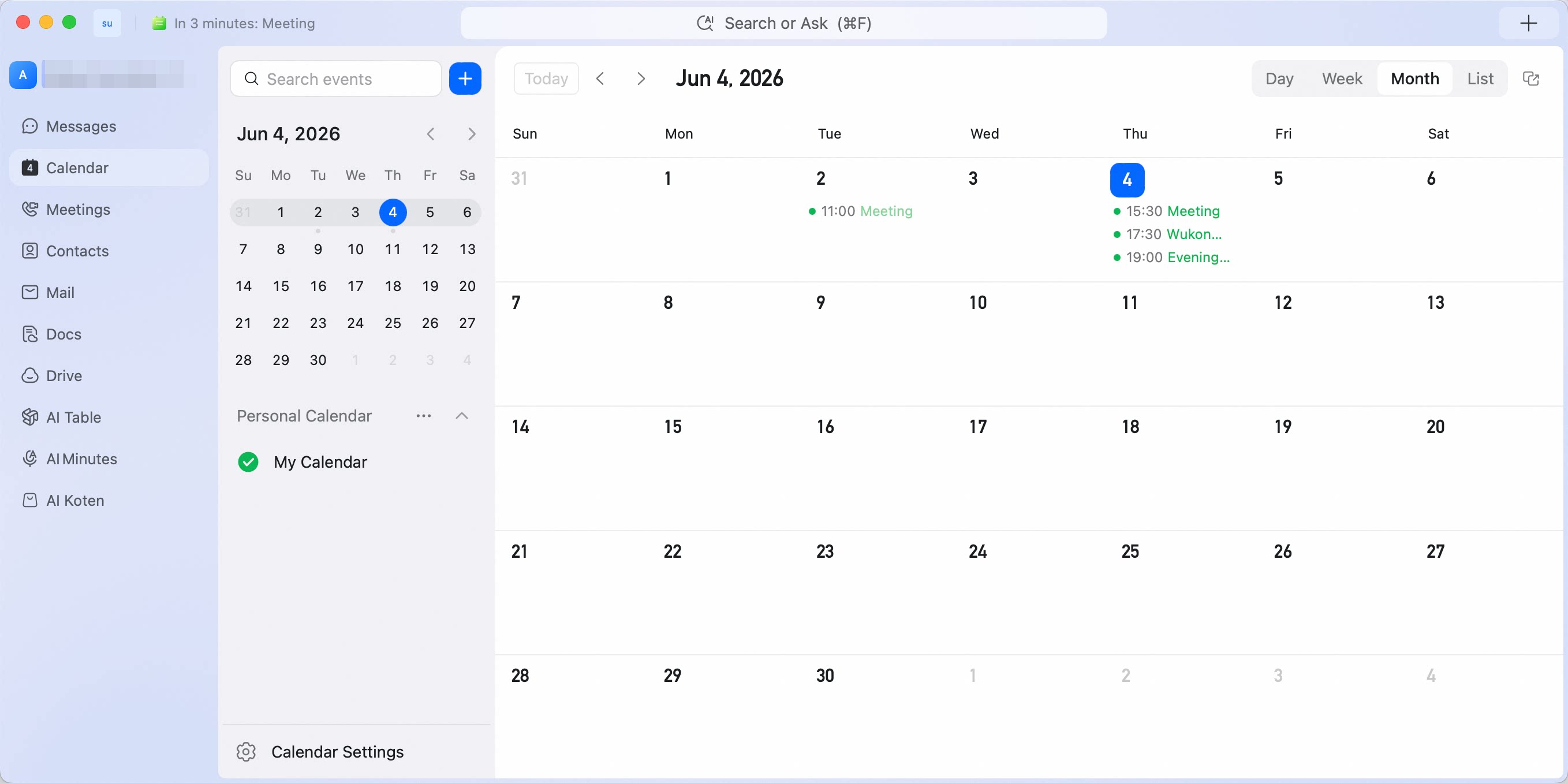
Desktop
List view
Shows more events in a list so you can scan schedules at a glance.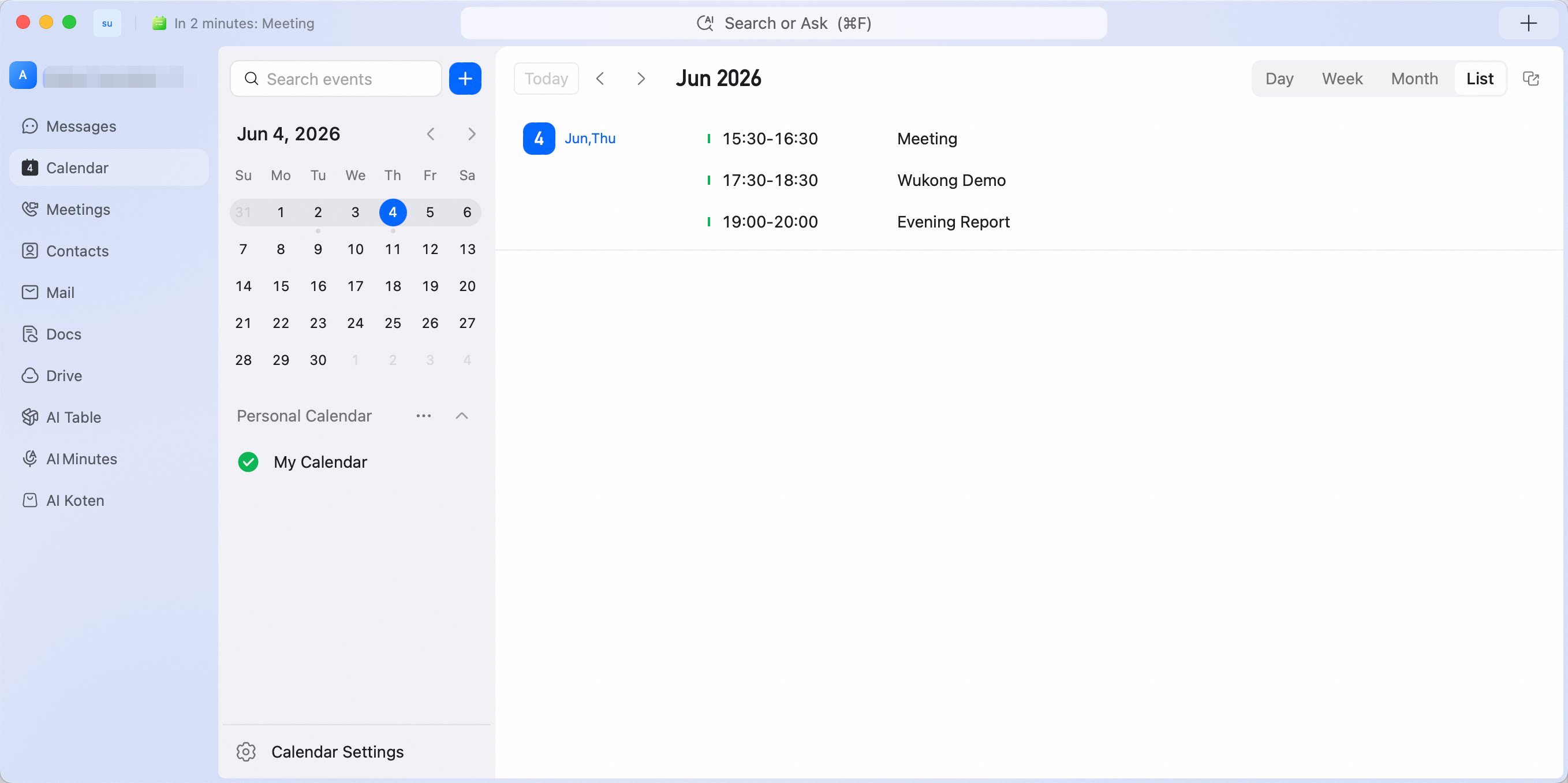
Day view
Shows the day’s schedule on a timeline, with each event mapped to a specific time slot.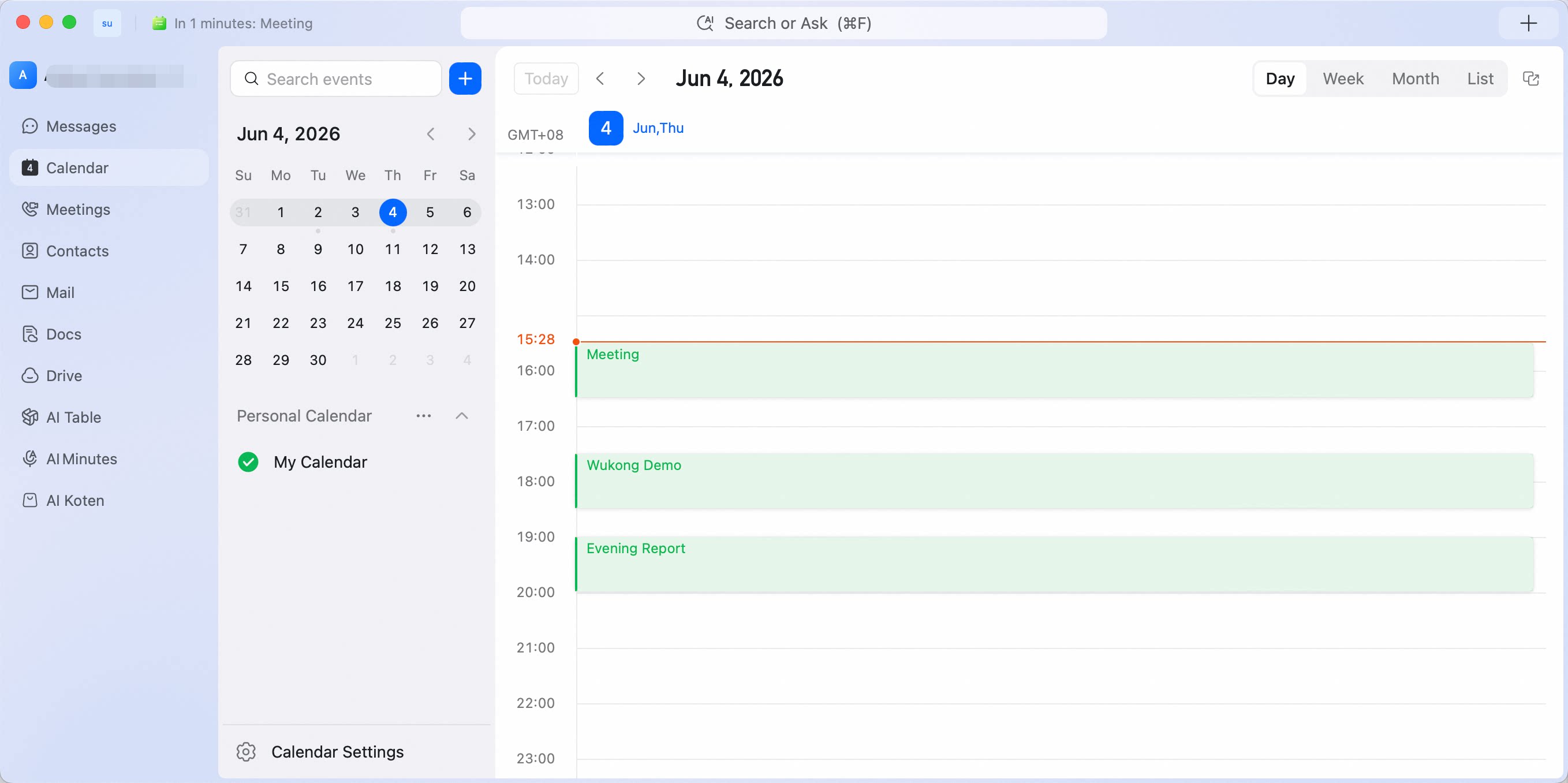
Week view
Shows one week of events on one screen, making it easy to plan the work week.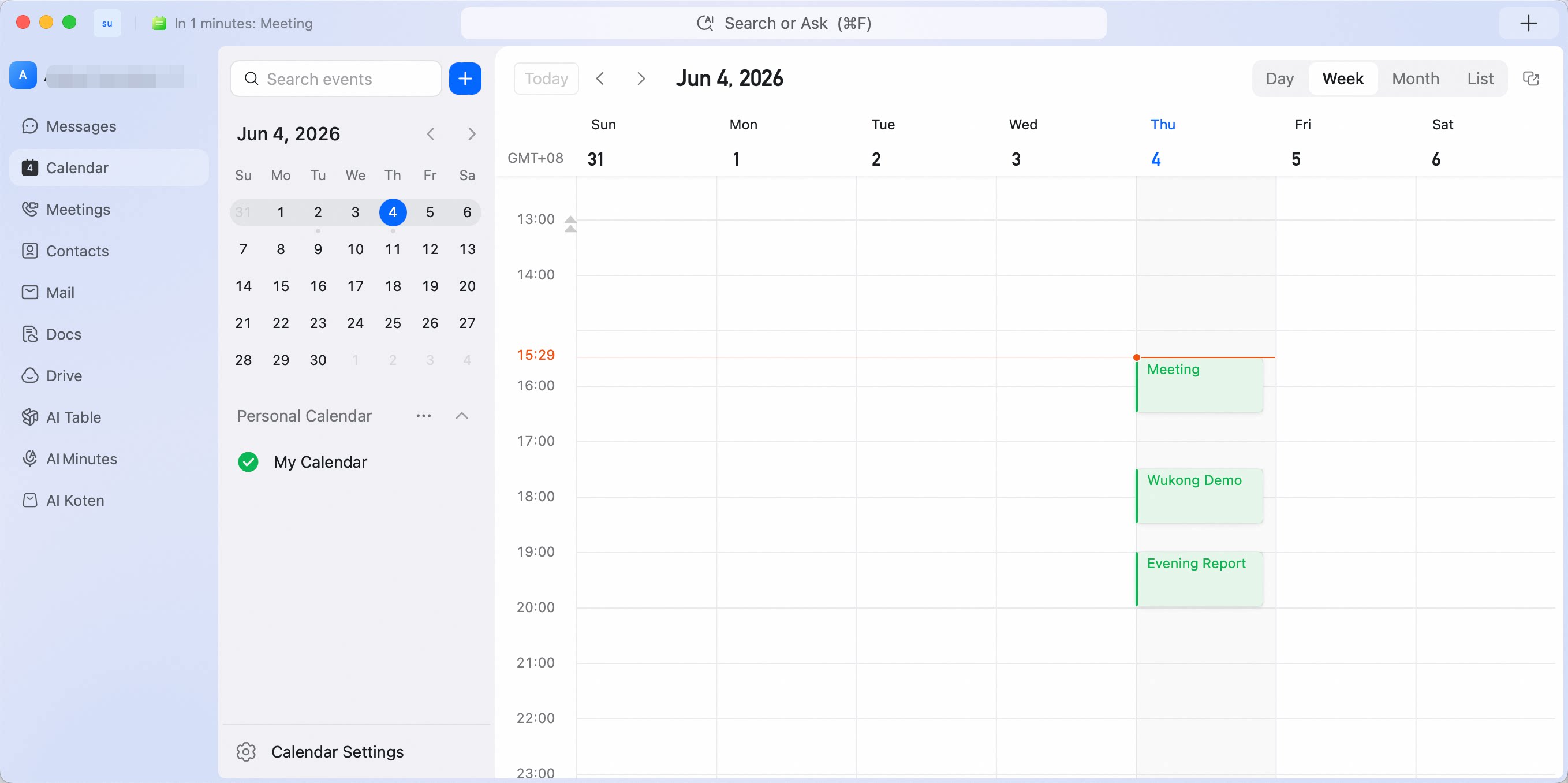
Month view
Shows the full month’s plan on one screen, so you can preview important items anytime.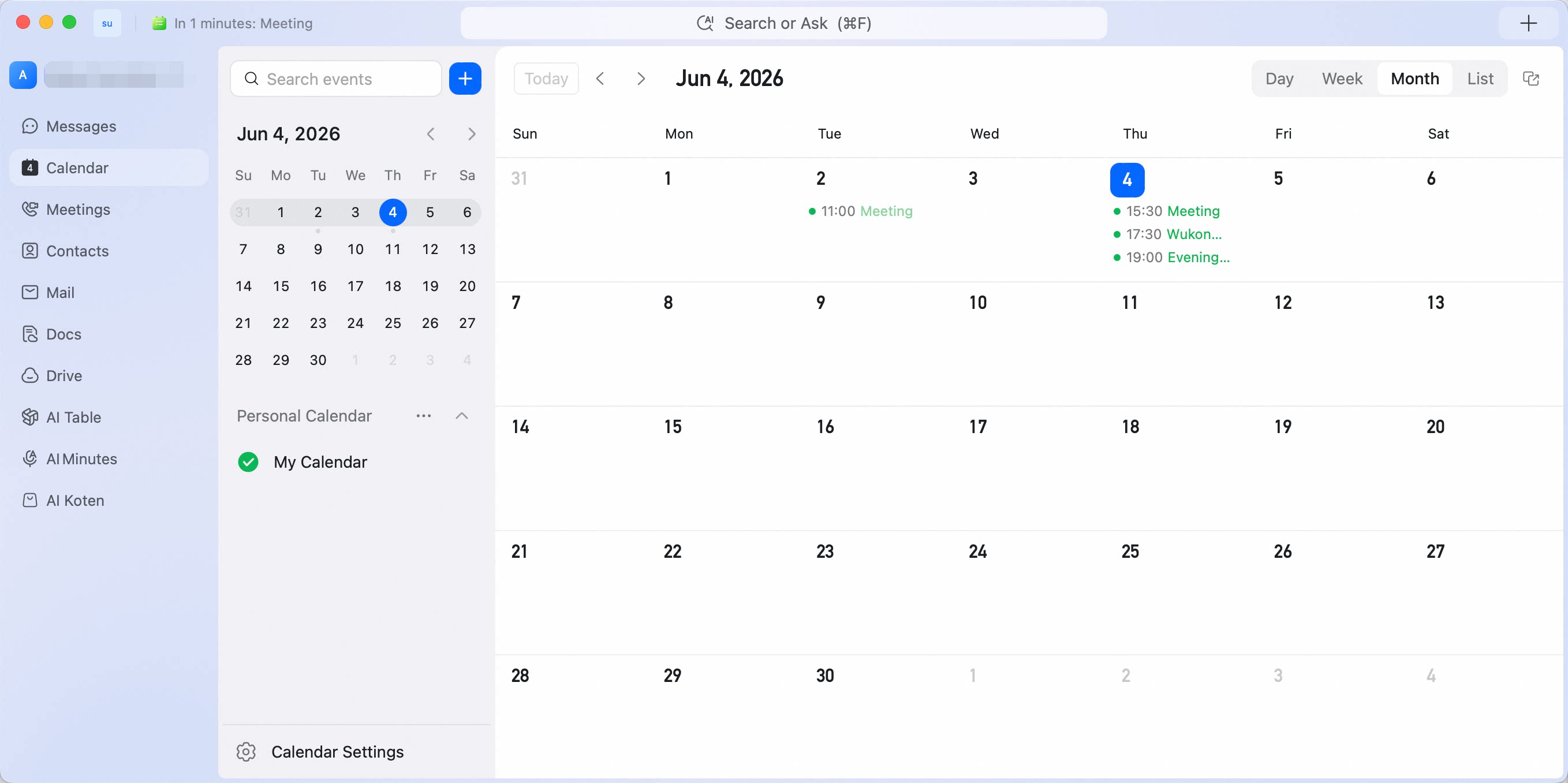
Mobile
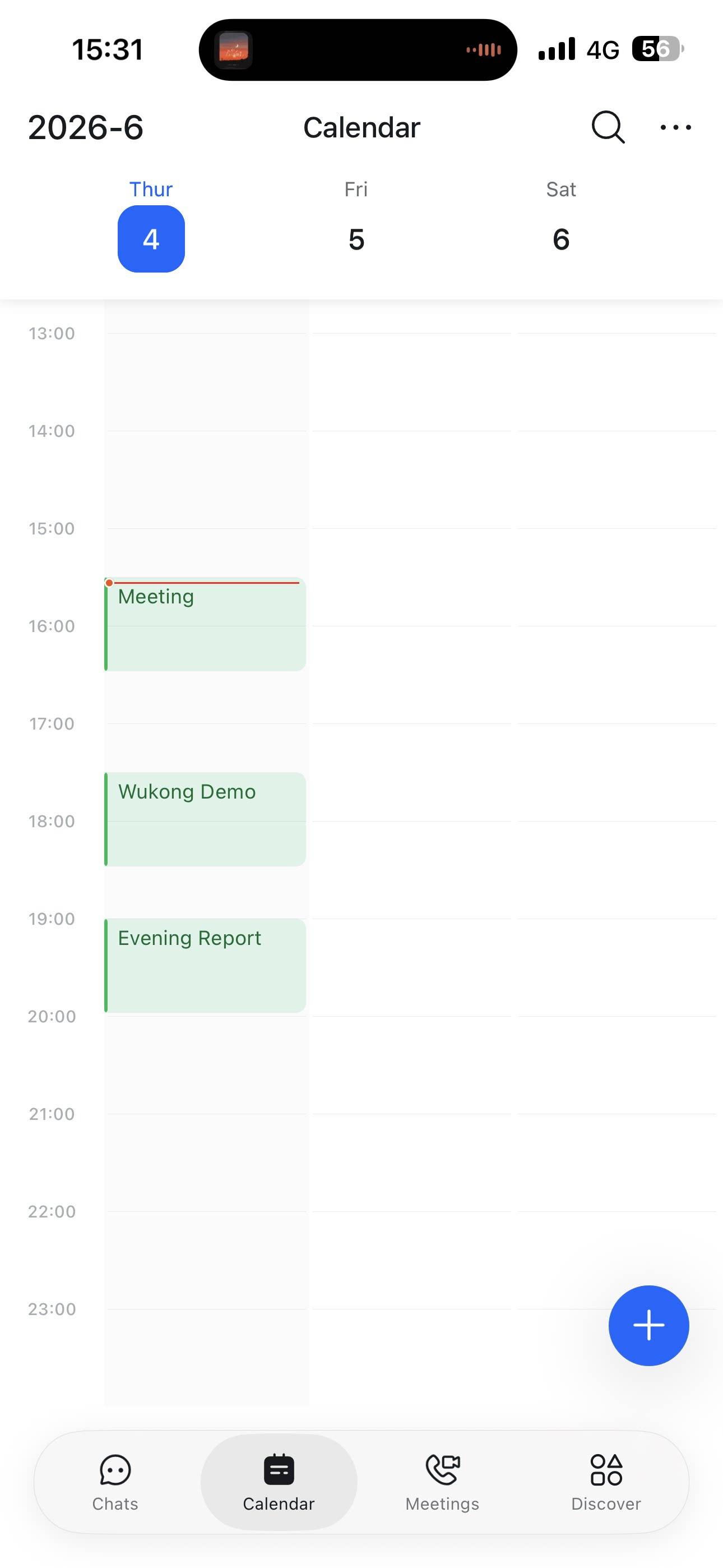
On mobile, Calendar also provides a three-day view that is easier to read on smaller screens. Go to Calendar, tap … in the upper-right corner, and select a view.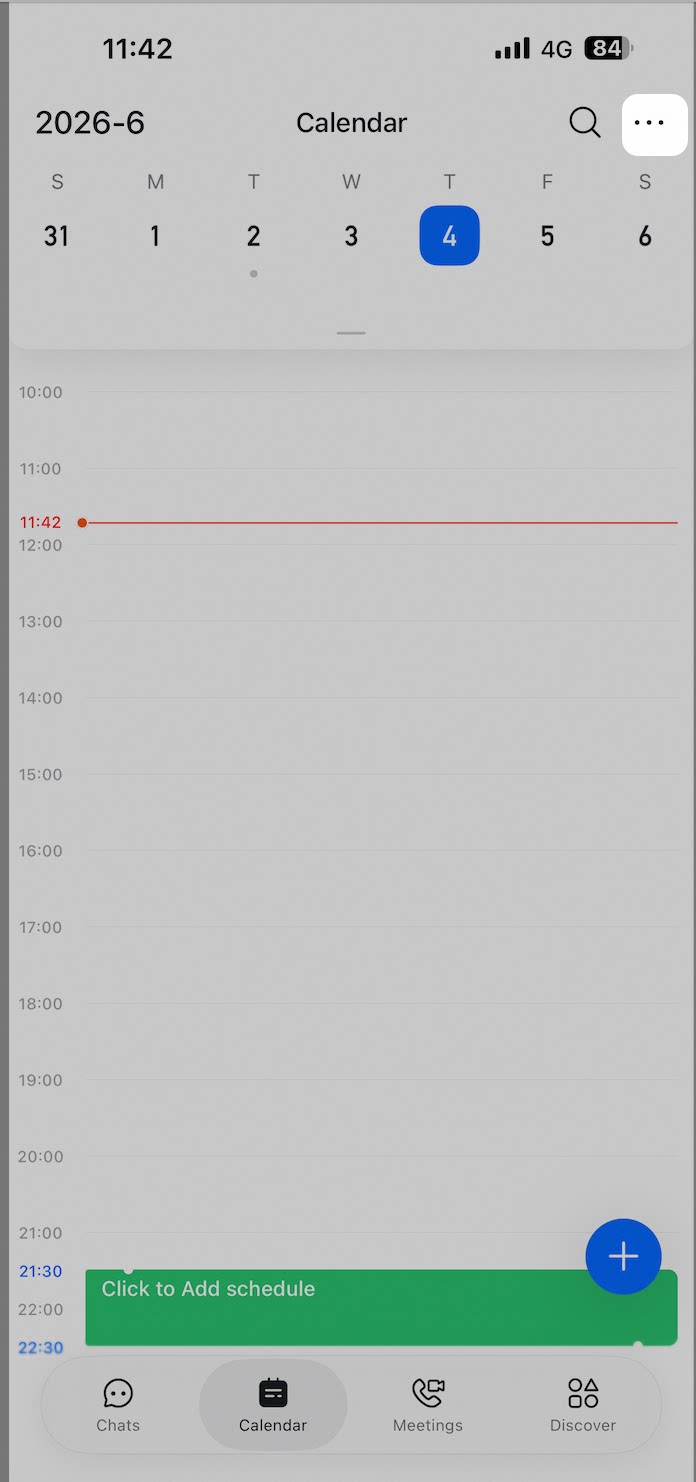

Customize the first day of the week
You can customize the First day of week setting in Calendar view to match different usage habits.Desktop
Click Calendar in the left navigation bar, click Calendar Settings in the lower-left corner, go to View, and select First day of week.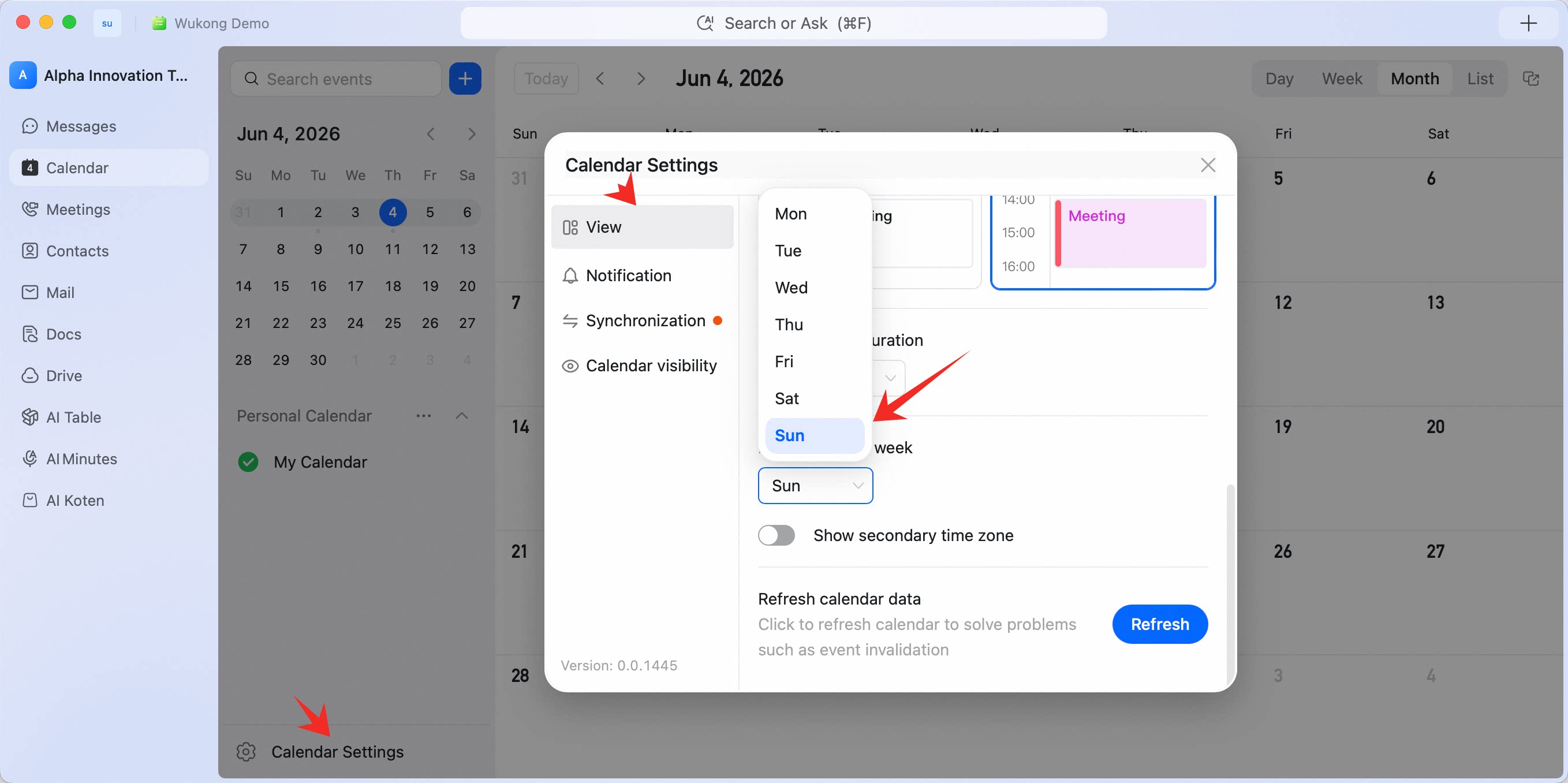
Mobile
Go to Chats, tap Calendar / Schedule at the top, tap … in the upper-right corner, select Calendar Settings, scroll down, and tap First day of week to customize it.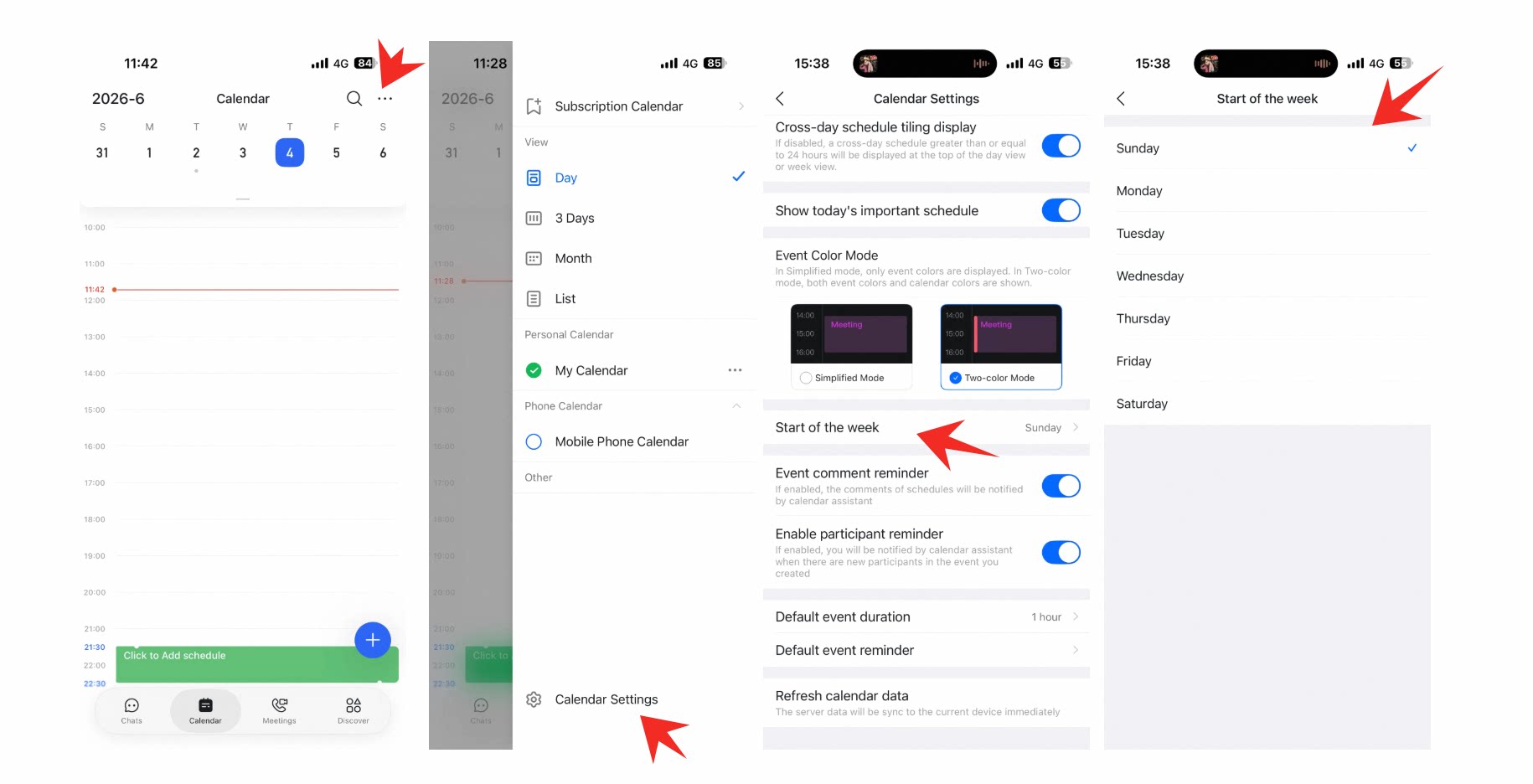
Set a secondary time zone
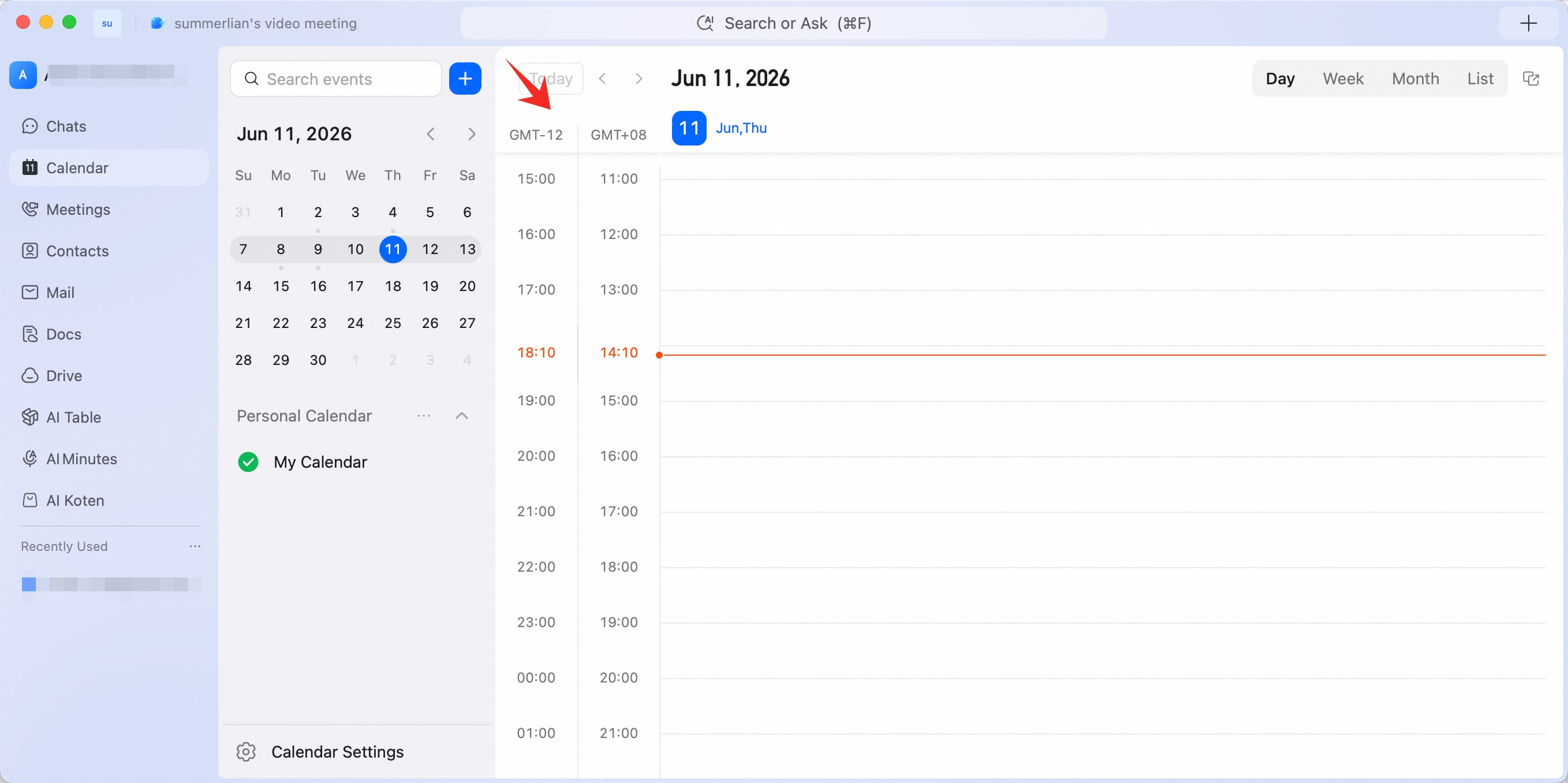
Calendar Home supports multiple secondary time zones, making cross-border collaboration easier to view.Setup path
On desktop, click Calendar in the left navigation bar, open Calendar Settings, go to View, and enable Show secondary time zone.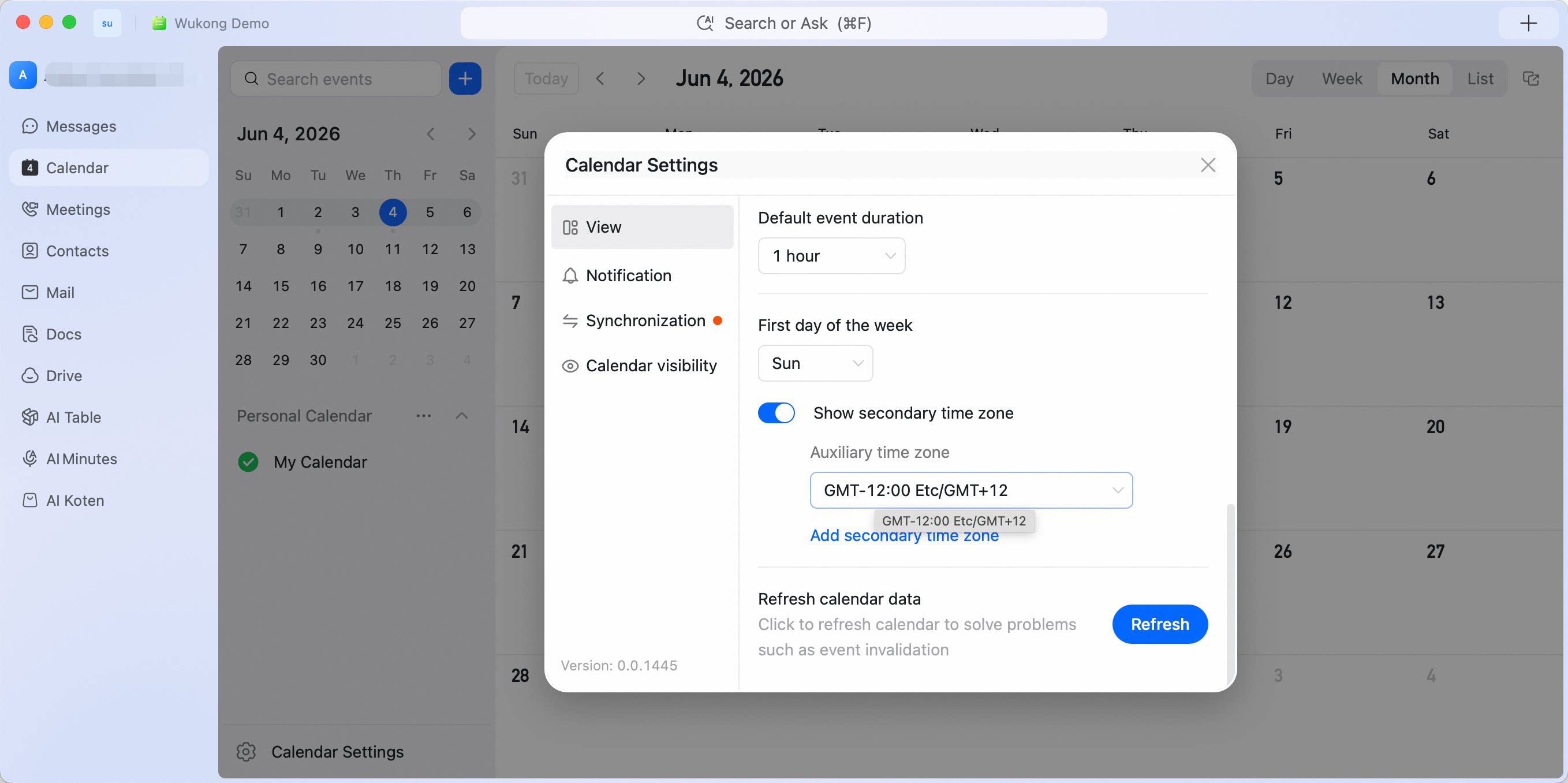
View the result
You can view different time zones in Day or Week view.