Chats
Chats Calendar
 Meetings
 Contacts
 Mail
Mail Docs
Docs Drive
Drive AI Table
 AI Minutes
 Attendance
 Approval
 YiDA
YiDA Admin Console
II. User Guide
1. Admin Console Navigation
In the left navigation pane, go to Security & permission > Security > Data Protection > In-App File Control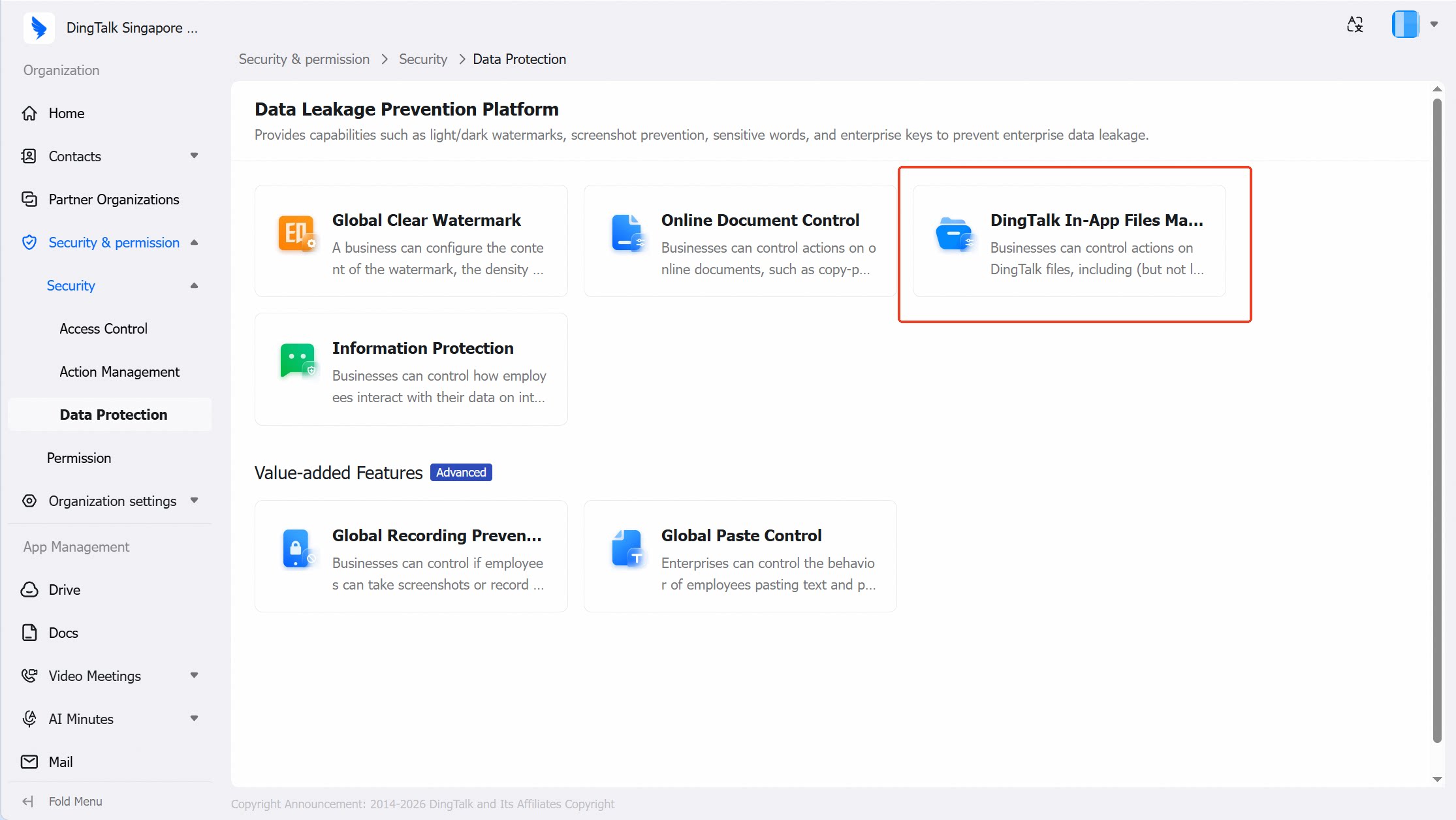
2. Administrator — No Rules Configured
In-App File Control includes multiple capabilities, covering both mobile and desktop clients and involving various file operations. Taking “Download files to the mobile terminal” as an example: When not configured, the feature is disabled. When disabled, the behavior is consistent with the default DingTalk experience.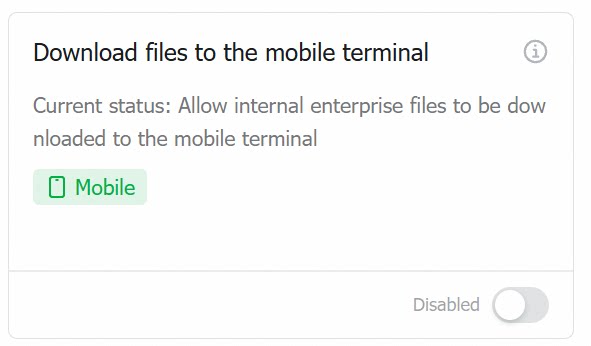
3. Administrator — Configuration Example
1
Preview the card configuration
Click the info icon to preview the effect of the card configuration.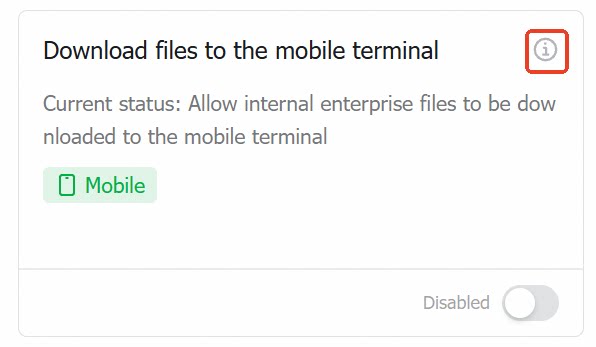
2
Enable the feature
Toggle the switch and click Confirm in the dialog to enable the feature.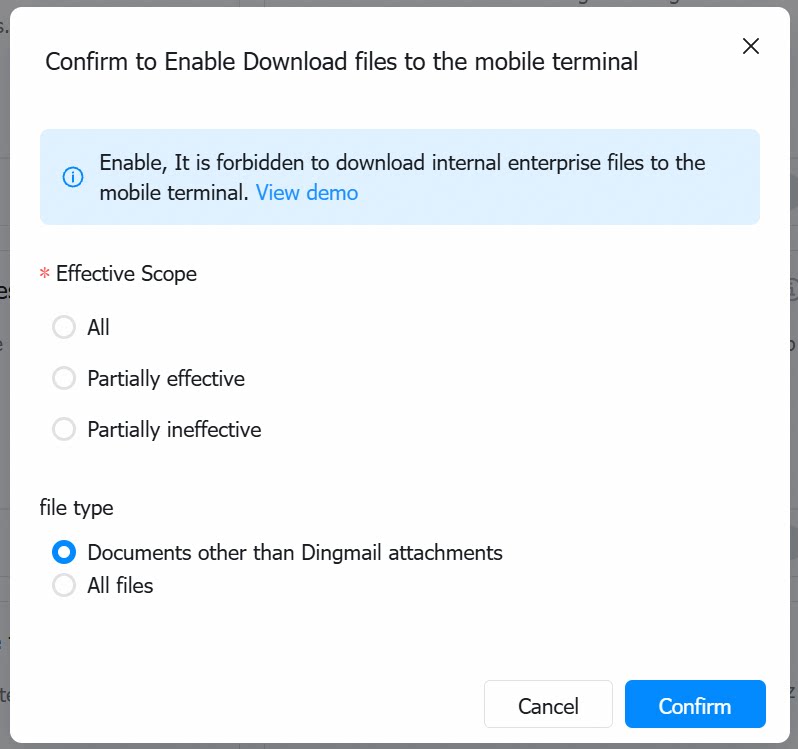
3
Configure the applicable scope
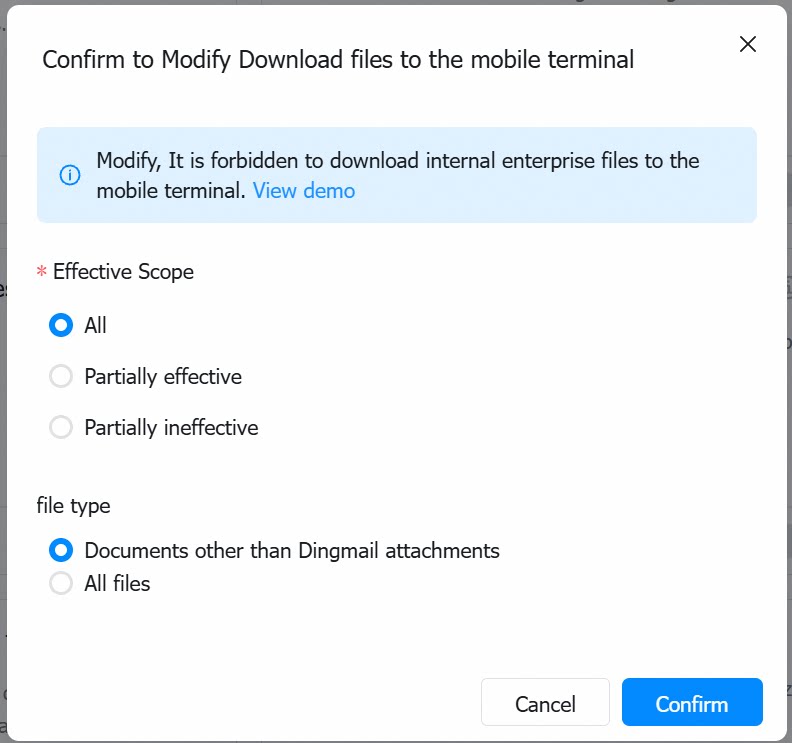
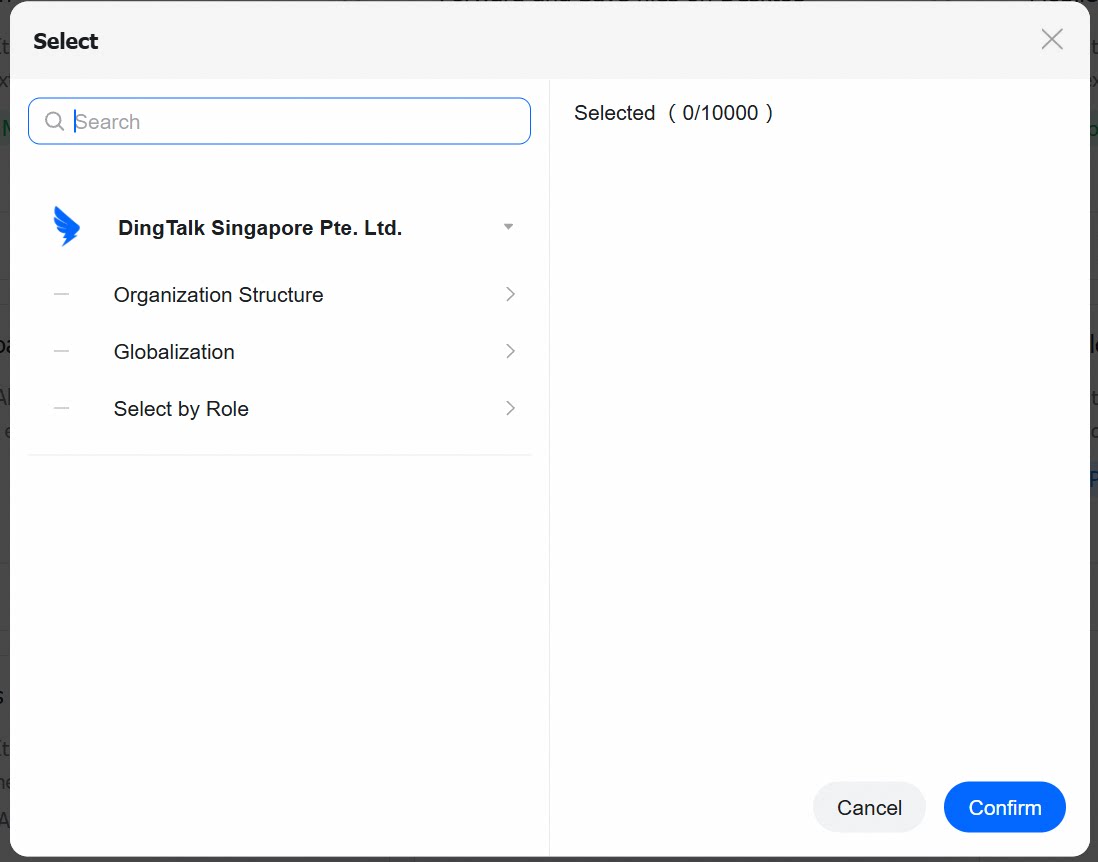
The feature applies to all employees by default.Click Edit to configure the applicable scope — specify which employees the policy applies to or excludes.For example, to apply the policy only to the Engineering Department, select Specific Employees, then use the contact picker to select the department.The contact picker also supports selection by role, giving administrators flexibility to configure as needed.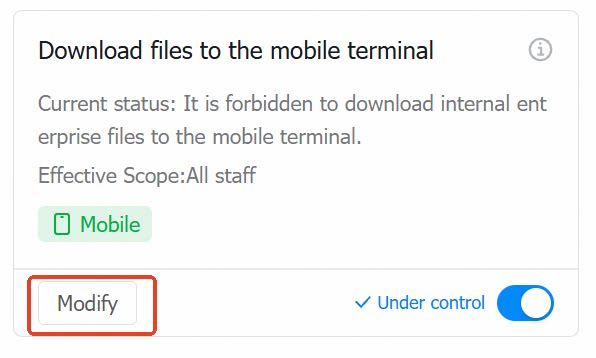
4. Employee — Under Policy Enforcement
When an employee attempts to download a file, a security prompt will appear.