

 Chats
Chats Calendar
 Meetings
 Contacts
 Mail
Mail Docs
Docs Drive
Drive AI Table
 AI Minutes
 Attendance
 Approval
 YiDA
YiDA Admin Console
Who this is for: Project leads and the first organization admin responsible for driving a DingTalk enterprise POC (Proof of Concept).
Overview
1
Open the website and explore plans
Open the DingTalk global website and compare the Free / Basic / Standard / Premium plans.
2
Start a free trial
Choose a plan that fits and apply for a 30-day full-featured free trial.
3
Register the first admin
Sign up, complete identity verification, and set a password.
4
Create an organization
Fill in the organization details and record the Org ID and Organization Code.
5
Sign in to the Admin Console
Enter the Admin Console to configure your organization.
6
Build the department structure
Create departments based on your test scope.
7
Bulk-import enterprise accounts
Download the Excel template, bulk-import, and spot-check the results.
Step 1: Open the website and choose a plan
Visit the DingTalk global website: https://www.dingtalk.io/. The website offers four plans. Choose one based on your POC user count, business scenarios, security requirements, storage needs, and system integration scope: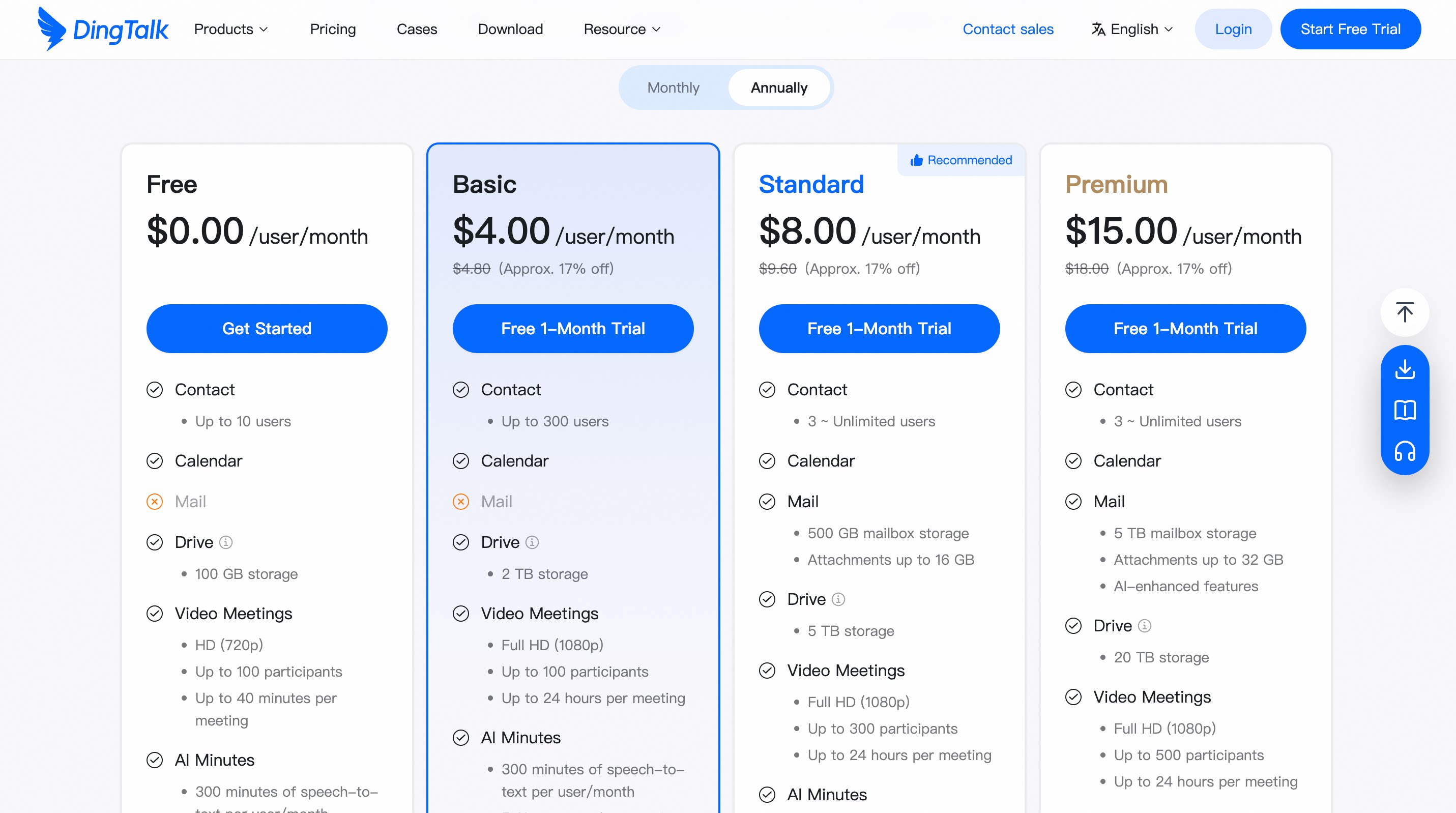
Step 2: Start a free trial
On the website, click Start Free Trial. Every plan is eligible for a 30-day full-featured free trial — no credit card required. Prepare before applying:- Organization name and country/region
- Estimated number of POC users
- Planned start time and test period
- Key business scenarios to validate
- Super Admin’s name, email, and phone number
Suggested application note: Applying for a DingTalk enterprise POC, ~XX users, XX-day test period, focused on validating organization management, admin workflows, meeting collaboration, and bulk employee onboarding.
Step 3: Register the admin account
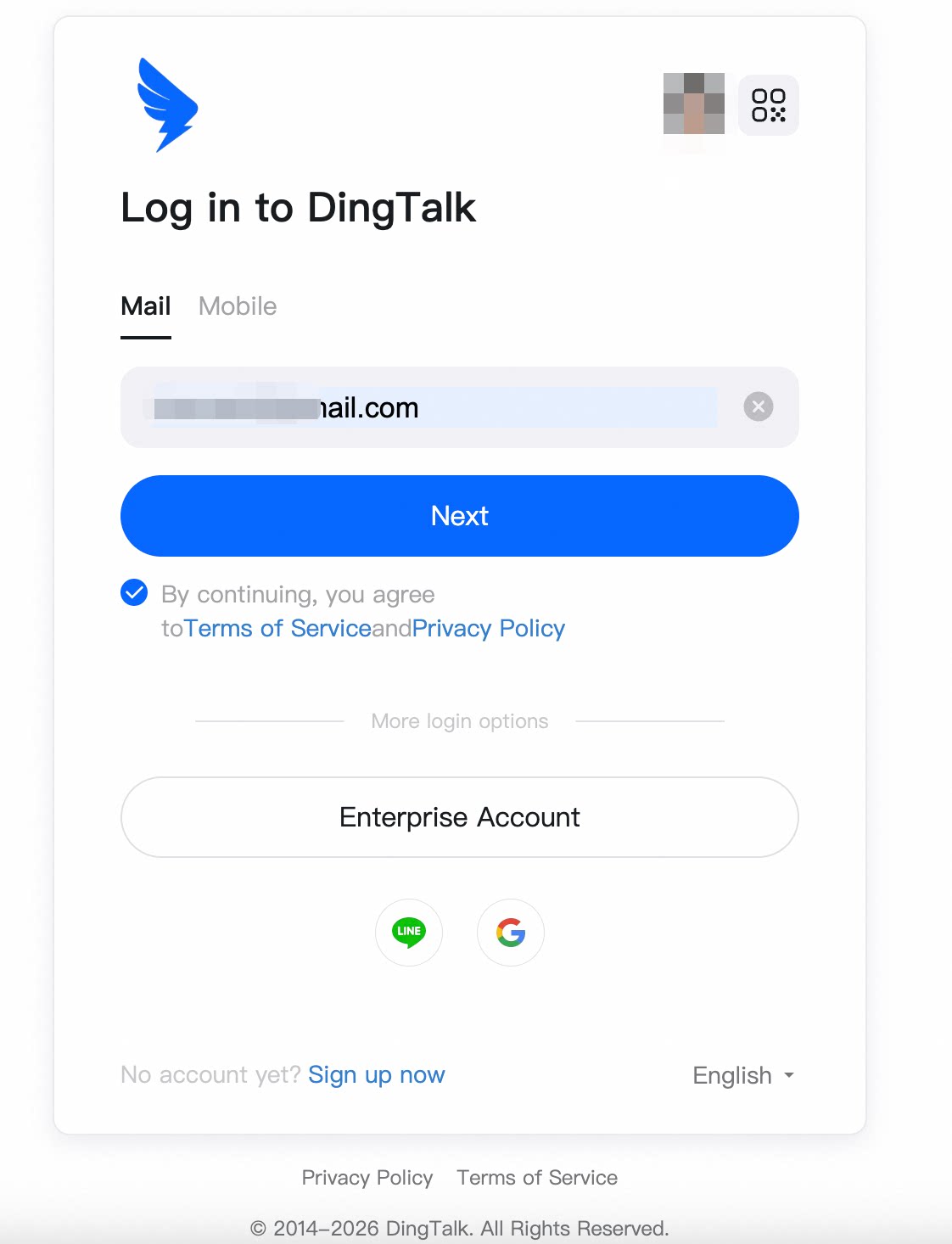
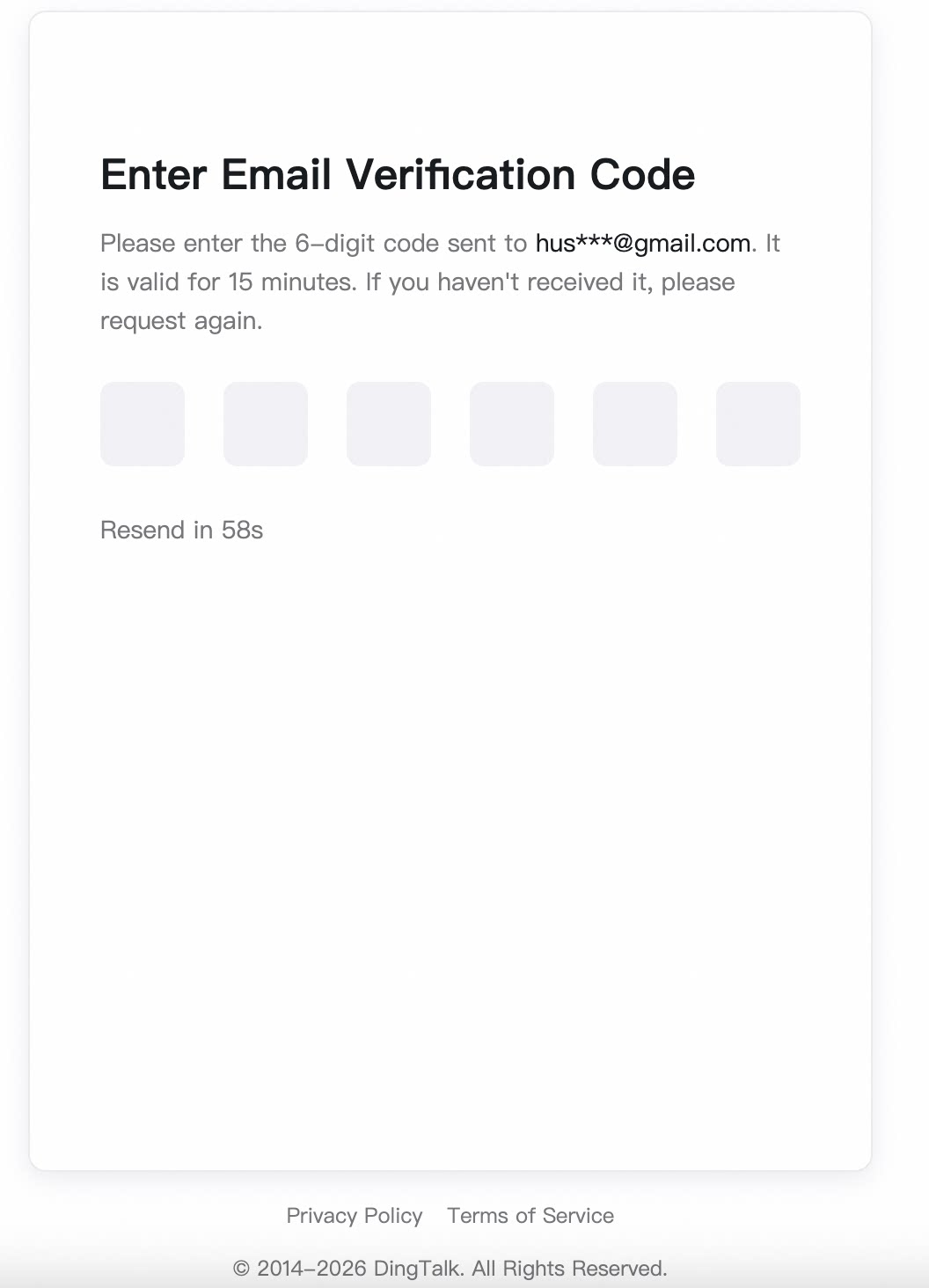
Choose one of the following methods to sign up as prompted: a valid email / a Google account / a valid phone number with verification code. Complete identity verification, set a password, and accept the Terms of Service and Privacy Policy.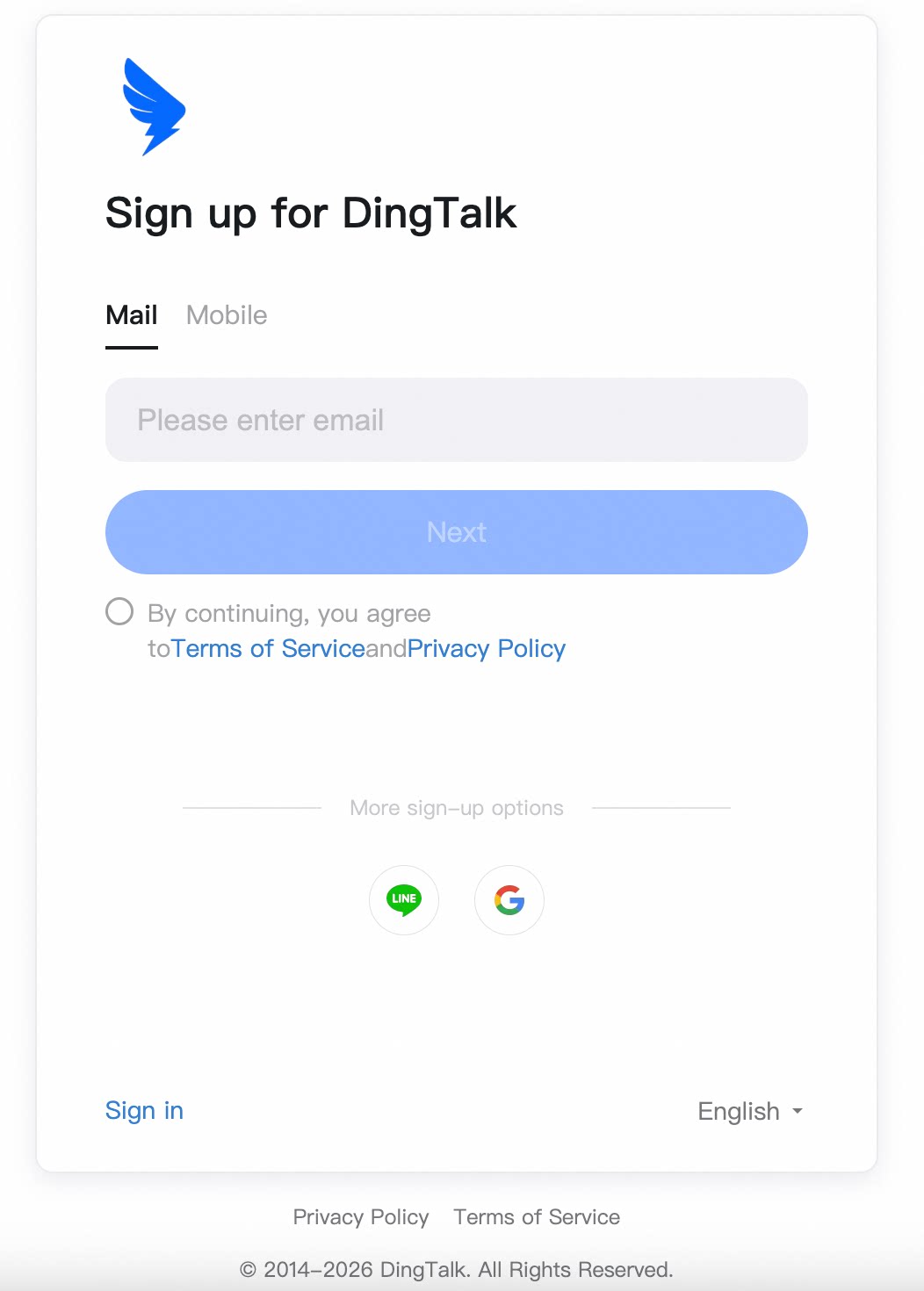
Step 4: Create the organization
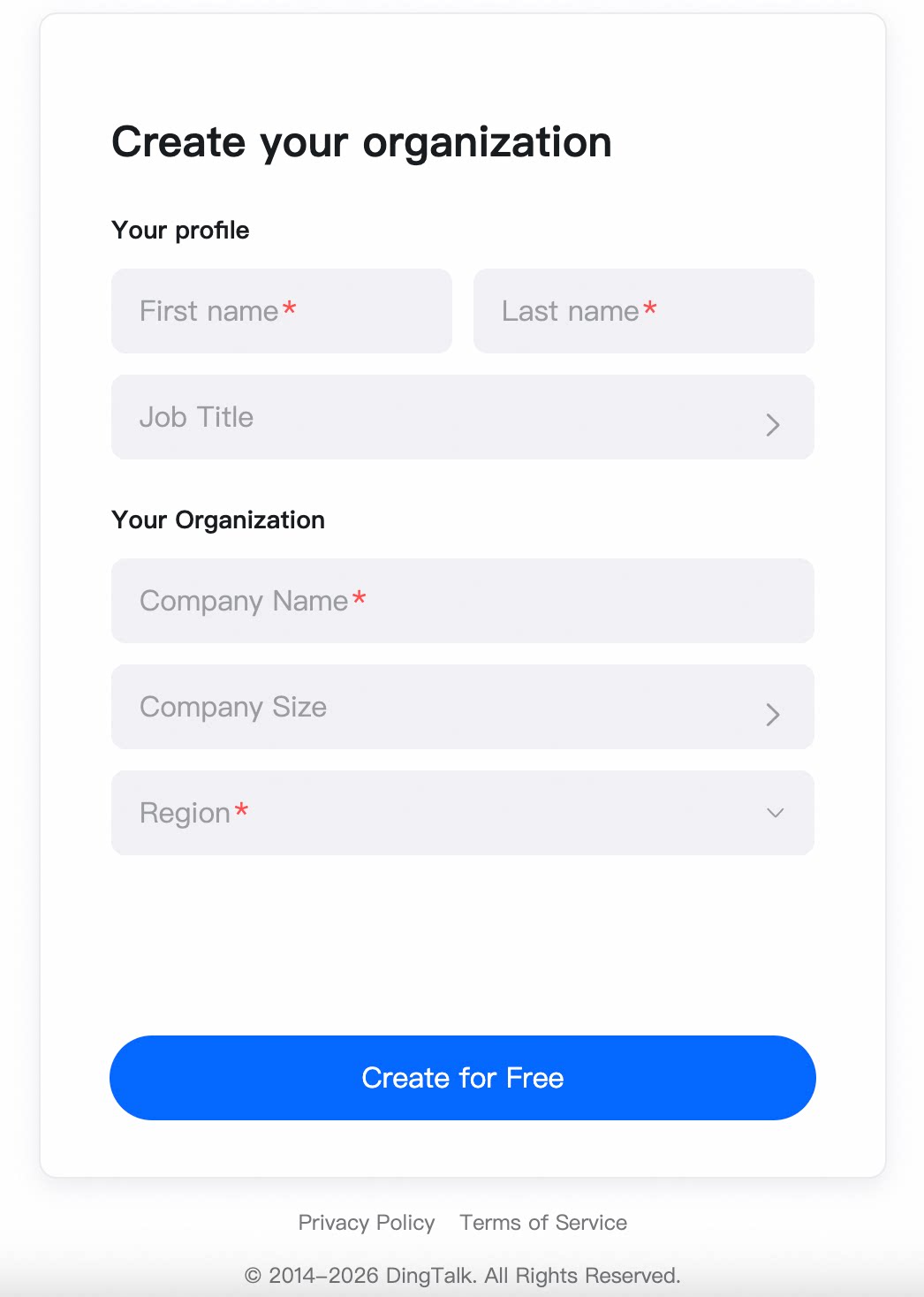
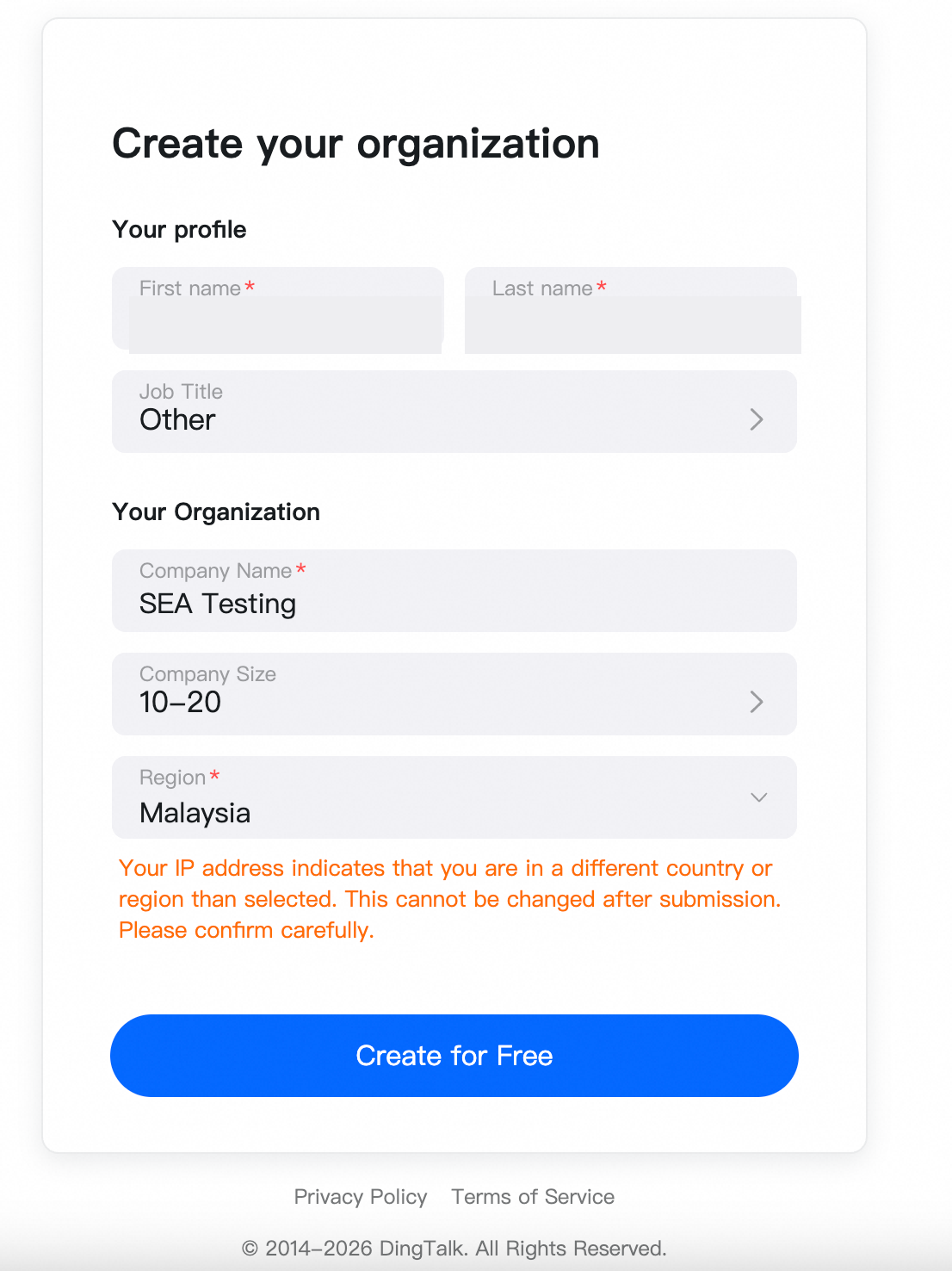
Select your target plan and complete the free trial or subscription flow as prompted. When creating the organization, prepare the following:
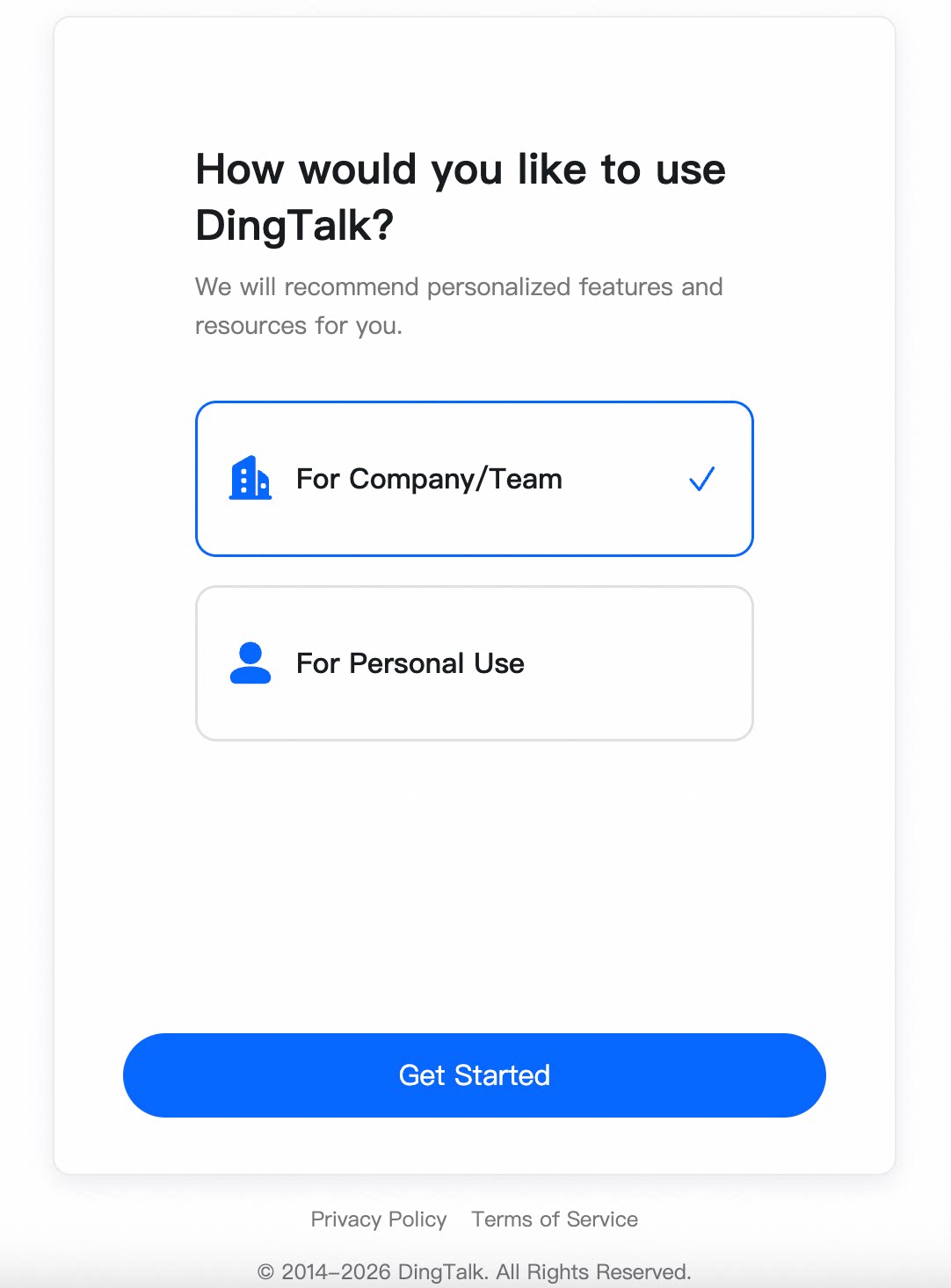
Select the company team and click Get Started:
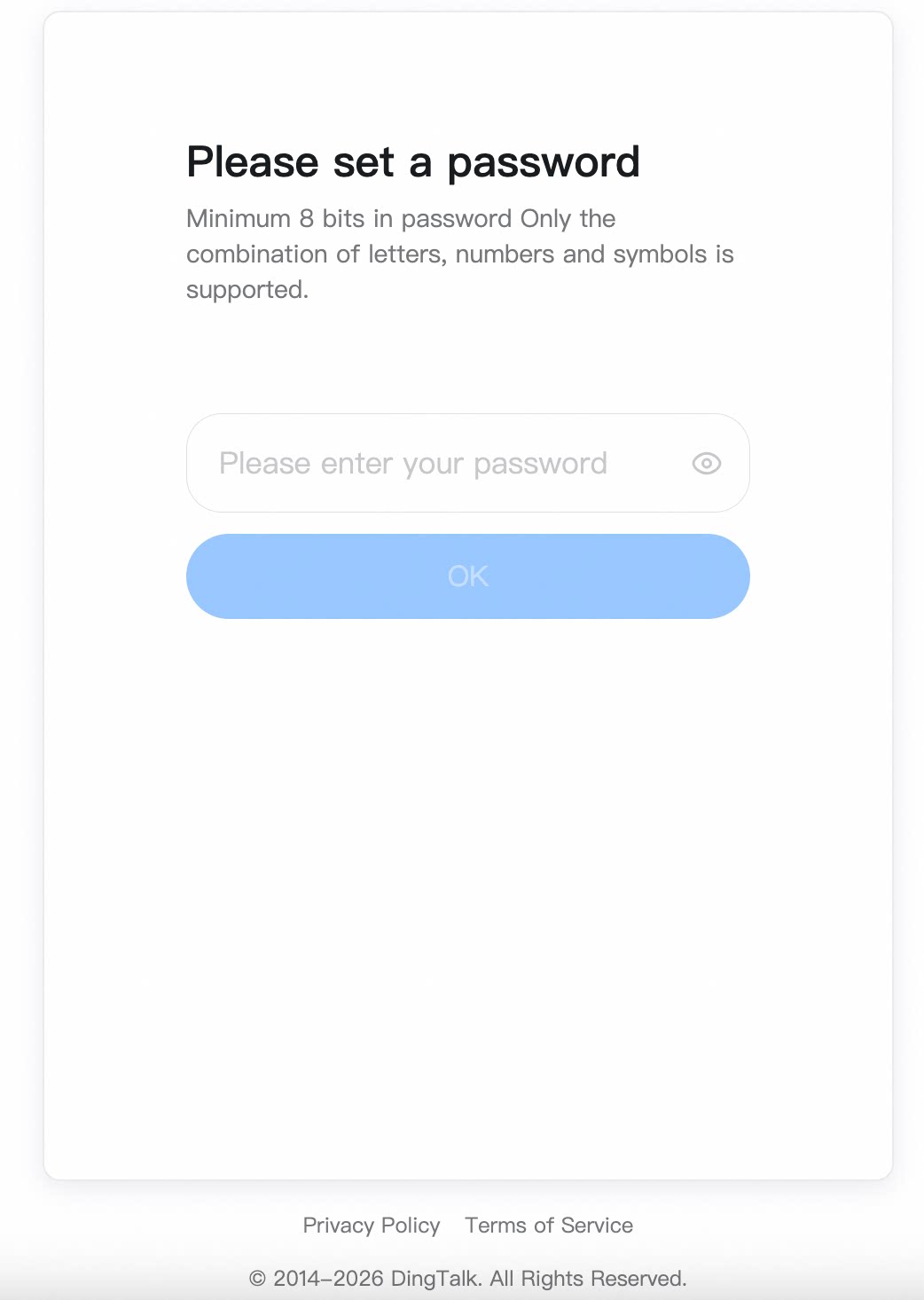
Set the password
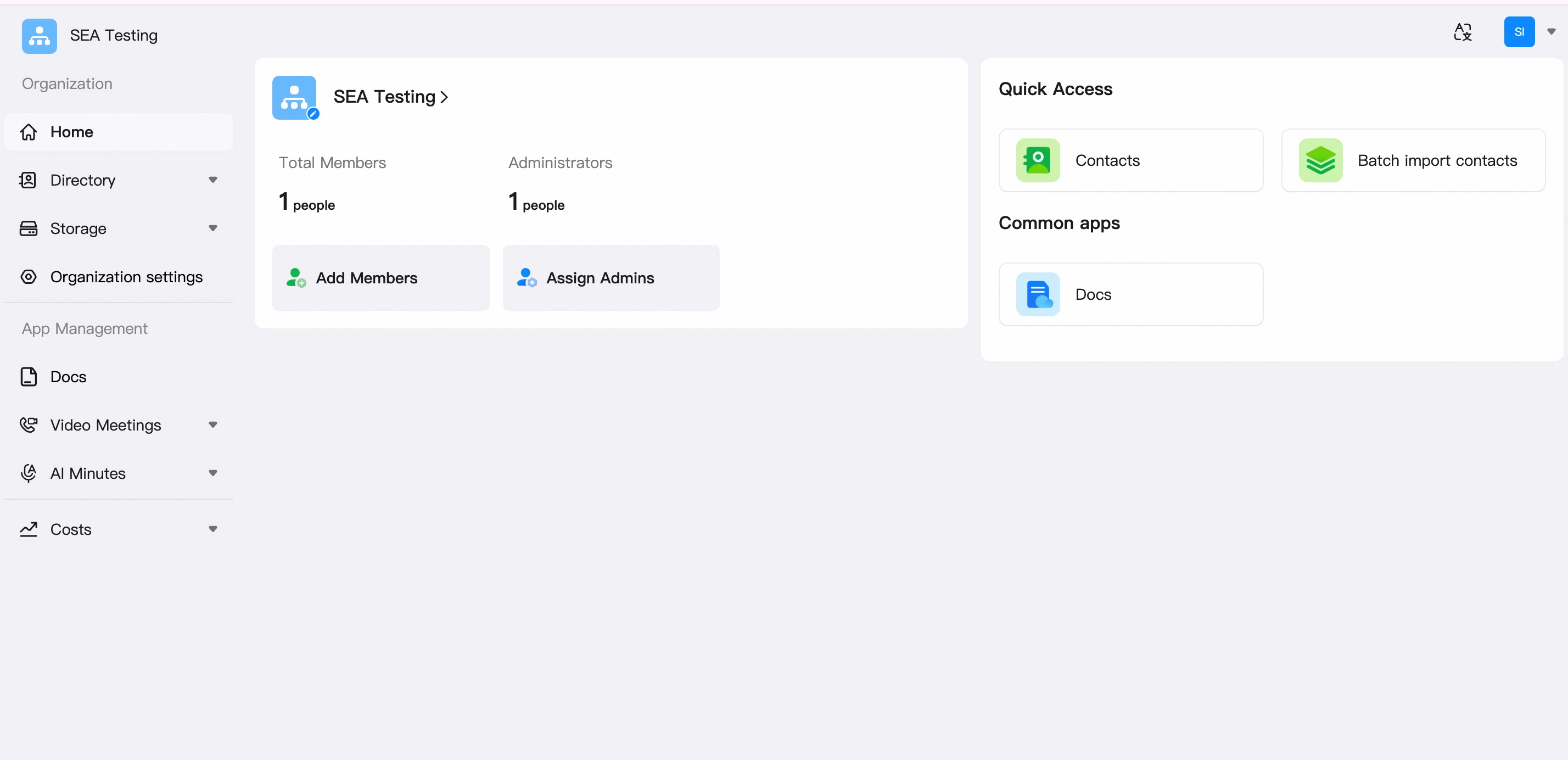
Automatically signed in to the Admin Console
Step 5: Sign in to the Admin Console
The admin visits: https://oa.dingtalk.io/ Enter your organization details as prompted and choose a sign-in method:- Registered email or phone number + password
- Phone number + verification code
- Scan the QR code with mobile DingTalk
- Enterprise account + Organization Code + password
- A linked third-party account
If your account belongs to multiple organizations, make sure you enter the one for this POC.
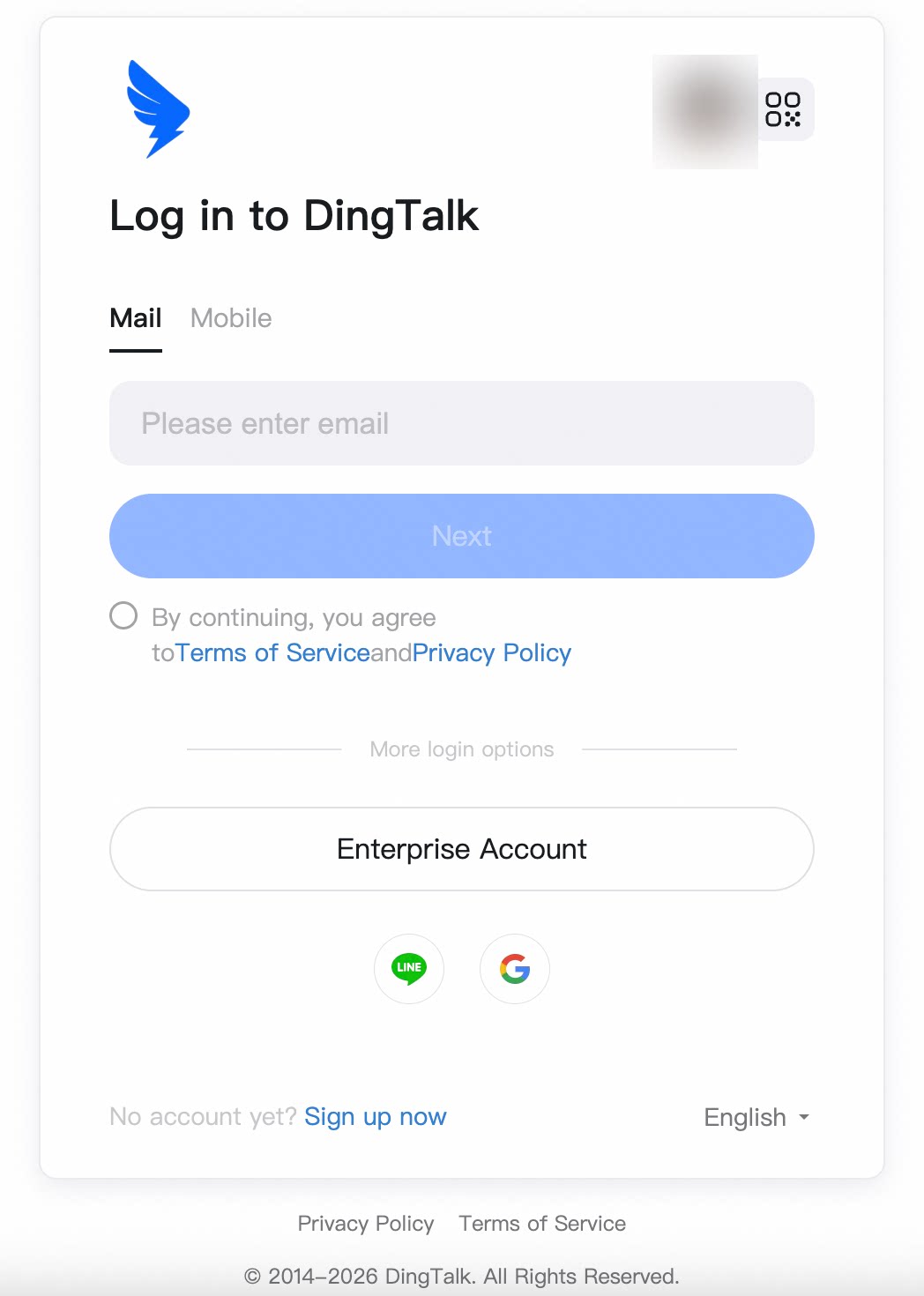
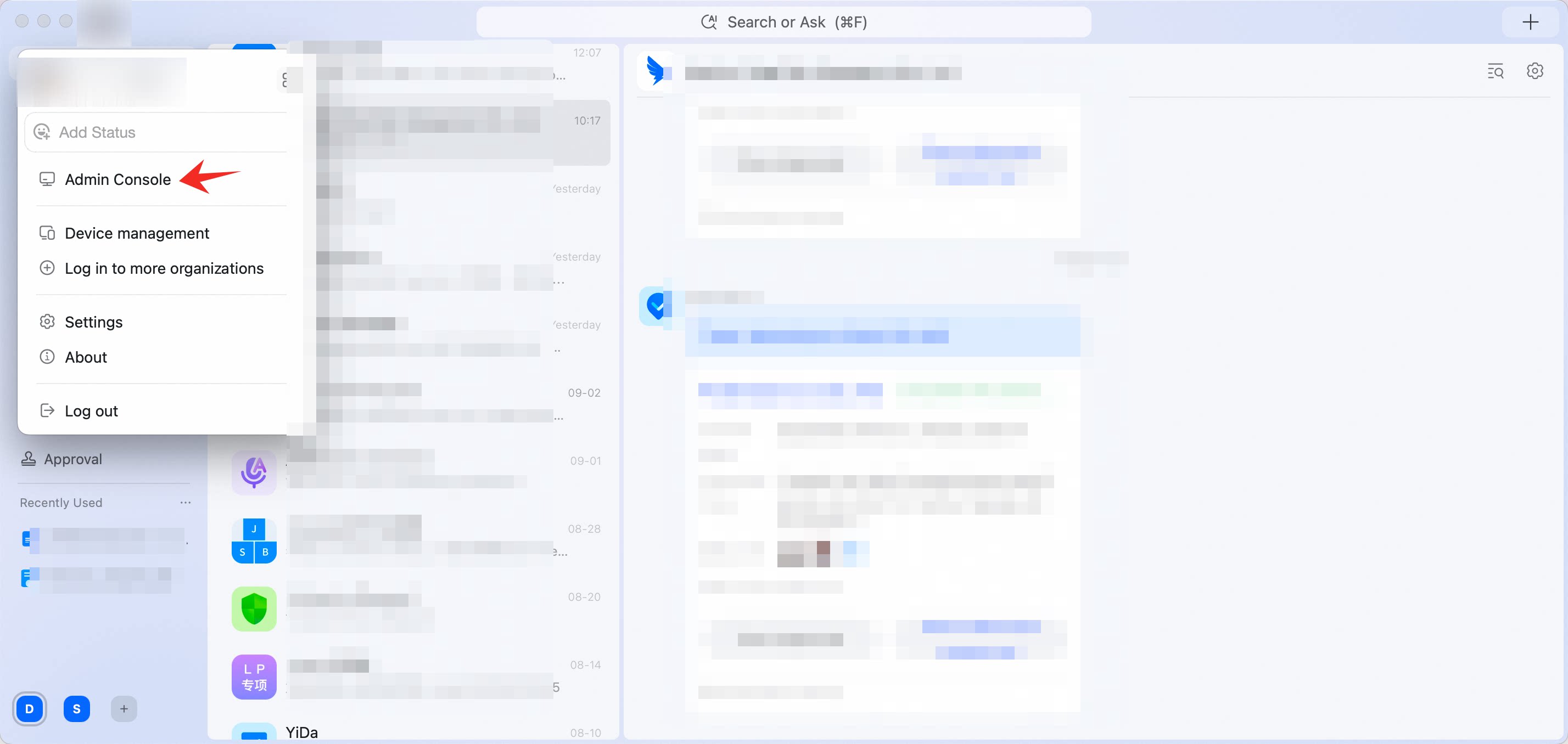
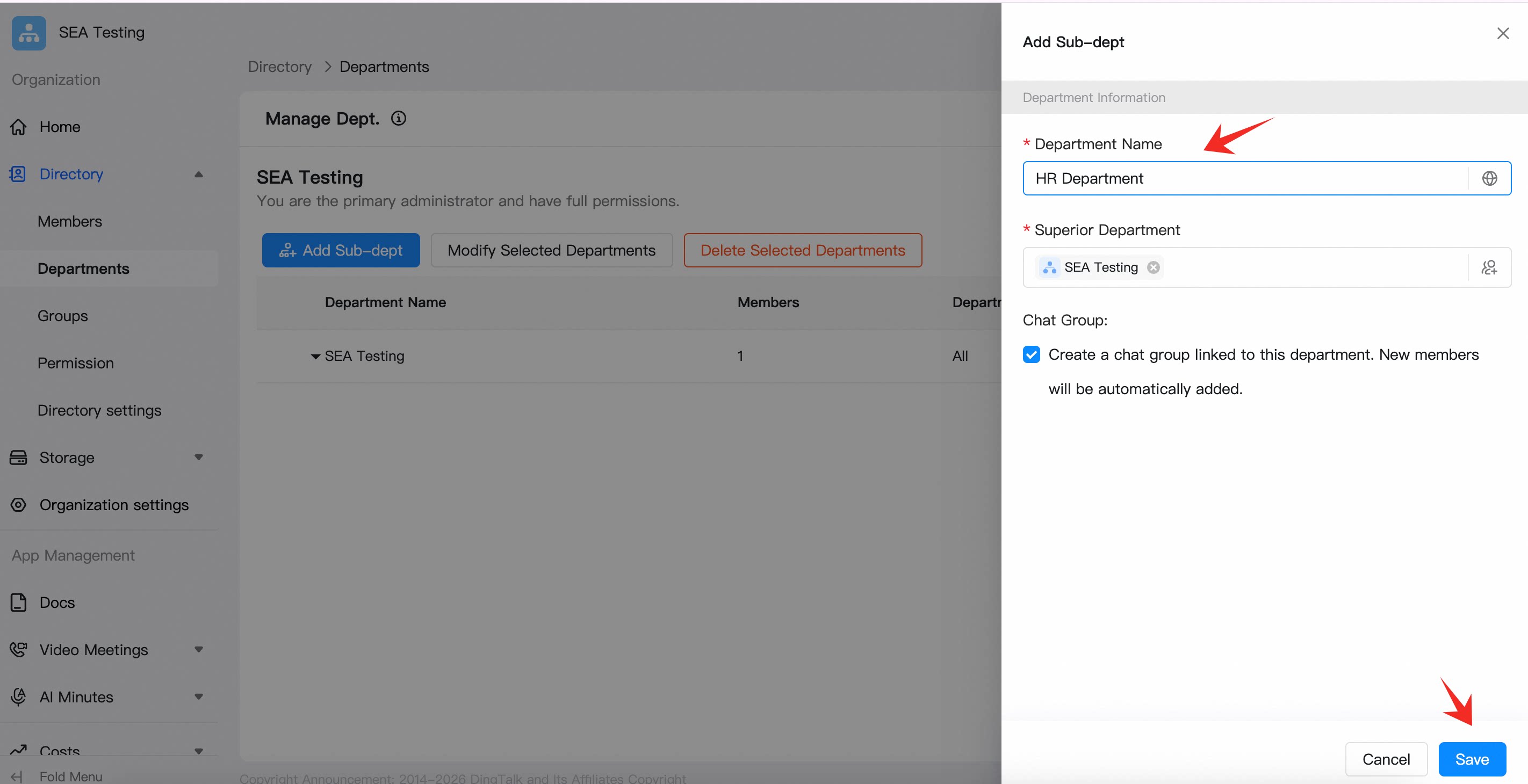
Step 6: Build the department structure
In the Admin Console, open Contacts and create the department structure your POC needs: Admin Console → Contacts → Department Management → Add Department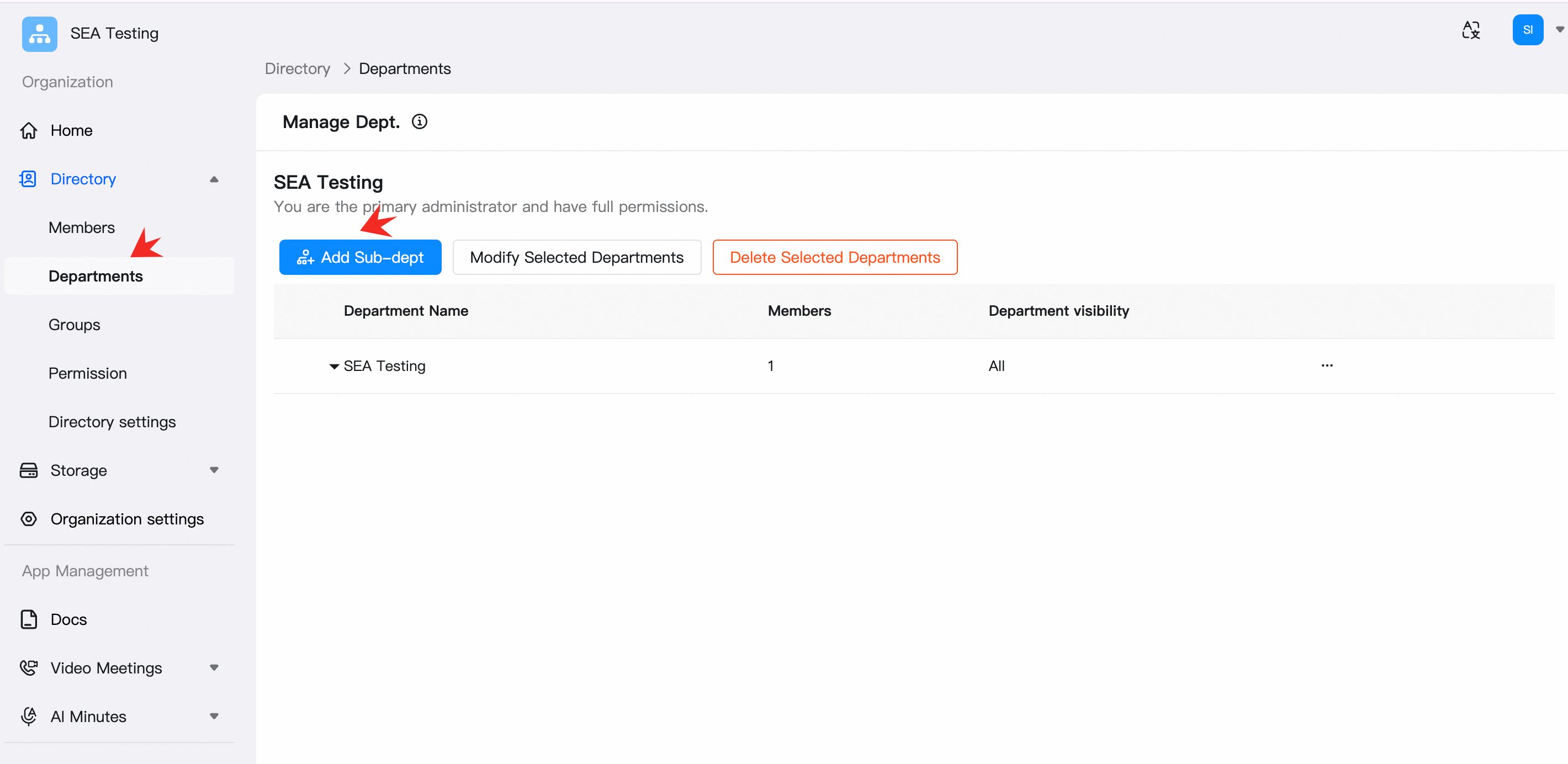
Step 7: Bulk-import enterprise accounts via Excel
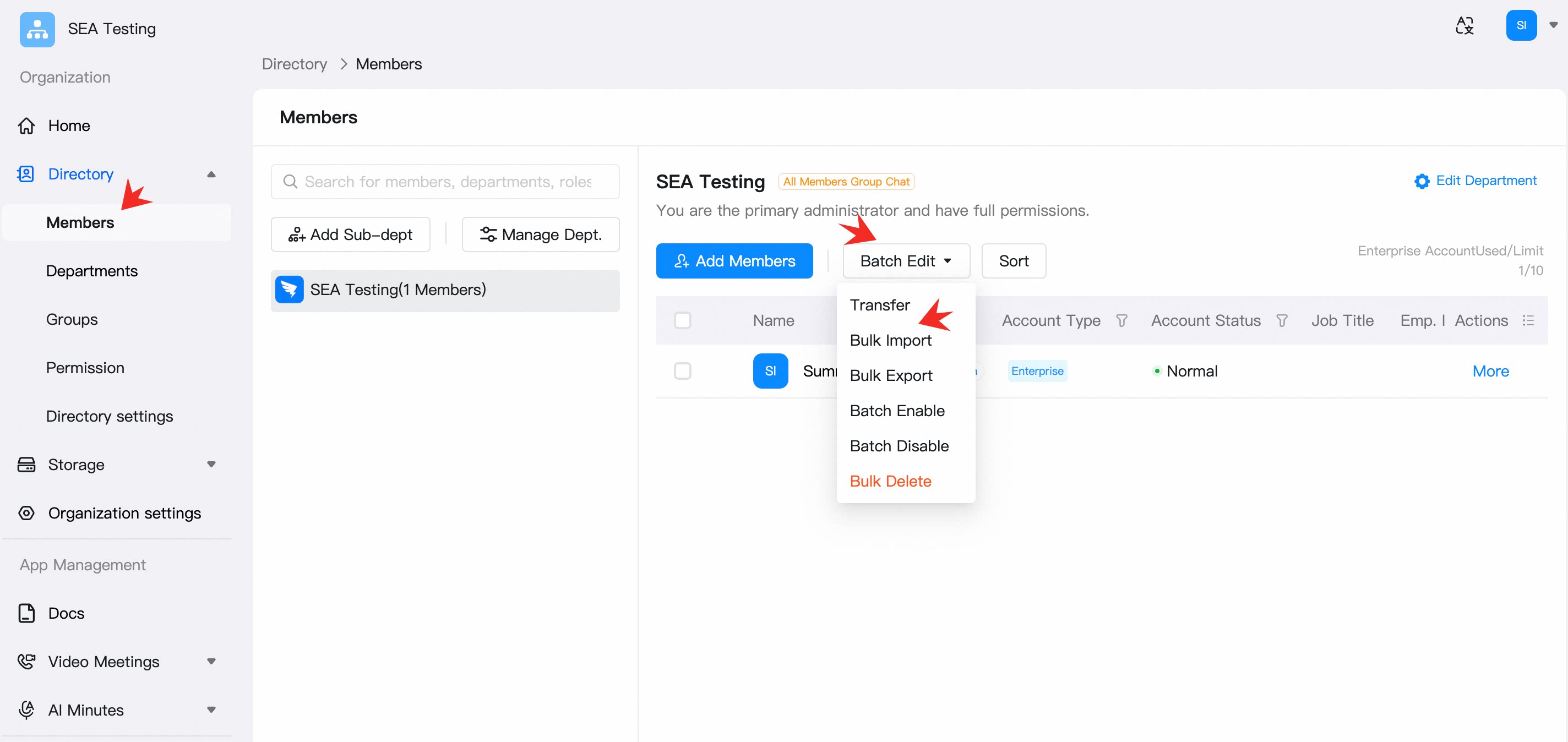
Path: Admin Console → Contacts → Members → Batch Edit → Bulk Import1
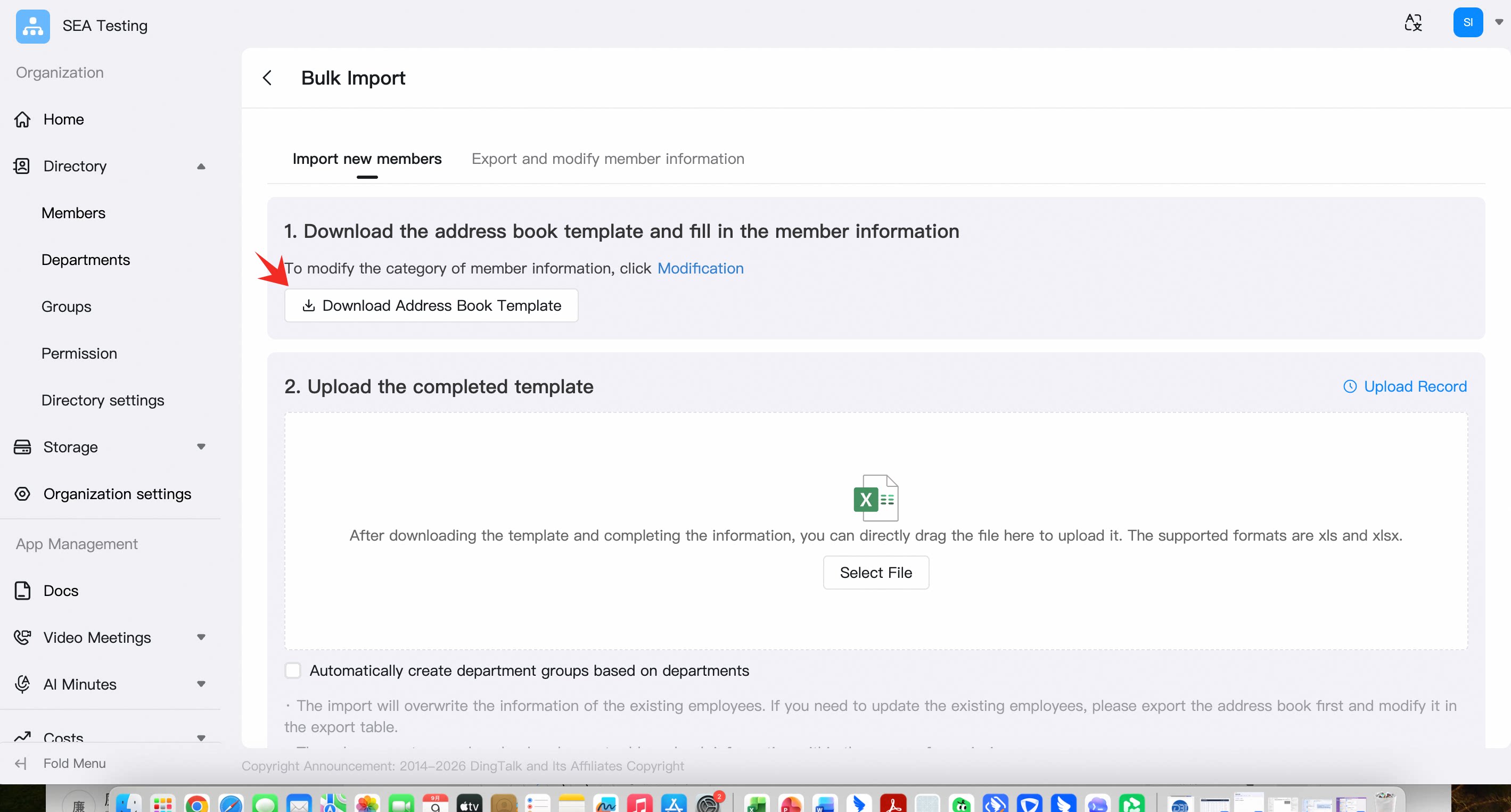
Download the template
Click Download Template and use the standard Excel template downloaded from your current organization.
2
Fill in employee details
Follow the example row and instructions in the template to enter employee details. Delete the example row before uploading.
3
Keep the template structure
Do not change the column names, column order, worksheet structure, or file type.
4
Upload the file
Return to the import page, click Upload File, select your completed Excel file, then click Import.
5
Spot-check the results
After the import completes, spot-check the member list by department, name, email, or phone number.
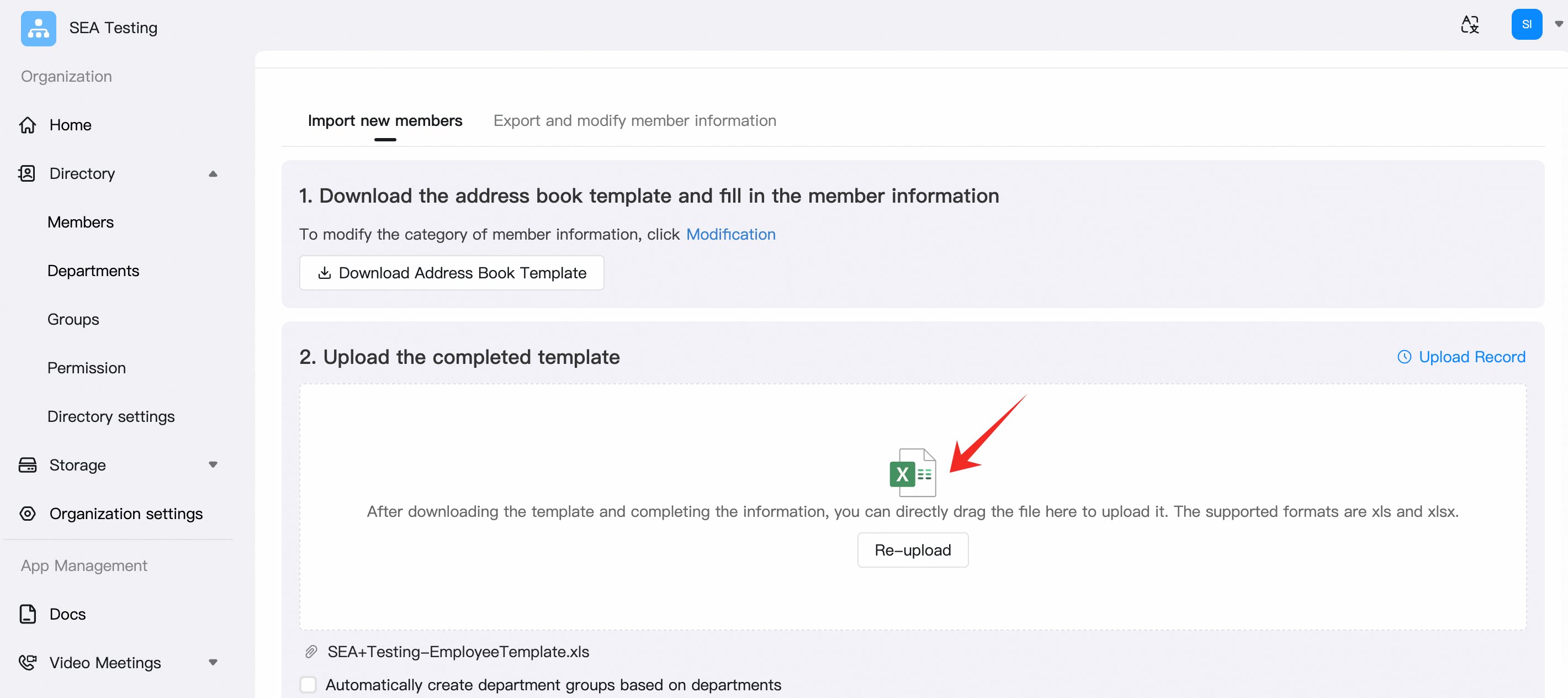
Upload the file and finish the import
Troubleshooting imports
If the upload or import fails:Check the employee record
Check the employee record
Review the relevant employee record based on the on-screen error message.
Verify fields and format
Verify fields and format
Confirm that required fields and formats match the template instructions.
Verify the template structure
Verify the template structure
Confirm you have not changed the template’s column names, column order, or worksheet structure.
Fix and retry
Fix and retry
Fix the incorrect records and upload again.
Handle page issues
Handle page issues
If the page behaves unexpectedly, refresh it, sign in again, or retry with the latest version of Google Chrome.
POC acceptance checklist
Once the steps below are complete, you can start configuring and testing business scenarios for the DingTalk enterprise POC.
- Target plan, region, user count, and trial period are confirmed
- The Super Admin can sign in to both the DingTalk client and the Admin Console
- Organization name, region, time zone, and admin details are accurate
- The department structure required for the POC is built
- Test accounts are successfully imported via Excel and assigned to the correct departments
- At least 3 test users with different roles have completed their first sign-in
- Import errors have been fixed or closed out