Chats
Chats Calendar
 Meetings
 Contacts
 Mail
Mail Docs
Docs Drive
Drive AI Table
 AI Minutes
 Attendance
 Approval
 YiDA
YiDA Admin Console
Administrators must sign in to the Admin Console.
Equity Allocation
In the left navigation pane of the Admin Console, click Video Meetings > Conference Equity Allocation to allocate equity to specific users.Cloud Meeting Room is shared with all employees by default, but can be allocated to specific members.Meeting concurrency is shared with all employees by default. Once switched to authorized members only, only authorized members can use the equity.Meeting duration is shared with all employees by default. Once switched to authorized members only, only authorized members can use the equity.
1
Switch to the Cloud Meeting Room tab
Switch to the Cloud Meeting Room tab. You can choose between Entitlement View or User View to examine the allocation from different perspectives.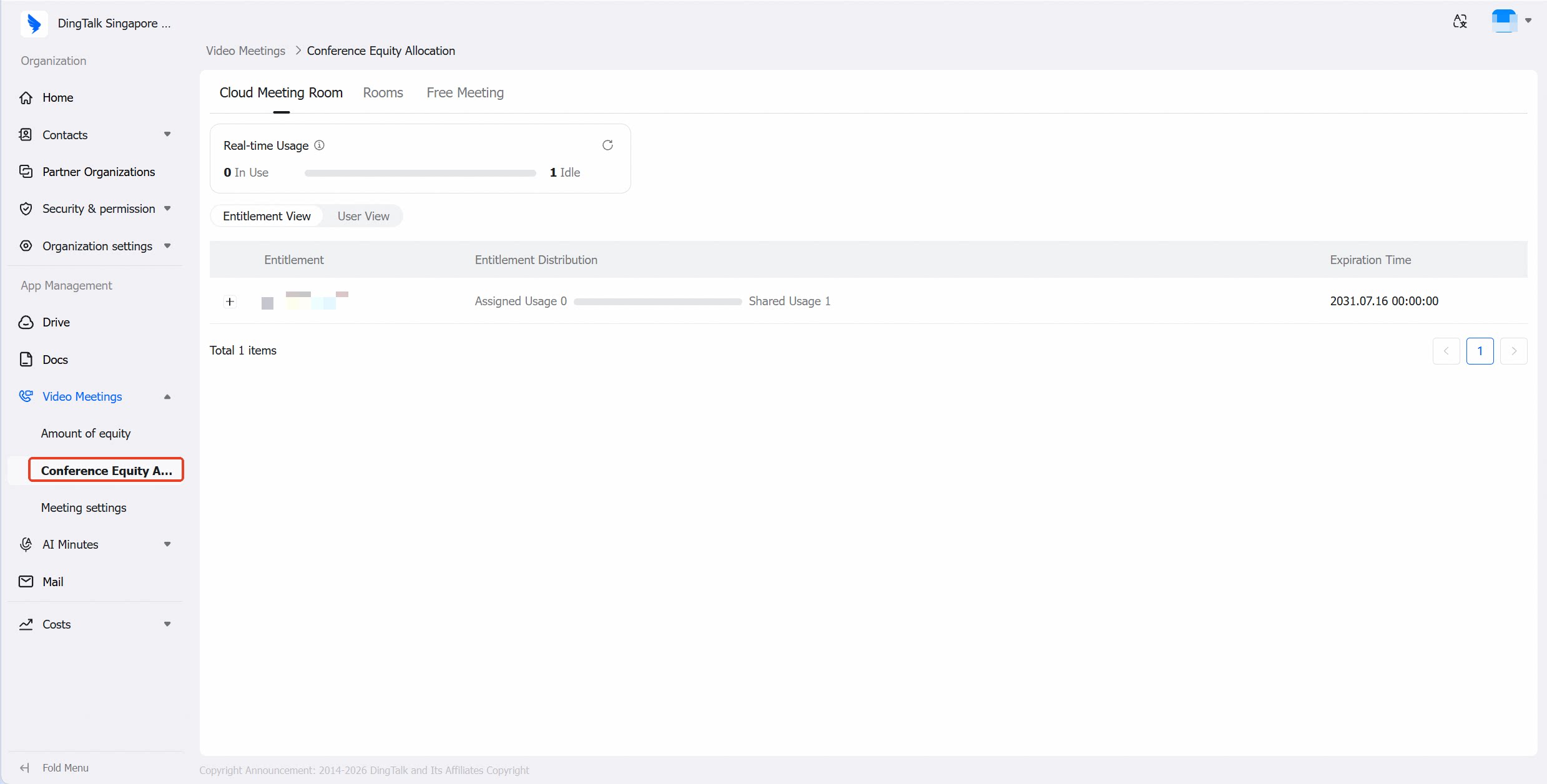
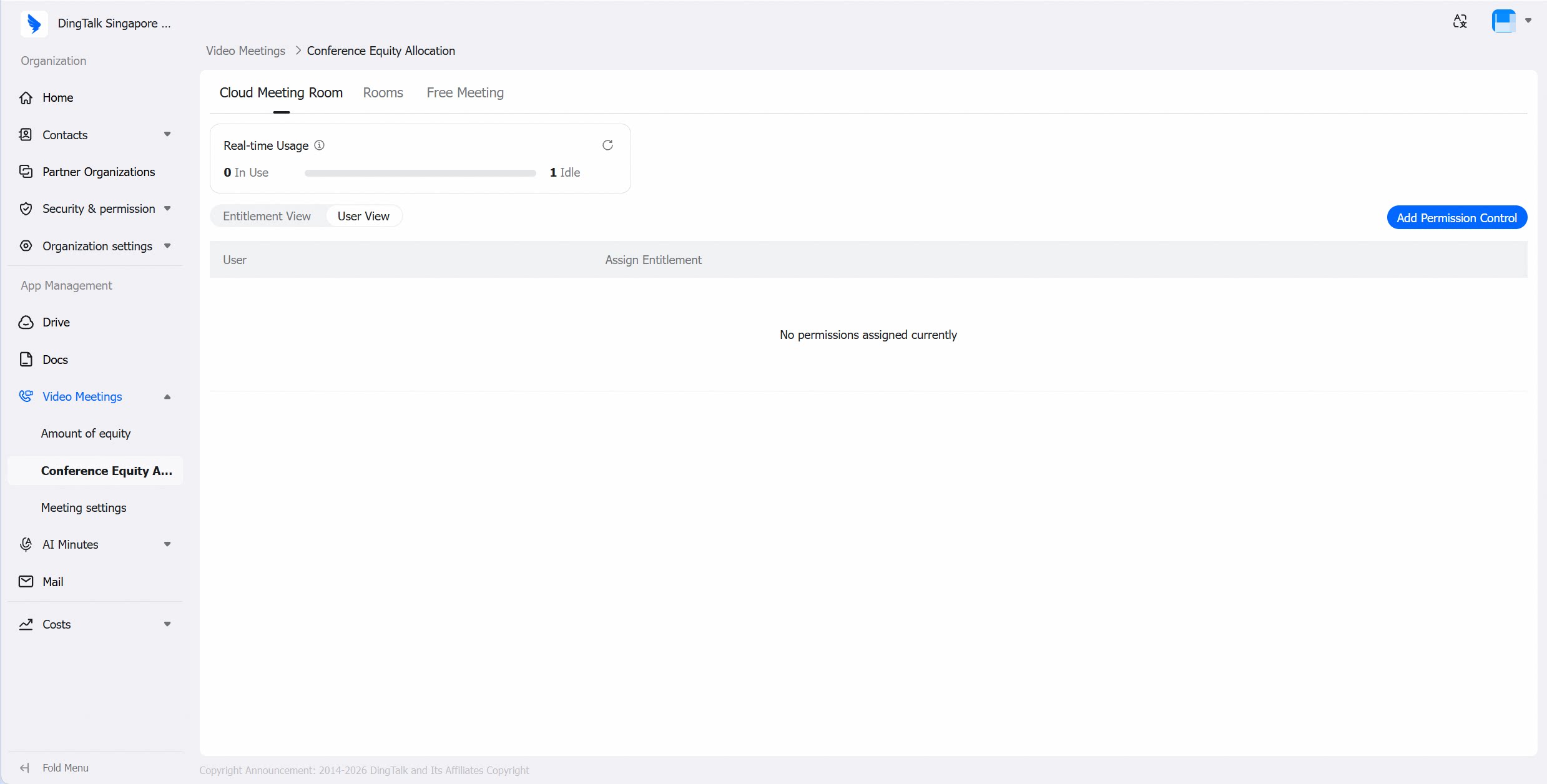
2
Allocate equity to a specific user
To allocate a meeting room equity to a specific user, expand the corresponding meeting room equity, click Modify, then select the user to allocate it to.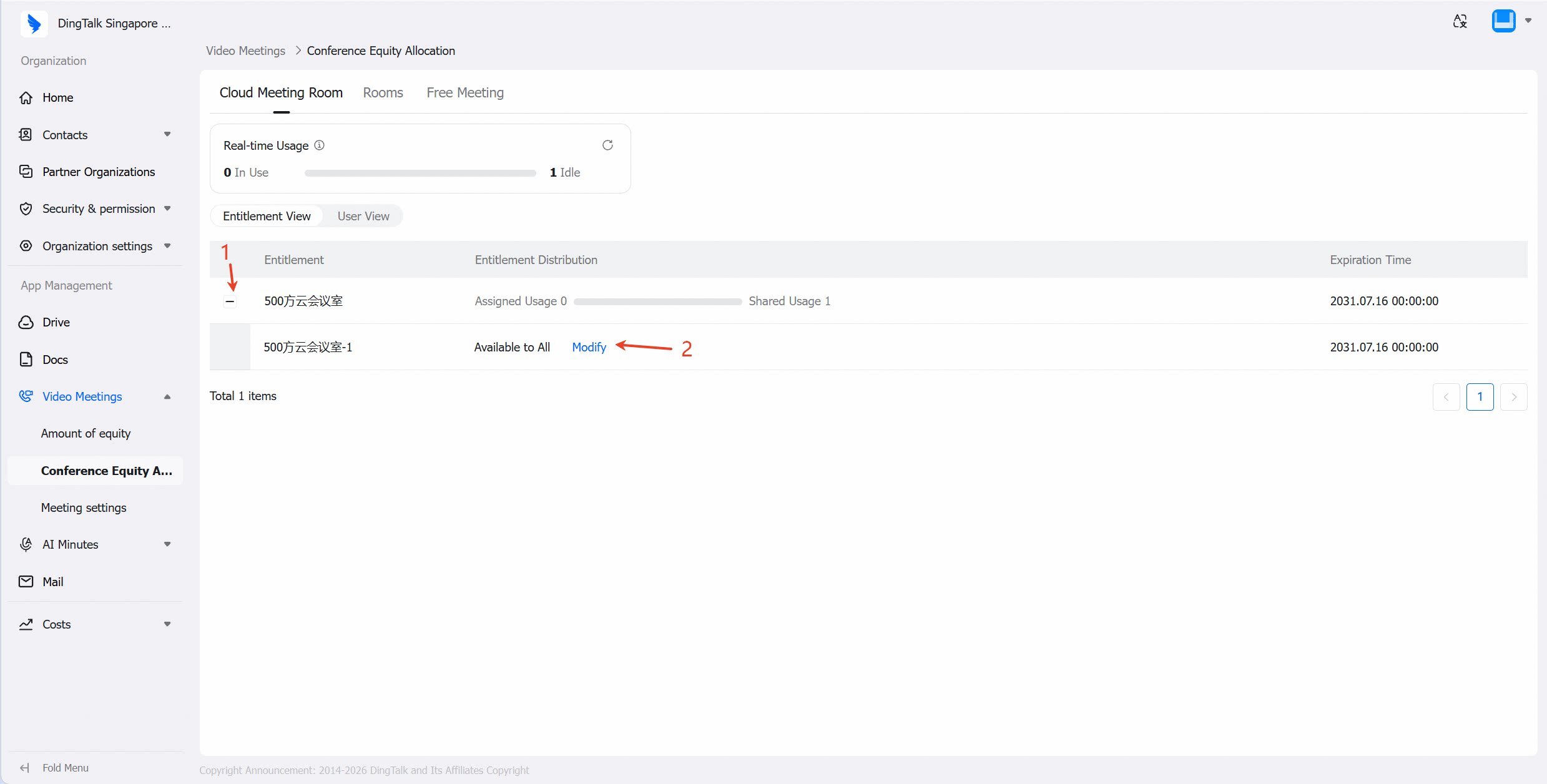
Users will first consume any equity allocated to them by the administrator. When the allocated equity resources are insufficient, they will automatically fall back to the shared equity pool.If a user has access to multiple equity types, the system will prioritize them based on availability in the following order: Cloud Meeting Room first, then Meeting Concurrency, and finally Meeting Duration.
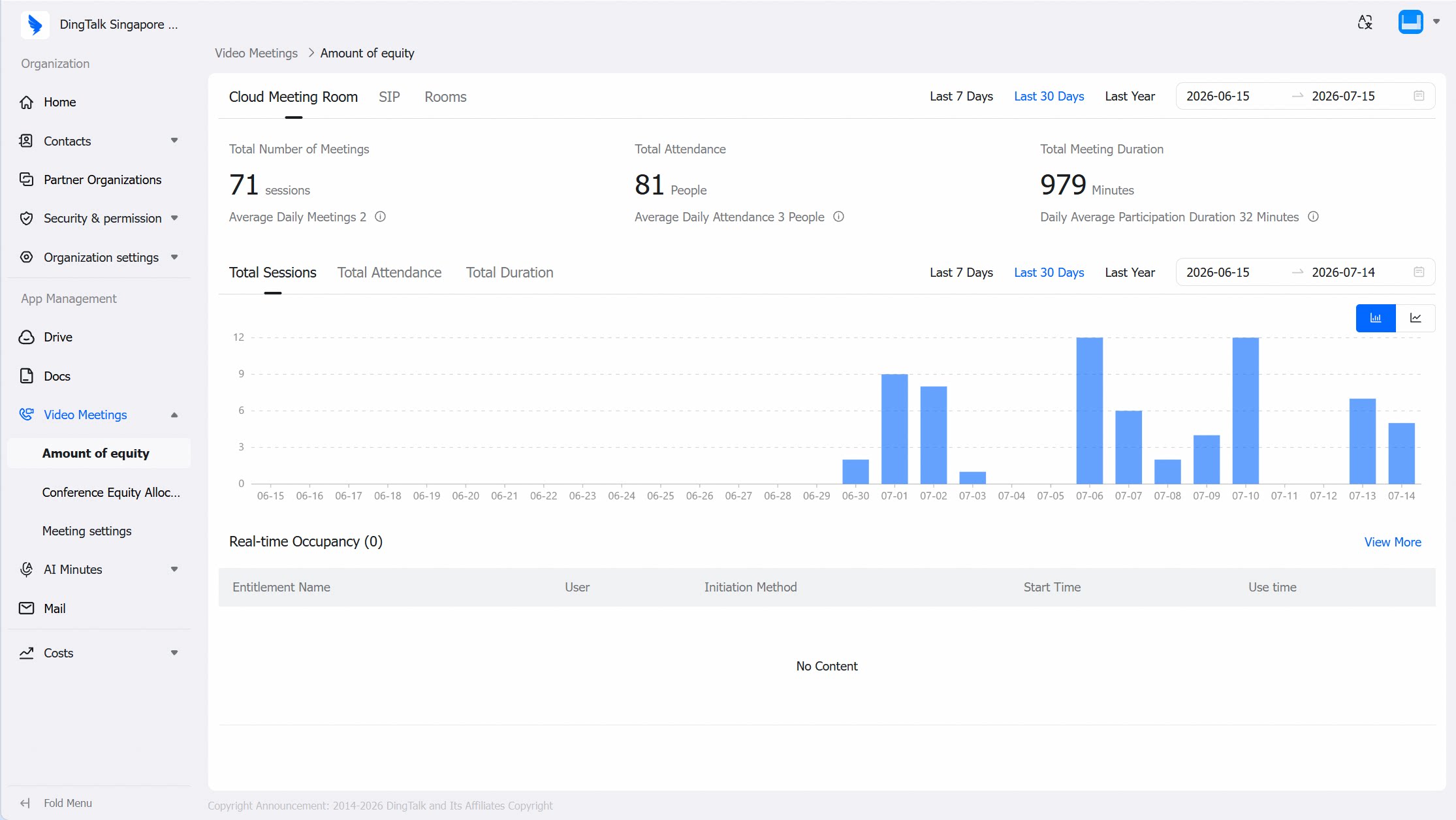
Resource Usage
In the left navigation pane of the Admin Console, click Video Meetings > Amount of equity to view the resource usage of different equity types and monitor real-time resource consumption.