

 Chats
 Calendar
 Meetings
 Contacts
 Mail
 Docs
 Drive
 AI Table
 AI Minutes
 Attendance
 Approval
 YiDA
 Admin Console
Prerequisites
Creator Only
Only the organization creator can see and use the Delete organization option. Regular members cannot delete an organization.
Back Up Your Data
Back up any docs, files, chat history, or other data you need. Deleted data cannot be recovered.
Steps
Open the Deletion Option
1
Open Discover
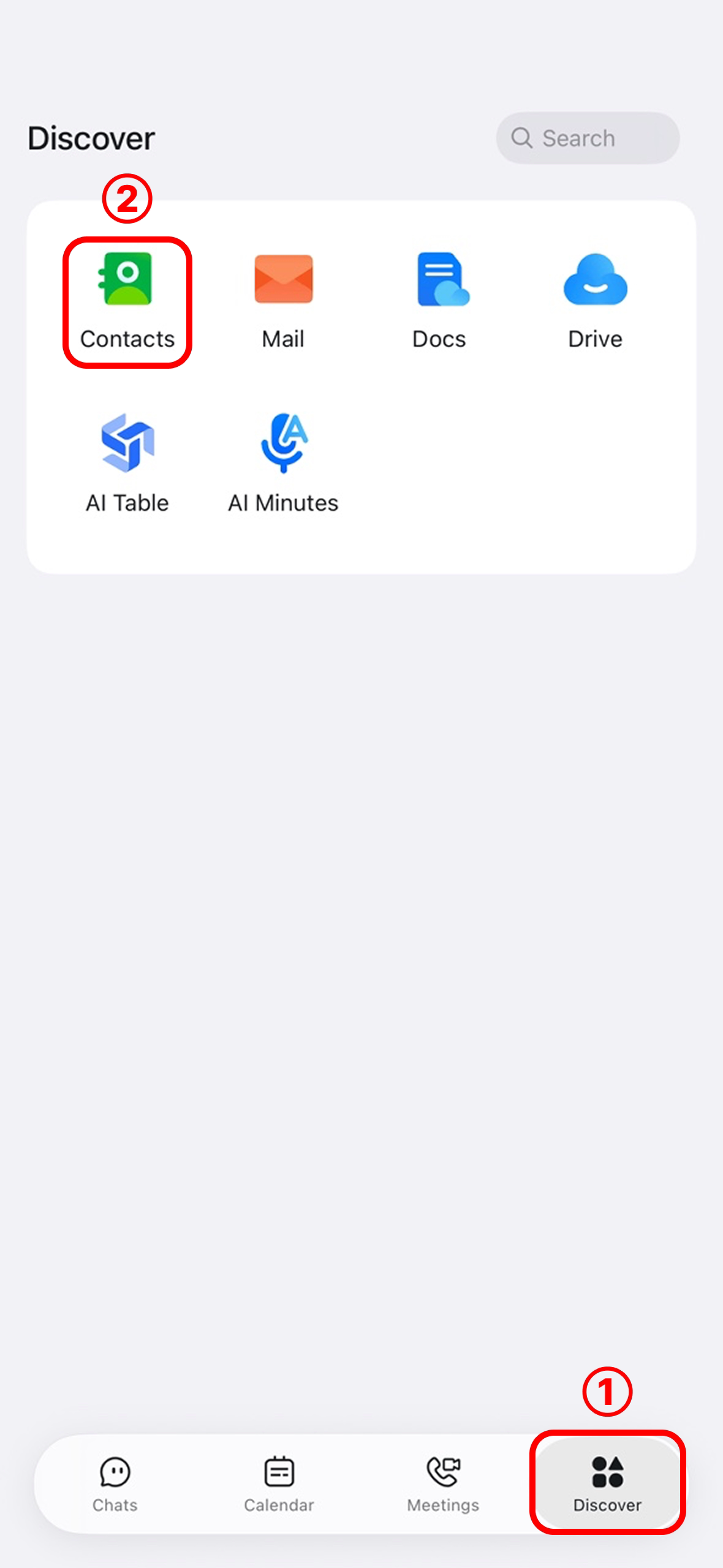
Open DingTalk and tap Discover at the bottom of the screen.
2
Open Contacts
Tap Contacts.
3
Open Organization Details
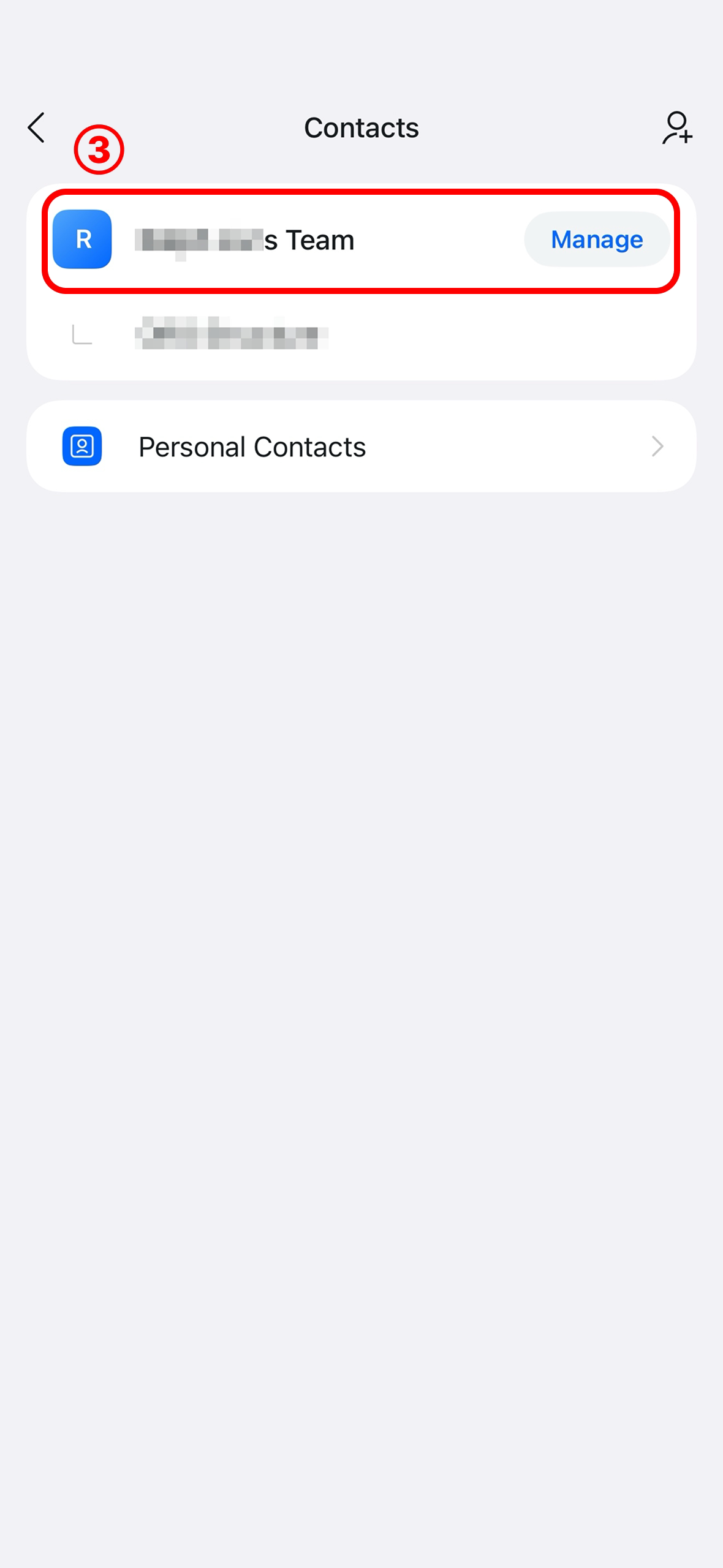
Tap your organization name to open the Organization Information page.
4
Tap Delete Organization
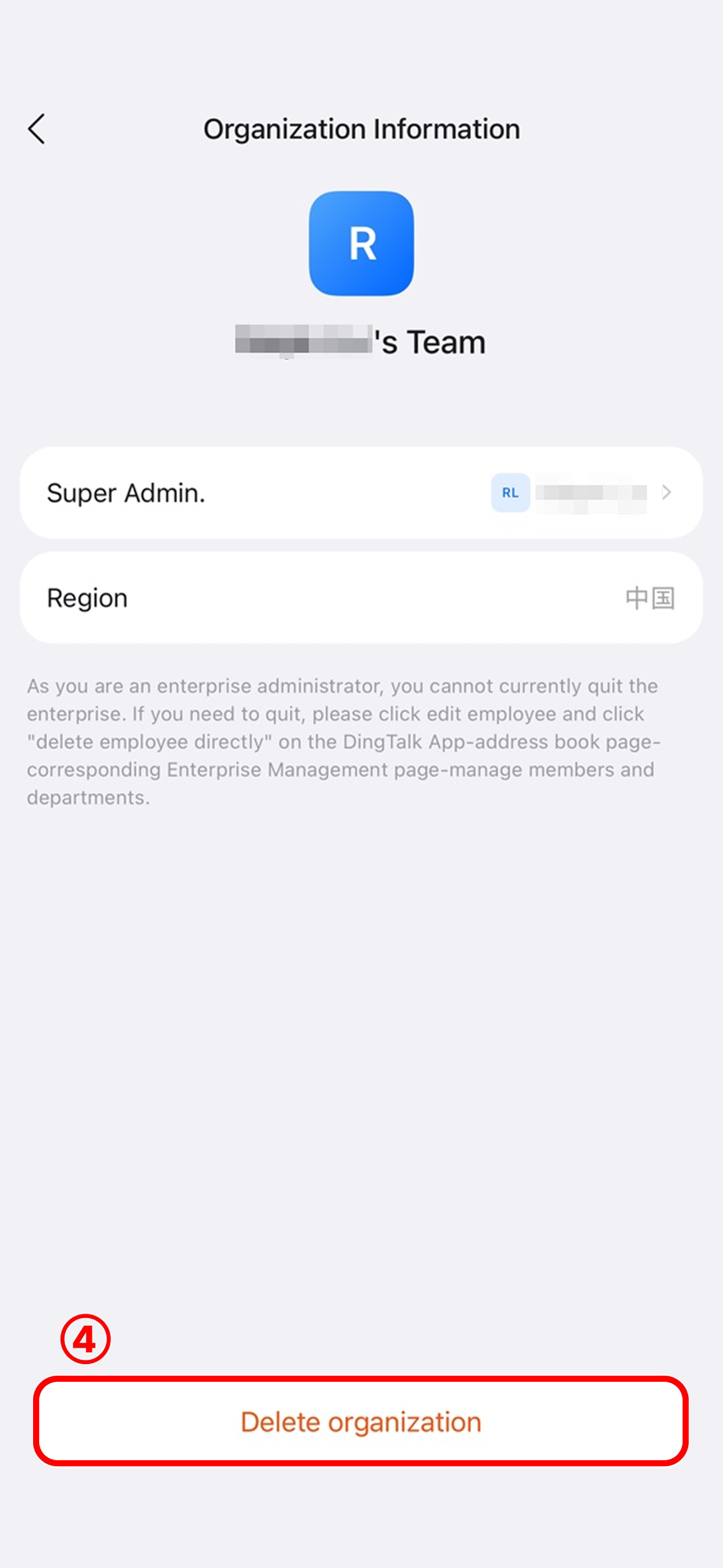
Scroll to the bottom and tap Delete organization.
Confirm and Submit the Request
5
Review What Will Be Deleted
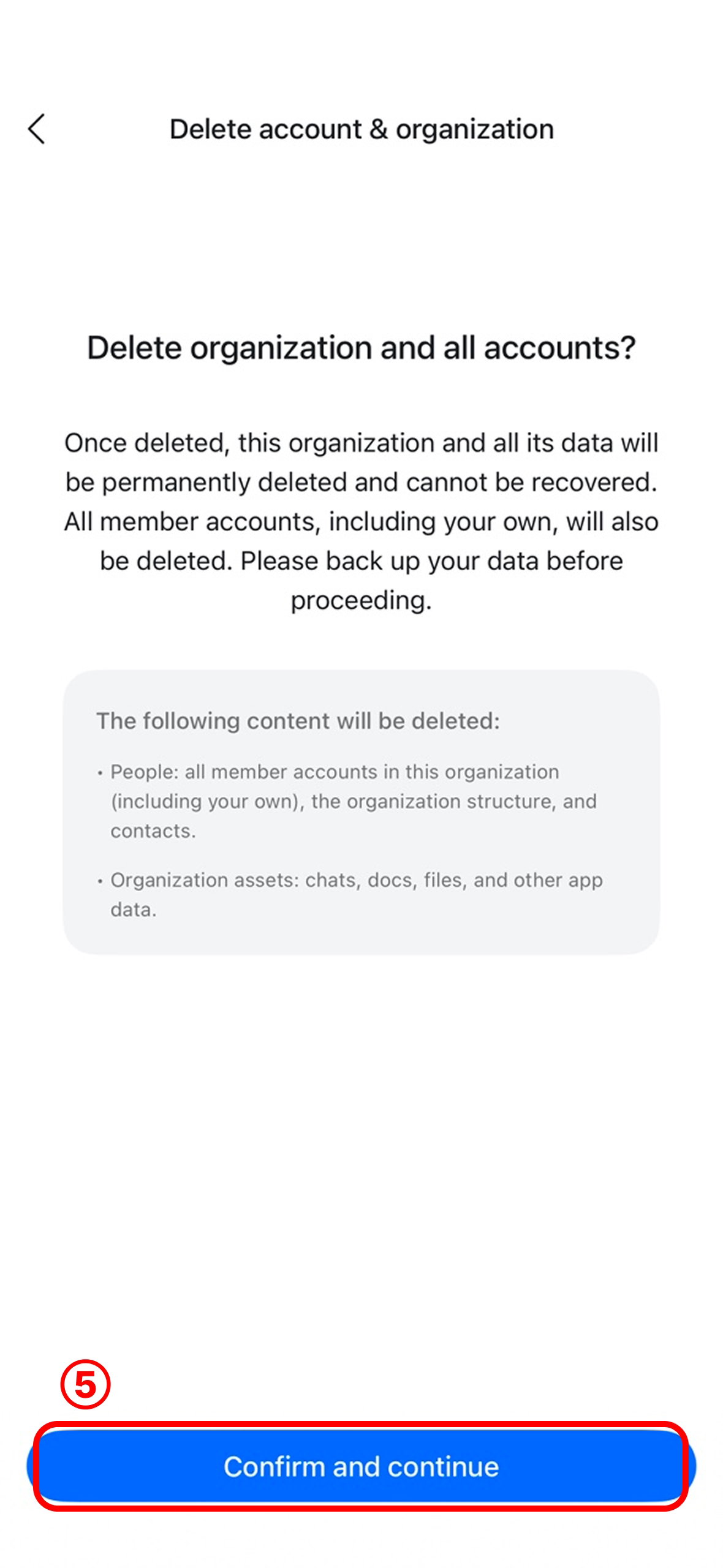
On the Delete organization and all accounts? screen, review what will be deleted, then tap Confirm and continue.
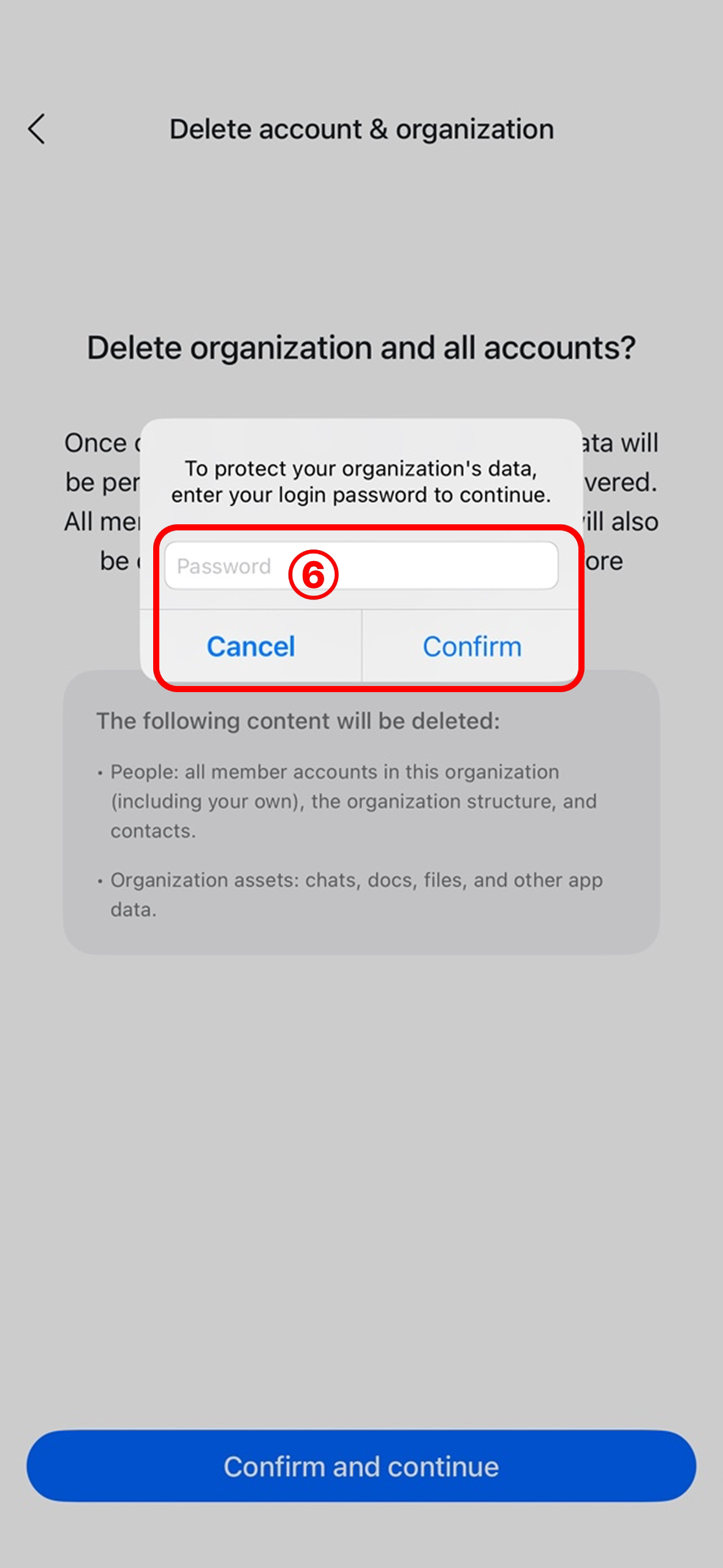
6
Verify Your Login Password
Enter your login password, then tap Confirm.
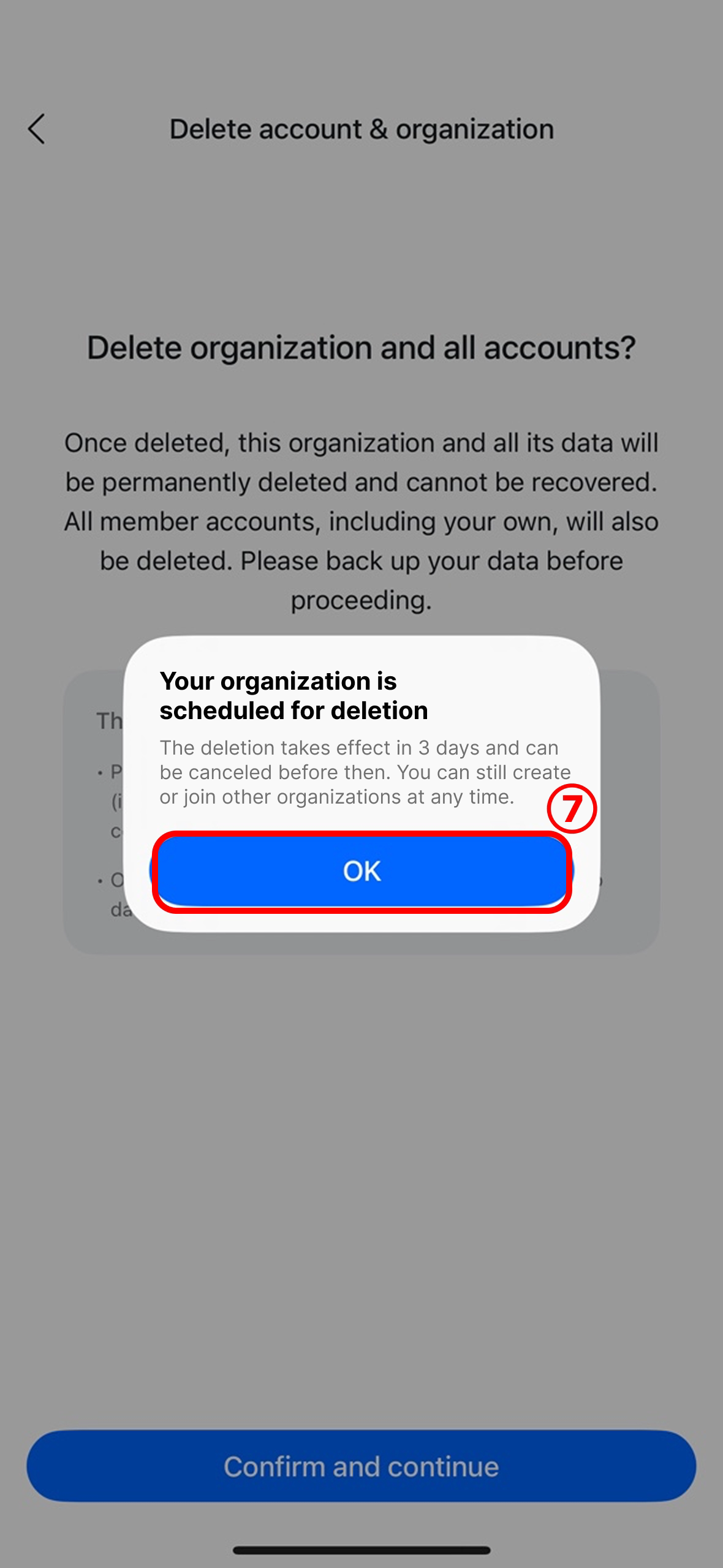
7
Finish
When Your organization is scheduled for deletion appears, tap OK. The deletion takes effect in 3 days unless you cancel it.
What Gets Deleted
Cancel the Deletion
The deletion does not take effect immediately. A 3-day cooling-off period begins when you submit the request, and the system deletes the organization automatically when it ends. During this period, you can cancel the request from either entry:- From Contacts
- From Settings
Go to Contacts > Organization Information, then tap the option to cancel the organization deletion.
FAQ
Can I Delete an Organization if I'm Not the Creator?
Can I Delete an Organization if I'm Not the Creator?
No. The Delete organization option is shown only to the organization creator. Ask the creator to delete it, or have the creator transfer the creator identity first if the creator needs to change.
Can Data Be Recovered After Deletion?
Can Data Be Recovered After Deletion?
No. Once the deletion takes effect, the organization and all its data are permanently deleted. Back up your data before you submit the request.
What if I Change My Mind After Submitting?
What if I Change My Mind After Submitting?
Cancel the request during the 3-day cooling-off period using either entry described in Cancel the Deletion above. After that, it cannot be canceled.
Can I Still Create or Join Other Organizations?
Can I Still Create or Join Other Organizations?
Yes. After deleting an organization, you can still create or join other organizations at any time.