

 Chats
Chats Calendar
 Meetings
 Contacts
 Mail
Mail Docs
Docs Drive
Drive AI Table
 AI Minutes
 Attendance
 Approval
 YiDA
YiDA Admin Console
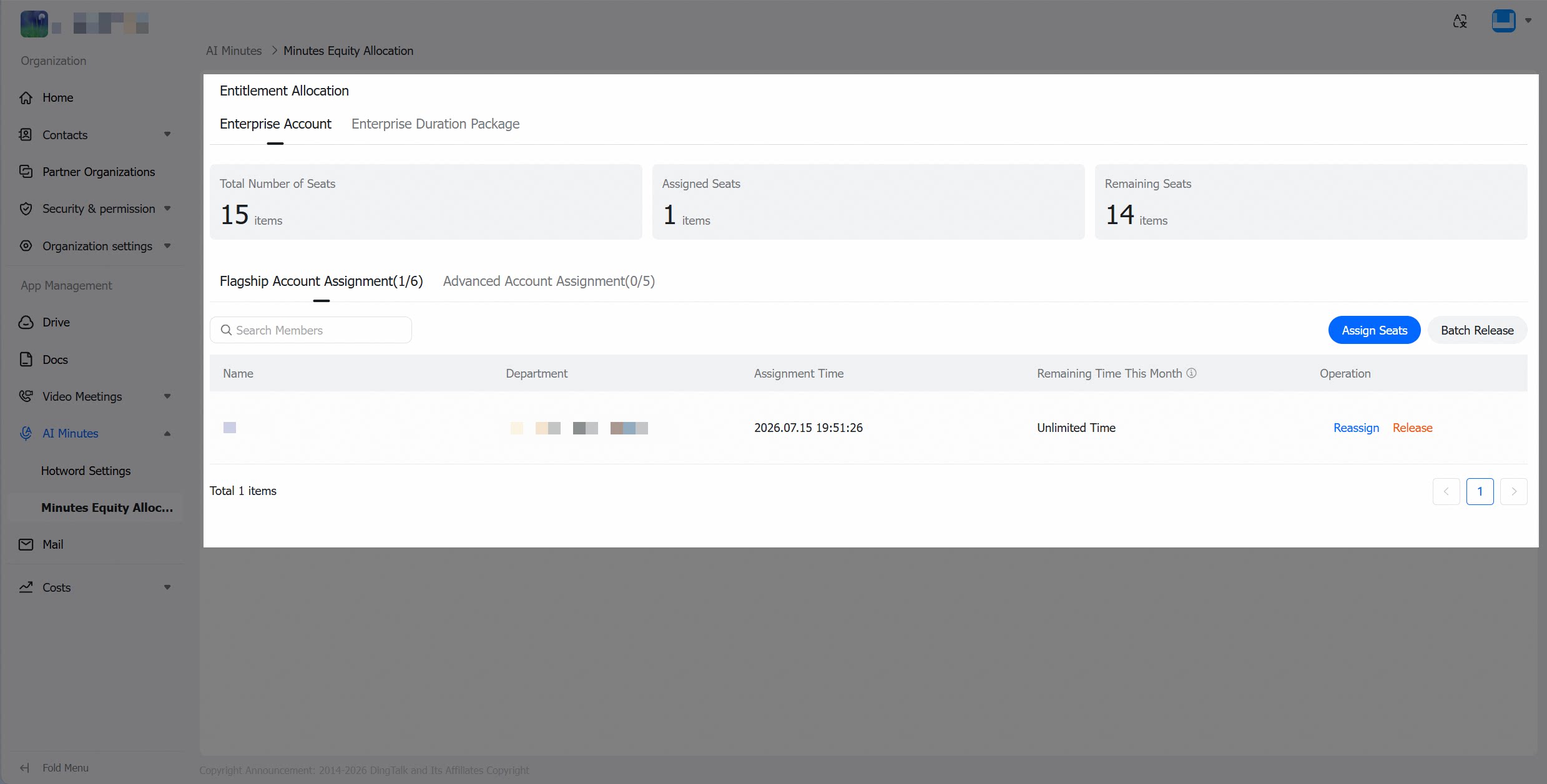
Allocate Enterprise Accounts
- After an enterprise administrator purchases accounts, one account is automatically allocated to the purchaser (if the purchaser already has an account, no additional account will be allocated).
- Enterprise accounts can be allocated by seat. One account can only be assigned to one seat. To change the user, the seat must be reassigned.
Allocate Enterprise Duration Packages
- Enterprise duration packages are shared with all employees by default. Administrators can also allocate usage permissions so that only authorized members can consume enterprise duration package resources.
- By setting usage limits, you can flexibly allocate resources to specific members, departments, or user groups.
- Member limit: Applies to an individual member.
- Dynamic user group limit: All members within the group share this limit.
- Department limit: The department and its sub-departments share this limit.
1
Enter the configuration page
In the Admin Console navigation pane, go to AI Minutes > Minutes Equity Allocation. On this page, first turn off the All Employees toggle to enable granular allocation.
2
Set usage limits
In the member list, click Limit in the Actions column to open the Usage Limit settings window.
3
Configure rule details
- Enable limit: Turn on the Limit Usage toggle.
- Usage limit: Enter the allowed number of minutes (minimum 1 minute).
- Limit cycle:
- Monthly: Cycles by calendar month. After modifying the limit, the usage already consumed this month will be counted toward the new limit.
- Custom: Select a start and end date (only today or later). After modifying the limit, usage will restart from the new date.
Once the limit cycle ends, the limit expires and the target will revert to unlimited status.
Priority Rules
When a member is covered by multiple rules simultaneously (e.g., belonging to both Department A and Dynamic Group B), the system determines the final available quota based on the following priorities:- Type priority: Member usage limit > Dynamic user group limit > Department limit.
- Same-level conflicts:
- Multiple dynamic user groups: If a member belongs to multiple dynamic groups with limits, the highest limit value applies.
- Multiple departments:
- If at different hierarchy levels, the higher-level department’s limit takes precedence (e.g., a second-level department overrides a third-level department).
- If at the same hierarchy level, the highest limit value applies.
Member Equity Usage
Individual users can view their current available equity quota via My Equity on the AI Minutes app home page.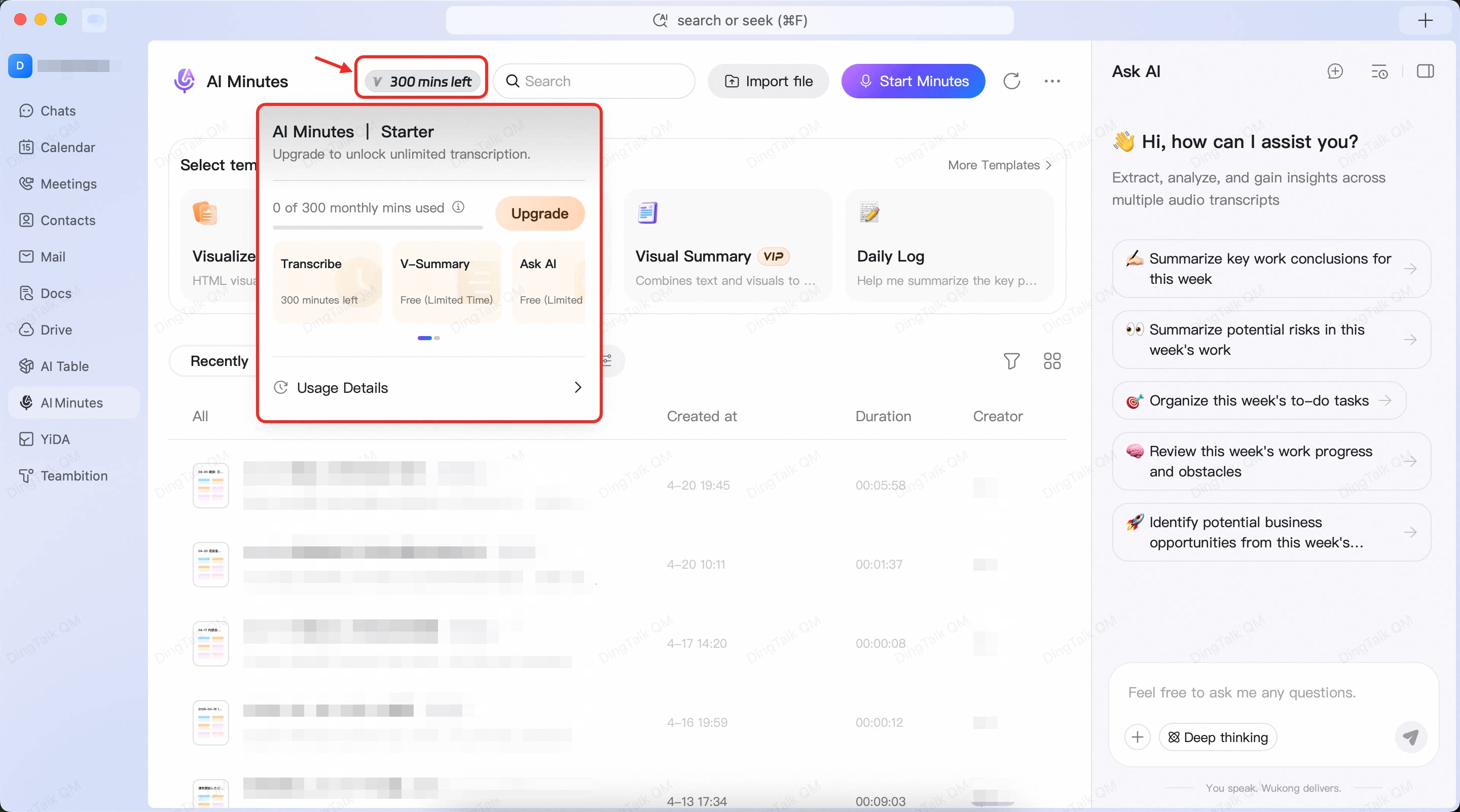
Equity Usage Rules by Scenario
- Offline transcription (initiating recording, uploading audio/video, smart hardware recording transcription): Consumes the equity quota of the initiator/uploader.
- Video meeting to transcription (Video Meetings cloud recording, in-meeting AI Minutes): Consumes the equity quota of the meeting initiator.
- Live streaming to transcription (live replay): Consumes the equity quota of the live streaming initiator.
- Rooms-initiated transcription: Consumes the equity quota of the transcription recipient. If the recipient has no equity, only audio recording is available — no transcribed text content.
Combined Equity Usage Rules
The system deducts quotas based on the principles of tiered consumption, scenario priority, and automatic switching:- Tiered consumption: Deducts in the order of “free quota → paid equity.”
- Scenario matching: Enterprise scenarios prioritize enterprise quota; personal scenarios prioritize personal quota.
- Automatic switching: When the primary quota pool is exhausted, the system automatically switches to the other quota pool to continue consumption, ensuring uninterrupted transcription.
- Fully exhausted: When all quotas are depleted, transcription stops but recording continues. Transcription resumes once equity is replenished.
Examples
- Enterprise transcription scenario: Free quota → Enterprise account seat → Enterprise duration package → Switch to personal paid equity
- Personal transcription scenario: Free quota → Personal membership → Switch to enterprise paid equity