

 Chats
Chats Calendar
 Meetings
 Contacts
 Mail
Mail Docs
Docs Drive
Drive AI Table
 AI Minutes
 Attendance
 Approval
 YiDA
YiDA Admin Console
II. User Guide
1. Admin Console Navigation
In the left navigation pane, go to Security & permission > Security > Data Protection > Global Visible Watermark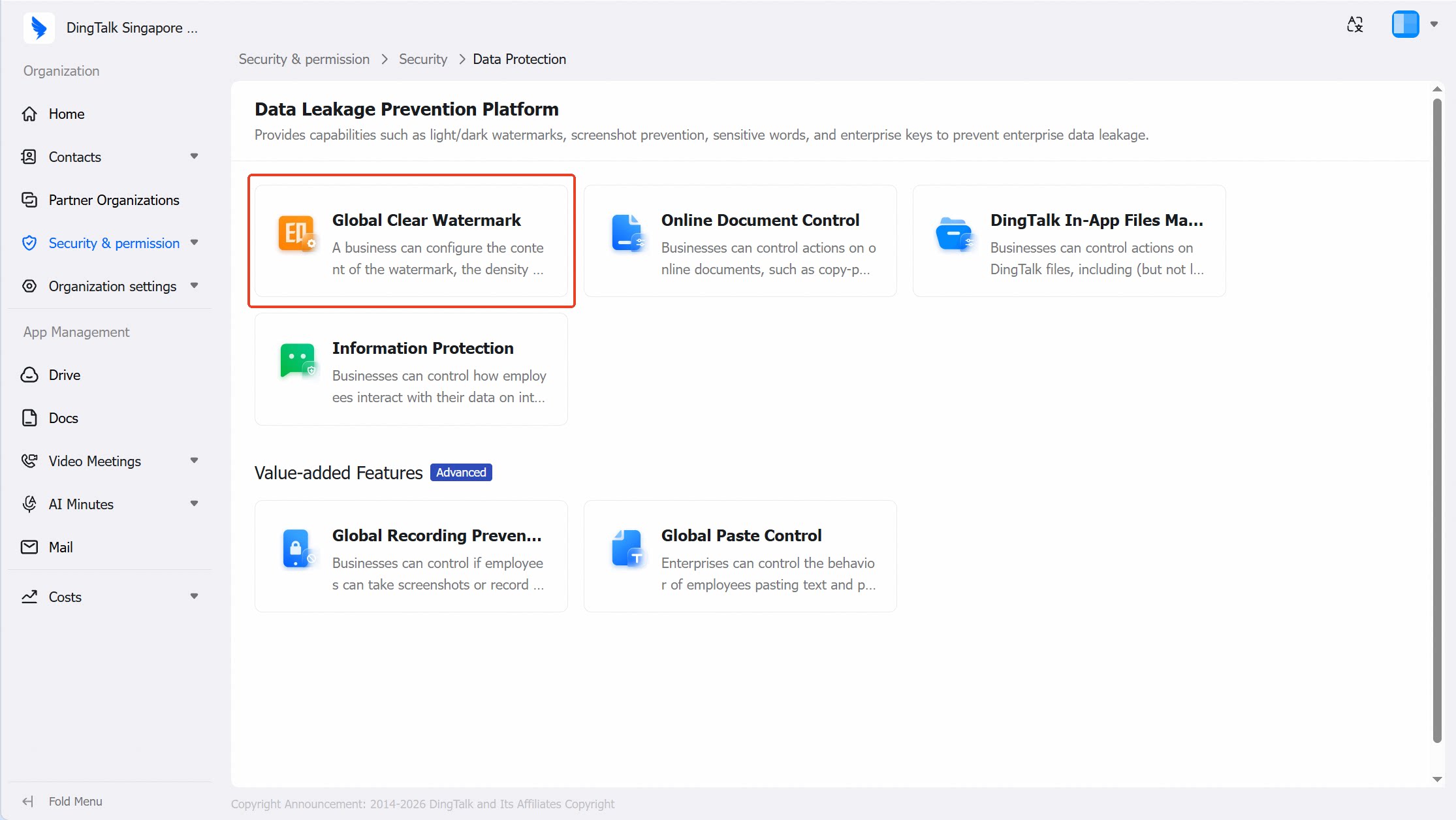
2. Admin Interface and Employee-Side Effects
- Admin Interface
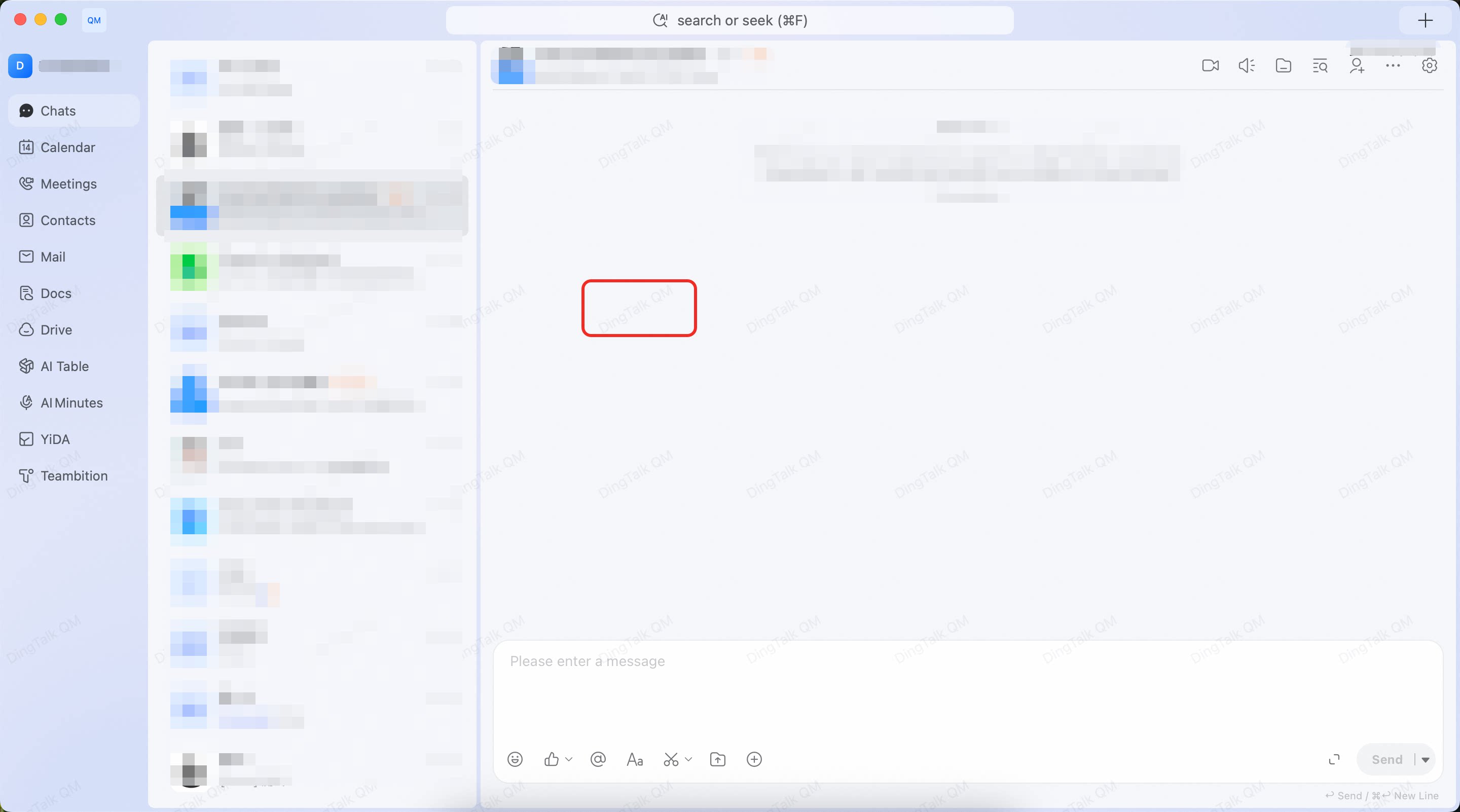
- Employee Interface
Supports configuration of:
1) Watermark content: App name, employee name, last four digits of phone number, timestamp, employee ID, and custom fields.
2) Watermark color: Adjustable from light to dark via slider.
3) Watermark density: Sparse, moderate, or dense.
4) Watermark angle: Integer values from -90° to +90°.
5) Watermark size: Adjustable from small to large via slider.
6) Supported clients: Toggle enforcement for desktop (Windows + Mac) and mobile (Android + iOS) separately.
7) Applicable scope: All employees, specific employees only, or all employees except specific ones.
Administrators can also enhance the watermark effect to display it on interactive cards within chat conversations.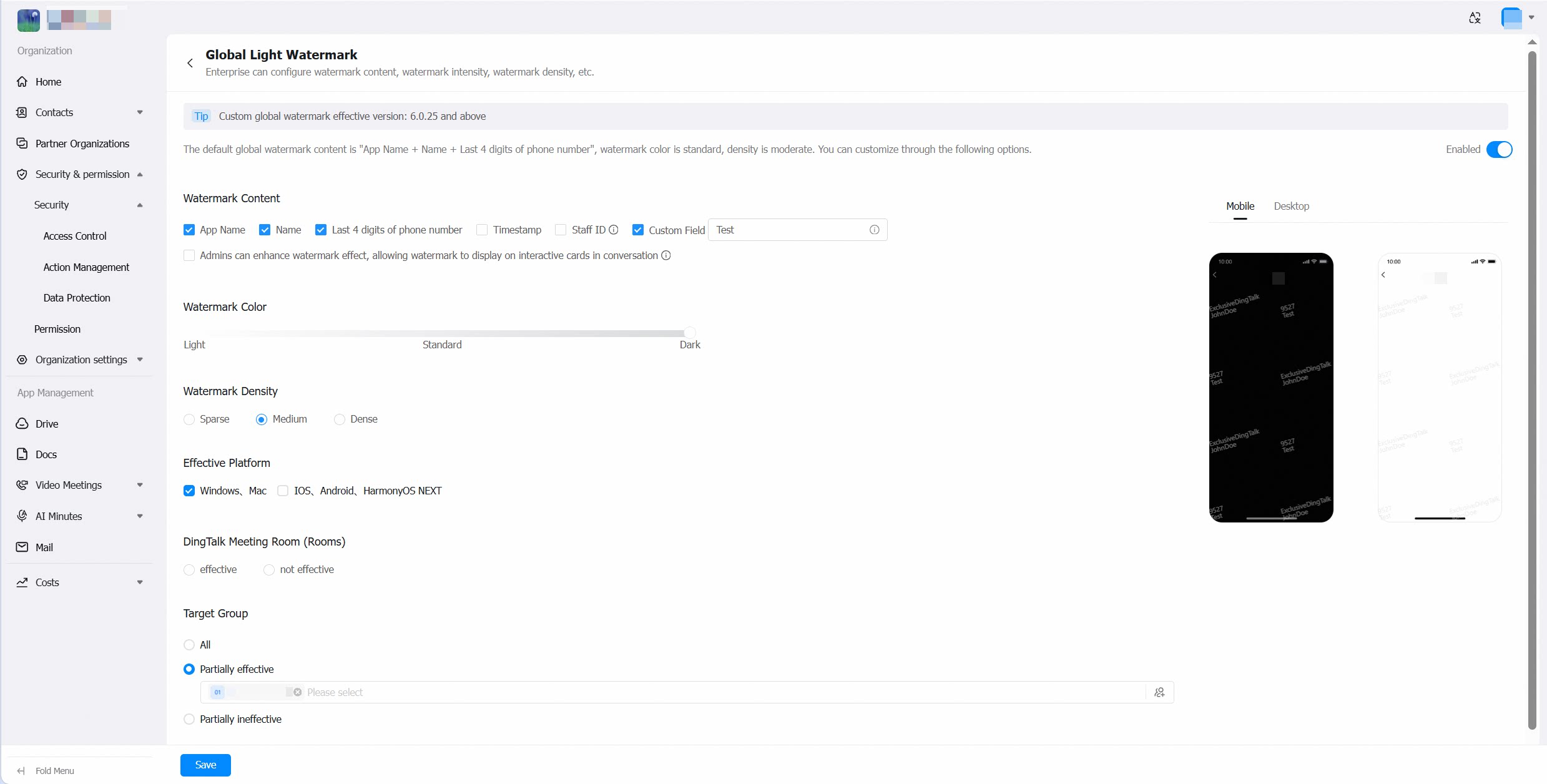
1) Watermark content: App name, employee name, last four digits of phone number, timestamp, employee ID, and custom fields.
2) Watermark color: Adjustable from light to dark via slider.
3) Watermark density: Sparse, moderate, or dense.
4) Watermark angle: Integer values from -90° to +90°.
5) Watermark size: Adjustable from small to large via slider.
6) Supported clients: Toggle enforcement for desktop (Windows + Mac) and mobile (Android + iOS) separately.
7) Applicable scope: All employees, specific employees only, or all employees except specific ones.
Administrators can also enhance the watermark effect to display it on interactive cards within chat conversations.
III. Q&A
What is the coverage scope of Global Visible Watermark?
What is the coverage scope of Global Visible Watermark?
A: Global Visible Watermark covers all applications opened within the DingTalk client (the list below includes major applications but is not exhaustive):
- IM
- Contacts
- Live Streaming
- Video Conferencing
- Files | Documents
- Workspace apps (opened within the DingTalk client)
- DingTalk Rooms screen-sharing devices
If the administrator turns off Global Visible Watermark, will the previously configured Contacts watermark also be disabled?
If the administrator turns off Global Visible Watermark, will the previously configured Contacts watermark also be disabled?
A:
- When Global Visible Watermark is on: It overrides any individually configured watermarks in other applications, following the global watermark settings.
- When Global Visible Watermark is off: Any watermarks that were individually configured in other applications will remain active (turning off Global Visible Watermark does not affect them).
Do exported documents, images, and other files have watermarks?
Do exported documents, images, and other files have watermarks?
A: No. Global Visible Watermark is an in-app foreground watermark, not a content watermark.