Chats
Chats Calendar
 Meetings
 Contacts
 Mail
Mail Docs
Docs Drive
Drive AI Table
 AI Minutes
 Attendance
 Approval
 YiDA
YiDA Admin Console
Admin Console Navigation
In the left navigation pane, go to Organization settings > App Customization > App Packaging > Packaging Material Management.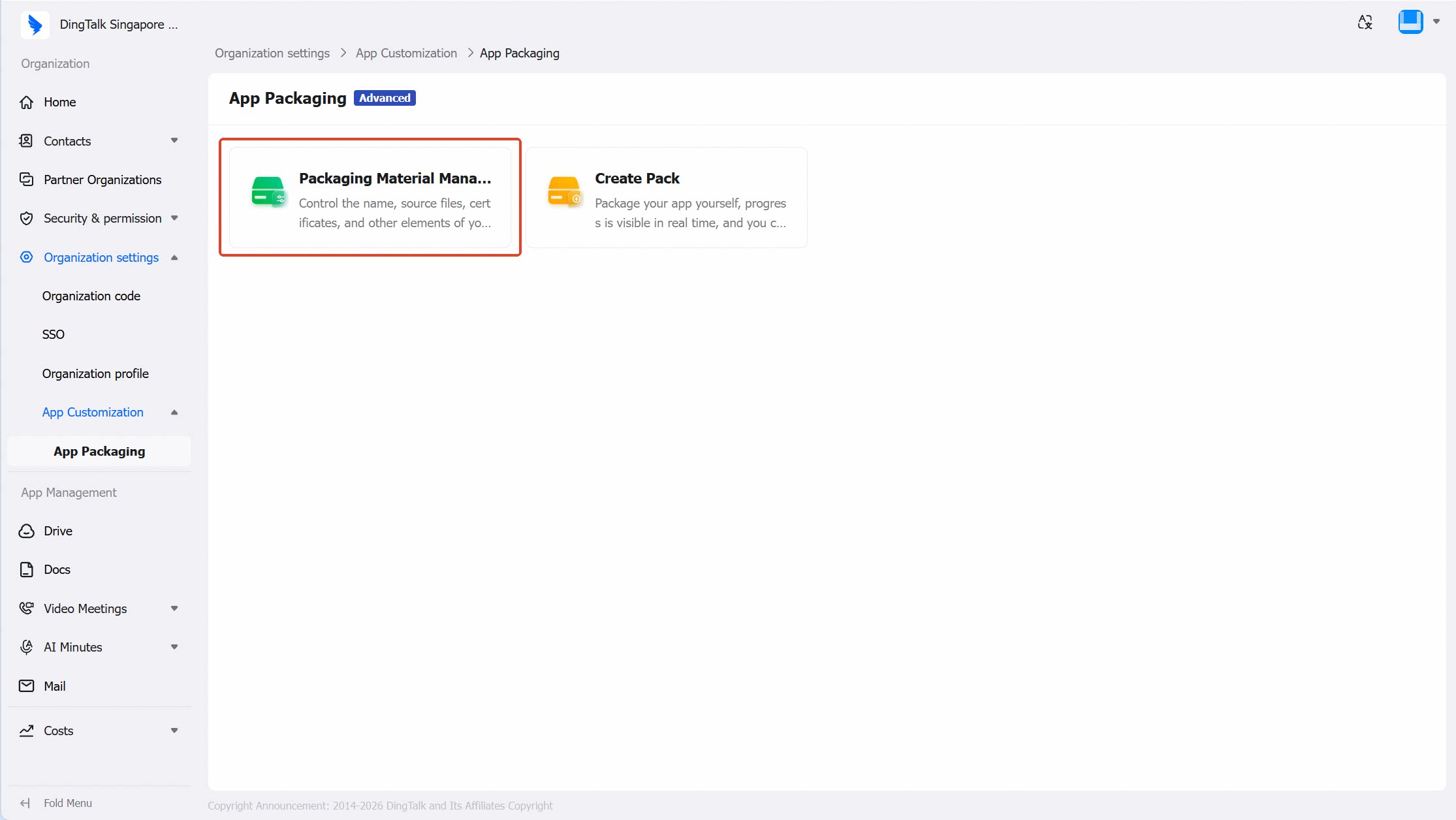
Prerequisites
Package Name Confirmation
The customer needs to confirm and provide the following information:Asset Creation and Application
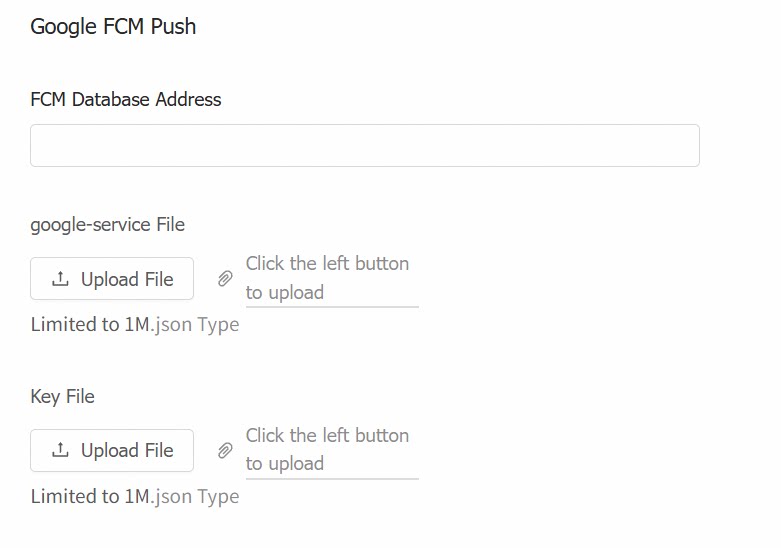
Android Push Key Application: 《FCM Push Notification Setup Guide》
Asset Upload
Basic Information Upload
1
Asset upload
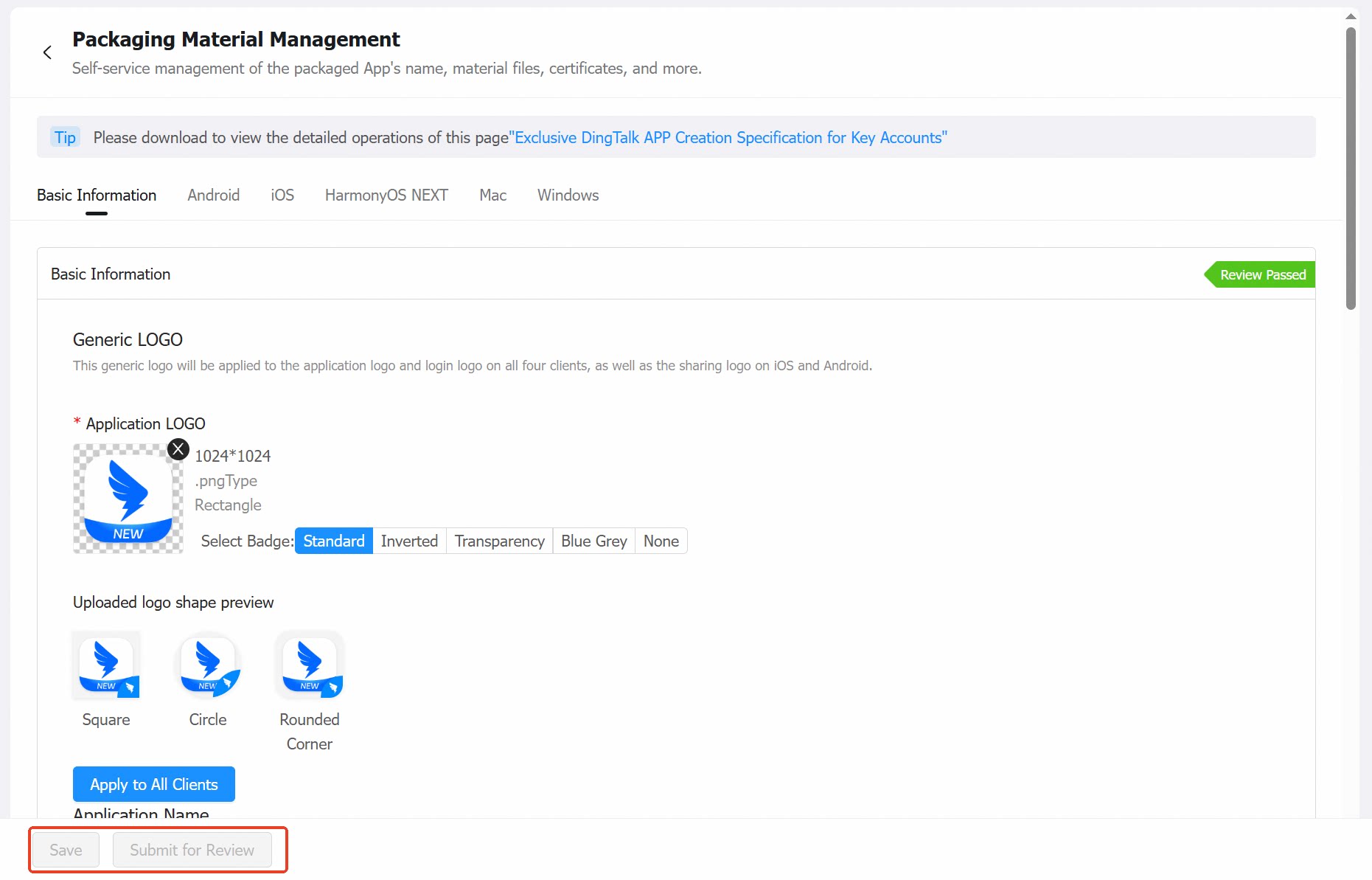
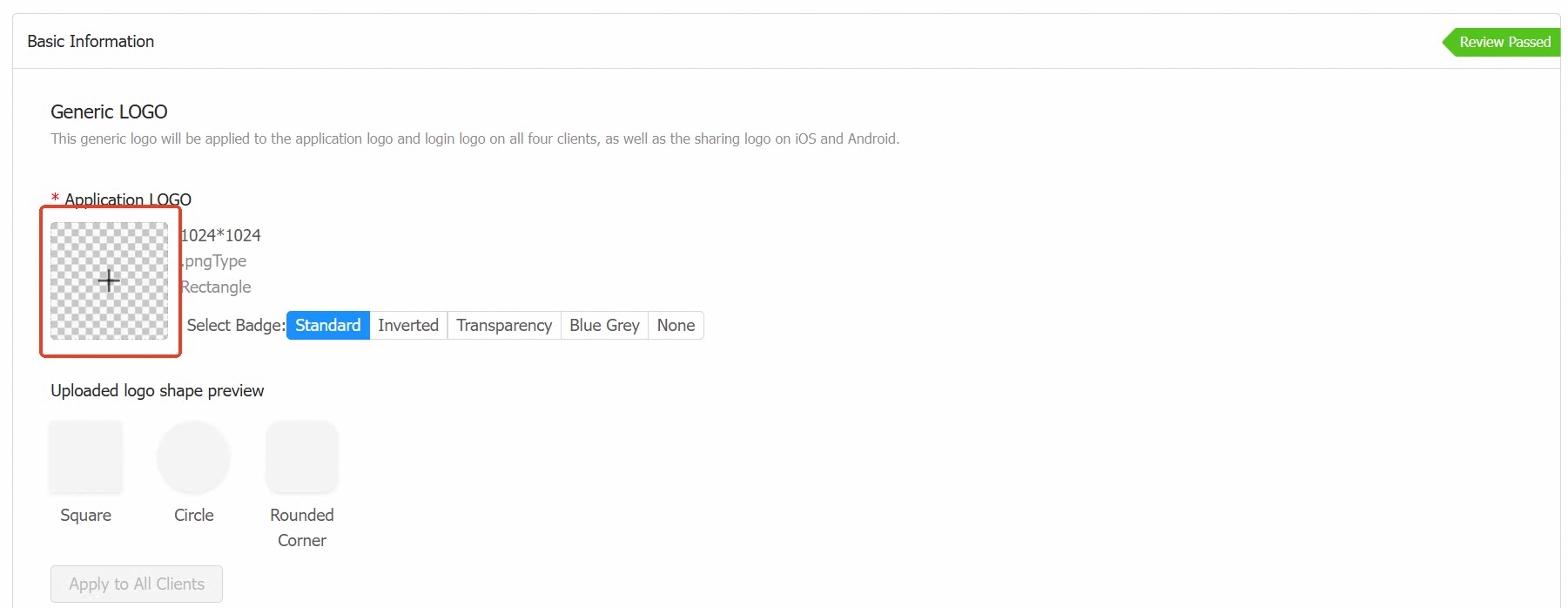
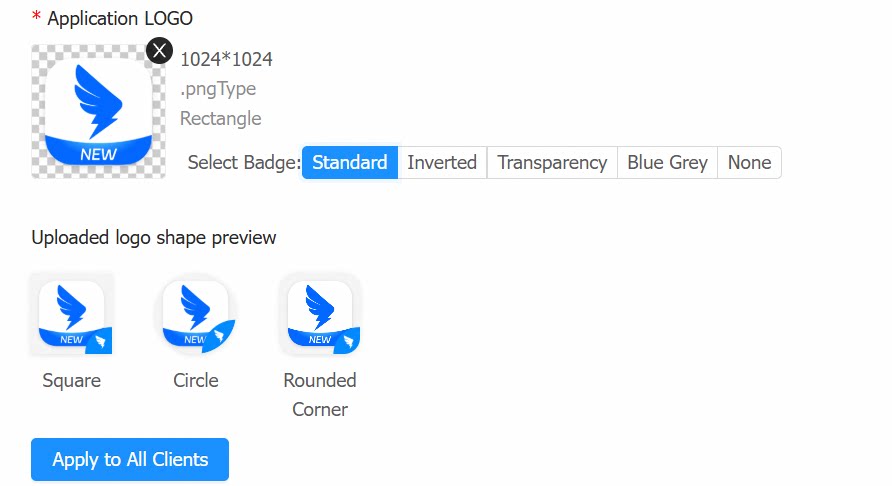
- Click to upload the app logo asset.
- After successful upload, select the badge type and preview the effect below. Note: To use the “no badge” option, contact your DingTalk representative to apply separately — otherwise it will not be approved.
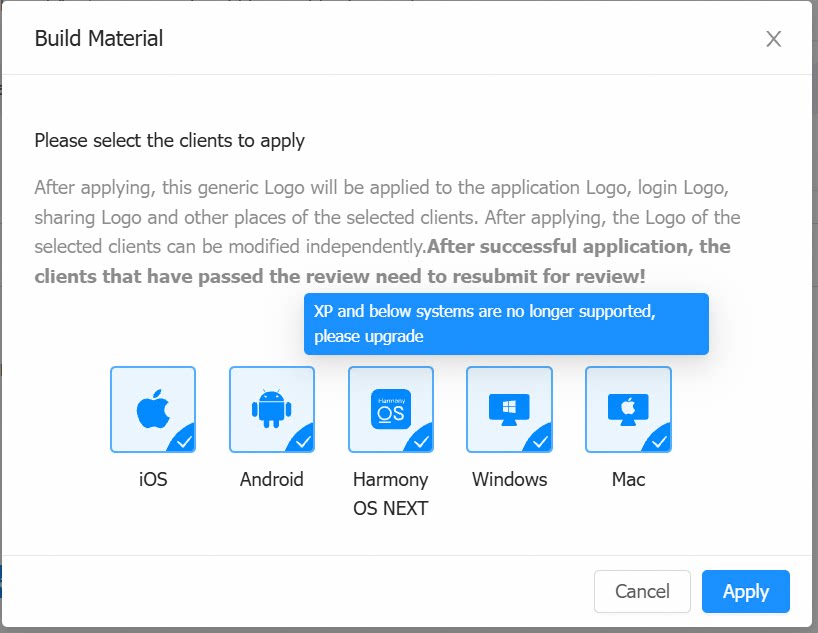
- After selecting the badge type, click Apply to All Clients to apply the logo across all client platforms.
- Linux-based platforms currently require a separate upload and cannot use the apply-to-all feature.
2
App name
Enter the app name according to the naming conventions:In principle, the app shall be named by the customer at its own discretion, subject to the following requirements: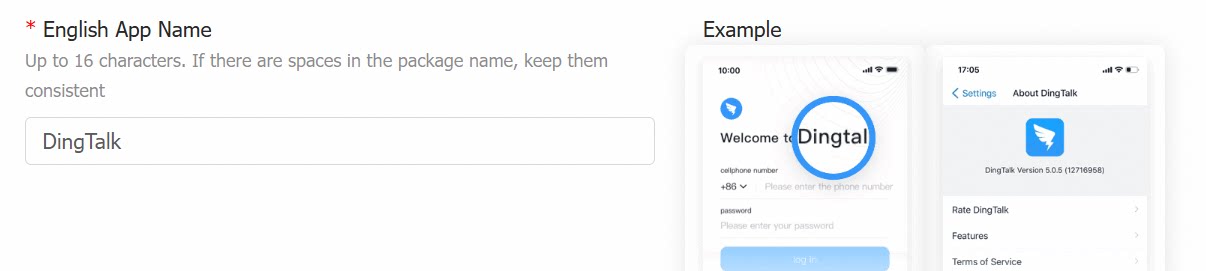
- The app name must not include any third-party brand (especially those of competitors), and may not mix Chinese characters with English words or characters. If the app name incorporates the customer’s own brand, trade name, or corporate name, the customer must provide proof of trademark rights.
- The intellectual property rights to the app name and icon may be owned by the customer. The customer shall apply for trademark registration to protect such rights at its own expense.
3
Ringtone customization
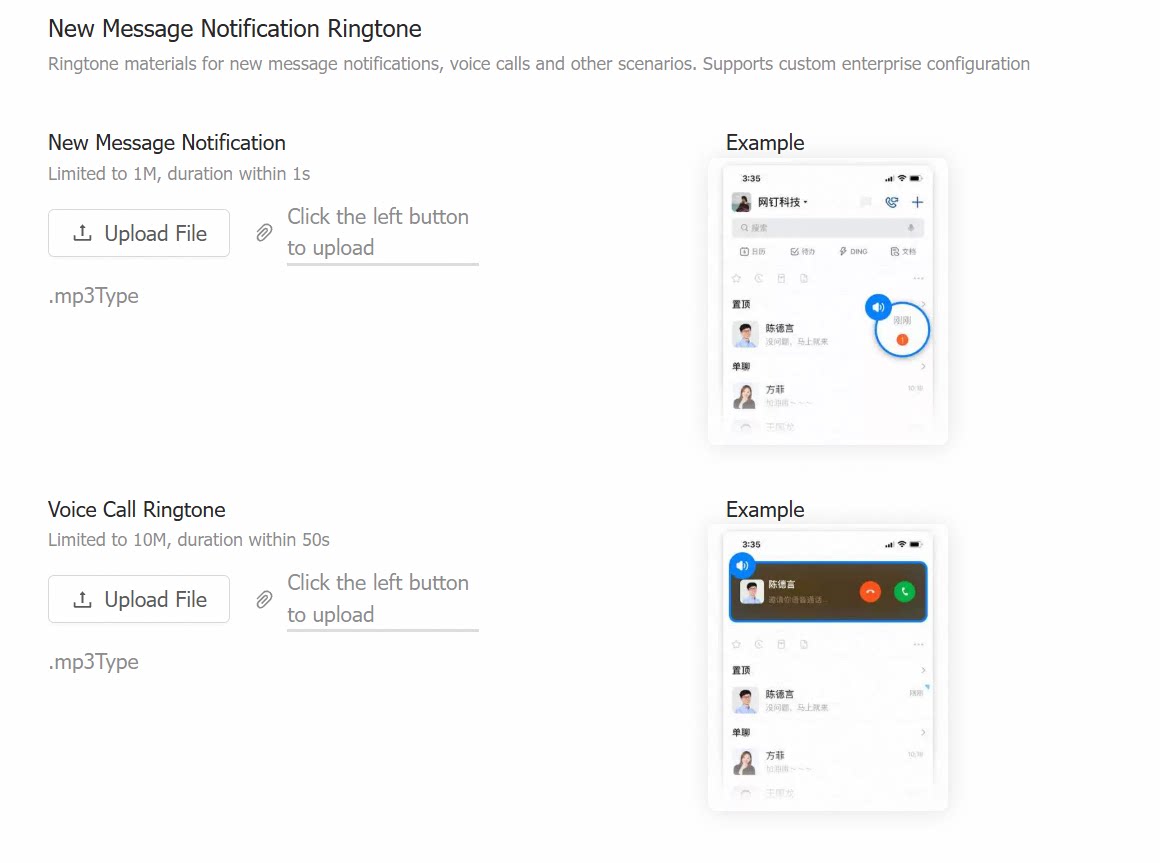
- New message alert and voice call ringtones support enterprise customization — audio assets can be uploaded directly.
- New message alert: upload an .mp3 file ≤1 MB and ≤1 second.
- Voice call ringtone: upload an .mp3 file ≤10 MB and ≤50 seconds.
Android
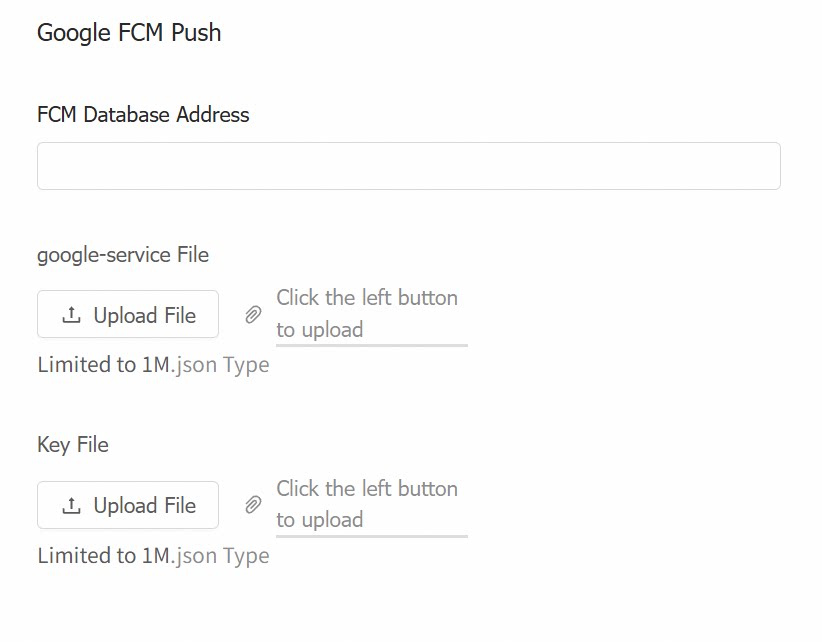
- Google FCM Push:
iOS
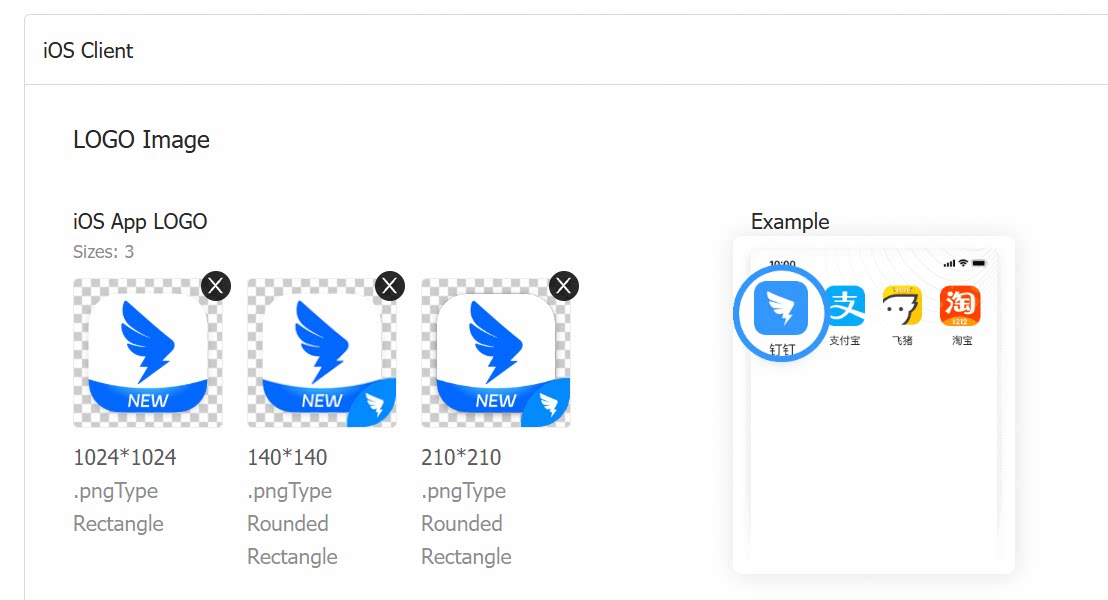
- All iOS assets are required, except for the splash animation (optional).
- iOS requires a separate upload of the square logo. See the asset specifications above for format requirements.
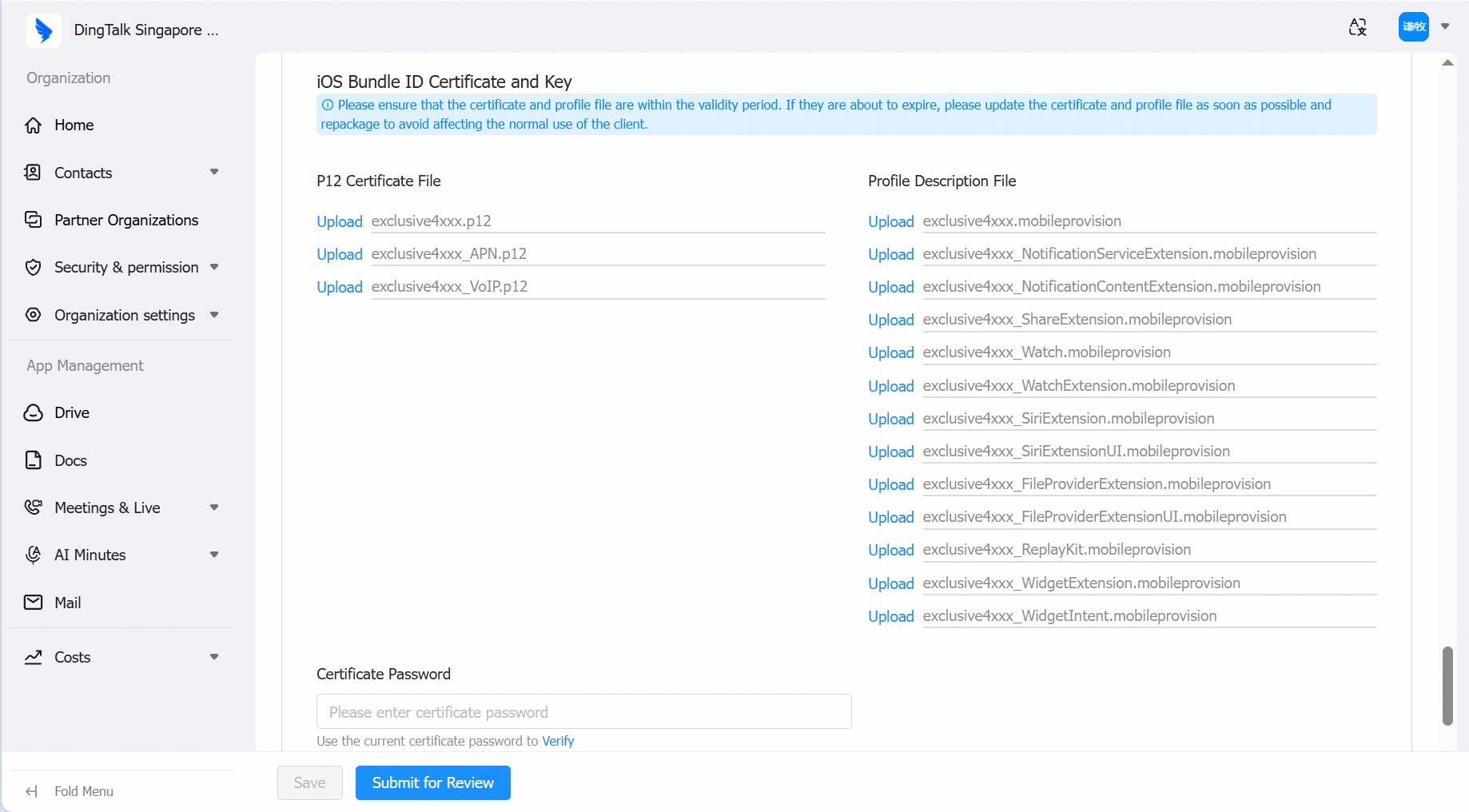
- For in-house packaging, the customer needs to upload the packaging certificate and password (optional). For ABM/UAD packaging, contact customer service for assistance.
- After ensuring all assets are filled in, click Save first, then Submit for Review.
Windows / Mac
As above, after the customer fills in the image assets for Windows and Mac per the requirements, click Save first, then Submit for Review.Asset Review
- Basic information and assets for all five client platforms are submitted for review separately. Before submitting, click Save first.
- After submission, both the basic information and the corresponding client information must pass review before proceeding to the next step of App creation.
- If a review fails, hover over the failure message to view the reason.