Chats
Chats Calendar
 Meetings
 Contacts
 Mail
Mail Docs
Docs Drive
Drive AI Table
 AI Minutes
 Attendance
 Approval
 YiDA
YiDA Admin Console
Apply for FCM
1
(1) Apply for a Google Developer Account
2
(2) Register on Firebase
Create a project and register an app on Firebase. Registration URL: https://console.firebase.google.com/After creating the project, select the Android icon to configure the Android app: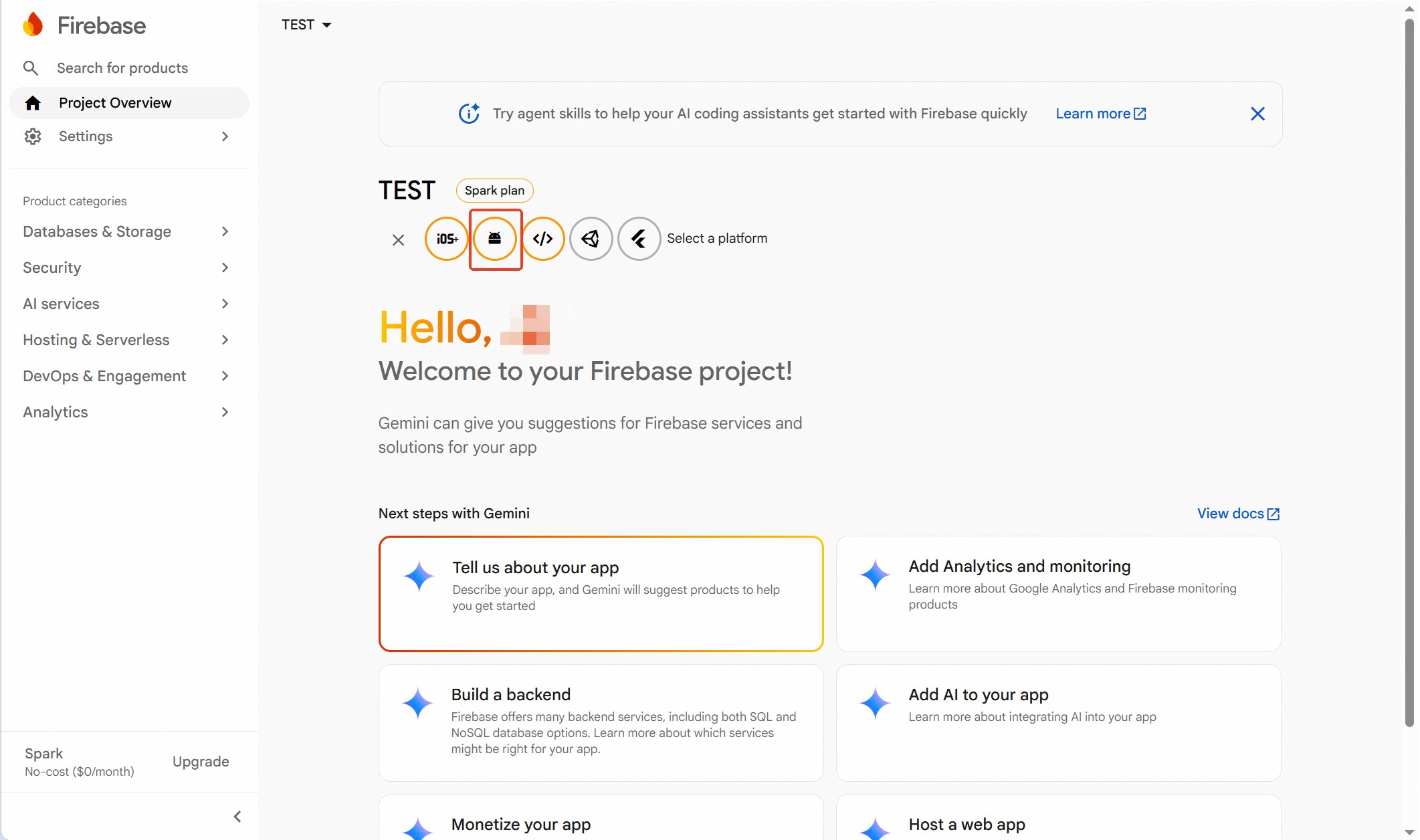
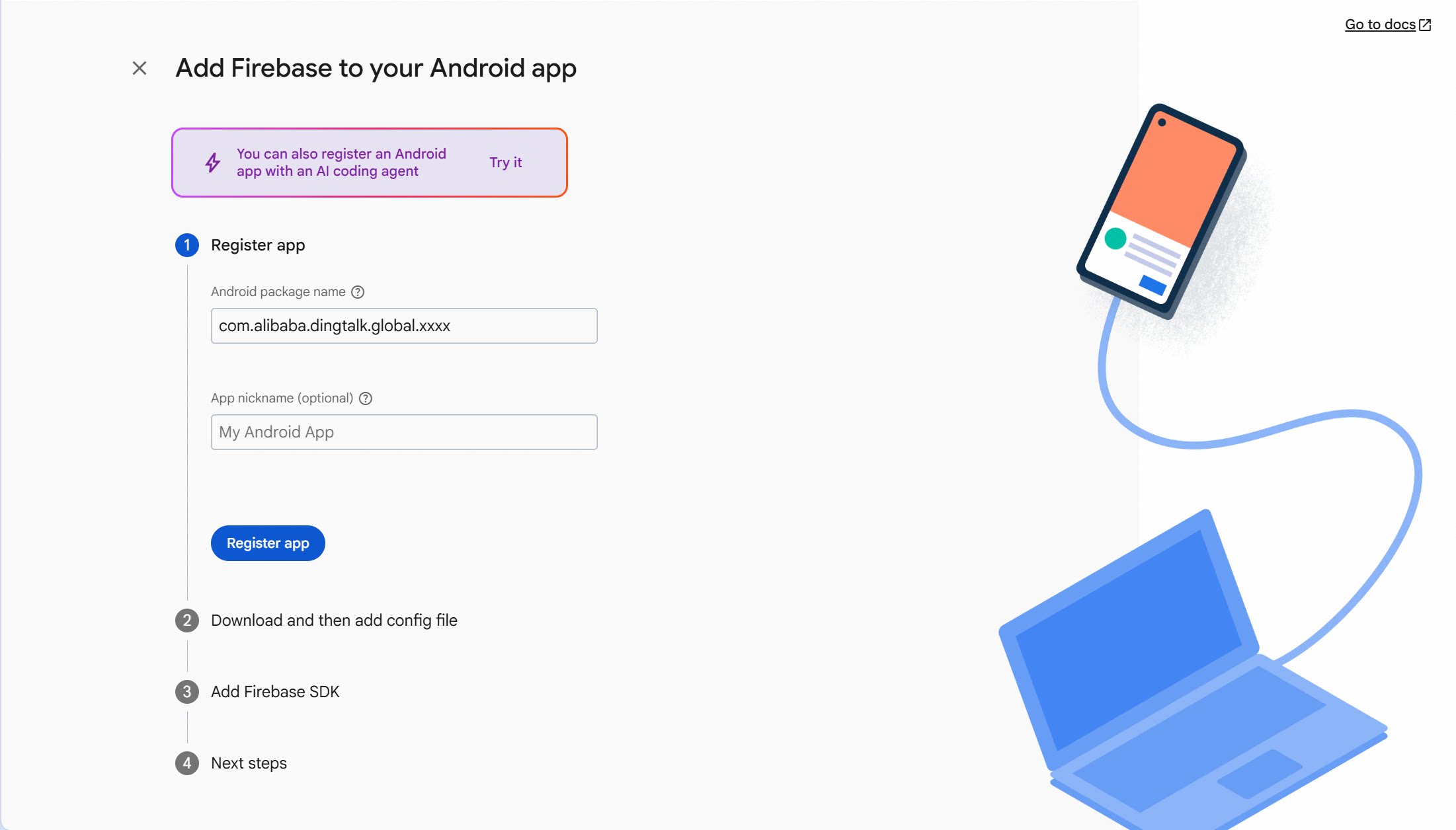
Please note:
- Android package name: Enter the correct exclusive DingTalk package name
- App nickname (optional): Enter the exclusive DingTalk app name
3
(3) Download the Configuration File and Upload to the DingTalk Packaging Platform
Click to download google-services.json. Save the file and send it to DingTalk technical support for configuration.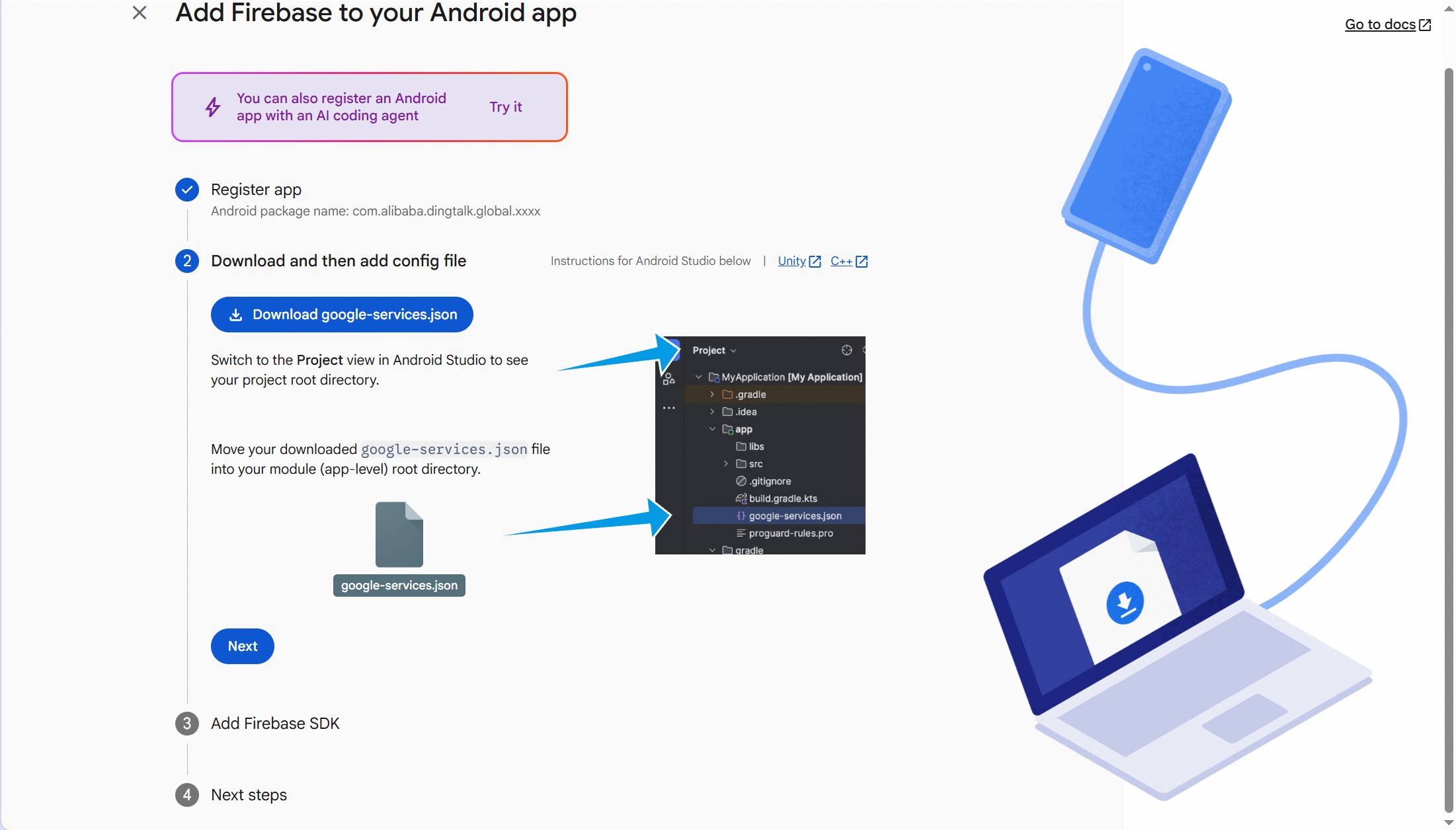
4
(4) Access the Console to Configure Additional Parameters
Proceed to the final step and go to the console.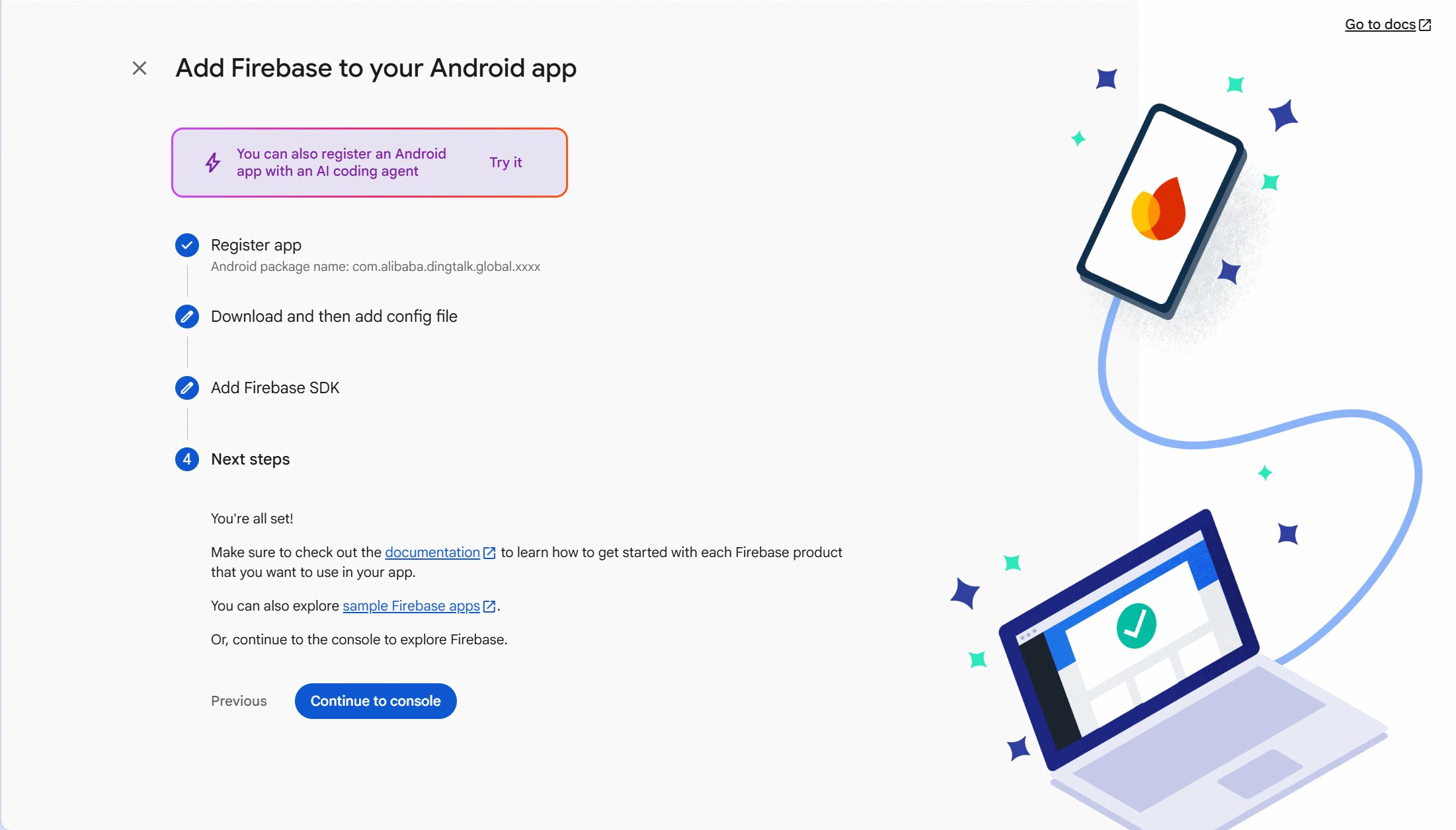
5
(5) Create a Service Account Key
Navigate to Project settings > Service accounts > Generate new private key, as shown below: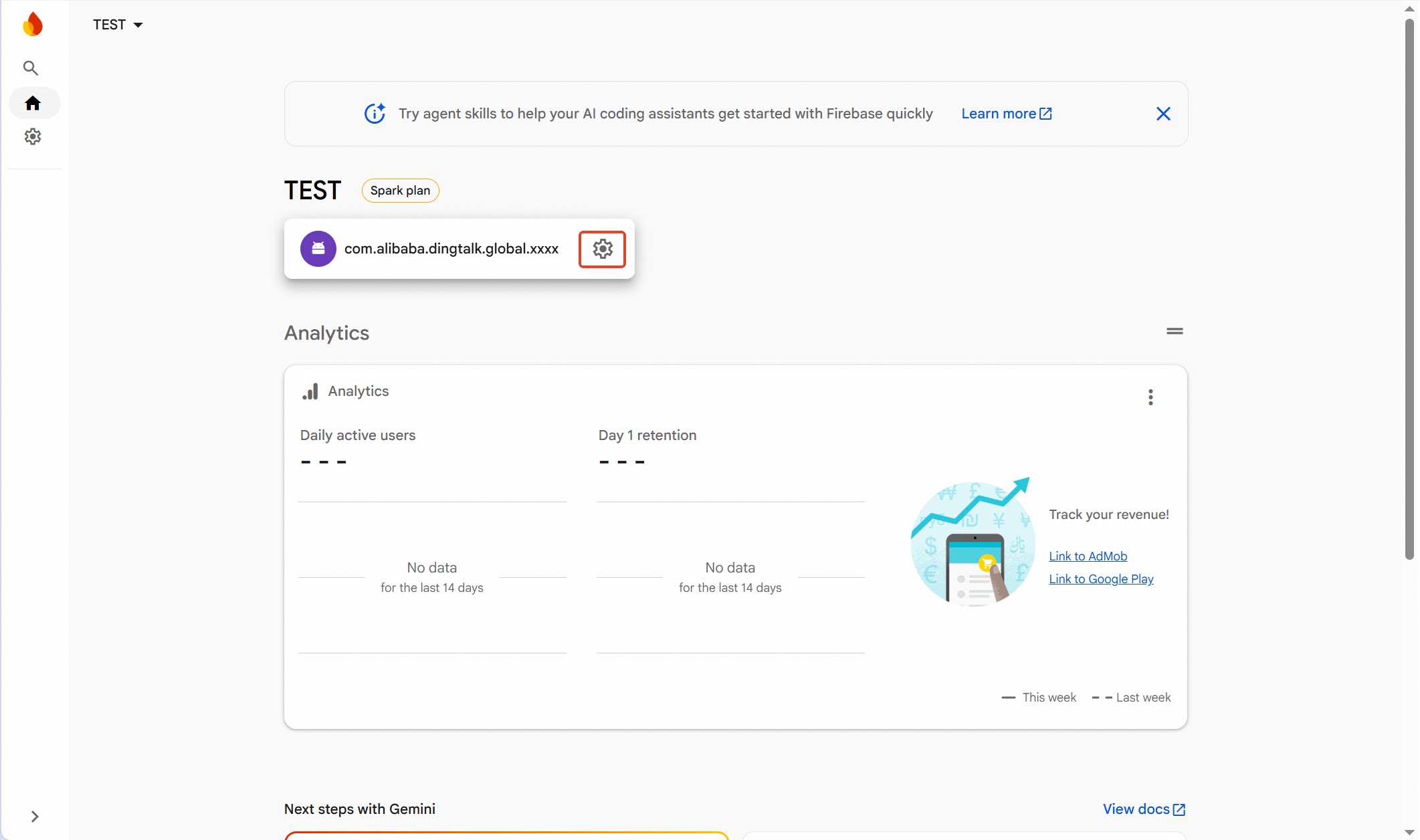

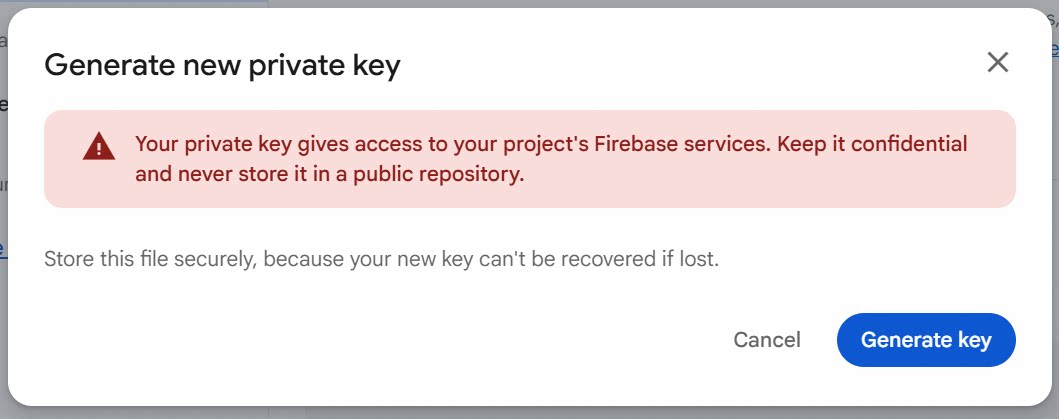 After clicking Generate key, a JSON file will be automatically generated. Save the file and send it to DingTalk technical support: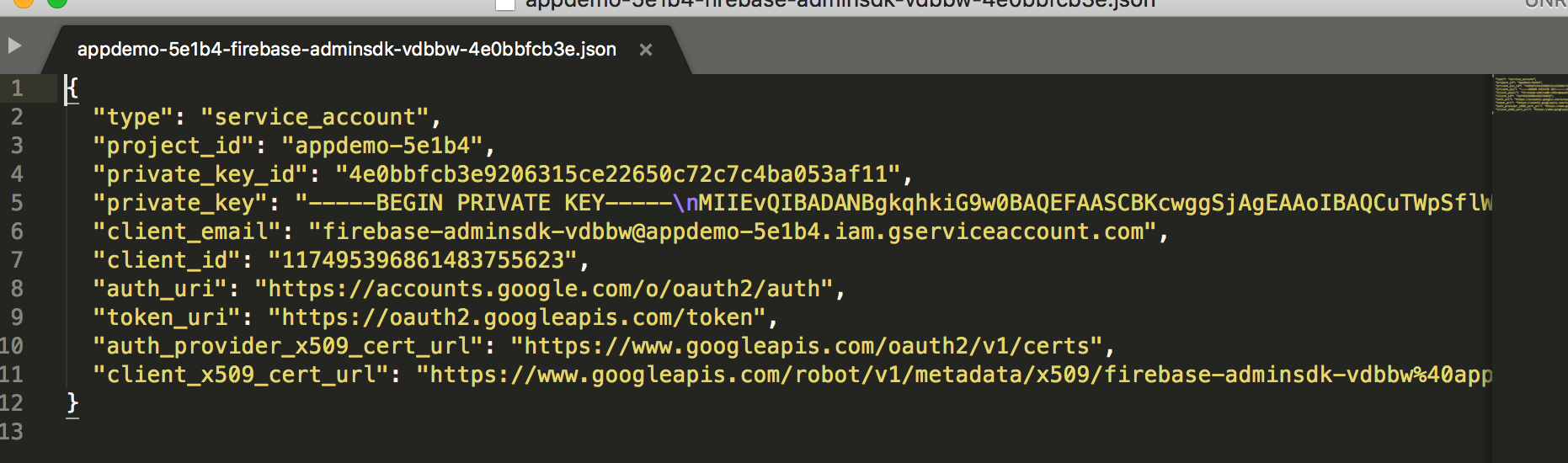
6
(6) Create a Realtime Database
Click Create Database: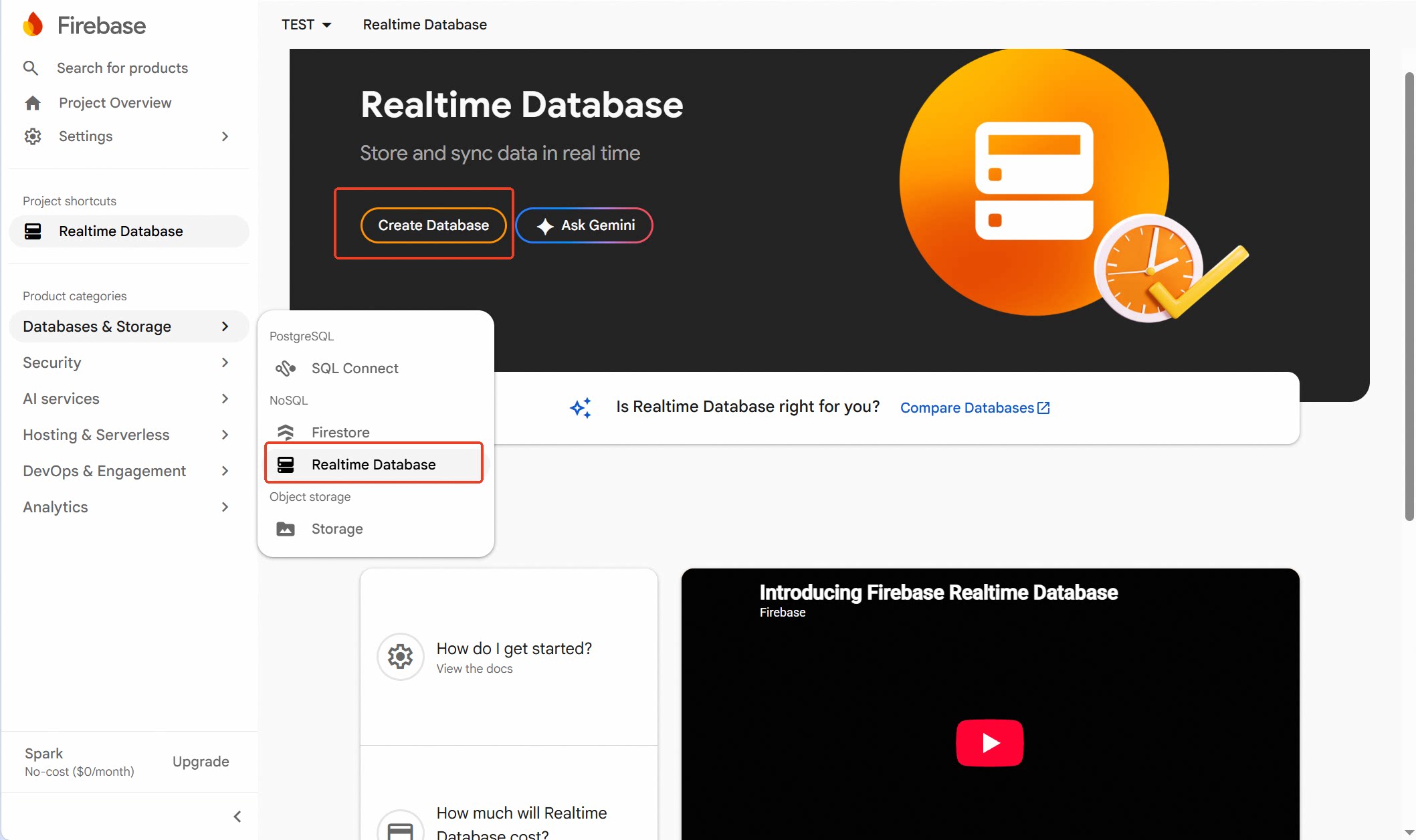
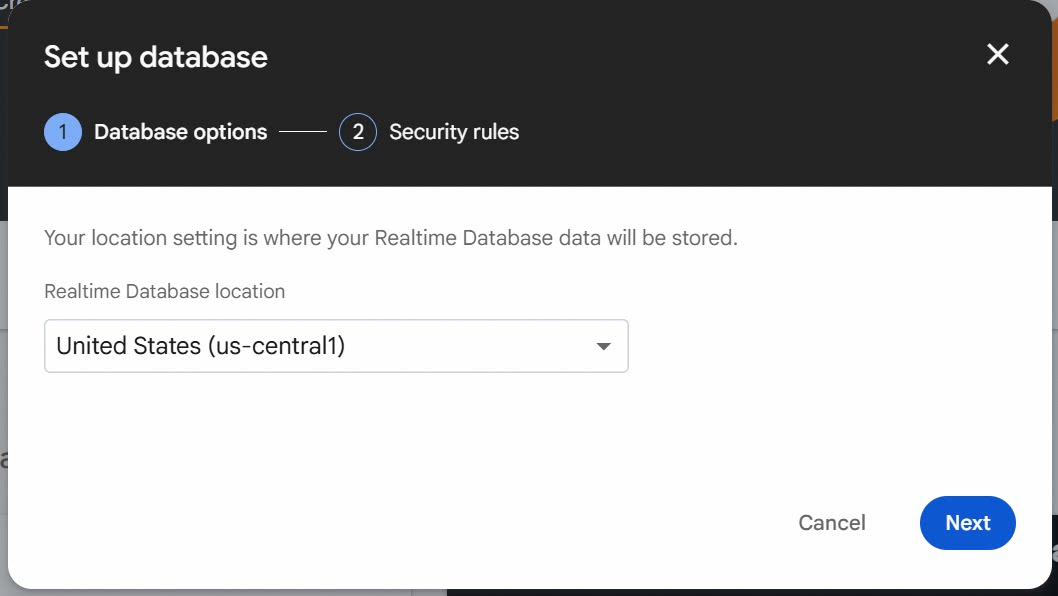
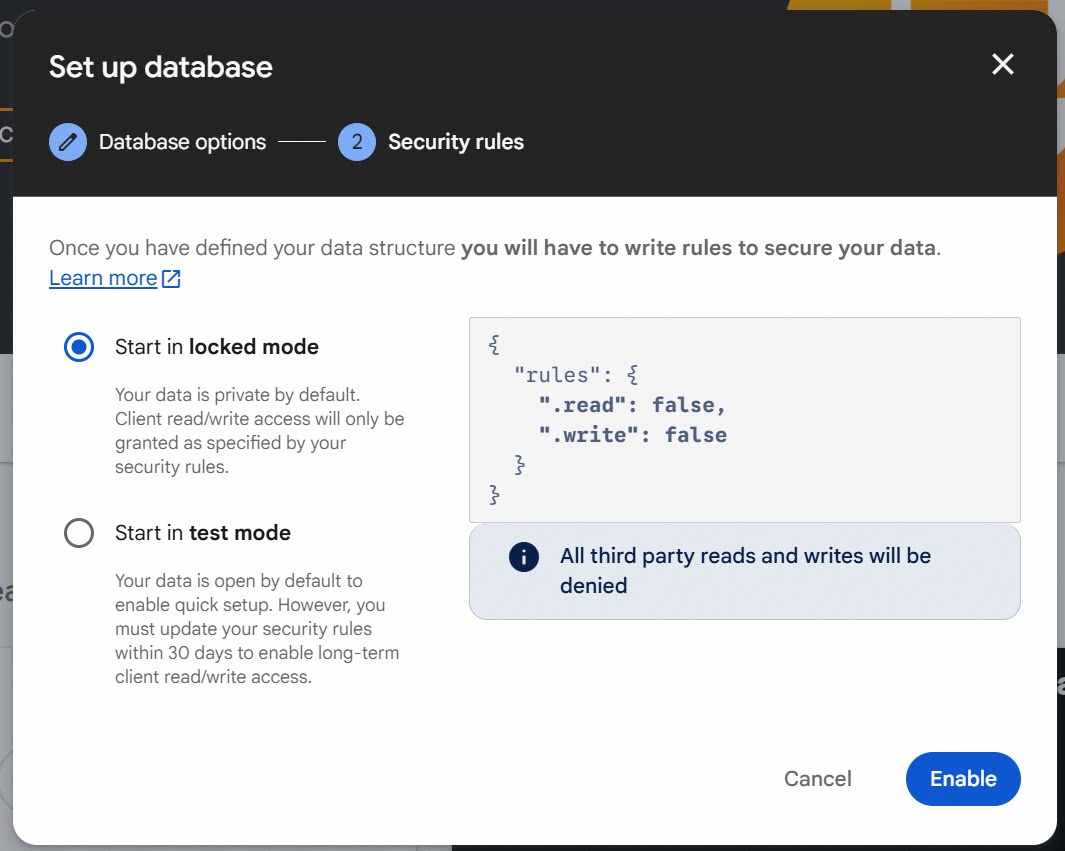 Click Enable, then copy the database URL as a packaging material.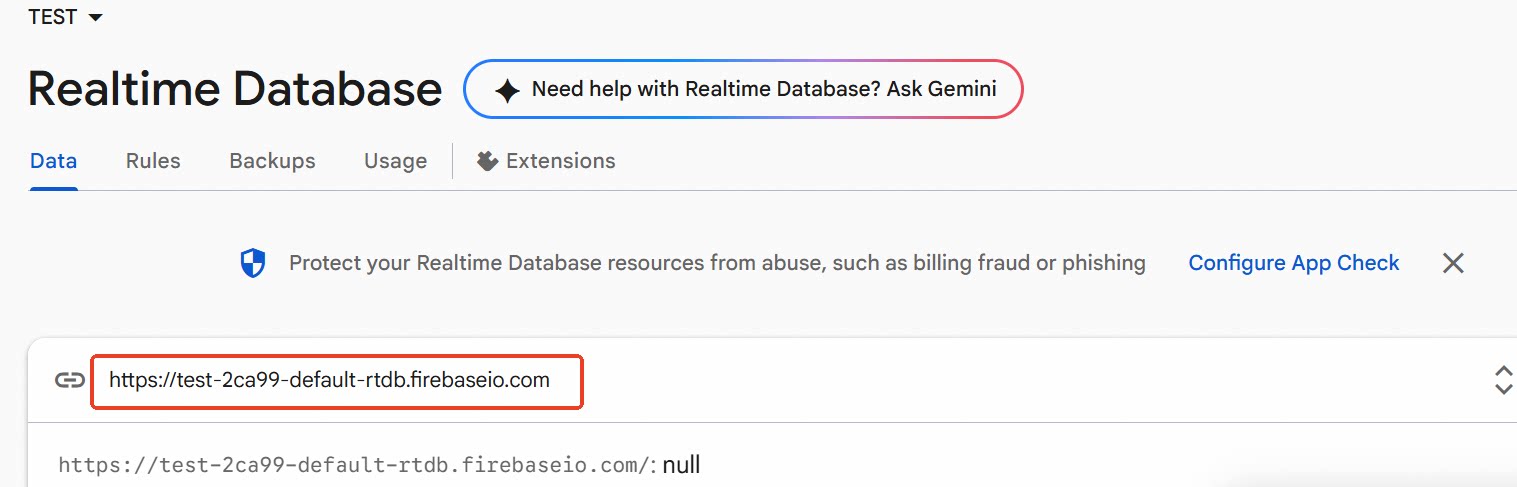
7
(7) Provide the Above Materials to DingTalk for Configuration
- google-services.json
- Service account key JSON file
- Realtime Database URL
8
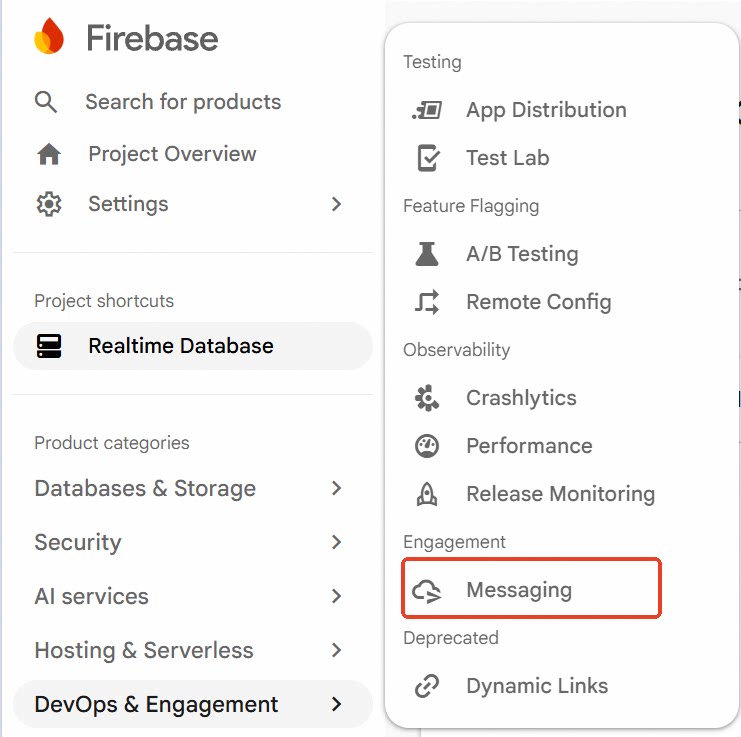
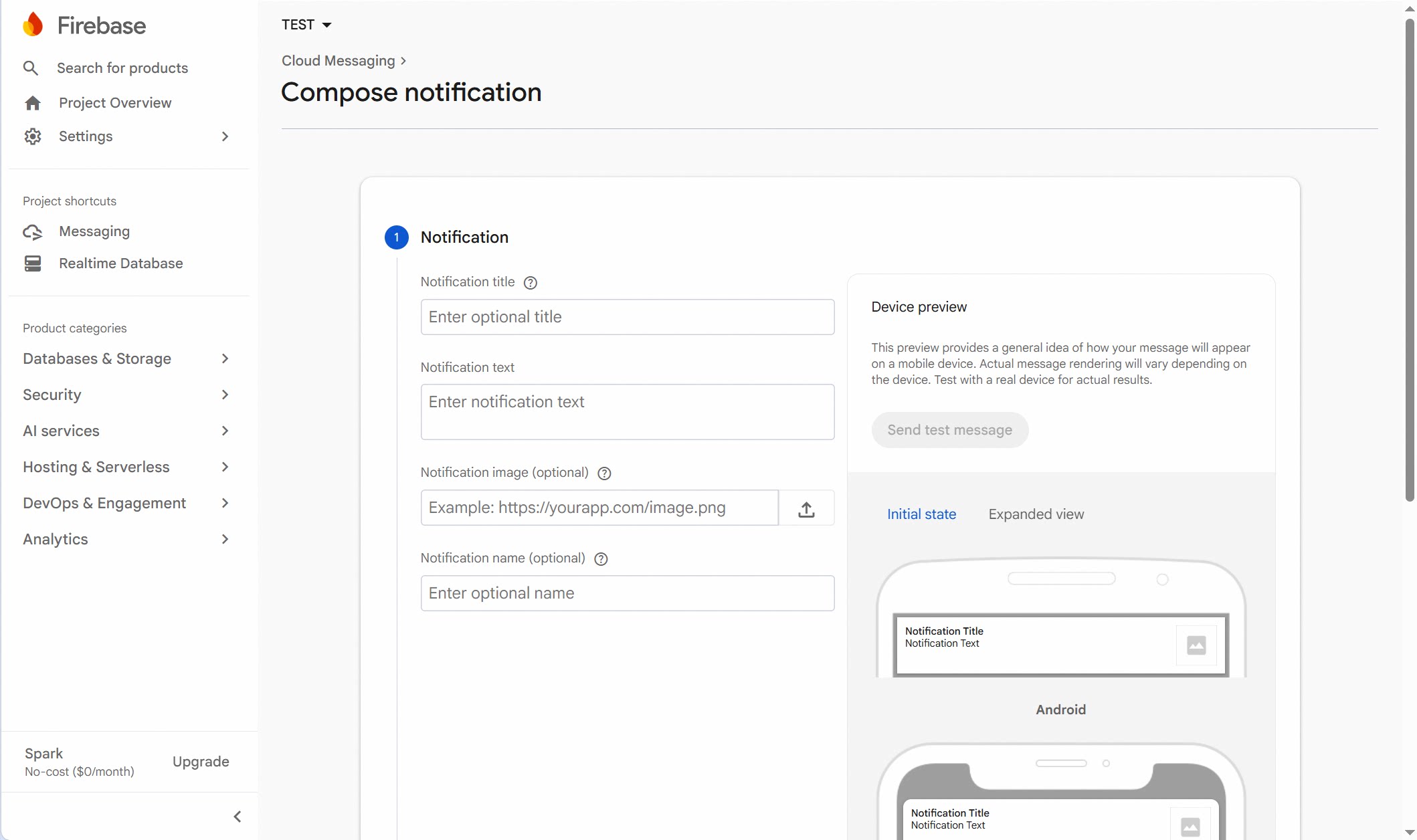
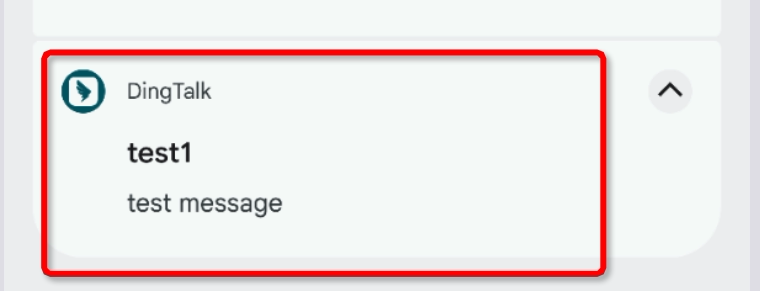
(8) Test FCM via the Firebase Console (Optional)
Note: This step is optional.