

 Chats
Chats Calendar
 Meetings
 Contacts
 Mail
Mail Docs
Docs Drive
Drive AI Table
 AI Minutes
 Attendance
 Approval
 YiDA
YiDA Admin Console
1. Feature overview
In daily operations, organizations often need to confirm purchased items with external suppliers. To improve collaboration efficiency and standardize processes, DingTalk now supports external users participating in the Approval process. This handbook walks you through how to set up and operate the full “Order confirmation by external suppliers” flow, helping organizations achieve efficient and secure cross-organization collaboration.2. Applicable scenarios
- After an organization sends a purchase order to a supplier and needs the supplier to confirm details such as price, quantity, and delivery time.
- When formally signing a procurement contract, the supplier needs to confirm order details in advance as an Attachment.
3. Operating procedure
1. Configure supplier profile Fields and the purchase order Approval process
1
Enter the Admin Console
On desktop DingTalk, the Admin opens Workbench > OA Approval >【Admin Console】: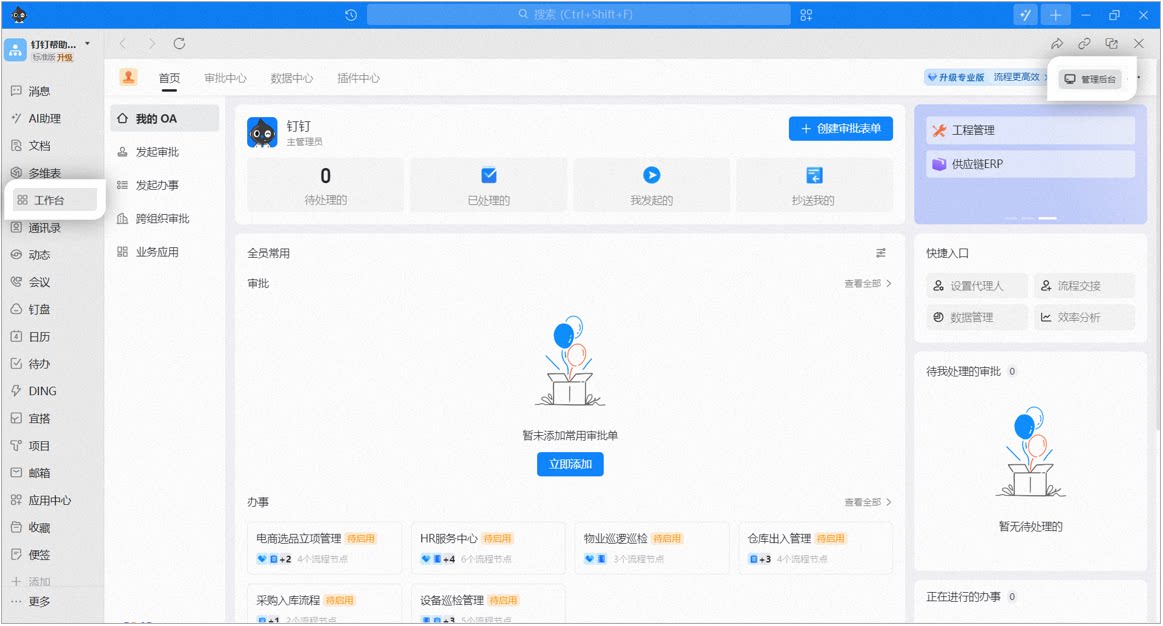
2
Edit the supplier profile
Click【Cross-organization Management】, then click【Edit】on the right of the preset supplier profile: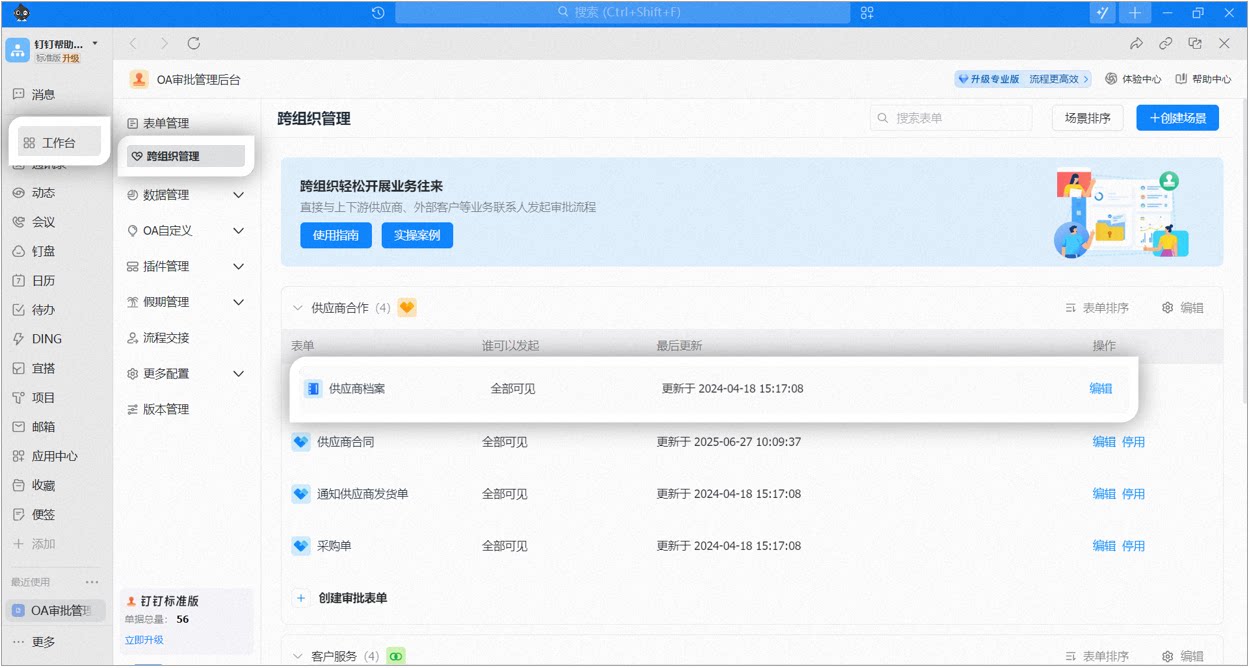
3
Adjust Form Fields
Click【form design】and drag the controls on the left into the Form as needed to adjust the Fields.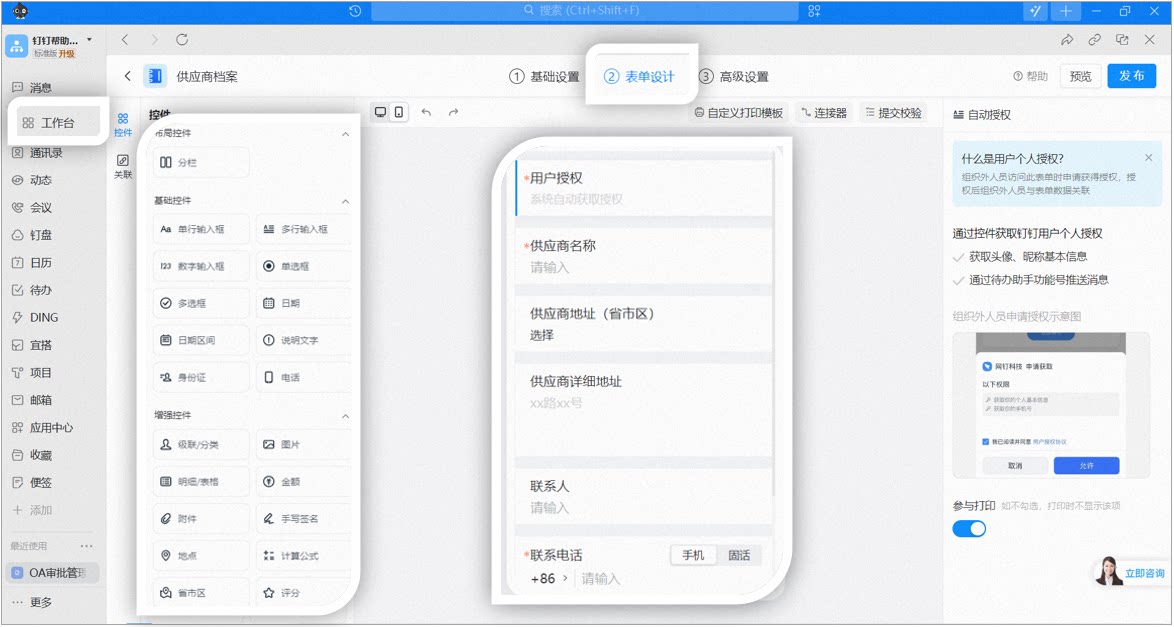
Notes:
- The【User Authorization】control is added by default and cannot be deleted.
- Personal user Authorization: an external user requests Authorization when accessing this Form. Once authorized, the external user is linked to the Form Data.
4
Publish and Share
After editing, click【Publish】>【Save QR Code】(the QR Code is permanently valid by default) or【Copy Link】to Share with external users so they can fill in the Form > Complete: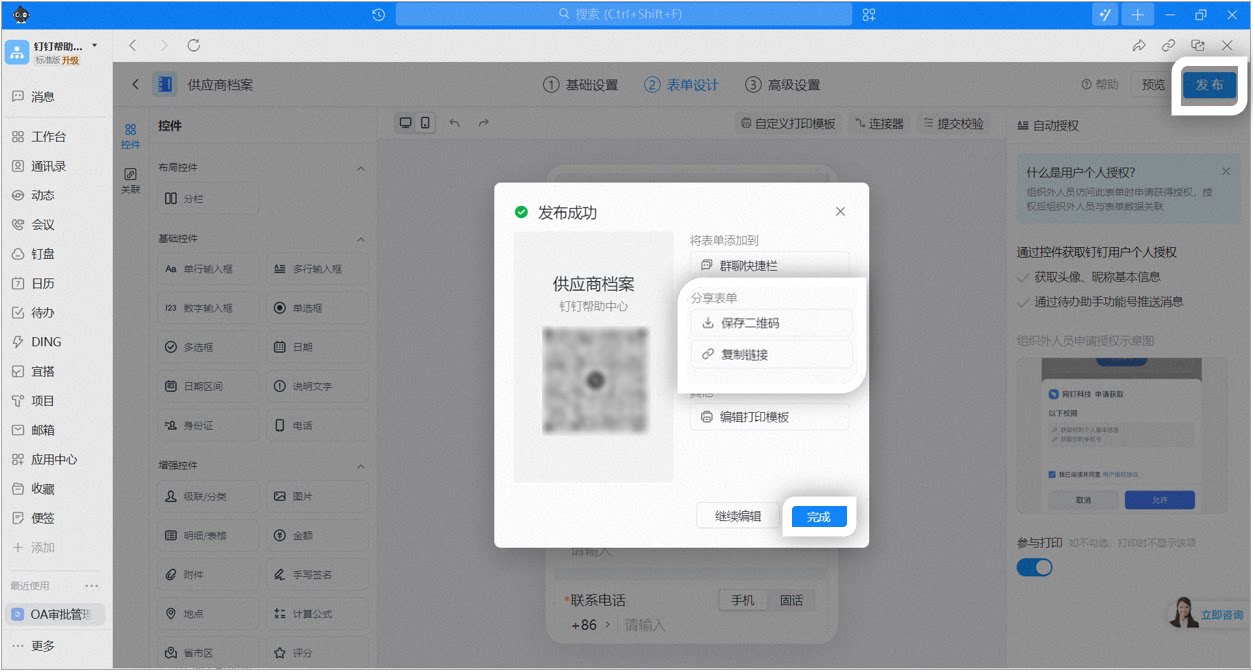
2. The procurement specialist invites suppliers to fill in the profile
1
Enter the supplier profile
On mobile DingTalk, the procurement specialist opens Workbench > OA Approval >【More】in the bottom right >【cross-organization approval】>【supplier profile】: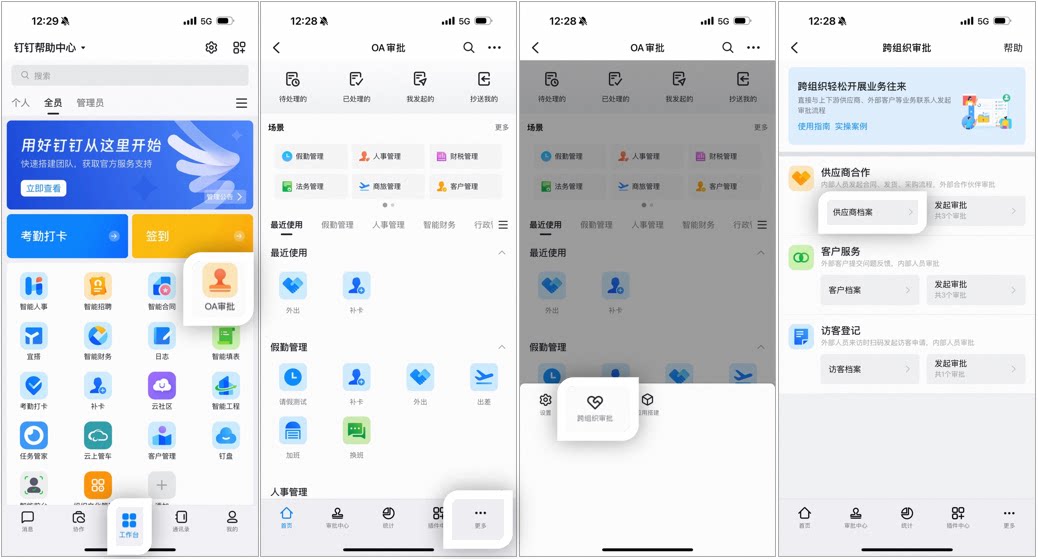
2
Invite external users
Click【Invite External Users】to invite external users to fill in the profile via Send QR Code, Share to DingTalk, or Copy Link: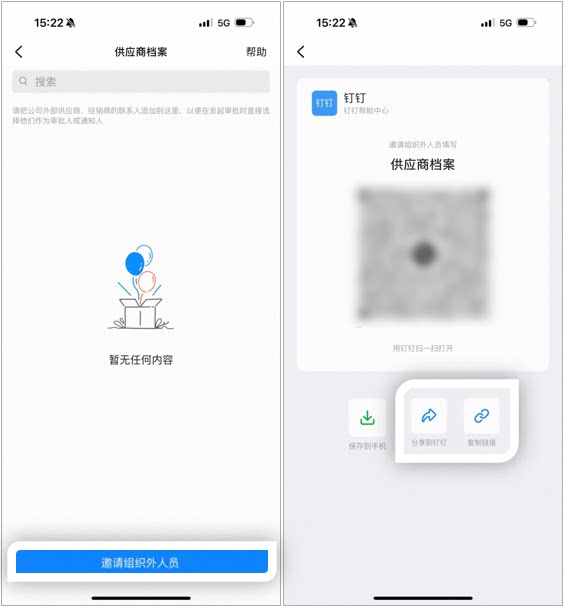
3
Supplier scans the QR Code for Authorization
On mobile DingTalk, the external user scans the QR Code or taps the Link to open the Form submission page, taps【Re-authorize】, and agrees to share their DingTalk Name and Profile Photo as Basic information and to receive push messages via the OA Approval Assistant service account: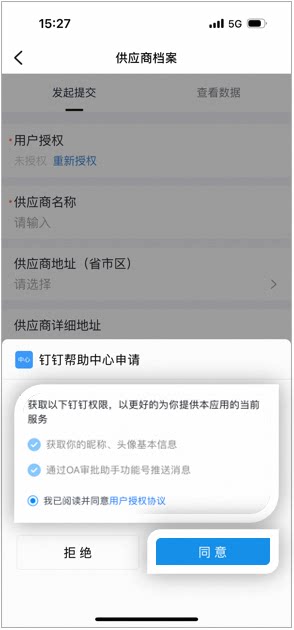
4
Fill in the profile and submit
After filling in the information, click【Submit】: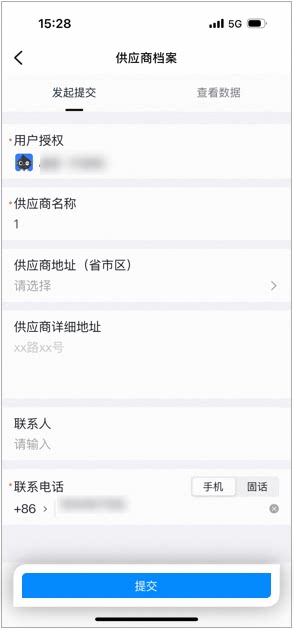
3. Initiate a purchase order and have the supplier confirm
1
Initiate a purchase order
On mobile DingTalk, the procurement requester opens Workbench > OA Approval >【More】in the bottom right >【cross-organization approval】>【Supplier Collaboration】>【Initiate Approval】>【Purchase Order】, then taps to fill it in: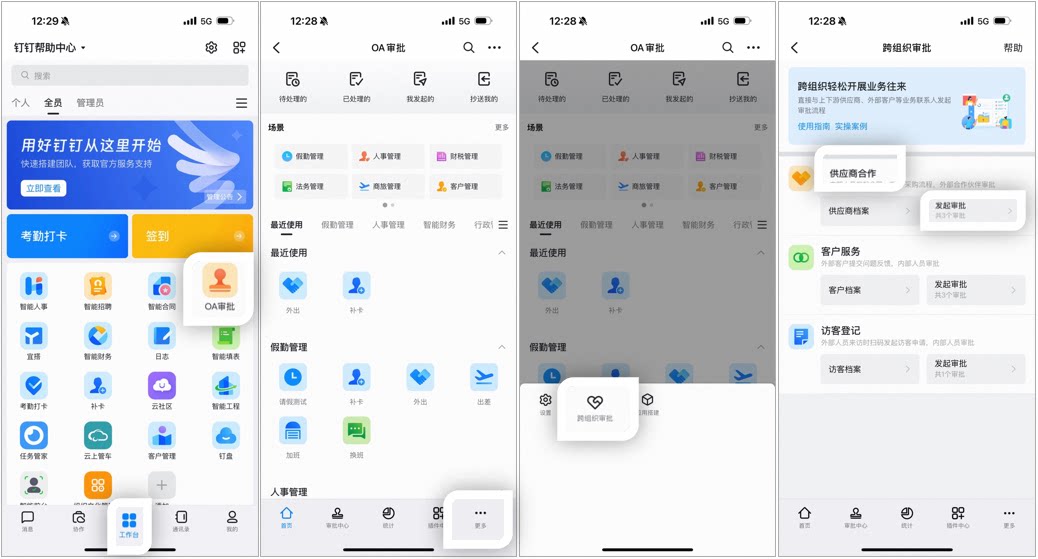 Select Purchase Order in the Initiate Approval List to open the fill-in page: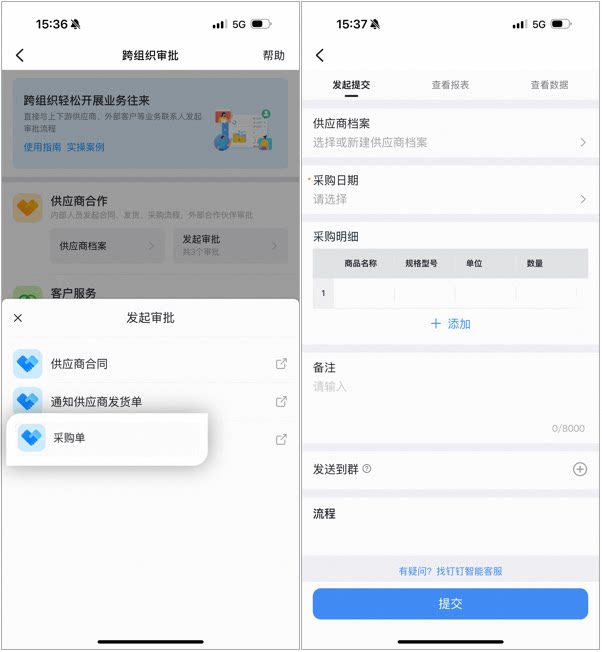
2
Select a supplier profile
On the Form submission page, select a supplier profile: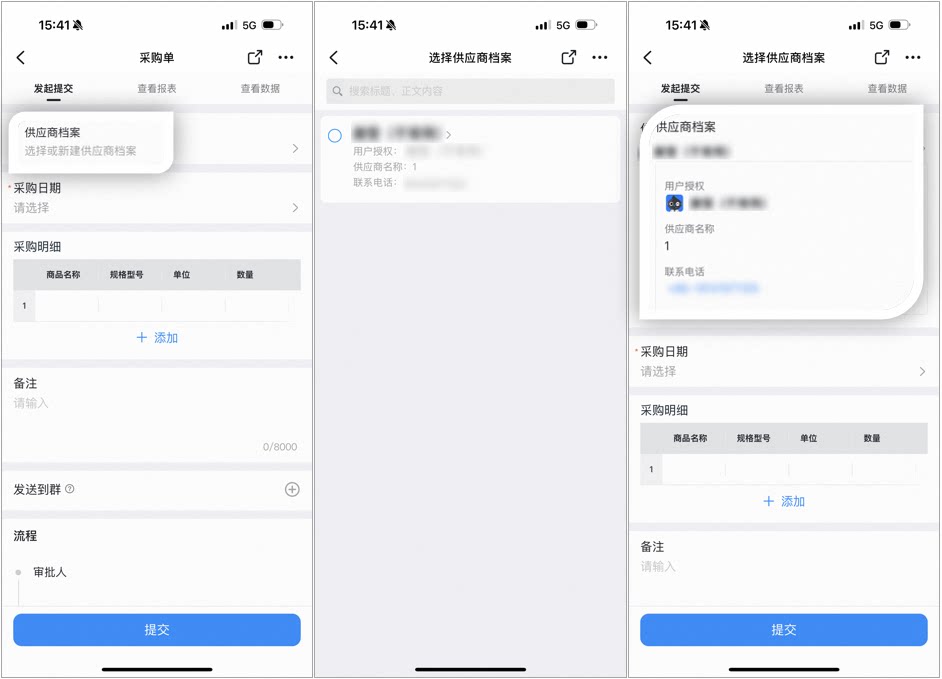
3
Fill in the information and submit
The external supplier shown in the process is the one you selected. Fill in the information and click【Submit】: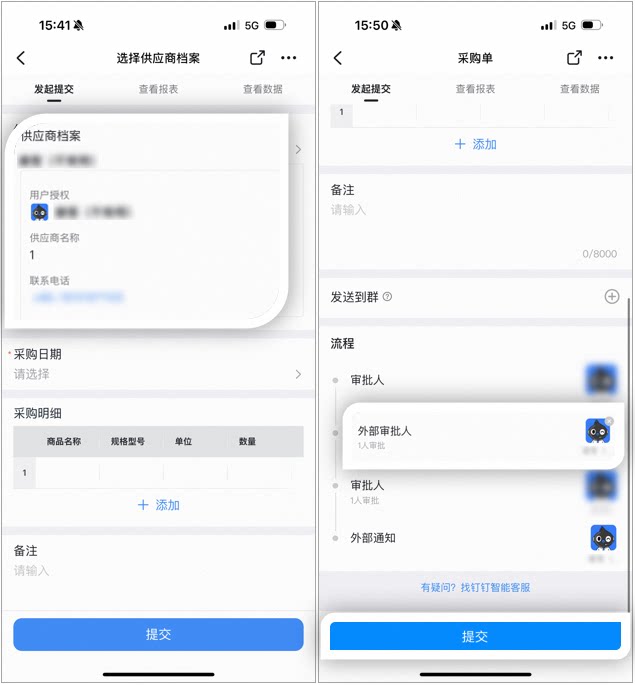
4
Supplier confirms the purchase order
The external supplier receives an Approval processing notification in the OA Approval Assistant. The flow is complete once the supplier finishes handling it: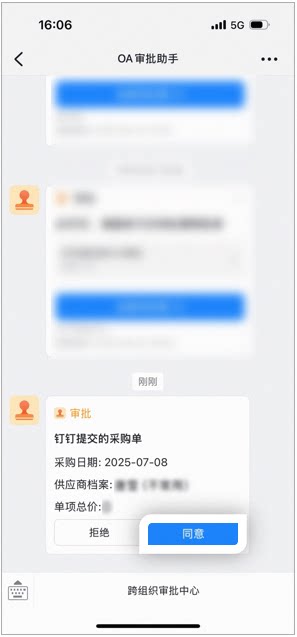
4. Related documents
Cross-organization Quick Start
Feature overview and Basic operating procedure of cross-organization approval
Contract Approval with External Partners
How to set up and operate the full flow for external partners participating in contract Approval